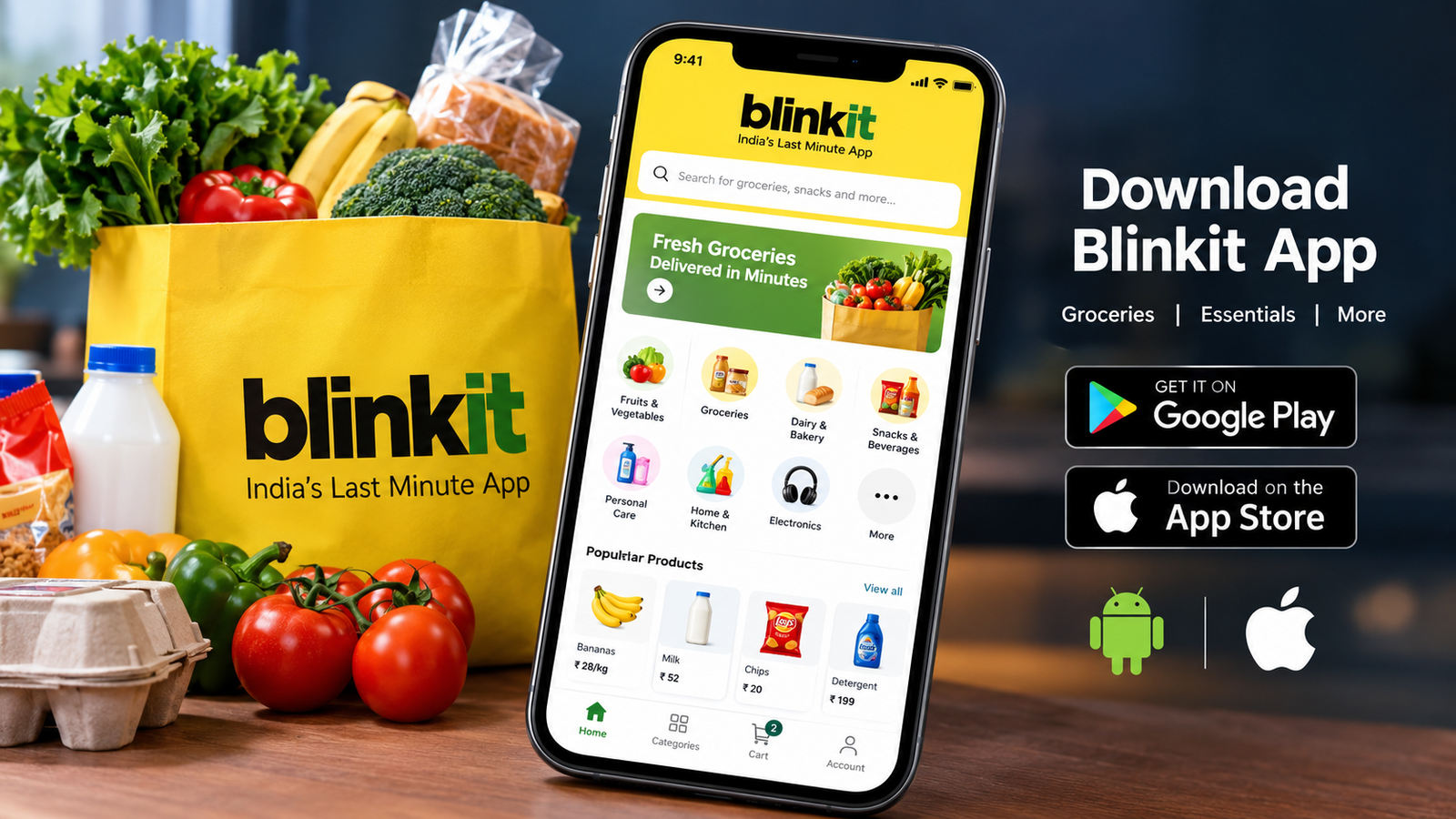
Blinkit App Download: How to Install, Register, and Order Groceries Online
If you want to order groceries, fresh fruits, vegetables, snacks, and everyday household essentials from your phone, the Blinkit app download is a convenient place to start. Blinkit is an Indian quick-commerce platform that lets customers browse products, place orders online, and receive deliveries at supported locations.
Whether you use an Android smartphone or an iPhone, installing the official Blinkit app is straightforward. However, before placing an order, it is important to check whether Blinkit serves your area, understand the available payment options, and download the genuine application rather than an unofficial APK file.
In this guide, you will learn how to download and install Blinkit, create an account, place your first order, explore its main features, and troubleshoot common installation problems.
What Is the Blinkit App?
Blinkit is an online shopping and quick-commerce app designed to make everyday purchases easier. Instead of visiting a physical shop for every small requirement, users can browse available products on their phones and order them for home delivery.
The platform offers a range of products, including groceries, dairy items, personal care products, snacks, beauty products, electronics, and household essentials. Product availability and delivery options depend on the customer’s location.
Blinkit was previously known as Grofers. Its current application is available through official app marketplaces.
Blinkit App Download for Android
Android users can install Blinkit directly from the Google Play Store. This is the recommended method because it helps users obtain the official application and receive updates through the normal app-update process.
Steps to Download Blinkit on Android
- Open the Google Play Store on your Android phone.
- Search for Blinkit: Groceries & more.
- Check that the developer is Blinkit or Blink Commerce Private Limited.
- Tap the Install button.
- Wait for the download and installation to finish.
- Open the app and follow the on-screen instructions to get started.
You can also visit the official Google Play listing using this link:
Download Blinkit for Android from Google Play
Before installing, check the app name and developer details to avoid confusing the shopping application with other apps, including delivery-partner applications.
Can You Download the Blinkit APK File?
Some Android users search for a Blinkit APK download because they prefer downloading an installation file manually. However, downloading an APK from an unknown website can expose your device to modified applications, malicious code, or unwanted permissions.
For most users, the Google Play Store is the safest and simplest option.
If you need an APK for a specific reason, consider these precautions:
- Prefer an official or otherwise verifiable source.
- Avoid modified versions claiming to provide free premium benefits or guaranteed discounts.
- Check the file’s integrity and digital signature when reliable reference information is available.
- Do not disable Android security protections simply to install an unknown file.
- Never share your banking password, UPI PIN, or one-time password with an unofficial app or website.
An APK file is an Android application package. Its file extension alone does not prove that it is genuine or safe.
Blinkit App Download for iPhone
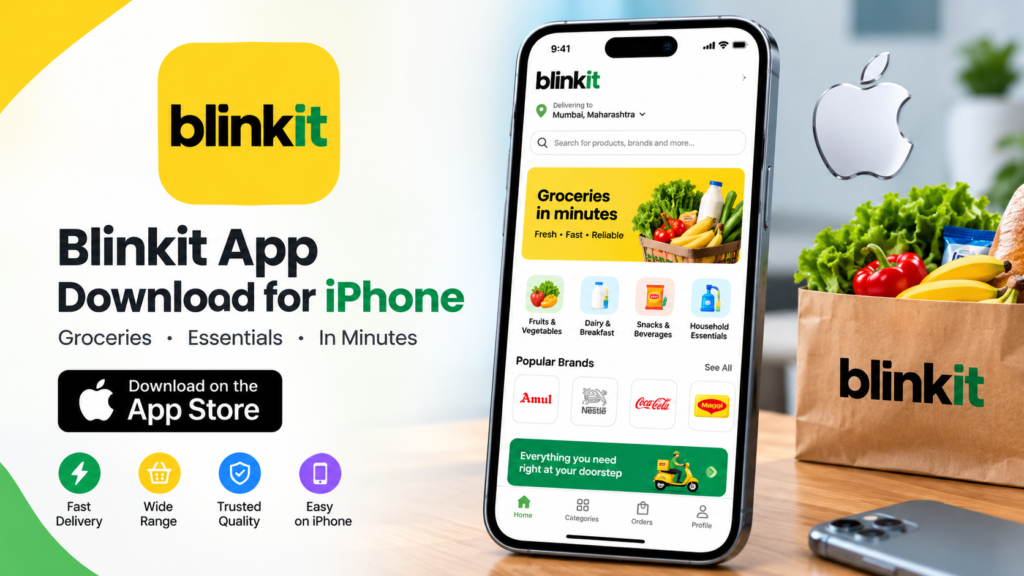
iPhone users can download Blinkit through Apple’s App Store. The official listing identifies the application as Blinkit: Groceries & more.
Follow these steps to install it:
- Open the App Store on your iPhone.
- Search for Blinkit: Groceries & more.
- Verify the developer information.
- Tap Get to begin downloading the application.
- Authenticate with Face ID, Touch ID, or your Apple Account credentials if requested.
- Open Blinkit after installation and follow the setup instructions.
You can access the official listing here:
Download Blinkit for iPhone from the App Store
The app is free to download, but you must pay for the products you order and any applicable delivery or service charges displayed during checkout.
Blinkit App Features and Benefits
Blinkit is designed for people who want a convenient way to purchase everyday items without making a separate trip to a shop. Its features may vary by location, app version, and product category.
1. Online Grocery Shopping
Users can browse everyday grocery products, including rice, flour, cooking oil, pulses, spices, milk, bread, eggs, and other kitchen essentials.
This can be useful when you run out of an ingredient or need to restock basic household supplies.
2. Fresh Fruits and Vegetables
The app lists fresh produce in supported locations. Customers can check the available selection, compare displayed prices, and add suitable items to their shopping carts.
Availability may change depending on local inventory and demand.
3. Personal Care and Household Products
Blinkit also offers products such as shampoo, soap, toothpaste, detergents, cleaning supplies, and other personal care essentials.
Depending on your location, you may also find baby-care products and pet supplies.
4. Snacks, Drinks, and Other Essentials
Users can browse packaged snacks, biscuits, chocolates, cold drinks, ice cream, and other convenient food items.
The selection is particularly useful when you need a few items without planning a full grocery-shopping trip.
5. Electronics and Accessories
Selected locations may offer products such as charging cables, mobile accessories, headphones, batteries, and other small electronic items.
Check the product description, specifications, seller information where available, and return conditions before purchasing electronics.
6. Order Tracking
After placing an order, users can check its status through the app. Available tracking information helps customers understand the progress of their delivery.
7. Digital Payments and Other Payment Options
Blinkit supports various payment methods, which may include UPI, cards, wallets, and cash on delivery where available. The exact options depend on the location, order, and current platform policies.
Always review the final payment screen before confirming your purchase.
Blinkit App Download: Key Information at a Glance
| Detail | Information |
|---|---|
| App name | Blinkit: Groceries & more |
| Platform | Android and iPhone |
| Download cost | Free |
| Android download source | Google Play Store |
| iPhone download source | Apple App Store |
| Main purpose | Online grocery and essentials shopping |
| Product categories | Groceries, produce, personal care, snacks, and more |
| Account setup | Follow the app’s registration instructions |
| Delivery availability | Depends on your serviceable location |
| Former name | Grofers |
How to Create a Blinkit Account After Installation
Once you complete the Blinkit app download, the next step is to open the application and follow its account setup process.
The exact screens may change with app updates, but the general process is simple.
- Launch the Blinkit app.
- Enter your mobile number if requested.
- Complete the verification process using the method provided.
- Allow location access if you want the app to identify nearby service areas.
- Alternatively, enter your delivery address manually if that option is available.
- Browse the products shown for your location.
Use your own contact details and never share verification codes with strangers.
You should also check that the selected address is correct before placing an order. An incorrect location can affect product availability, delivery estimates, and the ability to complete checkout.
How to Place Your First Order on Blinkit
After setting up your account, you can begin shopping.
Step 1: Select Your Products
Browse the available categories or use the search bar to find specific items. Open each product listing to check its price, size, quantity, and other relevant details.
Step 2: Add Items to Your Cart
Tap the add button for the products you want. Review quantities carefully, especially when buying packaged food, cleaning products, or household supplies.
Step 3: Review Your Cart
Before checkout, check the complete list of items. Confirm that the quantities and selected products are correct.
Step 4: Enter Your Delivery Details
Choose or confirm your delivery address. Add any relevant delivery instructions using the available options.
Step 5: Check the Total Amount
Review the product subtotal, applicable fees, taxes, discounts, and final amount shown by the app.
Do not assume that every order qualifies for free delivery. Charges and offers can change.
Step 6: Choose a Payment Method
Select one of the payment methods available to you and complete the checkout process.
Step 7: Track Your Order
Once the order is confirmed, use the app to check its status and follow the available delivery updates.
Is Blinkit Available in Every City?
No. Blinkit does not necessarily serve every city, neighbourhood, or residential address in India.
The company lists many service locations, but availability can differ within the same city. The most reliable way to check is to open the official app or website and enter your delivery location.
Before downloading Blinkit specifically for grocery delivery, consider these points:
- Confirm that your address is serviceable.
- Check whether the products you need are available.
- Review the delivery estimate shown at checkout.
- Check minimum-order requirements and applicable fees, if any.
Blinkit’s quick-delivery model does not mean every order will arrive within a fixed number of minutes. Delivery times depend on local conditions, demand, inventory, and other factors.
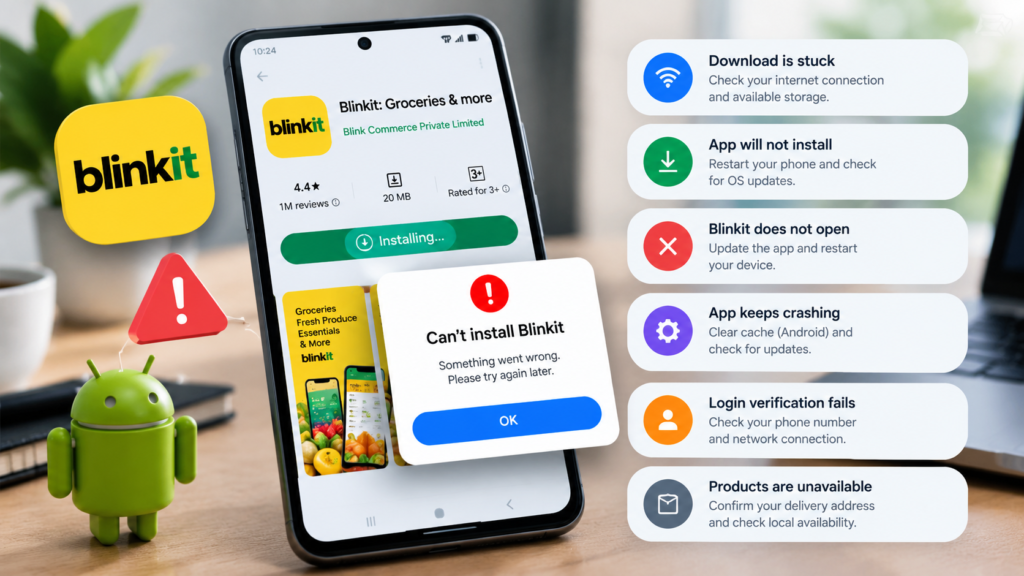
Common Blinkit Download and Installation Problems
Sometimes an app may fail to download, install, or open correctly. The following troubleshooting steps can help resolve common issues.
| Problem | Possible solution |
|---|---|
| Download is stuck | Check your internet connection and available storage. |
| App will not install | Restart your phone and check for operating-system updates. |
| Blinkit does not open | Update the app and restart your device. |
| App keeps crashing | Check for updates and clear the app cache on Android if needed. |
| Login verification fails | Check your phone number and network connection, then retry. |
| Products are unavailable | Confirm your delivery address and check local availability. |
| App shows an error | Try again later in case of a temporary service problem. |
What If Blinkit Is Not Available in Your Region?
If the app is unavailable in your app-store region, first check whether you are using the correct regional store and whether Blinkit supports your location.
Avoid downloading random APK files or changing device security settings to bypass availability restrictions. An app that installs successfully may still be unable to provide delivery services in an unsupported area.
Safety Tips Before Using Blinkit
A few simple precautions can help protect your account and payment information.
- Download the application through the official Google Play Store or Apple App Store.
- Keep the app updated.
- Review the permissions it requests and consider whether they are necessary for the features you use.
- Use a secure screen lock on your phone.
- Never share your UPI PIN, banking password, or one-time password with anyone claiming to be customer support.
- Review your order total before authorizing payment.
- Use the support options available through the official app or website if you encounter an order problem.
Remember that downloading an app from an official store reduces certain risks but does not eliminate every privacy or security concern. Review the app’s privacy information and make informed decisions about the data you share.
Frequently Asked Questions (FAQs)
1. Is the Blinkit app free to download?
Yes. Blinkit is free to download from the official Google Play Store and Apple App Store. However, product prices and any applicable delivery or service charges must be paid when you place an order.
2. How can I download the Blinkit app on Android?
Open the Google Play Store, search for Blinkit: Groceries & more, verify the developer, and tap Install. You can also use the official Google Play link provided in this guide.
3. How do I download Blinkit on an iPhone?
Open the Apple App Store, search for Blinkit: Groceries & more, verify the listing, and tap Get. Follow any authentication instructions to complete the installation.
4. Can I download the Blinkit APK from a third-party website?
Some third-party websites may offer APK files, but their authenticity and safety can be difficult to verify. Downloading through Google Play is generally preferable. Avoid modified APKs and files from unknown sources.
5. Does Blinkit deliver to every location in India?
No. Delivery depends on whether your address is within a supported service area. Enter your location in the official app or website to check availability before placing an order.
6. What should I do if Blinkit is not installing?
Check your internet connection, available storage, operating-system compatibility, and pending app-store updates. Restart your device and try again. If the issue continues, consult the official support options rather than installing an unverified application.
Final Thoughts
The Blinkit app download process is simple when you use the official app marketplace for your device. Android users can install it through Google Play, while iPhone users can obtain it from Apple’s App Store.
After installation, you can set up your account, check delivery availability, browse groceries and household essentials, and place orders directly from your phone. Before checking out, review product details, delivery charges, payment options, and the estimated arrival time.
Also Read Easypaisa App Download: A Complete Guide to Download, Install, and Use Easypaisa in Pakistan






1 comment