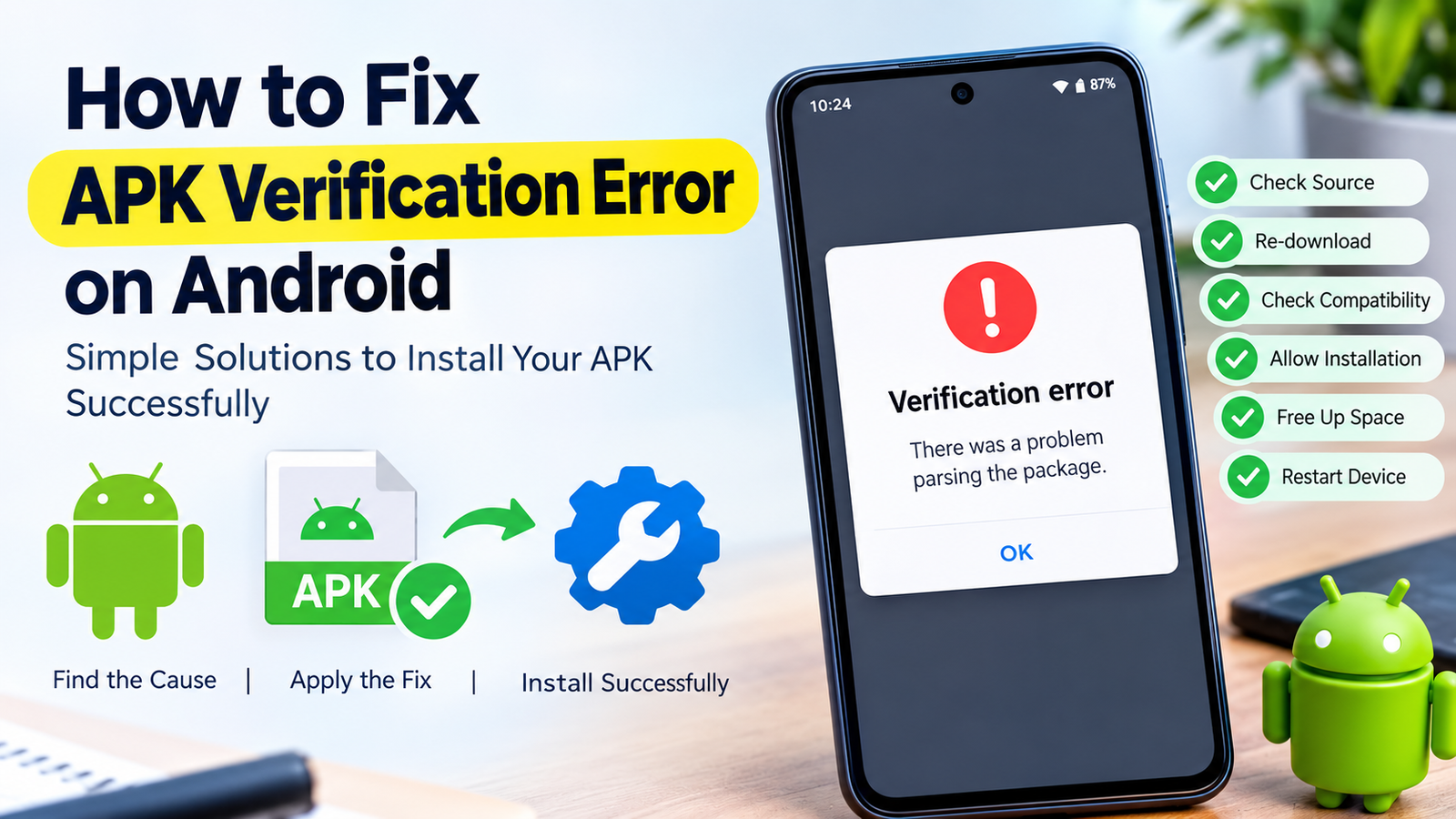
How to Fix APK Verification Error on Android: 9 Easy Solutions
Installing an APK can be useful when an app is unavailable through Google Play or when you need to install a specific app version manually. However, Android may sometimes display an APK verification error and prevent the installation from completing.
This problem can be confusing because the error may appear even when the APK file seems normal. In some cases, Android cannot verify the APK’s signature, while in others the file may be damaged, incompatible, incorrectly packaged, or blocked by a security feature.
If you’re searching for how to fix APK verification error, this guide walks through the most practical solutions step by step. The methods below can help you identify whether the problem is related to the APK file, your Android settings, app compatibility, or the device’s security system.
What Is an APK Verification Error?
An APK verification error occurs when Android cannot successfully validate an APK before installation.
APK files contain information that helps Android determine where an application came from and whether the package has been modified. Android uses application signing and package verification mechanisms as part of its security model.
Depending on your Android version and the APK you’re installing, you might see messages such as:
- “There was a problem parsing the package.”
- “App not installed.”
- “Verification failed.”
- “Can’t install the app.”
- “The package appears to be invalid.”
- “Installation blocked.”
- “This app can’t be installed on your device.”
The exact message varies by device manufacturer and Android version.
An error does not automatically mean that an APK is malicious. However, it is a reason to stop and check the file before continuing.
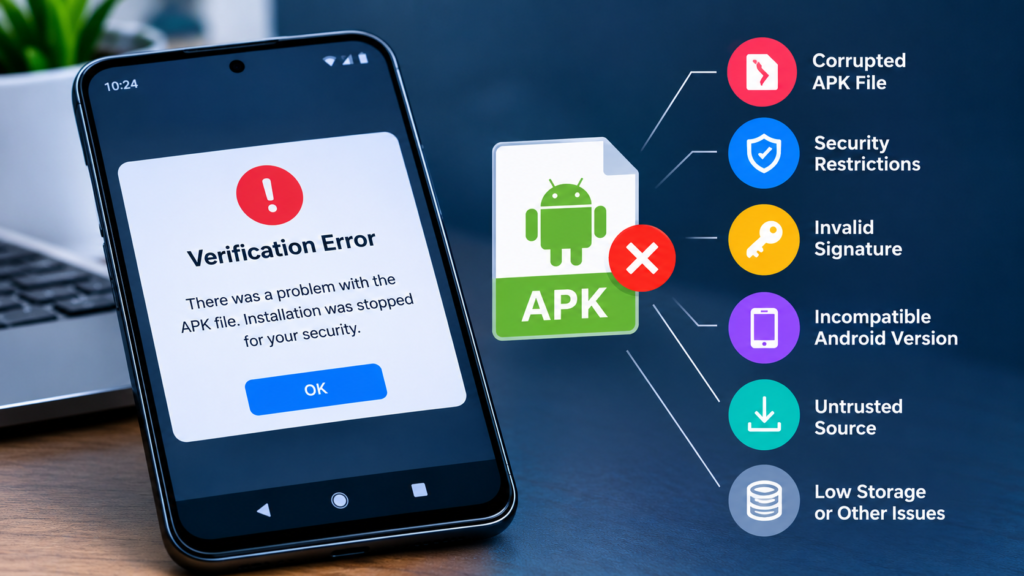
Why Does an APK Verification Error Happen?
There are several possible causes. Identifying the cause first can save you from trying unnecessary fixes.
Common reasons include:
| Possible Cause | What It Means | Recommended Action |
|---|---|---|
| Corrupted APK | The download may be incomplete or damaged | Download the file again |
| Invalid signature | Android cannot validate the package signature | Get the APK from a trusted source |
| Modified APK | The package may have been altered after signing | Use an original release |
| Wrong Android version | The app may require a newer Android version | Check compatibility |
| Unsupported architecture | The APK may not support your device’s CPU | Find a compatible version |
| Split package | The download may require additional APK files | Use the proper APK bundle format |
| Security restriction | Android may block installation from the source | Review installation permissions |
| Insufficient storage | Installation cannot complete correctly | Free up storage space |
| Conflicting app | An existing version may have a different signature | Remove or update the existing app |
1. Download the APK Again
One of the easiest ways to fix an APK verification error is to download the file again.
APK downloads can occasionally become incomplete because of an unstable internet connection, interrupted downloads, browser problems, or server issues. Even a small amount of corruption can prevent Android from validating or installing the package.
Delete the problematic APK and download a fresh copy.
For better results:
- Use a reliable internet connection.
- Avoid interrupting the download.
- Check that the download finishes completely.
- Compare the file size with the size listed by the source when available.
- Avoid downloading the same questionable file repeatedly.
If the second copy produces the same verification error, the problem may be related to compatibility or the APK itself rather than the download.
2. Make Sure the APK Comes From a Trusted Source
The source of an APK matters.
Android’s security mechanisms are designed to protect users from applications that may be modified, improperly signed, or potentially harmful. If an APK has been repackaged or altered, verification can fail.
Whenever possible, obtain the APK from:
- The app developer’s official website
- A reputable application distribution platform
- A trusted source that provides original releases
Be especially careful with websites offering “unlocked,” “premium,” or heavily modified APK files. Such files can be changed by third parties and may have different signatures from the original application.
If you don’t know where an APK came from, downloading another copy from a trustworthy source is usually safer than trying to bypass the verification problem.
3. Check Whether Your Android Version Supports the App
Compatibility problems can sometimes appear as installation or verification errors.
For example, an APK designed for a newer Android release may not work properly on an older phone. Similarly, an older application may have compatibility issues with a newer Android environment.
Before installing an APK, check:
- Your Android version
- The app’s minimum Android requirement
- Whether the developer still supports your Android version
- Whether your device meets the application’s requirements
To check your Android version, open Settings and look for About phone, Software information, or a similarly named section. The exact location depends on the manufacturer.
If the APK requires a newer Android version than your device supports, changing installation settings generally will not solve the underlying compatibility problem.
4. Check the APK’s CPU Architecture
Android devices use different processor architectures. An APK built for one architecture may not work on another device.
Common architectures include:
- ARM64
- ARM
- x86
- x86_64
Many modern smartphones use ARM64, but older devices and some specialized Android devices may use different architectures.
If multiple versions of an APK are available, make sure you select the one compatible with your device.
This is particularly important when downloading APKs from third-party repositories that provide several architecture-specific files.
5. Check Whether You Downloaded a Split APK
Not every Android application is distributed as one simple APK file.
Some apps use multiple packages, such as:
- APK
- APKS
- APKM
- XAPK
- Split APK packages
If an application requires multiple components but you only install one of them, Android may not be able to complete the installation correctly.
This is a common source of confusion for users who expect every Android application to work by simply tapping one .apk file.
If the download is an APKS, APKM, XAPK, or another bundle format, use an appropriate installer that supports that package type rather than treating it as an ordinary standalone APK.
6. Check “Install Unknown Apps” Permission
Android can restrict applications from installing APK files obtained outside Google Play.
If you’re opening an APK from Chrome, a file manager, Telegram, WhatsApp, or another application, Android may require that particular source to have permission to install unknown apps.
On many recent Android devices, you can check this under something similar to:
Settings → Apps → Special app access → Install unknown apps
Then select the application you’re using to open the APK and review its installation permission.
The exact menu names can differ between Android manufacturers and software versions.
Only enable this permission for sources you trust, and consider disabling it afterward if you don’t regularly install APK files.
7. Remove an Existing Conflicting Version
An APK can sometimes fail because another version of the same application is already installed.
For example, you may have an app installed from Google Play and then try to install an APK signed differently. Android can reject the new package because the signatures do not match.
If you need to replace an existing installation, first consider whether you have important app data that needs to be backed up.
Then, if appropriate:
- Open your phone’s app settings.
- Find the existing application.
- Back up important data if necessary.
- Uninstall the existing version.
- Restart the device if needed.
- Try installing the APK again.
Important: Uninstalling an application can remove its locally stored data. Don’t do this if you need the app’s data and don’t have a backup.
8. Free Up Storage Space
Low storage is another possible reason an APK installation can fail.
Even if the APK itself is relatively small, Android may need additional temporary space during installation.
Check your available storage under Settings → Storage or a similar menu.
If your device is nearly full, consider removing:
- Unused applications
- Large videos
- Duplicate photos
- Old downloads
- Unnecessary documents
- Temporary files
After freeing some space, restart the phone and try the installation again.
9. Restart Your Android Device
It sounds simple, but restarting the device can occasionally resolve temporary installation problems.
A background process, package installer issue, or temporary system error may interfere with installation.
Restart your phone and then try the APK again.
If the problem continues, move on to the more specific checks above rather than repeatedly attempting the same installation.
How to Fix APK Verification Error Step by Step
If you want a simple troubleshooting sequence, use this order:
Step 1: Check the APK source
Make sure the APK came from a trustworthy source and wasn’t unnecessarily modified.
Step 2: Download a fresh copy
Delete the existing file and download it again.
Step 3: Check compatibility
Confirm that the APK supports your Android version and device architecture.
Step 4: Identify the package type
Determine whether you have a normal APK or a split package such as APKS, APKM, or XAPK.
Step 5: Check installation permission
Make sure the application you’re using to open the APK is allowed to install unknown apps.
Step 6: Check existing app versions
If the same app is already installed, check whether the existing installation conflicts with the APK.
Step 7: Check storage
Make sure your device has enough free space.
Step 8: Restart and retry
Restart Android and attempt the installation again.
This process helps narrow down the cause without immediately resorting to risky workarounds.
Should You Disable Android Security to Install an APK?
Generally, you should not disable important Android security features simply to force an APK to install.
Android security features exist to protect your device from potentially harmful software. If a package fails verification, investigate the reason instead of automatically trying to bypass the warning.
If Google Play Protect or another security component warns you about an APK, pay attention to the warning and verify the application’s source before proceeding.
A verification error can sometimes indicate nothing more than an incompatible or damaged file, but it can also be a useful warning that the package should not be trusted.
What to Do If the APK Still Won’t Install
If you’ve tried the basic fixes and the APK still fails, look for another version of the application.
Check whether:
- A newer APK is available.
- An older compatible version exists.
- The developer provides an official download.
- Your device is supported.
- The application requires a split package.
- Your Android version is too old.
- The APK was specifically built for another device or architecture.
You can also consider installing the application through Google Play when it is officially available there. This can simplify updates and reduce compatibility issues.
Common Mistakes When Fixing APK Verification Errors
Users sometimes make the problem worse by trying random fixes.
Avoid these common mistakes:
- Downloading the same APK from multiple suspicious websites
- Installing heavily modified packages without checking the source
- Ignoring Android security warnings
- Installing an APK designed for a different architecture
- Assuming every
.apkfile is compatible with every Android phone - Deleting an existing app without backing up important data
- Repeatedly installing a damaged APK
- Disabling security features unnecessarily
A methodical approach is usually more effective than trying many unrelated solutions.
Frequently Asked Questions
Why does Android say verification failed when installing an APK?
Android may fail to verify an APK because the package is damaged, improperly signed, modified, incompatible, or part of a package format that requires additional files. Downloading an original compatible version can often resolve the issue.
Is an APK verification error dangerous?
Not necessarily. A verification error can have harmless causes such as corruption or incompatibility. However, you should treat unexpected verification warnings seriously and verify the APK’s source before installing it.
Can I fix an APK verification error by downloading the APK again?
Yes, if the original download was incomplete or corrupted. Delete the existing file and download a fresh copy from a trusted source.
Why won’t an APK install even though I have enough storage?
Storage is only one possible cause. The APK may be incompatible with your Android version or processor architecture, have an invalid signature, conflict with an installed version, or require additional split packages.
What is the difference between APK and APKS?
An APK is normally a single Android application package. APKS is generally a collection of split APK files packaged together. An application distributed as APKS may require a compatible installer rather than being installed by simply tapping one APK file.
Should I disable Play Protect when an APK won’t install?
It is better to investigate the warning and verify the APK’s source rather than disabling security protections simply to complete the installation. If the application is legitimate, look for an official or properly packaged version instead.
Final Thoughts
Knowing how to fix APK verification error can save time when an Android application refuses to install. The problem may be caused by something simple, such as an incomplete download, but it can also result from incompatible Android versions, CPU architectures, conflicting signatures, split packages, or security restrictions.
Also Read: How to Fix APK Signature Error: 9 Easy Solutions That Work














1 comment