PixelLab: Features, Uses, Editing Tips, and Complete App Guide
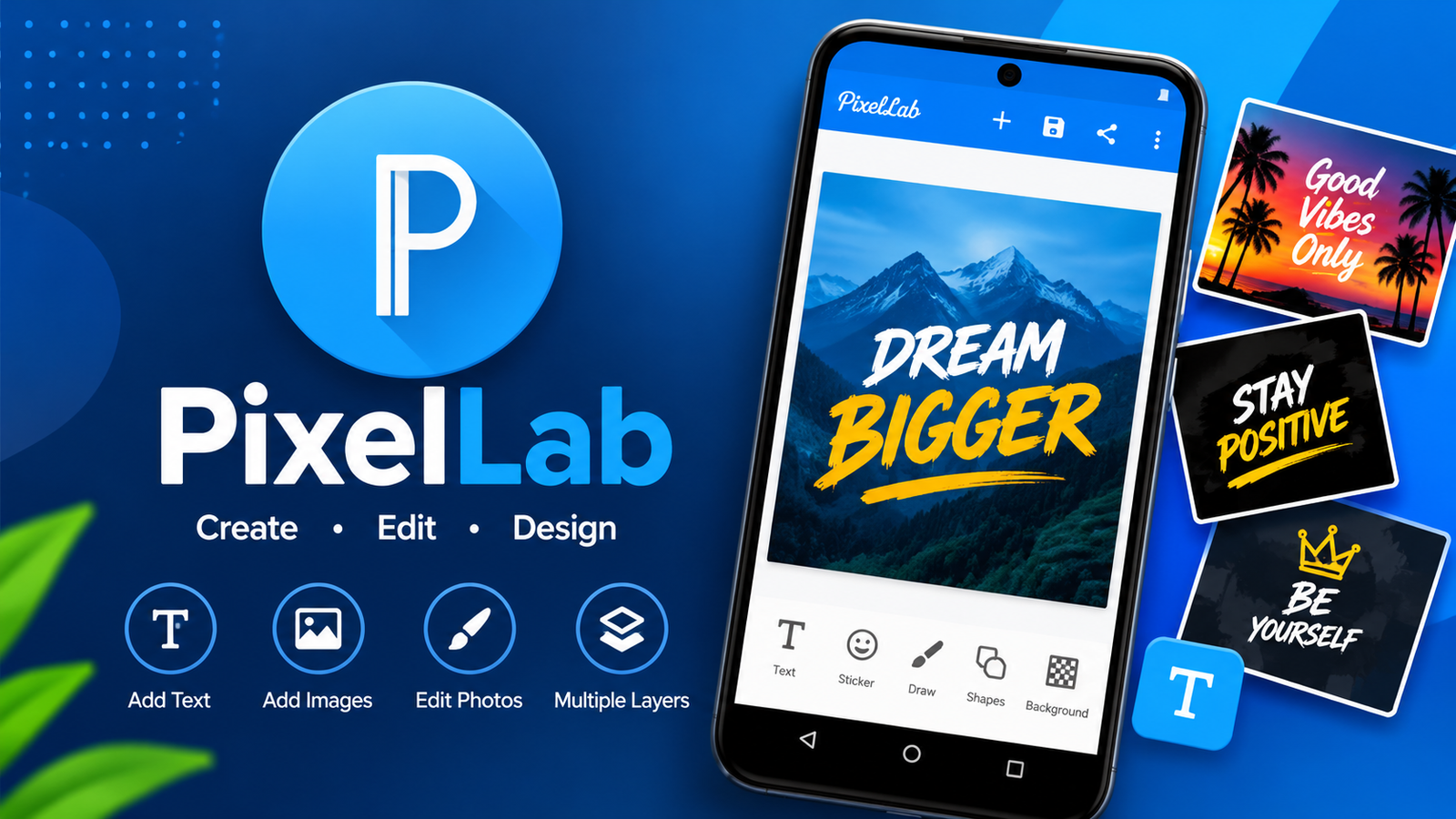
PixelLab is a popular photo editing application that allows users to add stylish text, create attractive designs, and customize pictures directly from their Android devices. Whether you want to design a social media post, create a YouTube thumbnail, make a birthday poster, or add professional-looking text to a photograph, PixelLab provides several useful tools in one place.
One reason people enjoy using PixelLab is its straightforward editing experience. You do not necessarily need professional graphic design knowledge to get started. The application offers text customization, 3D text effects, stickers, shapes, backgrounds, and other editing options that help users turn ordinary pictures into eye-catching designs.
Unlike complicated desktop design software, PixelLab focuses on providing convenient editing tools through a mobile-friendly interface. Beginners can experiment with different styles, while experienced creators can use its customization options to develop more detailed graphics.
In this guide, we will explore PixelLab’s main features, how to use the application, its advantages and limitations, and some helpful tips for creating better designs.
What Is PixelLab?
PixelLab is a mobile photo editing and graphic design application developed by App Holdings. It is particularly known for its text editing capabilities, allowing users to place customized text over pictures and create different types of visual content.
The application supports simple text, 3D text, stickers, shapes, drawing tools, image effects, and various customization options. Users can also work with different backgrounds and adjust the appearance of individual design elements.
PixelLab can be useful for people who regularly create content for social media platforms, websites, personal projects, and online communities.
Some common uses include:
- Creating YouTube thumbnails and channel graphics.
- Designing social media posts.
- Making birthday and celebration posters.
- Adding stylish text to photographs.
- Creating attractive quote images.
- Designing simple advertisements.
- Making memes and promotional graphics.
- Creating profile pictures and banners.
The application is available through Google Play, where users can check its current version, compatibility information, and developer details.
Key Features of PixelLab
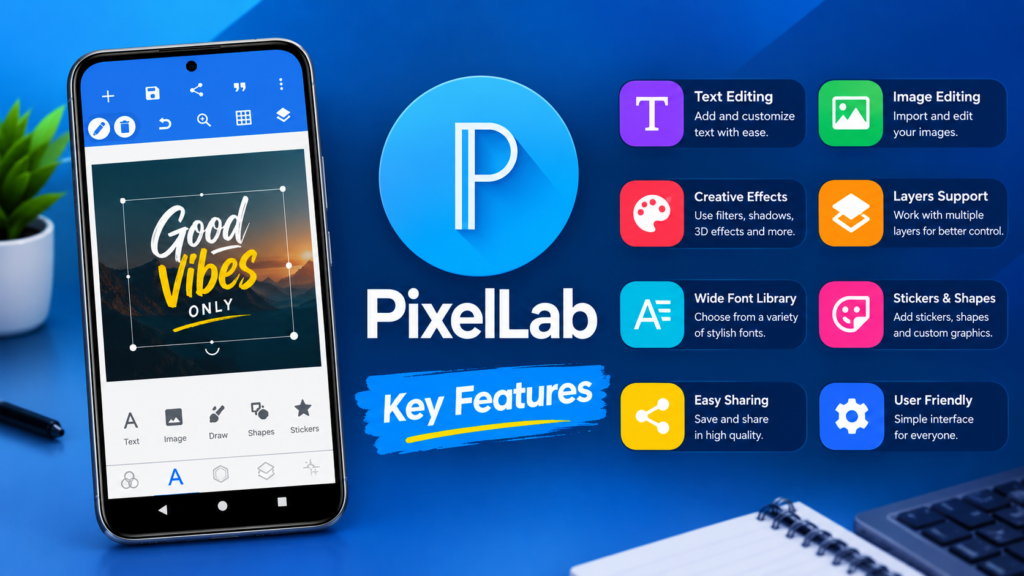
PixelLab includes several editing tools that make it useful for everyday graphic design tasks. Here are some of its most important features.
1. Advanced Text Editing
Text editing is one of the main reasons people choose PixelLab. You can add multiple text elements to a single image and customize each one separately.
Users can change font styles, colors, sizes, alignment, spacing, and other text properties. This flexibility makes it easier to create designs that match a particular theme.
For example, you can use bold text for a headline, smaller text for additional information, and a different font style for decorative elements.
2. 3D Text Effects
The 3D text feature helps users create text that looks more dimensional than ordinary lettering.
You can customize the appearance of your text to produce creative poster designs, promotional graphics, and eye-catching headings.
Depending on the selected settings, you can experiment with depth, colors, shadows, and other visual effects.
3. Multiple Fonts and Text Styles
Different fonts can completely change the appearance of a design. PixelLab provides font customization options that allow users to experiment with different typography styles.
You can select fonts that suit your design, whether you are creating a professional advertisement, a gaming thumbnail, or a simple social media post.
You can also explore compatible custom fonts when you want a more personalized appearance.
4. Stickers and Shapes
PixelLab allows users to add stickers and shapes to their designs.
These elements can help make a picture more attractive without requiring complicated editing techniques.
For instance, you can use arrows, circles, decorative shapes, and stickers to highlight important information or create a more organized layout.
5. Background Customization
The background plays an important role in graphic design. PixelLab provides options for working with different backgrounds and creating designs that suit your requirements.
You can use a plain color, select an existing picture, or experiment with available background options.
Choosing a suitable background can improve text visibility and make your overall design look more professional.
6. Image Effects and Filters
The application also includes image effects that can help improve the appearance of your pictures.
Users can experiment with options such as hue, saturation, vignette, and other visual adjustments.
These effects are useful when you want to change the mood of an image or make its colors match the overall design.
7. Image Perspective Editing
Another useful feature is perspective editing, which allows users to adjust how an image appears from a particular angle.
This can be helpful when creating mockups or placing visual elements on objects such as screens, signs, and boxes.
It provides additional creative flexibility for people who want to experiment with more advanced-looking graphics.
8. Image Export and Sharing
After completing a design, users can export the finished image and share it through supported applications.
PixelLab provides options for selecting image resolution and format, helping users prepare graphics for different purposes.
For example, you might create one design for Instagram and another with different dimensions for a website thumbnail.
PixelLab Features at a Glance
The following table provides a quick overview of the application’s main capabilities.
| Feature | What It Does |
|---|---|
| Text Editing | Adds and customizes text |
| 3D Text | Creates dimensional text effects |
| Fonts | Provides different typography styles |
| Stickers | Adds decorative elements |
| Shapes | Helps create structured designs |
| Backgrounds | Customizes image backgrounds |
| Image Effects | Adjusts visual appearance |
| Perspective Editing | Changes image perspective |
| Meme Creation | Helps create simple memes |
| Image Export | Saves finished designs |
How to Use PixelLab for the First Time
If you have never used PixelLab before, getting started is relatively simple. You can follow these steps to create your first design.
Step 1: Open the Application
Install PixelLab from its official Google Play listing and open it on your Android device.
Once the application launches, you can explore the editing workspace and available tools.
Step 2: Choose a Background
Start by selecting a background for your project.
You can use an existing picture, choose a simple background, or create a design using a plain color.
Try to select a background that provides enough contrast for your text.
Step 3: Add Your Text
Use the text option to add a heading or message to your design.
Write the words you want to display and adjust their position, size, and alignment.
You can add multiple text elements if your design requires a headline and supporting information.
Step 4: Customize the Appearance
Experiment with different fonts, colors, shadows, strokes, and other available text settings.
If you are making a promotional poster, use a clear headline that viewers can read easily.
Avoid adding too many decorative effects because they can make your design look crowded.
Step 5: Add Stickers and Other Elements
You can make your design more interesting by including shapes, stickers, or additional images.
Keep these elements balanced so that the main message remains easy to understand.
Step 6: Save Your Design
Once everything looks right, open the export or save option.
Choose a suitable image format and resolution, then save your finished design to your device.
You can now share it on social media or use it for your personal projects.
How to Create Professional Designs With PixelLab
Having several editing tools does not automatically guarantee a good design. The way you use those tools makes a significant difference.
Here are some practical suggestions for improving your results.
Choose readable fonts: Decorative fonts can look attractive, but they are not always suitable for every project. Use simple fonts for important information.
Use contrasting colors: Make sure the text stands out from the background. Dark text on a dark background can be difficult to read.
Keep your layout organized: Give important elements enough space instead of placing everything close together.
Avoid excessive effects: Too many shadows, outlines, and 3D effects can make a design look unprofessional.
Select the correct dimensions: Choose an appropriate image size depending on whether you are creating a social media post, thumbnail, banner, or poster.
Save editable projects: Where project-saving options are available, keep an editable copy of important designs so you can make changes later.
Is PixelLab Good for YouTube Thumbnails?
PixelLab can be a useful option for creating YouTube thumbnails, especially if you prefer designing graphics directly from your smartphone.
A good thumbnail should communicate the main idea of a video quickly. It should also remain readable when displayed at a smaller size.
You can use PixelLab to:
- Add large and attractive video titles.
- Place text over background images.
- Highlight important objects with shapes.
- Apply shadows and text outlines.
- Combine different visual elements.
- Export a finished thumbnail.
For the best results, use a clear background image, a short headline, and a limited number of colors.
Although PixelLab is suitable for many basic thumbnail projects, users working on complex professional designs may prefer additional desktop or mobile design software.
Is PixelLab Free to Use?
PixelLab is available as a free application on Google Play. However, users should check the current listing for details about advertisements and any optional in-app purchases.
The free version provides useful editing capabilities for everyday design tasks. This makes it a practical starting point for students, social media creators, and people who do not want to purchase expensive graphic design software.
Before downloading, review the official listing to understand the available features and any purchase requirements.
How to Download and Install PixelLab on Android
The recommended way to install PixelLab is through Google Play. Using the official store helps you identify the correct application and its publisher.
Follow these steps:
- Open the Google Play Store on your Android phone.
- Search for PixelLab – Text on pictures.
- Check that the developer is App Holdings.
- Review the application information and available permissions.
- Tap the Install option.
- Wait for the installation to finish.
- Open the application and start editing.
You can visit the PixelLab Google Play listing to check the latest available information.
If you are considering downloading an APK from another website, be careful. Avoid modified or suspicious installation files, and do not assume that an APK is safe simply because a website describes it as verified.
Advantages and Disadvantages of PixelLab
Like other photo editing applications, PixelLab has both strengths and limitations.
Advantages
- Beginner-friendly editing experience.
- Useful text customization options.
- Supports 3D text effects.
- Includes stickers and shapes.
- Suitable for creating simple posters and thumbnails.
- Provides image effects and perspective editing.
- Offers export and sharing options.
- Useful for everyday mobile graphic design.
Disadvantages
- Advanced professional design work may require additional software.
- Some editing features can take time to understand.
- Results depend heavily on the user’s design skills.
- Certain devices may perform more slowly when handling complex projects.
- Advertisements and optional purchases may affect the experience.
Overall, PixelLab offers a useful collection of mobile editing tools, particularly for users who frequently add text to pictures.
Common Problems in PixelLab and Their Solutions
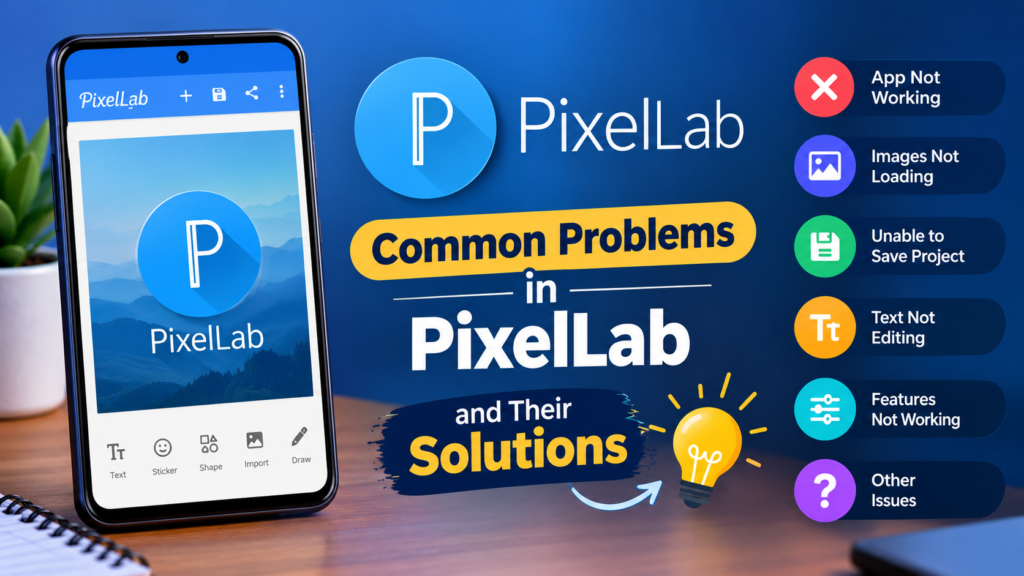
Sometimes users experience problems while editing, saving, or opening projects. Fortunately, many basic issues can be resolved with a few simple steps.
Application not opening: Restart your phone and check whether an application update is available.
Design not saving: Check available device storage and make sure the application has the necessary media access.
Custom fonts not appearing: Confirm that the font file is supported and that you have imported it correctly.
Application running slowly: Close unnecessary background applications and avoid working with excessively large images on devices with limited memory.
Exported image looks blurry: Check the selected export resolution and use a higher-quality source image.
If the problem continues, consult the application’s official support information or developer contact details.
Frequently Asked Questions About PixelLab
1. What is PixelLab used for?
PixelLab is used for editing pictures, adding stylish text, creating posters, designing thumbnails, making memes, and producing other graphics. It is particularly useful for people who want to create designs using an Android smartphone.
2. Is PixelLab free to download?
Yes, PixelLab is available as a free download through Google Play. However, advertisements and optional in-app purchases may be included, so check the current store listing for details.
3. Can I create YouTube thumbnails with PixelLab?
Yes. You can add text, customize fonts, use background images, apply effects, and combine different elements to create YouTube thumbnails. Make sure your final image has suitable dimensions and readable text.
4. Does PixelLab support 3D text?
Yes. One of its popular features is 3D text customization. Users can create dimensional-looking text and use it in posters, social media graphics, and other creative projects.
5. Is PixelLab suitable for beginners?
Yes. Its straightforward interface and accessible editing tools make it a useful starting point for beginners. You can learn the basic functions first and gradually experiment with more advanced customization options.
6. Is PixelLab available for iPhone?
The PixelLab Android application discussed in this guide is listed on Google Play. Other applications with similar names may be available on Apple’s App Store, but they should not automatically be considered the same product. Always verify the developer and application details before installing.
Final Thoughts
PixelLab is a useful photo editing application for anyone who wants to create attractive graphics without relying on complicated desktop software. Its text customization, 3D effects, stickers, shapes, background options, and image editing tools make it suitable for a variety of everyday creative projects.
Whether you are designing a YouTube thumbnail, creating a social media post, making a poster, or adding stylish text to a photograph, the application provides several options to bring your ideas to life.
For beginners, PixelLab offers a convenient way to explore mobile graphic design. More experienced creators can also use it for quick editing tasks and simple visual projects.
Also Read: AHA Games: Features, Benefits, Safety, and How to Play on Android













1 comment