GCam APK Download: How to Download, Install, and Use Google Camera on Android
Getting high-quality photos on an Android smartphone does not always require buying an expensive flagship device. Sometimes, the right camera application can make a noticeable difference. This is one reason why many Android users search for GCam APK download to improve their mobile photography experience.
GCam, also known as Google Camera, is Google’s camera application originally developed for Pixel smartphones. It is popular because of its advanced image processing, Night Sight, HDR+, Portrait Mode, and other photography features. These technologies can help compatible Android phones capture detailed and balanced pictures in different lighting conditions.
However, installing GCam on a non-Pixel smartphone is not always straightforward. Different phone manufacturers use different camera hardware, Android versions, and software configurations. As a result, some GCam versions work perfectly on one device but fail to run on another.
In this guide, you will learn what GCam APK is, where to find compatible versions, how to install it safely, and which features make it worth trying.
What Is GCam APK?
GCam APK is an Android installation package containing a version of the Google Camera application. The original Google Camera app is designed primarily for Google’s Pixel devices, but independent Android developers have created modified versions that can work on selected smartphones from other manufacturers.
These modified versions are commonly called GCam ports.
The main purpose of a GCam port is to bring Google’s computational photography features to compatible Android devices. Instead of depending entirely on camera hardware, the application uses advanced software processing to improve the final image.
For example, GCam may combine multiple exposures to produce a photograph with better lighting, improved shadows, and more visible details.
It is important to understand that not every GCam APK is official Google software. Many versions are modified by third-party developers, so users should carefully check the source and compatibility before installation.
Why Do Android Users Search for GCam APK Download?
Many smartphone users are interested in GCam because they want better photography without purchasing another device.
Although modern Android phones already include camera applications, their image processing quality can vary considerably.
Here are some common reasons people look for GCam:
- Better HDR processing: Helps balance bright and dark areas in photographs.
- Improved night photography: Night Sight can capture brighter images in low-light environments.
- Natural-looking portraits: Compatible versions offer background blur and subject separation.
- Enhanced image details: Computational photography can improve the appearance of certain photographs.
- Additional camera controls: Some ports include extra settings for advanced photography.
- Alternative camera experience: Users can compare Google’s image processing with their phone’s default camera.
The results depend on the smartphone’s hardware, software, and the particular GCam version being used.
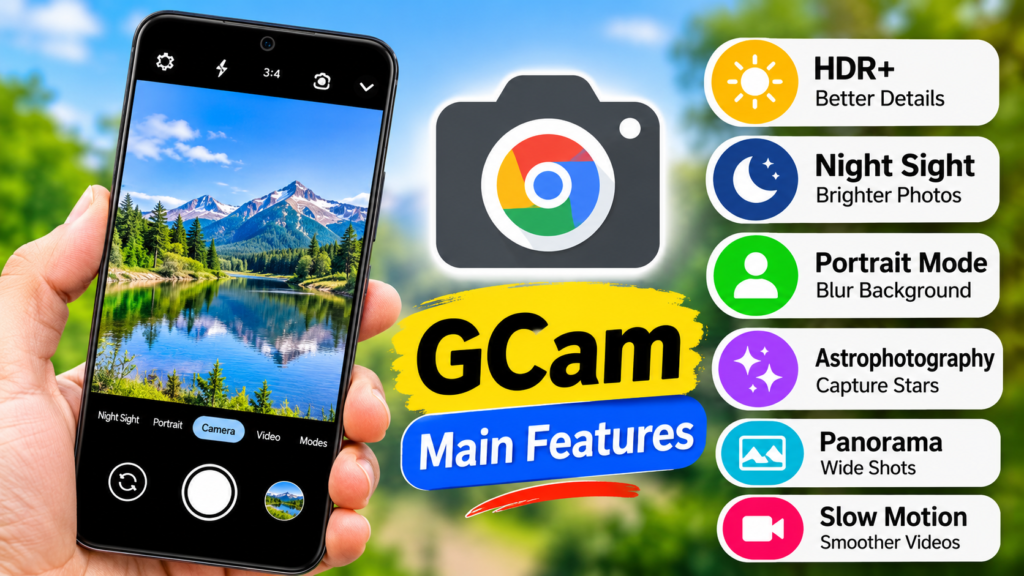
Main Features of GCam APK
One of the biggest reasons behind GCam’s popularity is its collection of photography features. Not every feature is available on every Android phone, but compatible versions can provide several useful tools.
1. HDR+ Photography
HDR+ is one of the best-known Google Camera technologies.
It captures and combines multiple images to improve exposure and preserve details. This is particularly helpful when photographing scenes containing both bright sunlight and dark shadows.
For example, when taking a picture near a window, HDR+ can help retain details in the outdoor background while keeping indoor objects visible.
2. Night Sight Mode
Night Sight is designed for low-light photography.
It uses computational processing and multiple exposures to capture brighter photographs in darker environments. This can be useful when taking pictures at night, indoors, or in places with limited lighting.
However, keeping your phone steady is important because movement can affect image quality.
3. Portrait Mode
Portrait Mode creates photographs with a blurred background while keeping the main subject relatively sharp.
This effect is often used for:
- Personal photographs
- Family pictures
- Social media content
- Product photography
- Close-up portraits
The quality of background separation depends on the phone’s camera hardware and the GCam port.
4. Astrophotography Mode
Some compatible GCam versions support astrophotography.
This feature is designed to photograph stars and other objects in the night sky. It generally requires a stable surface or tripod and suitable environmental conditions.
Not all Android devices support this functionality, even if the option appears in the application.
5. Panorama Mode
Panorama allows users to capture wide photographs by moving their phones across a scene.
It can be helpful for photographing landscapes, buildings, and large outdoor areas.
6. Slow-Motion and Video Recording
Certain GCam versions provide slow-motion and video recording options.
However, video capabilities can vary significantly between devices. Some ports may support standard recording but lack advanced stabilization or other video features.
7. Google Camera Image Processing
Another important advantage is Google’s approach to image processing.
Depending on the device, GCam can produce photographs with balanced colors, improved contrast, and better handling of difficult lighting conditions.
GCam APK Download: Where Can You Find a Compatible Version?
Finding the correct version is one of the most important parts of installing GCam.
There is no single modified GCam APK that works on every Android smartphone. Different ports are developed for different processors, camera configurations, and Android versions.
Consider these safer approaches when looking for a download:
- Check the official Google Camera listing on Google Play, if it is available for your device.
- Research established GCam port developers and their published releases.
- Check device-specific discussions on trusted Android communities.
- Read compatibility notes before downloading an APK.
- Avoid websites that disguise modified applications as official Google releases.
Popular names in the GCam port community include BSG, Arnova8G2, and BigKaka. Always verify that a download comes from a developer’s recognized distribution channel rather than an unrelated website.
Never assume that an APK is safe simply because it uses the Google Camera name.
GCam APK Compatibility: What Should You Check?
Before downloading GCam, make sure your smartphone meets the requirements of the selected version.
Some devices support several GCam ports, while others may have limited compatibility.
The following table highlights the main factors to consider.
| Compatibility factor | What to check |
|---|---|
| Android version | Confirm the minimum supported Android version |
| Processor | Check compatibility with your phone’s chipset |
| Camera2 API | Check whether the required camera features are available |
| RAM | Make sure your phone has sufficient available memory |
| Camera hardware | Verify support for your main and additional cameras |
| APK architecture | Check whether the package supports your device |
| GCam version | Read device-specific compatibility information |
What Is Camera2 API?
Camera2 API is an Android framework that allows applications to access camera hardware through different control levels.
It is an important factor for many GCam ports because they depend on camera capabilities that may not be available through every manufacturer’s software configuration.
You can use a reputable Camera2 API checking application to inspect your device’s camera support.
If your smartphone has limited Camera2 API support, certain GCam features may not work correctly.
How to Install GCam APK on Android
Once you have found a compatible and trustworthy APK, you can follow these general installation steps.
Step 1: Download the APK File
Download the selected GCam APK from the developer’s recognized distribution source.
Before downloading, check the version number, developer information, and compatibility details.
Avoid files that require unnecessary permissions or redirect you through suspicious download pages.
Step 2: Enable Installation Permission
Android may block applications downloaded outside Google Play.
To install an APK, you might need to allow installation from the application used to download the file.
Follow these general steps:
- Open your phone’s Settings.
- Find the Security or Apps section.
- Open the option for installing unknown applications.
- Select your browser or file manager.
- Enable permission if you trust the source.
The exact menu names depend on your Android version and smartphone manufacturer.
For security reasons, disable this permission again after installation if you no longer need it.
Step 3: Locate the Downloaded File
Open your phone’s Files or File Manager application.
Navigate to the Downloads folder and find the GCam APK file.
Check the filename to ensure it matches the version you intended to download.
Step 4: Install GCam
Tap the APK file and select Install.
Wait for Android to complete the installation process. If the installation succeeds, you should see the application in your app drawer.
Step 5: Open the Application
Launch GCam and review the requested permissions.
Allow camera access if you want to take photographs. Microphone and storage-related permissions may be needed for certain recording or saving features.
Do not grant permissions that appear unrelated to the application’s functionality.
Step 6: Test Camera Features
Take a few test photographs using different modes.
Try HDR+, Night Sight, Portrait Mode, and other available features.
If the application crashes or certain cameras do not work, the selected version may not be compatible with your device.
How to Choose the Best GCam Version for Your Phone
Choosing the right GCam version is more important than downloading the newest release.
A newer version may introduce additional features, but it does not automatically mean better compatibility.
Consider the following points:
- Check your phone model: Search for versions tested on your exact device.
- Review Android requirements: Some ports require specific Android versions.
- Check developer updates: Prefer established developers with a history of maintaining their applications.
- Read user feedback: Look for reports about crashes, image quality, and camera functionality.
- Check configuration files: Some ports require device-specific XML configuration files.
- Test different versions carefully: If one version does not work, research another compatible release rather than installing random APKs.
Avoid downloading several unknown versions from unrelated websites. This increases security risks and makes troubleshooting more difficult.
GCam APK vs Default Android Camera
Many people wonder whether GCam is actually better than the camera application that comes with their smartphone.
The answer depends on the device and the type of photography.
| Feature | GCam APK | Default Camera App |
|---|---|---|
| HDR processing | Advanced processing on supported devices | Manufacturer-dependent |
| Night photography | Night Sight on compatible ports | Manufacturer’s night mode |
| Portrait photography | Available on supported versions | Usually available on modern phones |
| Camera compatibility | Varies by device | Designed for the phone |
| Additional settings | Depends on the port | Depends on manufacturer |
| Stability | May vary | Usually more reliable |
| Updates | Depends on port developers | Usually provided by manufacturer |
The default camera application often has better integration with the phone’s hardware.
It may also support features such as dedicated camera buttons, specialized video modes, and manufacturer-specific processing.
GCam is worth experimenting with, but it does not necessarily replace the original camera application.
Common Problems With GCam APK and Their Solutions
Even after successful installation, some users experience problems when opening or using GCam.
Here are common issues and possible solutions.
GCam Keeps Crashing
This usually happens when the selected port is incompatible with the smartphone.
Possible solutions:
- Install a version specifically tested for your device.
- Check Android version requirements.
- Remove incompatible configuration files.
- Restart your phone and test again.
Camera Is Not Working
Sometimes, GCam opens successfully but cannot access the camera.
Check whether camera permission is enabled. If the problem continues, the port may not support your phone’s camera configuration.
Night Sight Is Missing
Not every GCam port includes all available Google Camera features.
Try checking the application’s settings or researching whether Night Sight is supported on your particular device.
Pictures Are Too Dark or Too Bright
Incorrect configuration settings can affect exposure and image processing.
If your port supports configuration files, use one specifically created for your phone model.
You can also experiment with exposure settings where available.
APK Cannot Be Installed
An installation error may occur because of:
- An incompatible Android version.
- An incorrect APK package.
- A conflicting existing application package.
- A corrupted download.
- An unsupported device architecture.
Download the correct package from a trusted source and check the installation requirements before trying again.
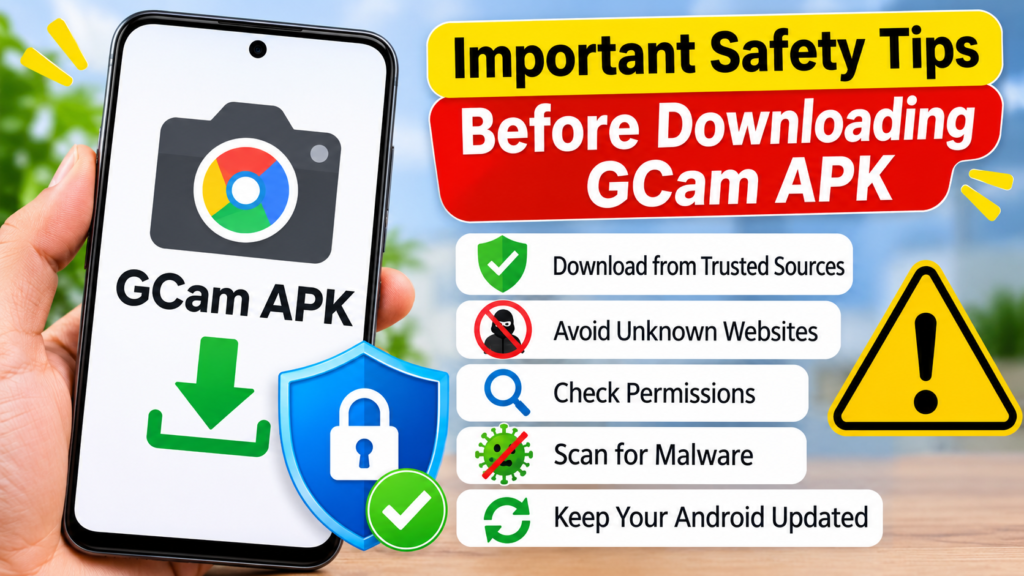
Important Safety Tips Before Downloading GCam APK
Because many GCam ports are distributed outside Google Play, downloading them requires additional care.
Follow these precautions to protect your Android device.
- Download APK files from recognized developer sources.
- Avoid modified applications from unknown websites.
- Check the developer name and version information.
- Scan downloaded files using a reputable security solution.
- Review application permissions before installation.
- Keep Google Play Protect enabled.
- Avoid APK files that request unnecessary access to contacts, SMS, or other sensitive information.
- Do not disable Android security protections just to force an installation.
- Remove suspicious files immediately.
- Keep your Android operating system updated.
Remember that a camera application should not normally need access to unrelated personal information.
If an APK requests unusual permissions or behaves suspiciously, do not install it.
Frequently Asked Questions (FAQs)
1. Is GCam APK Free to Download?
Yes. Google Camera is generally available free of charge through supported distribution channels. Many third-party GCam ports are also distributed without payment. However, always check the developer’s source and avoid websites that demand unnecessary payments or personal information.
2. Does GCam Work on All Android Phones?
No. GCam ports do not support every Android smartphone. Compatibility depends on the processor, Android version, Camera2 API support, and camera hardware. You should check device-specific information before downloading.
3. Is GCam Better Than the Default Camera App?
GCam can produce excellent photographs on compatible devices, particularly in challenging lighting conditions. However, the default camera application may offer better hardware integration, stability, and specialized features. Comparing both applications is the best way to decide.
4. Is It Safe to Install GCam APK?
It can be safe when downloaded from a recognized developer source and checked carefully. However, third-party modified APK files can carry security risks. Avoid unknown download websites, check permissions, and scan files before installation.
5. Why Does GCam Crash on My Android Phone?
GCam may crash because of an incompatible version, unsupported camera hardware, incorrect configuration, or missing camera capabilities. Try a device-compatible port and check its installation requirements.
6. Can I Use GCam Without Rooting My Phone?
Yes. Many GCam ports can be installed on compatible Android smartphones without root access. However, certain advanced features may depend on the phone’s camera capabilities and software configuration.
Final Thoughts
Searching for a GCam APK download can be a useful starting point if you want to explore better photography options on your Android smartphone. Google Camera is known for features such as HDR+, Night Sight, Portrait Mode, and computational image processing.
However, downloading the correct version is essential. Not every GCam port works with every smartphone, and installing an incompatible application can lead to crashes or missing features.
Before installation, check your phone’s Android version, Camera2 API support, and device-specific compatibility information. Always choose a recognized developer source and review the permissions requested by the application.
With the right compatible version, GCam can provide an interesting alternative to your phone’s default camera and help you get more out of your Android photography experience.
Also Read: Temple Run 2 Mod APK: Features, Gameplay, Installation Guide, and Safety Tips








1 comment