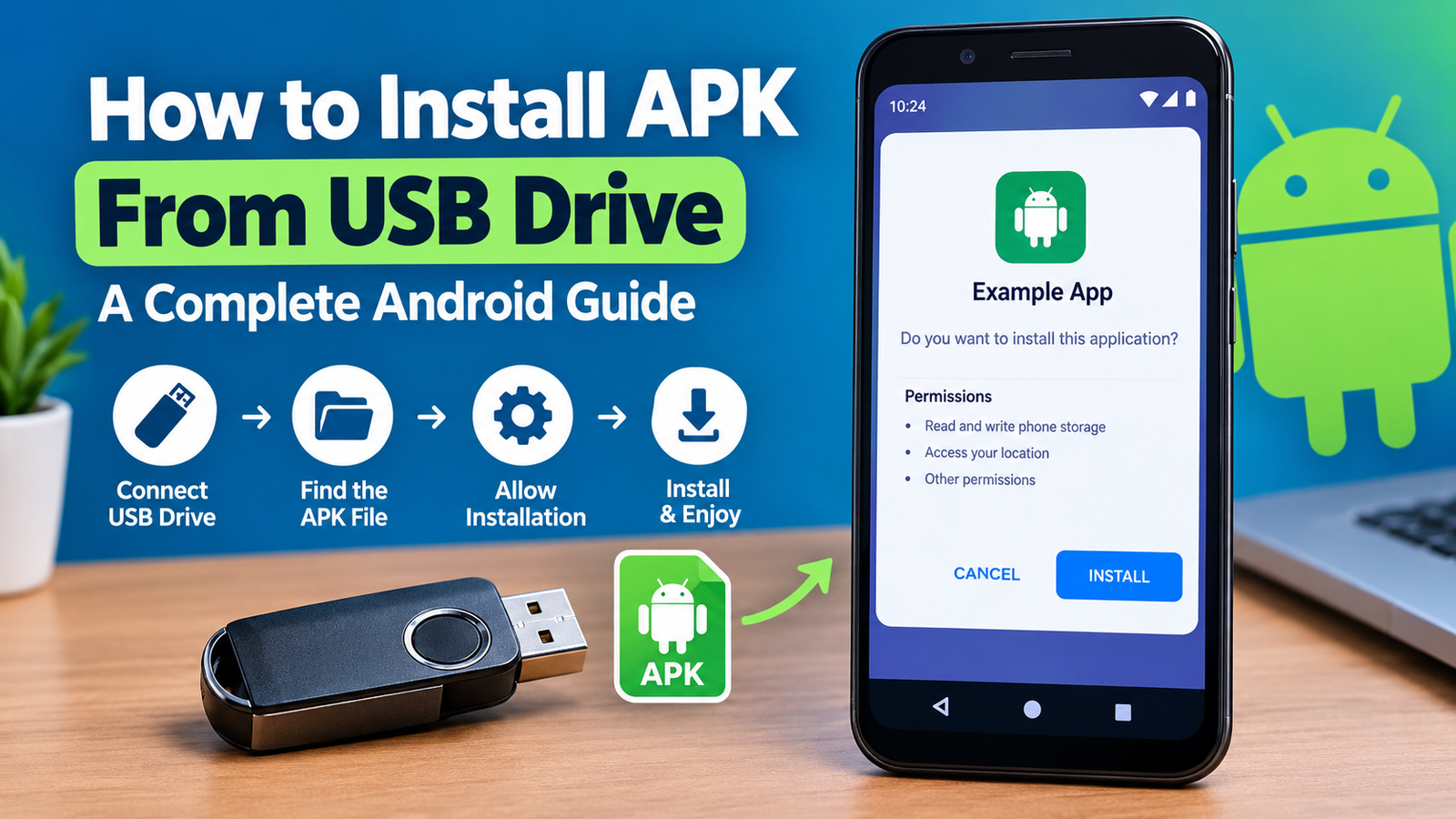
How to Install APK From USB Drive: A Complete Android Guide
Installing an Android app from a USB drive can be useful when you do not have reliable internet access, want to transfer an APK from a computer, or simply prefer keeping installation files offline. The process is straightforward once your phone can access the USB drive and Android allows the file manager to install applications.
If you are wondering how to install APK from USB drive, you generally need three things: a compatible USB drive, an Android phone or tablet with USB OTG support, and a trustworthy APK file. You then connect the drive, locate the APK, enable installation permission for the file manager if required, and install the app.
This guide explains the process step by step, including USB OTG requirements, Android security settings, common installation errors, and important safety precautions.
What Is an APK File?
APK stands for Android Package Kit. It is the file format Android uses to distribute and install applications outside the Google Play Store.
When you download an APK, the file contains the components Android needs to install the application. Depending on the app, an APK may work as a standalone installation file, while some apps use additional formats such as XAPK, APKM, or APKS.
For a basic USB installation, you will usually be working with a file ending in:
.apk
For example:
example-app.apk
It is important to check the file extension before attempting installation. A file that looks like an APK but is actually an XAPK or another package format may require a compatible installer.
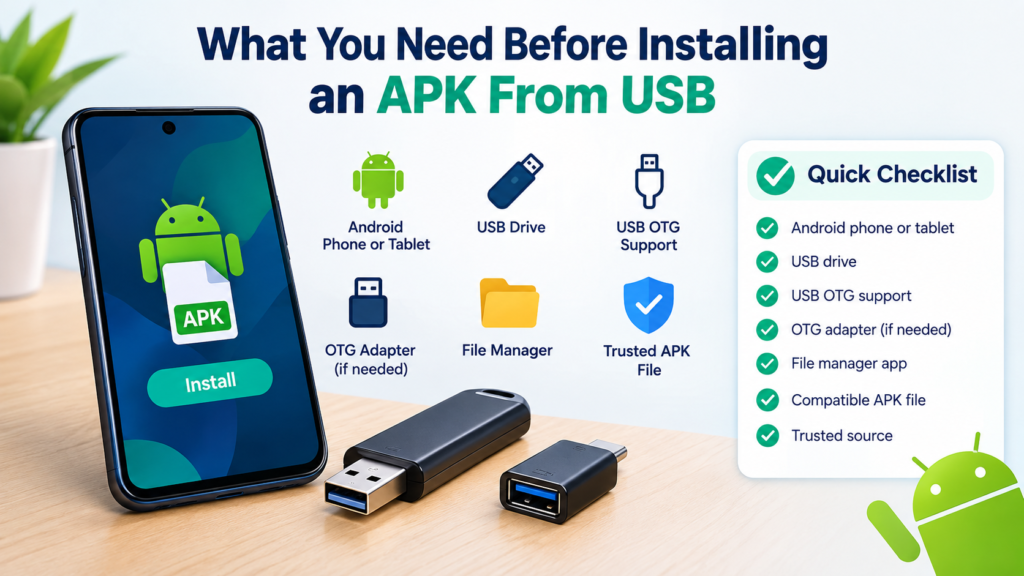
What You Need Before Installing an APK From USB
Before connecting your USB drive, make sure your phone and files are ready.
| Requirement | Why It Matters |
|---|---|
| Android phone or tablet | The device must support APK installation |
| USB drive | Stores the APK file |
| USB OTG support | Allows the Android device to read many USB drives |
| OTG adapter, if needed | Connects a traditional USB drive to your phone |
| File manager | Lets you locate and open the APK |
| Compatible APK | The file must support your Android device |
| Trusted source | Reduces the risk of installing malicious software |
Most modern Android phones can work with USB storage through USB OTG, although compatibility varies between devices.
You should also make sure the USB drive contains the correct APK. If possible, download the file from the app developer or another reputable source rather than an unknown website.
How to Install APK From USB Drive Step by Step
The exact menus can vary between Android brands and versions, but the general process is similar.
1. Copy the APK to Your USB Drive
Start by transferring the APK file to your USB drive.
If you downloaded the APK on a computer, connect the USB drive to the computer and copy the file onto it. Keeping the APK in the main folder of the drive can make it easier to find.
For example:
USB Drive > Downloads > example-app.apk
You can create a dedicated folder such as APK Files if you plan to transfer several applications.
Before disconnecting the drive from your computer, safely eject it when appropriate. This helps reduce the possibility of file corruption.
2. Connect the USB Drive to Your Android Device
Now connect the USB drive to your Android phone or tablet.
If your phone has a USB-C port and the drive uses a standard USB-A connector, you may need a USB-C OTG adapter. Some USB drives already have a USB-C connector and can be plugged directly into compatible devices.
After connecting the drive, Android may display a notification indicating that USB storage has been connected.
If nothing happens, open your file manager and check whether the USB storage appears there.
3. Open the USB Drive in Your File Manager
Open the file manager installed on your Android device.
Depending on the phone manufacturer, it may be called something like:
- Files
- File Manager
- My Files
- Files by Google
- File Browser
Look for a section labeled USB storage, USB drive, or a similar name.
Open the USB drive and navigate to the folder containing your APK.
4. Find the APK File
Locate the APK you want to install.
It should normally have the .apk extension. Tap the file to begin the installation process.
Android may show a security message because the application did not come through the Google Play Store.
Do not automatically approve the installation simply because Android displays the file. Take a moment to confirm that the APK came from a source you trust.
5. Allow Installation From the File Manager
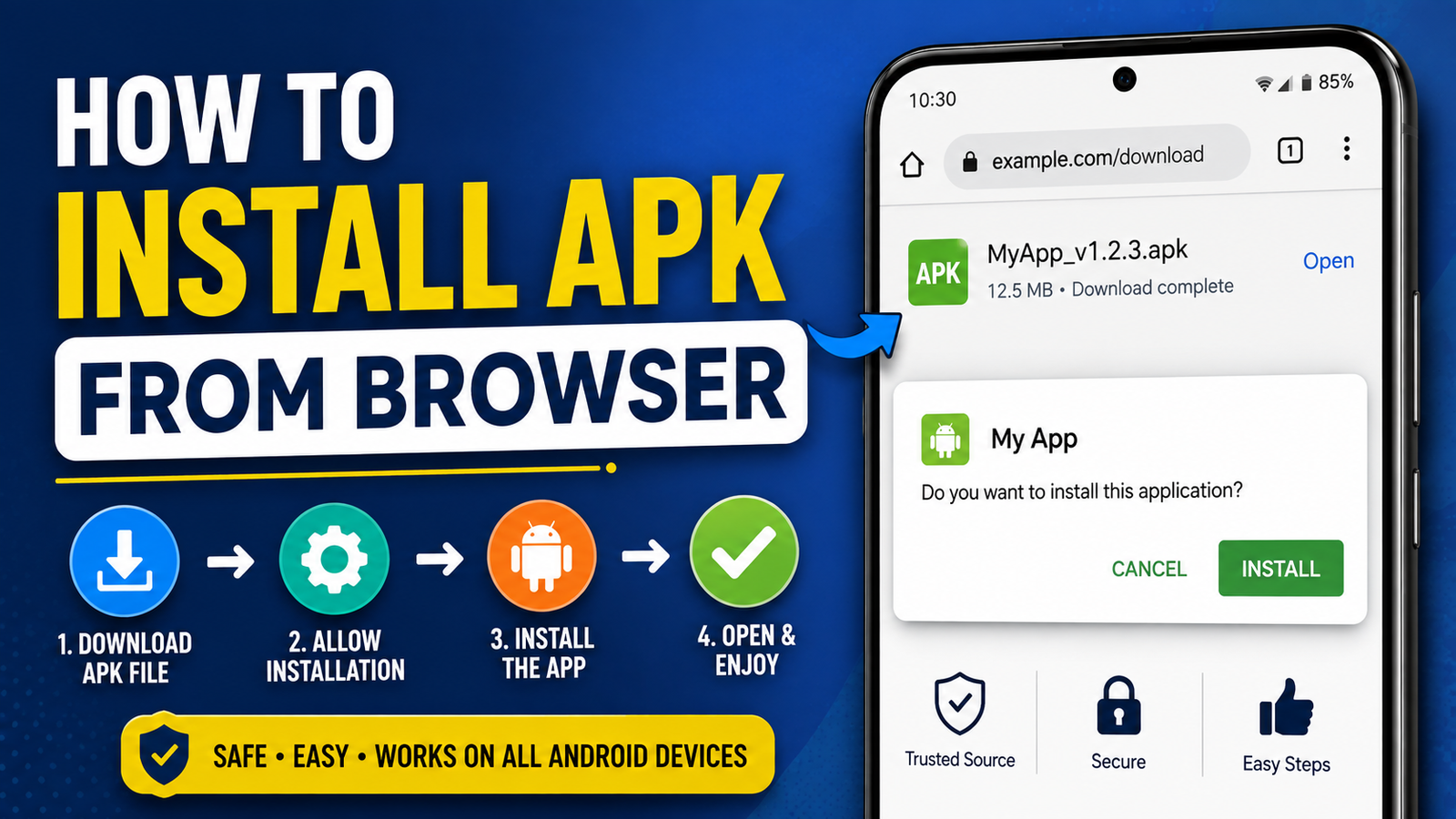
On many recent Android versions, apps installed outside the Play Store require permission from the particular application opening the APK.
For example, if you tap the APK using a file manager, Android may ask whether that file manager can install unknown apps.
You may see an option similar to:
Allow from this source
If you trust the APK and the file manager, enable the permission and return to the installation screen.
The wording and location of this setting can differ depending on your Android version and manufacturer.
6. Confirm the Installation
After the required permission is enabled, tap the APK again if necessary.
Android should display an installation screen showing the application name and requested permissions or other relevant information.
Review the information and select Install if everything looks correct.
Wait for the installation to finish. Larger applications may take longer, especially if the phone is busy or has limited available storage.
7. Open the Newly Installed App
Once installation is complete, Android normally gives you options such as Open or Done.
Tap Open to launch the application immediately, or select Done and find the app in your app drawer later.
After confirming that the application works correctly, you can disconnect the USB drive.
What If Android Does Not Detect the USB Drive?
Sometimes the biggest challenge is not the APK installation itself but getting Android to recognize the USB storage.
If the drive does not appear, try these steps:
- Disconnect and reconnect the USB drive.
- Check that the OTG adapter is properly connected.
- Restart the Android device.
- Try another USB drive.
- Check whether USB OTG is supported on your phone.
- Make sure the USB drive is formatted in a file system Android can read.
- Try the drive on another compatible device.
Some phones also have an OTG setting that can automatically turn off after a period of inactivity. If your device has such a setting, check the relevant USB or connection options.
How to Enable APK Installation Permission on Android
Android restricts installations from unknown sources as a security measure.
On many current Android devices, permission is granted per app, rather than through one universal switch.
For example, you might download or access an APK using a file manager and Android will ask you to allow that particular file manager to install unknown applications.
The general process is:
- Open Settings.
- Go to Apps or Security, depending on your device.
- Find the option related to Install unknown apps.
- Select the app you are using to open the APK.
- Enable permission if you trust the source.
- Return to the APK and try the installation again.
Menu names can vary considerably between Samsung, Xiaomi, Google Pixel, OnePlus, Motorola, and other Android devices.
If you cannot find the setting, use the Settings search function and search for Install unknown apps.
Is It Safe to Install an APK From a USB Drive?
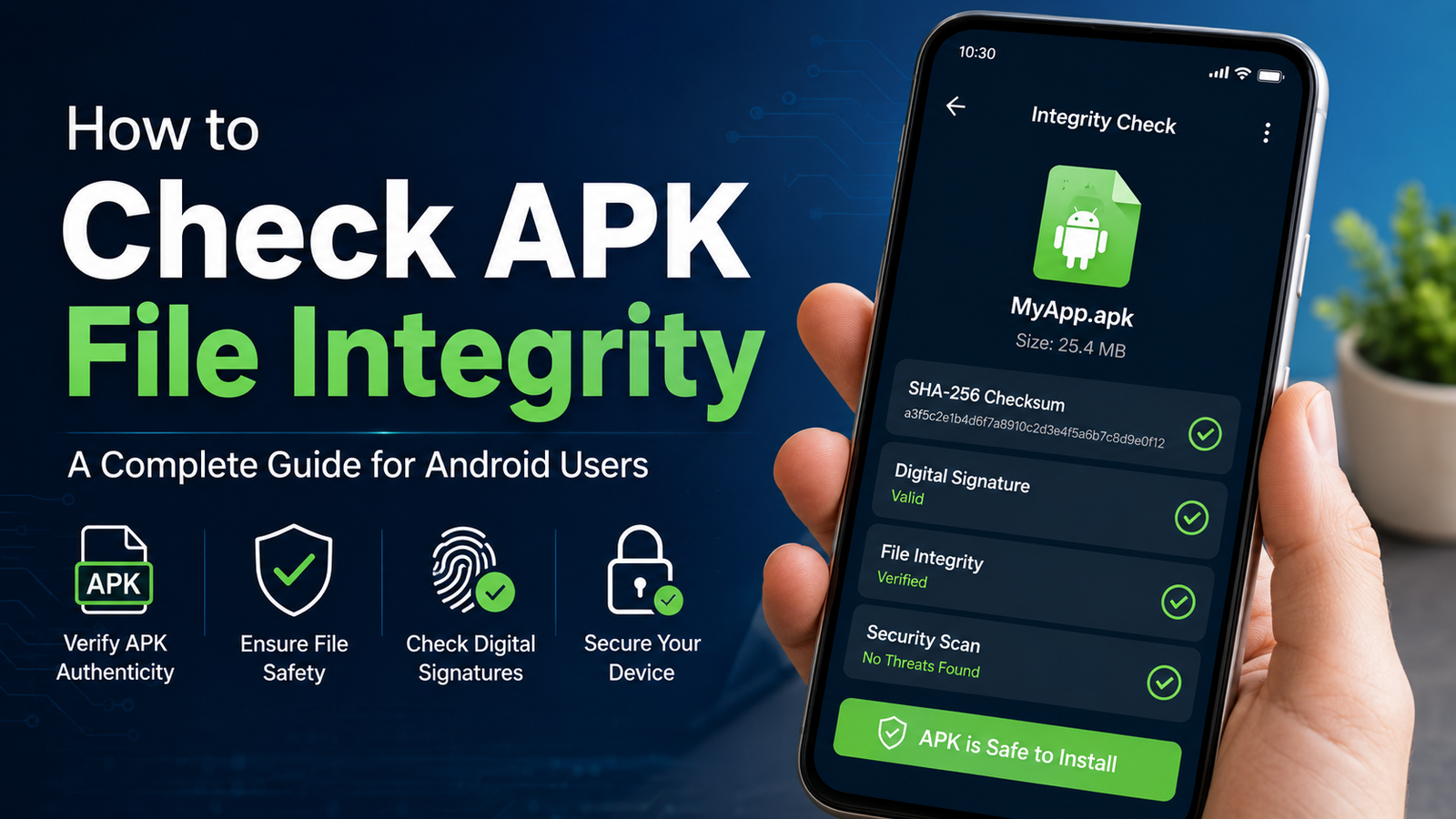
The USB drive itself does not make an APK safe or unsafe. The main concern is the source and integrity of the APK file.
A malicious APK can contain harmful code regardless of whether it was transferred through a USB drive, downloaded from a browser, or received through another method.
For safer installations:
- Download APKs from reputable sources.
- Prefer the official developer or publisher when available.
- Avoid suspicious modified applications.
- Check the app name and developer before installation.
- Keep Android security features enabled.
- Do not grant unnecessary permissions.
- Scan suspicious files with appropriate security tools.
- Avoid APKs from unknown USB drives.
Be particularly careful when someone gives you a USB drive containing applications. You may not know where those files came from or whether they have been modified.
Common Problems When Installing APKs From USB
Even when the process is correct, Android may refuse to install an APK.
Here are some common problems and their possible causes:
| Problem | Possible Cause | What to Try |
|---|---|---|
| USB drive not detected | OTG or compatibility issue | Check adapter and OTG support |
| APK will not open | Corrupt or incomplete file | Copy the APK again |
| App not installed | Compatibility or conflict | Check Android version and existing app |
| Installation blocked | Unknown-app permission disabled | Allow the file manager temporarily |
| Not enough storage | Low device storage | Free up space |
| Parse error | Incompatible or damaged APK | Obtain a compatible APK |
| App installs but crashes | Compatibility or app issue | Check device requirements |
“App Not Installed” Error
The App not installed message can have several causes.
The APK might not support your Android version, the package could conflict with an existing installation, or the file could be damaged.
If you already have the same app installed, updating it with an APK can also fail when the APK comes from a different signing key or source.
Do not immediately delete your existing application if it contains important local data. First determine why the new APK is incompatible.
“There Was a Problem Parsing the Package”
A parsing error commonly indicates that Android cannot properly read or process the APK.
Possible causes include:
- The APK download is incomplete.
- The file is corrupted.
- The APK is incompatible with your device.
- The application requires a different Android version.
- The file is not actually a standard APK.
Getting a fresh copy from a reliable source is often a good first troubleshooting step.
Can You Install an APK Without Internet?
Yes, an APK can generally be installed without an active internet connection if the APK file itself is already stored on your USB drive.
However, the application may still require internet access after installation. Some apps need an internet connection for account login, downloading additional resources, checking licenses, syncing data, or accessing online services.
This means offline APK installation and offline app usage are two different things.
What About XAPK, APKM, and APKS Files?
Not every Android application download is a simple APK.
You may encounter formats such as:
- XAPK — can contain an APK plus additional application data.
- APKM — commonly associated with split APK packages.
- APKS — can contain multiple APK components required by an application.
If your USB drive contains one of these formats, tapping the file with a standard file manager may not be enough.
You may need a compatible package installer designed for that format. Always use a reputable installer and verify that the package came from a trustworthy source.
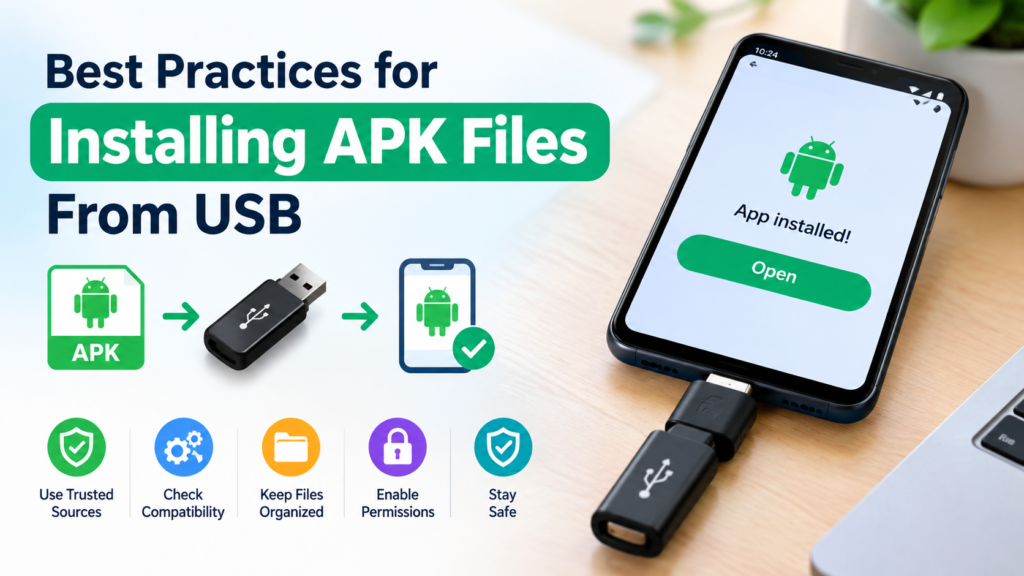
Best Practices for Installing APK Files From USB
A few simple habits can make the process safer and easier.
Keep Your APK Files Organized
Create a folder such as APK Files on your USB drive and use clear filenames. This is especially helpful if you regularly transfer applications between devices.
Check Compatibility First
Before installation, check whether the APK supports your Android version and device architecture.
An APK designed for a particular Android environment may not work correctly on every phone.
Keep Android Updated
Security updates can help protect your device from known vulnerabilities. Installing applications manually should not mean ignoring regular Android updates.
Disable Unknown-App Permission When Finished
If you temporarily allowed a file manager or browser to install unknown apps, consider turning that permission off after the installation is complete.
This reduces the number of apps that are authorized to initiate APK installations.
Keep a Backup of Important Data
Installing an APK normally does not require deleting your existing data, but application changes can sometimes cause unexpected problems.
For important applications, make sure your valuable data is backed up before replacing or modifying an existing installation.
Frequently Asked Questions
Can I install an APK directly from a USB drive?
Yes. If your Android device supports USB storage through OTG, you can connect the drive, open the APK with a file manager, grant the necessary installation permission, and complete the installation.
Do I need an OTG adapter to install an APK from USB?
It depends on your phone and USB drive. If the connectors are compatible, you may not need an adapter. Otherwise, a suitable OTG adapter can connect the USB drive to your Android device.
Why can’t my Android phone see my USB drive?
The problem may be caused by an incompatible adapter, unsupported file system, disabled or unsupported OTG functionality, or a faulty drive. Try reconnecting the drive and testing another compatible USB device.
Is installing an APK from USB safe?
The transfer method itself does not determine whether an APK is safe. The most important factor is where the APK came from. Use reputable sources and avoid unknown or suspicious files.
Can I install XAPK from a USB drive?
You can transfer XAPK files using a USB drive, but a standard Android package installer may not install them directly. A compatible installer may be required because XAPK packages can contain additional files.
Should I delete the APK after installing it?
You can delete the APK after confirming that the application works. The installed application does not normally depend on the original APK remaining on the USB drive.
Final Thoughts
Learning how to install APK from USB drive is useful when you need to transfer an Android application without downloading it directly to your phone. The basic process is simple: prepare a trusted APK, connect the USB drive using compatible USB OTG hardware, locate the file with a file manager, allow installation from that source when Android requests it, and complete the installation.
Also Read: How to Install APK from SD Card: A Complete Step-by-Step Guide




Post Comment