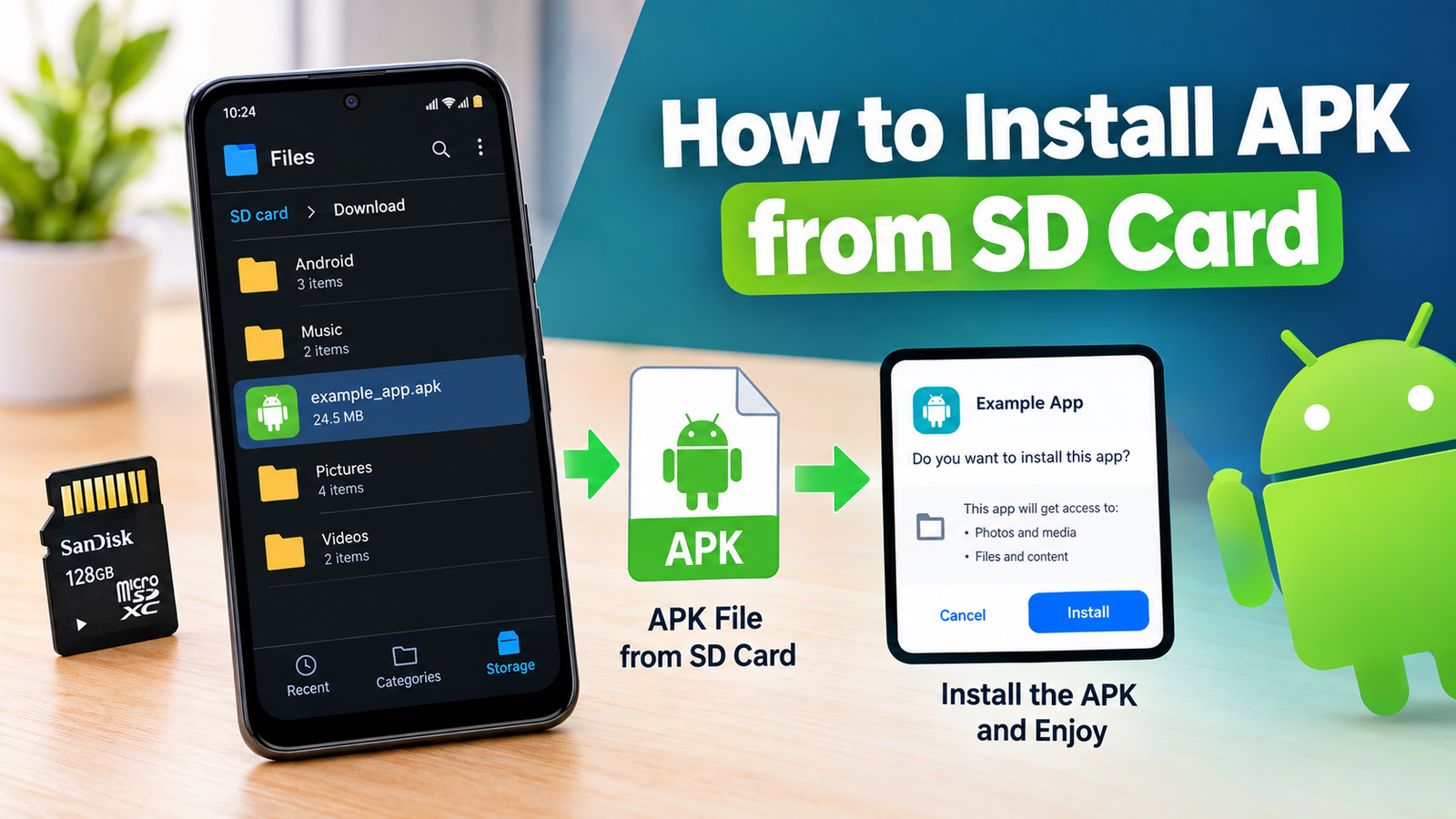
How to Install APK from SD Card: A Complete Step-by-Step Guide
Installing an APK from an SD card can be a convenient way to add an Android app without downloading the file directly to your phone. This method is especially useful when you already have an APK saved on a microSD card, have limited internet access, or need to transfer an app installation file from another device.
The process is generally straightforward, but Android security settings can prevent an APK from installing until you allow the file manager or another app to install unknown applications. The exact menus can also vary depending on your Android version and phone manufacturer.
In this guide, you will learn how to install APK from SD card safely and correctly. We will cover preparation, the installation process, common problems, security checks, and what to do after installation.
What Is an APK File?
APK stands for Android Package Kit. It is the file format Android uses to package and distribute applications.
When you download an app outside the Google Play Store, you may receive an APK file. Once Android verifies that the package is compatible and allowed to install, the operating system can use it to install the application.
An APK might be stored in several places, including:
- Internal phone storage
- A microSD card
- A USB flash drive
- A computer before being transferred to the phone
- A messaging or file-sharing application
An SD card can therefore act as convenient storage for APK files that you want to install later.
Can You Install an APK Directly From an SD Card?
Yes, on Android phones that support removable SD cards, you can usually install an APK stored on the card.
However, the SD card itself does not install the application. You need to open the APK through a file manager or another application that has access to the card. Android then handles the installation.
There are two important requirements:
- The APK must be stored somewhere accessible on the SD card.
- Android must allow the app you are using to install applications from unknown sources.
Newer Android versions generally manage this permission on a per-app basis. For example, if you open the APK using a file manager, you may need to give that file manager permission to install unknown apps.
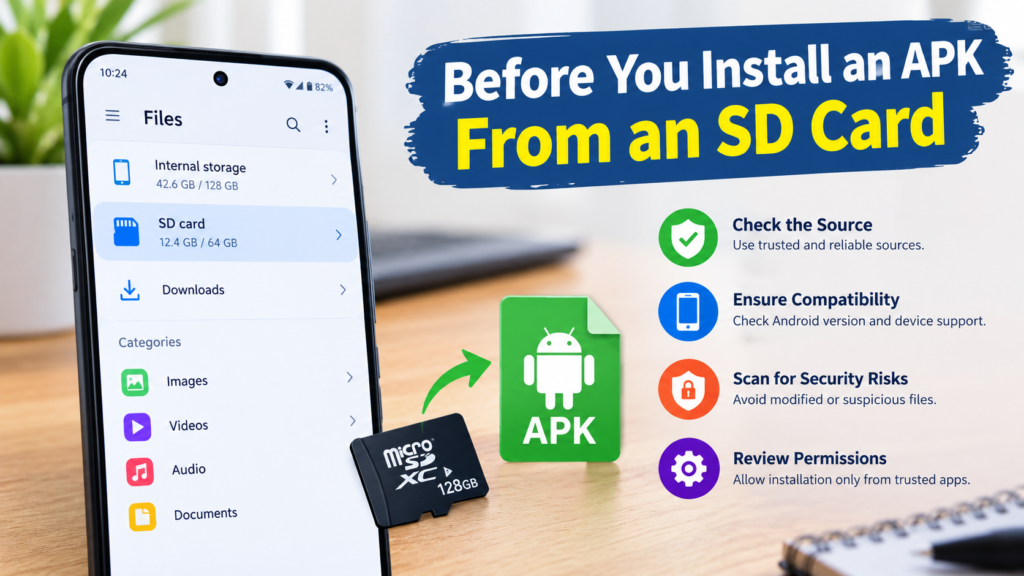
Before You Install an APK From an SD Card
Before opening the APK, take a few minutes to prepare your phone and check the file.
Check the APK Source
The most important step is knowing where the APK came from. An APK stored on an SD card is not automatically safe simply because it is offline.
Avoid installing files obtained from suspicious websites, unknown people, or random links. Modified or tampered APKs can contain unwanted software.
If possible, obtain the installation file from the app developer or another reputable source.
Make Sure the APK Is Compatible
An APK may not work correctly if it was designed for a different Android version, processor architecture, or device.
Check:
- Your Android version
- The app’s minimum Android requirement
- Whether the APK supports your device
- Whether the file is a standard APK or another package format
You should also make sure the file has finished copying to the SD card before trying to install it.
How to Install APK From SD Card Step by Step
The following process works on many Android devices, although menu names may differ slightly between manufacturers.
Step 1: Insert the SD Card
Insert the microSD card containing the APK into your Android phone.
If your phone uses a removable card tray, make sure the card is properly seated. After inserting it, wait a few seconds for Android to recognize the storage.
You can usually confirm that the card is available by opening your phone’s storage settings or file manager.
Step 2: Open a File Manager
Open the built-in Files app or another trusted file manager installed on your phone.
Look for a section such as:
- SD Card
- Memory Card
- External Storage
- Portable Storage
The exact wording depends on your Android device.
Step 3: Find the APK File
Navigate through the SD card folders until you find the APK.
For example, the file might be located in:
SD Card > Download
or another folder where you saved or transferred it.
APK files normally have the .apk extension. Check the filename carefully before opening it.
Step 4: Tap the APK
Tap the APK file.
Android should display an installation screen showing information about the application. Depending on the Android version, you may see an option such as Install.
If Android blocks the installation, don’t worry. This usually means the application you used to open the APK does not currently have permission to install unknown apps.
Step 5: Allow Installation From the Source
If you see a warning saying that installation from this source is not allowed, Android should provide a way to open the relevant settings.
Enable Allow from this source for the file manager or application you used.
The setting may be found under a path similar to:
Settings → Apps → Special app access → Install unknown apps
On some phones, the menu can be slightly different.
Only enable this permission for a source you trust. You do not need to enable unknown-app installation globally.
Step 6: Return to the APK
After granting the necessary permission, return to the file manager and tap the APK again.
The installation screen should now appear.
Tap Install and wait while Android processes the package.
Step 7: Open the App
Once installation is complete, Android may show Open and Done buttons.
Tap Open if you want to launch the application immediately.
If you choose Done, you can find the newly installed application in your app drawer or home screen, depending on your device.
Quick Overview of the Installation Process
| Step | What to Do | Important Note |
|---|---|---|
| 1 | Insert the SD card | Make sure Android detects it |
| 2 | Open a file manager | Use a trusted file manager |
| 3 | Find the APK | Check the file extension |
| 4 | Tap the APK | Android may show a security warning |
| 5 | Allow the source | Grant permission only to the required app |
| 6 | Install the APK | Wait for the process to finish |
| 7 | Open the app | Test that it works correctly |
Why Android May Block an APK From an SD Card
If the APK refuses to install, the SD card itself may not be the problem.
Android includes security controls that restrict applications installed outside official app stores. This helps reduce the risk of accidentally installing malicious software.
Common reasons for a blocked installation include:
- Unknown-app installation is disabled
- The APK is damaged
- The APK is incompatible with your Android version
- The application is already installed with a conflicting signature
- There is insufficient storage
- The APK requires a different processor architecture
- The file is not actually a standard APK
- Android’s security features have detected a potential risk
Understanding the exact error message can make troubleshooting much easier.
What If the APK Is XAPK, APKM, or APKS?
Not every Android installation file is a normal APK.
You may encounter formats such as XAPK, APKM, or APKS. These formats can contain multiple components or additional resources required by an application.
Simply tapping these files in a basic file manager may not install them.
If the file does not end in .apk, first determine what type of package you have. You may need a compatible installer rather than treating it like a standard APK.
This is an important distinction when learning how to install APK from SD card because the storage location does not change the file format.
Common Problems When Installing APK From an SD Card
APK File Does Not Appear
If you cannot find the file, check whether:
- The SD card is properly inserted
- Your file manager has storage permission
- The APK was copied successfully
- You are browsing the correct SD card
- The file was renamed or moved
You can also use the file manager’s search function to look for .apk files.
Installation Is Blocked
If Android says installation is not allowed, check the unknown-app permission for the application opening the APK.
Remember that this permission belongs to the source application, not simply to the SD card.
App Not Installed Error
The “App not installed” message can have several causes.
Try checking:
- Available storage
- APK compatibility
- Whether an older version of the app is already installed
- Whether the APK is corrupted
- Whether the package is intended for your device
If you already have the same application installed, uninstalling it may sometimes resolve a package conflict. However, do this carefully because removing an existing app can also remove its locally stored data.
APK Installation Fails Immediately
A damaged or incomplete APK can fail before installation begins.
If the file came from a transfer, consider copying it to the SD card again. If the original download was interrupted, obtain a fresh copy from a trustworthy source.
Is It Safe to Install APKs From an SD Card?
The SD card does not make an APK safer or more dangerous. The source and integrity of the APK are what matter most.
Before installing an APK, consider these precautions:
- Download files only from trustworthy sources.
- Avoid suspicious websites and shortened download links.
- Check the APK filename and extension.
- Keep Android’s security features enabled.
- Review the permissions requested by the app.
- Avoid modified APKs when you do not know what has been changed.
- Delete suspicious files instead of trying to force their installation.
- Keep your Android device updated.
If Android or your security software strongly warns you about a file, take the warning seriously rather than bypassing it automatically.
Should You Keep the APK on the SD Card?
You can keep the APK if you think you may need it again. For example, it can serve as an offline installation file.
However, once you have successfully installed and tested the application, you do not have to keep the APK.
You may delete it if:
- You need additional storage space.
- You no longer need the installation file.
- You already have another trusted backup.
- The APK came from a source you no longer trust.
Deleting the APK does not normally uninstall the application. The installed app is stored separately by Android.
Tips for a Safer APK Installation
A few simple habits can make the process safer and more reliable.
Use a trusted source: The biggest security decision happens before the APK reaches your SD card.
Check the file type: Make sure you know whether you are dealing with an APK, XAPK, APKM, or APKS file.
Don’t grant unnecessary permissions: If a file manager requests access that does not seem relevant, review the request carefully.
Keep Android updated: Security updates can protect your device against known threats.
Scan suspicious files: If you have concerns about an APK, use a reputable security solution before installing it.
Disable unnecessary installation permission afterward: If you temporarily allowed a particular app to install unknown applications, consider turning the permission off when finished.
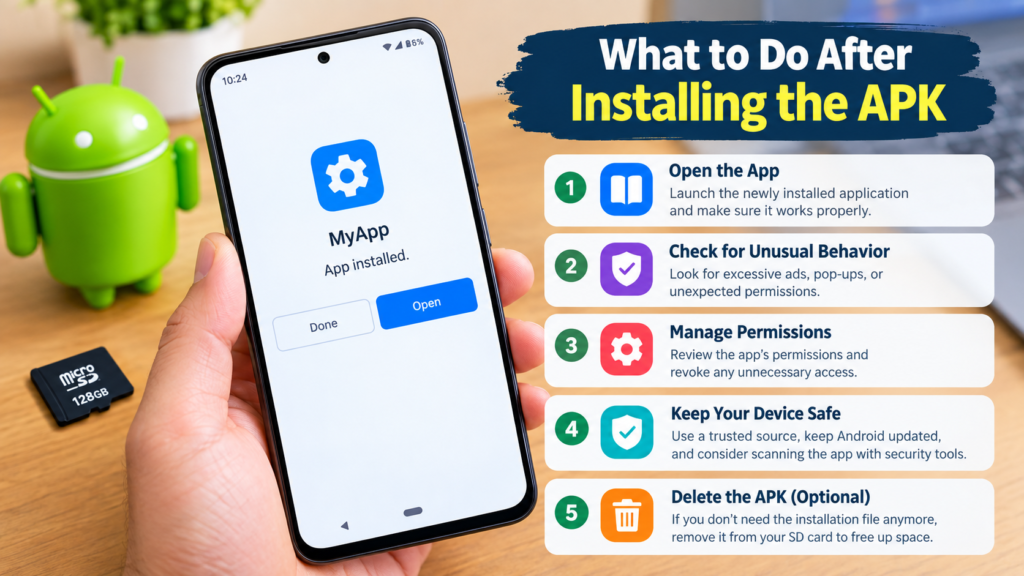
What to Do After Installing the APK
After installation, open the application and make sure everything works normally.
Pay attention to unusual behavior such as:
- Excessive advertisements
- Unexpected pop-ups
- Requests for unrelated permissions
- Significant battery drain
- Unusual data usage
- Apps appearing that you did not install
If an application behaves suspiciously, uninstall it and investigate the source of the APK.
It is also a good idea to keep the original APK only if you trust it and have a genuine reason to keep an offline copy.
Frequently Asked Questions
Can I install an APK from an SD card without the internet?
Yes. If the APK is already stored on your SD card and your device supports installation from local storage, an internet connection is generally not required for the basic installation process. Some apps may require internet access afterward to download additional content or complete setup.
Why won’t my Android phone install an APK from my SD card?
Several things can cause this. The most common are disabled unknown-app permissions, an incompatible APK, insufficient storage, a corrupted file, or a package conflict with an existing application.
Do I need a special app to install an APK from an SD card?
Usually, you only need a file manager capable of accessing the SD card. However, some Android package formats, such as XAPK or APKS, may require specialized installation methods.
Can I delete the APK after installing the app?
Yes. Once the application has been installed successfully, deleting the original APK generally does not remove the installed app. The APK is simply the installation package.
Is installing an APK from an SD card safe?
It can be safe when the APK comes from a trustworthy source and is compatible with your device. The fact that it is stored on an SD card does not guarantee that the file is secure.
What should I do if Android says the APK is not installed?
First, check your available storage, Android compatibility, and whether another version of the same app is already installed. Also verify that the APK is complete and intended for your device. If the problem continues, obtain a fresh copy from a trusted source.
Final Thoughts
Learning how to install APK from SD card is useful when you want to install an Android application from offline storage. The basic process involves inserting the SD card, opening a trusted file manager, locating the APK, allowing installation from that source when required, and following Android’s installation prompts.
Also Read: How to Install APK From WhatsApp on Android: A Safe Step-by-Step Guide






Post Comment