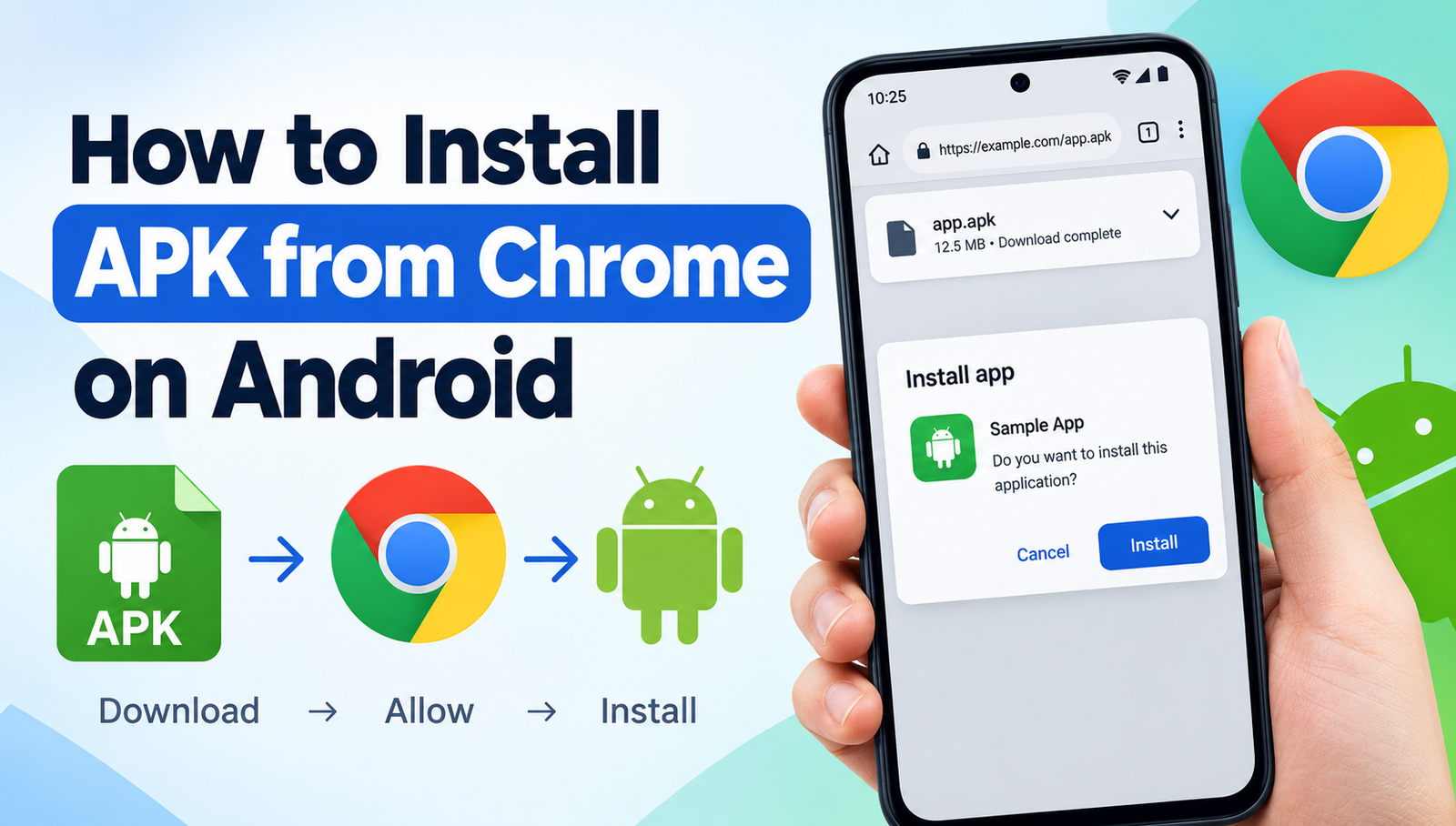
How to Install APK from Chrome on Android: A Complete Step-by-Step Guide
Downloading an APK file through Google Chrome is one of the easiest ways to get an Android app when it is not available through your usual app store. However, downloading the file is only the first part. You also need to know how to install the APK safely and what to do if Android blocks the installation.
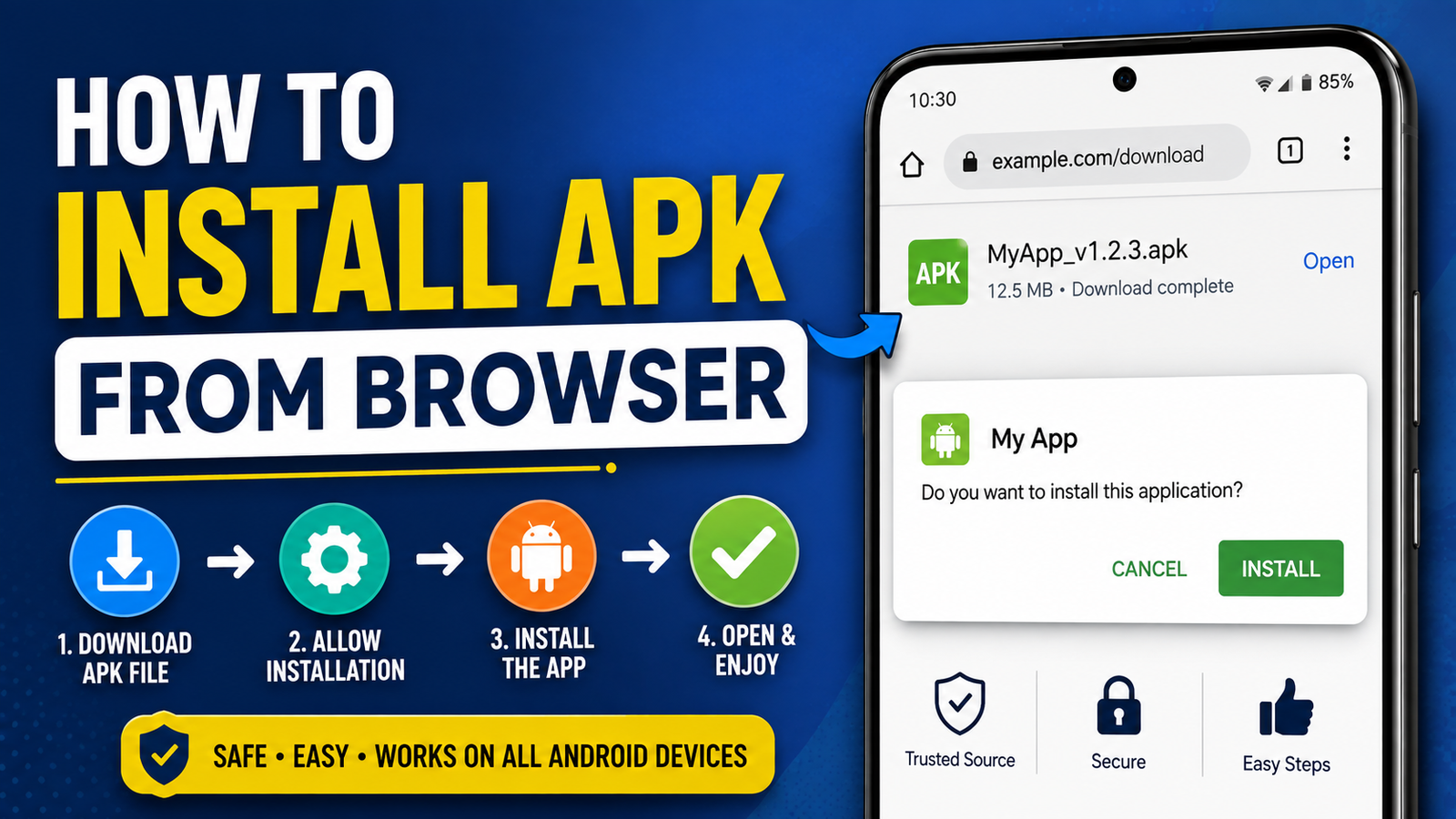
If you are searching for how to install APK from Chrome, the process is fairly simple on most modern Android phones. You download the APK using Chrome, open the downloaded file, allow Chrome or the relevant source to install unknown apps if required, and then complete the installation.
The exact menus can vary depending on your Android version and phone manufacturer. Samsung, Xiaomi, Google Pixel, OnePlus, OPPO, vivo, and other devices may use slightly different settings.
This guide explains the entire process in simple steps. It also covers common installation problems, security precautions, and what to do with APK files after installation.
What Is an APK File?
APK stands for Android Package Kit. It is the package format Android uses to distribute and install applications.
When you install an application from an official app store, the installation normally happens automatically in the background. When you download an APK directly through Chrome, you are manually obtaining the application package.
An APK can be useful when:
- An app is unavailable in your region.
- You need an older version of an application.
- The developer provides an APK directly.
- You want to install an app outside the usual app store.
- You are testing an application manually.
However, an APK downloaded from an unknown website can potentially contain malicious software. That’s why the source of the APK matters just as much as the installation process.
Can You Install an APK Directly From Chrome?
Yes. Android allows you to install APK files downloaded through Chrome, provided your device permits installation from that source.
On newer versions of Android, you generally don’t need to enable a single global Unknown Sources switch. Instead, Android may ask you to allow the specific application that opened the APK to install unknown apps.
For example, if Chrome downloaded the APK, Android may ask you to give Chrome permission to install applications from that source.
Once the installation is complete, you can disable that permission again if you don’t plan to install more APK files from Chrome.
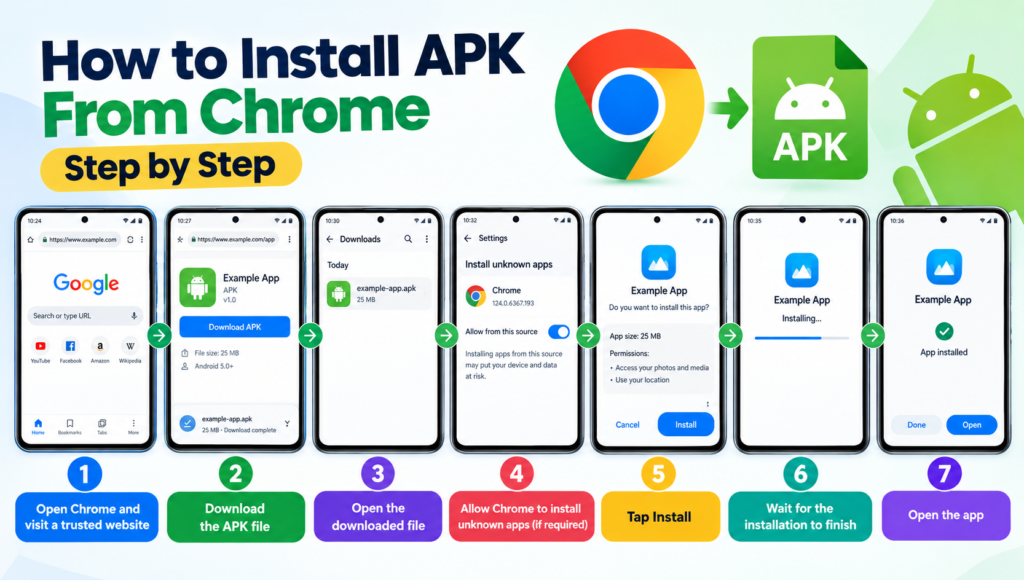
How to Install APK From Chrome Step by Step
The following method works on most recent Android devices, although the wording and menu locations can differ.
Step 1: Open Chrome on Your Android Phone
Start by opening Google Chrome on your Android device.
Visit the website where the APK is hosted. Before downloading anything, make sure you trust the website and understand what application you are downloading.
Avoid clicking suspicious pop-ups, fake download buttons, or advertisements pretending to be the actual APK download.
Step 2: Download the APK File
Tap the download button for the APK.
Chrome may display a warning depending on the file and website. Read the warning carefully instead of automatically approving every download.
If you’re confident that the file is legitimate, proceed with the download.
Afterward, Chrome should show a download notification or confirmation.
Step 3: Open the Downloaded APK
Once the download finishes, tap the downloaded file.
You can also find it later by opening Chrome’s download section or using your phone’s file manager.
The file will commonly be located in the Download folder.
When you tap the APK, Android may immediately show an installation screen. If it doesn’t, you may need to allow Chrome to install unknown apps.
Step 4: Allow Chrome to Install Unknown Apps
If Android prevents the installation, you’ll usually see a message explaining that Chrome isn’t currently allowed to install unknown apps.
Tap the option that takes you to the relevant settings.
Depending on your phone, it may look similar to:
Settings → Apps → Special app access → Install unknown apps → Chrome
Turn on the option allowing Chrome to install unknown apps.
The exact location can vary between manufacturers and Android versions.
Step 5: Return to the APK File
After giving Chrome the necessary permission, return to the downloaded APK.
Open it again if necessary.
Android should now display the application installation prompt.
Review the information shown on the screen before continuing.
Step 6: Tap Install
Tap Install.
Android will check the package and begin installing the application.
The process can take anywhere from a few seconds to several minutes depending on the application and your device.
Don’t close the installation screen while the process is running.
Step 7: Open the App
When installation finishes, you should see an Open option.
Tap it to launch the application.
You can also find the newly installed app in your normal app drawer.
That’s it. You have successfully installed an APK downloaded through Chrome.
Quick Overview of the APK Installation Process
| Step | What You Need to Do |
|---|---|
| 1 | Open Chrome |
| 2 | Visit a trusted APK source |
| 3 | Download the APK |
| 4 | Open the downloaded file |
| 5 | Allow Chrome to install unknown apps if requested |
| 6 | Tap Install |
| 7 | Open the application |
Why Does Android Block APK Installation?
Android restricts installations from unknown sources primarily as a security measure.
Applications installed through official app stores generally go through additional checks and distribution controls. An APK downloaded from the web doesn’t necessarily have the same level of protection.
Therefore, Android may prevent Chrome from installing an APK until you explicitly grant permission.
This doesn’t automatically mean that the APK is dangerous. It means Android is asking you to confirm that you intentionally want to install software from outside the standard app distribution channel.
It’s still important to verify the file before installing it.
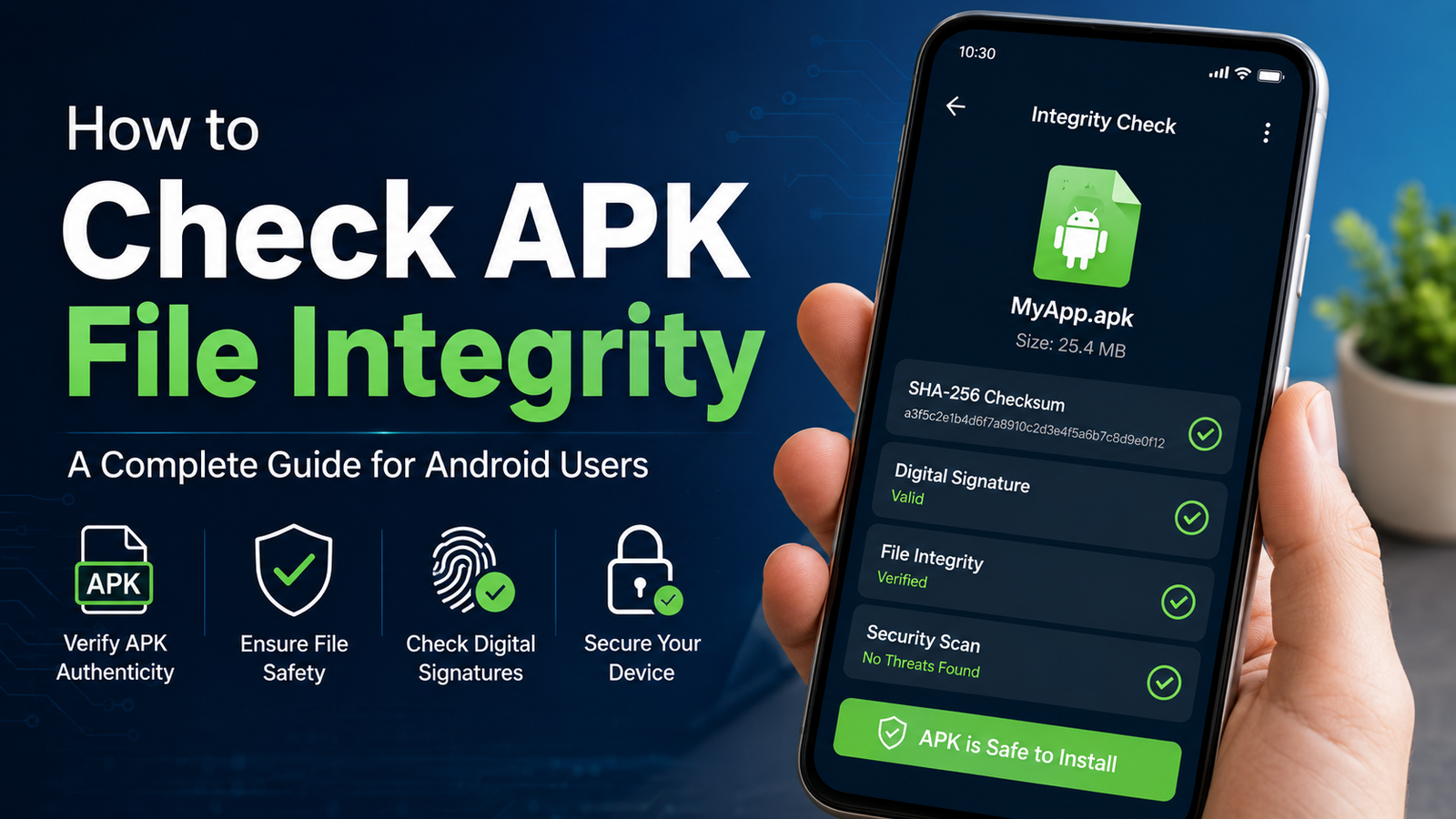
How to Check an APK Before Installing It
Knowing how to install APK from Chrome is useful, but knowing how to evaluate an APK is even more important.
Before opening a downloaded APK, consider these precautions:
Download From a Reputable Source
Use the developer’s official website or a reputable APK distribution service whenever possible.
Be particularly cautious with websites that use aggressive pop-ups, fake download buttons, or unexplained redirects.
Check the App Name
Make sure the APK corresponds to the application you intended to download.
A file with a strange name, unexpected developer information, or an unrelated application icon deserves extra scrutiny.
Check the File Extension
A normal Android application package uses the .apk extension.
If you downloaded something like .xapk, .apkm, or .apks, it may require a different installation method rather than opening directly through the standard Android installer.
Keep Android Security Features Enabled
Don’t disable Android’s security protections simply because an APK refuses to install.
If your device displays a security warning, take a moment to understand why it appeared.
What If Chrome Says the APK Download Is Dangerous?
Chrome or Android may sometimes warn you about a downloaded file.
Don’t ignore such warnings automatically.
If the warning concerns a website or file you don’t recognize, the safest choice is usually to cancel the download and investigate the source.
If you believe the warning is a false positive, verify the APK through a trustworthy source before proceeding.
Never install an application simply because a website tells you to ignore every security warning.
What to Do If the APK Won’t Install
Sometimes you follow all the steps correctly but Android still displays an error.
Here are several common causes.
The APK Is Not Compatible
An APK may have been created for a different Android version or processor architecture.
For example, an APK intended for a specific architecture may not work properly on another device.
An Older Version Is Already Installed
Android can reject an APK if it conflicts with the application already installed on your phone.
This can happen when you try to install a package with a different signing key or incompatible version.
If you are replacing an existing installation, make sure you understand whether removing the current app could result in lost data.
Insufficient Storage
Your phone needs enough free storage to install an application.
If your device is nearly full, remove unnecessary files or applications and try again.
The File Is Corrupted
A failed or incomplete download can produce an APK that won’t install.
Delete the damaged file and download a fresh copy from a trustworthy source.
It’s Not Actually a Standard APK
As mentioned earlier, some Android applications are distributed as split packages or alternative formats.
Files such as APKM, APKS, and XAPK may contain multiple components. Simply tapping the file may not work with Android’s standard package installer.
APK vs App Store Installation
Installing an APK manually isn’t necessarily better or worse than using an app store. The two methods simply offer different levels of convenience and control.
| Feature | APK From Chrome | Official App Store |
|---|---|---|
| Manual download | Yes | Usually no |
| Manual installation | Yes | Usually no |
| Updates | Often manual | Usually automatic |
| Source verification | User responsibility | More platform-managed |
| Regional availability | Can sometimes bypass availability restrictions | Depends on region |
| Installation control | Higher | More automated |
| Security responsibility | Higher | More platform assistance |
For most everyday users, an official app store remains the simplest option. Manual APK installation is useful when you have a specific reason to install an app outside that ecosystem.
Should You Delete the APK After Installation?
In most cases, yes, you can delete the APK after successfully installing the application.
The APK is an installation package. Once Android has installed the application, the original downloaded file is generally no longer necessary for the app to run.
Deleting it can help free up storage, particularly if the APK is large.
However, you might want to keep it if:
- You plan to reinstall the same version later.
- You have limited internet access.
- The application version is difficult to find.
- You are keeping a backup for personal use.
If you do keep APK files, store them somewhere organized and avoid installing old files without first checking whether they are still trustworthy and compatible.
Can You Update an App Using an APK From Chrome?
Yes, in many cases you can update an existing Android application by installing a newer APK over the current version.
However, several conditions need to be met.
The new APK generally needs to be compatible with the existing installation and signed appropriately. If those conditions aren’t met, Android may show an error such as App not installed.
It’s also important to remember that manually installed applications may not receive updates as conveniently as apps installed through an official store.
If you rely on manual APK updates, you’ll need to check for newer versions yourself.
Common Mistakes to Avoid When Installing APKs
Manual installation is straightforward, but a few mistakes can create unnecessary problems.
Avoid these common errors:
- Downloading APKs from random websites.
- Clicking fake download buttons.
- Installing modified apps without understanding the risks.
- Ignoring Android security warnings.
- Granting unnecessary permissions.
- Keeping unknown-source installation permissions enabled unnecessarily.
- Installing incompatible APK versions.
- Downloading files with unusual extensions without checking what they contain.
- Installing an APK simply because a website claims it is “premium” or “unlocked.”
The safest approach is to treat an APK like any other software installer: verify the source before you run it.
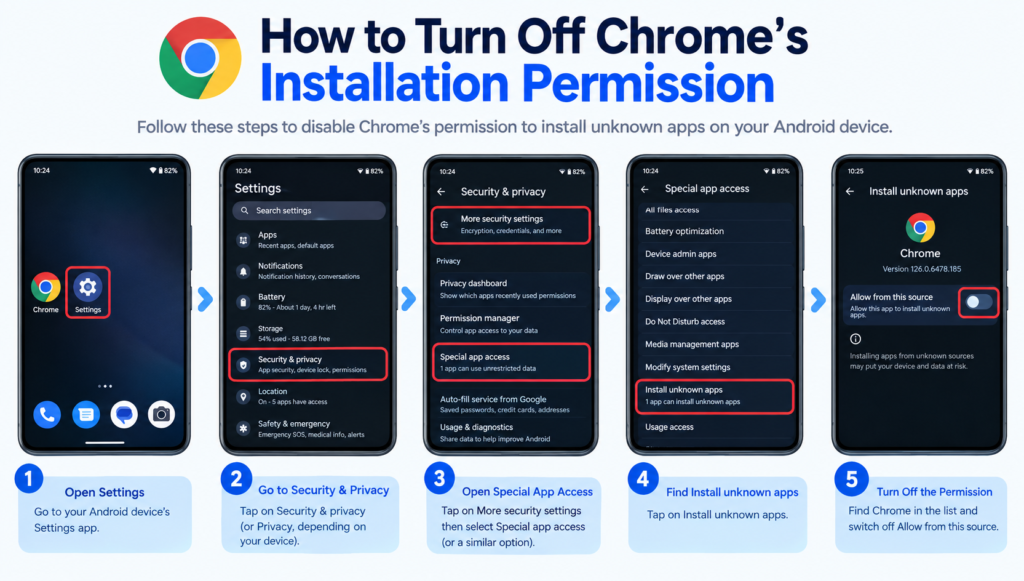
How to Turn Off Chrome’s Installation Permission
After installing the application, you can remove Chrome’s permission to install unknown apps.
On many Android phones, you can find this under a path similar to:
Settings → Apps → Special app access → Install unknown apps → Chrome
Turn off the permission if you don’t need it anymore.
The exact menu names may differ depending on your Android version and device manufacturer.
Doing this can reduce the chance of accidentally installing an unwanted APK in the future.
Frequently Asked Questions
Is it safe to install an APK downloaded from Chrome?
It can be safe when the APK comes from a trustworthy source and has been properly verified. However, downloading an APK from an unknown website can expose your device to malicious or unwanted software. Always check the source before installing.
Why can’t I install an APK from Chrome?
The most common reason is that Chrome doesn’t have permission to install unknown apps. Other possibilities include an incompatible APK, insufficient storage, a corrupted download, or an existing app conflict.
Do I need to enable unknown sources to install APKs?
Modern Android versions usually use a per-source permission rather than one universal unknown-sources switch. You may need to allow the specific app, such as Chrome, to install unknown applications.
Where does Chrome save APK files?
Chrome normally saves downloaded files in your device’s Download folder unless you’ve changed the download location. You can also access downloads through Chrome’s download section or your file manager.
Can I delete an APK after installing the app?
Yes. Once the application has been installed successfully, the original APK is generally not required for the app to work. You can delete it to reclaim storage unless you want to keep it for future installation.
What should I do if the APK says “App not installed”?
First, check whether the APK is compatible with your Android device and whether you have enough storage. Also make sure the download isn’t corrupted and that another version of the same app isn’t creating a conflict.
Final Thoughts
Learning how to install APK from Chrome is useful when you need to install an Android application manually. The basic process is simple: download the APK through Chrome, open the file, allow Chrome to install unknown apps when Android requests permission, and complete the installation.
The bigger issue is not the installation itself but where the APK comes from.
Also Read: How to Install APK on Latest Android: A Complete Step-by-Step Guide





Post Comment