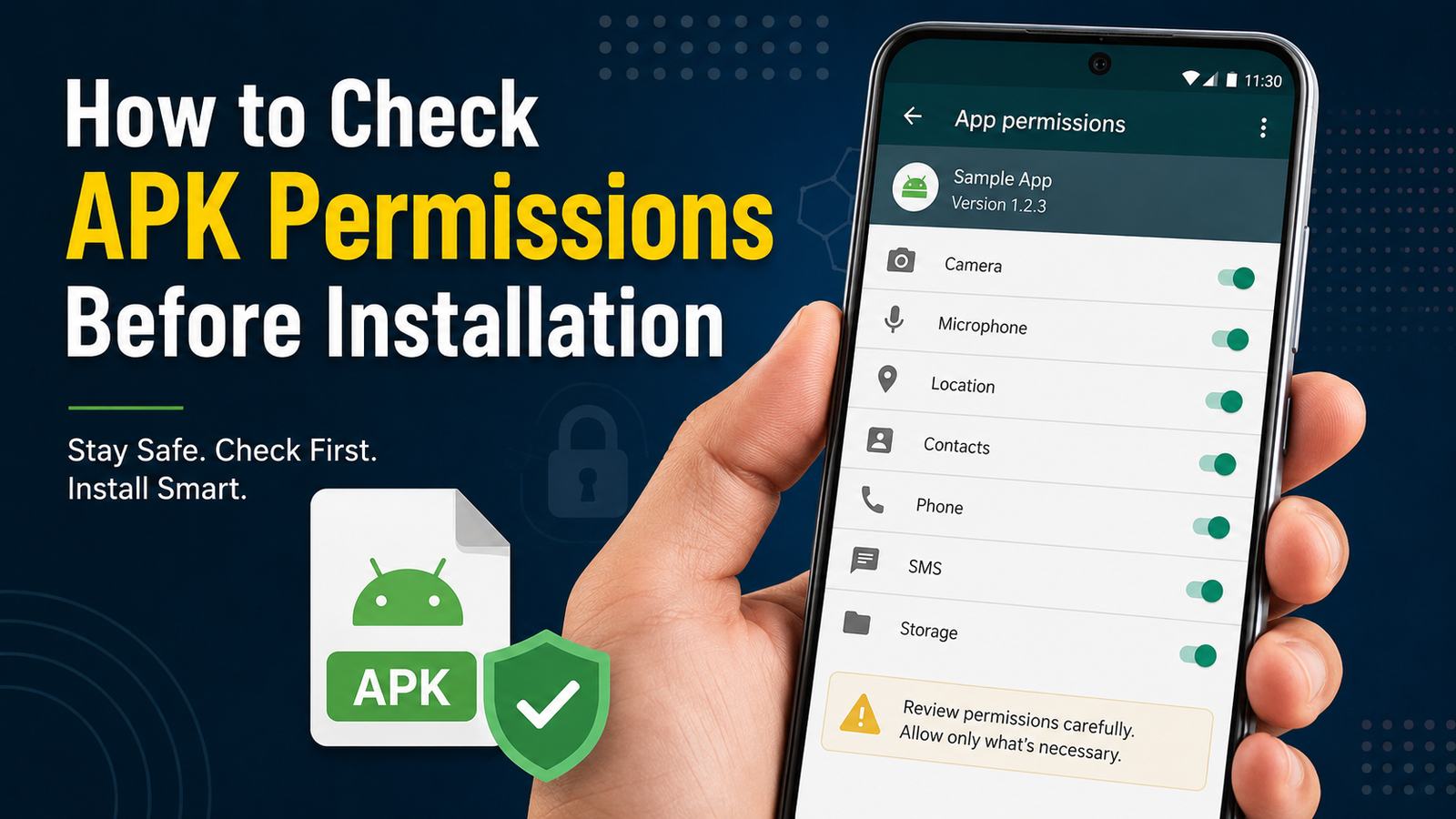
How to Check APK Permissions Before Installation: A Complete Android Safety Guide
Installing an APK can be useful when an app is unavailable through the Google Play Store, but checking its permissions first is an important safety step. Learning How to Check APK Permissions Before Installation can help you identify apps requesting unnecessary access to your camera, contacts, microphone, location, files, or other sensitive information.
An APK file is simply the installation package used by Android applications. However, an APK downloaded from an unfamiliar website may deserve more scrutiny than an app installed through an official store. Before tapping the install button, taking a few minutes to understand the permissions can help you make a more informed decision.
What Are APK Permissions?
APK permissions define the types of information, hardware, and system features an application may be allowed to access. During installation or while using an app, Android may ask you to approve certain permissions.
For example, a messaging application might reasonably need access to contacts, notifications, or the microphone. A flashlight application, on the other hand, generally has little reason to request access to your contacts or SMS messages.
Permissions can therefore provide useful clues about how an application operates.
Some common permissions include:
- Camera access
- Microphone access
- Location access
- Contacts access
- Phone access
- SMS access
- Storage or media access
- Notification access
- Bluetooth or nearby-device access
Not every permission is automatically dangerous. The important question is whether the requested access makes sense for the app’s purpose.
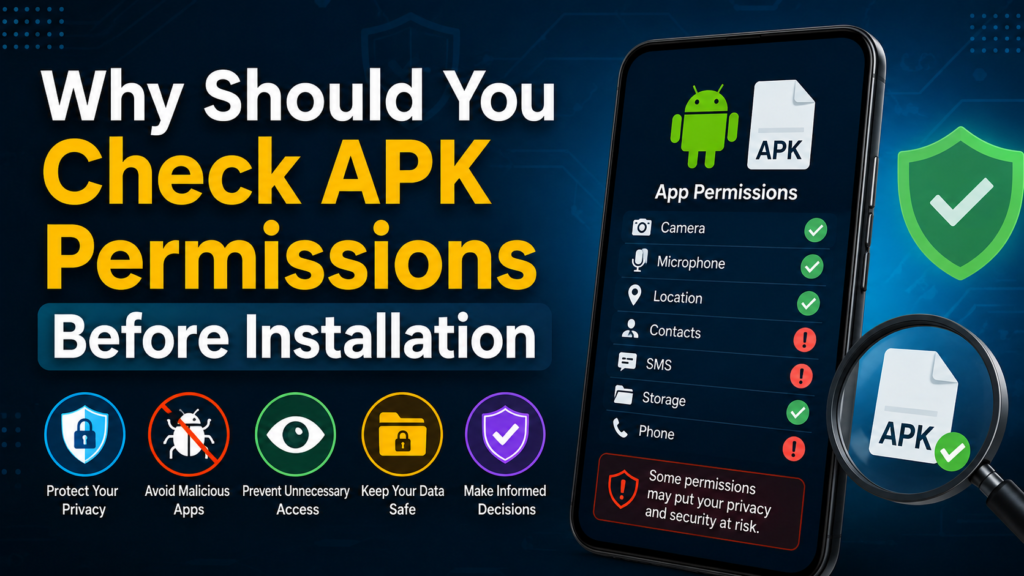
Why Should You Check APK Permissions Before Installation?
When installing an APK manually, you should not focus only on the application’s name or description. Permissions can reveal what the application wants to do after installation.
An app that requests access unrelated to its core function deserves additional attention.
For example, imagine downloading a simple wallpaper application that requests:
- Contacts
- Call logs
- SMS
- Microphone
- Precise location
Those requests may not be necessary for displaying wallpapers. That does not automatically prove the APK is malicious, but it is a reason to investigate further before installing it.
Checking permissions can help you:
- Identify excessive access requests.
- Understand what the app may be able to access.
- Reduce unnecessary privacy exposure.
- Spot suspicious behavior before installation.
- Make better decisions when downloading APK files.
- Avoid installing applications from questionable sources.
How to Check APK Permissions Before Installation
The exact process can vary depending on your Android version, device manufacturer, and APK source. However, there are several practical ways to investigate an APK before installing it.
1. Check the APK Download Page
Start with the website where you obtained the APK.
A trustworthy download page should provide useful information about the application, such as its version, developer, Android compatibility, file size, and sometimes its requested permissions.
Look for a permissions section if one is available.
Do not assume that every permission listed on a third-party website is accurate, though. If privacy is important, verify the information using an APK analysis tool or another reliable source.
2. Use an APK Analyzer
An APK analyzer can inspect the contents and metadata of an APK without requiring you to install the application.
Depending on the tool, you may be able to view information such as:
- Requested permissions
- Package name
- App version
- Activities
- Services
- Receivers
- SDK information
- Application components
This is particularly useful when you want to investigate an APK before allowing it onto your phone.
Search for an APK analysis tool that supports your Android version or desktop operating system, and use a reputable source to obtain it.
3. Examine the AndroidManifest.xml File
The Android manifest contains important information about an Android application. Among other things, it can declare permissions that the application requests.
If you are comfortable with technical tools, you can inspect the manifest of an APK to find entries such as:
android.permission.CAMERAandroid.permission.RECORD_AUDIOandroid.permission.ACCESS_FINE_LOCATIONandroid.permission.READ_CONTACTSandroid.permission.READ_SMS
You do not necessarily need programming knowledge to understand the basic purpose of these permissions. Android’s official documentation and reputable technical references can help explain unfamiliar permission names.
4. Compare Permissions With the App’s Purpose
This is one of the most useful steps.
Do not judge a permission individually. Consider the entire set of requested permissions and compare them with what the application is designed to do.
For example:
| App Type | Permissions That May Make Sense | Permissions That May Need Extra Attention |
|---|---|---|
| Messaging app | Contacts, microphone, camera | Unrelated system access |
| Navigation app | Location, nearby devices | SMS or extensive contact access |
| Camera app | Camera, microphone, media | SMS and call-log access |
| File manager | Files/media, storage-related access | Microphone or SMS access |
| Wallpaper app | Media-related access | Contacts, SMS, microphone |
| Calculator | Basic app functionality | Contacts, SMS, precise location |
This is not an absolute rule. Legitimate applications can require unusual permissions because of specific features. The table is simply a starting point for identifying requests that deserve closer inspection.
Understanding Common Android Permissions
Some permissions deserve more attention because they can expose sensitive information or device functionality.
Camera Permission
Camera access allows an application to use your device’s camera when Android grants the required access.
A camera or video-editing application may have a legitimate reason to request this permission. A basic calculator or wallpaper application generally has less obvious justification.
Microphone Permission
Microphone access can allow an app to record audio when permitted by Android and when its functionality requires it.
Voice-chat, video-call, recording, and music applications may need microphone access. Other app categories should be examined more carefully if they request it without an obvious reason.
Location Permission
Location permissions can provide information about where your device is located.
Navigation, weather, ride-sharing, delivery, and location-based applications may require this information.
Pay attention to whether an app requests approximate or precise location and whether it needs location access while you are actively using it.
Contacts Permission
Contacts access can expose information stored in your address book.
Communication and social applications may have legitimate reasons to request it. A utility with no social or communication features may not need it.
SMS and Call-Related Permissions
SMS and phone-related permissions can be particularly sensitive because they may involve communications or phone information.
If an APK requests these permissions without a clear functional reason, investigate it carefully before continuing.
Photos, Videos, and Files
Modern Android versions handle media and file access differently depending on the operating system version.
An image editor may reasonably need access to photographs. A document manager may require access to files.
The key is to determine whether the requested access matches the application’s actual purpose.
Check the APK’s Source Before Installing
Permissions are only one part of APK safety.
The source of the APK matters as well. If possible, download applications from the original developer or a reputable distribution platform rather than an unknown website.
Before downloading, check:
- Developer or publisher name
- Official application website
- Package name
- Version number
- Update date
- User reviews where available
- APK file size
- Whether the application has been modified
- Whether the download page provides reliable information
Be especially cautious when a website claims to offer a premium application for free without explaining its origin.
Scan the APK for Security Risks
Another useful step is scanning the APK before installation.
A reputable malware-scanning service can help identify known malicious files or suspicious patterns. However, no automated scanner should be treated as a perfect guarantee of safety.
A clean scan is useful evidence, but it does not mean an APK is automatically trustworthy.
You should combine scanning with:
- Permission analysis
- Source verification
- Developer verification
- Package-name checking
- Version comparison
- General caution
This layered approach is stronger than relying on a single security check.
Check Whether the APK Has Been Modified
Modified APKs can change the original behavior of an application.
For example, a modified version might contain additional code, advertising components, tracking functionality, or other changes that were not included in the original application.
If you are comparing an APK with an official version, pay attention to:
- Package name
- Version
- Developer signature
- File hash when available
- Permissions
- Application behavior
A significant difference between the official application’s permissions and those of a modified APK should prompt additional investigation.
Use Android’s Built-In Permission Controls After Installation
Even after checking an APK before installation, review its permissions once it is installed.
Open your Android device’s app settings and locate the application’s permissions section. Depending on your Android version and manufacturer, the menu names may differ.
You can usually review permissions for categories such as:
- Camera
- Microphone
- Location
- Contacts
- Phone
- Photos and videos
- Notifications
If an application requests access that you do not believe it needs, consider denying the permission when Android allows you to do so.
Keep in mind that denying a permission may cause certain features to stop working.
What to Do If an APK Requests Suspicious Permissions
Finding an unexpected permission does not necessarily mean the APK is malicious. However, it should encourage you to pause before installation.
Ask yourself a few questions:
- Does the permission directly relate to the app’s main feature?
- Does the developer explain why it is needed?
- Is the APK from a trustworthy source?
- Does the package name match the legitimate application?
- Does the app request unusually broad access?
- Can the same application be obtained from an official source?
If several answers raise concerns, avoid installing the APK until you can verify it.
There is usually little benefit in taking unnecessary risks with an application when safer alternatives are available.
Common Mistakes to Avoid When Installing APKs
Many Android users concentrate on whether an APK successfully installs rather than whether it should be installed in the first place.
Avoid these common mistakes:
- Installing APKs from random pop-up advertisements.
- Ignoring unusual permission requests.
- Assuming a familiar app name means the file is genuine.
- Disabling Android security features simply to install an APK.
- Installing modified APKs without checking their source.
- Giving every requested permission automatically.
- Ignoring warnings from Android or security software.
- Using outdated APK versions from unknown websites.
A few extra minutes of checking can be much more valuable than trying to remove a problematic application later.
A Simple APK Permission Checklist
Before installing an APK, run through this quick checklist:
- Verify the source: Is the APK from a trustworthy developer or platform?
- Check the package name: Does it match the legitimate application?
- Review permissions: Are they appropriate for the app?
- Look at the version: Is it current and consistent with the official release?
- Scan the file: Use a reputable security scanner when appropriate.
- Check for modifications: Be careful with unofficial or altered versions.
- Review Android warnings: Do not ignore security alerts.
- Limit permissions: After installation, grant only the access the app actually needs.
This process does not require advanced Android knowledge and can become a useful habit whenever you manually install applications.
Are All APK Permissions Dangerous?
No. APK permissions are not inherently dangerous.
Android applications need permissions to access certain features. A navigation application needs location information to provide directions, while a video-calling application may need the camera and microphone.
The concern begins when permissions appear excessive, unrelated, or inconsistent with the app’s purpose.
Think of permissions as information about what an application wants to access—not as proof that the application is safe or unsafe by themselves.
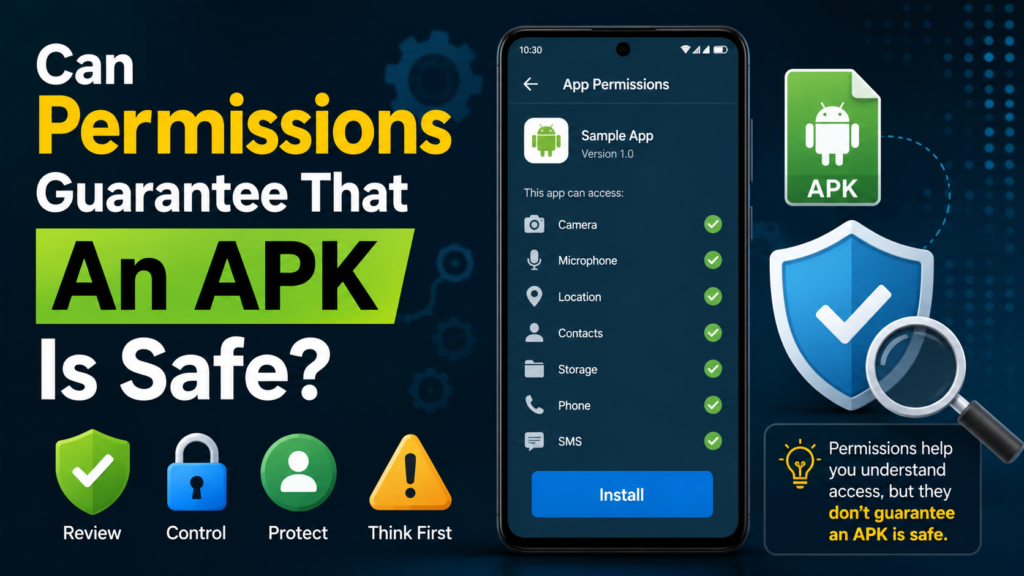
Can Permissions Guarantee That an APK Is Safe?
No.
Permission checking is an important part of APK security, but it cannot guarantee that a file is harmless.
An APK can have reasonable permissions and still contain security problems. Conversely, a legitimate application can request several permissions because it offers many features.
For better protection, combine permission analysis with source verification, malware scanning, package-name checks, and general Android security practices.
Frequently Asked Questions
Can I check APK permissions without installing the APK?
Yes. You can inspect an APK’s manifest using suitable APK analysis tools before installing it. This can reveal the permissions declared by the application.
Which APK permissions should I be most careful about?
Permissions involving sensitive information or device functions deserve closer attention, including camera, microphone, location, contacts, SMS, phone information, and access to personal files or media. Whether a permission is appropriate depends on the app’s purpose.
Is an APK with many permissions automatically unsafe?
No. The number of permissions alone does not determine whether an application is safe. A feature-rich application may legitimately require several permissions. What matters is whether the permissions make sense for its functionality and source.
Can I remove APK permissions after installation?
In many cases, yes. Android provides permission controls that allow you to review and manage access granted to individual applications. Some permissions may be required for specific features to work.
Should I install an APK if Android shows a warning?
You should take the warning seriously and investigate the file before continuing. Verify the source, developer, package name, permissions, and file security. If you cannot establish that the APK is trustworthy, avoiding the installation is the safer choice.
Are permissions the only thing I should check before installing an APK?
No. You should also consider where the APK came from, whether the package name is legitimate, whether the file has been modified, whether it can be scanned safely, and whether the application is available from an official source.
Final Thoughts
Knowing How to Check APK Permissions Before Installation is a simple but valuable Android safety habit. Permissions can help you understand what an application may access and whether its requests seem reasonable for its intended purpose.
Also Read: SMS Backup and Restore APK: A Complete Guide to Backing Up and Restoring Your Messages














1 comment