APK Keeps Crashing on Android: 10 Proven Ways to Fix the Problem
If an APK keeps crashing on Android, it can be frustrating, especially when the app installs normally but refuses to stay open. You may see the app close immediately, freeze on the loading screen, return to the home screen, or display a message saying that the application has stopped working.
The good news is that an APK crashing problem does not always mean the file itself is damaged. Android apps can crash for many different reasons, including incompatible versions, missing files, insufficient storage, outdated Android components, corrupted app data, or installation problems.
Whether you downloaded an APK manually or installed an app outside the Google Play Store, there are several practical ways to troubleshoot the issue.
In this guide, we’ll explain why an APK keeps crashing on Android and show you the most effective solutions you can try before giving up on the app.
Why Does an APK Keep Crashing on Android?
There isn’t one single reason why an APK may crash. Android apps depend on several system components, device resources, permissions, and sometimes additional files to function correctly.
A problem with any of these can cause unexpected crashes.
Some of the most common causes include:
- The APK is incompatible with your Android version.
- The APK was designed for a different CPU architecture.
- The downloaded file is corrupted or incomplete.
- Required additional files are missing.
- The app does not have necessary permissions.
- Your device has very little free storage or RAM.
- Android System WebView or other system components are outdated.
- The app’s cached data has become corrupted.
- An older version of the same app is interfering with the installation.
- The APK comes from an unreliable or modified source.
Understanding the possible cause makes troubleshooting much easier.
Check Whether the APK Is Compatible With Your Device
One of the first things you should check is compatibility.
An APK can install successfully and still fail to run properly. Installation only confirms that Android accepted the package; it does not guarantee that every part of the application will work on your device.
Check the app’s requirements and compare them with your phone’s specifications.
Pay particular attention to:
- Android version requirements
- Supported CPU architecture
- Minimum RAM requirements
- Required screen or hardware features
- App version
- Required Android components
For example, an app built for a newer Android release may behave unpredictably on an older device.
Similarly, an APK intended for a particular processor architecture may not work correctly on another device.
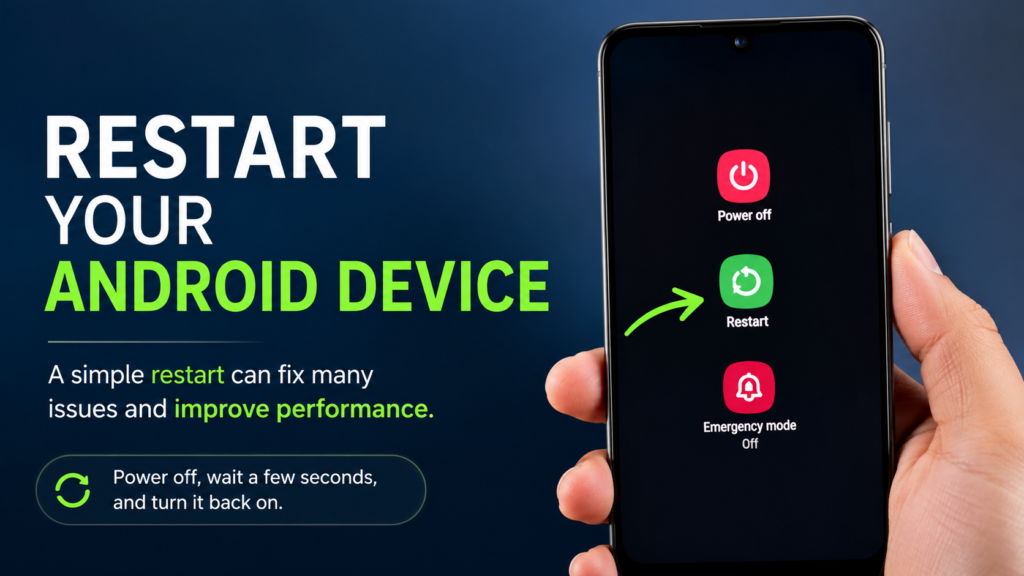
Restart Your Android Device
It sounds simple, but restarting your phone can solve temporary problems that cause apps to crash.
Android keeps background processes and temporary system data running while you use the device. Occasionally, one of these processes can become stuck or conflict with an application.
Restarting the device gives Android a fresh session.
After restarting:
- Wait for the phone to finish booting.
- Don’t immediately open several other applications.
- Launch the problematic app again.
- Check whether it still crashes.
If the APK continues crashing, move on to the next solution.
Clear the App Cache and Data
Corrupted temporary files are another common reason an Android app crashes.
Clearing the cache removes temporary data without necessarily removing your personal app information. If that doesn’t work, clearing the app’s data gives you a more complete reset.
The exact menu names can differ depending on your Android phone.
Generally, you can try:
Settings → Apps → See all apps → Select the app → Storage & cache
Then choose Clear cache.
Open the application again.
If it still crashes, you can consider Clear storage or Clear data. Keep in mind that this may remove locally stored app settings, accounts, or saved information.
For games, clearing data can potentially remove locally stored progress, so make sure important data is synchronized before doing this.
Make Sure You Have Enough Free Storage
A phone that is almost full can cause unexpected application problems.
Apps need storage for installation files, temporary data, updates, caches, and other resources. If your device has very little free space, an app may fail while loading or creating required files.
Check your available storage under your device’s storage settings.
If space is running low, consider removing:
- Unused applications
- Large videos
- Duplicate photos
- Old downloads
- Unnecessary APK files
- Cached files that you no longer need
After freeing up some space, restart your device and test the app again.
Update Android System WebView and Related Components
Some Android applications rely on system components to display web-based content.
Android System WebView is particularly important for apps that display web pages, login screens, advertisements, or embedded online content.
If WebView or other important system components are outdated or malfunctioning, some applications may crash unexpectedly.
Check for available updates through the Google Play Store and install pending updates for relevant Android system components.
It’s also worth checking whether your phone has a pending system update.
Keeping Android and its supporting components updated can eliminate compatibility problems that affect newer applications.
Check the App Permissions
An APK may require certain permissions to function correctly.
Depending on the application, these could include access to:
- Storage or photos
- Camera
- Microphone
- Location
- Phone features
- Notifications
- Nearby devices
If an application expects permission that it cannot access, it may behave incorrectly.
Go to your phone’s app settings and open the permissions section for the problematic application.
Review the permissions and allow only those that are appropriate for the app’s intended functionality.
You shouldn’t grant sensitive permissions automatically. If an APK requests access that doesn’t make sense for what the app does, that can be a reason to reconsider using it.
Reinstall the APK
If the APK installation was incomplete or some files became corrupted, reinstalling the application may solve the problem.
Before reinstalling, remove the existing version of the app.
A typical process is:
- Open Settings.
- Go to Apps.
- Select the crashing application.
- Choose Uninstall.
- Restart your device.
- Download the APK again from a trustworthy source.
- Install the new copy.
- Launch the app.
Avoid repeatedly installing the same questionable APK. If a fresh copy continues to crash, the problem may be compatibility-related rather than installation-related.
Download a Correct and Complete APK
Not every APK file is suitable for every Android device.
Some applications are distributed in multiple variants. You might encounter different packages for different processor architectures, Android versions, screen configurations, or languages.
Choosing the wrong variant can lead to installation failures or crashes.
If an application is distributed using formats such as split APK packages, installing only one component may also cause problems.
Before downloading, check whether the application requires:
- A specific APK variant
- Split APK files
- Additional app resources
- OBB or other data files
- A particular Android version
If the package requires multiple components, installing only the base APK may not be enough.
Remove Conflicting Versions of the App
Installing one version of an application over another can sometimes create problems.
This is especially relevant when switching between different builds or modified and standard versions of the same application.
An older installation may leave behind data that conflicts with the newer package.
If you suspect this is happening, uninstall the existing app completely and install a fresh copy.
However, remember that uninstalling an app can remove locally stored data.
If your information is important, check whether the app supports cloud synchronization or another backup method first.
Check Whether the APK Is Modified
Modified APKs can introduce another layer of uncertainty.
A modified application may have changes to its code, resources, permissions, or built-in functionality. If the modification was poorly implemented, the application may crash as soon as a specific feature is loaded.
A modified APK may also depend on components that are missing from your device.
If the standard version of the application works correctly but a modified version keeps crashing, the modified package itself is a likely source of the problem.
For troubleshooting, using an official and unmodified version is generally the safest way to determine whether the problem is caused by the APK.
Fix Android App Crashes With a Quick Checklist
The following table summarizes the most useful solutions and when you should try them.
| Problem | Recommended Fix | Difficulty |
|---|---|---|
| App crashes immediately | Restart device and clear cache | Easy |
| APK installs but won’t open | Check Android compatibility | Easy |
| App crashes after loading | Clear app data | Easy |
| Phone storage is nearly full | Free up storage | Easy |
| Web content causes crashes | Update system components | Easy |
| Permissions are missing | Review app permissions | Easy |
| Installation may be corrupted | Reinstall the APK | Easy |
| Wrong APK variant | Download the correct version | Medium |
| Split package is incomplete | Install all required components | Medium |
| Modified APK crashes | Try the original version | Easy |
What If the APK Still Keeps Crashing?
If you’ve tried the basic fixes and the APK keeps crashing on Android, don’t immediately assume your phone is broken.
The application itself may simply be incompatible with your device.
Look for information about the app’s supported Android versions and hardware requirements. If other users with similar devices report the same problem, the issue may be with that particular app version.
You can also test another version of the application if one is legitimately available from a trustworthy source.
However, avoid downloading random older APK versions from unknown websites. An older package may contain security vulnerabilities or unwanted modifications.
Avoid Installing APKs From Untrusted Sources
APK files give Android users flexibility, but manually installing applications also requires more caution.
A file can be renamed or repackaged, and its filename alone doesn’t tell you whether the package is trustworthy.
Before installing an APK, consider:
- Where the file came from
- Whether the publisher is known
- Whether the file matches the expected app
- Whether the app requests unusual permissions
- Whether the download appears complete
- Whether security software flags the package
Google Play Protect and Android’s built-in security features can also help identify potentially harmful applications.
If an APK behaves strangely, crashes repeatedly, displays unexpected advertisements, or requests excessive permissions, uninstalling it may be a better choice than trying to force it to work.
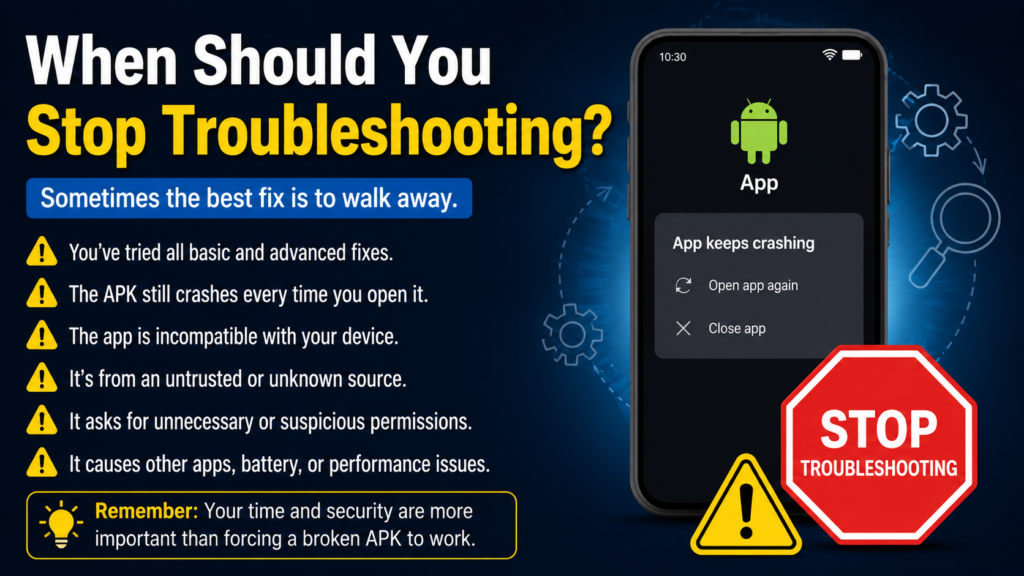
When Should You Stop Troubleshooting?
Sometimes the best solution is to stop using a particular APK.
If an application repeatedly crashes despite a clean installation and your device meets its requirements, the APK may simply be poorly built or incompatible.
You should be especially cautious if the application:
- Comes from an unknown source
- Requests unnecessary permissions
- Displays suspicious pop-ups
- Causes unusual battery drain
- Makes the device unusually slow
- Crashes other applications
- Has been heavily modified
Your phone’s security and personal information are more important than getting one application to run.
Frequently Asked Questions
Why does my APK keep crashing immediately after opening?
An APK may crash immediately because it is incompatible with your Android version, CPU architecture, or required system components. Corrupted installation files and missing dependencies can also cause immediate crashes.
Can clearing the cache fix an APK that keeps crashing?
Yes. If temporary application data has become corrupted, clearing the cache can sometimes resolve repeated crashes. If clearing the cache doesn’t help, clearing app data or reinstalling the application may be worth trying.
Why does an APK install but not work?
Successful installation doesn’t guarantee compatibility. The APK may require a newer Android version, a different processor architecture, additional files, or system components that aren’t available on your device.
Should I reinstall an APK if it keeps crashing?
Reinstalling can help when the original installation was incomplete or corrupted. Uninstall the existing application first, restart your device, and then install a fresh copy from a trustworthy source.
Can low storage cause Android apps to crash?
Yes. Very low storage can interfere with temporary files, app data, updates, and normal Android operations. Freeing up storage can sometimes resolve unexplained app crashes.
Is a modified APK more likely to crash?
It can be. Modifications may introduce compatibility problems or alter parts of the application that other components depend on. If a modified APK crashes while the standard version works, the modification is a likely factor.
Final Thoughts
When an APK keeps crashing on Android, the cause can range from a simple cache problem to a deeper compatibility issue. Fortunately, most common causes can be checked without complicated technical knowledge.
Start with the easiest solutions: restart your phone, check storage, clear the app cache, review permissions, and make sure Android and important system components are up to date.
Also Read: Bilibili APK: What It Is, Features, Benefits, and How to Install It on Android














1 comment