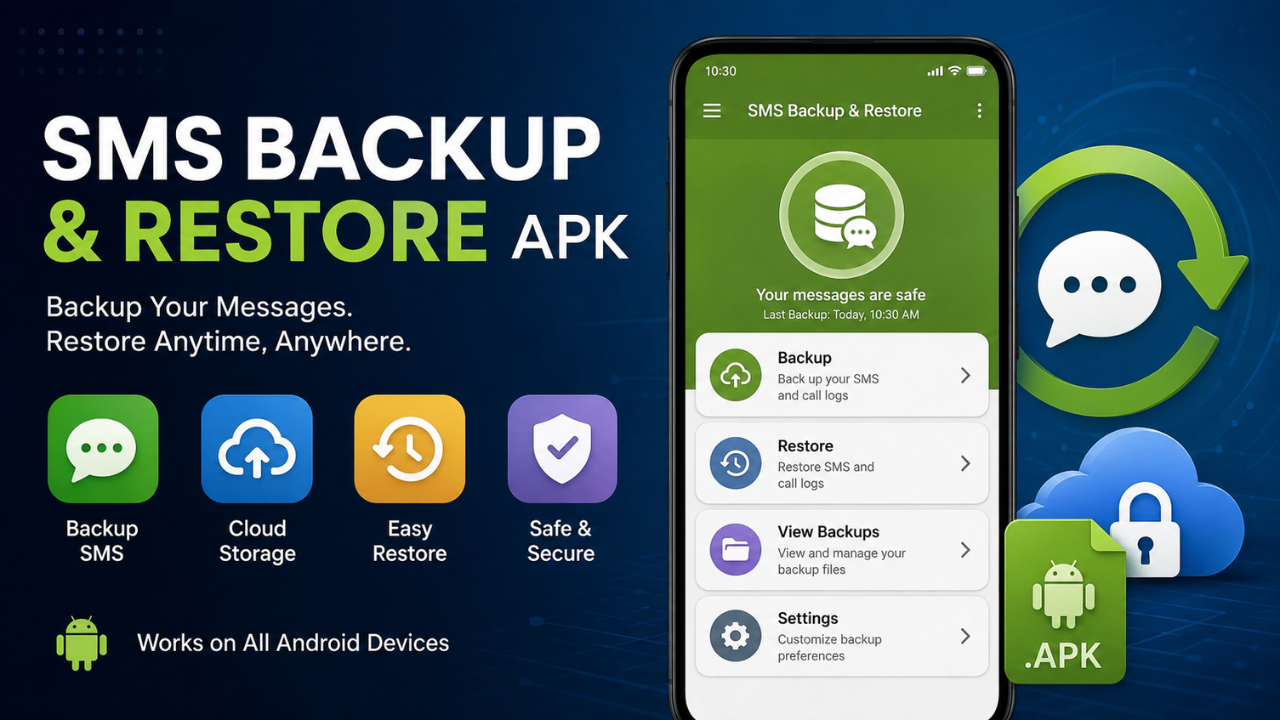
SMS Backup and Restore APK: A Complete Guide to Backing Up and Restoring Your Messages
SMS Backup and Restore APK is a useful solution for Android users who want to protect important text messages and call logs from accidental deletion, phone upgrades, or device problems. With the right backup method, you can save your conversations securely and restore them when moving to another Android phone.
Text messages may seem less important than photos or documents, but many people still use SMS for verification codes, delivery updates, business communication, appointment details, and personal conversations. Losing them unexpectedly can be frustrating.
This guide explains how SMS backup works, what features to look for, how to create a backup, how restoration works, and what you should know before installing an APK from outside the Google Play Store.
What Is SMS Backup and Restore APK?
An SMS backup application is designed to create a copy of your text messages and, in many cases, call history. The backup can usually be stored locally on your phone or transferred to another location for safekeeping.
The term APK stands for Android Package Kit. It is the file format Android uses to install applications. When users download an app as an APK rather than installing it directly through an official app store, they need to pay additional attention to the source and file security.
A typical SMS backup tool may allow you to:
- Back up SMS conversations
- Save and restore call logs
- Transfer messages between Android phones
- Schedule automatic backups
- Store backup files locally
- Upload backups to supported cloud services
- Search or manage saved backup files
- Restore selected conversations when supported
The exact features depend on the application version and Android device.
Why Should You Back Up SMS Messages?
Important messages can disappear for several reasons. A phone might be damaged, lost, reset, replaced, or affected by a software problem. Even an accidental factory reset can remove locally stored conversations.
Regular backups reduce the risk of losing information permanently.
SMS backups can be especially useful when:
- You are buying a new Android phone.
- You plan to perform a factory reset.
- You frequently change devices.
- Your phone has limited storage reliability.
- You receive important business messages.
- You want to preserve personal conversations.
- You need a second copy of your call history.
A backup is most valuable when it exists somewhere other than the original device. If your phone is lost and the only copy of the backup is stored on that phone, recovery may not be possible.
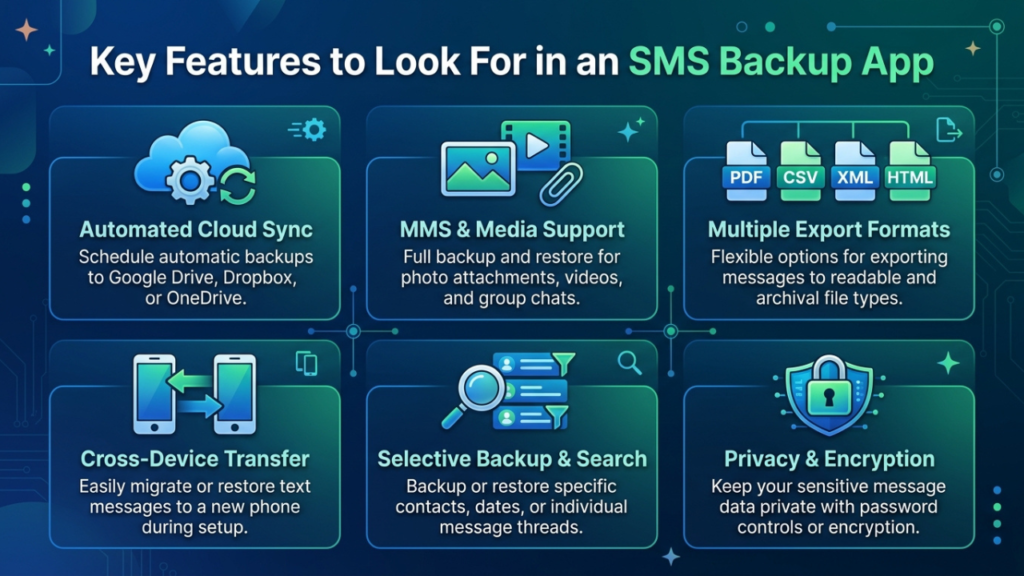
Key Features to Look For in an SMS Backup App
Not every backup application offers the same functionality. Before installing one, consider what you actually need.
SMS and Call Log Backup
The basic function should allow you to save text messages. Some applications also support call logs, giving users a convenient way to preserve both types of communication.
Check whether the app supports the message types and Android version you use.
Automatic Scheduled Backups
Manual backups are easy to forget. A scheduling feature can create backups automatically at a selected interval.
For example, you might choose a daily or weekly schedule depending on how frequently your messages change.
Cloud Storage Support
Cloud storage can make backups easier to access when changing devices. Some applications support services such as Google Drive or other compatible storage platforms.
Cloud functionality may vary depending on the app and Android version, so always check the application’s current features.
Local Backup Storage
Local storage is another useful option. A backup can be saved to internal storage or, where supported, an external storage location.
However, remember that a local backup can disappear if the phone is damaged or reset. For important messages, keeping an additional copy elsewhere is safer.
Selective Restoration
A useful restoration feature gives you control over what gets recovered.
Instead of restoring every saved message, you may be able to restore a particular backup or selected conversations, depending on the application.
sms backup and restore apk: How the Process Works
The overall process is generally straightforward, although menu names can differ between applications and Android versions.
First, install a trustworthy backup application. If you are using an APK file, verify that it comes from a reputable source and matches your Android device.
After installation, the application may request permissions needed to access SMS messages and call logs. Review these permissions carefully before accepting them.
Next, choose the backup option. The application creates a backup file containing the selected information.
You can then keep that file in a secure location. If cloud storage is supported, uploading a second copy can provide additional protection.
When you need the messages again, open the backup application and select its restore function. Choose the appropriate backup file and follow the instructions displayed on your screen.
Step-by-Step Guide to Creating an SMS Backup
Although the interface differs between apps, the general process usually follows these steps:
- Install a reputable backup application.
- Open the app and review the requested permissions.
- Select SMS messages as the data you want to save.
- Choose call logs too if you want them included.
- Select a backup destination.
- Start the backup process.
- Wait until the application confirms that the backup is complete.
- Check that the backup file exists before deleting anything from your phone.
- Create a second copy in another secure location when possible.
Do not immediately assume that a backup was successful simply because the process finished. If the application provides a way to inspect or verify the backup, use it.
How to Restore SMS Messages on Android
Restoring messages is usually similar to creating a backup.
Open the backup application on the Android phone where you want to recover the messages. Locate the restore option and select the appropriate backup file.
Depending on the Android version and application, you may need to temporarily make the backup application your default SMS app during the restoration process.
Once the restoration is complete, you may be able to switch back to your preferred messaging application.
The process can differ considerably between Android manufacturers, so do not worry if your menus look different from instructions designed for another device.
SMS Backup Options Compared
Choosing the right backup method depends on how much control and convenience you need.
| Backup Method | Convenience | Security Consideration | Best For |
|---|---|---|---|
| Phone storage | High | Can be lost with the device | Quick local backups |
| External storage | Medium | Storage device can be damaged or lost | Offline copies |
| Cloud storage | High | Account security is important | Device transfers |
| Computer copy | Medium | Depends on computer security | Long-term storage |
| Multiple locations | High | Requires more management | Important messages |
For valuable information, using more than one backup location is generally a better strategy than relying on a single copy.
Is It Safe to Download an APK?
This is one of the most important questions to consider.
APK files are not automatically dangerous. They are simply Android application packages. The risk comes from downloading an APK from an unreliable or unknown source.
A modified or malicious APK can potentially contain unwanted software. It may also request permissions that have nothing to do with its advertised purpose.
Before installing an APK, consider the following:
- Download from a reputable source.
- Check the developer name carefully.
- Avoid suspicious websites offering modified versions.
- Review the application’s requested permissions.
- Keep Android security features enabled.
- Avoid installing unnecessary apps just to create a backup.
- Scan unfamiliar files with a trusted security solution.
- Keep a copy of important messages before experimenting with an unfamiliar application.
If an APK claims to offer premium features for free or promises unrealistic capabilities, treat it with extra caution.
What Permissions Does an SMS Backup App Need?
Because SMS applications handle personal information, permissions deserve special attention.
A legitimate backup application may require access to SMS messages because that is the data it needs to save. Call-log access may also be necessary if you want to back up call history.
However, excessive permissions should raise questions.
For example, an application whose primary purpose is SMS backup may not have an obvious reason to request access to unrelated information. Always read the permission request and consider whether it matches the app’s purpose.
Android’s permission system can also change between versions, so the exact prompts may differ from one device to another.
Common Problems When Backing Up SMS
Even a reliable backup application can encounter problems.
One common issue is insufficient storage space. If your phone or selected backup destination is nearly full, the backup may fail.
Another problem can occur when Android restricts background activity. Battery optimization and background restrictions may prevent scheduled backups from running as expected.
Users may also experience restoration problems after switching to a newer Android version. Changes to system permissions and default messaging applications can affect how third-party backup tools operate.
Other possible problems include:
- Backup files being moved or deleted
- Cloud account authentication problems
- Incorrect permissions
- Corrupted backup files
- Incompatible application versions
- Insufficient storage
- Device-specific Android restrictions
If a backup fails, check the available storage, permissions, application settings, and backup destination before trying again.
How to Keep Your SMS Backups Secure
A backup contains private information, so it should be treated like any other sensitive personal file.
If your backup contains personal conversations, verification messages, business communication, or other private information, avoid leaving it in an easily accessible public location.
Use a secure cloud account with a strong password and two-factor authentication when possible.
For local backups, consider storing an additional copy on a computer or other trusted storage device. You should also avoid sharing backup files with people or websites you do not trust.
Regularly check your backup files as well. An old backup is not particularly useful if it does not contain the messages you actually need.
SMS Backup When Moving to a New Android Phone
Changing phones is one of the most common reasons people create SMS backups.
Before resetting or selling the old phone, create a current backup and verify that it is accessible. Transfer the backup to the new device using a secure method.
Install a compatible restoration application on the new phone, locate the backup file, and follow the restoration instructions.
Do not erase the old device until you are confident that your important messages have been successfully transferred.
This simple precaution can prevent a stressful situation where the original phone has already been wiped but the backup cannot be restored.
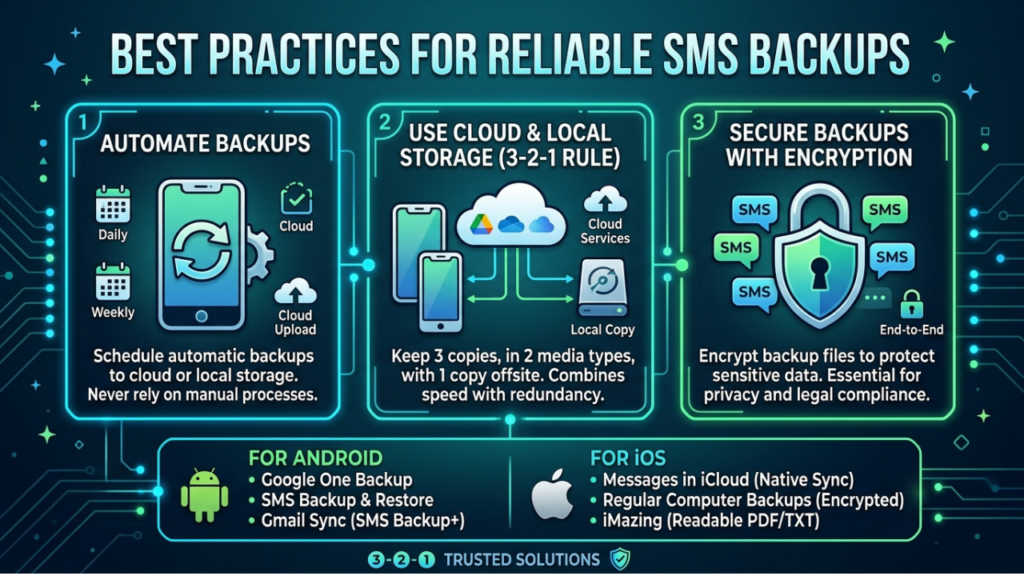
Best Practices for Reliable SMS Backups
A good backup routine does not have to be complicated.
Consider following these habits:
- Create backups regularly.
- Keep more than one copy of important backups.
- Verify newly created backup files.
- Use secure cloud accounts.
- Keep Android and backup applications updated.
- Remove outdated backups only after confirming newer copies work.
- Avoid suspicious APK websites.
- Review app permissions before installation.
- Do not share personal backup files unnecessarily.
The goal is not simply to create a file. The goal is to have a usable copy available when you actually need it.
Frequently Asked Questions
Can I use an SMS backup APK to transfer messages to another phone?
Yes, many SMS backup applications are designed to help transfer messages between compatible Android devices. You normally create a backup on the old phone, move the backup file to the new phone, and then use the restoration feature.
Does an SMS backup include pictures and videos?
Not necessarily. SMS backups primarily focus on text messages, while support for multimedia attachments varies between applications. Check the specific app’s supported backup format before relying on it for MMS or other attachments.
Where should I store my SMS backup?
You can store a backup locally, on a computer, or in compatible cloud storage. For important conversations, maintaining copies in two different locations provides better protection against device failure or accidental deletion.
Is it safe to install an SMS backup APK?
An APK can be safe when obtained from a trustworthy source and when the application itself is legitimate. The main risk comes from modified, counterfeit, or malicious APK files. Always verify the developer and source before installation.
Can I restore messages after a factory reset?
Yes, provided you created a usable backup before performing the factory reset and still have access to the backup file. Without a previous backup, recovering deleted SMS messages may be difficult or impossible.
Will an SMS backup work on every Android phone?
Compatibility can vary. Different Android versions and manufacturers may handle SMS permissions, default messaging apps, and background activity differently. Check the application’s compatibility information before relying on it for an important transfer.
Final Thoughts
Backing up text messages is a simple step that can prevent the loss of information you may later wish you had kept. Whether you are preparing for a new phone, protecting important conversations, or simply creating a safety copy, a reliable SMS backup solution can make the process much easier.
Also Read How to Open APK Files on Android: A Complete Step-by-Step Guide











1 comment