How to Update APK Apps Safely: A Complete Android Guide
Updating an Android app installed from an APK file is not always as straightforward as updating an app through Google Play. When you install an APK manually, Android does not automatically treat it like a Play Store installation. Depending on where the APK came from and how the app was originally installed, you may need to download a newer APK and install it manually.
The good news is that updating APK apps is usually simple when you follow the correct steps. You do not normally need to uninstall the existing app first, and your personal data can often remain intact as long as the new APK is compatible and properly signed.
In this guide, you will learn how to update APK apps, how to check whether an APK update is safe, what to do when Android says the app cannot be installed, and how to avoid common mistakes that can cause data loss or installation problems.
What Does It Mean to Update an APK App?
An APK, short for Android Package Kit, is the package file Android uses to install applications. When you download an APK outside an app store, you are essentially obtaining an installable version of an Android application.
Updating an APK app means installing a newer version of the same application over the version already installed on your phone.
For example, suppose you installed version 2.5 of an app using an APK. Later, version 2.6 becomes available. Instead of removing version 2.5, you can usually download the version 2.6 APK and install it directly.
If everything matches correctly, Android replaces the older application files while keeping the existing app data.
This is why it is important to understand that an APK update is generally an upgrade installation, not a completely new installation.
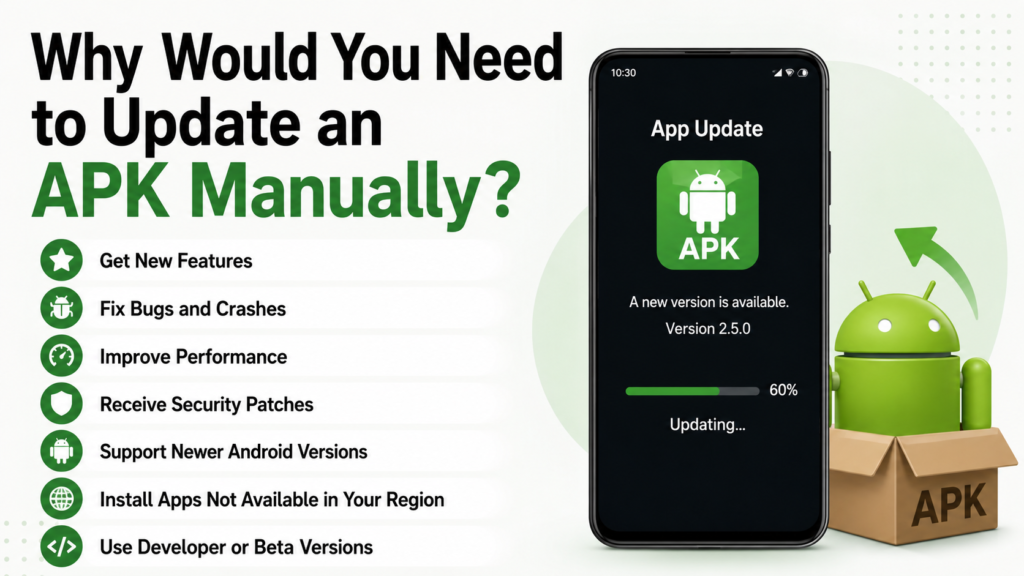
Why Would You Need to Update an APK Manually?
There are several reasons someone might use an APK instead of relying on Google Play.
Some users install apps that are not available in their region. Others may need an older or newer version for compatibility reasons, while developers and testers often install APKs manually during development.
You might also download an APK because the developer distributes the application directly.
Regardless of the reason, manually updating the app means you need to pay attention to version numbers, compatibility, and the source of the APK.
Common reasons for updating include:
- Getting new features
- Fixing bugs and crashes
- Improving performance
- Receiving security patches
- Supporting newer Android versions
- Fixing compatibility issues
- Replacing an outdated APK
- Getting the latest developer release
An update can therefore be useful even if the existing version appears to work normally.
How to Update APK Apps on Android
The basic process is relatively easy. However, the exact appearance of menus can vary between Android phones and manufacturers.
1. Check Your Current App Version
Before downloading an update, find out which version you currently have.
Open the app’s information page through your Android settings. On many phones, you can go to Settings > Apps, select the application, and look for version information.
Knowing the installed version helps you avoid downloading an older APK by mistake.
For example, if your phone already has version 5.4 installed, downloading version 5.2 is not an update.
2. Find the New APK
Next, obtain the newer APK from a source you trust.
Ideally, use the application’s official developer or publisher website whenever an APK is provided there. If you use another APK repository, check its reputation and verify that the file corresponds to the legitimate application.
Pay attention to:
- App name
- Developer or publisher
- Version number
- Android compatibility
- Architecture requirements
- File size
- Release information
Do not assume that a file is safe simply because its name looks familiar.
3. Download the APK
Download the new APK to your Android device.
If your browser displays a security warning, do not ignore it automatically. Android and browsers may warn you when downloading applications from outside the normal app-store ecosystem.
Before continuing, make sure you know where the file came from.
4. Open the APK File
Once the download is complete, open the APK using your browser’s download list or a file manager.
Android may ask whether you want to install the application.
If the system blocks the installation, you may need to allow APK installation from the particular source you used, such as your browser or file manager.
The setting is usually associated with Install unknown apps. The exact location can differ depending on your Android version and phone manufacturer.
5. Install the New Version Over the Existing App
This is the important part.
If the APK is a compatible update signed with the same application signing key as the installed version, Android should recognize it as an update.
You may see an installation screen showing that the application is being updated.
Tap Install and wait for the process to finish.
You generally do not need to uninstall the existing application first.
6. Open the Updated App
After installation finishes, open the application.
Check whether:
- Your account is still signed in
- Your settings remain intact
- Your saved information is available
- The new version works normally
- The expected features or fixes are present
If everything looks correct, the APK update was successful.
APK Update vs. Fresh APK Installation
It is useful to understand the difference between updating and installing an application from scratch.
| Feature | APK Update | Fresh APK Installation |
|---|---|---|
| Existing app installed | Yes | Usually no |
| Existing app data | Usually preserved | Starts as a new installation |
| App version | Newer version | Any compatible version |
| Uninstall required | Usually no | No |
| Main purpose | Upgrade existing app | Install an app |
| Risk of losing local data | Lower | Higher if replacing an existing installation |
| Signing key compatibility | Required | Not applicable in the same way |
The key point is that Android normally expects an update to come from a compatible package. Simply having the same app name is not enough.
Will Updating an APK Delete Your App Data?
In most normal update situations, installing a compatible APK over an existing installation does not delete the application’s data.
Your login information, settings, downloaded content, and other local files may remain available.
However, you should not treat data preservation as guaranteed in every situation.
Problems can occur when:
- The new APK is incompatible with the installed version
- The application uses a different signing key
- The developer changed how data is stored
- You are installing a modified version
- You uninstall the original app before updating
- The application itself removes or migrates certain data
For important applications, creating a backup before making significant changes is a sensible precaution.
What to Do If Android Says “App Not Installed”
One of the most common problems when updating APK apps is an App Not Installed message.
This does not necessarily mean your phone is broken. Several different issues can produce this error.
Check the APK Version
Make sure you downloaded a version that is actually compatible with your device and existing installation.
Check the App Signature
If the existing app and the APK were signed differently, Android may refuse to install the new package over the old one.
This can happen when switching between different distributors or between an official app and a modified version.
Check Available Storage
Insufficient storage can prevent an APK from being installed correctly.
Delete unnecessary files or apps if your phone is nearly full, then try again.
Check Android Compatibility
Some newer applications require a more recent Android version.
If the APK was designed for a newer system than the one on your phone, installation may fail.
Try a Clean Installation Carefully
If the update is incompatible with the installed version, uninstalling the existing app and installing the new APK may sometimes resolve the issue.
However, do not do this before checking whether your app data is backed up. Uninstalling an app can remove locally stored information.
How to Know if an APK Update Is Safe
The biggest concern with manual APK updates is not usually the installation process. It is the source of the file.
A malicious APK can potentially contain unwanted software, excessive permissions, or other security risks.
Before installing an update, consider these precautions:
- Download from the official developer whenever possible.
- Check the developer name carefully.
- Avoid suspicious download pages and misleading buttons.
- Be cautious with heavily modified APKs.
- Scan downloaded files with reputable security software.
- Review the permissions requested by the application.
- Keep Android and your security tools updated.
- Do not install an APK simply because a website claims it is a “premium unlocked” version.
An APK update should come from a source you have a reasonable basis to trust.
Can You Update APK Apps Automatically?
Automatic updates depend on how the application was originally distributed.
Apps installed through Google Play can generally receive updates through the Play Store when automatic updates are enabled.
A manually installed APK does not necessarily receive the same update mechanism.
Some third-party app stores and specialized APK managers can detect newer versions and offer update functionality. However, the safety and reliability of those services depend on the provider.
If you manually manage APK files, you may need to repeat the process whenever a new version is released:
- Check for a newer version.
- Verify the source.
- Download the APK.
- Install it over the existing version.
- Confirm that the application works correctly.
What About XAPK, APKM, and APKS Files?
Not every Android application is distributed as a single APK.
You may encounter formats such as XAPK, APKM, or APKS. These packages can contain multiple components required by an application.
A standard APK can often be opened directly by Android, while split or bundled formats may require a compatible installer.
This matters because downloading the wrong package format can make an update more complicated.
If an application was originally installed using split APK components, replacing it with an unrelated standalone APK may not work.
Before updating, identify the format you are dealing with and use an installation method that supports it.
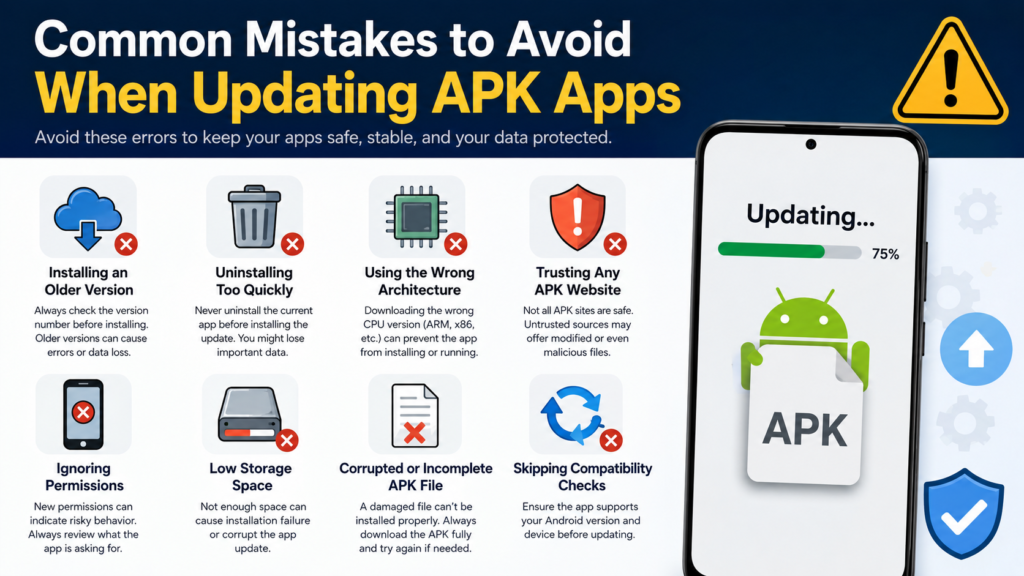
Common Mistakes to Avoid When Updating APK Apps
Manual APK updates become much easier when you avoid a few common mistakes.
Installing an Older Version
Always compare version numbers before installing.
A lower version number is generally a downgrade rather than an update, and Android may reject it.
Uninstalling Too Quickly
Do not immediately uninstall the current application simply because the new APK will not install.
The existing app may contain important local data.
Using the Wrong Architecture
Some applications have different builds for different processor architectures. Installing an incompatible package can lead to installation failures or crashes.
Trusting Any APK Website
A professional-looking download page does not automatically make a file safe.
Look for reliable sources and verify the developer information.
Ignoring Permissions
If an updated version suddenly requests permissions that seem unrelated to its purpose, take a moment to investigate before continuing.
Frequently Asked Questions
Can I update an app using an APK without uninstalling it?
Yes. If the new APK is compatible with the installed application and uses the appropriate signing key, you can normally install it over the existing version.
Will an APK update delete my data?
Usually, a normal update preserves the application’s data. However, compatibility problems, uninstalling the existing app, or changes made by the developer can affect data. Back up important information before major changes.
Why won’t my APK update install?
Common causes include a mismatched signing key, incompatible Android version, wrong architecture, insufficient storage, corrupted APK, or an attempt to install an incompatible package.
Can I update an APK app to an older version?
That is technically a downgrade rather than an update. Android may prevent it if the installed version is newer. Removing the current version may be necessary, but doing so can result in data loss.
How often should I update APK apps?
Update when a trusted newer version is available, particularly when it includes security fixes, important bug fixes, or compatibility improvements. You do not need to install every release immediately if you have concerns about its source.
Is updating an APK safer than downloading a new app?
Updating a legitimate application from a trustworthy source can be safer than repeatedly installing unrelated packages. The important factors are the APK’s origin, authenticity, signing information, and compatibility with the installed application.
Final Thoughts
Learning how to update APK apps is useful when you install Android applications outside the Google Play Store. The basic process is simple: check your current version, obtain a newer APK from a trustworthy source, verify that it is compatible, and install it over the existing application.
Also Read: How to Download APK Files Safely: 9 Smart Tips to Avoid Malware and Fake Apps














1 comment