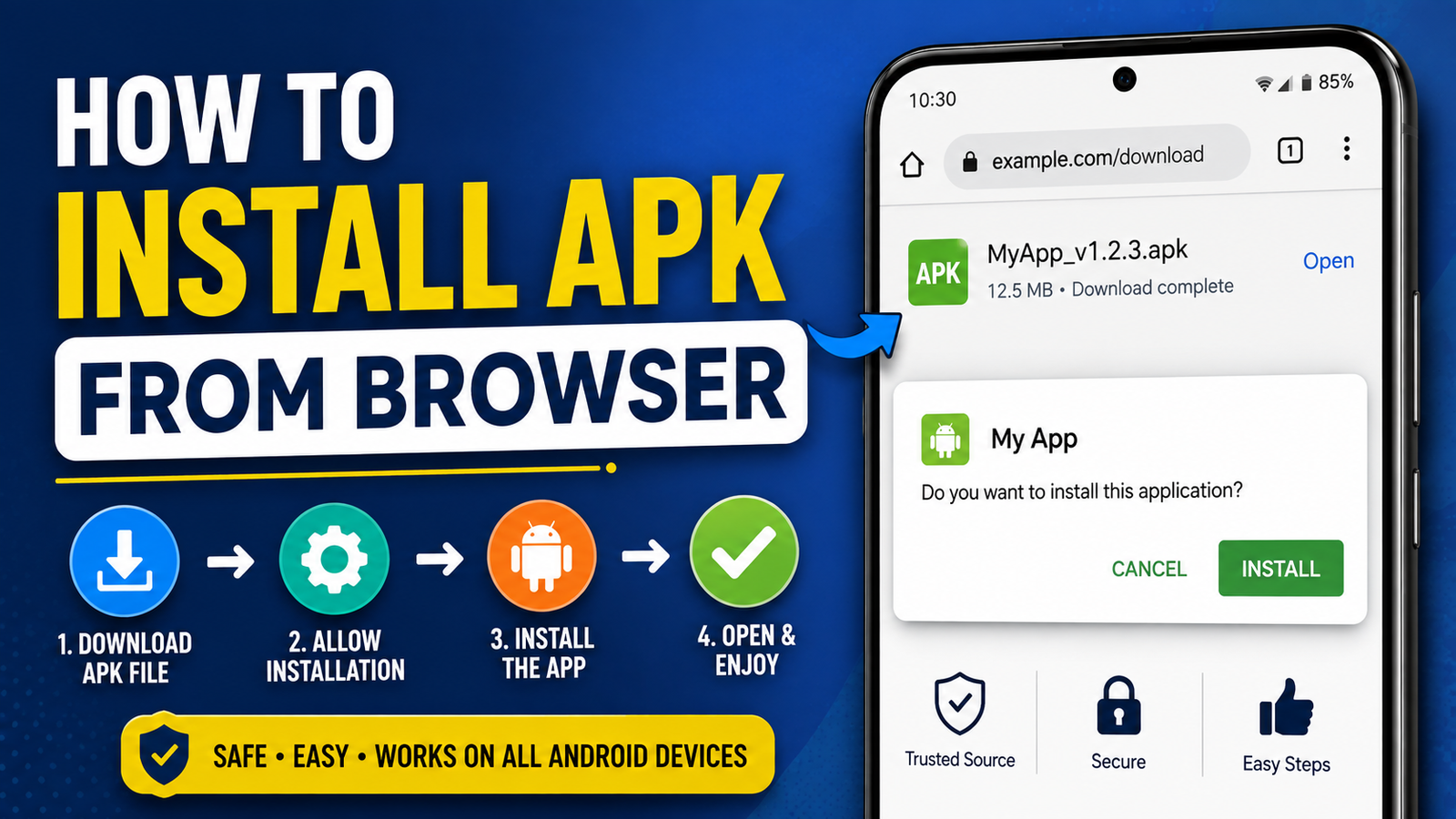
How to Install APK From Browser on Android: A Safe Step-by-Step Guide
Installing an Android app from a web browser can be useful when an app is unavailable through your usual app store, when you need a specific app version, or when you have downloaded an APK file from a trusted source. However, Android treats APK installation differently from installing an app through Google Play, so beginners may run into security warnings or permission settings.
If you are wondering how to install APK from browser, the process is fairly simple once you understand where the downloaded file goes and which Android setting controls installation from a browser.
This guide explains the complete process, including how to download an APK safely, allow your browser to install it, install the file step by step, troubleshoot common errors, and remove the permission afterward.
What Is an APK File?
APK stands for Android Package Kit. It is the file format Android uses to package and install applications.
When you download an app from a website instead of an app store, the downloaded file may have an .apk extension. Opening that file starts the Android package installation process.
An APK can contain components such as:
- App code
- Images and other resources
- App configuration files
- Digital signatures
- Information about the app and its required permissions
APK files are convenient, but they also require more caution than apps installed through official stores. A website can distribute a modified, outdated, or malicious APK, so the source of the file matters.
Can You Install an APK Directly From a Browser?
Yes. Android allows users to install APK files downloaded through browsers, provided the device permits installation from that particular source.
On newer Android versions, you generally don’t enable one universal setting called “Unknown Sources.” Instead, Android can give individual apps—such as Chrome, Firefox, or another browser—permission to install unknown apps.
For example, if you download an APK using Chrome, Android may ask you to allow Chrome to install unknown apps.
This is an important security feature because it prevents every application on your phone from automatically installing software.
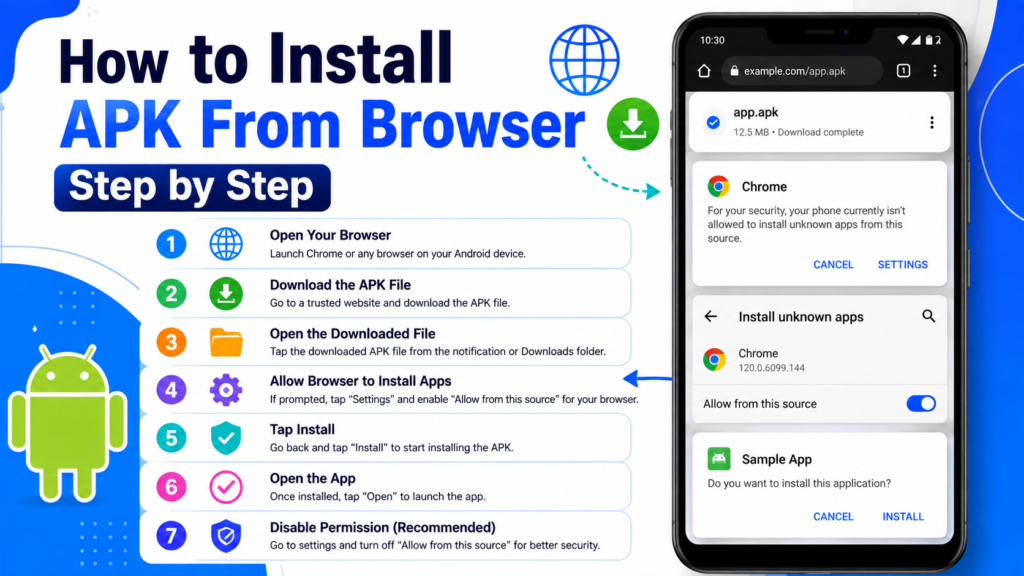
How to Install APK From Browser Step by Step
The exact wording of menus can vary depending on your Android version and phone manufacturer, but the general process is similar.
1. Choose a Trusted APK Source
Before downloading anything, make sure the website is trustworthy.
Avoid clicking random APK links from pop-ups, suspicious advertisements, or unfamiliar websites. A legitimate-looking download button doesn’t necessarily mean the file is safe.
When possible, obtain the APK from:
- The application’s official website
- A reputable app distribution platform
- A developer’s verified download page
- A source that provides clear information about the app and version
Check the app name, version, developer, and file information before downloading.
2. Download the APK Using Your Browser
Open your preferred Android browser and navigate to the page containing the APK.
Tap the download button. Depending on your browser and Android version, you may see a warning asking whether you want to download the file.
Confirm the download if you trust the source.
Once the download finishes, you can usually tap the notification or download confirmation to open the file.
If you can’t find it, open your browser’s Downloads section or use a file manager and look inside the Download folder.
3. Open the Downloaded APK
Tap the APK file to begin installation.
Android may immediately display a message saying that your browser isn’t currently allowed to install unknown apps.
This doesn’t necessarily mean that the APK itself is dangerous. It means Android is preventing the browser from installing software until you explicitly grant permission.
4. Allow Your Browser to Install Unknown Apps
If Android shows an option such as Settings, tap it.
You should be taken to a permission screen associated with the browser you used.
Look for an option similar to:
Allow from this source
Turn the option on if you have verified that the APK came from a trustworthy source.
Return to the APK installation screen afterward.
5. Tap Install
You should now see the Android installation screen.
Review the application name and requested information, then tap Install.
Android will process the package. Depending on the app’s size and your phone’s performance, installation may take a few seconds.
Once finished, you’ll normally see options such as Open and Done.
Tap Open if you want to launch the app immediately.
Quick Overview of the APK Installation Process
| Step | What You Need to Do | Important Point |
|---|---|---|
| 1 | Find a trusted APK | Verify the source |
| 2 | Download it in your browser | Check the file extension |
| 3 | Open the APK | Android may display a warning |
| 4 | Allow installation | Enable permission for your browser |
| 5 | Install the app | Review the installation screen |
| 6 | Open the app | Test that everything works |
| 7 | Disable permission | Recommended after installation |
Why Android Blocks APK Installation by Default
Android’s restriction on installations from unknown sources is designed to reduce security risks.
If any website or application could silently install software, malicious apps would have an easier way to compromise devices. Requiring permission adds another layer of protection.
This is why you may see messages such as:
- “For your security, your phone currently isn’t allowed to install unknown apps from this source.”
- “Install unknown apps”
- “Unknown sources”
- “This type of file can harm your device”
The exact message depends on your Android version, device manufacturer, browser, and security settings.
The warning should not automatically be interpreted as proof that an APK contains malware. It means Android wants you to make an informed decision before allowing an external installation.
How to Enable APK Installation From Chrome
If you’re using Chrome, the process commonly looks like this:
- Download the APK in Chrome.
- Tap the downloaded APK.
- When Android blocks the installation, tap Settings.
- Find Chrome in the list of apps allowed to install unknown apps.
- Enable Allow from this source.
- Go back to the APK installer.
- Tap Install.
Menu names can differ between Samsung, Xiaomi, Google Pixel, OnePlus, Motorola, and other Android devices.
If you can’t find the setting, use your phone’s Settings search and search for Install unknown apps.
What If Your Browser Doesn’t Show the Install Option?
Sometimes tapping an APK doesn’t immediately start the installer.
There are several possible reasons.
First, make sure the file actually ends in .apk. Some Android applications are distributed using formats such as XAPK, APKM, or APKS. These aren’t necessarily installed by simply tapping the file.
Also check whether the download completed successfully. A partially downloaded file may not install correctly.
You can try opening your phone’s file manager and navigating to:
Internal Storage → Download
Locate the APK and tap it there.
If Android still refuses to open it, the file may be incompatible, corrupted, or blocked by your device’s security system.
How to Check an APK Before Installing It
Downloading an APK is only half the process. You should also evaluate the file before installing it.
Check the File Name and Version
Make sure the APK corresponds to the app you intended to download.
A suspiciously named file, unusual version number, or unrelated developer should be treated as a warning sign.
Check the Source
The website providing the APK matters considerably.
Be cautious with pages that:
- Force multiple redirects
- Display excessive pop-ups
- Offer fake download buttons
- Ask you to install unrelated apps
- Claim every paid feature is unlocked
- Provide files with unclear origins
Scan the File
A reputable security scanner can provide another layer of protection.
You can also keep Android’s built-in security features enabled. Don’t disable security protections simply because an APK installation is being blocked.
Check App Permissions
After installation, review the permissions requested by the application.
For example, a simple calculator may not reasonably need access to your contacts, microphone, or SMS messages.
Permissions aren’t automatically proof of malicious behavior, but unexpected requests deserve closer attention.
Common APK Installation Errors
Even after enabling browser installation, an APK may fail to install.
Here are some common problems.
“App Not Installed”
This can happen for several reasons, including:
- The APK is incompatible with your Android version.
- Another version of the same app is already installed.
- The APK is corrupted.
- The package conflicts with an existing installation.
- Your device doesn’t support the app’s architecture.
Try downloading the file again from a trusted source and make sure you have enough storage space.
Parse Error
A parse error often indicates that Android cannot properly process the APK.
The file may be damaged, incomplete, or incompatible with your Android version.
Downloading a compatible version can resolve the problem.
Installation Is Blocked
If Android says the installation is blocked, check whether your browser has permission to install unknown apps.
You should also consider whether your device’s security system has identified the file as potentially unsafe.
Don’t bypass a security warning blindly. Investigate why the installation was blocked first.
What to Do After Installing the APK
Once the application is installed, there are a few sensible cleanup steps.
First, open the app and make sure it works normally.
Then consider deleting the downloaded APK if you don’t need it anymore. APK files can take up storage space, especially when they are large games or applications.
It’s also a good idea to return to your security settings and disable Allow from this source for your browser if you don’t regularly install APK files.
This doesn’t uninstall the application. It simply prevents that browser from installing additional unknown apps without your permission.
APK Installation vs Google Play Installation
Installing an APK manually and installing an application through Google Play are different experiences.
| Feature | APK From Browser | Google Play |
|---|---|---|
| Installation method | Manual | Mostly automatic |
| Source selection | User chooses source | Google Play |
| Unknown-source permission | Usually required | Not normally required |
| Security screening | Depends on source and device | Store-based protections |
| Updates | May require manual action | Usually handled automatically |
| File visibility | APK remains in storage | Installation is managed by Play |
Manual APK installation gives you more control, but that control also comes with greater responsibility.
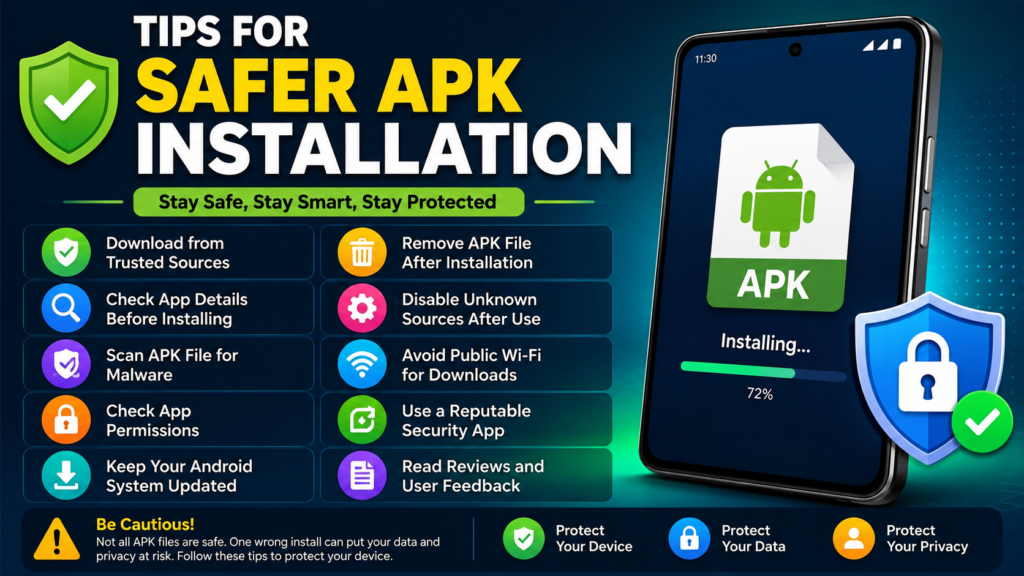
Tips for Safer APK Installation
If you regularly install APK files, follow a consistent safety routine.
- Download only from sources you trust.
- Check the developer and app name.
- Verify the version before installation.
- Avoid suspicious “mod” or “premium unlocked” files from unknown sites.
- Keep Android security features enabled.
- Don’t grant unnecessary permissions.
- Scan questionable files before opening them.
- Delete APK files you no longer need.
- Turn off browser installation permission when you’re finished.
- Keep your Android device updated.
The goal isn’t to avoid APK files completely. It’s to understand the risks and make careful decisions about where your software comes from.
Frequently Asked Questions
Is it safe to install an APK from a browser?
It can be safe when the APK comes from a trustworthy source and the file is compatible and authentic. The biggest risk is downloading modified or malicious APKs from unreliable websites.
Why can’t I install an APK downloaded from Chrome?
Chrome may not have permission to install unknown apps. Open Android’s Install unknown apps settings and check whether Chrome is allowed to install applications. If permission is already enabled, the APK itself may be incompatible or corrupted.
Do I need to enable unknown sources permanently?
No. You generally don’t need to leave the permission enabled all the time. After installing the APK, you can disable the browser’s permission to reduce the chance of accidental installations.
Where are APK files downloaded on Android?
Most browsers save downloaded files in the Download folder in internal storage. You can usually find the file through your browser’s Downloads page or your phone’s file manager.
Can I delete the APK after installing the app?
Yes. Once the application has been successfully installed, you can normally delete the original APK if you don’t need it for backup or reinstallation.
Why does Android warn me before installing an APK?
Android warns you because the application comes from outside the standard app installation channel. The warning gives you an opportunity to verify the source before allowing the installation.
Final Thoughts
Learning how to install APK from browser is straightforward once you understand Android’s security permissions. The basic process is to download a legitimate APK, open the file, allow your browser to install unknown apps when required, and then complete the installation.
Also Read How to Share APK Files on Android: 7 Easy and Safe Methods













1 comment