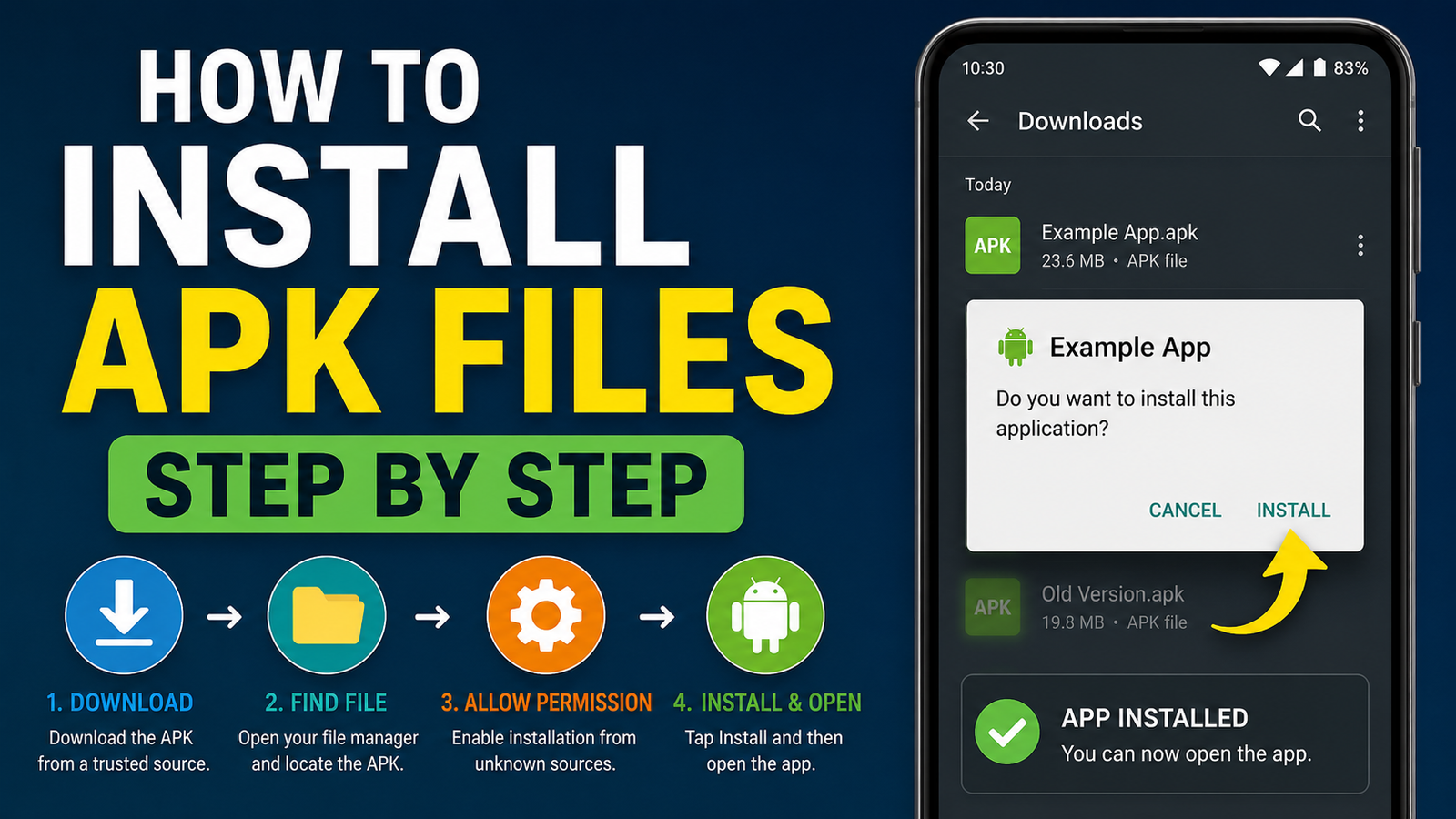
How to Install APK Files Step by Step on Android: A Complete Guide
Installing an app on Android usually takes only a few taps when you use the Google Play Store. But sometimes, you may need to install an app manually using an APK file. This can be useful when an app is unavailable in your region, you want to install an older version, or you have received the APK directly from a trusted developer.
If you have never installed an APK before, the process may seem confusing at first. Android also includes security features that can prevent APK files from being installed until you give permission to the app or browser handling the file.
In this guide, we will explain how to install APK files step by step on an Android phone or tablet. You will also learn how to enable APK installation, open the downloaded file, deal with common installation problems, and follow safer practices when downloading apps outside the Play Store.
What Is an APK File?
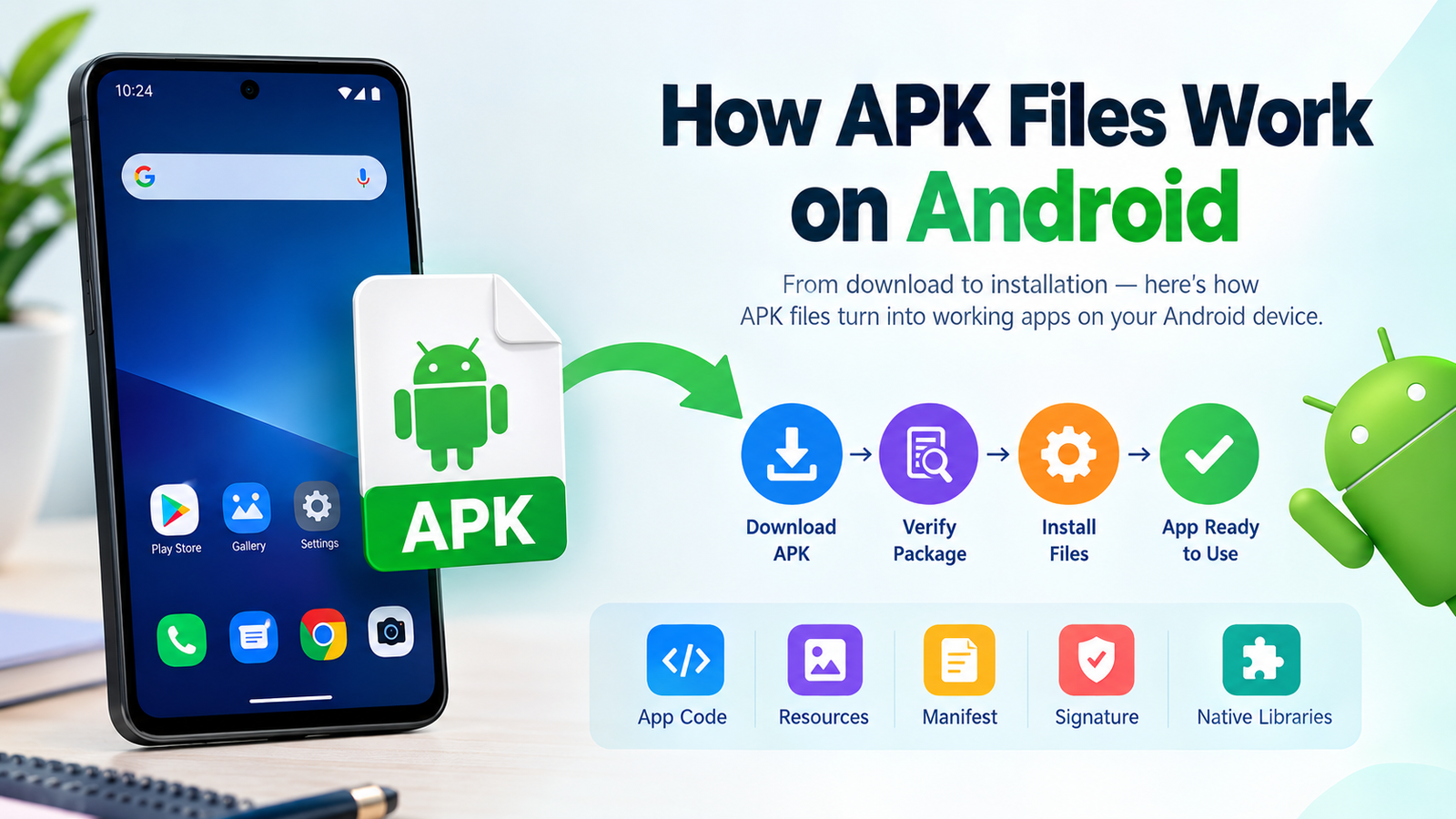
APK stands for Android Package Kit. It is the file format Android uses to distribute and install applications.
An APK contains the files an Android application needs to run. When you install an APK, Android extracts and registers these components so the application can be used on your device.
You can think of an APK as being similar to an installer file on a Windows computer. Instead of downloading an application through an app store, you can sometimes download its installation package directly and install it yourself.
However, not every Android application download is a standard APK. You may also encounter formats such as XAPK, APKM, or APKS, which can contain multiple packages or additional application data.
Why Would You Install an APK Manually?
There are several legitimate reasons for installing an APK manually.
For example, an app may not currently be available through your local Play Store. Developers may also provide APK files directly for testing, beta releases, or distribution through their own websites.
Manual installation can also be useful if you need a particular version of an application.
Some common reasons include:
- Installing an app unavailable in your region
- Testing an app before its Play Store release
- Installing an older compatible version
- Installing an app from a developer’s official website
- Restoring an APK that you previously backed up
- Installing an application on a device without access to the Play Store
The important point is that where you obtain the APK matters. An APK downloaded from an unknown website can potentially contain malicious or modified software.
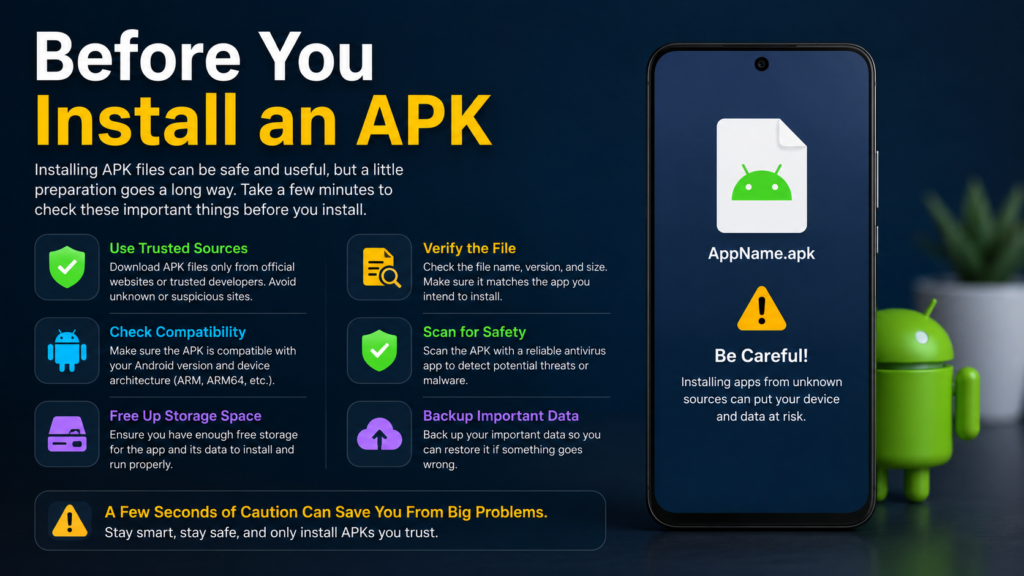
Before You Install an APK
Before learning how to install APK files step by step, take a few minutes to prepare your Android device.
First, make sure the APK comes from a source you trust. Ideally, obtain it directly from the app developer or another reputable distribution source.
You should also check whether the APK is compatible with your Android version and device architecture.
It is also a good idea to:
- Keep Android updated
- Have enough free storage space
- Check the APK’s file name and version
- Avoid suspicious pop-ups or download buttons
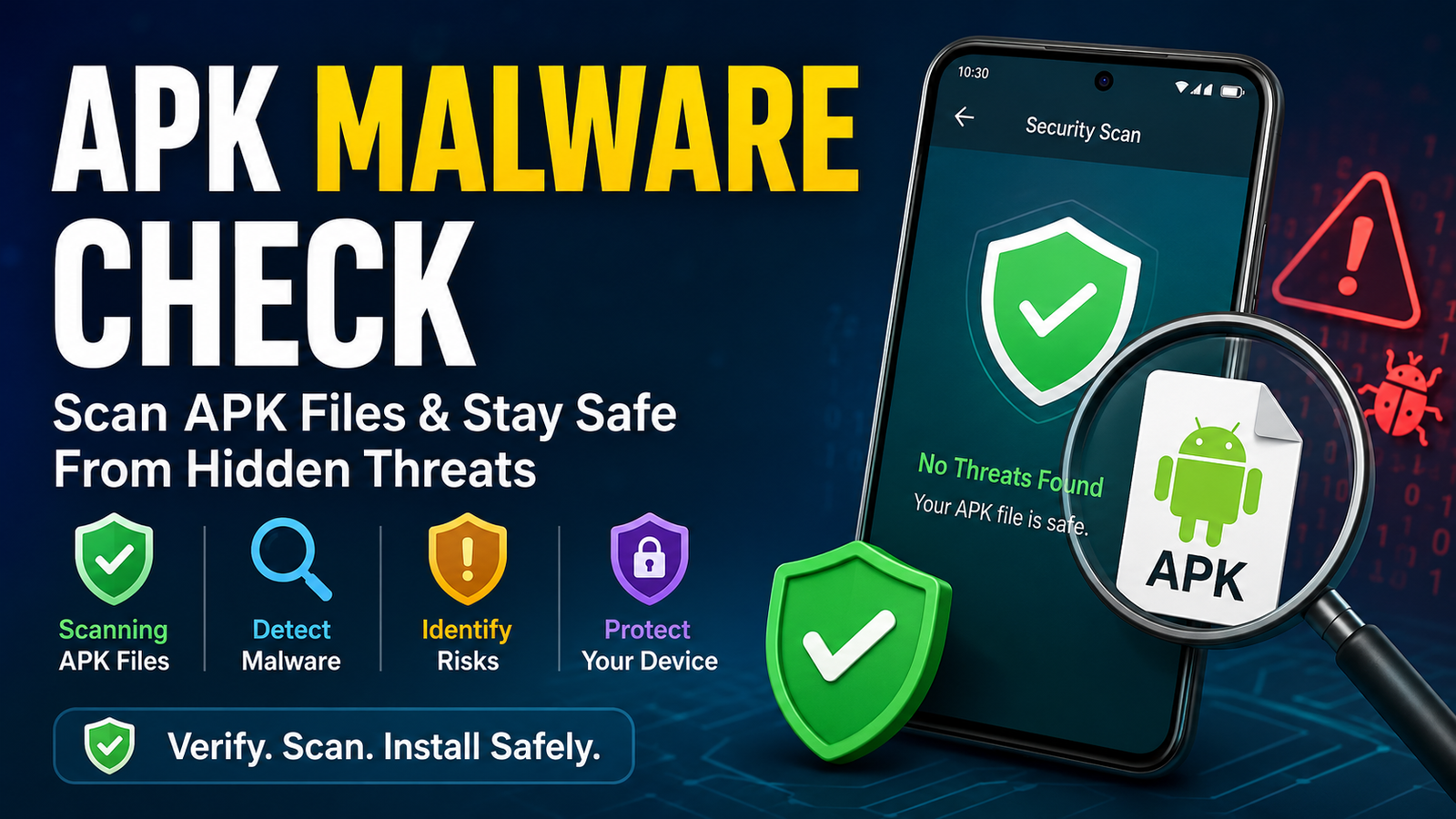
- Scan unfamiliar files with a reputable security tool
- Back up important data when installing software from an unfamiliar source
Remember that Android’s security warnings are there for a reason. Don’t disable security features permanently just to install an application.
How to Install APK Files Step by Step
The exact menus can vary between Samsung, Google Pixel, Xiaomi, OnePlus, Oppo, Vivo, and other Android devices. However, the basic process is similar.
Step 1: Download the APK File
Start by downloading the APK to your Android device.
Use a trusted source and make sure the file is actually an APK. A normal APK file generally ends with the .apk extension.
Once the download is complete, you can usually find the file in your phone’s Downloads folder.
If the website provides several download options, pay attention to the application version and device requirements.
Don’t download an APK simply because it is the first button you see. Some websites use misleading advertisements or fake download buttons.
Step 2: Find the Downloaded APK
Open your Android phone’s file manager.
Depending on your device, it may be called Files, My Files, File Manager, or something similar.
Navigate to:
Internal Storage → Downloads
Look for the APK file you downloaded.
If you cannot find it, check your browser’s download history. This can help you identify the exact location where the file was saved.
Step 3: Tap the APK File
Tap the APK to start the installation process.
Android may display a warning saying that your phone is not allowed to install unknown apps from the current source.
This doesn’t necessarily mean the APK itself is dangerous. It means Android is preventing the particular app you are using—such as Chrome or a file manager—from installing applications until you grant permission.
Step 4: Allow Installation From the Source
If Android displays an Install unknown apps message, open the relevant settings.
For example, if you downloaded the APK using Chrome, Android may ask whether Chrome can install unknown apps.
Enable the option that allows installation from that source.
On some phones, the setting can be found under a path similar to:
Settings → Apps → Special app access → Install unknown apps
The exact wording and location depend on your Android version and manufacturer.
Only enable this permission for a source you understand and trust.
Step 5: Return to the APK
After allowing the required permission, return to the APK file and tap it again.
The Android package installer should open.
You may see information about the application and the permissions or access it requests.
Take a moment to review the information before continuing.
Step 6: Tap Install
If everything looks correct, tap Install.
Android will begin installing the application.
The process may take anywhere from a few seconds to longer depending on the application’s size and your device.
Once the installation finishes, you should see an App installed or similar confirmation.
Step 7: Open the App
Tap Open to launch the newly installed application.
Alternatively, close the installer and find the application in your app drawer.
If the application opens normally, the installation was successful.
For apps that require an account, you may need to sign in before you can use all of their features.
APK Installation at a Glance
| Step | What You Need to Do |
|---|---|
| 1 | Download the APK from a trusted source |
| 2 | Open your file manager |
| 3 | Locate the APK in Downloads |
| 4 | Tap the APK file |
| 5 | Allow installation from the relevant source if Android asks |
| 6 | Review the installation information |
| 7 | Tap Install |
| 8 | Open and test the application |
How to Allow APK Installation on Different Android Phones
The option for installing unknown apps isn’t located in exactly the same place on every Android device.
Modern Android versions generally control this permission on a per-source basis. This means you can allow Chrome to install an APK without necessarily allowing every application on your phone to do the same.
For example, you might need to select:
Settings → Apps → Chrome → Install unknown apps
On another phone, you may find the option through:
Settings → Security → Install unknown apps
If you cannot find it, use the Settings search feature and search for Install unknown apps.
This is usually faster than manually searching through every settings category.
What If Android Says “App Not Installed”?
Sometimes an APK won’t install even after you allow installation from the source.
The App Not Installed error can have several causes.
One common reason is that the APK is incompatible with your Android version or device architecture.
Another possibility is that an existing version of the application conflicts with the APK you are trying to install.
Try these solutions:
- Check whether your Android version is supported
- Make sure the APK download completed correctly
- Free up storage space
- Remove an incompatible existing version if appropriate
- Download the correct APK variant for your device
- Restart your phone and try again
- Obtain a fresh copy from a trusted source
Be careful about uninstalling an existing app if it contains important data. Some applications store information locally, and uninstalling them may remove that data.
What About XAPK, APKM, and APKS Files?
One important detail when learning how to install APK files step by step is understanding that not every app package is a single APK.
You may encounter files ending in:
- .XAPK
- .APKM
- .APKS
These formats can contain multiple APK components or additional resources required by an application.
Simply tapping these files in a normal file manager may not work because Android’s standard installer expects a regular APK package.
If you have an XAPK, APKM, or APKS file, you generally need a compatible installer that knows how to process the package format.
Before using such a tool, make sure it comes from a reputable source and understand what permissions it requests.
How to Check an APK Before Installing It
Installing an APK gives you more control, but it also means you need to be more careful about the source.
Before opening an unfamiliar APK, check the following:
Check the Source
The safest approach is to obtain the APK directly from the developer whenever possible.
Be cautious with websites that force multiple redirects, display aggressive advertisements, or offer modified versions without clearly explaining what has been changed.
Check the File Name
A suspicious file name can be an early warning sign.
If you expected an application called Example App but the download has an unrelated name, don’t install it without investigating further.
Check the App Permissions
Consider whether the requested permissions make sense.
For example, a simple calculator requesting access to your contacts, microphone, SMS messages, and location deserves closer inspection.
Permissions alone do not prove that an app is malicious, but unusual requests should make you cautious.
Keep Security Features Enabled
Don’t permanently disable Android’s built-in security protections just because an APK installation is blocked.
If a security system warns you about an application, investigate the warning instead of immediately bypassing it.
Common Mistakes to Avoid When Installing APKs
Manual APK installation is straightforward, but several mistakes can create unnecessary problems.
One of the biggest is downloading files from random websites simply because they claim to provide free applications.
Another mistake is installing a modified APK without understanding what modifications have been made.
You should also avoid installing multiple APK versions over each other without checking compatibility.
Here are some habits worth following:
- Don’t install APKs from suspicious sources
- Don’t ignore serious security warnings
- Don’t download unknown files from advertisements
- Don’t install an APK without checking compatibility
- Don’t grant unnecessary permissions
- Don’t keep unknown installation permissions enabled indefinitely
- Don’t assume every APK found online is safe
A few extra minutes of checking can prevent much bigger problems later.
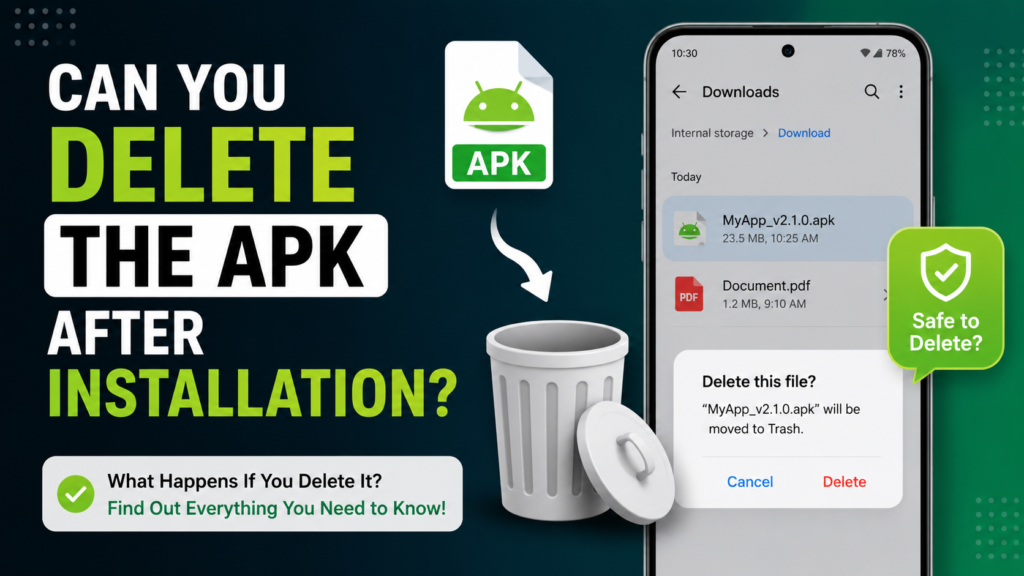
Can You Delete the APK After Installation?
Yes. In most cases, you can delete the APK file after the application has been installed successfully.
The APK is primarily the installation package. Once Android has installed the application, the original file isn’t normally required to launch it.
Deleting it can also free up storage space, especially if the APK is large.
However, you may want to keep a copy if you intentionally downloaded a particular app version and expect to reinstall that exact version later.
Is Installing APK Files Safe?
APK installation itself isn’t inherently unsafe. The main risk comes from what you install and where the file came from.
An APK obtained from a legitimate developer can be perfectly reasonable to install. An APK modified by an unknown party could potentially contain unwanted or harmful software.
That’s why the safest approach is to combine manual installation with good security habits.
Think of an APK as an installation package rather than a guarantee that the application inside is trustworthy.
Frequently Asked Questions
Can I install an APK without Google Play Store?
Yes. Android allows applications to be installed from sources outside Google Play, provided the appropriate installation permission is enabled and the APK is compatible with the device.
Why won’t my APK install?
An APK may fail to install because of insufficient storage, an incompatible Android version, an incorrect APK variant, a corrupted download, or a conflict with an existing application.
Where are APK files stored after downloading?
Most browsers save downloaded APK files in the Downloads folder. You can normally find them through your Android file manager.
Do I need to keep the APK after installing the app?
No. You can usually delete the APK after installation. Keep it only if you want a backup of that particular application version.
Can I install APK files on every Android phone?
Most modern Android devices support APK installation, but compatibility depends on the Android version, device architecture, application requirements, and the package itself.
Is it safe to download APK files from any website?
No. APK files can be modified or repackaged. Use reputable sources, verify the application before installing it, and avoid suspicious downloads.
Final Thoughts
Learning how to install APK files step by step is useful when you need to install an Android application outside the usual app store process. The basic procedure is simple: download a compatible APK from a trusted source, locate the file, allow installation from the relevant source when required, review the installer, and tap Install.
The installation itself only takes a few moments, but choosing the right APK deserves more attention. A trustworthy source, compatible version, and sensible security checks can make the process much safer.
Also Read: How to Install APK From Browser on Android: A Safe Step-by-Step Guide







1 comment