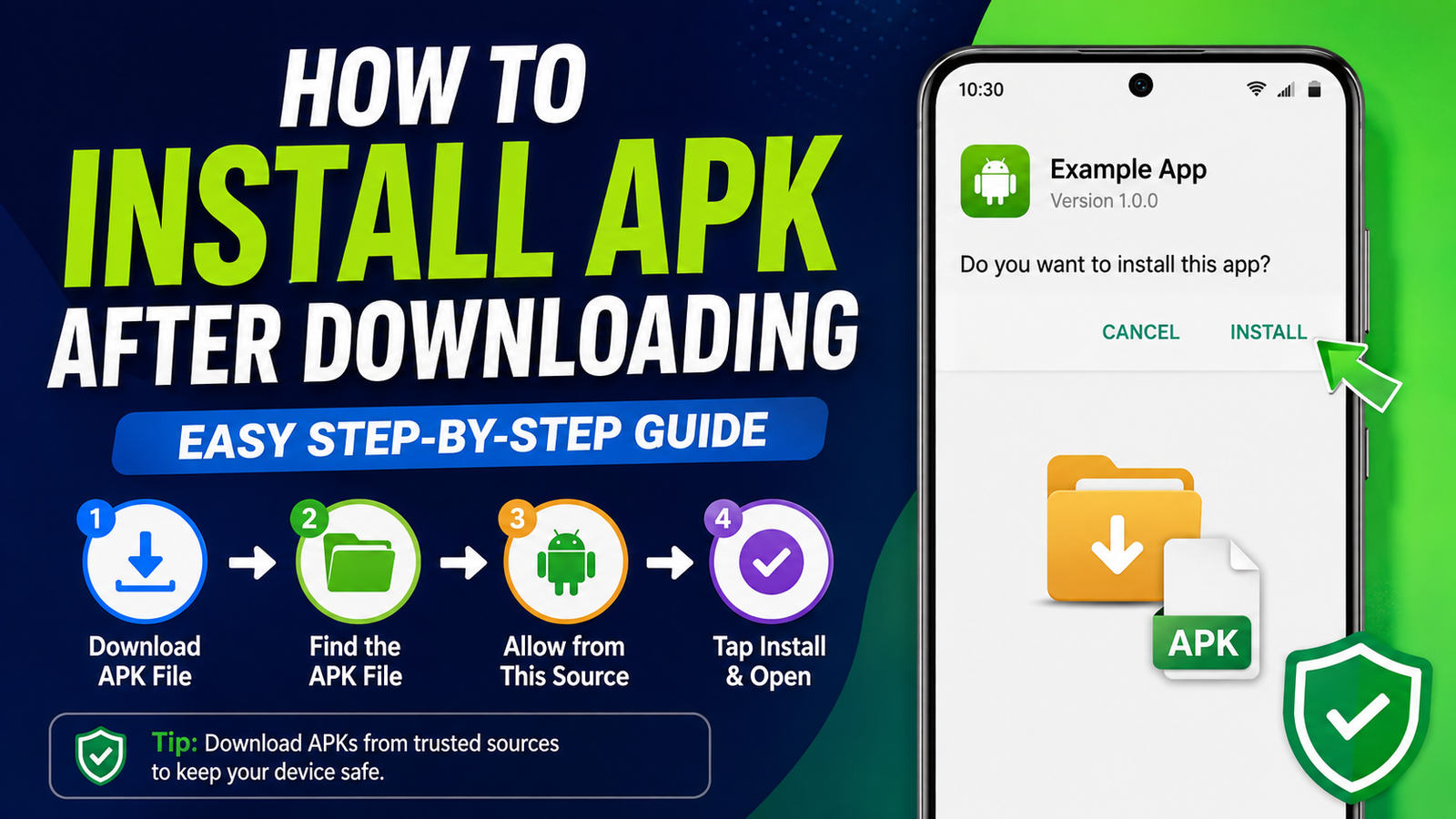
How to Install APK After Downloading: Easy Step-by-Step Guide
Downloading an APK file is only the first step if you want to install an Android app outside the Google Play Store. Many Android users download an APK but then wonder what to do next, where to find the file, or why Android refuses to install it.
The good news is that learning how to install APK after downloading is fairly simple. Once you understand where the downloaded file is stored and how Android handles installations from outside the Play Store, you can install compatible APK files in just a few steps.
However, there are also some important security precautions to consider. An APK downloaded from an unknown or unreliable source can potentially contain unwanted software. That’s why checking the file and choosing a trustworthy source should always be part of the installation process.
In this guide, you’ll learn how to install a downloaded APK on Android, enable the necessary permission, troubleshoot common installation errors, and safely handle APK files.
What Is an APK File?
APK stands for Android Package Kit. It is the standard file format used to distribute and install applications on Android devices.
When you download an app from the Google Play Store, the installation normally happens automatically in the background. When you download an APK manually, however, you have to start the installation yourself.
An APK can contain the files and resources required for an Android application, including:
- Application code
- Images and other resources
- App configuration information
- Digital signing information
- Required Android permissions
It’s important to remember that not every Android app download will be a simple APK. You may also encounter formats such as XAPK, APKM, or APKS, which can require a compatible installer rather than the standard Android package installer.
What to Do Before Installing a Downloaded APK
Before you open the APK, take a few seconds to verify what you’ve downloaded.
The most important consideration is the source. Avoid downloading APK files from suspicious websites, pop-up advertisements, random links, or sources that make unrealistic promises.
A safer routine is to:
- Download from a reputable source.
- Check that the app name and version are correct.
- Make sure your Android version is compatible.
- Avoid modified APKs unless you fully understand the risks.
- Scan suspicious files before installing them.
- Keep Android’s security protections enabled whenever possible.
You should also check the file extension. A file ending in .apk can normally be opened with Android’s package installer. If the file ends in .xapk, .apkm, or .apks, the installation process can be different.
How to Install APK After Downloading
If you’ve downloaded a standard APK file, the installation process is usually straightforward.
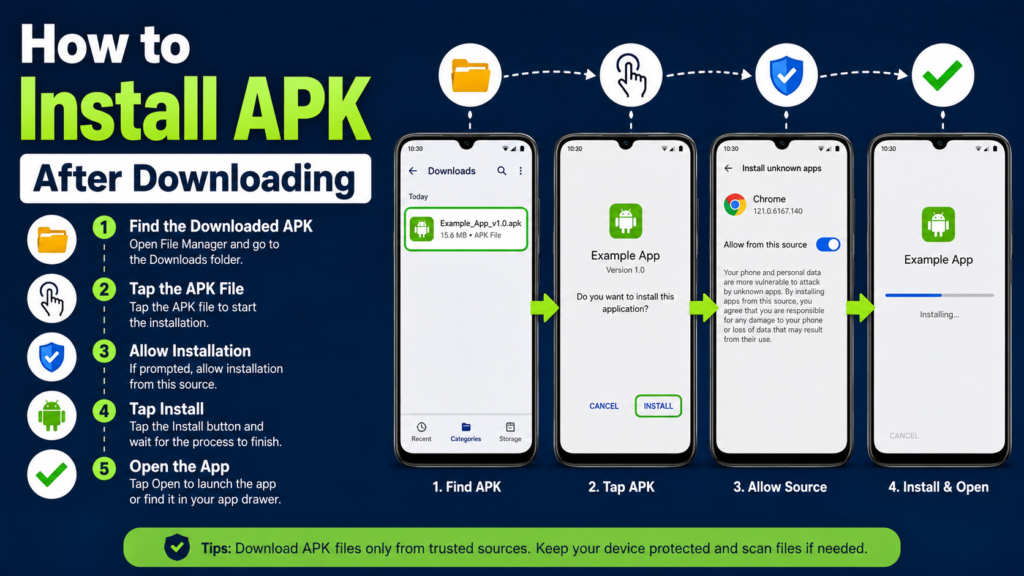
Step 1: Find the Downloaded APK
After downloading the file, open your Android phone’s Files, File Manager, or My Files application.
Look for a folder named Downloads. This is where files downloaded through most browsers are stored by default.
Find the APK you downloaded. It may have a name similar to:
example-app-version.apk
If you cannot find it, use the file manager’s search function and search for .apk.
Step 2: Tap the APK File
Once you’ve located the APK, tap it.
Android should display an installation screen showing the application name and other available information.
If this is your first time installing an APK from that particular source, Android may prevent the installation and display a message saying that installation from the source isn’t allowed.
Don’t worry. This is a security feature rather than necessarily a problem with the APK.
Step 3: Allow Installation From the Source
Modern versions of Android generally control this permission on a per-source basis.
For example, if you downloaded the APK using Chrome, Android may ask you to allow Chrome to install unknown apps. If you opened the APK through a file manager, the permission may apply to that file manager instead.
You may see an option such as:
Allow from this source
Enable the permission if you trust the source and the APK you’ve downloaded.
Then return to the installation screen.
Step 4: Start the Installation
Tap Install.
Android will check the package and begin installing the application. The process can take a few seconds depending on the size of the app and your device.
Once installation finishes, you should see an option to Open the app.
You can also close the installer and launch the application later from your app drawer.
Step 5: Disable the Permission If You Don’t Need It
If you enabled installation from an unknown source temporarily, you can turn the permission off afterward.
This isn’t always necessary, but keeping unnecessary installation permissions disabled can reduce the chance of accidentally installing an unwanted APK later.
The exact menu names can vary between Android versions and manufacturers.
Quick APK Installation Checklist
| Step | What to Do | Why It Matters |
|---|---|---|
| 1 | Open your file manager | Helps you locate the downloaded APK |
| 2 | Open the Downloads folder | Most browser downloads are stored here |
| 3 | Tap the APK | Starts the installation process |
| 4 | Allow the trusted source | Android may block external installations by default |
| 5 | Tap Install | Installs the application |
| 6 | Open the app | Lets you verify that installation worked |
| 7 | Review source permissions | Helps maintain better security |
How to Install APK From a Browser
Sometimes you may want to install an APK immediately after downloading it through your browser.
After the download completes, Android or the browser may show a notification that the file has finished downloading. Tapping that notification can open the APK directly.
If the installation screen doesn’t appear, open your file manager and navigate to the Downloads folder manually.
Keep in mind that the browser you’re using may need permission to install unknown applications. Android typically asks for this permission the first time you attempt an installation from that browser.
Only grant the permission when you trust both the source and the file.
What If Android Says “App Not Installed”?
One of the most common problems after downloading an APK is the “App not installed” message.
This error doesn’t necessarily mean that your phone is broken. There are several possible reasons.
The APK Is Incompatible
The app may require a newer Android version than the one installed on your phone.
Check the app’s minimum Android requirements before attempting another installation.
An Existing Version Causes a Conflict
If you already have the same application installed, the downloaded APK may not be compatible with the installed version.
In some cases, the APK is signed differently or represents an incompatible version.
The APK Is Corrupted
A failed or incomplete download can produce an APK that Android cannot install correctly.
Try downloading the file again from a reliable source.
There Isn’t Enough Storage
Even when an APK itself is relatively small, the installed application can require considerably more storage.
Check your available internal storage and remove unnecessary files if needed.
The File Isn’t Actually a Standard APK
If the downloaded file is an XAPK, APKM, or APKS package, simply tapping it may not work with the standard Android installer.
These formats can contain multiple APK components and may require a compatible installer.
What Are XAPK, APKM, and APKS Files?
Not every app distributed outside the Play Store comes as a single APK.
Developers and app distribution platforms may use split packages to deliver applications more efficiently.
Here’s a simple comparison:
| File Type | Basic Purpose | Standard Android Installer |
|---|---|---|
| APK | Single Android application package | Usually works |
| XAPK | APK plus additional app data/components | Usually requires a compatible installer |
| APKM | Package containing APK components | Requires compatible installation method |
| APKS | Bundle of split APK files | Requires split APK installer |
If you download one of these formats, don’t simply rename it to .apk and expect it to work. The contents and installation method are different.
Is It Safe to Install a Downloaded APK?
Installing an APK isn’t automatically dangerous. The bigger concern is where the APK came from and whether the file has been modified.
A legitimate APK from a trustworthy source can be perfectly usable. On the other hand, an APK from an unknown website could have been altered to include malicious or unwanted code.
Before installing a downloaded APK, consider these precautions:
- Verify the website or source.
- Avoid suspicious download buttons.
- Don’t install an app that requests unusual permissions without a good reason.
- Keep Android updated.
- Use your device’s built-in security features.
- Delete APK files you no longer need.
- Be particularly careful with banking, payment, password-management, and other sensitive apps.
If Android displays a security warning, don’t automatically ignore it. Stop and investigate the file before proceeding.
How to Install APK on Different Android Phones
The general process is similar across Android devices, but menu names can differ.
For example, Samsung, Xiaomi, Google Pixel, OnePlus, Motorola, and other manufacturers may organize the unknown-app permission differently.
The general path is usually similar to:
Settings → Security or Apps → Install Unknown Apps
From there, choose the application you’re using to open the APK and enable permission if necessary.
On some devices, Android may take you directly to the relevant permission screen when you first try to install the file.
Should You Keep the APK After Installation?
Once an APK has been successfully installed, you usually don’t need to keep the downloaded file.
The APK acts as the installation package. The installed application uses files stored separately on your device.
You can delete the APK to recover storage space, particularly if it’s a large game or application.
However, keeping a copy can be useful if:
- You have limited or unreliable internet access.
- You want to reinstall the same version later.
- You have verified that the APK is trustworthy.
- You need to keep a specific older app version.
If you don’t have a reason to keep it, deleting the installer is generally fine.
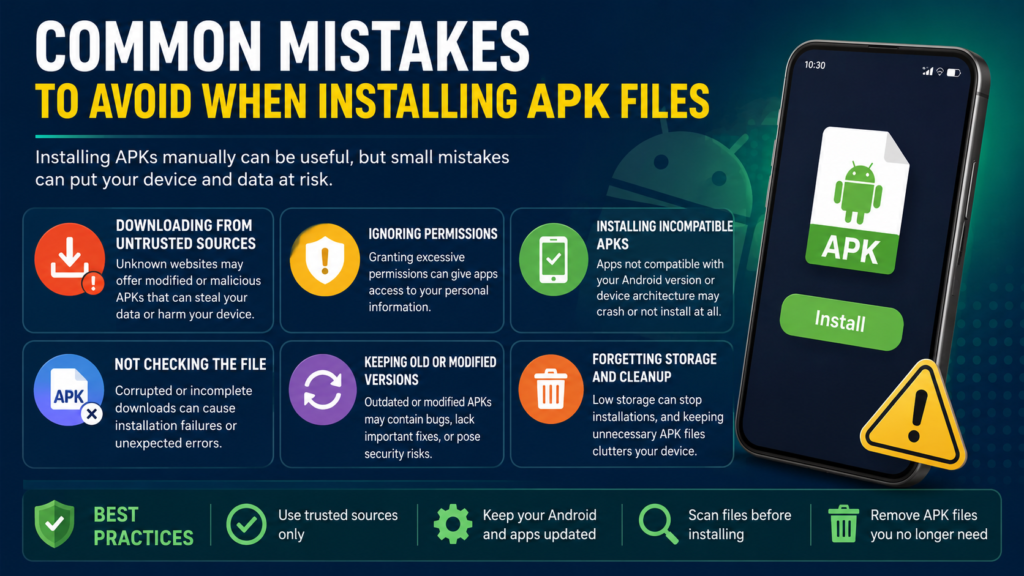
Common Mistakes to Avoid When Installing APK Files
Installing an APK is simple, but a few mistakes can create unnecessary problems.
Installing From an Unknown Source Without Checking It
Don’t treat every APK as trustworthy simply because Android allows you to install it.
The source matters.
Downloading a Fake App
Malicious websites sometimes use popular app names and logos to make fake downloads appear legitimate.
Always check the app name, developer, version, and source.
Ignoring Compatibility
An APK designed for a different Android version or device architecture may fail to install or may behave incorrectly.
Installing Too Many Modified Versions
Modified APKs can change an application’s behavior and may introduce additional security or stability risks.
If you don’t specifically need a modified version, the official version is generally the safer choice.
Forgetting About Storage
A downloaded APK takes up storage before installation, and the installed app requires additional space.
Make sure your phone has enough free storage before beginning.
How to Uninstall an APK-Installed App
An app installed from an APK can generally be removed in the same way as other Android applications.
Go to:
Settings → Apps → [App Name] → Uninstall
Alternatively, you may be able to press and hold the app icon and select Uninstall.
Removing the app does not necessarily mean the original APK file will be deleted. If the installer is still in your Downloads folder, you can remove it separately.
Frequently Asked Questions
Can I install an APK immediately after downloading it?
Yes. If the file is a compatible standard APK, you can normally open it from your browser’s download notification or your file manager and follow the installation prompts.
Why won’t my downloaded APK install?
Common causes include an incompatible Android version, corrupted download, insufficient storage, an existing app conflict, or the file being a package format such as XAPK or APKS rather than a standard APK.
Do I need the internet to install an APK?
Usually, no. Once the complete APK is downloaded, the basic installation can often be performed offline. However, some applications may require an internet connection when first launched or for additional data.
Should I delete the APK after installing the app?
You can delete it if you don’t need it anymore. The installed application doesn’t normally depend on the original APK remaining in your Downloads folder.
Is installing APK files safe?
It can be safe when you obtain the APK from a trustworthy source and verify what you’re installing. APK files from unknown or suspicious sources can pose security risks, so caution is important.
What should I do if the APK is XAPK or APKS?
XAPK, APKM, and APKS files can contain multiple components and generally require a compatible installer. They should not be treated exactly like a normal single APK file.
Final Thoughts
Learning how to install APK after downloading is a useful Android skill, especially when an application isn’t available through the Play Store or you need a particular app version.
For a standard APK, the process is usually as simple as locating the file, opening it, allowing installation from the trusted source when Android asks, and tapping Install.
Also Read: How to Install APK Files Step by Step on Android: A Complete Guide







Post Comment