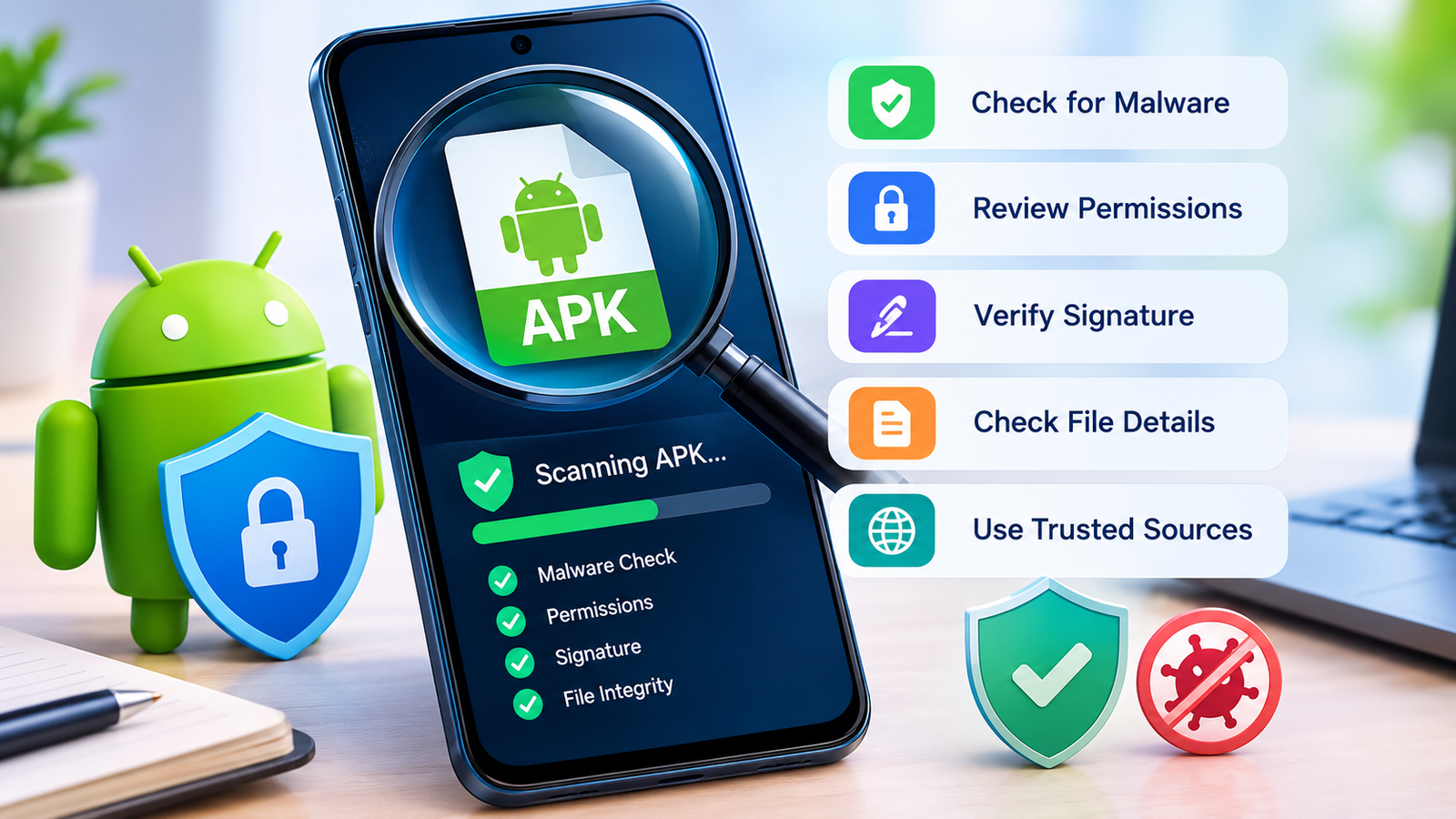
How to Scan APK Before Installing: 7 Essential Safety Checks
Installing an APK file can be useful when an Android app is unavailable through the Google Play Store or when you need a specific version of an application. However, downloading an APK from an unfamiliar website can expose your device to malware, spyware, data theft, and unwanted advertisements.
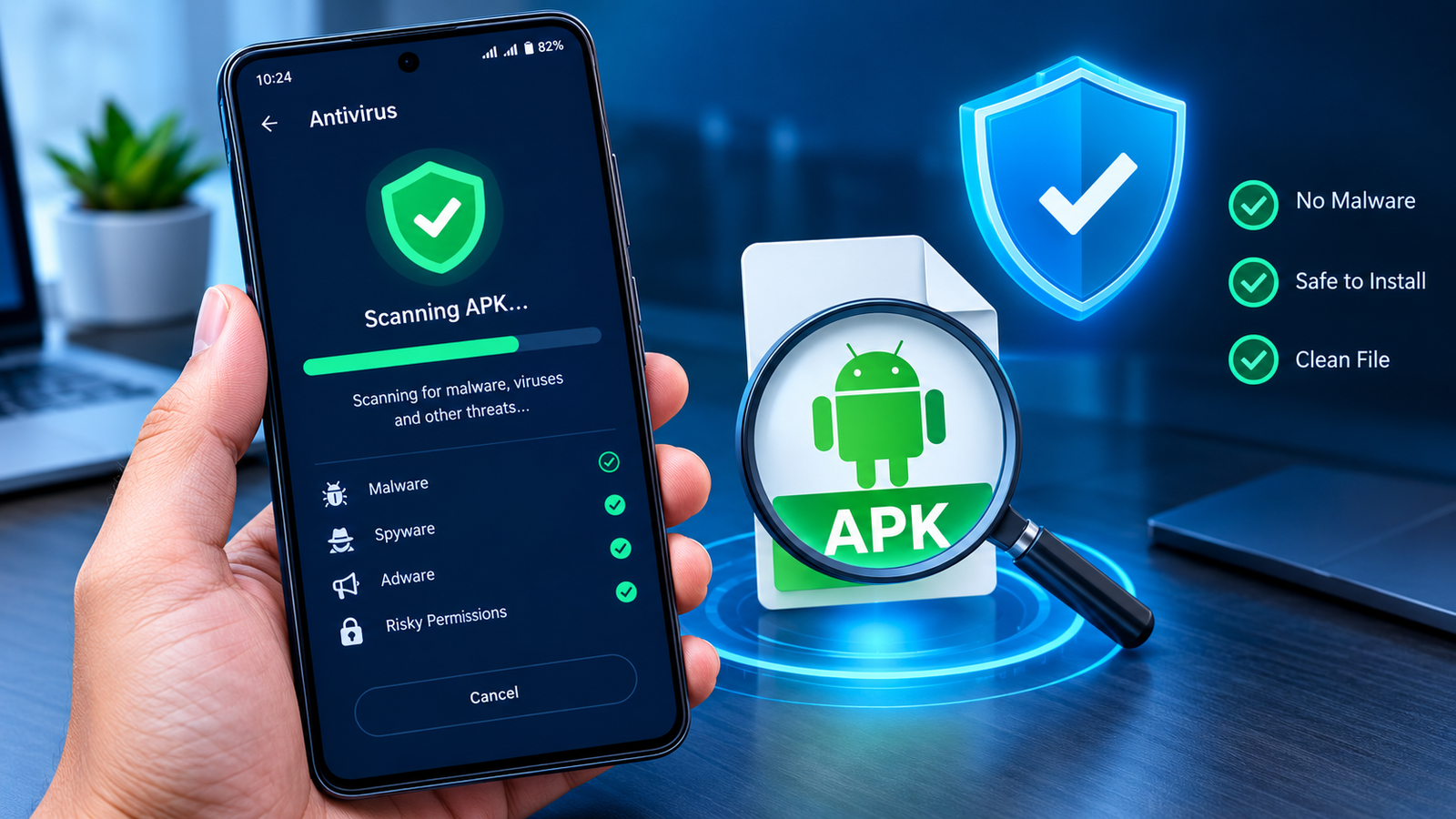
Learning how to scan APK before installing helps you identify potential security risks before allowing an app to run on your phone. Although no single security check can guarantee that a file is completely safe, combining antivirus scanning, source verification, permission reviews, and digital signature checks can significantly reduce the risk.
In this guide, you will learn how to scan an APK file, which tools can help you examine it, what warning signs to watch for, and what to do if a scan detects a potential threat.
Why Should You Scan an APK Before Installing?
An APK, short for Android Package Kit, is the file format used to distribute and install Android applications. APK files can come from official developers, alternative app stores, websites, or direct downloads.
The file format itself is not dangerous. The risk depends on the application’s contents, its source, and whether someone has modified it for harmful purposes.
A suspicious APK might contain:
- Malware designed to damage your device or steal information.
- Spyware that attempts to collect personal data without proper authorization.
- Hidden advertising components that display intrusive ads.
- Fake login screens designed to capture passwords.
- Unnecessary permissions that expose sensitive information.
- Modified code that changes how the original application behaves.
Scanning an APK before installation gives you an opportunity to investigate these risks without immediately running the application.
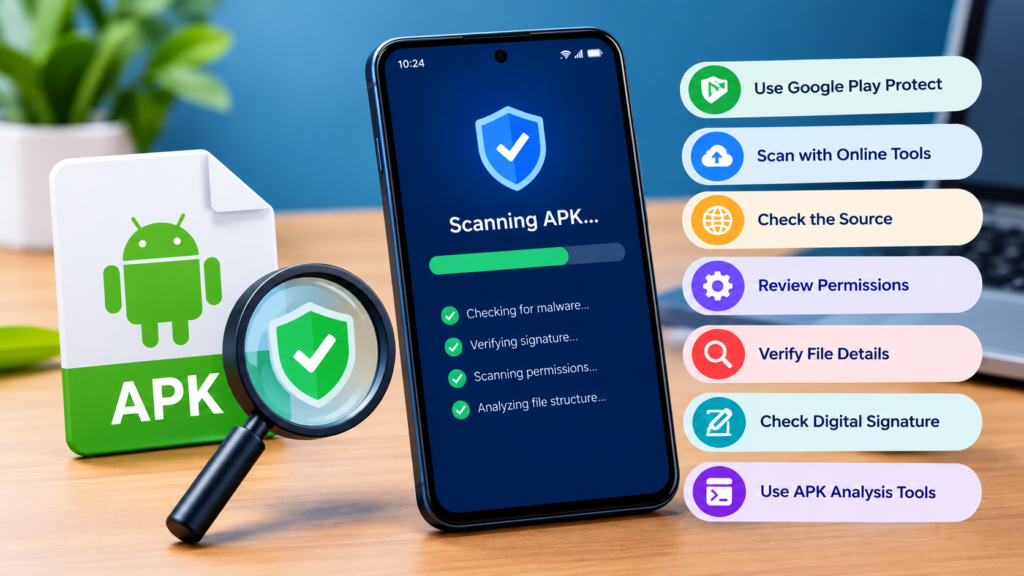
7 Essential Ways to Scan APK Before Installing
1. Use VirusTotal to Check the APK File
VirusTotal is a popular online service that analyzes files using multiple antivirus and security detection engines. It can help you identify whether an APK has been flagged for suspicious or malicious activity.
To scan an APK using VirusTotal:
- Download the APK from a source you can investigate, but do not install it.
- Visit the official VirusTotal website at https://www.virustotal.com/.
- Select the file upload option.
- Choose the APK file from your device or computer.
- Wait for the analysis to finish.
- Review the detection results and any available file details.
If several reputable security engines flag the file, treat it as suspicious and avoid installing it until you can establish what caused the detections.
If no engines detect a threat, that is a positive sign, but it does not prove the APK is harmless. New malware and carefully modified applications may escape detection.
Privacy tip: Uploading a file to an online scanning service may expose the file or its contents to the service and, depending on its sharing policies, other security researchers or users. Avoid uploading APKs that contain confidential or proprietary information without reviewing the service’s privacy terms.
2. Scan the APK With a Trusted Antivirus App
A reputable mobile security application can provide another layer of protection. Some security products can scan downloaded files, while others focus primarily on installed applications or real-time threat detection.
For better results, choose a security app from a recognized developer and download it through Google Play or the developer’s official website.
Follow these steps:
- Install and update your chosen security application.
- Open its security or malware-scanning section.
- Look for an option to scan files or downloaded items.
- Select the APK if manual file scanning is supported.
- Review any warnings before proceeding.
Not every Android antivirus app can scan a standalone APK directly. If your chosen application does not offer this feature, use a reputable online scanner or a computer-based security tool that supports APK files.
Never install an unfamiliar security application simply because the APK download website recommends it. A fake antivirus app could create additional risks instead of protecting your phone.
3. Verify the APK’s Digital Signature
Android applications are digitally signed by their developers. Signatures help identify the signing certificate associated with an app and allow compatible versions to be checked for signing consistency.
If the APK is supposed to be an official release, compare its signing certificate with a trusted reference from the original developer or a verified version of the same application.
You can examine APK signatures using Android development tools such as Android SDK Build Tools.
For example, on a computer with the appropriate tools installed, run:
apksigner verify --verbose --print-certs app.apk
Replace app.apk with the actual path or filename of your APK.
The output can help you determine whether the APK’s signature verifies and identify its signing certificate. However, a valid signature does not automatically mean the application is safe. A malicious developer can sign a harmful app, and a modified app may be signed with a different certificate.
The key is to compare the result with a trustworthy reference rather than treating the presence of a signature as a guarantee of safety.
4. Check the APK’s SHA-256 Hash
A cryptographic hash is a unique-looking string calculated from a file’s contents. SHA-256 is commonly used to verify file integrity.
If the developer publishes an official SHA-256 checksum, calculate the hash of your downloaded APK and compare the two values.
On Windows, you can use Command Prompt:
certutil -hashfile app.apk SHA256
On macOS or Linux, use a terminal:
sha256sum app.apk
Compare the resulting value with the checksum provided through a trusted, independently verified source.
If the values match, the file’s contents match the file represented by that reference checksum. If they differ, the APK may have been altered, corrupted, or replaced with another version.
Keep in mind that a hash does not tell you whether the original file is safe. It only helps establish whether two files have matching contents.
5. Review the APK’s Requested Permissions
Permissions determine which sensitive features or data an application may request access to, depending on Android’s permission system and the permissions granted by the user.
Before installing an APK, investigate the permissions it declares. Pay particular attention to permissions that seem unrelated to the application’s main purpose.
| Permission or capability | Why it deserves attention |
|---|---|
| SMS access | May expose messages or enable sensitive messaging operations |
| Contacts access | Can reveal saved names, phone numbers, and contact details |
| Microphone access | May allow audio recording when authorized |
| Camera access | May enable image or video capture when authorized |
| Location access | Can reveal approximate or precise device location |
| Accessibility access | Can enable powerful interactions with the screen and other apps |
| Notification access | May expose notification content or support sensitive interactions |
| Install unknown apps | Can allow an app to initiate installation of other packages when authorized |
These permissions are not automatically malicious. A navigation app may legitimately need location access, while a messaging app may need contacts or microphone access.
The important question is whether the requested access makes sense for the application’s stated purpose.
You can inspect permissions using an APK analysis tool or, where supported, Android development utilities. Remember that declared permissions and permissions actually granted to an installed app are not always the same.
6. Examine the APK’s Source and Developer Information
Before trusting an APK, investigate where it came from and who created it.
Whenever possible, download applications from Google Play or the developer’s official distribution channel. If you use a third-party APK website, check whether it provides clear developer details, version information, release dates, and links to the original source.
Look for warning signs such as:
- A download page with no identifiable developer.
- An APK claiming to be an official app but using an unrelated package name.
- A version number that conflicts with information published by the developer.
- A download that unexpectedly redirects to unrelated files.
- Claims that the app offers premium features without explaining who modified it.
- Instructions to disable Android security protections before installation.
A professional-looking website does not prove that its downloads are safe. Similarly, a popular download page is not a substitute for verifying the actual file.
If the app’s identity or origin cannot be established, the safest option is to avoid installing it.
7. Analyze Suspicious APKs With a Specialized Security Tool
Some APK analysis tools examine application structure, declared permissions, components, certificates, and potentially suspicious code patterns.
For example, MobSF (Mobile Security Framework) can perform static analysis of Android application packages. It is useful for users who want a more detailed technical assessment.
A basic workflow is:
- Obtain the APK without installing it.
- Open a trusted MobSF instance or a properly configured local installation.
- Submit the APK for static analysis.
- Review the reported permissions, application components, certificates, and security findings.
- Investigate high-risk findings before making a decision.
Static analysis examines a file without executing the application in the normal way. It can reveal useful indicators, but it may not detect every malicious behavior, especially code that activates only under particular conditions.
Advanced users can combine static analysis with controlled dynamic analysis in an isolated testing environment. Beginners should not run suspicious applications on their personal phones simply to see what happens.
Which APK Scanning Method Should You Use?
Different checks reveal different types of information. For most users, combining two or three independent methods is more useful than relying on a single scan.
| Scanning method | Main purpose | Best suited for |
|---|---|---|
| VirusTotal | Checks file against multiple detection engines | Quick initial screening |
| Mobile antivirus | Detects threats using supported security features | Everyday Android users |
| Digital signature verification | Examines signing validity and certificate identity | Verifying app authenticity |
| SHA-256 checksum | Checks whether file contents match a trusted reference | File integrity verification |
| Permission review | Identifies potentially excessive access requests | Privacy-conscious users |
| MobSF analysis | Examines application structure and security indicators | Advanced users and developers |
For a practical starting point, check the download source, scan the file with a reputable security service, and verify its signature or checksum when trustworthy reference information is available.
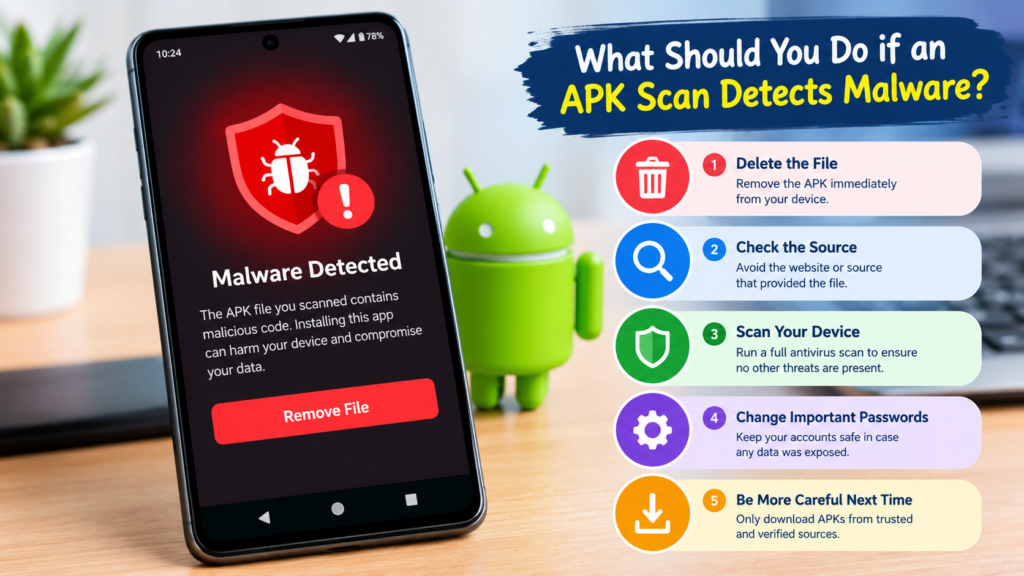
What Should You Do if an APK Scan Detects Malware?
If a security tool reports that an APK may contain malware, do not ignore the warning or install the file to test whether the detection is correct.
Instead, take these precautions:
- Stop the installation: Keep the suspicious APK out of use.
- Check the detection details: Review the reported threat name and whether other reputable scanners report similar findings.
- Verify the source: Compare the download with a release obtained directly from the official developer.
- Delete the file if it remains suspicious: Remove it from your downloads and empty the relevant trash or recycle area if applicable.
- Avoid disabling security features: Do not turn off Google Play Protect or other protections just to install a flagged file.
- Use an official alternative: Obtain the application from a trusted distribution channel whenever possible.
A single antivirus detection can sometimes be a false positive, particularly for uncommon or heavily modified applications. However, that possibility is not a reason to dismiss a warning without investigation.
If you have already installed the APK and suspect it is malicious, uninstall it if possible, run a reputable security scan, review sensitive permissions and accessibility access, and update Android. If you entered passwords or financial details into a suspicious app, use a trusted device to change affected passwords and contact your financial provider if necessary.
Common Mistakes to Avoid When Scanning APK Files
Even careful users can make mistakes when evaluating downloaded applications. Avoid these common assumptions:
- Assuming a clean scan guarantees safety: Security tools cannot detect every threat.
- Trusting an APK because it has a valid signature: A signature identifies the signer; it does not certify that the app is harmless.
- Treating a matching hash as a safety certificate: A hash confirms a match with a reference file, not the safety of that reference.
- Ignoring excessive permissions: Unexpected access requests can indicate privacy risks.
- Using only one scanning service: Independent checks can provide additional context.
- Installing an APK before examining it: Prevention is safer than attempting to remove malware later.
A reliable APK safety routine combines technical checks with common sense. If several warning signs appear together, avoid the file rather than trying to justify the risk.
Frequently Asked Questions
1. How can I scan an APK before installing it on Android?
You can upload the APK to a reputable service such as VirusTotal, use a mobile security app that supports file scanning, or examine it with a specialized APK analysis tool. Check its source and permissions as well. No single method guarantees that a file is completely safe.
2. Can VirusTotal tell me if an APK is 100% safe?
No. VirusTotal can identify known threats and suspicious indicators reported by its detection engines, but new or carefully modified malware may go undetected. A clean result should be treated as one positive indicator rather than proof of complete safety.
3. Is it safe to scan an APK without installing it?
Generally, yes. Uploading a file to a reputable scanning service or examining it with a suitable analysis tool does not require installing the app on your Android device. However, choose your tools carefully, review online services’ privacy policies, and avoid executing suspicious files.
4. How do I know if an APK contains a virus?
Warning signs include detections from reputable security engines, suspicious permissions, an untrusted source, an unexpected signing certificate, or unusual application behavior. No single indicator is conclusive in every case, so consider the evidence together.
5. Does a valid APK signature mean the app is safe?
No. A valid signature helps establish the identity of the signing certificate and supports integrity verification. It does not prove that the developer is trustworthy or that the app contains no harmful code.
6. Should I install an APK if antivirus scanning finds no threats?
Not automatically. Check the developer, source, requested permissions, signature, and available checksum information. If you cannot establish that the file is trustworthy, avoid installing it even when antivirus tools report no detections.
Final Thoughts
Learning how to scan APK before installing is an important step toward safer Android use, especially when downloading apps outside official app stores. A quick malware scan can help identify known threats, while signature verification, checksum comparison, and permission reviews provide additional information about a file’s authenticity and potential risks.
The safest approach is to obtain APK files from trustworthy sources, examine them before installation, and avoid disabling security protections to run suspicious applications.
Also Read: How to Check APK Privacy Permissions: A Complete Android Safety Guide











1 comment