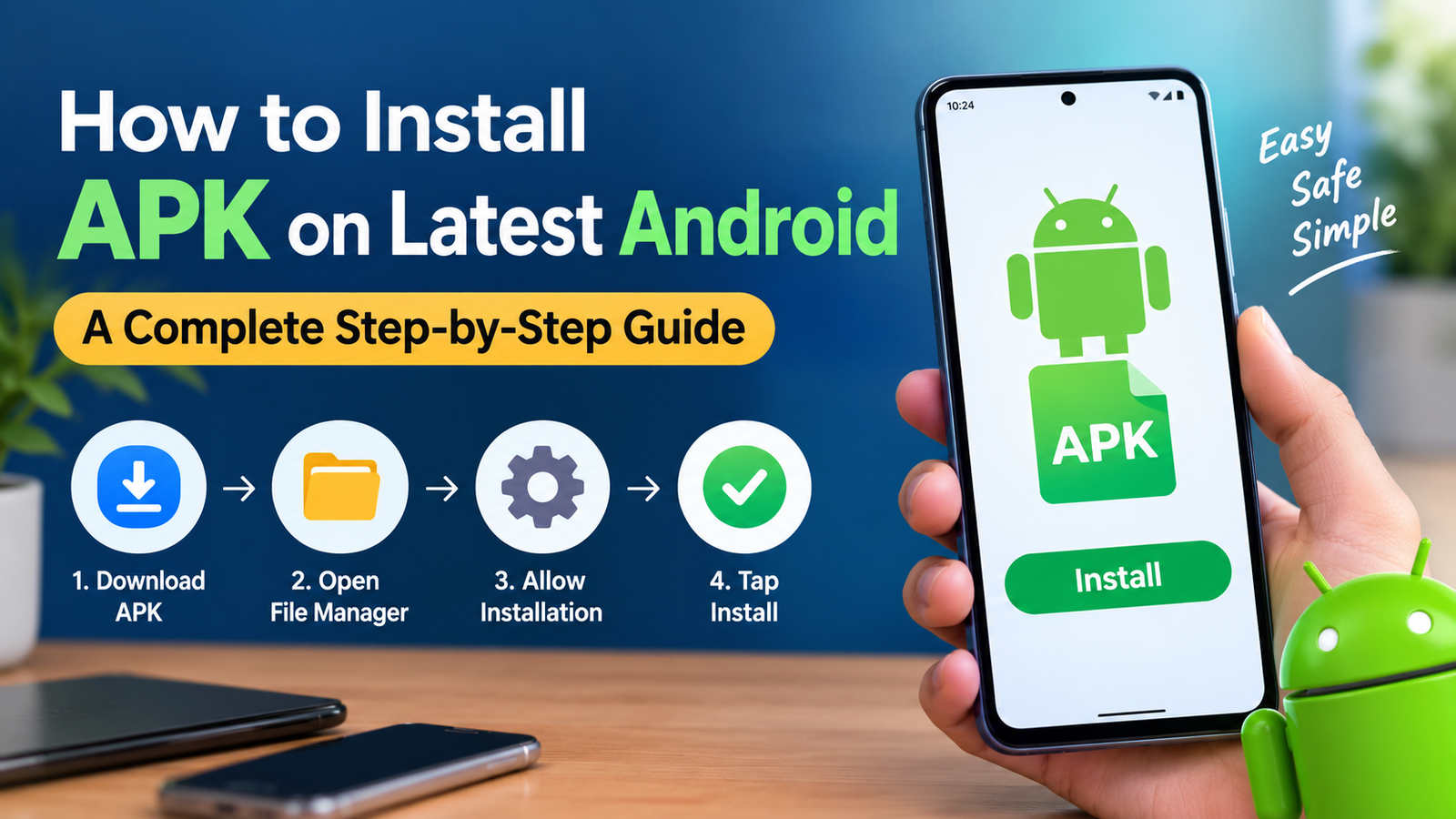
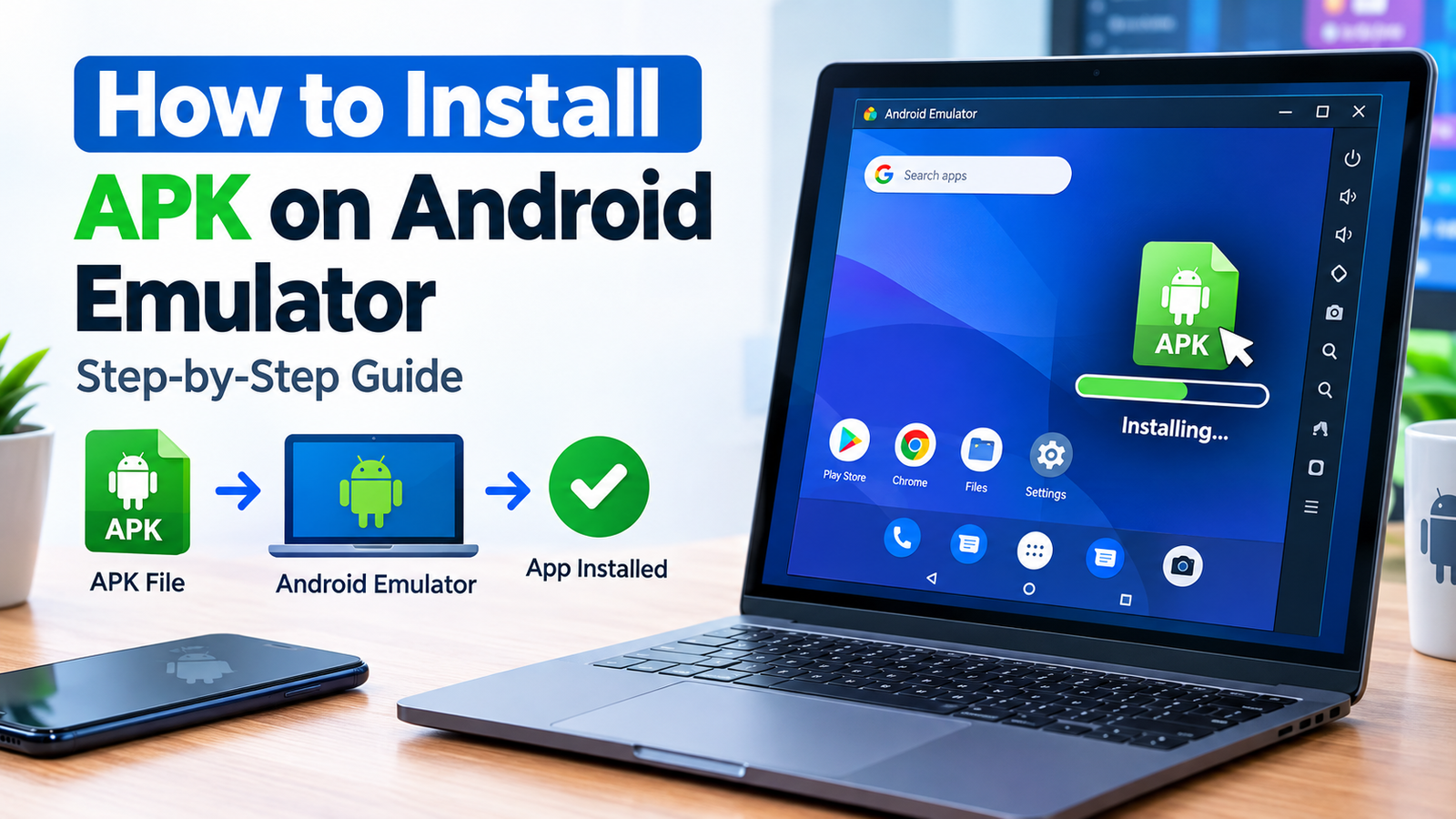
How to Install APK on Latest Android: A Complete Step-by-Step Guide
Installing an APK on Android is usually straightforward, but newer Android versions have introduced stronger security protections that can make the process look different from what you may remember. If you have downloaded an APK from a website and are unsure what to do next, you are not alone.
The good news is that you can still install APK files manually on compatible Android devices. The exact menus may vary between Google Pixel, Samsung Galaxy, Xiaomi, OnePlus, OPPO, vivo, and other phones, but the basic process remains similar.
As of 2026, Android 17 is the latest major Android version in Google’s current release cycle. Newer security features are making Android more cautious about apps installed outside official app stores.
In this guide, you will learn how to install APK on latest Android, how to allow installation from the correct source, what to do when Android blocks the APK, and how to avoid common installation problems.
What Is an APK File?
APK stands for Android Package Kit. It is the file format Android uses to package and install applications.
When you download an Android application from a website instead of an app store, you may receive a file ending in .apk. Opening that file starts the Android package installation process.
An APK normally contains important components such as:
- The application’s code
- App resources
- Images and other assets
- Configuration information
- A digital signature
- Information about the app and its required permissions
APK files are useful when an application is unavailable through your normal app store, when you need a particular version, or when you are testing an app.
However, an APK should not automatically be considered safe just because Android can install it. The source of the file matters.
Can You Still Install APK Files on the Latest Android?
Yes, manual APK installation is still possible on Android devices.
However, the experience is becoming more security-focused. Android may warn you when an app comes from outside an official store, and some newer security features can place additional restrictions on sideloading.
Google’s Android developer documentation confirms that sideloading remains supported, although the user experience can vary depending on the distribution method and device protections.
This means you should not be surprised if your latest Android phone does not behave exactly like an older device.
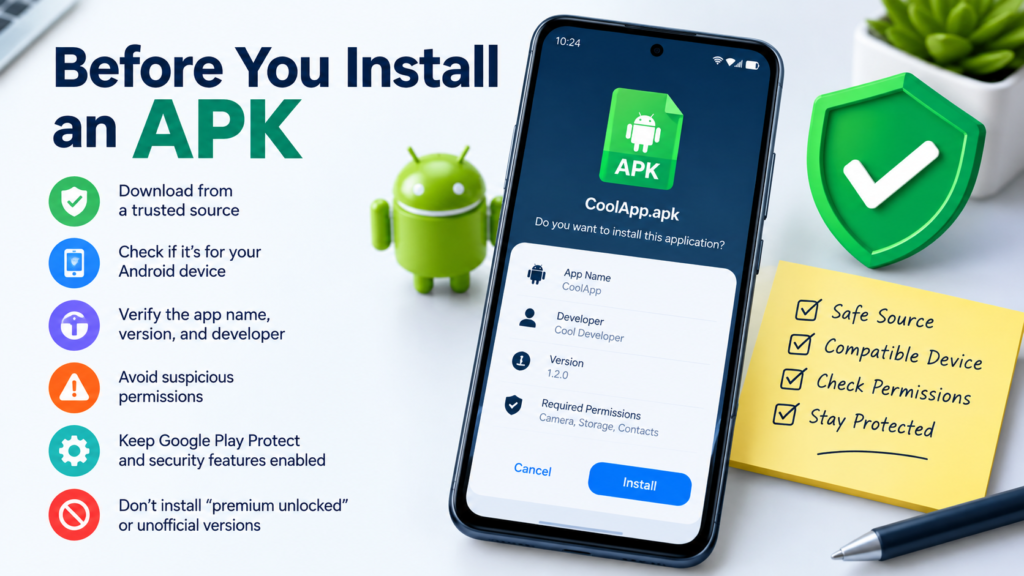
Before You Install an APK
Before learning the installation steps, take a few minutes to check the APK.
Downloading and installing an unknown file can expose your phone to unwanted software, so do not treat this process as simply downloading a file and tapping Install.
Check these things first:
- Download the APK from a reputable source.
- Make sure the file is intended for your Android device.
- Check the application’s name and version.
- Avoid APKs that request unusual permissions.
- Keep Google Play Protect and other security features enabled whenever possible.
- Do not install an APK simply because a website claims it is a “premium unlocked” or “free” version.
- If the APK comes from an unfamiliar developer, investigate the developer before installing it.
If the file looks suspicious, deleting it is safer than experimenting with it.
How to Install APK on Latest Android
The following process works as a general guide for modern Android devices. Menu names can differ slightly depending on your phone manufacturer and software version.
Step 1: Download the APK
First, download the APK file to your Android phone.
If you are downloading it through a browser, wait until the download is completely finished. You can usually find the file in your Downloads folder.
Do not open random pop-ups or advertisements that appear around the download button. Some websites use misleading download buttons that can send you to unrelated files.
After downloading, check that the filename ends with .apk.
Step 2: Open the Downloaded APK
Open your phone’s Files, My Files, or another file manager.
The exact name depends on your device.
Go to:
Downloads → APK file
Tap the APK file to begin installation.
Android may display a security message telling you that your phone is not currently allowed to install apps from that particular source.
This is normal when you are installing an APK outside your usual app store.
Step 3: Allow Installation From the Source
Modern Android versions generally control this permission on a per-source basis.
For example, if you downloaded the APK using Chrome, Android may ask you to allow Chrome to install unknown apps.
If you downloaded it using a file manager, the permission may instead apply to that file manager.
Look for an option similar to:
Allow from this source
Enable it only for the application you trust and only when you actually need to install the APK.
Then return to the APK installation screen.
Step 4: Tap Install
Once the required permission is enabled, return to the APK file and tap it again.
You should see an installation screen containing information about the application.
Tap:
Install
Android will then check and install the application if the package is compatible with your device and passes the system’s installation requirements.
Step 5: Wait for Installation to Finish
The installation normally takes only a few moments.
When it is complete, you may see options such as:
- Open
- Done
Tap Open if you want to launch the application immediately.
Choose Done if you want to close the installer and launch the app later.
Step 6: Turn Off the Extra Installation Permission
If you temporarily enabled installation from an unknown source, consider turning it off again after installing the APK.
This is a simple security habit.
Leaving unnecessary installation permissions enabled can make it easier for another downloaded file to attempt an installation later.
APK Installation Steps at a Glance
| Step | What to Do | Important Tip |
|---|---|---|
| 1 | Download the APK | Use a trustworthy source |
| 2 | Open your file manager | Check the Downloads folder |
| 3 | Tap the APK | Android may show a security warning |
| 4 | Allow the source | Enable the permission for the relevant app |
| 5 | Tap Install | Wait for Android to complete the process |
| 6 | Open the app | Check that it works normally |
| 7 | Disable unnecessary permission | Improve your security afterward |
Why Android Says It Can’t Install the APK
Sometimes you follow every step correctly and still receive an error.
Several things can cause this.
The APK Is Not Compatible
An APK may be built for a specific Android version, processor architecture, screen configuration, or device environment.
If the package does not support your device, installation may fail.
This is particularly important with APKs downloaded from unofficial sources because you may not know exactly which device configuration the file was designed for.
You Downloaded the Wrong File Type
Not every Android application download is a traditional standalone APK.
You may encounter formats such as:
- XAPK
- APKM
- APKS
- Split APK packages
These packages may contain multiple APK components rather than one installable APK.
Simply tapping an XAPK or APKM file may not produce the same installation process as opening a standard APK.
The App Is Already Installed
Android can reject an APK if its signing information conflicts with the version already installed on your phone.
For example, you might already have an app installed from one source and then try installing a modified or differently signed version of the same package.
In that situation, you may need to uninstall the existing version before installing the new one.
Be careful, though: uninstalling an application can remove its local data.
The APK File Is Corrupted
A partially downloaded or damaged APK may fail during installation.
If you suspect this is the problem, delete the file and download it again from a reliable source.
Avoid repeatedly attempting to install a damaged file.
What If Android Blocks the APK?
Newer Android security protections can be more restrictive than older versions.
Android 17, for example, includes additional security features designed to reduce risky sideloading. Google’s Advanced Protection Mode can block app installation from unknown sources as part of its stronger security configuration.
There are also newer Android developer-verification protections being introduced over time. Google says sideloading is still supported, but unverified apps can involve additional safeguards depending on the circumstances.
If your phone blocks an APK:
- Read the warning instead of immediately bypassing it.
- Confirm where the APK came from.
- Verify that you actually trust the developer.
- Check whether the file is compatible with your phone.
- Avoid disabling major security features simply to install a questionable app.
A security warning is not necessarily an error. Sometimes it is Android doing exactly what it is supposed to do.
How to Install APK on Samsung and Other Android Phones
The general process is similar across Android devices, but the settings can have different names.
On a Samsung Galaxy phone, for example, you may find the relevant installation permission under security or special app access settings.
On other manufacturers’ phones, the path may look different.
The important idea is this:
Find the application that opened or downloaded the APK and allow that specific source to install unknown apps if Android requests the permission.
You generally do not need to enable a global setting for every application.
What About Android 17 and Newer Security Features?
If you are using the latest Android version, you may encounter security checks that were less noticeable on older devices.
This is part of Android’s ongoing effort to make sideloading safer without completely removing the ability to install applications outside traditional app stores.
Google’s current documentation says users can still sideload apps, while additional safeguards are being introduced for unverified developers.
For everyday users, the practical lesson is simple: do not fight every security warning just to get an APK installed.
If Android is warning you about the source, take a moment to determine why.
Common Mistakes to Avoid When Installing APKs
A few mistakes can turn a simple installation into a security or compatibility problem.
Avoid these common habits:
- Installing APKs from unknown websites without checking them.
- Downloading files with misleading names.
- Installing a modified APK without knowing who created it.
- Ignoring Android’s security warnings.
- Giving an unfamiliar app excessive permissions.
- Installing an APK meant for a different device architecture.
- Assuming every
.apkfile is compatible with every Android phone. - Keeping unnecessary unknown-source permissions enabled.
- Downloading multiple versions of the same app without knowing which one is correct.
A little caution before installation can save you from much bigger problems later.
How to Check an APK Before Installing It
If you regularly install APK files, create a simple safety routine.
First, identify the developer. Then check whether the application is available through an official website or recognized app store.
You can also compare:
- App name
- Developer name
- Version number
- File size
- Release information
- Required Android version
- Requested permissions
- Digital signature information, when available
If several details look inconsistent, do not install the file.
Remember that antivirus scanning can help, but no single security check should be treated as an absolute guarantee.
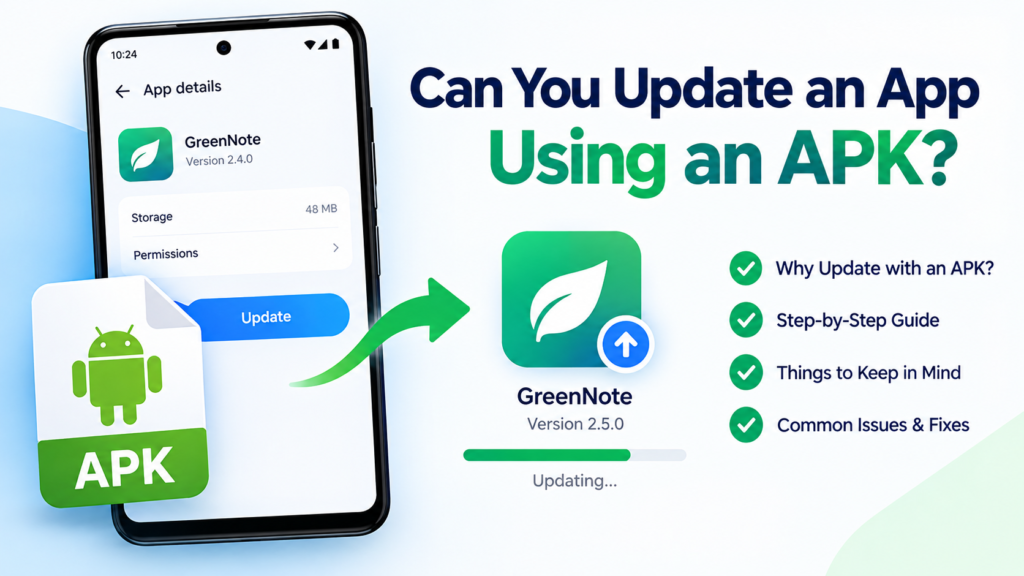
Can You Update an App Using an APK?
Yes, an APK can sometimes be used to update an existing application.
The new APK generally needs to be compatible with the installed app and signed appropriately. If the signing information does not match, Android may refuse the update.
For developers and advanced users, Android also supports installation through ADB. Google’s documentation provides the standard adb install command for installing an APK on a connected device or emulator.
For ordinary users, however, manually opening the APK is usually much easier than using ADB.
Frequently Asked Questions
Is it safe to install APK files on the latest Android?
APK installation itself is a normal Android capability, but the safety of an APK depends heavily on its source and contents. Download files from trustworthy sources, pay attention to Android’s warnings, and avoid suspicious applications.
Why can’t I install an APK on Android 17?
The APK may be incompatible, corrupted, incorrectly packaged, already conflict with an installed version, or blocked by a security feature. Check the exact Android message before trying to bypass the restriction.
Do I need to enable unknown sources to install an APK?
You may need to allow the specific app handling the APK to install unknown apps. Modern Android versions generally manage this permission on a per-source basis rather than using one universal switch.
Can I install an APK without Google Play?
Yes. APK files are designed to allow Android applications to be distributed outside Google Play. However, installing outside an official store requires more care because you are responsible for evaluating the source and file.
Why does my APK say “App not installed”?
This message can have several causes, including incompatibility, insufficient storage, a conflicting installed version, a corrupted package, or an APK that is part of a split package rather than a standalone application.
Should I delete the APK after installing it?
You can delete the APK after confirming that the application works correctly. The installed application does not normally depend on keeping the original APK in your Downloads folder.
Final Thoughts
Learning how to install APK on latest Android is not difficult once you understand how modern Android security works.
The basic process is to download a compatible APK, open it through your file manager, allow installation from the source when required, and tap Install. The exact menu names can vary between manufacturers, so do not worry if your phone looks slightly different from another Android device.
Also Read: How to Install APK After Downloading: Easy Step-by-Step Guide







Post Comment