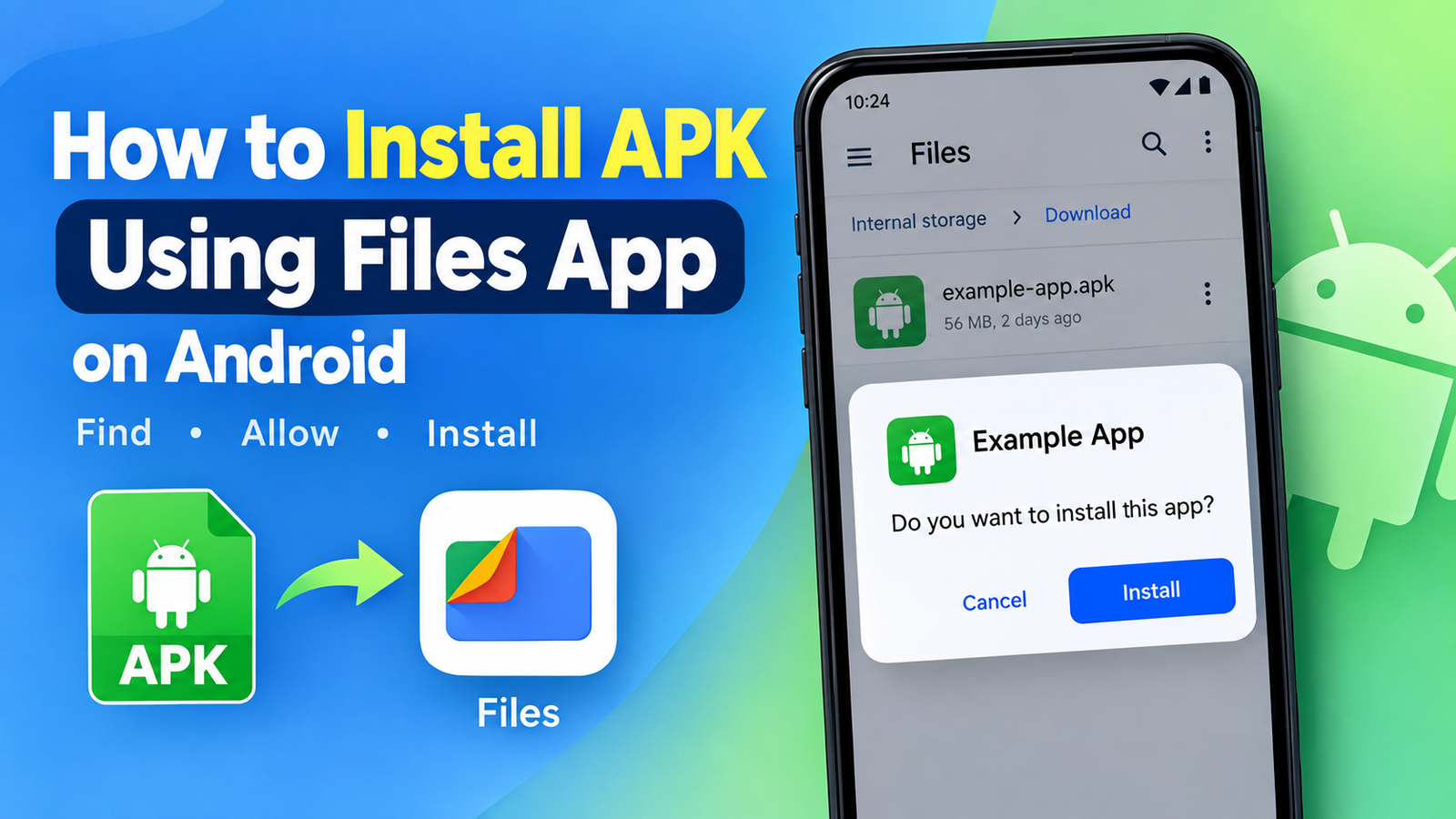
How to Install APK Using Files App: on Android A Complete Step-by-Step Guide
Installing an APK file on Android is relatively simple, especially when you already have the file saved on your phone. You do not always need a special installer or third-party file manager. In many cases, you can use the built-in Files app to locate and install the APK directly.
Whether you downloaded an app from a browser, received it through WhatsApp or Telegram, transferred it from a computer, or copied it from an SD card, the process is usually similar. You simply need to find the APK file, allow installation permission for the app you are using, and complete the installation.
In this guide, you will learn how to install APK using Files app step by step. We will also cover common problems, security tips, different APK file formats, and what to do after installation.
What Is an APK File?
An APK, or Android Package Kit, is the file format Android uses to distribute and install applications. It works similarly to an installer file on a computer.
When you install an app from the Google Play Store, Android automatically downloads and installs the required app files. However, when you download an APK manually, you need to open the file yourself and approve the installation.
APK files can be downloaded or received from several sources, including:
- Web browsers
- Cloud storage services
- Messaging apps
- Email attachments
- SD cards
- USB drives
- File-sharing services
- Another Android device
Once the APK file is saved on your device, the Files app can help you locate and open it.
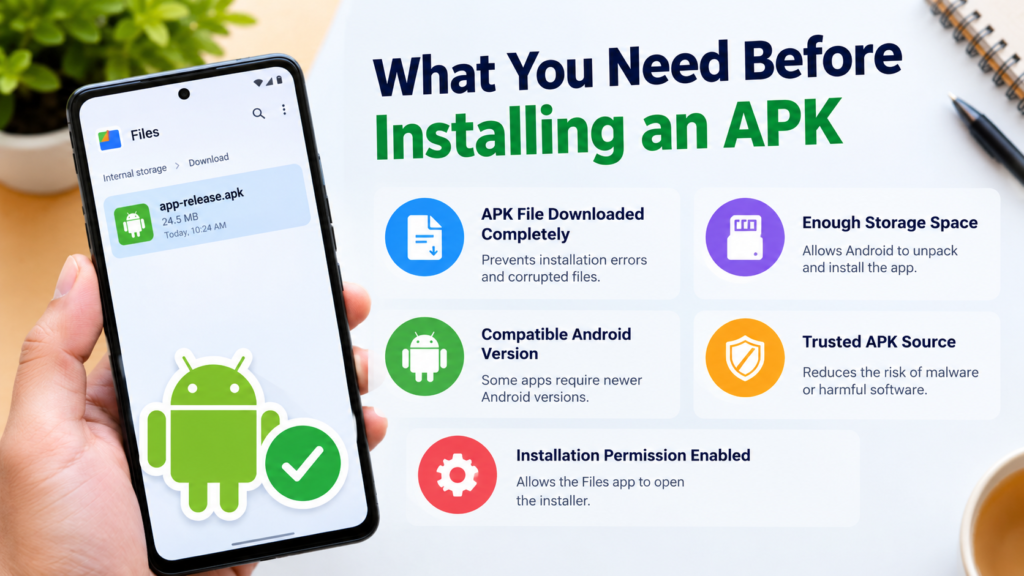
What You Need Before Installing an APK
Before learning how to install APK using Files app, make sure a few basic things are ready.
First, confirm that the file has been fully downloaded. A damaged or incomplete APK may fail to install.
You should also check that your Android device has enough free storage space. Large apps and games may require additional space during installation.
Most importantly, download APK files only from sources you trust. Android apps can contain harmful or modified code if they come from unreliable websites or unknown senders.
Here is a quick checklist:
| Requirement | Why It Matters |
|---|---|
| APK file downloaded completely | Prevents installation errors |
| Enough storage space | Allows Android to unpack and install the app |
| Compatible Android version | Some apps require newer Android versions |
| Trusted APK source | Reduces security risks |
| Installation permission enabled | Allows the Files app to open the installer |
Once everything is ready, you can begin the installation process.
How to Install APK Using Files App Step by Step
The exact appearance of the Files app may differ depending on your phone brand and Android version. However, the overall process is very similar.
Step 1: Open the Files App
Unlock your Android device and open the Files app or your phone’s built-in file manager.
Depending on the device, the app may have a different name, such as:
- Files
- Files by Google
- My Files
- File Manager
- File Explorer
You can usually find it in the app drawer or by searching for “Files” in your phone’s search bar.
Step 2: Find the APK File
After opening the Files app, locate the APK you want to install.
The file may be stored in different folders depending on where it came from.
For example:
- Downloads – APK files downloaded from a browser
- Documents – Files manually saved to your device
- WhatsApp or Telegram folders – APKs received through messaging apps
- Internal Storage – Files moved manually
- SD Card – APKs stored on external storage
If your Files app includes a search feature, you can also search for the app name or type .apk to find APK files more quickly.
Step 3: Tap the APK File
Once you locate the file, tap on it.
Android should attempt to open the package installer. However, you may see a security message saying that the Files app is not allowed to install unknown apps.
This is normal. Android blocks installations from unknown sources by default to help protect your device.
Step 4: Allow the Files App to Install Unknown Apps
If Android shows a permission message, select Settings.
You may see an option similar to:
Allow from this source
Turn on the permission for the Files app you are using.
For example, if you opened the APK through Files by Google, Android may display:
Allow from this source: Files by Google
Enable the option and return to the APK installation screen.
This permission allows that specific app to request APK installations. It does not automatically allow every app on your phone to install unknown applications.
Step 5: Tap Install
After granting permission, Android should display information about the app you are installing.
Review the screen and tap Install.
The installation process may take a few seconds or longer, depending on the size of the application and your device’s performance.
When the process is complete, you will usually see two options:
- Done – Closes the installer
- Open – Launches the newly installed app
Congratulations. You have successfully learned how to install APK using Files app.
Why Android Blocks APK Installation at First
Android includes security protections designed to prevent unwanted applications from installing themselves without your knowledge.
Apps downloaded from outside the Play Store are often described as coming from an “unknown source.” This does not automatically mean the APK is dangerous. It simply means Android does not recognize the installation source as the Play Store.
For example, an APK opened through the Files app may require permission because the installation request is coming from the file manager.
Android typically requires you to approve the source individually. This approach gives you more control over which apps can request installations.
After installing your APK, you can disable the permission again if you no longer need it.
How to Find an APK File in the Files App
Sometimes the biggest challenge is not installation but finding the file.
If you downloaded the APK recently, check the Downloads folder first. Most browsers save files there automatically.
You can also check the following locations:
Recent Files
Many file managers display recently downloaded or opened files on the main screen.
This can be the fastest way to locate an APK you downloaded a few minutes ago.
APK or Installation Files Category
Some Files apps automatically identify APK files and place them under a category such as:
- Apps
- APKs
- Installation files
If your file manager has one of these categories, check there.
Search for the File
Use the search feature and enter:
- The app name
- Part of the filename
.apk
For example, if the file is called example-app.apk, searching for “example” may help you find it quickly.
What If the APK Does Not Install?
Sometimes tapping an APK file opens the installer, but the installation fails. This can happen for several reasons.
One of the most common messages is App not installed.
Here are a few possible causes.
The APK Is Corrupted
The download may have been interrupted or the file may not have downloaded completely.
Try deleting the file and downloading it again from a trusted source.
The APK Is Not Compatible With Your Device
Some APK files are designed for specific Android versions, processors, or device architectures.
For example, an app may require a newer version of Android than the one installed on your phone.
Check the app’s compatibility requirements before downloading another version.
An Older Version of the App Is Already Installed
If you already have the same app installed from another source, Android may reject the APK because the signatures do not match.
You may need to uninstall the existing version before installing the new one. However, remember that uninstalling an app can remove its locally stored data.
You Downloaded XAPK, APKM, or APKS Instead
Not every Android installation package is a standard APK.
Files with extensions such as:
.xapk.apkm.apks
may contain multiple app components or split APK files.
Simply opening these files through the standard Files app may not always install them correctly. Depending on the format, you may need a compatible installer or the official method provided by the source.
Always check the file extension before troubleshooting.
Is It Safe to Install an APK Using the Files App?
The Files app itself is generally just the tool used to locate and open the installation file. The main security concern is the APK you are installing.
A safe file manager cannot guarantee that every APK file is safe.
Before installing an APK, consider the following precautions:
- Download files from reputable sources.
- Avoid suspicious or heavily modified APK files.
- Check the app name and file extension.
- Be cautious with files sent by unknown people.
- Keep Google Play Protect enabled when possible.
- Scan suspicious files before opening them.
- Avoid granting unnecessary permissions after installation.
If an APK requests unusual permissions that do not match its purpose, take that as a warning sign.
For example, a simple calculator app asking for access to your messages, microphone, contacts, and location may deserve additional scrutiny.
Can You Delete the APK After Installation?
Yes. In most cases, you can delete the APK file after the application has been installed successfully.
The APK is primarily the installation package. Once Android installs the app, the installed application runs from its own location on the device.
Deleting the original APK can help free up storage space.
However, you may want to keep the APK if you:
- Want to install it again later
- Need to share it with another device
- Want to keep a backup of a specific app version
- Are saving an older version that may no longer be easy to find
If you decide to delete it, open the Files app, locate the APK, select it, and choose Delete.
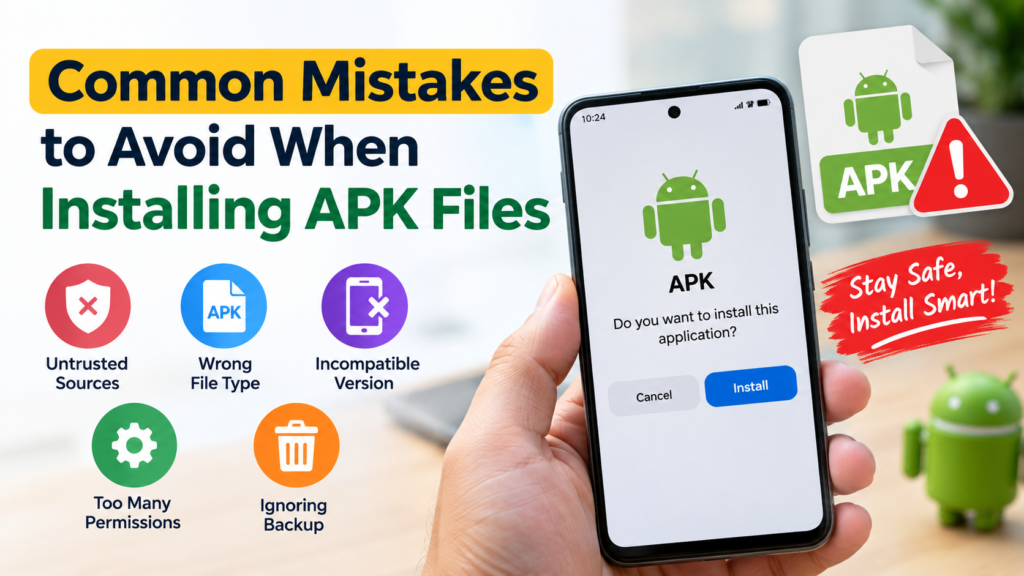
Common Mistakes to Avoid When Installing APK Files
Installing APKs manually is easy, but a few common mistakes can cause problems.
Installing From Untrusted Sources
Avoid downloading apps from random websites that offer suspicious files, unrealistic premium features, or misleading download buttons.
A trustworthy source is one of the most important parts of safe APK installation.
Enabling Installation Permission for Every App
You usually do not need to allow every browser, messaging app, or file manager to install unknown apps.
Enable permission only for the app you are currently using to install the APK.
Ignoring the File Extension
Always check whether the file is actually an .apk.
An XAPK, APKM, or APKS file may require a different installation method.
Installing an Incompatible Version
Check the Android version requirements before downloading an APK.
If an app requires Android 14 but your device runs Android 11, installation may fail or the app may not work correctly.
FAQ: How to Install APK Using Files App
1. Can I install an APK directly from the Files app?
Yes. Open your Files app, locate the APK, and tap it. If Android requests permission, allow that specific Files app to install unknown apps, then tap Install.
2. Why can’t I open an APK in my Files app?
Android may be blocking installation permission, the APK may be corrupted, or the file may not actually be a standard APK. Check the file extension and download the file again if necessary.
3. Where are downloaded APK files stored?
Most APK files downloaded through a browser are stored in the Downloads folder. You can also use the search feature in the Files app to search for the filename or .apk.
4. Do I need a third-party app to install an APK?
No, not for a standard .apk file. Your Android device can usually install it through the system package installer after you open the file using the Files app.
5. Can I delete the APK after installing the app?
Yes. After successful installation, you can usually delete the original APK file to save storage space. The installed app should continue to work normally.
6. Is installing APK files safe?
It can be safe when the APK comes from a trusted source, but manually downloaded files can also contain harmful or modified software. Always verify the source and avoid installing suspicious files.
Final Thoughts
Learning how to install APK using Files app is useful when you download Android apps outside the Play Store or receive APK files from another source. The process is usually straightforward: locate the file, open it, allow installation permission for the Files app if Android requests it, and tap Install.
Also Read: How to Install APK From USB Drive: A Complete Android Guide






Post Comment