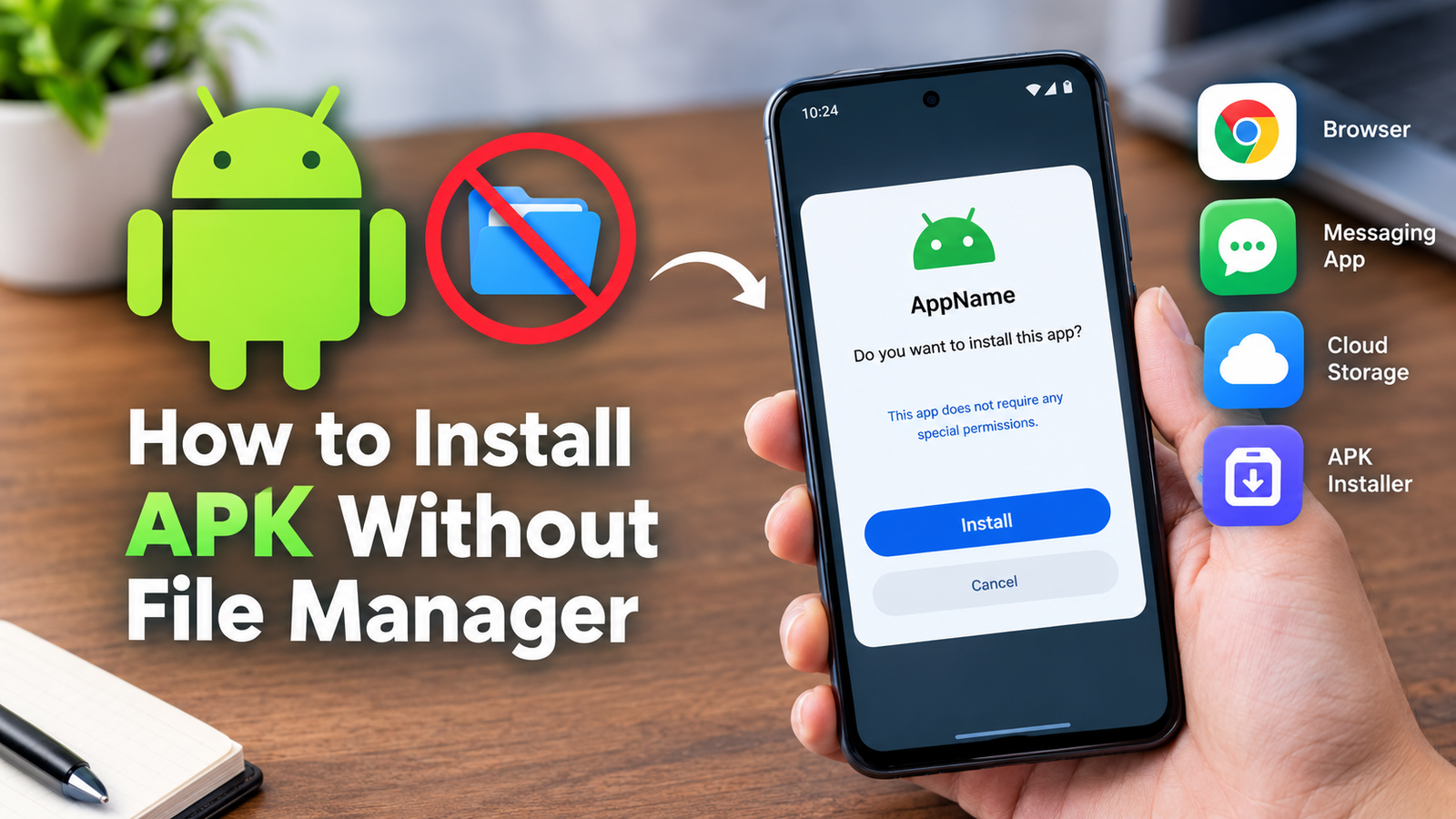
How to Install APK Without File Manager: 7 Easy Methods for Android
Installing an APK file on Android does not always require a traditional file manager. In fact, if you have downloaded an APK through a browser, received it through a messaging app, or transferred it from another device, you may be able to start the installation directly from the app that contains or downloaded the file.
Knowing how to install APK without file manager can be especially useful when your phone does not have a file management app, when you prefer a simpler method, or when you want to install an APK immediately after downloading it.
The process is generally straightforward, but Android includes security protections that can prevent apps from installing APK files from unknown sources. You may therefore need to give the particular app you are using permission to install unknown apps.
This guide explains several practical methods, along with the permissions, compatibility checks, and troubleshooting steps you should know before installing an APK.
Can You Install an APK Without a File Manager?
Yes. A file manager is not required to install every APK on Android.
The important thing is that Android needs access to the APK package. If another application already has access to the file, you can often open the APK from that application and start the installation.
For example, you may be able to install an APK through:
- A web browser after downloading it
- An email attachment
- A messaging application
- A cloud-storage application
- A downloads interface
- An APK installer application
- Android’s package installer when another app opens the APK
The exact options vary depending on your Android version, phone manufacturer, and the application containing the APK.
Things to Check Before Installing an APK
Before learning how to install APK without file manager, it is worth checking the APK itself. Installing an unknown or modified package can create security and compatibility problems.
Consider these points first:
Download From a Trustworthy Source
Only obtain APK files from sources you trust. Avoid suspicious download pages, unexpected pop-ups, and files that require you to install additional unknown applications.
If the APK comes from an unknown source, be particularly careful before granting installation permission.
Check Android Compatibility
An APK may be designed for a specific Android version, processor architecture, or screen configuration. A package that works on one phone may fail on another.
Check the application’s stated Android requirements whenever possible.
Keep Enough Storage Available
Android needs enough free space to download and install the package. If your phone is nearly full, the installation may fail even when the APK itself is valid.
Scan Suspicious Files
If you are uncertain about an APK, consider checking it with a reputable security service before opening it. Android’s built-in security features may also warn you about potentially harmful applications.
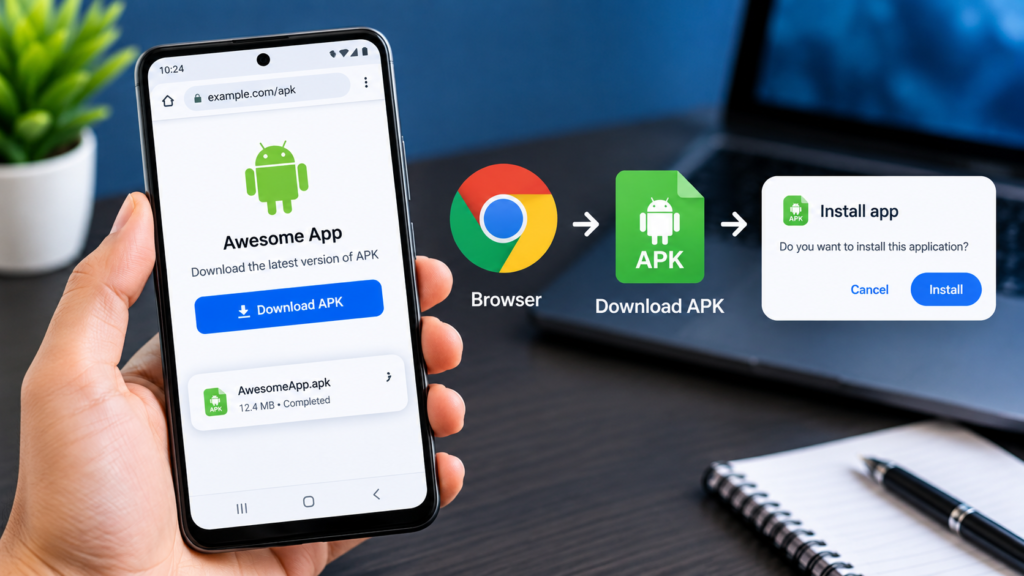
How to Install APK Without File Manager Using a Browser
One of the easiest approaches is to install an APK directly after downloading it through your browser.
The general process is:
- Open your preferred Android browser.
- Download the APK from a trusted source.
- Wait for the download to finish.
- Open the browser’s download list or download notification.
- Tap the downloaded APK file.
- Android may display an installation confirmation.
- If permission is required, allow the browser to install unknown apps.
- Return to the installation screen.
- Tap Install and wait for the process to finish.
- Open the application after installation.
The wording and location of these options can differ between Android versions.
For security reasons, Android normally restricts installations from sources other than approved app stores. This means the browser may need special permission before it can launch an APK installation.
How to Install APK Without File Manager From a Messaging App
If someone sends you an APK through a messaging application, you may not need to manually locate it with a file manager.
First, make sure you trust the person or source that sent the file. APK files received through messaging platforms can potentially contain unwanted software.
Once the file is downloaded, tap the APK attachment or open the application’s download area. If Android recognizes the package, it may launch the system installer.
You may then see an option such as Install.
If Android blocks the process, check the permission for the messaging application under the system’s app installation settings. Only enable this permission if you trust the application and understand why it needs access.
After the installation is complete, you can disable the permission again if you do not expect to install additional APK files through that app.
How to Install APK Without File Manager From Cloud Storage
Cloud-storage applications provide another convenient method.
Suppose you have an APK saved in a cloud account. Instead of downloading it and manually finding it through a file manager, you can open How to Install APK Without File Manager the cloud-storage application and select the APK.
A typical process looks like this:
- Open your cloud-storage application.
- Sign in if necessary.
- Locate the APK.
- Tap the file.
- Allow the file to download if required.
- Choose the option to open or install it.
- Give the cloud-storage application permission to install unknown apps if Android requests it.
- Confirm the installation.
Not every cloud-storage app handles APK files in exactly the same way. Some may download the file but leave the installation step to another application.
How to Install APK Without File Manager Using an APK Installer
Another option is a dedicated APK installation utility. These applications are designed to help users manage and install Android packages.
However, you should be selective when choosing an APK installer. An installer with excessive permissions or an unknown developer may introduce unnecessary security risks.
A reliable installer should have a clear purpose and should not request unrelated access to your personal information.
The general procedure is:
- Install a reputable APK installer.
- Open the installer.
- Give it the necessary file-access or installation permissions.
- Select the APK you want to install.
- Review the package information.
- Start the installation.
- Wait for Android to complete the process.
Keep in mind that Android’s built-in package installer is usually sufficient for a normal single APK. A separate installer is not necessarily required.
Browser vs Cloud Storage vs Messaging Apps
Different methods can be useful in different situations.
| Method | File Manager Needed? | Best For | Main Consideration |
|---|---|---|---|
| Web browser | No | Recently downloaded APKs | Browser may need install permission |
| Messaging app | No | APKs received from another person | Verify the sender and file |
| Cloud storage | No | APKs stored online | App behavior varies |
| APK installer | Usually no | Managing APK installation | Choose a trustworthy installer |
| Traditional file manager | Yes | Local files and folders | Gives direct file access |
For most users, downloading an APK through a trusted browser and opening it from the download screen is one of the simplest options.
How to Allow APK Installation on Android
If you see a message saying that your phone cannot install applications from the current source, Android may be blocking the installation for security reasons.
On many modern Android devices, the permission is controlled on a per-app basis.
You may need to:
- Open Settings.
- Go to Apps or Special app access.
- Look for Install unknown apps.
- Select the application you are using to open the APK.
- Enable permission to allow installations from that source.
- Return to the APK.
- Start the installation again.
The exact menu names can differ by manufacturer and Android version.
For example, a browser that downloaded the APK may need permission, while a different application that did not download the file may not have the same access.
For better security, avoid enabling unknown-app installation globally. Give permission only to the specific application you trust and need for the installation.
What to Do If the APK Does Not Install
Even when you know how to install APK without file manager, the installation can still fail for several reasons.
APK Is Corrupted
If the download was interrupted or the file was damaged, Android may not be able to install it.
Delete the damaged file and obtain a fresh copy from a trusted source.
Android Version Is Not Supported
Some applications require a newer Android release. Others may have compatibility restrictions that prevent them from working on older devices.
Check the application’s minimum Android requirement before trying again.
Not Enough Storage
Free up some space and retry the installation. Remember that Android may need additional temporary storage during installation.
Package Conflicts With an Existing App
An APK can sometimes conflict with an application already installed on your phone. This can happen when the package uses incompatible signing information or represents a different version of the same app.
Do not uninstall an existing application blindly, particularly if it contains important data.
The APK Is Not a Standard APK
Some downloads use formats such as XAPK, APKS, or split APK packages rather than one standard APK file.
A normal Android package installer may not handle these formats directly. In such cases, you may need a compatible installer or the correct installation procedure for that package type.
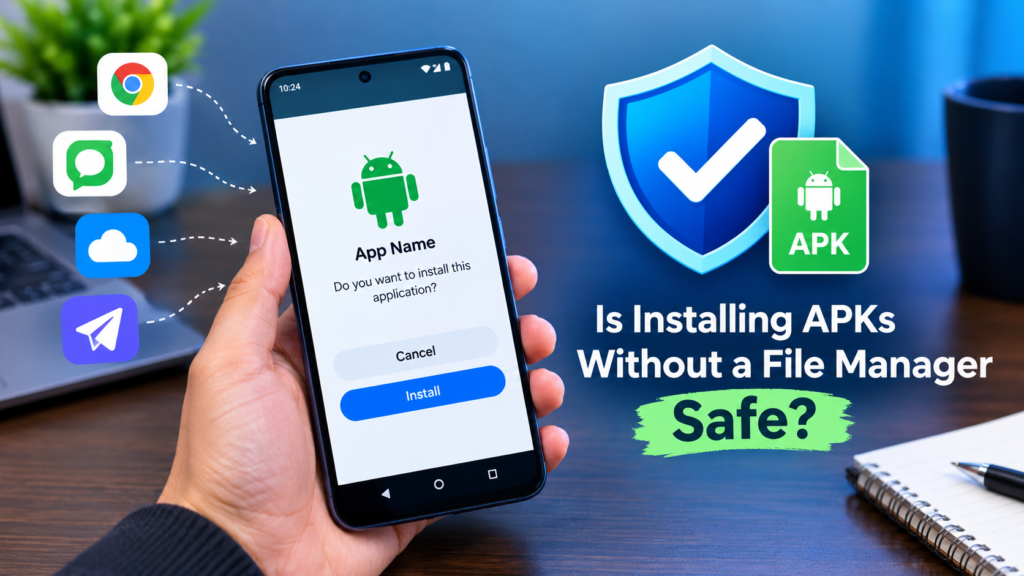
Is Installing APKs Without a File Manager Safe?
The absence of a file manager does not make APK installation inherently safer or more dangerous.
The biggest security factor is where the APK came from and what permissions the application requests after installation.
An APK downloaded from an untrusted source can be risky regardless of whether you install it through a browser, cloud-storage application, messaging app, or file manager.
Before installing an APK, consider:
- Who published the application?
- Is the download source trustworthy?
- Does the app request reasonable permissions?
- Does the APK appear to be the correct application?
- Is your Android security protection active?
- Does the application require unusual access for its purpose?
It is also a good idea to keep Android and your security software updated.
Common Mistakes to Avoid
Many APK installation problems come from simple mistakes rather than complicated Android issues.
Avoid these common errors:
- Downloading APKs from suspicious websites
- Installing a file without checking its source
- Granting unknown-app permission to unnecessary applications
- Ignoring Android security warnings
- Installing incompatible APK versions
- Using modified packages without understanding the risks
- Downloading multiple copies of the same APK
- Assuming every APK format can be installed normally
- Disabling security features permanently just to install one application
If Android strongly warns that a package may be harmful, stop and investigate the file instead of repeatedly bypassing the warning.
Frequently Asked Questions
Can I install an APK without using a file manager?
Yes. You can often open an APK directly through a browser, messaging application, cloud-storage service, or another application that has access to the file.
Do I need to enable unknown sources to install an APK?
Usually, Android requires permission for the specific application attempting to install the APK. The setting is commonly called Install unknown apps on newer Android versions.
Why can’t my browser install the APK?
Your browser may not have permission to install unknown apps. The APK may also be incompatible, damaged, or blocked by Android’s security protections.
Can I install an APK directly from Downloads?
Yes. Many browsers provide a download screen where you can tap the completed APK and launch Android’s installer without opening a separate file manager.
Is it safe to install APK files?
It can be safe when the APK comes from a trustworthy source and is compatible with your device. APKs from unknown or suspicious sources can contain harmful software, How to Install APK Without File Manager so verify the source before installing.
What if my APK is an XAPK or APKS file?
XAPK and APKS packages are different from a standard APK. They may contain multiple components and usually require an installation method that supports the specific package format.
Final Thoughts
Learning how to install APK without file manager can make Android app installation much simpler. In many cases, you can open an APK directly from your browser, messaging application, cloud-storage service, or another trusted app that has access to the downloaded package.
Also Read: How to Install APK Using Files App: on Android A Complete Step-by-Step Guide






Post Comment