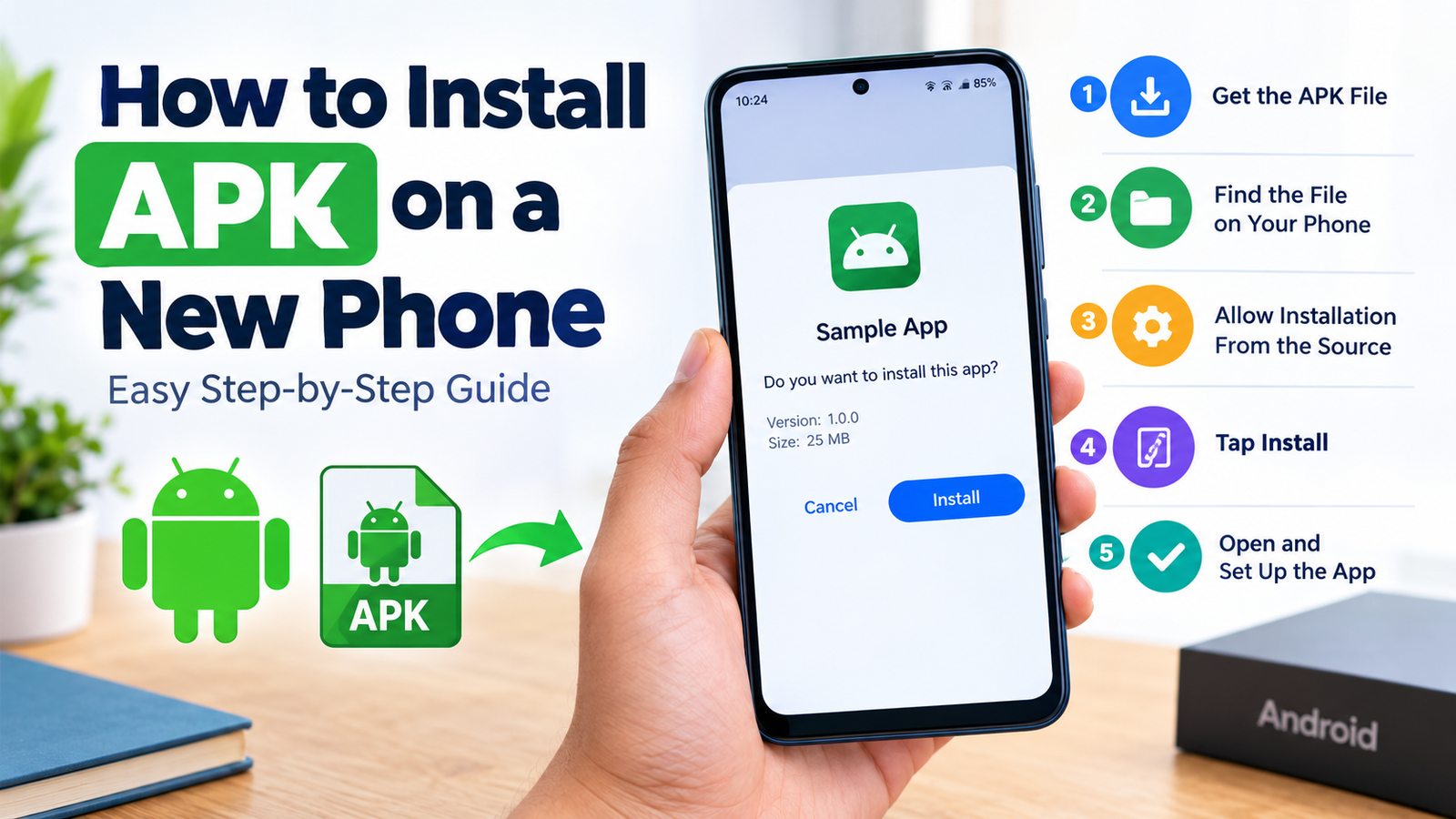
How to Install APK on a New Phone: Easy Step-by-Step Guide
Getting a new Android phone is exciting, but moving your favorite apps to a fresh device can sometimes be confusing. If an app is not available through Google Play or you already have an APK file saved on your computer, SD card, cloud storage, or another device, you may want to install it manually.
Learning how to install APK on a new phone is fairly simple once you understand the process. An APK, or Android Package Kit, is the file format Android uses to install applications. Unlike apps downloaded directly from Google Play, APK files usually need to be installed manually.
This guide explains the complete process, from preparing your new phone to checking the APK and completing the installation. It also covers common problems, safety tips, and what to do after the app is installed.
What Is an APK File?
APK stands for Android Package Kit. It is the package file used to distribute and install many Android applications.
When you download an app from Google Play, Android handles most of the installation process automatically. With an APK, you have the installation package yourself, so you can open the file and install the application manually.
APK files can be useful when:
- An app is unavailable in your region.
- You want to install an older compatible version.
- You received an APK from a trusted source.
- You have backed up an app’s installation package.
- You are testing an Android application.
- The app is not distributed through Google Play.
However, an APK is not automatically safe just because it looks legitimate. The source of the file matters, especially when setting up a new phone.
What You Need Before Installing an APK on a New Phone
Before starting, make sure your new Android phone is ready for manual app installation.
You generally need:
| Requirement | Why It Matters |
|---|---|
| Android phone | The APK must be compatible with your device |
| APK file | This is the application installation package |
| File manager | Helps you locate the downloaded APK |
| Internet connection | Useful for downloading or verifying files |
| Enough storage | The phone needs space for installation |
| Trusted APK source | Reduces the risk of installing malicious software |
| Compatible Android version | Some apps require a specific Android version |
It is also a good idea to finish the basic setup of your new phone first. Install important system updates, sign in to your Google account, and make sure the device has enough battery before beginning.
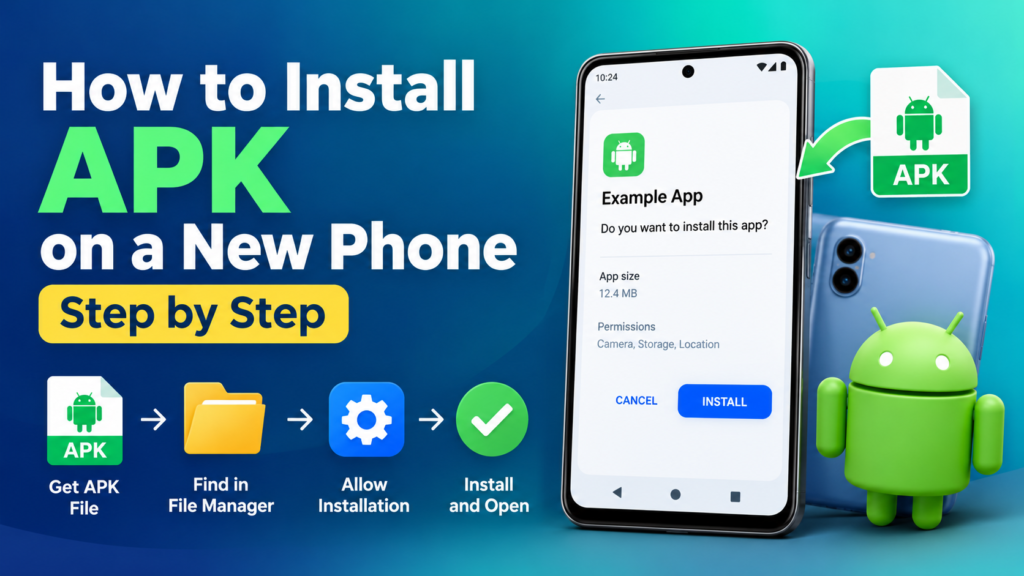
How to Install APK on a New Phone Step by Step
The exact menus can vary between Samsung, Xiaomi, Google Pixel, OnePlus, Oppo, Vivo, and other Android phones. However, the general process is similar.
1. Get the APK File
First, obtain the APK you want to install.
You might download it directly to your new phone or transfer it from another device. If you already have the APK on a computer, USB drive, SD card, or another phone, you can copy it to your new device.
Before opening the file, consider where it came from. Avoid APK files sent by unknown people or downloaded from suspicious websites.
A safer routine is to:
- Use a source you recognize and trust.
- Check the app name and developer.
- Avoid modified APKs unless you fully understand the risks.
- Be cautious with APKs that request unusual permissions.
- Keep Android security features enabled.
2. Find the APK on Your New Phone
After downloading or transferring the file, open your phone’s file manager.
Depending on the device, the application may be called Files, My Files, File Manager, or something similar.
Look in common locations such as:
- Downloads
- Documents
- Internal storage
- Bluetooth
- Transfer folders
- SD card folders
Tap the APK file when you find it.
Android should recognize it as an application package and display an installation screen.
3. Allow Installation From the Relevant Source
Modern Android versions generally restrict installations from sources other than Google Play.
If you see a message saying that your phone is not allowed to install unknown apps, you may need to grant permission to the application that opened the APK.
For example, if you opened the APK through a browser, Android may ask you to allow that browser to install unknown apps. If you opened it through a file manager, the permission may be associated with the file manager.
Open the relevant setting and enable the permission if you trust the source.
For security, avoid giving this permission permanently to every application on your phone.
4. Start the Installation
Return to the APK and tap it again if necessary.
You should see information about the application and an Install button.
Tap Install and wait while Android processes the package.
The installation can take a few seconds or longer depending on the application and your phone.
Once completed, you may see options such as:
- Open
- Done
- Close
Tap Open if you want to launch the app immediately.
5. Complete the App’s Initial Setup
The APK installation itself may be finished, but many applications require additional setup.
When you open the app for the first time, you might need to:
- Sign in to an account.
- Accept the app’s terms.
- Download additional files.
- Grant necessary permissions.
- Choose language or region settings.
- Restore your previous data.
Only grant permissions that make sense for the app’s purpose.
For example, a navigation application may reasonably need location access, while a simple calculator should not normally need access to your contacts.
How to Transfer an APK to a New Phone
If the APK is already stored on your old phone, you do not necessarily need to download it again.
You can transfer the file using several methods.
Using Quick Share
Quick Share can be convenient when both Android devices are nearby.
Locate the APK on your old phone, select the sharing option, choose your new phone, and accept the incoming file on the new device.
After the transfer finishes, open the received APK on your new phone and follow the installation process.
Using a USB Cable
You can also connect your phones to a computer and transfer the APK file.
Copy the file to a convenient folder on the new phone, such as Downloads. Then open the file manager and start the installation.
Using Cloud Storage
Another option is cloud storage.
Upload the APK from your old device or computer, then sign in to the same service on your new phone. Download the file and open it using the file manager.
This can be useful when your old phone and new phone are not in the same location.
What If the APK Does Not Install?
Sometimes an APK will not install even when the file appears normal.
The problem may be caused by compatibility, storage, permissions, or the file itself.
Here are some common reasons:
| Problem | Possible Solution |
|---|---|
| Installation blocked | Check the unknown-app installation permission |
| Not enough storage | Free up space on the phone |
| App incompatible | Check the Android version and device requirements |
| Corrupted APK | Download or transfer a fresh copy |
| App already installed | Check whether another version is installed |
| Wrong package format | The file may be XAPK, APKM, or APKS rather than a standard APK |
| Security warning | Review the source and avoid installing suspicious files |
If Android says “App not installed,” do not immediately assume the phone is defective. Check whether the APK is compatible with your device and whether another version of the same application is already installed.
APK vs. XAPK, APKM, and APKS
Not every Android app download ends with a standard .apk file.
You may encounter formats such as XAPK, APKM, and APKS. These can contain additional components required by some applications.
A standard APK can usually be opened directly through Android’s package installer. Other formats may require a compatible installer or application that understands split packages.
This distinction is important when installing apps on a new phone. If you repeatedly try to open a non-standard package as if it were a regular APK, the installation may fail.
Before installing, check the exact file extension.
Is It Safe to Install an APK on a New Phone?
Manual APK installation can be safe when you know what you are installing and where the file came from. The bigger risk is downloading an altered or malicious package.
A new phone often contains personal information, accounts, photos, payment applications, and other sensitive data. That makes it especially important to be careful with manually installed applications.
Check the Source
The first safety step is choosing a trustworthy source. Avoid random download pages that use misleading download buttons or make unrealistic claims.
Check the App Permissions
After installation, review the permissions requested by the application.
Be particularly cautious if an ordinary app asks for access that does not seem relevant to its purpose.
Keep Android Updated
System updates often include security improvements. Before installing many third-party applications, make sure your phone is running a supported and reasonably current Android version.
Keep Play Protect Enabled
Google Play Protect can help identify potentially harmful applications. A security warning should not simply be ignored because you want to install an APK.
If Android reports a serious security concern, stop and investigate the file before proceeding.
Common Mistakes to Avoid
Installing an APK is straightforward, but new Android users often make a few avoidable mistakes.
Downloading from unknown websites: A convenient download is not necessarily a safe download.
Installing every APK received from someone: Treat APK files like software installers on a computer. Only install files you trust.
Ignoring compatibility: An APK built for a different Android version or device architecture may not work correctly.
Giving unnecessary permissions: An app should not automatically receive every permission it requests.
Keeping suspicious APKs: Once you have finished installing an application, you usually do not need to keep the installation file unless you have a specific reason to save it.
Using modified APKs without understanding the risks: Modified packages may contain changes that are difficult to verify.
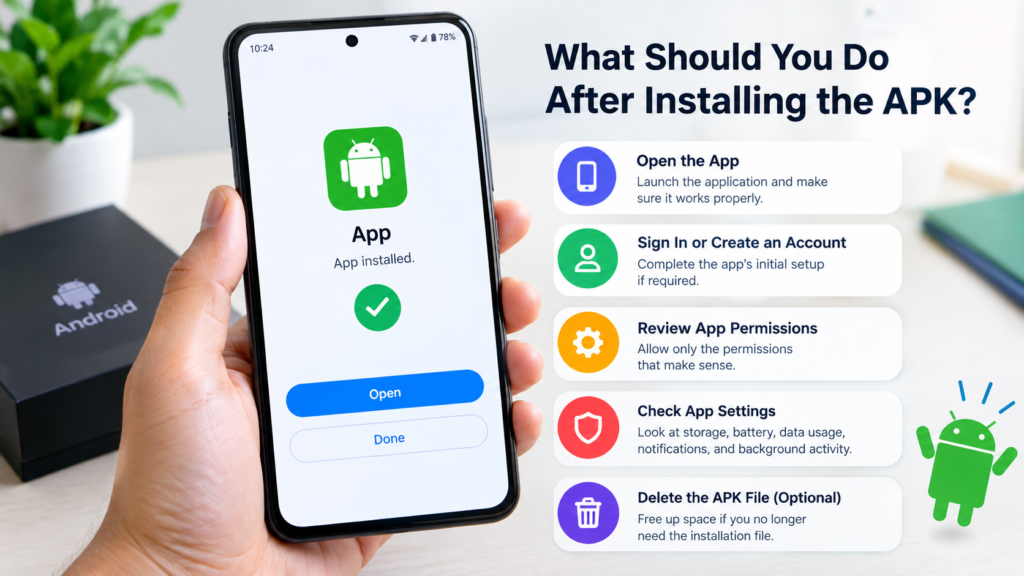
What Should You Do After Installing the APK?
Once the app works correctly, take a moment to check that everything is normal.
Open the application and test its main features. If it asks for permissions, review each request instead of automatically selecting Allow.
You can also go to your phone’s app settings and review:
- Permissions
- Storage usage
- Battery usage
- Mobile data usage
- Notifications
- Background activity
If anything looks unusual, investigate before continuing to use the application.
Can You Delete the APK After Installation?
Yes. In most cases, the APK file is no longer required after the application has been successfully installed.
The installed app has its own files on your phone. Deleting the original APK from your Downloads folder generally does not uninstall the application.
However, you may want to keep the APK if you intentionally use it as a backup or plan to install the same version on another compatible device.
Frequently Asked Questions
Can I install an APK directly on a new Android phone?
Yes. If the phone supports the application and Android allows installation from the source you are using, you can open the APK and follow the installation prompts.
Why won’t my APK install on my new phone?
Possible causes include an incompatible Android version, insufficient storage, a damaged APK, an existing conflicting app version, or the file being a package format other than a standard APK.
Do I need a file manager to install an APK?
Not always, but a file manager makes it much easier to locate an APK stored on your phone. Some browsers and file-transfer applications can also open APK files.
Is installing an APK dangerous?
It can be risky if the file comes from an untrusted source. Malicious APKs can potentially compromise your device or personal information. Download files carefully and pay attention to Android security warnings.
Can I transfer an APK from my old phone to my new phone?
Yes. You can transfer an APK using methods such as Quick Share, a USB connection, a computer, or cloud storage. After transferring it, open the file on the new phone and follow the installation instructions.
Should I delete the APK after installing the app?
You can delete it if you do not need it for backup purposes. Removing the APK from your storage normally does not remove the installed application.
Final Thoughts
Knowing how to install APK on a new phone can make switching devices much easier. The basic process involves obtaining a compatible APK, transferring or downloading it, locating the file, allowing installation from the appropriate source, and following Android’s installation prompts.
Also Read: How to Install APK Using Android File Manager: A Complete Step-by-Step Guide







Post Comment