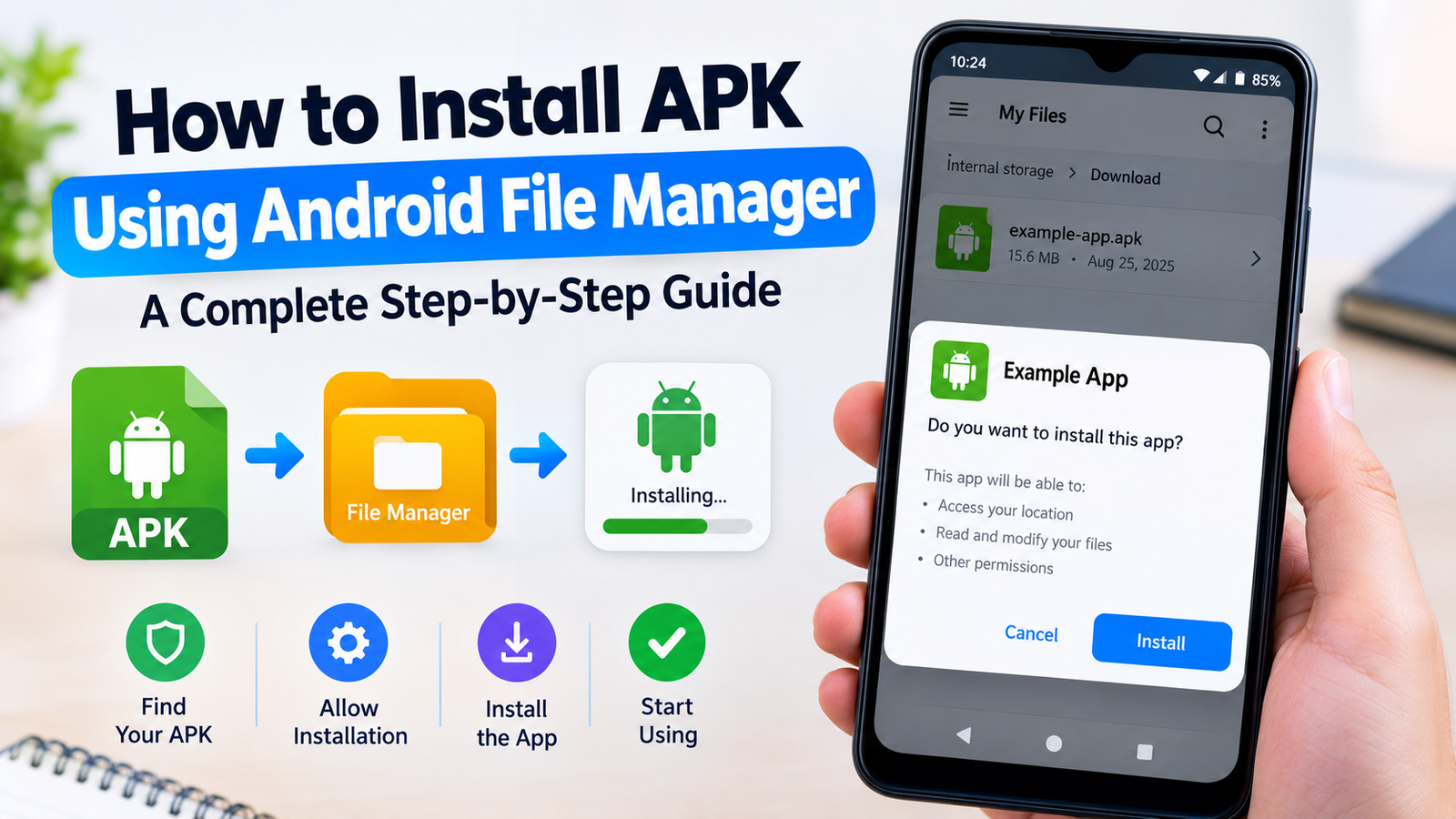
How to Install APK Using Android File Manager: A Complete Step-by-Step Guide
Installing an APK manually is one of the easiest ways to add an Android app when the app is not being installed through Google Play. Whether you downloaded an APK from a trusted website, received one from another device, or copied it from a computer, an Android file manager can help you locate and install it quickly.
However, knowing how to install APK using Android file manager is more than simply tapping a file. Modern Android versions include security settings that can prevent apps from being installed from unknown sources. You also need to make sure the APK is compatible with your device and comes from a trustworthy source.
In this guide, you will learn how to find an APK file, allow installation from your file manager, install the app safely, troubleshoot common problems, and remove the APK after installation.
What Is an APK File?
APK stands for Android Package Kit. It is the standard file format used to distribute and install applications on Android devices.
When you download an Android app outside Google Play, you will often receive a file ending in .apk. Android uses this package to install the application’s files and components on your device.
An APK can be useful when:
- An app is unavailable in your region.
- You want to install an older version of an app.
- You downloaded an app from the developer’s website.
- You transferred an APK from another phone or computer.
- You want to install an app without using Google Play.
Keep in mind that an APK is an installation package, not necessarily a guarantee that the app is safe. Always download APK files from reputable sources.
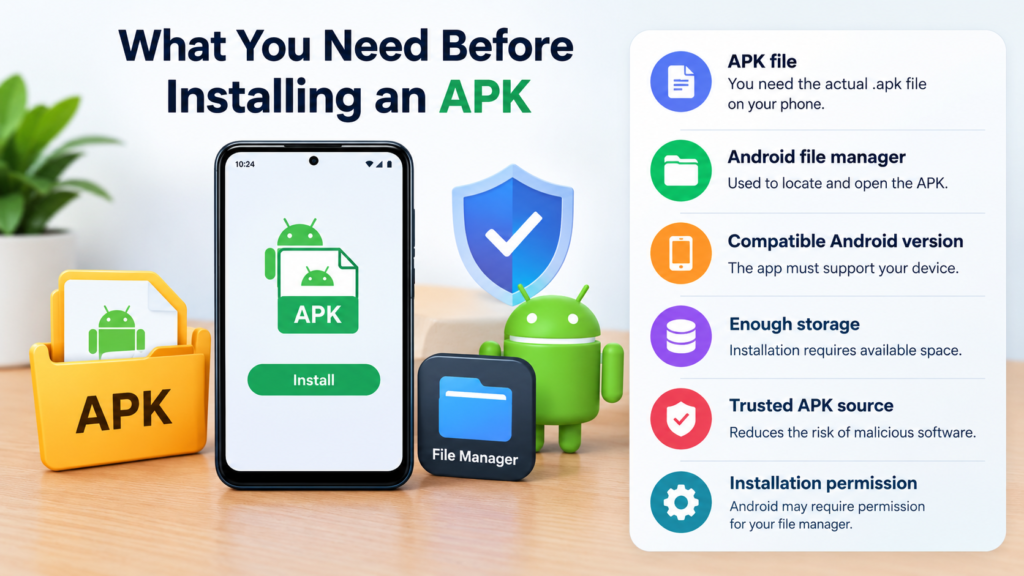
What You Need Before Installing an APK
Before you start the installation process, check a few basic things. This can prevent many common installation errors.
| Requirement | Why It Matters |
|---|---|
| APK file | You need the actual .apk file on your phone |
| Android file manager | Used to locate and open the APK |
| Compatible Android version | The app must support your device |
| Enough storage | Installation requires available space |
| Trusted APK source | Reduces the risk of malicious software |
| Installation permission | Android may require permission for your file manager |
If you already have the APK saved on your phone, you can move directly to the installation steps.
How to Find an APK Using Android File Manager
The first step is locating the APK file. Most Android phones have a built-in file manager, although its name can vary between manufacturers.
You may see an app called Files, File Manager, My Files, or something similar.
Open your file manager and check common folders such as:
- Downloads
- Documents
- APK
- Bluetooth
- Received Files
- Internal Storage
If you downloaded the APK through a browser, the Downloads folder is usually the first place to check.
Look for a filename ending in .apk, such as:
example-app.apk
Tap the file when you find it. Android should display an installation screen if the package is valid.
How to Install APK Using Android File Manager
Once you have located the APK, you can begin the installation process. The exact appearance of the menus may differ depending on your Android version and phone manufacturer.
Step 1: Open Your File Manager
Open the file manager installed on your Android device.
If you are using a Samsung phone, for example, you may find the APK through the My Files app. Other Android phones may use a different file manager.
Step 2: Open the Downloads Folder
Navigate to the folder where the APK was saved.
For most browser downloads, this will be:
Internal Storage → Download
Find the APK file you want to install.
Step 3: Tap the APK File
Tap the APK once.
Android should recognize it as an application package and display an installation prompt. You may see a message asking whether you want to install the app.
If Android says that installation from this source is not allowed, don’t worry. This is a standard security feature on modern Android devices.
Step 4: Allow Installation From the File Manager
If permission is blocked, Android may provide a button such as Settings.
Tap it and look for an option similar to:
Allow from this source
Enable the permission for the file manager you are using.
The wording can vary between Android versions and manufacturers. On some devices, the permission is found under security or special app access settings.
Once the permission is enabled, return to the APK file.
Step 5: Start the Installation
Tap the APK again and select Install.
Android will check the package and begin installing it.
Depending on the size of the app and your device, the process may take a few seconds.
Step 6: Open the Installed App
When installation finishes, you should see options such as Open and Done.
Tap Open if you want to launch the app immediately.
You can also tap Done and find the newly installed application in your app drawer.
How to Enable APK Installation on Android
Android blocks installations from unknown sources by default for security reasons. This helps prevent unwanted applications from being installed without your knowledge.
If your phone prevents the installation, you may need to give the specific app permission to install unknown applications.
The important point is that you generally do not need to enable installation permissions for every app on your phone.
For example, if you opened an APK through a file manager, Android may ask you to allow that particular file manager to install unknown apps.
After installing the APK, you can review the permission and disable it again if you do not regularly install APK files manually.
Why Android Blocks an APK Installation
There are several reasons Android may stop an APK from installing.
The most common include:
- Installation from the current source is not permitted.
- The APK is damaged or incomplete.
- The app is incompatible with your Android version.
- There is not enough storage.
- A conflicting version of the app is already installed.
- The APK package is invalid.
- Android security features have detected a potential problem.
A blocked installation does not automatically mean the APK is malicious. However, you should not ignore security warnings either.
If you downloaded the file from an unknown website, consider deleting it and obtaining the app from a trusted source.
Tips for Installing APK Files Safely
Manual APK installation is convenient, but it should be done carefully.
Download From Trusted Sources
Avoid downloading random APK files from unfamiliar websites. A modified or malicious APK can potentially cause privacy and security problems.
Whenever possible, obtain the APK from the official developer or another reputable distribution source.
Check the File Name
Before opening an APK, check its filename and source. Be cautious if the file has a suspicious name or was sent unexpectedly.
For example, don’t assume an APK is safe simply because someone sent it to you through a messaging app.
Keep Android Updated
Using a supported and updated version of Android provides access to newer security protections.
Regular system updates can also improve compatibility with newer applications.
Don’t Grant Unnecessary Permissions
After installing an app, review the permissions it requests.
If a simple utility asks for access that does not seem relevant to its purpose, think carefully before granting permission.
Disable Unknown-Source Access When Finished
If you only enabled APK installation temporarily, consider turning the permission off afterward.
This gives you another layer of protection against accidental installations from that source.
Common Problems When Installing APK Files
Even when you follow the correct procedure, an APK may fail to install.
Here are some common problems and solutions.
“App Not Installed” Error
This message can have several causes.
Try these steps:
- Make sure you have enough storage.
- Confirm that the APK is compatible with your Android version.
- Download the APK again if the original file may be corrupted.
- Check whether another version of the same app is already installed.
- Remove an incompatible existing version if appropriate.
- Restart your phone and try again.
APK Will Not Open
If tapping the file does nothing, check whether the file actually ends in .apk.
You may have downloaded a different package format such as XAPK, APKM, or APKS. These formats may require a compatible installer rather than being installed directly through a standard file manager.
Installation Is Blocked
If Android says installation from the source is not allowed, open the relevant security settings and give your file manager permission to install unknown apps.
Only grant this permission to a source you trust.
Not Enough Storage
An APK itself may not be very large, but the installed application can require considerably more storage.
Delete unnecessary files or apps if your device is running low on space, then try the installation again.
Can You Delete the APK After Installation?
Yes, in most cases you can delete the original APK after the application has been installed successfully.
The APK is an installation package. Once Android has installed the application, the original file is generally no longer required for that installed copy.
You may want to keep it if:
- You plan to reinstall the same version later.
- You need the APK for another compatible device.
- You want to keep an offline copy.
- You may need to reinstall the app without downloading it again.
Otherwise, deleting the APK can help free up storage.
APK vs Google Play Installation
Installing an APK manually and installing an app through Google Play have different advantages.
| Feature | APK Installation | Google Play |
|---|---|---|
| Installation method | Manual | Automatic |
| Requires Play Store | No | Yes |
| Source selection | User chooses | Google Play catalog |
| Manual updates | Often required | Usually automatic |
| Unknown-source permission | May be required | Generally not |
| Convenience | Moderate | High |
| File control | More control | Less direct file control |
Manual installation can be useful, but Google Play remains the simpler option when the app is officially available there.

Should You Install Every APK You Receive?
No. You should not install every APK simply because someone sends it to you.
An APK can contain unwanted or harmful software, especially when it comes from an unknown source.
Before installing a file, consider:
- Who provided it?
- Where did it originally come from?
- Is the developer trustworthy?
- Does the app match what you expected?
- Does the APK filename look legitimate?
- Are there unusual security warnings?
If you are uncertain about an APK, it is safer not to install it.
Frequently Asked Questions
Is it safe to install APK files using a file manager?
It can be safe when the APK comes from a trusted source and is compatible with your device. The file manager itself is simply being used to locate and open the installation package. The main security risk comes from the APK’s contents and source.
Where are APK files stored on Android?
Downloaded APK files are commonly stored in the Download folder inside internal storage. However, the exact location depends on the browser, file-sharing method, and app that saved the file.
Do I need an APK installer app?
For a standard APK file, you usually do not need a separate installer. Android can normally handle .apk files directly. However, formats such as XAPK, APKM, and APKS may require specialized tools.
Why does Android say the installation is blocked?
Android may block an APK because the file manager does not have permission to install unknown apps, the package is incompatible, or Android has identified a potential security concern. Check the source and file before changing security settings.
Can I delete an APK after installing the app?
Yes. Once the application has been installed successfully, you can usually delete the original APK. Keeping it is optional unless you want a backup copy for future use.
What should I do if an APK says “App Not Installed”?
Check your available storage, Android compatibility, APK integrity, and whether another version of the app is already installed. If necessary, obtain a fresh copy of the APK from a trusted source.
Final Thoughts
Learning how to install APK using Android file manager makes it easier to manually install applications without relying entirely on Google Play. The basic process is straightforward: locate the APK, open it with your file manager, allow installation from that source when required, and follow the Android installation prompts.
Also Read: How to Install APK Without File Manager: 7 Easy Methods for Android







Post Comment