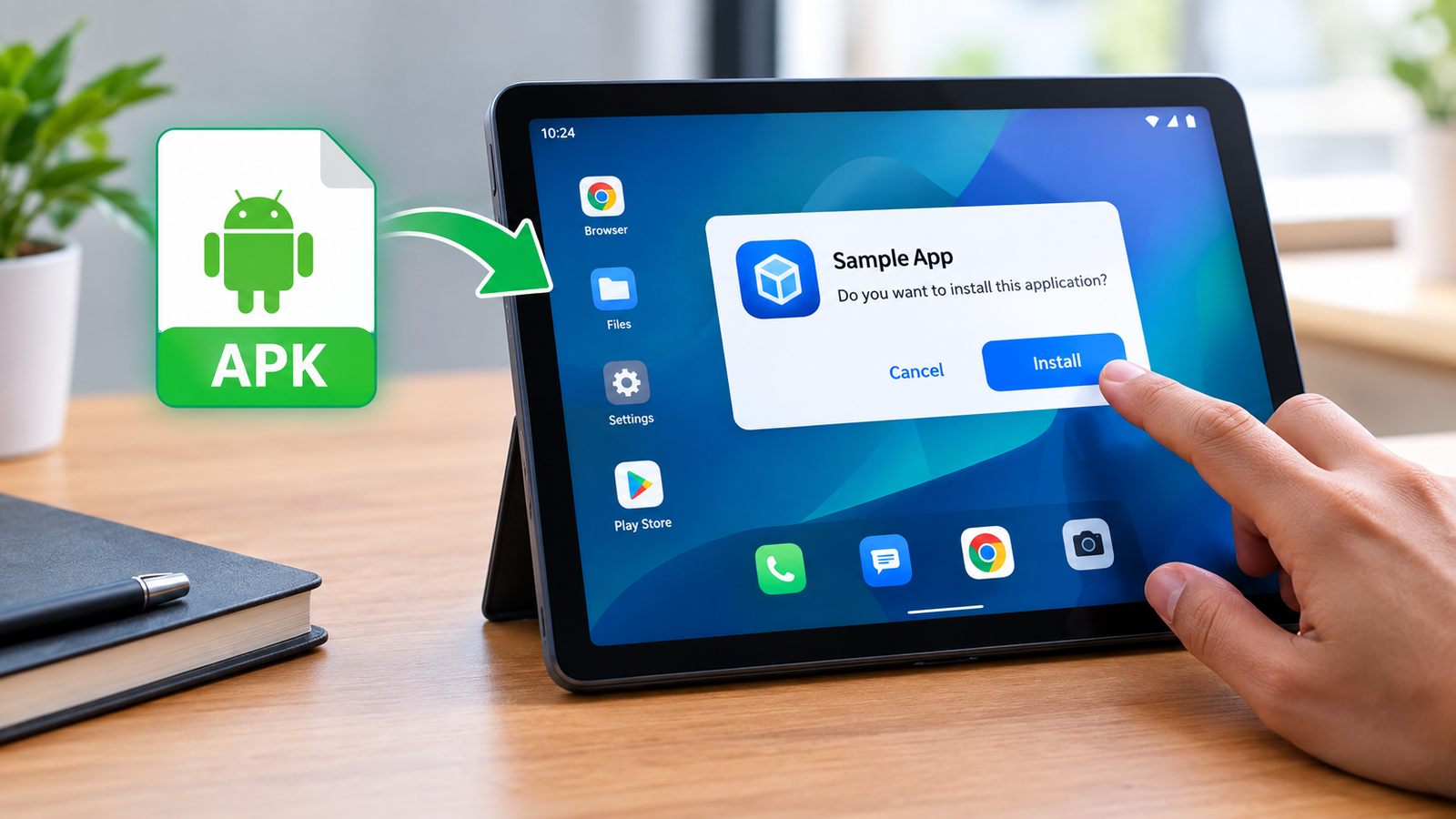
How to Install APK on Android Tablet: A Complete Step-by-Step Guide
Installing an APK on an Android tablet is a useful option when an app is not available through Google Play or when you need to install a specific version of an application. The process is generally straightforward, but Android includes security settings that can prevent APK files from being installed until you give the appropriate permission.
If you are wondering how to install APK on Android tablet, this guide walks you through the entire process, from downloading the APK safely to installing it and troubleshooting common problems. The steps work across many Android tablets, although the names and locations of certain settings can vary between manufacturers and Android versions.
What Is an APK File?
APK stands for Android Package Kit. It is the standard file format used to distribute and install applications on Android devices.
When you download an app from Google Play, Android normally handles the installation automatically. An APK allows you to install an application manually instead.
There are several reasons someone might use an APK file:
- An app may not be available in their region.
- A particular app version may no longer be listed on Google Play.
- They may want to install an earlier version of an application.
- The tablet may not have access to Google Play.
- A developer may provide an APK for testing.
- They may need to install an application from a trusted alternative source.
However, APK files should be treated carefully because installing applications from unknown sources can expose a device to malicious software.
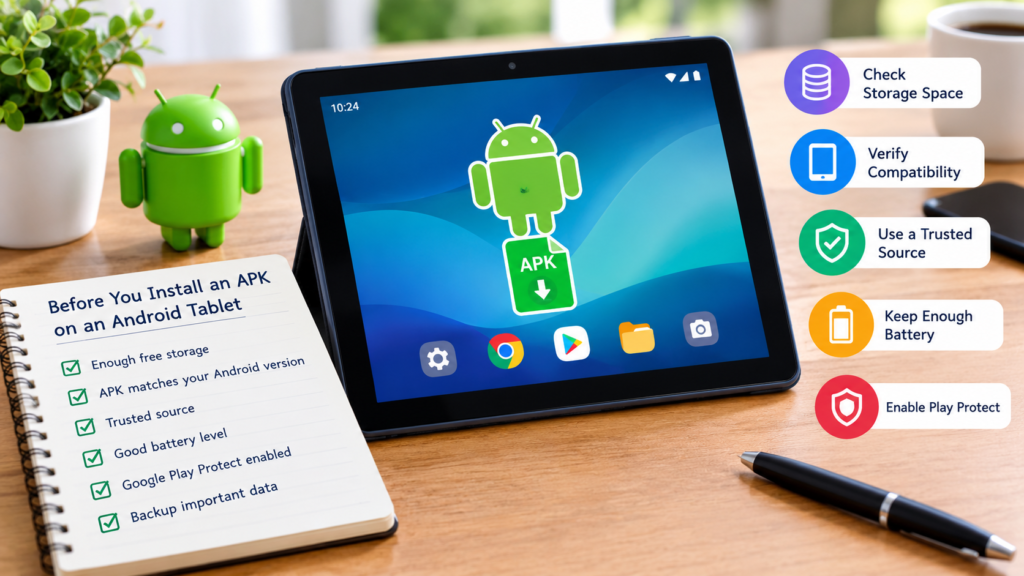
Before You Install an APK on an Android Tablet
Before starting the installation, check a few basic things. These simple steps can prevent many installation errors.
First, make sure your tablet has enough free storage. APK files themselves may be relatively small, but the installed application can require considerably more space.
You should also check whether the APK is compatible with your tablet’s Android version and processor architecture. An APK designed for a newer Android release may not work correctly on an older tablet.
It is also important to download the APK from a source you trust. Avoid suspicious websites, modified files from unknown publishers, and APKs that request unusual permissions.
Quick Preparation Checklist
Before installing, check:
- Your tablet has sufficient storage.
- The APK matches your Android version.
- The APK comes from a trustworthy source.
- Your tablet has enough battery power.
- Google Play Protect or your security software is enabled.
- You have a backup of important data if the application is particularly important.
How to Install APK on Android Tablet Step by Step
The exact menus can differ depending on your tablet manufacturer and Android version, but the general process is similar.
Step 1: Download the APK
Start by downloading the APK file to your Android tablet.
You can download it using a web browser or transfer it from another device using a USB cable, cloud storage, Bluetooth, or another file-sharing method.
After downloading, remember the location of the file. It is commonly stored in the Downloads folder.
Do not open an APK immediately just because the download has finished. First, verify that the file came from a source you trust.
Step 2: Find the APK File
Open the tablet’s file manager. Depending on the device, it may be called Files, File Manager, or something similar.
Navigate to:
Internal Storage → Downloads
Look for the APK file you downloaded.
If you transferred the APK from another device, check the folder where transferred files are normally stored.
Step 3: Allow Installation From the Source
Modern Android versions generally use a permission called Install unknown apps.
Instead of enabling installation from unknown sources globally, Android usually allows you to authorize individual apps, such as your browser or file manager.
When you tap the APK, Android may display a warning saying that your device is not currently allowed to install unknown applications.
Tap the option that takes you to the relevant settings. Select the application you used to open the APK and enable Allow from this source.
The wording may be slightly different depending on your Android version or tablet manufacturer.
Step 4: Return to the APK
After granting the necessary permission, go back to the APK file.
Tap it again to start the installation process.
Android may display information about the application and ask you to confirm that you want to install it.
Review the information before continuing.
Step 5: Tap Install
Select Install and wait while Android processes the APK.
The installation can take anywhere from a few seconds to several minutes depending on the application and tablet.
Once installation is complete, you should see an option such as Open or Done.
Tap Open if you want to launch the application immediately.
APK Installation Settings on Different Android Tablets
The general procedure is similar, but settings can appear in different places.
| Android Tablet Type | Common Setting | Installation Method |
|---|---|---|
| Stock Android | Install unknown apps | Open APK and grant source permission |
| Samsung Galaxy Tablet | Install unknown apps | Allow the browser or file manager |
| Lenovo Tablet | Install unknown apps | Permit the source application |
| Xiaomi/Redmi Tablet | Unknown app installation settings | Enable permission for the relevant source |
| Older Android Tablet | Unknown sources | Enable the appropriate installation setting |
If you cannot find the setting, use the Settings search box and search for Install unknown apps, Unknown apps, or Unknown sources.
How to Install APK Using a File Manager
A file manager is one of the easiest ways to install an APK that is already stored on your tablet.
Open your file manager and locate the APK. Tap the file and follow Android’s installation prompts.
If Android blocks the installation, check which application is being used to open the file. You may need to allow that specific file manager to install unknown applications.
After the installation is complete, you can turn off the permission again if you do not regularly install APK files manually.
How to Install APK Transferred From a Computer
You can also download an APK on a computer and move it to your Android tablet.
Connect the tablet to the computer using a compatible USB cable. Depending on the tablet, you may need to select File Transfer from the USB connection notification.
Copy the APK into a convenient folder, such as Downloads.
Disconnect the tablet safely, open the file manager, locate the APK, and tap it.
From there, follow the same installation process.
This method can be helpful when the tablet’s browser cannot download the file properly or when the APK is already stored on your computer.
Why Android May Block an APK Installation
Android may prevent an APK from installing for several reasons. A blocked installation does not necessarily mean the APK is broken.
Common causes include:
- Installation from the current source is not permitted.
- The APK is incompatible with the tablet.
- The file is incomplete or corrupted.
- There is not enough storage.
- The application conflicts with an existing installation.
- Android security features have identified a potential risk.
- The APK requires a newer Android version.
- The APK was built for an incompatible processor architecture.
If Android displays a specific error message, use that message to determine the next troubleshooting step instead of repeatedly attempting the installation.
Common APK Installation Errors and Solutions
“App Not Installed”
This is one of the most common messages.
Start by checking available storage and APK compatibility. If the application is already installed, an incompatible version or signing conflict can sometimes prevent an update.
If you obtained the APK from a questionable source, consider deleting it and finding the official or trusted version instead.
“Parse Error”
A parse error can occur when Android cannot properly interpret the APK.
Possible causes include:
- The APK is damaged.
- The Android version is too old.
- The APK was not built for your device.
- The download was incomplete.
Try downloading the correct version again from a trusted source.
“For Your Security, Your Phone Currently Isn’t Allowed…”
This usually means Android has blocked installation from the application currently opening the APK.
Go to the relevant Install unknown apps setting and authorize that specific browser or file manager if you trust the APK source.
Insufficient Storage
If the tablet does not have enough free space, remove unnecessary files or applications before trying again.
Remember that an application may need additional space beyond the size of its APK file during installation.
Is It Safe to Install APK Files on an Android Tablet?
Installing an APK is not automatically dangerous, but the source and contents of the file matter.
An APK downloaded from an unknown website could contain malware, spyware, aggressive advertising components, or other unwanted software.
For safer APK installation:
- Prefer the app developer’s official source whenever available.
- Avoid suspicious download pages.
- Check the developer name carefully.
- Review requested permissions.
- Keep Android security features enabled.
- Scan questionable files before installing them.
- Avoid unnecessarily modified APKs.
- Keep your tablet’s operating system updated.
Be particularly cautious when an APK asks for permissions that do not make sense for its purpose. For example, a simple utility should not automatically require access to unrelated sensitive information.
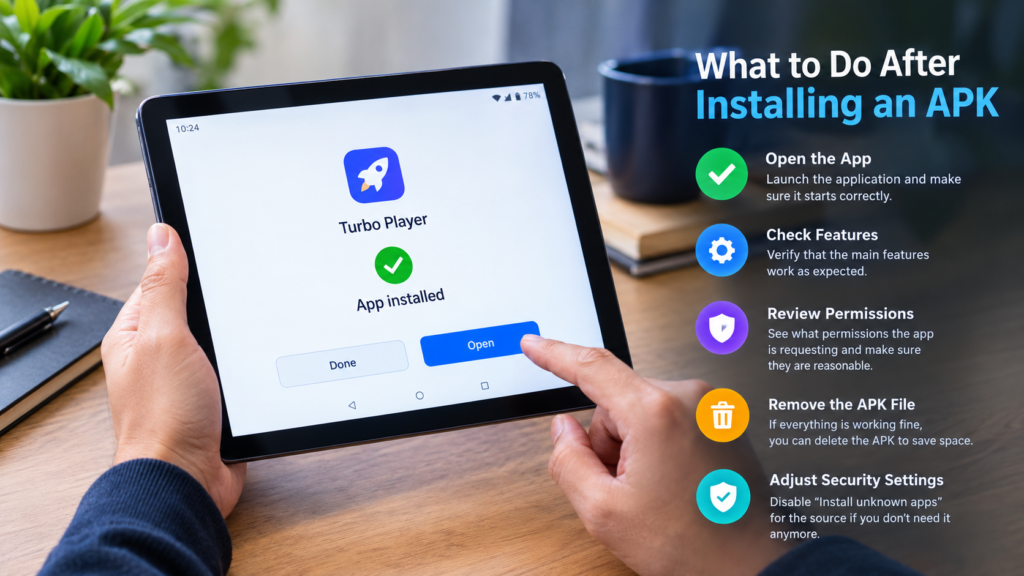
What to Do After Installing an APK
Once the application has been installed, open it and make sure everything works normally.
Check whether:
- The app launches correctly.
- Important features work.
- The interface displays properly.
- There are no unexpected pop-ups.
- The app is requesting reasonable permissions.
If something seems suspicious, uninstall the application and investigate the source of the APK.
You can also return to your security settings and disable Allow from this source for the browser or file manager you used. This reduces the chance of accidentally installing another APK later.
Frequently Asked Questions
Can I install APK files on any Android tablet?
Most Android tablets support APK installation, but compatibility depends on the Android version, processor architecture, application requirements, and manufacturer restrictions.
Why can’t I install an APK on my tablet?
The APK may be incompatible, damaged, blocked by a security setting, or conflicting with an existing application. Low storage can also cause installation failures.
Do I need a special app to install an APK?
Usually, no. A built-in file manager is often enough. You simply locate the APK, tap it, and follow Android’s installation prompts.
Is installing an APK the same as installing an app from Google Play?
The result is similar because Android installs the application package, but manually installing an APK bypasses the normal Google Play distribution process. This means you need to pay more attention to the source and security of the file.
Can I delete the APK after installation?
Yes. Once the application has been successfully installed, the original APK file is normally no longer required. You can delete it to free up storage.
Should I keep “Install unknown apps” enabled?
It is generally safer to allow installation only when necessary and only for sources you trust. After installing the APK, you can disable the permission for the browser or file manager if you do not need it again.
Final Thoughts
Learning how to install APK on Android tablet is relatively simple once you understand Android’s security permissions and compatibility requirements. The basic process involves downloading a suitable APK, locating the file, allowing the trusted source to install applications, and following the installation prompts.
Also Read: How to Install APK on a New Phone: Easy Step-by-Step Guide





Post Comment