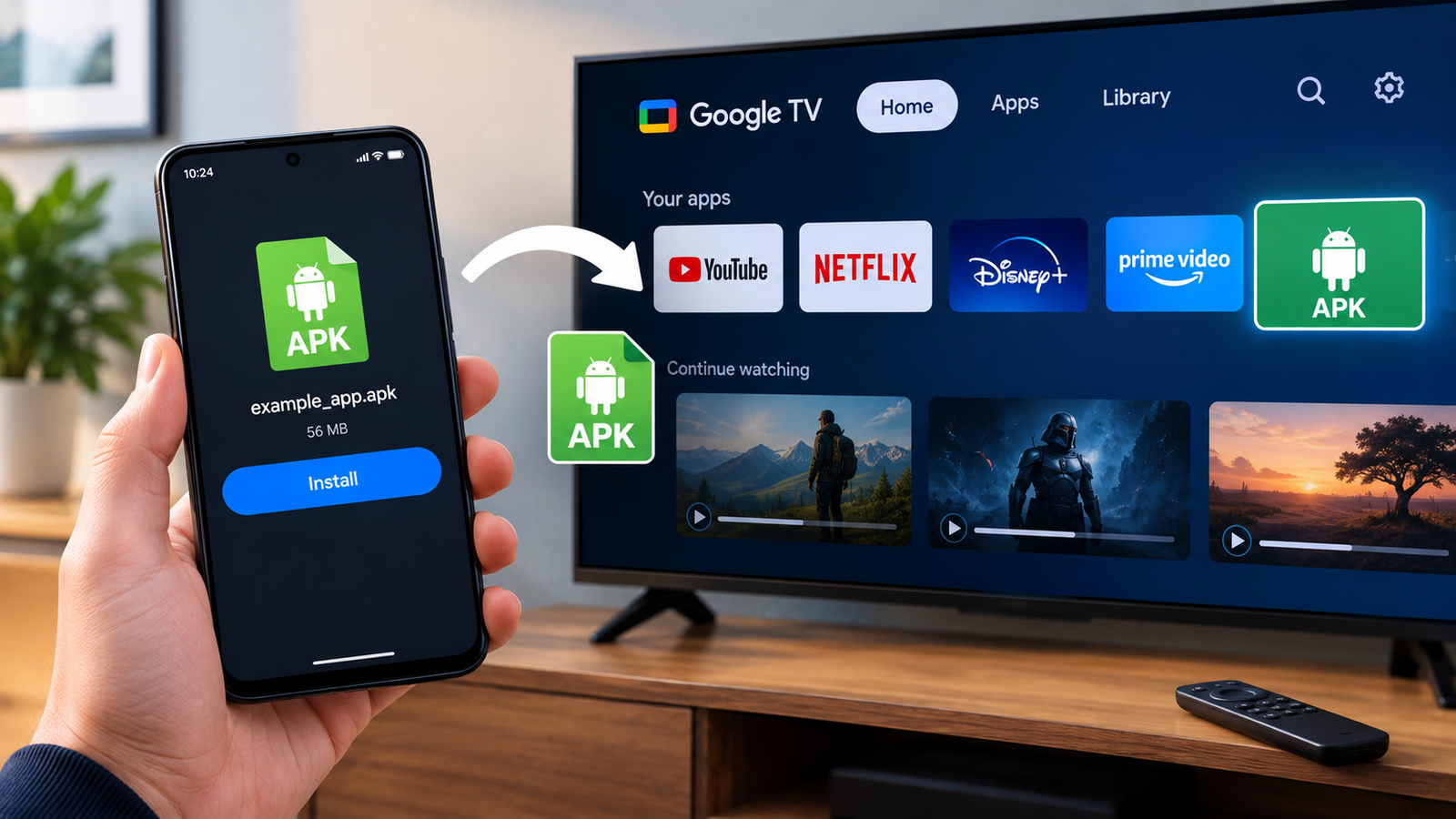
How to Install APK on Google TV: A Complete Step-by-Step Guide
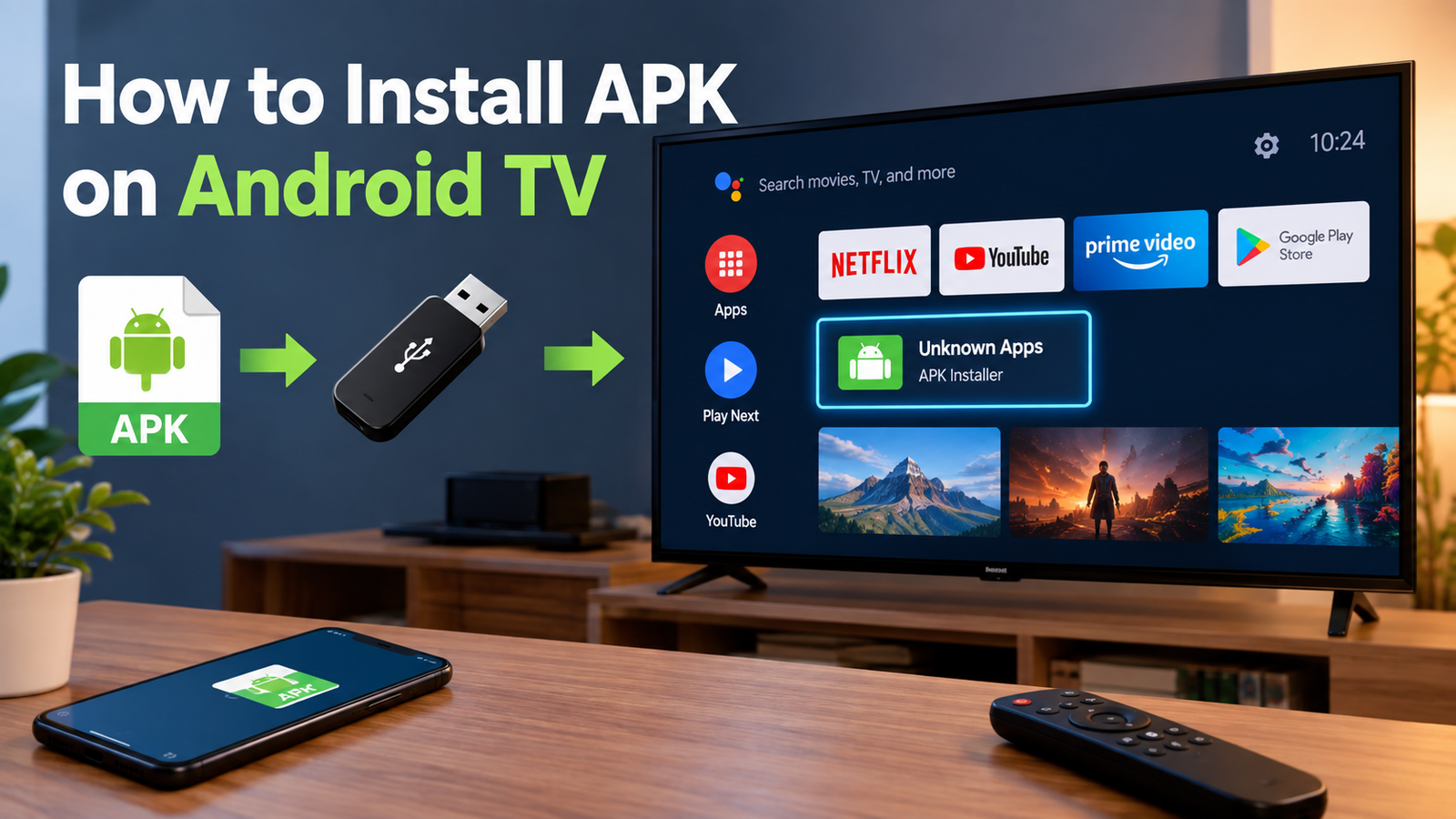
If you want to install an app that is not available through the Google Play Store on your television, learning how to install APK on Google TV can be useful. APK files allow you to install compatible Android applications manually, giving you access to apps that may not appear in the standard TV app store.
Google TV is designed to make app installation simple, but installing an APK requires a few additional steps. You may need to enable developer-related settings, install a suitable file-management or downloader app, and give permission for the installation of apps from an unknown source.
This guide explains the process in a straightforward way. It also covers the safest practices to follow, common installation problems, and what to check before installing an APK on your Google TV device.
What Is an APK on Google TV?
APK stands for Android Package Kit. It is the standard file format used to install applications on Android-based devices.
Google TV runs on Android TV technology, which means compatible Android applications can sometimes be installed outside the Google Play Store. This process is commonly called sideloading.
For example, an APK might be useful when:
- An app is unavailable in your region.
- The app is not listed on Google Play for TV.
- You want to install an older compatible version.
- You are testing an application.
- The developer provides the APK directly.
However, not every Android APK is designed for television screens. Some apps are made specifically for phones and may have poor navigation or display incorrectly when installed on a TV.
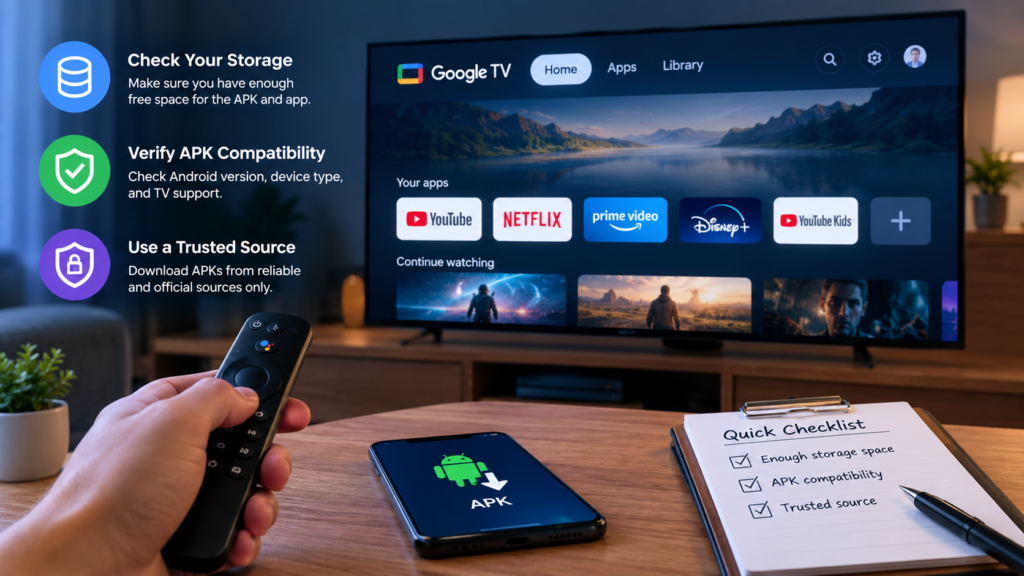
Before You Install an APK on Google TV
Before starting the installation, there are a few things worth checking. Taking these steps can prevent many common problems.
Check Your Google TV Storage
Make sure your device has enough free storage for the APK and the application itself. Large applications may require considerably more space than the APK file alone.
You can usually check available storage through your Google TV settings.
Check APK Compatibility
An APK built for a phone does not automatically mean it will work properly on Google TV.
Consider checking:
- Android version requirements
- CPU architecture
- Screen and TV compatibility
- Required Google services
- Whether the app supports remote controls
- Whether the application requires a touchscreen
Compatibility is particularly important if the APK comes from a third-party source.
Use a Trusted APK Source
The APK file itself is software, so its source matters. Avoid downloading random files from websites that provide modified or suspicious applications without explaining where the files came from.
Before installing, consider checking the developer, file name, version, permissions, and reputation of the source.
How to Install APK on Google TV Step by Step
There are several ways to sideload an APK on Google TV. The easiest approach for many users involves downloading the APK directly to the television and opening it with a file-management or downloader application.
The exact menu names can vary slightly depending on your Google TV version and device manufacturer.
Step 1: Open Google TV Settings
Start from the Google TV home screen.
Use your remote to open the Settings menu. Depending on your device, you may find the settings option near the top-right corner of the screen.
Look for the section related to system preferences or device settings.
Step 2: Find the Android Version or Build Information
To enable the options needed for sideloading, you may need to activate developer options.
Open the section containing information about your Google TV device. Look for an option such as About, where you can find software and build information.
Locate the Android TV OS build or Build entry.
Step 3: Enable Developer Options
Select the build information several times using your remote.
After enough selections, Google TV should display a message indicating that developer options have been enabled or that you are now a developer.
This does not install anything by itself. It simply makes additional configuration options available.
Step 4: Allow Installation From the App You Use
Modern Android versions generally manage unknown-app permissions on an app-by-app basis.
After you install a downloader or file-management application, you may need to give that particular app permission to install APK files.
When Google TV displays a security message about installing unknown applications, review the permission carefully and enable it only for the application you trust.
This is an important part of learning how to install APK on Google TV safely because you should not give installation permission to unnecessary applications.
Step 5: Get a Compatible APK
Next, obtain the APK you want to install.
If possible, download it directly from the application’s official developer or another reputable source. Avoid APK files that have been repackaged, heavily modified, or bundled with unknown software unless you understand exactly what you are installing.
Pay attention to the APK version and architecture.
Step 6: Download the APK to Google TV
One convenient method is to use a reputable downloader application that is available for Google TV.
Search for a suitable downloader in the Google Play Store and install it. You can then use it to access the legitimate APK download location.
Another method is to transfer the APK from another device using a compatible file-transfer solution.
Once the APK is stored on your Google TV, you need a way to locate and open the file.
Step 7: Open the APK File
Use your file-management application to navigate to the folder containing the downloaded APK.
Select the APK file.
Google TV should display an installation prompt. Review the application name and requested permissions before continuing.
If everything looks correct, select the option to install the application.
Step 8: Wait for Installation to Finish
The installation process normally takes only a short time, although larger applications may take longer.
Once Google TV reports that the installation has completed, you may have options to open the app immediately or return to the previous screen.
You can then find the installed application through your Google TV app list.
Common Methods for Installing APKs on Google TV
There is more than one way to sideload an application. The best option depends on the APK’s location and the devices you have available.
| Method | What You Need | Difficulty | Best For |
|---|---|---|---|
| Downloader app | Google TV + internet | Easy | Direct APK downloads |
| File manager | APK already on TV | Easy | Opening local APK files |
| USB storage | Compatible device/adapter | Moderate | Offline APK transfer |
| Network transfer | Google TV + another device | Moderate | Moving files wirelessly |
| Android device transfer | Android phone + TV | Moderate | Sending APK files |
For most beginners, downloading a compatible APK through a trusted source and opening it with a suitable file-management tool is the simplest approach.
How to Find the Installed APK App
After installation, the application may not always appear exactly where you expect.
Open the applications section on Google TV and look through your installed apps.
If the application is not immediately visible, check the complete app list or the settings section where installed applications are managed.
Some phone-oriented applications may also behave differently from normal Google TV apps. An app can be installed successfully but still lack proper TV optimization.
Why Some APKs Do Not Work on Google TV
Successfully installing an APK does not guarantee that it will function correctly.
There are several reasons why an application may fail.
The App Was Designed for Phones
Many Android apps depend on touch gestures. A Google TV remote does not provide the same interaction, so navigation can become difficult.
The APK Uses an Unsupported Architecture
Android applications may contain components designed for specific processor architectures. Installing an incompatible version can result in errors or crashes.
Missing Dependencies
Some applications depend on services or libraries that are unavailable on your Google TV device.
The App Requires Google Play Services
Certain applications rely heavily on Google Play Services or other components that may behave differently on television devices.
The App Requires a Touchscreen
If an application expects the user to tap or swipe on a touchscreen, it may not provide usable controls with a television remote.
How to Fix APK Installation Problems
If your APK refuses to install, don’t immediately assume the file is broken. Several common issues can cause installation failures.
Check the APK Version
Make sure the application supports your Android TV or Google TV version. An older or newer release may not be compatible.
Check Available Storage
Free up space if your device is nearly full. An installation can fail when there is insufficient storage.
Recheck Unknown-App Permission
If Google TV blocks the installation, check whether the application you are using to open the APK has permission to install unknown apps.
Try a Different Compatible Version
If one APK fails, the problem may be compatibility rather than the installation process itself. A version specifically intended for Android TV may work better.
Avoid Suspicious APK Files
If an APK produces unusual warnings or requests excessive permissions, stop the installation and investigate the source before proceeding.
Is Sideloading APKs on Google TV Safe?
Sideloading itself is not necessarily unsafe. The biggest concern is where the APK comes from and what the APK contains.
Installing software from an unknown source can expose your device to unwanted applications, malicious code, tracking, or other security problems.
For safer APK installation:
- Download applications from reputable sources.
- Prefer official developer-provided files.
- Check the application name and version.
- Review permissions before installation.
- Keep Google TV updated.
- Avoid suspicious modified APKs.
- Remove applications you no longer trust.
- Do not install an APK simply because a website claims it is “premium” or “unlocked.”
If Google TV or its security tools warn you about an application, take the warning seriously rather than automatically bypassing it.
APK vs Google Play Store Installation
The Google Play Store remains the easiest option when an application is officially available for your Google TV device.
With a normal Play Store installation, Google handles much of the compatibility and distribution process.
APK installation provides more flexibility, but it also requires more responsibility from the user.
The main differences are:
- Play Store: Easier and generally safer for supported applications.
- APK sideloading: More flexible but requires careful source and compatibility checks.
- Automatic updates: Usually simpler through Google Play.
- Manual APK updates: You may need to download and install newer versions yourself.
- TV optimization: Play Store listings can indicate TV compatibility, while random APKs may not be optimized for a TV.
For everyday applications, the Play Store should usually be your first choice.
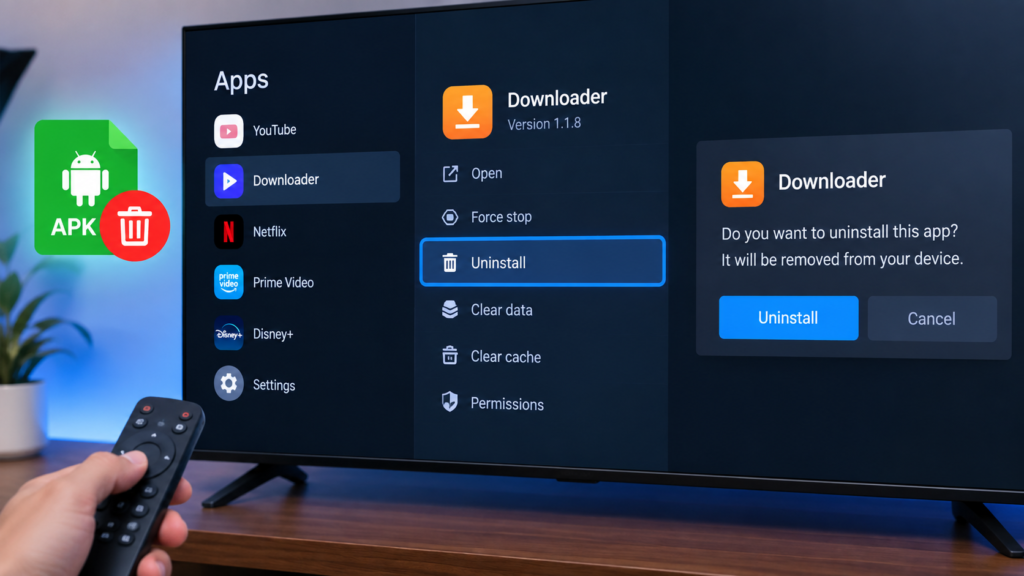
Can You Uninstall a Sideloaded APK?
Yes. A manually installed APK can generally be removed in the same way as other installed applications.
Open your Google TV settings, go to the applications section, select the application you want to remove, and choose the uninstall option.
If the application is no longer needed, uninstalling it can also free storage space and reduce unnecessary security risks.
Frequently Asked Questions
Can I install any APK on Google TV?
No. An APK must be compatible with your Google TV’s Android version, processor architecture, and required dependencies. Phone-only applications may also have limited functionality with a TV remote.
Do I need developer options to install an APK?
Depending on the Google TV version and installation method, developer-related settings may be required for certain sideloading workflows. The exact process can vary between devices.
Why does Google TV say the APK cannot be installed?
Common causes include an incompatible APK, insufficient storage, an incorrect APK variant, missing dependencies, or permission restrictions.
Can I install APK files without a computer?
Yes. You can use compatible applications on Google TV to download or access an APK directly. You can also transfer an APK from another device using an appropriate file-transfer method.
Is it safe to install APK files on Google TV?
It can be safe when the APK comes from a trustworthy source and is compatible with your device. The main risk comes from installing modified or malicious files from unknown sources.
Can I uninstall an APK after installing it?
Yes. Once the application is installed, you can normally uninstall it through Google TV’s application settings just like other apps.
Final Thoughts
Learning how to install APK on Google TV gives you more control over which compatible Android applications you can use on your television. The basic process involves obtaining a suitable APK, preparing Google TV for sideloading, allowing the trusted installation source, opening the APK, and completing the installation.
Also Read: How to Install APK on Android Tablet: A Complete Step-by-Step Guide




Post Comment