How to Install APK on Android Emulator: Easy Step-by-Step Guide
Android emulators make it possible to run Android apps and games on a computer without needing a physical phone or tablet. They are useful for testing applications, exploring Android features, playing mobile games with a keyboard and mouse, and checking how an app behaves on different Android versions.
If you already have an APK file, you may be wondering how to install APK on Android emulator without using the Google Play Store. Fortunately, installing an APK on an emulator is usually straightforward. Most popular Android emulators provide a simple way to load an APK file, while some also support installation through Android Debug Bridge (ADB).
In this guide, you’ll learn several practical methods for installing an APK on an Android emulator, what you need before starting, how to troubleshoot common installation problems, and how to keep the process safer.
What Is an Android Emulator?
An Android emulator is software that creates a virtual Android device on a computer. Instead of running Android on physical hardware, the emulator uses your computer’s resources to simulate an Android environment.
Developers commonly use emulators to test apps before releasing them. Regular users may also use them to run Android applications on Windows, macOS, or another supported desktop operating system.
Depending on the emulator, you may be able to choose:
- Different Android versions
- Various screen sizes
- Different device profiles
- Virtual storage capacities
- Hardware acceleration settings
- Network configurations
Examples of Android emulator software include Android Studio’s Emulator and several third-party Android emulators.
What You Need Before Installing an APK
Before learning how to install APK on Android emulator, make sure you have everything required.
| Requirement | Why It Matters |
|---|---|
| Android emulator | Provides the virtual Android environment |
| APK file | The Android application package you want to install |
| Computer storage | Required for the emulator and application |
| Compatible Android version | Some apps require a specific Android version |
| Sufficient RAM | Helps the emulator and app run smoothly |
| Virtualization support | Can improve emulator performance |
| Reliable APK source | Reduces the risk of installing a modified or malicious file |
The APK should also be appropriate for the emulator’s Android version and processor architecture. An application designed for a newer Android release may not work correctly on an older virtual device.
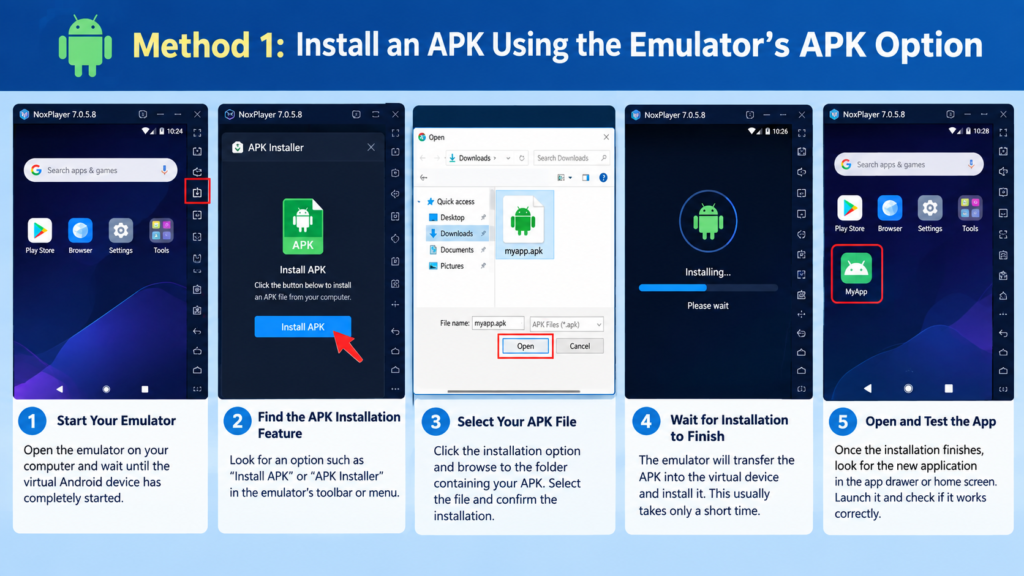
Method 1: Install an APK Using the Emulator’s APK Option
Many Android emulators provide a built-in APK installation feature. This is often the easiest option for beginners.
Step 1: Start Your Android Emulator
Open the emulator on your computer and wait until the virtual Android device has completely started.
You should see an Android home screen with familiar elements such as app icons, a status bar, and navigation controls.
Do not attempt to install the APK while the emulator is still starting. Give it enough time to finish loading.
Step 2: Find the APK Installation Feature
The exact location varies between emulators.
Look for an option such as:
- Install APK
- APK Installer
- Install application
- APK
- Drag and drop support
Some emulators display an APK installation button in their toolbar. Others allow you to open the APK directly from your computer.
Step 3: Select Your APK File
Click the installation option and browse to the folder containing your APK.
Select the file and confirm the installation.
The emulator will transfer the APK into the virtual Android device and install it.
Step 4: Wait for Installation to Finish
Installation normally takes only a short time, although larger applications can take longer.
Once the process finishes, look for the newly installed application in the emulator’s app drawer or home screen.
Step 5: Open and Test the App
Launch the application and check whether it works correctly.
Pay attention to:
- Login screens
- Permissions
- Display problems
- Network connectivity
- Crashes
- Missing features
- Performance issues
If the app opens normally, the installation was successful.
Method 2: Install APK by Dragging and Dropping
Some Android emulators support a convenient drag-and-drop method.
First, start your emulator. Then open the folder containing the APK on your computer.
Drag the APK file into the emulator window.
If drag-and-drop installation is supported, the emulator should automatically begin installing the application.
This method is particularly convenient when you frequently test different APK files because you don’t need to browse through multiple folders.
However, not every emulator supports this feature, so check the emulator’s available installation options if nothing happens.
Method 3: Install an APK Using ADB
ADB, or Android Debug Bridge, provides another way to install an APK. This method is especially useful for developers and advanced users.
ADB allows your computer to communicate with an Android device or emulator through command-line tools.
Step 1: Make Sure ADB Is Available
If you installed Android Studio and its Android SDK components, ADB may already be available on your computer.
You can check whether ADB is accessible by opening Command Prompt or Terminal and running:
adb devicesIf the emulator is running and properly connected, it should appear in the device list.
Step 2: Start the Emulator
Launch your selected virtual Android device.
Wait until Android finishes booting before running the installation command.
Step 3: Install the APK
Navigate to the folder containing the APK or provide the complete file path.
The basic command is:
adb install app.apkReplace app.apk with the actual name of your APK file.
For example:
adb install myapp.apkADB will send the APK to the emulator and attempt to install it.
Step 4: Check the Installation Result
If the installation succeeds, ADB will report a successful result.
You can then open the emulator’s app drawer and launch the application.
If ADB reports an error, the message can provide useful information about what went wrong.
How to Install APK on Android Emulator From Android Studio
Android Studio includes an Android Emulator designed primarily for app development and testing.
If you are using Android Studio, you can create a virtual device and install APK files using supported installation methods.
A typical workflow is:
- Open Android Studio.
- Start the Android Virtual Device.
- Wait for Android to boot.
- Locate your APK file.
- Use the available APK installation method or ADB.
- Wait for installation to complete.
- Open the application from the virtual device.
Android Studio is particularly useful if you need to test an application across multiple Android versions or device configurations.
Why an APK May Not Install on an Emulator
Sometimes an APK refuses to install even when the basic process is correct. Several factors can cause this problem.
Incompatible Android Version
An app may require a newer Android version than the one running inside the emulator.
Check the application’s minimum Android requirement and compare it with your virtual device.
Wrong CPU Architecture
Android applications can contain native code designed for specific processor architectures.
An APK built for one architecture may not work properly on an emulator configured for another.
Common architectures include:
- ARM
- ARM64
- x86
- x86_64
This is one reason an APK that works perfectly on a physical phone may fail on a particular emulator.
Corrupted APK File
An incomplete or damaged download can prevent installation.
If you receive an installation error, consider obtaining the APK again from a reliable source and checking that the download completed properly.
Existing App Conflict
If the emulator already has another version of the application installed, the new APK may conflict with it.
In some cases, uninstalling the existing application before installing the new version can resolve the issue. Keep in mind that uninstalling an app can remove its local data.
APK Is Actually a Split Package
Not every Android application is distributed as a single APK.
Some applications use formats such as XAPK, APKM, or APKS, which may contain multiple APK components.
A standard APK installer may not be able to handle these packages directly. You may need a compatible installation method that understands split APKs.
How to Fix Common APK Installation Errors
If you’re having trouble installing an APK, work through the following checks.
1. Restart the emulator
Close and restart the virtual device. Temporary emulator problems can sometimes disappear after a restart.
2. Check the Android version
Make sure the emulator meets the APK’s minimum Android requirement.
3. Check the APK architecture
If the application contains native components, verify that the package supports the emulator’s architecture.
4. Try ADB
If the emulator’s graphical APK installer does not work, try installing the file with ADB. Error messages from ADB can provide additional clues.
5. Check available storage
A virtual device needs enough free space to install applications. Remove unnecessary apps or files if storage is nearly full.
6. Test another APK
If multiple APKs install correctly but one specific file does not, the problem may be related to that APK rather than the emulator.
Is It Safe to Install APK Files on an Emulator?
Using an emulator does not automatically make an unsafe APK safe.
A malicious application can still perform unwanted actions within the virtual Android environment. An emulator can provide separation from your physical device in some circumstances, but it should not be treated as a complete security barrier.
Before installing an APK, consider:
- Downloading from a trustworthy source
- Checking the application’s developer
- Comparing the app version with the expected release
- Avoiding suspicious modified APKs
- Reviewing requested permissions
- Keeping your emulator and computer software updated
- Scanning questionable files with appropriate security tools
If you are testing an APK from an unknown source, avoid entering sensitive information such as banking credentials or personal passwords.
APK Installation vs Google Play Store
Installing an APK manually and installing an application through Google Play are different processes.
The Play Store normally handles downloading, installation, updates, and compatibility checks automatically. Manual APK installation gives you more direct control over the application package.
This can be useful when testing an unreleased application, installing a specific version, or working with an app that isn’t available through the Play Store in your testing environment.
However, manual installation also means you are responsible for verifying the APK and managing updates.
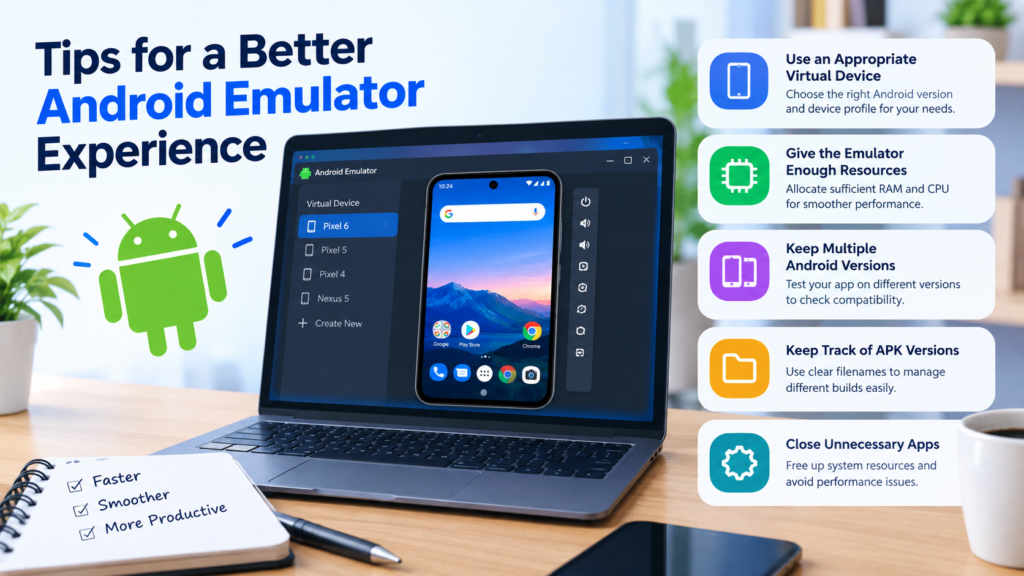
Tips for a Better Android Emulator Experience
Once you know how to install APK on Android emulator, a few adjustments can make testing easier.
Use an Appropriate Virtual Device
Choose an Android version that matches the environment you want to test.
For example, if you’re testing an application intended for newer Android devices, use a recent virtual device rather than an outdated configuration.
Give the Emulator Enough Resources
An emulator can consume considerable CPU and RAM. If your computer has limited resources, running a virtual device alongside several other applications may result in slow performance.
Close unnecessary programs when testing demanding applications.
Keep Multiple Android Versions Available
Developers and testers may benefit from having several virtual devices.
Testing the same APK on different Android versions can reveal compatibility problems that aren’t visible on a single device.
Keep Track of APK Versions
When testing several builds, use clear filenames.
For example:
app-v1.0.apk
app-v1.1.apk
app-v2.0.apk
This makes it easier to identify which version is currently being tested.
Common Mistakes to Avoid
Manual APK installation is simple, but beginners often run into avoidable problems.
Avoid these mistakes:
- Installing an APK without checking its source
- Assuming every APK works on every Android version
- Ignoring CPU architecture compatibility
- Using an outdated emulator for a modern application
- Installing suspicious modified packages
- Confusing APK files with split APK packages
- Running too many resource-heavy applications alongside the emulator
- Ignoring installation error messages
Taking a few minutes to check compatibility can save considerable troubleshooting time.
Frequently Asked Questions
Can I install any APK on an Android emulator?
Not necessarily. The APK must be compatible with the emulator’s Android version and, where applicable, its CPU architecture. Some applications may also depend on hardware, Google services, or other features that aren’t available in a particular virtual device.
What is the easiest way to install an APK on an emulator?
The easiest method is usually the emulator’s built-in APK installation feature. If supported, you can select the APK from your computer or drag it into the emulator window.
Can I install an APK using ADB?
Yes. ADB can install APK files on a connected Android emulator. The basic command is adb install app.apk, assuming ADB can communicate with the running virtual device.
Why does my APK say it cannot be installed?
Possible causes include an incompatible Android version, unsupported CPU architecture, corrupted APK, insufficient storage, an existing application conflict, or a package that requires multiple APK components.
Can I install XAPK or APKM files on an Android emulator?
These formats may contain multiple components rather than one standard APK. They generally require a compatible installation process rather than simply opening them with a standard APK installer.
Does an emulator protect my computer from a malicious APK?
An emulator should not be considered a complete security solution. A suspicious APK can still pose risks within the virtual environment, and vulnerabilities or misconfigurations could potentially create additional security concerns. Always use APK files from trustworthy sources and keep your software updated.
Final Thoughts
Learning how to install APK on Android emulator is useful whether you’re testing an application, experimenting with different Android versions, or simply running an Android app on a computer.
For most users, the emulator’s built-in APK installer is the simplest approach. Drag-and-drop installation can be even quicker when supported, while ADB provides more control for developers and advanced users.
Also Read: How to Install APK on Android TV: A Complete Step-by-Step Guide






Post Comment