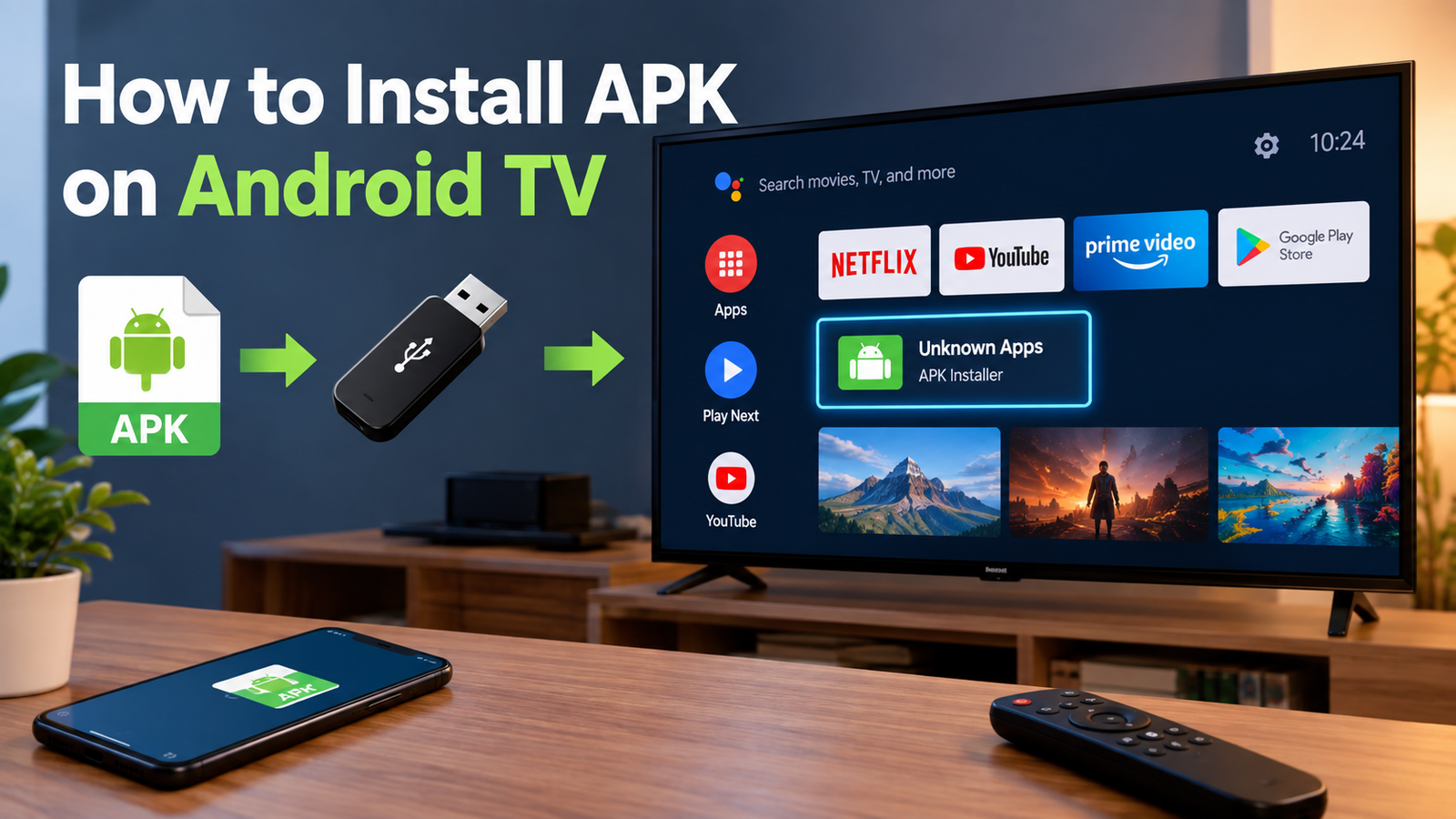
How to Install APK on Android TV: A Complete Step-by-Step Guide
Installing an APK on Android TV can be useful when an app you want is not available through the Google Play Store. Whether you are trying to install a useful utility, media application, browser, or another compatible Android app, the process is usually straightforward once you know the correct steps.
Unlike installing an app directly from the Play Store, installing an APK manually requires you to download the file and give Android TV permission to install applications from the source you use. You also need to make sure the APK is compatible with your TV and comes from a trustworthy source.
In this guide, you will learn how to install APK on Android TV using several practical methods, including a file manager, USB drive, cloud storage, and your Android phone. We will also cover compatibility, security, common installation problems, and what to do after the APK is installed.
What Is an APK on Android TV?
APK stands for Android Package Kit. It is the standard file format used to distribute and install applications on Android-based devices.
Android TV and Google TV use Android technology, so compatible APK files can often be installed manually. However, an APK designed for a smartphone is not automatically guaranteed to work correctly on a television.
TV applications may be designed specifically for:
- Large screens
- Remote-control navigation
- TV interfaces
- Landscape displays
- Android TV or Google TV hardware
- Different processor architectures
Some mobile apps may install successfully but be difficult to use because they expect touch controls.
Why Install an APK on Android TV?
The Google Play Store is the easiest way to install applications, but it does not contain every Android app that users may want.
There are several reasons someone might choose manual APK installation.
Apps Not Available in the Play Store
An app may be unavailable for your specific TV, region, or Android TV version. Installing a compatible APK can sometimes provide another way to use it.
Older or Specific App Versions
Sometimes users need a particular version of an application rather than the newest release. A compatible APK can make that possible.
Testing Applications
Developers and advanced users may need to test applications on an Android TV device before publishing or updating them.
Apps Designed for Android but Not Listed for TV
Some applications work on Android TV even though they are not prominently displayed in the TV version of the Play Store. However, compatibility and usability should always be checked before installation.
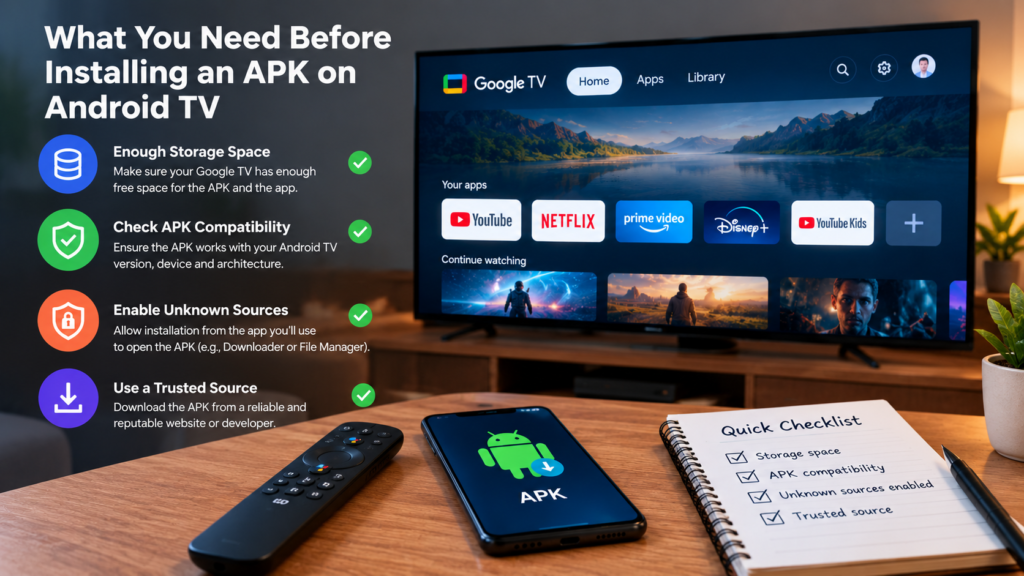
What You Need Before Installing an APK on Android TV
Before you begin, prepare the necessary items. This can save time and prevent common installation errors.
| Requirement | Why It Matters |
|---|---|
| Android TV or compatible Google TV device | The APK must support your device |
| Compatible APK file | Incorrect versions may fail to install |
| Internet connection | Needed for downloading files and some apps |
| File manager or transfer method | Used to access the APK |
| Installation permission | Android may block unknown sources |
| Available storage | The TV needs enough space |
| Remote or control device | Required for navigating installation screens |
Most importantly, download APK files only from sources you trust. A random APK can contain unwanted or malicious software.
How to Install APK on Android TV Step by Step
There are several ways to install an APK on Android TV. The exact menu names can vary depending on your TV brand, Android version, and whether you are using Android TV or Google TV.
The general process is similar across devices.
Step 1: Find a Compatible APK
First, obtain the APK file you want to install.
Before downloading it, check:
- The app’s Android version requirements
- CPU architecture compatibility
- Whether it supports Android TV
- Whether the APK is an original or modified version
- The reputation of the download source
- Whether the file is actually an APK rather than another package format
Avoid downloading files that have suspicious names or extensions.
If an application is available through the official Play Store, that is generally the safer and simpler installation method.
Step 2: Enable Installation From Your Source
Android normally restricts applications from unknown sources as a security measure.
On many Android TV devices, you can find the relevant option under:
Settings → Apps → Special app access → Install unknown apps
On some devices, the menu may instead be under Security & Restrictions or a similarly named section.
Select the application that will open the APK, such as your file manager, and allow it to install unknown applications.
The exact wording can differ between manufacturers and Android versions.
Step 3: Transfer the APK to Your Android TV
Now you need to get the APK onto your TV.
There are several options.
Using a USB Drive
A USB flash drive is one of the simplest methods.
- Download the APK to your computer.
- Copy the APK onto a USB drive.
- Safely eject the drive.
- Connect it to your Android TV.
- Open a file manager.
- Locate the USB drive.
- Select the APK file.
If your TV supports the file and installation permissions are configured correctly, an installation prompt should appear.
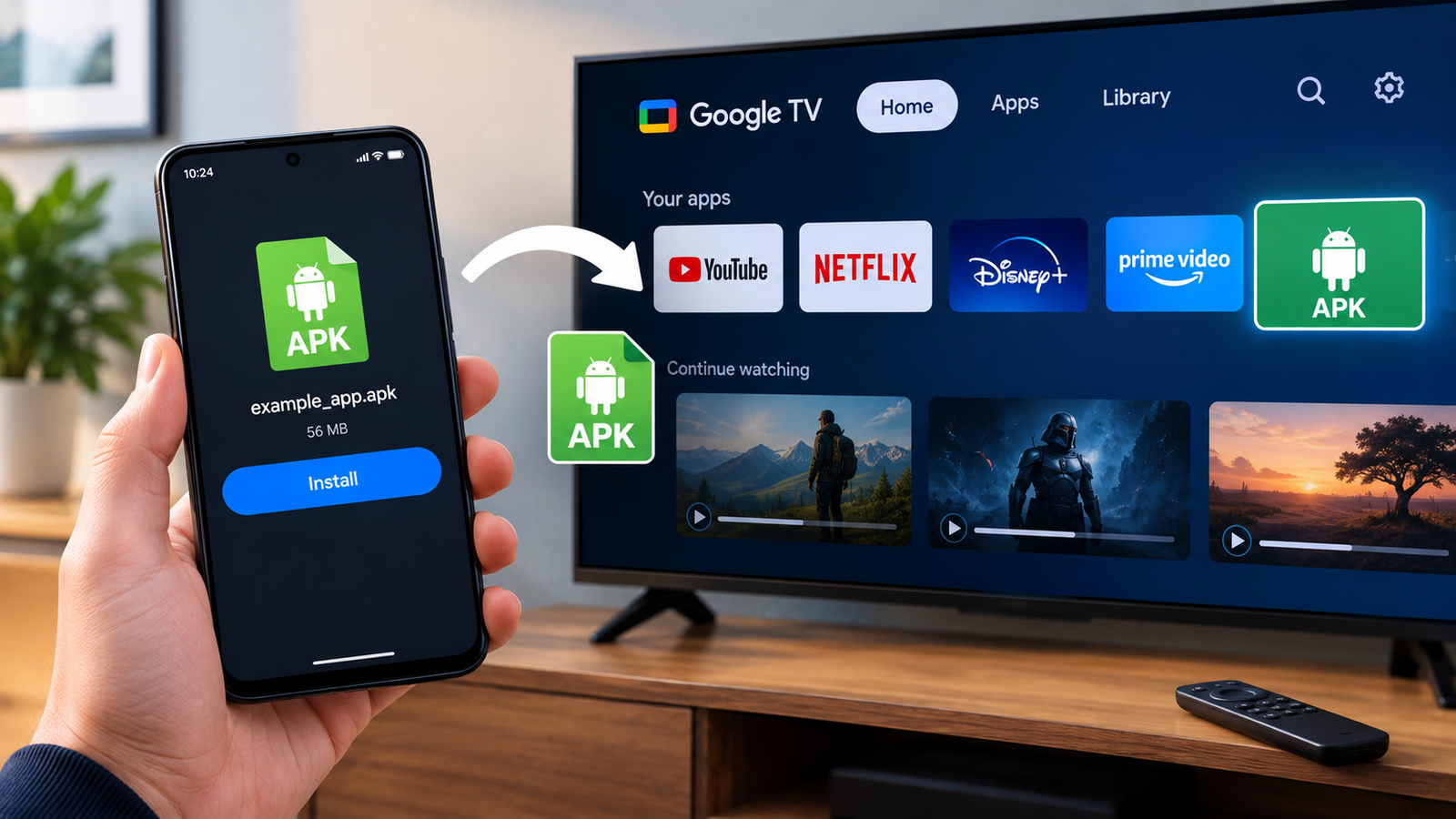
Using Your Android Phone
Some users prefer transferring APK files from their phone to the TV.
Depending on your devices and available apps, you may be able to use a file-transfer application or another local transfer method.
The basic idea is:
- Download the APK to your phone.
- Open a compatible transfer application.
- Send the APK to your Android TV.
- Receive the file on the TV.
- Open the file using a file manager.
- Start the installation.
Make sure both devices are connected to the appropriate network when the transfer method requires it.
Using Cloud Storage
Cloud storage can also be convenient.
You can upload the APK from a computer or phone and then access the file from an appropriate cloud-storage application on your Android TV.
However, not every cloud-storage app provides the same file-management features on TV, so you may need a compatible file manager.
Step 4: Open the APK File
Once the APK has been transferred to your Android TV, open your file manager.
Navigate to the folder containing the APK.
Select the file and wait for the installation prompt.
Android may display a warning explaining that the application is from an unknown source. If you have verified the APK and trust its source, you can continue.
If Android refuses to open the file, check that the application you are using has permission to install unknown apps.
Step 5: Install the Application
After selecting the APK, choose Install.
The installation may take anywhere from a few seconds to several minutes depending on the application and your device.
When the process finishes, you may see options such as:
- Open
- Done
- Uninstall
Select Open if you want to launch the application immediately.
Otherwise, select Done and locate the application later through your installed apps.
Step 6: Find a Sideloaded App on Android TV
One common surprise is that a manually installed app may not appear on the main Android TV home screen.
This does not necessarily mean the installation failed.
You can check:
Settings → Apps → See all apps
Look through the installed applications and select the app you installed.
Some sideloaded applications may not have a proper TV launcher icon. In that situation, you may need a compatible launcher or an app designed to launch applications that are not displayed normally.
Common APK Installation Problems on Android TV
Even when you follow the correct steps, an APK may fail to install.
Here are some common causes.
“App Not Installed” Error
This can happen because:
- The APK is incompatible with your Android version.
- The APK uses an unsupported CPU architecture.
- A different version of the same app is already installed.
- The downloaded file is incomplete or corrupted.
- The APK requires components unavailable on your TV.
Try downloading a compatible version and checking your device’s specifications.
APK Installation Is Blocked
If Android displays a message saying installation is not allowed, check the unknown-app permission for the application opening the APK.
For example, if a file manager is opening the APK, that specific file manager may need permission to install unknown applications.
The App Installs but Does Not Work
Installation does not guarantee compatibility.
A mobile application may require:
- Touch input
- GPS
- A phone camera
- Google Mobile Services
- Specific hardware
- A portrait-oriented screen
- Smartphone-specific features
An app can therefore install successfully and still be unusable on a TV.
The App Crashes
If an APK repeatedly crashes, the version may not be compatible with your Android TV hardware or software.
You can try:
- Restarting the TV.
- Checking for a newer compatible APK.
- Clearing the application’s data.
- Uninstalling and reinstalling it.
- Checking whether the developer supports TV devices.
Is It Safe to Install APKs on Android TV?
Manual APK installation can be safe when you carefully verify the application and its source. However, sideloading removes some of the protection and convenience of installing directly through the official Play Store.
Before installing an APK, consider these precautions:
- Download from a reputable source.
- Avoid suspicious modified applications.
- Check the file name and extension.
- Verify the application’s developer when possible.
- Keep Android TV updated.
- Use security features available on your device.
- Do not grant unnecessary permissions.
- Delete APK files you no longer need.
- Avoid installing applications sent by unknown people.
Be particularly careful with APK files that promise paid features for free, unlimited access, or unusually powerful functionality. These files can carry greater security risks.
How to Check APK Compatibility
Compatibility is one of the most important factors when learning how to install APK on Android TV.
Check your TV’s Android version under the device settings. You should also determine whether the APK supports your processor architecture.
Common Android architectures include:
- ARM
- ARM64
- x86
- x86_64
Not every application provides versions for every architecture.
You should also consider the application’s interface. A smartphone application may technically run on Android TV but provide poor navigation because it was never designed for a remote control.
Should You Delete the APK After Installation?
Yes, you can usually delete the APK after the application has been successfully installed.
The APK works as the installation package. Once Android has installed the application, the original APK is generally no longer required to launch it.
Keeping it can still be useful if:
- You want to reinstall the same version later.
- You have limited internet access.
- You need the file for another compatible device.
Otherwise, deleting unnecessary APK files can free up storage space.
How to Update a Sideloaded APK
Updating a manually installed application is slightly different from updating an app installed through the Play Store.
You may need to:
- Download a newer compatible APK.
- Transfer it to your Android TV.
- Open the new APK.
- Allow installation if requested.
- Install the newer version over the existing application.
If the update fails, the new APK may have a different signing key, package name, or incompatible version. In some cases, you may need to uninstall the existing app first, although doing so can remove its local data.
APK vs Play Store Installation on Android TV
Both methods can install applications, but they offer different experiences.
| Feature | Play Store | APK Installation |
|---|---|---|
| Easy installation | Excellent | Requires extra steps |
| Security | Generally safer | Depends on APK source |
| Automatic updates | Usually available | Usually manual |
| App availability | Limited to supported listings | Potentially broader |
| Compatibility checks | Built in | User must verify |
| Best for beginners | Yes | Better for experienced users |
For most users, the Play Store should be the first choice. APK installation is more useful when an application is unavailable through the normal store or when you have a specific reason to install a particular version.
Tips for a Better APK Installation Experience
A few simple habits can make the process easier and safer.
Keep your TV updated. New Android TV updates can improve compatibility, security, and stability.
Check storage first. Large applications may need more free space than expected during installation.
Use a proper file manager. A TV-friendly file manager makes it much easier to locate APK files.
Avoid unnecessary permissions. If an application asks for permissions unrelated to its purpose, consider whether you really need it.
Keep a backup when necessary. If an app contains important local settings or data, understand what may happen before uninstalling it.
Use TV-compatible applications whenever possible. An application designed for a television will usually provide better remote navigation and a more comfortable interface.
Frequently Asked Questions
Can I install any APK on Android TV?
No. An APK may be designed for smartphones, tablets, Android TV, or a particular processor architecture. Even if the file installs, the application may not function correctly on your TV.
Do I need to enable unknown sources to install an APK?
Usually, yes. Android TV generally requires you to grant installation permission to the application that is opening the APK. The exact setting and menu location depend on your Android TV version and device manufacturer.
Can I install an APK from a USB drive on Android TV?
Yes, if your TV supports USB storage and you have a suitable file manager. Copy the compatible APK to the USB drive, connect it to the TV, locate the file, and start the installation.
Why does my APK install but not appear on the home screen?
Some sideloaded applications are not designed for Android TV and may not register a TV-compatible launcher icon. You can usually find them under the installed apps section in Settings.
Is sideloading APKs on Android TV safe?
It can be safe if you use trustworthy APK sources and verify compatibility. The main risk comes from downloading modified, malicious, or counterfeit APK files from unreliable websites.
Can I uninstall an APK after installing the app?
Yes. Once the application has been installed, the original APK file is generally unnecessary. You can delete it to recover storage space unless you want to keep it for future installation.
Final Thoughts
Learning how to install APK on Android TV gives you more flexibility when an application is unavailable through the Play Store. The basic process involves obtaining a compatible APK, enabling installation permission for the appropriate source, transferring the file to your TV, and installing it through a file manager.
Also Read: How to Install APK on Google TV: A Complete Step-by-Step Guide




Post Comment