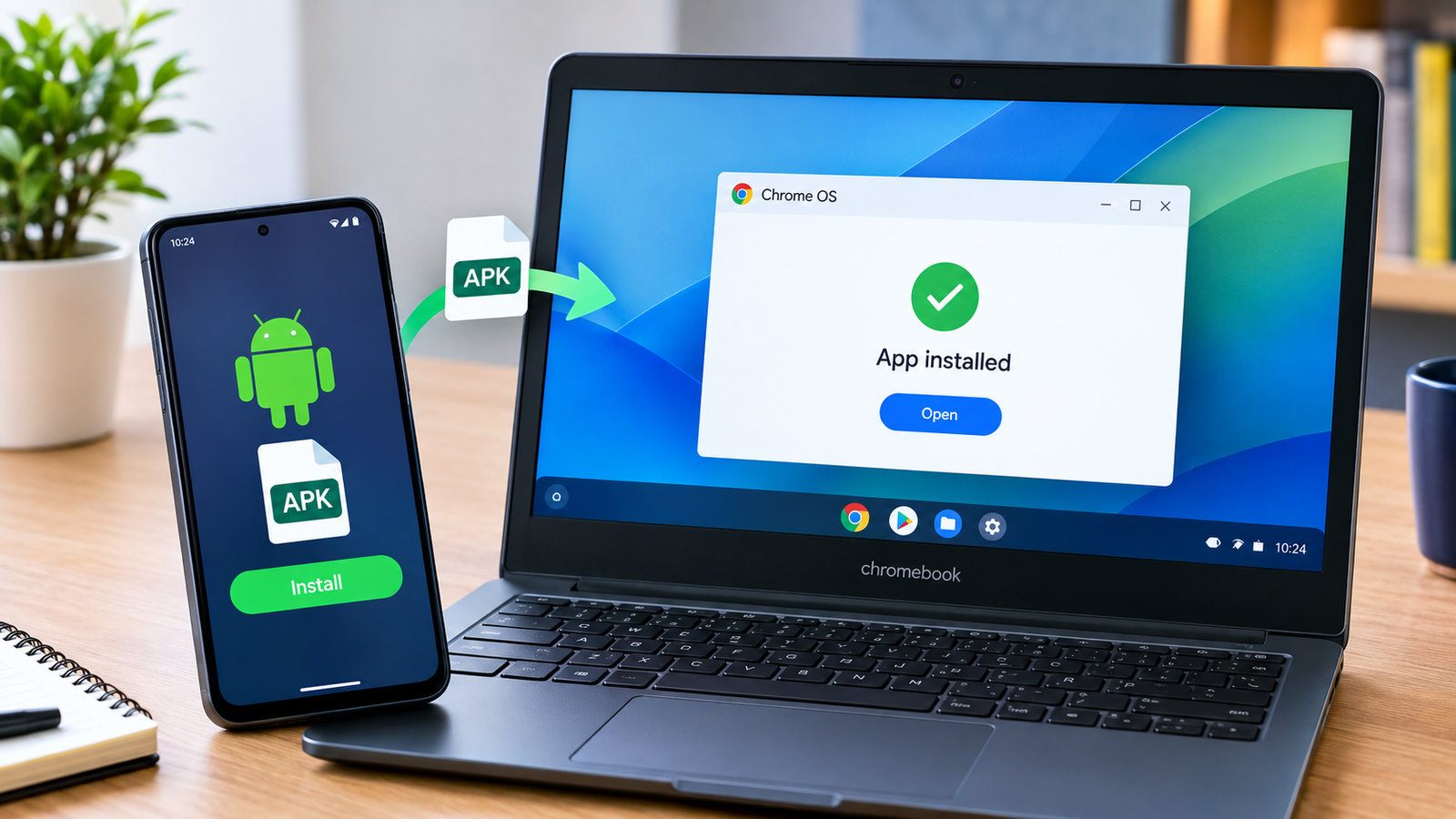
How to Install APK on Chromebook: A Complete Step-by-Step Guide
If you want to know how to install APK on Chromebook, the process depends mainly on your Chromebook model, ChromeOS version, and whether Android app support is available. Chromebooks can run many Android apps through Google Play, but installing an APK directly is a different process and may require additional setup.
An APK is the installation package used by Android. It can be useful when an app is unavailable on Google Play, when you need a particular app version, or when you are testing an Android application. However, downloading APK files from unknown websites can introduce security risks, so it is important to verify the source before installing anything.
This guide explains how to install APK on Chromebook using practical methods, what you need before starting, common problems you may encounter, and how to remove an APK afterward.
Can You Install APK Files on a Chromebook?
Yes, some Chromebooks can install Android APK files, but not every Chromebook supports the same installation method.
Modern Chromebooks generally use ChromeOS, which can support Android applications through Google Play on compatible devices. However, ChromeOS normally expects Android apps to be installed through the Play Store rather than by opening an APK file directly.
Depending on your device, you may need to enable Linux development features and use Android Debug Bridge (ADB) to install an APK.
Before attempting the process, check whether your Chromebook supports Android apps and Linux.
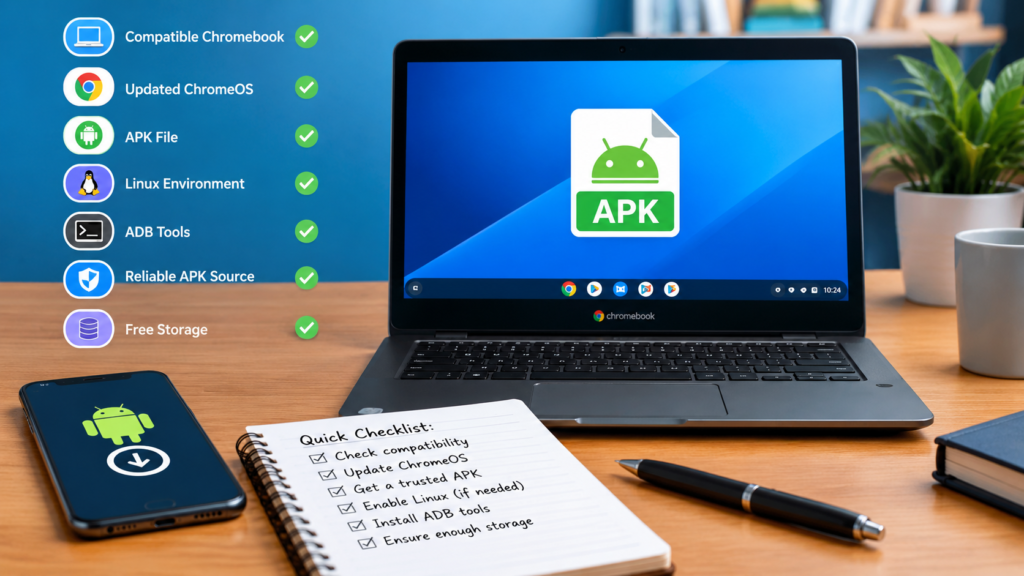
What You Need Before Installing an APK
Before learning how to install APK on Chromebook, prepare a few things. Having everything ready can prevent installation errors later.
| Requirement | Why It Matters |
|---|---|
| Compatible Chromebook | Some devices have limited Android or Linux support |
| Updated ChromeOS | Newer versions can provide better compatibility |
| APK file | This is the Android application package |
| Linux environment | May be required for ADB installation |
| ADB tools | Used to communicate with Android environments |
| Reliable APK source | Helps reduce security and compatibility risks |
| Free storage | The APK and installed application need storage space |
It is also a good idea to back up important data before changing development settings or installing applications outside the Play Store.
Check Whether Your Chromebook Supports Android Apps
The first step is determining whether Android app support is available.
Open the ChromeOS Settings application and look for an option related to Apps or Google Play Store.
If you see Google Play Store settings, your Chromebook may support Android applications.
You can then search for the application in Google Play. If the app is available there, using the official Play Store is generally simpler than manually installing an APK.
If the Play Store is unavailable, check whether your Chromebook supports Linux.
Check Linux Support
Open:
Settings → Advanced → Developers
Look for Linux development environment.
If the option is available, ChromeOS can create a Linux environment that can be used for certain development tasks, including working with ADB.
The exact menu names can vary between ChromeOS versions and Chromebook models.
How to Install APK on Chromebook Using ADB
For compatible devices, ADB provides a way to install an APK from the Linux environment.
The process can be broken into several steps.
1. Enable the Linux Development Environment
Open ChromeOS Settings and navigate to the developer-related settings.
Select Linux development environment and choose Turn On.
ChromeOS will guide you through creating a Linux container. You may be asked to select storage space and configure the Linux environment.
Allow the setup to finish before continuing.
2. Open the Linux Terminal
After Linux has been enabled, open the Terminal application from your Chromebook’s launcher.
The Terminal provides access to Linux commands and tools.
You should see a command prompt where you can enter commands.
3. Install ADB Tools
ADB, short for Android Debug Bridge, is commonly used to communicate with Android devices and Android environments.
In the Linux Terminal, you can install the required package with the appropriate Linux package-management command for your environment.
For Debian-based ChromeOS Linux environments, this commonly involves updating the package list and installing the Android debugging tools.
Once installation finishes, verify that ADB is available before moving forward.
4. Enable ADB Debugging
ChromeOS versions differ in exactly how Android debugging options are presented.
On supported devices, look under:
Settings → Advanced → Developers
for an Android or ADB debugging option.
If your Chromebook does not provide the required debugging functionality, the direct APK installation method may not be available on that device.
Do not change developer-related settings unless you understand what they do. Some Chromebook configurations may display warnings or require additional confirmation.
5. Prepare Your APK File
Download the APK from a source you trust.
Avoid downloading modified or suspicious APK files simply because they promise paid features for free. An APK can contain unwanted software, and ChromeOS security protections do not make an unsafe APK trustworthy.
Before installation, consider checking:
- The original developer or publisher
- The APK version
- The application’s requested permissions
- Whether the file matches the expected application
- Whether the source is reputable
- Whether the APK is compatible with your Android environment
Move or copy the APK into a location that your Linux environment can access.
6. Install the APK Through ADB
Once ADB is configured and the APK is accessible, use the ADB installation command from Terminal.
The basic command follows this structure:
adb install your-app.apkReplace your-app.apk with the actual filename.
If the installation is successful, ADB should return a success message.
The application may then appear among your installed Android applications.
If you receive an error instead, don’t repeatedly install the same file. First determine what the error means.
APK Installation Errors on Chromebook
Several issues can prevent an APK from installing.
Incompatible APK
An APK may have been built for an Android version or processor architecture that does not match your Chromebook’s Android environment.
For example, some applications are optimized for particular ARM or x86 architectures.
Split APK or App Bundle
Some applications are not distributed as one traditional APK. Instead, they may use multiple APK files or an application bundle.
If you have files such as APKS, XAPK, or multiple split APK packages, the standard adb install command may not work.
You may need a compatible installation method that understands split packages.
Insufficient Storage
A Chromebook can also reject an installation if there is not enough available storage.
Check your storage under ChromeOS Settings and remove unnecessary files if needed.
Incorrect File Location
If Terminal cannot find your APK, the file may not be inside a location accessible to Linux.
Check the filename carefully and make sure the file has been shared with the Linux environment if required.
Installation Permission Problems
ADB-related permissions or debugging settings can prevent the installation process from working correctly.
Review the ChromeOS developer settings and make sure the required ADB functionality is enabled.
Is Installing APKs on Chromebook Safe?
Installing an APK is not automatically unsafe, but the source of the APK matters significantly.
An APK downloaded from an unknown website could contain malicious code, excessive permissions, advertising components, or a modified version of the original application.
For better security, follow these practices:
- Prefer the Google Play Store when the app is available there.
- Download APKs from reputable sources.
- Verify the application’s developer.
- Avoid suspicious modified packages.
- Check requested permissions.
- Keep ChromeOS updated.
- Remove applications you no longer trust.
- Do not disable security protections unnecessarily.
A legitimate-looking filename does not guarantee that an APK is safe.
APK vs Google Play Store Installation
Understanding the difference can help you decide which approach makes sense.
| Feature | APK Installation | Google Play Store |
|---|---|---|
| Installation source | External APK file | Official app marketplace |
| Manual setup | Usually required | Usually minimal |
| Updates | May require manual updating | Generally automatic |
| App availability | Can access certain unavailable versions | Depends on Play Store availability |
| Security | Depends heavily on APK source | Google Play security checks apply |
| Best for | Testing or specific APK versions | Everyday app installation |
For ordinary users, the Play Store is usually the simpler route when the application is available there.
How to Update an APK Installed on Chromebook
One limitation of manually installed APKs is that updates may not work in the same way as Play Store applications.
If the developer releases a newer APK, you may need to download the updated package and install it again.
Before replacing an existing application, make sure the new APK belongs to the same application and signing identity. Otherwise, the installation may fail rather than upgrading the existing version.
Also keep in mind that manually installed applications may not receive automatic updates.
How to Uninstall an APK from a Chromebook
Removing a manually installed Android application is generally straightforward.
Open your Chromebook’s application launcher and locate the installed application.
Right-click the application and look for an Uninstall option.
You can also manage installed Android applications through ChromeOS settings, depending on your ChromeOS version.
If the application does not appear normally, you may need to use the Android or ADB environment that was used for installation.
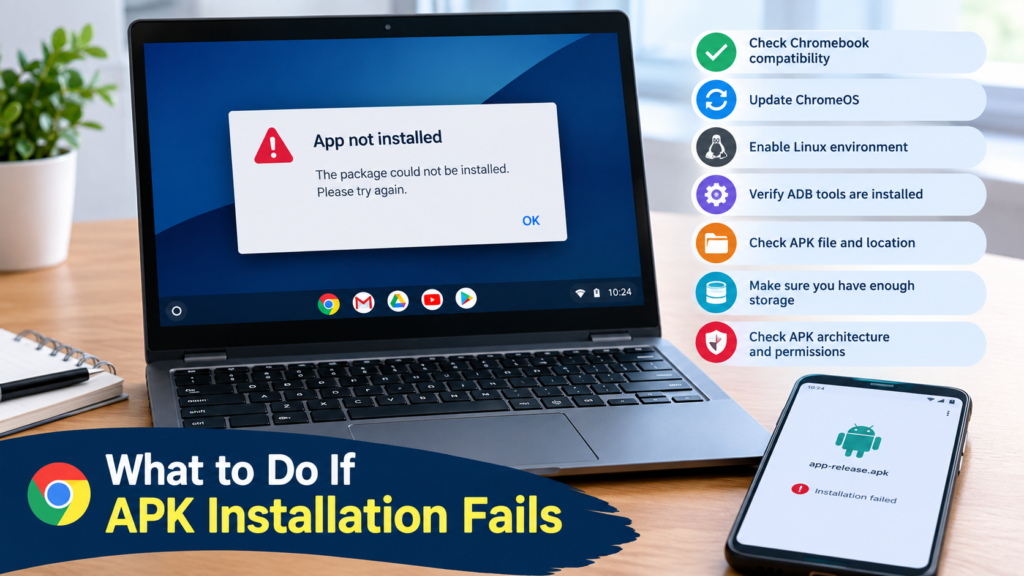
What to Do If APK Installation Fails
If you followed the steps for how to install APK on Chromebook but the installation failed, work through these checks:
- Confirm that your Chromebook supports the required Android functionality.
- Update ChromeOS if an update is available.
- Check whether Linux is enabled.
- Confirm that ADB tools are installed correctly.
- Verify the APK filename and location.
- Check whether the APK architecture is compatible.
- Make sure sufficient storage is available.
- Check whether the package is actually a split APK.
- Try a different legitimate version of the APK if compatibility is the problem.
- Use Google Play Store instead if the application is officially available there.
Avoid randomly changing developer settings just to bypass an error. The exact error message is often more useful for identifying the underlying problem.
Frequently Asked Questions
Can I install any APK on a Chromebook?
No. APK compatibility depends on your Chromebook model, ChromeOS configuration, Android environment, application architecture, and package type. Some APKs may work normally while others may require additional components.
Do all Chromebooks support APK installation?
No. Chromebook capabilities vary by model and ChromeOS configuration. Some devices support Android apps and Linux development features, while others have more limited functionality.
Do I need Linux to install an APK on Chromebook?
For certain manual APK installation methods, Linux and ADB are used. However, the exact requirements depend on your Chromebook and ChromeOS version. If an app is available through Google Play, Linux is generally unnecessary.
Is APK installation better than using Google Play?
They serve different purposes. Google Play provides a more straightforward installation and update process, while manual APK installation can be useful when a particular APK version is needed or an application is not available through the Play Store.
Why does my APK say it cannot be installed?
The APK could be incompatible with your Android environment, damaged, incorrectly packaged, built for a different architecture, or blocked by configuration or security restrictions. Checking the exact installation error can help identify the cause.
Can I uninstall an APK after installing it?
Yes. A manually installed Android application can generally be removed through the Chromebook’s application launcher or settings, depending on your ChromeOS version and how the application was installed.
Final Thoughts
Learning how to install APK on Chromebook can be useful when you need an Android application that is unavailable through the normal Play Store route or when you need to test a particular APK version. However, the process is more technical than simply installing an app from Google Play.
Also Read: How to Install APK on Android Emulator: Easy Step-by-Step Guide





Post Comment