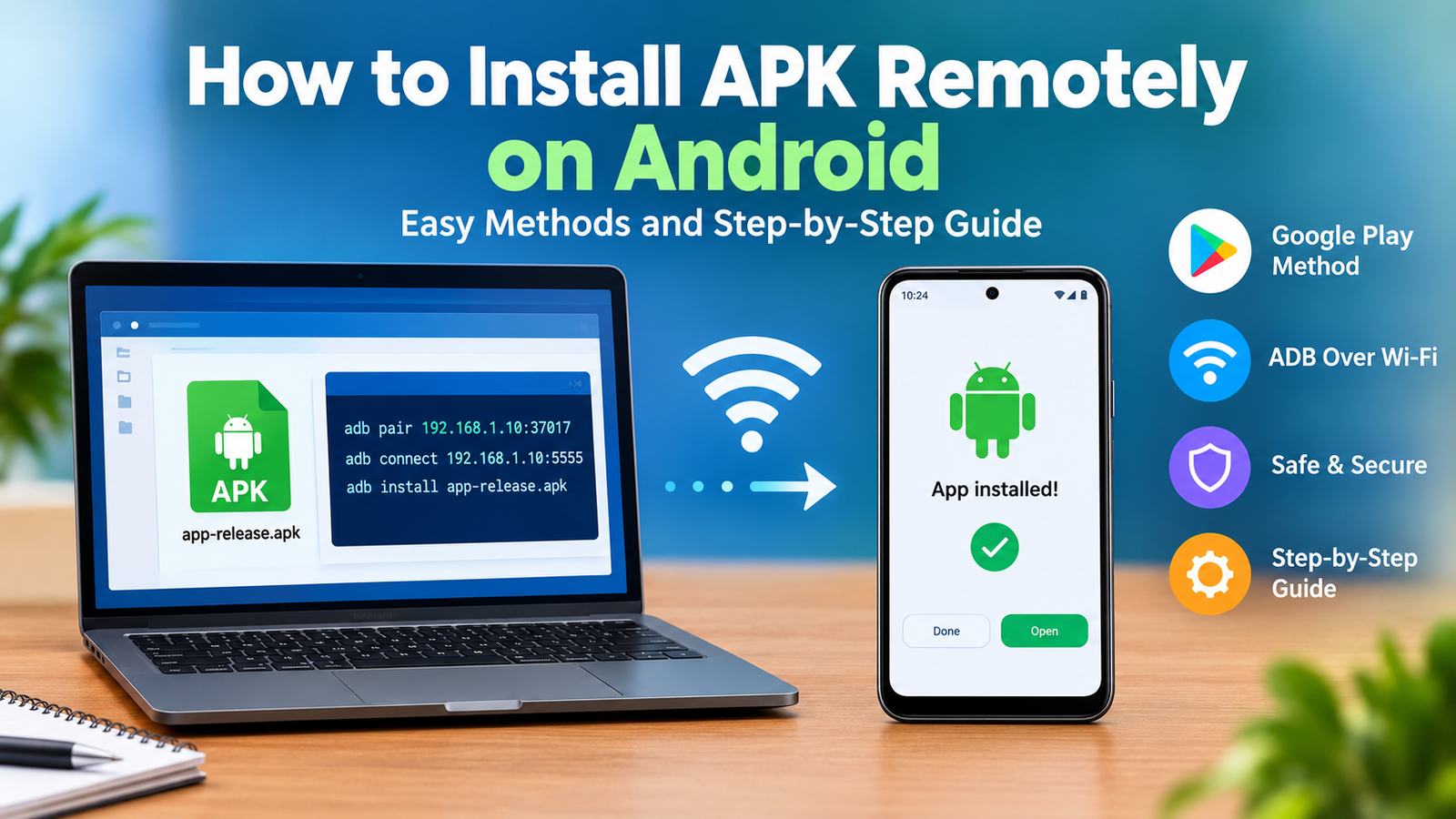
How to Install APK Remotely on Android: Easy Methods and Step-by-Step Guide
Installing an APK normally means downloading the file directly to an Android phone and opening it from the device. But what if the APK is stored on your computer, or you want to install it on an Android device without plugging in a USB cable?
That is where remote APK installation can be useful.
If you are searching for how to install APK remotely on Android, there are several ways to approach it. The best method depends on what you mean by “remotely.” For apps available through Google Play, you can use Google Play from another phone, tablet, or computer to start an installation on a compatible Android device. For an actual APK file, Android Debug Bridge (ADB) can be used over Wi-Fi to communicate with an Android device and install the APK without a physical USB connection.
This guide explains both approaches, including the requirements, step-by-step instructions, limitations, and security precautions you should know before installing an APK remotely.
What Does Remote APK Installation Mean?
Remote APK installation means starting or performing an app installation without directly handling the Android device in the usual way.
There are two common situations:
- Remote installation through Google Play: You use a computer or another Android device to select an app and install it on another compatible device.
- Remote APK installation using ADB over Wi-Fi: You send an APK file from a computer to an Android device and use ADB commands to install it wirelessly.
These methods are different.
Google Play is designed for ordinary app distribution and can remotely install compatible apps on devices associated with your Google Account. ADB is primarily a developer and advanced-user tool that provides a direct connection between your computer and Android device.
If you specifically have an APK file that is not being installed through Google Play, ADB over Wi-Fi is the more relevant method.
Can You Install an APK Remotely on Android?
Yes, but there is an important distinction.
You generally cannot take an arbitrary APK sitting on your computer and silently install it on any Android phone over the internet without the necessary access, authorization, and setup.
For an APK file, Android needs an appropriate installation mechanism. ADB provides one option when the Android device has wireless debugging enabled and has been paired with the computer.
Modern Android versions support wireless debugging through ADB. Android 11 and later support wireless deployment from a workstation, while newer Android versions and current Platform Tools provide additional improvements to the wireless debugging experience.
For ordinary users, Google Play is usually simpler when the application is available there.
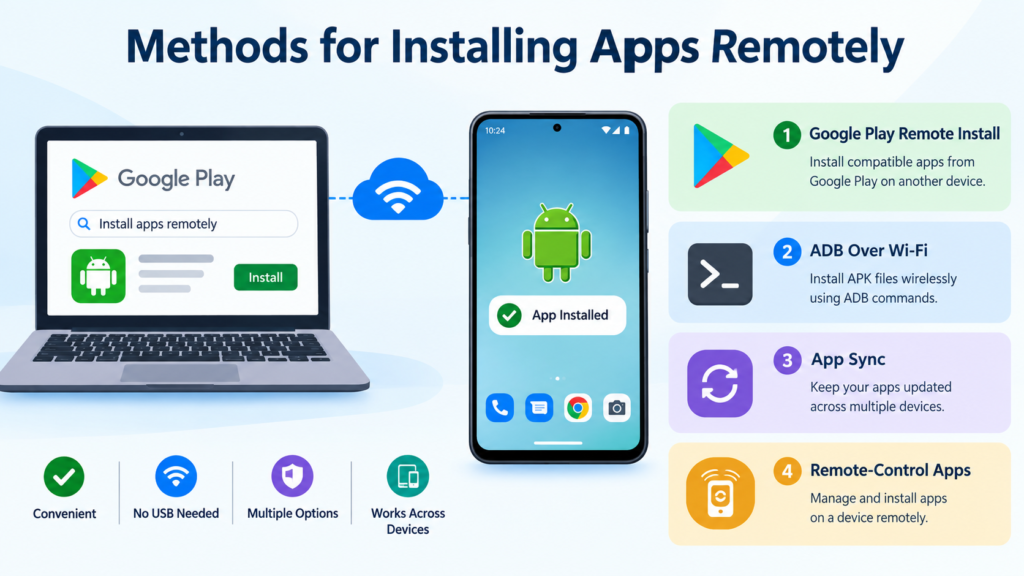
Methods for Installing Apps Remotely
Here is a quick comparison of the main options:
| Method | APK File Required? | Cable Required? | Best For |
|---|---|---|---|
| Google Play Remote Install | No | No | Normal Play Store apps |
| ADB Over Wi-Fi | Yes | No after pairing | APK files and testing |
| ADB Over USB | Yes | Yes | Initial setup and troubleshooting |
| App Sync | No | No | Keeping apps across devices |
| Remote-Control Apps | Sometimes | No | Managing a device remotely |
The important point is that Google Play remote installation and ADB remote installation are not the same thing.
Method 1: Install an App Remotely Using Google Play
If the app you want is available through Google Play, this is usually the simplest approach.
Google allows users to use Google Play from a phone, tablet, or computer to install compatible apps on another device associated with the account. The available target devices can include compatible Android phones, tablets, watches, TVs, and cars.
Step 1: Sign In to the Same Google Account
Make sure the target Android device is associated with the Google Account you intend to use.
This is important because Google Play connects purchased and installed digital content to your Google Account rather than simply to one physical device.
Step 2: Open Google Play on Your Computer
On your computer, open Google Play in a web browser.
Search for the application you want to install.
Step 3: Select the App
Open the app’s Google Play page and select Install.
If you have multiple compatible devices connected to your account, Google Play can provide a device selection option.
Step 4: Select the Target Device
Choose the Android device where you want the app installed.
Google Play can indicate whether an app is available for some, none, or all of your associated devices.
Step 5: Start the Installation
Confirm the installation.
The target device must meet the application’s compatibility requirements. If the app is compatible, Google Play handles the download and installation.
This method is convenient because you do not have to manually transfer an APK file.
Method 2: Install an APK Remotely Using ADB Over Wi-Fi
If you already have an APK file on your computer, ADB over Wi-Fi is one of the most useful methods.
ADB, or Android Debug Bridge, is a command-line tool that allows a computer to communicate with an Android device. Android’s official documentation supports wireless debugging on Android 11 and later.
This method is particularly useful for developers, testers, and advanced Android users.
What You Need Before Starting
Before you try wireless APK installation, prepare the following:
- An Android phone or tablet
- Android 11 or newer for standard wireless debugging
- A Windows, macOS, or Linux computer
- The APK file you want to install
- Android SDK Platform-Tools
- A Wi-Fi connection
- Physical access to the Android device for initial pairing
- Wireless debugging enabled on the Android device
The computer and Android device generally need to be connected to the same Wi-Fi network for the standard wireless-debugging setup.
Step 1: Enable Developer Options
On your Android phone, open Settings.
Look for About phone and locate the Build number. On many Android devices, tapping the Build number several times enables Developer Options.
The exact location can vary between manufacturers and Android versions.
Once enabled, return to Settings and open Developer options.
Step 2: Enable Wireless Debugging
Inside Developer Options, look for Wireless debugging.
Turn it on.
Android’s documentation notes that wireless debugging is available under Developer Options, although the exact Settings path can differ depending on the Android version and device manufacturer.
Your phone may ask you to confirm that you want to allow wireless debugging on the current network.
Step 3: Install Android Platform Tools
On your computer, install the official Android SDK Platform-Tools package.
This package includes the adb command-line tool used to communicate with Android devices.
After installation, open a terminal or Command Prompt and navigate to the Platform-Tools directory.
Step 4: Pair the Android Device
On the Android device, open Wireless debugging and select the option for pairing with a pairing code.
The phone will display information needed for pairing, including an IP address, port, and pairing code.
On the computer, use the ADB pairing command with the address and port displayed by the phone.
For example:
adb pair IP_ADDRESS:PORTWhen prompted, enter the pairing code shown on the Android device.
Android’s official ADB instructions describe pairing through either a QR code or pairing code.
Step 5: Connect to the Device
After pairing, establish the ADB connection to the Android device.
You can then verify the connection with:
adb devicesIf everything is configured correctly, your Android device should appear in the list.
If it does not appear, check that:
- Wireless debugging is still enabled.
- Both devices are connected to the appropriate Wi-Fi network.
- The pairing process completed successfully.
- Your computer has the current Platform-Tools package.
- The Android device has not revoked the debugging authorization.
Step 6: Install the APK
Once ADB recognizes the device, place the APK somewhere convenient on your computer.
Then run:
adb install "path_to_apk"Replace path_to_apk with the actual location of your APK.
For example:
adb install "C:\Downloads\example.apk"On macOS or Linux, the path will use the appropriate format for that operating system.
Android’s official ADB documentation confirms that the adb install command can install an APK on a connected Android device.
Step 7: Check the Android Device
After the installation finishes, check the Android device.
The application should appear in the app drawer or launcher if the installation was successful.
You can now open the application normally.
This approach allows you to install the APK without plugging a USB cable into the phone once the wireless ADB connection has been established.
What If You Want to Install an APK on a Device Far Away?
This is where things become more complicated.
Wireless ADB is not the same as installing an APK over the public internet.
The standard Android wireless-debugging workflow is designed around a trusted network and requires pairing the computer and device. Android’s documentation specifically describes connecting the workstation and device over the same wireless network.
Therefore, simply knowing the phone’s IP address does not mean you can safely install an APK remotely from anywhere.
If the Android device is in another city or country, you would need an appropriate remote-management or remote-access setup that the device owner has authorized.
For ordinary users, Google Play is generally the more straightforward option when the application is available there.
Method 3: Use App Sync Across Android Devices
Google Play also provides an app-sync feature for users with multiple compatible devices.
When App sync is enabled, apps installed on one device can automatically be installed on other selected devices signed in with the same Google Account. Supported devices can include phones, tablets, Chromebooks, watches, TVs, and cars, depending on compatibility.
To look for the setting:
- Open Google Play Store.
- Tap your profile picture.
- Select Manage apps & device.
- Look for Sync apps to devices.
- Select the devices you want to sync.
This is useful if your goal is to keep applications available across your own devices rather than manually transferring APK files.
APK Remote Installation vs Google Play Installation
If you are deciding which method to use, consider what you actually need.
Google Play is preferable when:
- The app is available on Google Play.
- You want a simple installation process.
- You do not need a specific APK file.
- You want Google Play to manage updates.
- You are installing an ordinary consumer application.
ADB over Wi-Fi is useful when:
- You already have an APK file.
- You are testing an application.
- You are developing Android software.
- You need to install a locally stored APK.
- You want to avoid a USB cable after wireless pairing.
The two methods solve related but different problems.
Is Remote APK Installation Safe?
Remote installation itself is not automatically dangerous, but the source of the APK matters.
Google recommends obtaining apps through Google Play and warns that applications from unknown sources can put your device and personal information at risk. Google Play Protect can check potentially harmful applications and warn users about security threats.
Before installing an APK, consider these precautions:
- Download APKs only from sources you trust.
- Avoid modified APKs from unknown websites.
- Check the application name and developer carefully.
- Keep Google Play Protect enabled.
- Do not grant unnecessary permissions.
- Keep Android updated.
- Remove wireless debugging when you no longer need it.
- Do not pair your computer with someone else’s device without authorization.
If an APK asks for unusual permissions that do not make sense for its purpose, stop and investigate before installing it.
Common Problems When Installing an APK Remotely
Remote installation can fail for several reasons.
ADB Does Not Detect the Device
Check the Wi-Fi connection and make sure wireless debugging is enabled.
You can also restart ADB and try the pairing process again.
The APK Installation Fails
The APK may be incompatible with the Android version, device architecture, or an existing version of the application.
An incorrectly signed APK can also cause installation problems.
Google Play Does Not Show the Target Device
Make sure the target device is signed in with the correct Google Account and is compatible with the application.
Google Play provides device compatibility information during remote installation.
Wireless Debugging Stops Working
Android may revoke or disable wireless debugging in certain situations, particularly when the network is not considered trusted.
If necessary, return to Developer Options and check the Wireless debugging status.
Tips for a Better Remote APK Installation Experience
For a smoother experience, follow a simple routine:
- Use a reliable Wi-Fi connection: Wireless ADB depends on network connectivity.
- Keep Platform-Tools updated: Newer versions can improve compatibility.
- Use the correct APK: Make sure the file matches the device and Android version.
- Keep backups: Important data should be backed up before experimenting with unfamiliar applications.
- Disable debugging afterward: If you do not need wireless debugging, turn it off.
- Use Google Play when possible: It is generally easier for standard app installations.
- Verify APK sources: A remote installation does not make an untrusted APK safer.
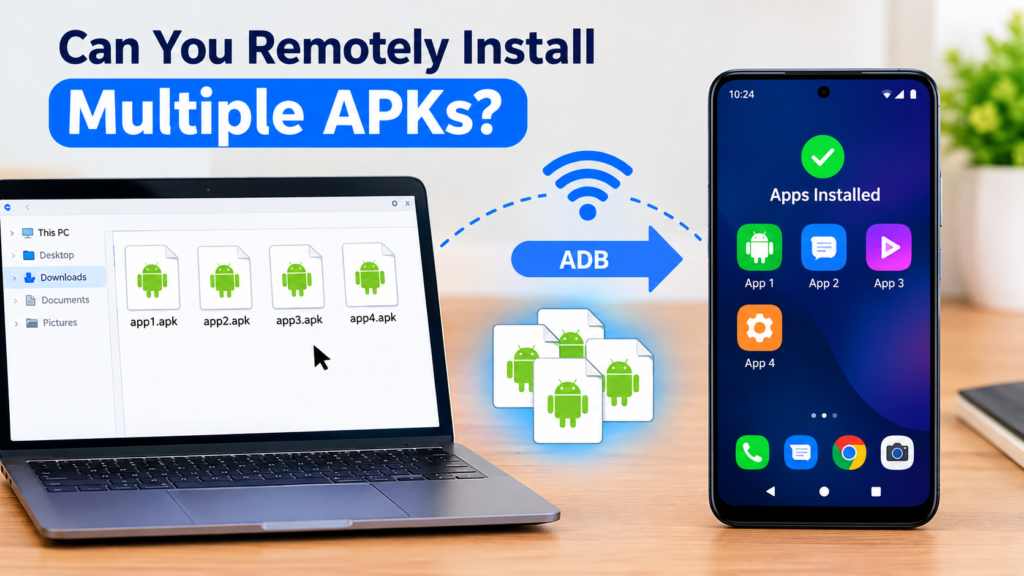
Can You Remotely Install Multiple APKs?
Yes, ADB can be useful when working with multiple applications or test builds.
For developers, Android’s ADB documentation also supports installing multiple APK packages with install-multiple when the required APK files are available.
However, ordinary users should avoid installing multiple unfamiliar APKs simply because the process is automated.
Automation makes installation faster, but it does not verify whether an application is trustworthy.
Frequently Asked Questions
Can I install an APK remotely without USB?
Yes. If your Android device supports wireless debugging, you can pair it with a computer over Wi-Fi and use ADB to install an APK without a USB cable. Android 11 and later support wireless deployment through ADB.
Can I install an APK on another Android phone from my computer?
If you mean a normal Google Play application, Google Play allows you to use a computer to select a compatible Android device and start an installation remotely.
If you mean a standalone APK file, ADB over Wi-Fi is the more relevant approach, provided the target device has been appropriately configured and paired.
Can I install an APK remotely over the internet?
Standard wireless ADB is primarily designed for communication over a trusted local network rather than unrestricted internet-based APK installation. Android’s official setup requires the workstation and device to be connected to the same wireless network for the standard wireless-debugging workflow.
Is ADB safe for installing APK files?
ADB is an official Android development and debugging tool. However, the safety of the application still depends on the APK itself. You should only install APK files from sources you trust and avoid granting unnecessary permissions.
Do I need root access to install an APK with ADB?
For normal APK installation on a standard Android device, root access is generally not required. ADB provides an installation mechanism through the adb install command.
Can I remotely install apps from Google Play?
Yes. Google Play supports installing compatible apps on another device from a phone, tablet, or computer. The target device must be associated with the appropriate Google Account and compatible with the application.
Final Thoughts
Learning how to install APK remotely on Android becomes much easier once you understand the difference between Google Play remote installation and wireless APK installation through ADB.
For regular applications, Google Play provides a convenient way to start installations on compatible devices from another phone, tablet, or computer. If you specifically need to install an APK file, wireless ADB provides a practical method for connecting to an Android device and installing the file without a USB cable.
Also Read: How to Install APK on Chromebook: A Complete Step-by-Step Guide














1 comment