How to Fix Incompatible APK on Android: 9 Easy Solutions
Installing an APK can be a convenient way to get an Android app, especially when the app is unavailable through your usual app store. However, sometimes you may download an APK only to discover that Android says the app is incompatible with your device.
This problem can happen for several reasons. The APK may require a newer or older Android version, support a different processor architecture, be designed for a different screen or device configuration, or simply not be compatible with your particular device. In some cases, the APK itself may also be incomplete or incorrectly packaged.
The good news is that an incompatible APK does not always mean your phone cannot run the app. There are several things you can check before giving up.
In this guide, you’ll learn how to fix incompatible APK on Android, what causes the problem, and which solutions are worth trying.
What Does “APK Incompatible” Mean on Android?
When Android reports that an APK is incompatible, it generally means the application package does not meet one or more requirements of your device.
Android apps can specify minimum operating-system versions, supported CPU architectures, screen configurations, hardware features, and other requirements. If your phone does not meet those requirements, installation may be blocked or the app may install but fail to work correctly.
An APK can therefore be perfectly valid while still being unsuitable for a particular device.
Why Is an APK Incompatible With Your Android Phone?
Before trying different solutions, it helps to understand the possible cause.
Here are some of the most common reasons:
- Your Android version is too old or too new for the APK.
- The APK was built for a different CPU architecture.
- The APK is intended for a different device configuration.
- You downloaded an APK variant that does not match your phone.
- The application requires hardware that your phone does not have.
- The APK file is damaged or incomplete.
- The app developer has restricted certain devices.
- The APK is actually a split package such as APKS, XAPK, or APKM rather than a standard APK.
- Your device has insufficient storage or another installation-related problem.
Identifying the cause is important because installing another random APK usually will not solve the underlying compatibility issue.
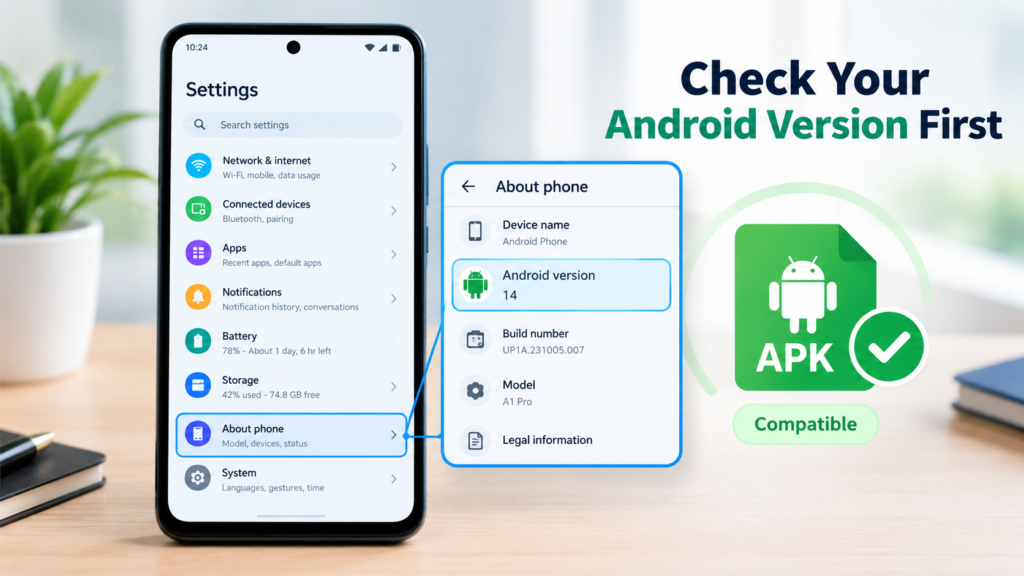
Check Your Android Version First
One of the easiest things to check is your Android version.
An APK may require a minimum Android version. For example, an app built for a newer Android release may not install on an older phone.
To check your Android version:
- Open Settings.
- Scroll down to About phone or About device.
- Find Android version.
- Note the version currently installed on your phone.
The exact menu names can vary between manufacturers.
Once you know your Android version, compare it with the requirements listed by the app developer or the source where the APK was obtained.
If the APK requires a newer Android version, updating your phone may resolve the issue if an official update is available.
Update Your Android Device
An outdated operating system is a common reason for compatibility problems.
Go to:
Settings → System → Software update
On some phones, the option may be under About phone or System update.
If an official update is available, install it and restart your phone. Then try installing the APK again.
However, do not assume that every phone can be upgraded to the Android version required by an app. Older devices may have reached the end of their official software support.
Why Android Updates Can Help
A newer Android version can provide:
- Support for newer application requirements
- Updated system libraries
- Improved security components
- Better compatibility with modern apps
- Bug fixes related to installation and application behavior
If your device cannot receive a required Android update, you may need to find an older version of the app that officially supports your Android release.
Make Sure You Downloaded the Correct APK Variant
This is particularly important when downloading apps from third-party APK sources.
Some applications are distributed in different variants. A download may be optimized for a particular CPU architecture, Android version, screen configuration, or device type.
Common architecture names include:
| APK Variant | General Purpose |
|---|---|
| ARM64 / arm64-v8a | Common on modern 64-bit Android devices |
| ARM / armeabi-v7a | Used by many older 32-bit ARM devices |
| x86 | Designed for certain Intel-based Android devices |
| x86_64 | Designed for compatible 64-bit x86 devices |
| Universal | Intended to support multiple architectures |
Your phone’s processor architecture matters because an APK compiled for one architecture may not work properly on another.
If multiple variants are available, check your device specifications and choose the appropriate package instead of simply downloading the largest or newest file.
Check Whether the File Is Really a Standard APK
Not every Android app download is a single APK file.
You may encounter formats such as:
- APK
- XAPK
- APKS
- APKM
These formats can contain multiple APK components or additional files required by the application.
If you downloaded an APKS, XAPK, or APKM package and tried to install it like a normal APK, Android may not handle it correctly.
In this situation, use a reputable installer that supports the specific package format, or obtain the developer’s standard APK if one is available.
Download the APK Again
Sometimes the simplest solution is to download the file again.
An interrupted download, corrupted file, or incomplete transfer can cause installation errors that look like compatibility problems.
Before downloading again:
- Delete the problematic APK.
- Check that your internet connection is stable.
- Use a reputable source.
- Download the correct version for your device.
- Make sure the download finishes completely.
- Try installing the new file.
Avoid repeatedly downloading APKs from unknown websites just because one version fails. The source and integrity of the file matter.
Check Your Phone’s Architecture
If you have confirmed that your Android version meets the application’s requirements, CPU architecture is another important factor.
You can use a reputable device-information utility to identify details such as:
- CPU architecture
- Android version
- Processor information
- Available RAM
- Device model
- Supported hardware
Once you know your architecture, compare it with the APK variant you downloaded.
For example, installing an APK specifically compiled for an incompatible architecture may result in installation failure or application crashes.
Check the App’s Device Requirements
Some apps depend on hardware features that are not available on every Android phone.
For example, an application may require:
- GPS
- Bluetooth capabilities
- A specific camera feature
- Certain graphics capabilities
- NFC
- Specific sensors
- A particular screen configuration
If the app depends on hardware your phone does not provide, changing the APK file may not solve the problem.
In such cases, the limitation is related to the device rather than the APK installation process.
Free Up Storage Space
Although insufficient storage is not always described as an incompatibility problem, low storage can interfere with APK installation.
Check your available storage under:
Settings → Storage
If your phone is nearly full, remove unnecessary files or applications.
You can free space by deleting:
- Old downloads
- Unused apps
- Duplicate photos and videos
- Large temporary files
- Unnecessary media files
After freeing some space, restart your phone and try the installation again.
Restart Your Android Phone
A restart sounds basic, but it can clear temporary system problems.
If you recently updated Android, changed installation permissions, or installed another application, restarting can refresh the system before you try the APK again.
Simply restart your device and attempt the installation one more time.
If the same compatibility message appears, continue checking the APK requirements rather than repeatedly restarting the phone.
Don’t Force an APK Installation Without Checking Compatibility
You may find guides claiming that an incompatible APK can always be installed by changing system settings or using specialized tools.
That is not necessarily true.
There is a difference between an APK that Android refuses because of a minor configuration issue and an APK that genuinely requires hardware or software your phone does not support.
Trying to bypass compatibility restrictions can result in:
- Installation failure
- App crashes
- Missing features
- Poor performance
- Security problems
- Unexpected behavior
If the application genuinely requires a newer Android version or unsupported hardware, finding a compatible version is generally more practical than forcing the installation.
Quick Troubleshooting Table
The following table summarizes common causes and potential solutions:
| Problem | Possible Solution |
|---|---|
| Android version is too old | Update Android or find a compatible older app version |
| Wrong CPU architecture | Download the APK variant matching your device |
| APKS/XAPK/APKM file | Use a compatible package installer |
| Corrupted download | Download the APK again from a reputable source |
| Unsupported hardware | Use a device that meets the app requirements |
| Storage is nearly full | Free up storage and retry |
| Incorrect APK variant | Choose the correct device/architecture version |
| App is restricted to certain devices | Check official compatibility information |
| Installation behaves unexpectedly | Restart the phone and retry |
How to Find a Compatible APK Version
If the newest APK does not work on your phone, you may need a version that supports your Android release.
Before installing an older version, check:
- The Android version it supports
- The CPU architecture
- The app’s original developer or publisher
- Whether the file has been modified
- Whether the download source is trustworthy
- Whether the version is still suitable for your needs
Older APK versions can sometimes solve compatibility problems, but they may also contain outdated security fixes or lack newer features.
For that reason, avoid choosing an old version simply because it installs. Compatibility and security should both be considered.
Is It Safe to Install an APK That Says It Is Incompatible?
You should not assume an APK is safe simply because you found a version that bypasses an installation restriction.
Be especially cautious with modified APKs or files that claim to remove compatibility restrictions.
Before installing an APK, consider:
- Where the file came from
- Whether the publisher is identifiable
- Whether the app has been modified
- What permissions it requests
- Whether the file matches the expected app
- Whether Android’s security protections raise a warning
If Android warns that a file may be harmful, do not ignore the warning without understanding why it appeared.
Common Mistakes to Avoid
When trying to fix an incompatible APK, avoid these common mistakes:
- Installing random APK variants without checking architecture.
- Assuming every APK works on every Android phone.
- Downloading modified versions from unknown sources.
- Ignoring Android version requirements.
- Installing APKS or XAPK files as if they were standard APKs.
- Repeatedly trying the same incompatible file.
- Disabling security features just to complete an installation.
- Installing extremely old versions without considering security.
A few minutes spent checking the requirements can save you from installation problems later.
FAQs About Fixing Incompatible APKs on Android
Why does my Android phone say the APK is incompatible?
The APK may require a different Android version, CPU architecture, hardware feature, or device configuration. The file may also be the wrong variant for your phone.
Can I install an incompatible APK on Android?
It depends on why the APK is incompatible. If the problem is simply the wrong APK variant, downloading the correct version may help. If the app requires unsupported hardware or an Android version your phone cannot run, forcing installation may not work.
How do I fix an APK that requires a newer Android version?
First, check whether your phone has an official Android update available. If it cannot be updated, look for an app version that officially supports your Android release.
Why does one APK version work while another does not?
Different releases can have different Android requirements, CPU architectures, and device restrictions. An older or differently packaged version may therefore work on a device where another version does not.
Are APK, XAPK, APKS, and APKM the same?
No. A standard APK is an Android application package, while XAPK, APKS, and APKM packages can contain multiple components or additional files. They may require a compatible installation method.
Should I force-install an incompatible APK?
It is usually better to identify the compatibility problem first. If your device genuinely lacks a required Android version or hardware feature, forcing installation may lead to crashes or other problems.
Final Thoughts
Knowing how to fix incompatible APK on Android starts with identifying why Android considers the file unsuitable. The problem may be as simple as downloading the wrong APK variant, or it may be caused by an Android version or hardware limitation.
Start by checking your Android version, device architecture, available storage, and the APK’s requirements. If necessary, download the correct variant or use an appropriate installer for APKS, XAPK, or APKM packages.
Also Read:
Why APK Works on One Phone but Not Another: Common Causes and Fixes













1 comment