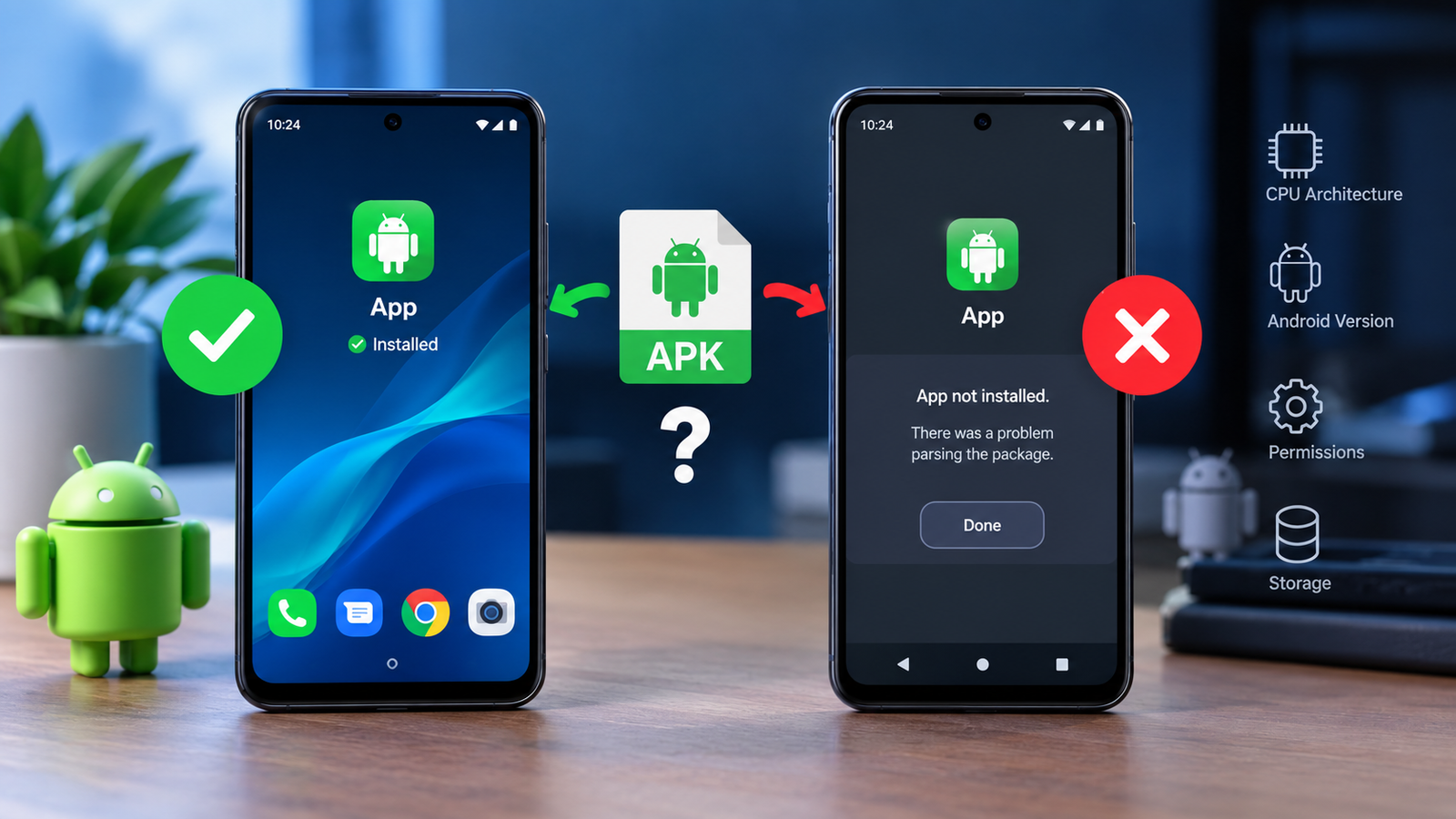
Why APK Works on One Phone but Not Another: Common Causes and Fixes
Have you ever installed the same APK on one Android phone without any problem, only to find that it refuses to install or crashes on another device? It can be confusing, especially when both phones appear to run Android and have similar specifications.
The reason is that APK compatibility depends on much more than the Android version. Factors such as processor architecture, Android security settings, screen configuration, required libraries, app permissions, available storage, and the APK’s build can all affect whether an application works correctly.
If you are wondering why APK works on one phone but not another, this guide explains the most common reasons and practical steps you can take to identify and fix the problem.
Why Does an APK Work on One Phone but Not Another?
An APK, or Android Package Kit, contains the files Android needs to install an application. However, an APK is not automatically compatible with every Android device.
Developers can build apps for specific Android versions, processor architectures, screen configurations, and hardware features. Two phones can therefore have the same APK file but produce completely different results.
For example, an APK might install successfully on a newer Samsung phone but fail on an older Xiaomi device because the devices use different Android versions, CPU architectures, or system libraries.
The most common compatibility factors include:
- Android version
- CPU architecture
- Device manufacturer and system modifications
- Required hardware features
- APK type and build
- App permissions
- Available storage
- Android security restrictions
- Missing system components
Understanding these differences is the first step toward finding the actual cause.
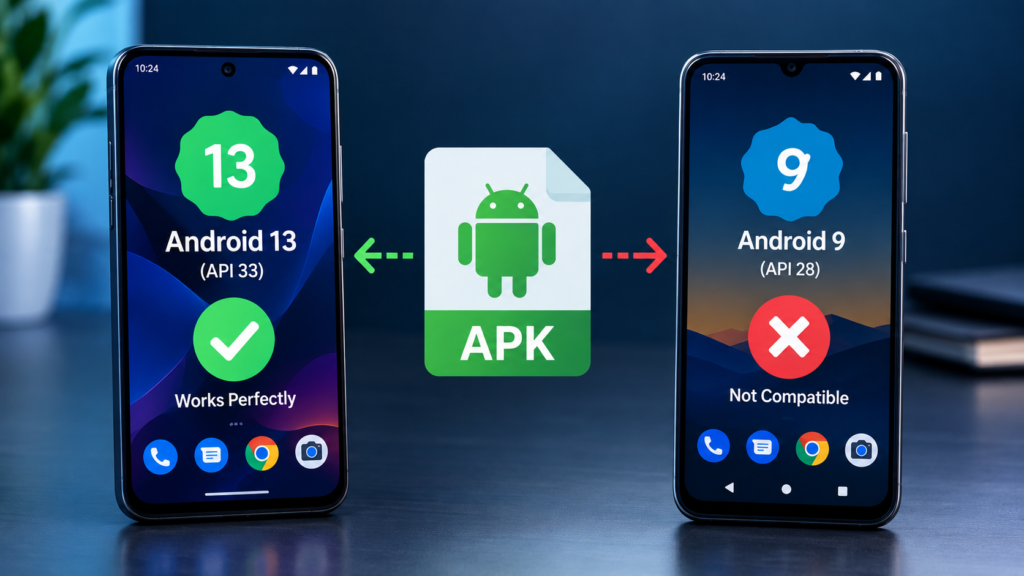
Different Android Versions Can Cause Compatibility Problems
One of the first things to check is the Android version installed on both phones.
An APK may require a minimum Android version. If one phone uses a newer version while the other runs an older release, the application may refuse to install or may crash after opening.
For example, an app built with newer Android APIs may depend on features that are unavailable on an older Android release.
You should compare the Android versions on both devices before trying complicated solutions.
Go to:
Settings → About Phone → Android Version
The exact menu name can vary depending on the manufacturer.
Also remember that a newer Android version does not automatically guarantee compatibility. An APK can still fail because of other hardware or software differences.
CPU Architecture May Be the Real Reason
Processor architecture is another major reason why APK works on one phone but not another.
Android devices can use different CPU architectures, including:
| Architecture | Common Description | Compatibility Consideration |
|---|---|---|
| ARM64 | 64-bit ARM | Common on modern Android phones |
| armeabi-v7a | 32-bit ARM | Found on some older devices |
| x86 | Intel-based architecture | Less common on modern phones |
| x86_64 | 64-bit Intel architecture | Mostly seen on specific devices and environments |
Some APKs contain native libraries designed for a particular architecture.
If the APK only includes libraries for an architecture that your second phone does not support correctly, installation or app startup can fail.
This is especially important for games and applications that use native code.
The APK May Be Designed for a Specific Device Configuration
Some APK files are not universal packages.
Developers may distribute different builds of the same application depending on the device’s:
- CPU architecture
- Android version
- Screen density
- Language
- Hardware capabilities
- Performance level
A package that works perfectly on one phone may therefore not be the correct build for another.
This is one reason downloading a random APK version can create compatibility problems even when the app’s name is identical.
Android Security Settings Can Block the Installation
Sometimes the APK itself is compatible, but Android prevents it from being installed.
Modern Android versions include security features designed to reduce the risks associated with installing applications from outside official app stores.
Depending on your device and Android version, you may see messages such as:
- “For your security, your phone currently isn’t allowed to install unknown apps.”
- “App not installed.”
- “Installation blocked.”
- “This app can’t be installed on your device.”
If the APK came from outside Google Play, check whether the application or browser you are using has permission to install unknown apps.
Look under:
Settings → Apps → Special App Access → Install Unknown Apps
The exact location may differ between manufacturers.
Only enable installation permission for a source you trust, and avoid installing APK files from suspicious websites.
The Two Phones May Have Different System Software
Android manufacturers often customize the operating system.
Samsung, Xiaomi, OnePlus, OPPO, Vivo, Google, Motorola, and other manufacturers can implement their own system features and security controls.
Even when two phones run the same Android version, their underlying software can behave differently.
For example, one manufacturer’s system may restrict background activity more aggressively, while another may handle permissions differently.
These differences can affect apps that depend heavily on background services, notifications, storage access, or device-specific functions.
Missing Hardware Features Can Prevent an APK From Working
Some applications require specific hardware.
A game might require a particular graphics capability. A camera application may depend on certain camera APIs. An augmented-reality application may require compatible sensors.
If the first phone has the required hardware and the second does not, the APK may install on both devices but only work properly on one.
Common hardware requirements include:
- GPS
- Gyroscope
- Accelerometer
- NFC
- Camera features
- Bluetooth capabilities
- Specific GPU features
- Biometric hardware
This is particularly common with games, camera apps, navigation tools, and augmented-reality applications.
Google Play Services Can Make a Difference
Some Android applications depend on Google Play services or other Google components.
If these components are missing, outdated, disabled, or incompatible, an APK may behave differently across devices.
This can happen on devices that use alternative Android ecosystems or heavily modified software.
If an app opens and immediately closes, displays a Google-related error, or fails to provide certain features, check whether the required Google components are installed and updated.
However, avoid downloading system components from unknown APK sources. Use official system or app-store update mechanisms whenever possible.
The APK Could Be Corrupted or Incomplete
A damaged download can also explain why an APK works on one phone but not another.
If you downloaded the same file twice, one copy may have been corrupted during the download.
Possible symptoms include:
- Installation stops unexpectedly
- Android reports a package error
- The app refuses to open
- The APK appears unusually small
- Installation fails near the end
Try downloading the APK again from a reputable source.
If the publisher provides a checksum or file hash, comparing it with the downloaded file can help confirm whether the package was altered or corrupted.
Storage Space Can Affect APK Installation
Insufficient storage is another simple issue that is easy to overlook.
An APK may require more free space than its file size suggests because Android needs additional room to unpack and install application files.
For example, a 100 MB APK can require considerably more available storage during installation.
Check the second phone’s available storage and remove unnecessary files if space is very limited.
Keeping some free storage available can also help Android operate more reliably.
App Permissions May Differ Between Phones
Android permissions have changed significantly across different Android versions.
An application that expects access to storage, notifications, location, camera, microphone, or other features may behave differently depending on the permissions granted.
After installing the APK, check:
Settings → Apps → [App Name] → Permissions
Review the permissions the application actually needs.
Do not automatically grant every permission requested by an unfamiliar application. If an app requests permissions that seem unrelated to its purpose, investigate before continuing.
The APK May Actually Be a Split APK or XAPK
Another important possibility is that you do not have a traditional standalone APK.
Some applications are distributed as:
- XAPK
- APKS
- APKM
- Split APK packages
These packages can contain multiple components that need to be installed together.
A single APK extracted from a split package may not contain everything the application needs.
This can explain a situation where an application appears to work on one device but fails on another after manual installation.
If the application is distributed as a split package, use a compatible and trustworthy installation method rather than treating every file as a normal standalone APK.
Compare Both Phones Before Troubleshooting
If an APK works on one phone but not another, comparing the devices can quickly narrow down the cause.
| Factor | Phone Where APK Works | Phone Where It Fails | What to Check |
|---|---|---|---|
| Android version | Compare | Compare | Minimum Android requirement |
| CPU architecture | Compare | Compare | ARM64, ARM32, x86, etc. |
| Free storage | Compare | Compare | Available installation space |
| Security settings | Compare | Compare | Unknown app installation |
| Google services | Compare | Compare | Required system components |
| Hardware | Compare | Compare | Sensors, GPU, camera, NFC |
| Permissions | Compare | Compare | Required app permissions |
| APK build | Compare | Compare | Universal or device-specific package |
This simple comparison can often reveal the difference without reinstalling the APK repeatedly.
How to Fix an APK That Works on One Phone but Not Another
Once you identify the likely cause, try the appropriate solution instead of changing multiple settings at once.
1. Check the Android Version
Confirm that the problem phone meets the APK’s minimum Android requirement.
If the operating system is too old, look for a compatible version of the application rather than forcing an incompatible build.
2. Check the APK Architecture
Find out whether the APK supports your phone’s CPU architecture.
If multiple builds are available, choose the version specifically intended for your device.
3. Download the APK Again
If the package may be damaged, delete the existing file and download a fresh copy from a reputable source.
Avoid repeatedly installing an APK that fails verification or appears modified.
4. Free Up Storage
Make sure the phone has enough free space for both the APK installation and temporary system files.
5. Check Installation Permissions
If Android blocks the installation, review the relevant “Install Unknown Apps” permission for the browser or file-sharing application you are using.
Only use this permission with sources you trust.
6. Update Required Components
Check whether Android system components, Google Play services, or other required dependencies need updates.
7. Look for a Compatible APK Build
If the application has separate versions for different Android releases or architectures, install the appropriate version instead of using the same package everywhere.
When Should You Stop Trying to Install the Same APK?
If you have confirmed that the APK is incompatible with the second device, repeatedly attempting installation will not solve the underlying problem.
Stop and look for an appropriate version when:
- The APK requires a newer Android version.
- Your CPU architecture is unsupported.
- Required hardware is missing.
- The application explicitly states that your device is unsupported.
- The APK is damaged or incomplete.
- The package requires components that your device cannot provide.
In these situations, finding a compatible version is generally more useful than repeatedly reinstalling the same file.
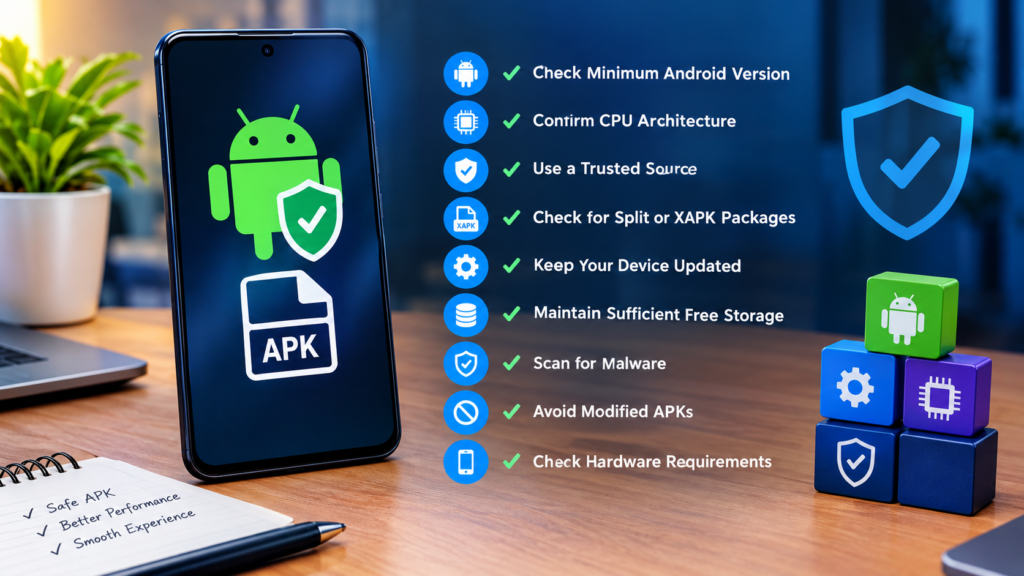
How to Avoid APK Compatibility Problems in the Future
A few precautions can reduce compatibility issues.
Before installing an APK:
- Check the minimum Android version.
- Confirm the supported CPU architecture.
- Check whether the package is standalone or split.
- Download from a reputable source.
- Keep Android and important system components updated.
- Maintain sufficient free storage.
- Scan unfamiliar files with appropriate security tools.
- Avoid modified packages from unknown sources.
- Check the application’s hardware requirements.
These steps can save time and reduce the chances of installing an incompatible or unsafe package.
Frequently Asked Questions
Why does an APK work on one phone but not another?
The two phones may have different Android versions, CPU architectures, hardware capabilities, security settings, system software, or required dependencies. The APK may be compatible with one configuration but not the other.
Can the same APK work on different Android phones?
Yes. Many APKs are designed to work across a wide range of Android devices. However, compatibility is not guaranteed because devices can differ in operating system versions, hardware, architecture, and system components.
Why does an APK install but crash on another phone?
An app can install successfully while still depending on hardware, libraries, permissions, or system components that are unavailable or incompatible on the second device.
Does Android version affect APK compatibility?
Yes. An application may require a specific minimum Android version or depend on APIs available only in newer releases. Older Android versions may therefore be unable to run certain APK builds correctly.
Can CPU architecture prevent an APK from working?
Yes. APKs containing native libraries may be built for particular CPU architectures. If the required architecture is unsupported or the wrong APK variant is installed, the application may fail to install or launch.
Is it safe to install an older APK version?
An older APK may solve a compatibility problem, but it can also lack important security fixes and features. If you need an older version, obtain it from a trustworthy source and verify that it is appropriate for your device.
Final Thoughts
If you are asking why APK works on one phone but not another, the answer is usually related to differences between the devices rather than the APK magically behaving differently.
Android version, CPU architecture, hardware, manufacturer software, permissions, security restrictions, dependencies, and APK packaging can all affect compatibility.
Also Read: Talkatone APK: Features, Benefits, Installation, and Safety Guide














1 comment