How to Check APK With Antivirus: 7 Steps to Scan Android APK Files Safely
Downloading an APK file can be useful when you want to install an Android app that is unavailable in your region or find an older version of an application. However, APK files downloaded from unfamiliar websites may contain malware, spyware, adware, or other unwanted components. Before installing one, it is important to understand how to check APK with antivirus tools and identify potential security risks.
An antivirus scan is one of the simplest ways to evaluate an APK file before installing it on your phone. Security tools can inspect files for known malware, suspicious code, and other indicators of a threat. Some services also allow you to upload an APK file for analysis without installing it first.
In this guide, you will learn how to scan an APK with antivirus software, which tools you can use, how to interpret scan results, and what additional precautions can help keep your Android device secure.
Why Should You Scan an APK File With Antivirus?
APK stands for Android Package Kit. It is the file format Android uses to distribute and install applications. Although many APK files are legitimate, not every download source checks files properly.
Some modified or malicious APKs may be designed to steal personal information, display intrusive advertisements, collect sensitive data, or install unwanted software.
Scanning an APK before installation can help you:
- Detect known malware and potentially harmful files.
- Identify suspicious APKs downloaded from unknown websites.
- Reduce the risk of installing applications containing spyware or adware.
- Check modified applications for possible security concerns.
- Make a more informed decision before installing an app.
However, an antivirus scan cannot guarantee that an APK is completely safe. New malware, hidden malicious behavior, and sophisticated modifications may not be detected by every security tool.
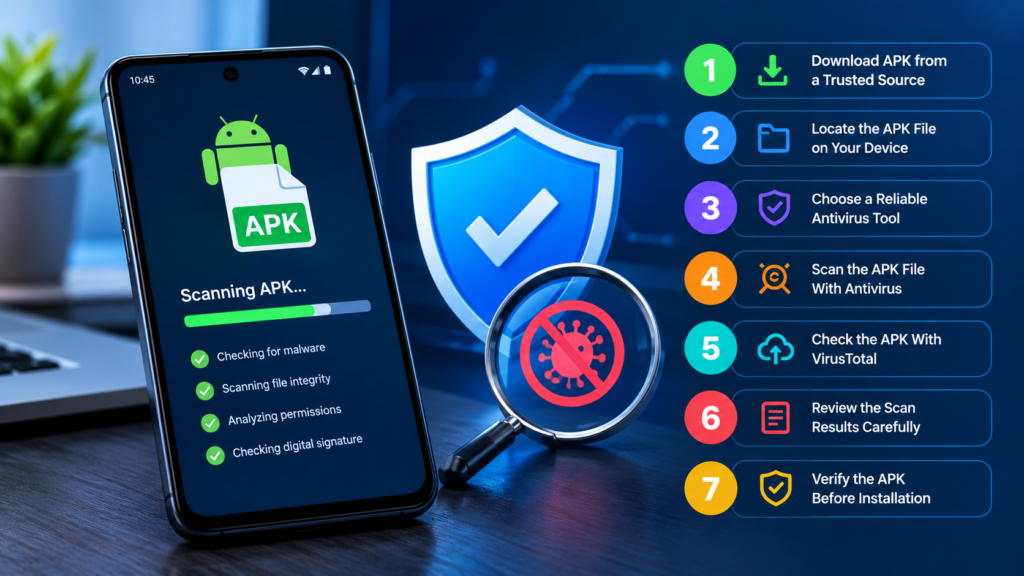
7 Steps to Check APK With Antivirus Before Installing
Follow these steps to examine an APK file before allowing it to run on your Android device.
Step 1: Download the APK From a Trusted Source
Start by obtaining the APK from the application’s official website or another reputable distribution platform.
Avoid websites that display excessive pop-ups, misleading download buttons, or requests to install unrelated applications. These warning signs do not automatically prove that a file is malicious, but they deserve attention.
Before scanning the file, check its name, version, file size, and source. If the website provides a cryptographic hash or a verified digital signature, keep that information for additional checks.
Important: Do not open or install the APK simply to see whether it works. The purpose of checking it first is to evaluate potential risks before installation.
Step 2: Locate the APK File on Your Device
Once the download is complete, open your Android file manager.
In most cases, the APK will be saved in the Downloads folder. If you downloaded it through a browser, you can also check the browser’s download history.
Look for a file ending in .apk. Make sure you select the actual installation file rather than a screenshot, ZIP archive, or unrelated document.
If the file has an unexpected extension or its name does not match the application you intended to download, investigate it before continuing.
Step 3: Choose a Reliable Antivirus Tool
The next step is to select a security tool that can examine APK files. Some Android antivirus applications can scan files stored on your device, while online services allow you to submit files for analysis.
Here are several options worth considering.
| Antivirus tool | How it can help | Best use |
|---|---|---|
| Google Play Protect | Checks installed apps and apps being installed through supported Android workflows | General Android app protection |
| VirusTotal | Compares file detections from multiple security engines | Checking a suspicious APK before installation |
| Malwarebytes for Android | Provides Android security scanning and protection features | Checking device and app security |
| ESET Mobile Security | Offers Android security features, depending on the product version | Additional mobile security checks |
Features and availability can change by device, region, and product version. Not every tool supports scanning an arbitrary APK file directly from local storage.
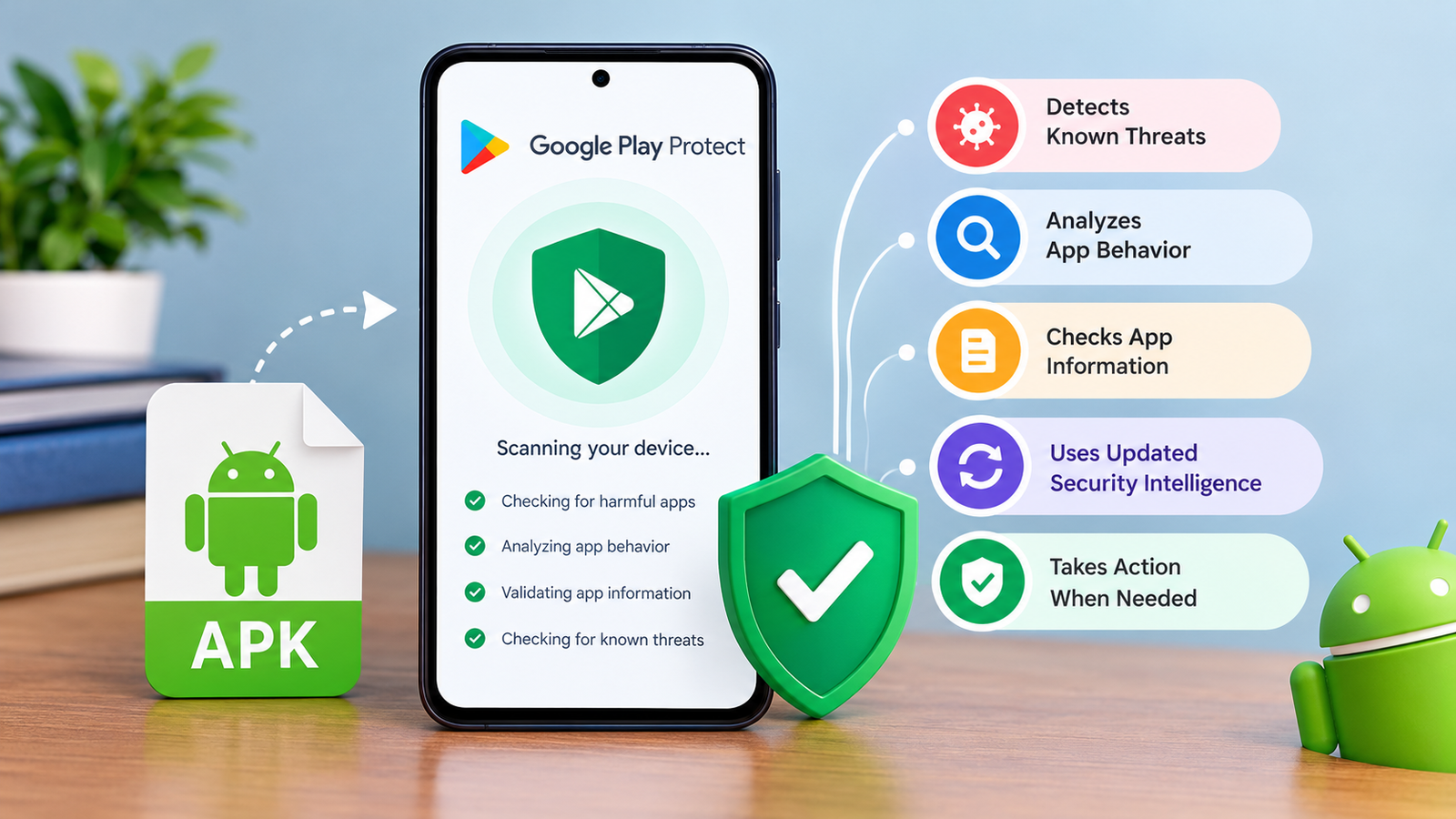
For example, Google Play Protect is primarily designed to protect Android users during app installation and use. It should not be treated as a universal manual APK-file scanner.
VirusTotal is particularly useful when you have an APK saved on your computer or phone and want to compare detections from multiple security engines.
Step 4: Scan the APK File With an Antivirus Tool
If your chosen antivirus supports local file scanning, open the application and look for options such as Scan, File Scan, or Custom Scan.
The exact steps depend on the security app.
A typical process looks like this:
- Open your antivirus application.
- Find the file-scanning option, if available.
- Select the Downloads folder or the location containing the APK.
- Choose the APK file you want to examine.
- Start the scan and wait for the results.
- Review any warnings or detections before taking further action.
Some antivirus applications automatically scan files during installation or when they are accessed. Others focus on installed applications and may not offer a separate APK scanner.
If your antivirus cannot scan the APK directly, use a reputable online analysis service instead.
Step 5: Check the APK With VirusTotal
VirusTotal is an online service that analyzes submitted files using multiple security engines and other analysis tools.
To use it, follow these steps:
- Open the official VirusTotal website at https://www.virustotal.com/.
- Select the file-upload option.
- Choose the APK you want to inspect.
- Upload the file and wait for the analysis to finish.
- Review the detection summary and individual security-engine results.
If the exact file has already been analyzed, VirusTotal may display an existing report instead of requiring a new analysis.
Pay attention to the overall detection summary, the names of engines reporting threats, and any available technical details. A single detection does not always prove that a file is malicious, because false positives can occur.
Likewise, a result showing no detections does not guarantee safety. A new or carefully concealed threat may escape detection.
Privacy tip: Uploading a file to an online scanning service means sharing it with that service under its applicable policies. Avoid uploading APKs that contain confidential information or files you are not authorized to share.
Step 6: Review the Scan Results Carefully
After scanning, determine whether the results indicate a potential threat.
A clean result is encouraging, but you should still check the APK’s source, requested permissions, signature, and expected behavior.
Use this table to understand common outcomes.
| Scan result | What it may mean | Recommended action |
|---|---|---|
| No detections | The tools did not identify a known threat | Continue with additional checks |
| One suspicious detection | A possible threat or false positive | Investigate the detection and verify the source |
| Multiple consistent detections | A stronger indication of a potential security threat | Avoid installing the APK |
| Trojan or spyware warning | The file may contain malicious functionality | Do not install it |
| Scan unavailable or failed | The file was not successfully evaluated | Try another reputable method |
Do not focus only on the number of detections. The type of detection, the reputation of the security engines, and the file’s origin also matter.
If several reputable engines independently flag an APK as a Trojan, spyware, or another serious threat, the safest choice is to avoid installing it.
Step 7: Verify the APK Before Installation
Antivirus scanning should be part of a broader verification process.
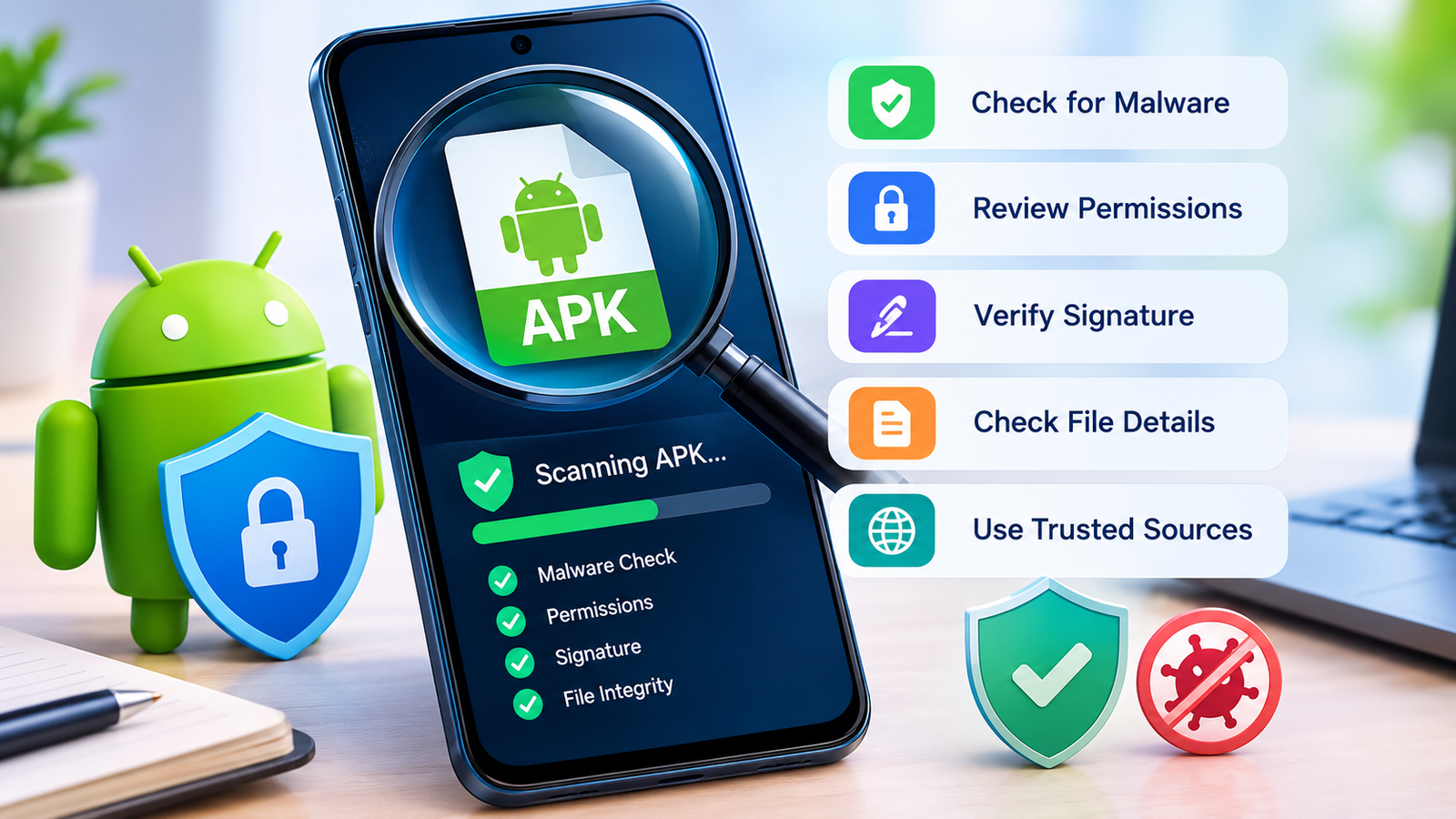
Before installing the file, check the following:
- Source: Confirm that the APK came from an official or reputable website.
- Digital signature: Check whether the signing certificate matches the developer’s expected certificate, when reliable reference information is available.
- File hash: Compare the SHA-256 hash against a value published by a trustworthy source, if one is available.
- Permissions: Review whether the requested access makes sense for the app’s purpose.
- Version: Confirm that the APK matches the intended application and Android version.
- File integrity: Make sure the download completed correctly and the file has not been unexpectedly modified.
A matching hash proves that the file matches the reference file used for comparison. It does not independently prove that the original file is safe.
Similarly, a valid digital signature can help establish file integrity and developer continuity, but a signed application can still contain unwanted or malicious functionality.
If the file’s origin is unclear, multiple tools report serious warnings, or the app requests excessive permissions, do not install it.
Can You Scan an APK Without Installing It?
Yes. You can scan many APK files without installing them on your Android device.
Online services such as VirusTotal allow you to submit an APK for analysis before installation. Some desktop security programs also support scanning downloaded files directly.
This approach is useful because installing an application can expose your device to its behavior, including potentially harmful activity.
However, file scanning has limitations. Some threats only become apparent when an application runs, communicates with a remote server, or receives particular instructions. Static analysis and antivirus signatures may not reveal every risk.
For better protection, combine pre-installation scanning with source verification, signature checks, and careful permission review.
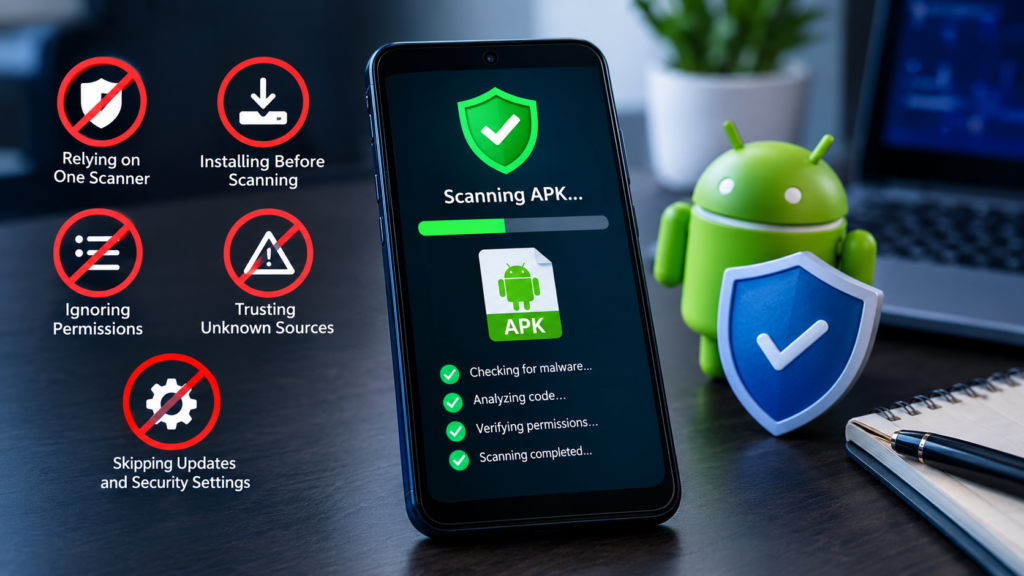
Common Mistakes to Avoid When Scanning APK Files
Even when you use reliable antivirus tools, certain mistakes can lead to false confidence.
Trusting an APK Because One Scanner Says It Is Safe
Different security engines use different detection methods and threat databases. One scanner may miss a threat detected by another.
Use the available evidence collectively rather than relying on a single result.
Installing the APK Before Scanning It
Installing a suspicious APK first defeats the purpose of checking it beforehand. Scan the file and verify its origin before opening it.
Ignoring Excessive Permissions
An application that requests access to SMS messages, contacts, accessibility services, or other sensitive features without a clear reason deserves additional scrutiny.
These permissions are not automatically malicious, but unexpected requests may indicate unnecessary data collection or abuse.
Assuming Every Antivirus Warning Is Accurate
False positives can happen, particularly with modified applications, uncommon software, or newly released files.
Investigate the report using trustworthy sources. However, do not dismiss multiple consistent detections simply because you want to install the app.
Ignoring Updates and Security Settings
Keep Android and your security applications updated. New threat definitions and operating-system security improvements can help identify risks that older versions may miss.
Also, avoid disabling Android security protections just to install a file that has been flagged as dangerous.
Frequently Asked Questions
1. How do I check an APK with antivirus for free?
You can use free security features offered by tools such as VirusTotal and Google Play Protect. VirusTotal lets you submit APK files for analysis, while Play Protect helps check apps through supported Android installation and protection workflows. Their capabilities differ, so choose the method that fits your file and device.
2. Can VirusTotal detect all APK malware?
No. VirusTotal combines results from multiple security engines, which can improve your chances of identifying known threats. However, new malware, hidden functionality, and certain advanced attacks may not be detected. A clean report should not be considered a guarantee of safety.
3. Is an APK safe if antivirus shows zero detections?
Not necessarily. Zero detections means that the scanning engines did not identify a threat at that time. It does not prove that the APK is harmless. Always check the download source, digital signature, requested permissions, and other available security information.
4. Can I scan an APK directly on my Android phone?
Yes, provided that your chosen security application supports scanning local APK files. Some tools offer file scanning, while others mainly check installed apps or installation activity. If direct scanning is unavailable, you can consider an online analysis service and review its privacy policies before uploading the file.
5. What should I do if antivirus detects a Trojan in an APK?
Do not install the APK. Delete the file if you no longer need it, and obtain the application from a trusted source. If you already installed the app, uninstall it if possible, run a security scan, review sensitive permissions, and update your device. If you entered passwords or financial information into a suspicious app, use a trusted device to change affected credentials and take appropriate account-security measures.
6. Is scanning an APK better than checking its permissions?
Both checks are useful, but they serve different purposes. Antivirus scanning can identify known malicious patterns, while permission review helps you recognize access requests that may be unnecessary for an app’s purpose. Combining these checks with source and signature verification provides a more informed assessment than relying on either method alone.
Final Thoughts
Learning how to check APK with antivirus is an important step toward safer Android app installation. A reliable security tool can help identify known malware before you install an application, and services such as VirusTotal make it possible to examine many APK files without running them on your device.
For the best results, download applications from trusted sources, scan suspicious files, review the results carefully, and verify signatures and permissions whenever possible. Avoid installing APKs that receive multiple credible malware detections or come from sources you cannot trust.
Also Read: Meesho App: Features, Shopping Guide, Benefits, and Safety Tips











1 comment