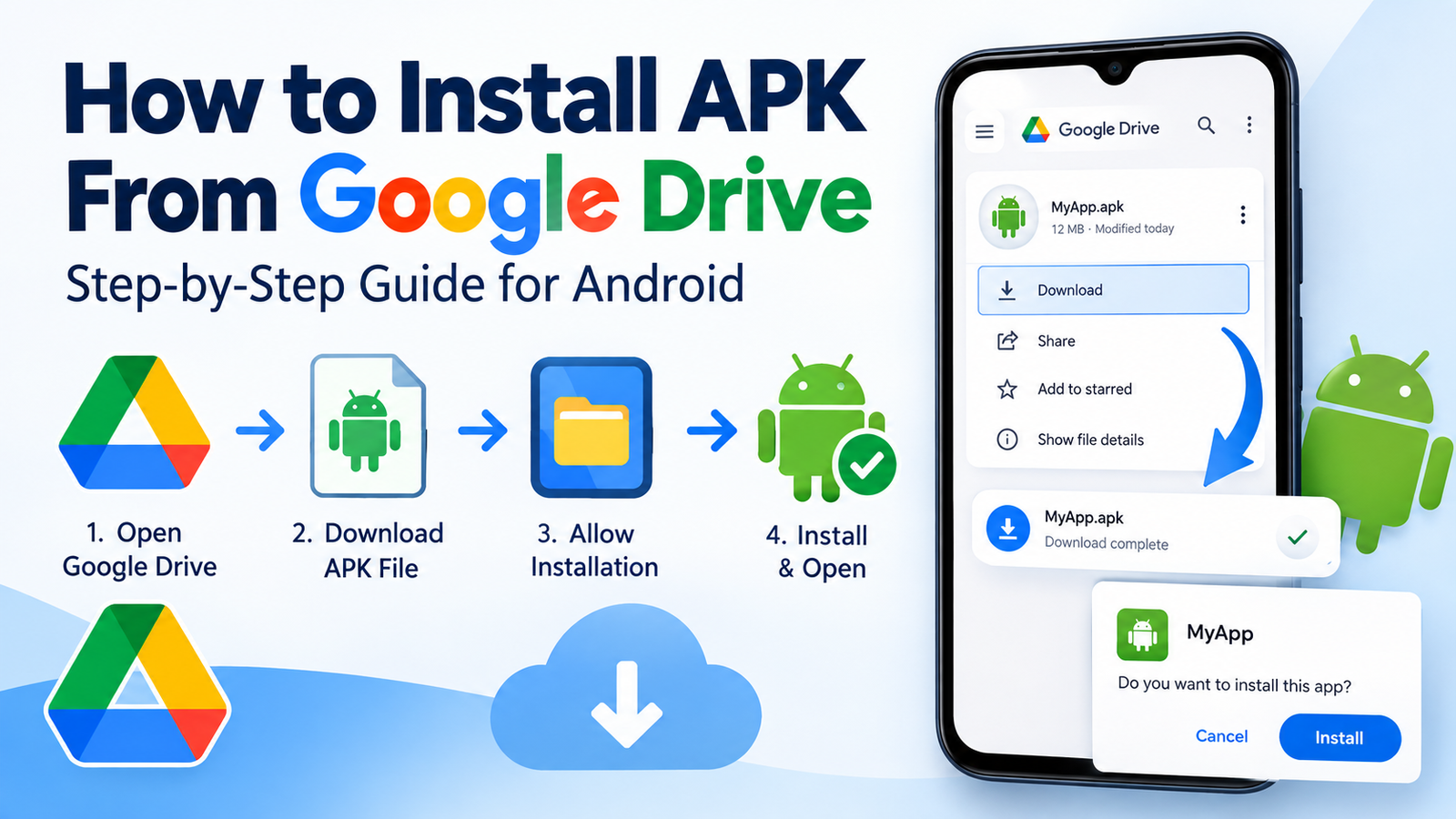
How to Install APK From Google Drive on Android: A Complete Step-by-Step Guide
Installing an APK from Google Drive can be a convenient way to move an Android app installation file between devices or keep a backup of an APK in the cloud. Instead of transferring the file with a cable or messaging app, you can upload it to Google Drive and download it whenever you need it.
However, downloading an APK from Google Drive is only part of the process. Android may block the installation if your device does not allow APK files from the app you are using. Depending on your Android version and phone manufacturer, you may also see security warnings or permission prompts.
In this guide, you will learn how to install APK from Google Drive safely and correctly. We will cover how to download the APK, allow installation from the appropriate source, install the app, troubleshoot common errors, and follow safer practices when using APK files.
What Is an APK File?
APK stands for Android Package Kit. It is the package format Android uses to distribute and install applications outside the standard Google Play Store process.
When you download an app from a website, receive an APK from another person, or save an APK in Google Drive, the file may have a name similar to:
example-app.apk
An APK generally contains the components Android needs to install an application, including the app’s code, resources, manifest information, and other files.
Google Drive itself does not install the APK. It simply stores and delivers the file. Your Android device’s package installer handles the actual installation.
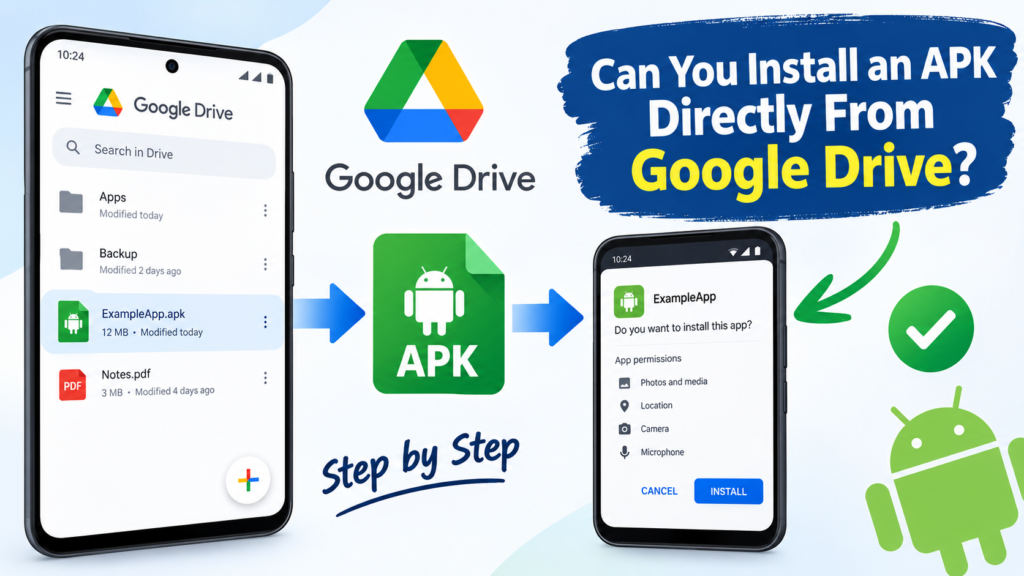
Can You Install an APK Directly From Google Drive?
Yes, in many cases you can download an APK from Google Drive and install it on an Android phone.
The exact steps can vary depending on your Android version and device manufacturer. On some phones, tapping the APK in Google Drive may open the installation process after the file finishes downloading. On others, you may need to open the downloaded file through a file manager.
The basic process looks like this:
- Upload the APK to Google Drive.
- Open Google Drive on your Android phone.
- Download the APK file.
- Open the downloaded APK.
- Allow installation from the source if Android asks.
- Confirm the installation.
- Open the app after installation is complete.
Before installing an APK, make sure you trust where it came from. Google Drive is a storage service; storing a malicious APK in Drive does not make the APK safe.
How to Install APK From Google Drive Step by Step
Follow these steps if you already have an APK stored in your Google Drive account.
Step 1: Open Google Drive
Open the Google Drive app on your Android device and sign in to the Google account containing the APK.
Find the folder where you saved the installation file. If someone shared the APK with you through Google Drive, open the shared file or folder instead.
Step 2: Find the APK File
Look for the file ending in .apk.
For example:
MyApp.apk
Check the filename carefully before downloading. If you were expecting an APK but the file has a different extension, it may be a different Android package format.
Step 3: Download the APK
Tap the three-dot menu next to the APK file and choose Download.
Google Drive should save the file to your device’s Downloads folder or another location selected by the system.
The download time depends on the file size and your internet connection.
Step 4: Locate the Downloaded File
Once the download is complete, open your phone’s Files, File Manager, or similar file-management application.
Go to the Downloads folder and look for the APK.
Some Android phones allow you to open the downloaded file directly from the notification or download screen.
Step 5: Tap the APK File
Tap the APK to start the installation process.
If this is your first time installing an APK from that particular source, Android may display a message saying that your phone is not allowed to install unknown apps from the current source.
Don’t worry if you see this warning. It is a security feature designed to prevent applications from installing packages without your permission.
Step 6: Allow Installation From the Source
On newer Android versions, permission is generally granted to the specific app attempting to start the installation.
For example, if you opened the APK through a file manager, Android may ask you to allow that file manager to install unknown apps.
Open the relevant setting and enable the option that allows installation from that source.
Then return to the APK and tap it again.
Important: Only enable this permission for sources you trust. You can disable it again after installing the APK.
Step 7: Confirm the Installation
Android should now display an installation screen.
Review the app name and requested permissions if they are shown. If everything looks correct, tap Install.
Wait while Android verifies and installs the application.
Step 8: Open the App
When the installation finishes, tap Open to launch the app.
You can also find the newly installed application in your normal app drawer.
Quick Overview of the Installation Process
| Step | What to Do | What to Check |
|---|---|---|
| 1 | Open Google Drive | Use the correct account |
| 2 | Find the APK | Confirm the .apk extension |
| 3 | Download the file | Wait for the download to finish |
| 4 | Open Files/File Manager | Check the Downloads folder |
| 5 | Tap the APK | Start installation |
| 6 | Allow the source | Only permit trusted apps |
| 7 | Tap Install | Check the app name |
| 8 | Launch the app | Make sure it works normally |
Why Android May Block an APK From Google Drive
If your APK does not install, there are several possible reasons.
The most common is that Android has not given the app you’re using permission to install unknown applications.
For example, you might download an APK from Google Drive and open it through a file manager. Android may block the installation because that file manager is not currently authorized to install APK files.
Other possible causes include:
- The APK is damaged or incomplete.
- The APK is incompatible with your Android version.
- Your device does not support the app’s architecture.
- A newer version of the app is already installed.
- The APK requires additional files.
- Android’s security features have identified a potential risk.
- You downloaded a file that is not actually a standard APK.
Understanding the specific error message can make troubleshooting much easier.
How to Allow APK Installation on Android
The setting varies between devices, but the general process is similar.
Try this:
- Open Settings.
- Search for Install unknown apps.
- Select the app you used to open the APK.
- Turn on Allow from this source.
- Return to the downloaded APK.
- Try installing it again.
On some devices, the setting may be located under Apps, Special app access, or a similarly named section.
You do not normally need to enable installation permissions for every application on your phone. Android’s newer security model generally lets you control the permission on a per-source basis.
What to Do If Google Drive Does Not Download the APK
Sometimes the problem occurs before installation even begins.
If Google Drive refuses to download the APK, try these solutions:
Check Your Internet Connection
A weak or unstable connection can interrupt downloads. Try switching between Wi-Fi and mobile data if necessary.
Check Available Storage
Your phone needs enough free storage for the APK and the installed application. If your storage is nearly full, delete unnecessary files and try again.
Restart Google Drive
Close Google Drive completely and reopen it. Then attempt the download again.
Try a Different Download Location
If the download appears to finish but you cannot find the APK, check your Downloads folder using a file manager.
You can also use Android’s search feature to look for the filename.
What If the APK Says “App Not Installed”?
The App not installed message can have several causes.
First, make sure the APK is compatible with your device. An APK built for a different Android architecture or operating-system version may fail to install.
Another common issue is an existing version of the same app. If your phone already has the application installed, the downloaded APK may not be compatible with the currently installed version or signing key.
You can also try downloading the APK again in case the original file was corrupted.
If the APK came from an unknown source, consider finding a legitimate version from the application’s developer or another trustworthy distribution channel rather than repeatedly trying questionable files.
Can You Install APKs From a Google Drive Link?
Yes. If someone shares an APK with you through Google Drive and gives you appropriate access, you can generally download the file to your Android device and install it using the same process.
However, be careful with APK links shared through unfamiliar websites, social media accounts, forums, or messages.
A Google Drive link only tells you where the file is hosted. It does not prove that the APK is genuine or free from malware.
Before installing a shared APK, consider:
- Who provided the file?
- Is it from the official developer?
- Does the filename match the expected app?
- Is the file unusually large or suspiciously small?
- Does Android display a security warning?
- Is there a safer official source for the same application?
Is It Safe to Install an APK From Google Drive?
Google Drive is generally a convenient place to store APK files, but safety depends on the APK itself and its origin.
If you created an APK backup from your own device, the risk may be relatively low. If someone sends you an APK from an unknown source, you should be much more cautious.
Avoid installing APK files simply because someone claims they are “premium,” “unlocked,” or “modded.” Modified applications can introduce additional risks, especially when their source is unclear.
For important applications, banking apps, password managers, and other sensitive software, the official Google Play listing or developer-provided installation method is usually the safer choice.
Google Drive APK Installation vs Other Methods
Google Drive is not the only way to transfer an APK between devices.
| Method | Main Advantage | Possible Drawback |
|---|---|---|
| Google Drive | Easy cloud access | Requires internet |
| USB cable | Fast local transfer | Requires a cable |
| Quick Share | Convenient nearby transfer | Devices need to support the feature |
| SD card | Works without internet | Requires compatible hardware |
| Messaging apps | Easy for small files | File-size or compression limitations |
Google Drive can be particularly useful when your old device and new device are not physically close to each other.
What About XAPK, APKM, and APKS Files?
One important detail is the file extension.
If your downloaded file ends with .apk, it is a standard APK package.
However, you may encounter files such as:
.xapk.apkm.apks
These are not necessarily installable by simply tapping them like a normal APK.
Some of these formats can contain multiple APK components or additional resources. They may require a compatible installer rather than Android’s standard package installer.
If you download one of these files from Google Drive, first identify the format before attempting installation. Renaming a file extension from .xapk to .apk, for example, does not magically convert the package into a standard APK.
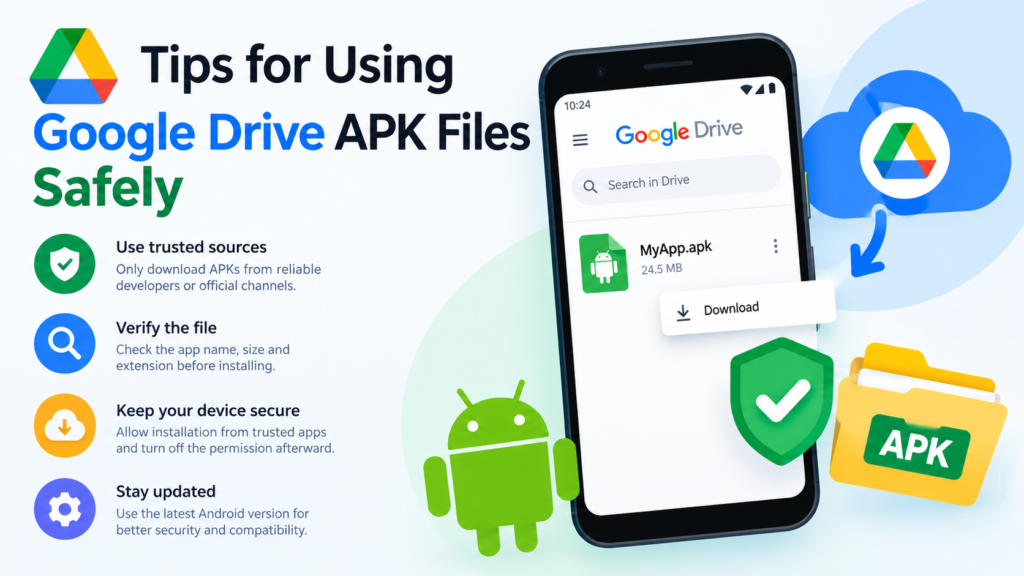
Tips for Using Google Drive APK Files Safely
A few simple habits can make APK installation much safer.
Keep a backup of important APKs: If you are storing an APK for personal backup purposes, use a clearly named folder in Google Drive.
Verify the source: Know where the APK came from before installing it.
Don’t trust the hosting service alone: A file being stored on Google Drive does not guarantee that it is safe.
Use the correct package: Make sure you have the right version for your Android device.
Disable unnecessary installation permissions: After installing the APK, you can turn off the permission that allows the source to install unknown apps.
Keep Android updated: System updates often include security improvements and compatibility fixes.
Frequently Asked Questions
Can I install an APK directly from Google Drive?
Usually, you need to download the APK to your Android device first. After downloading it, open the file through your Downloads folder or file manager and follow Android’s installation prompts.
Why won’t my APK from Google Drive install?
The APK could be incompatible, damaged, incorrectly packaged, or blocked by Android’s security settings. Check that installation from the source is permitted and that the APK is intended for your device.
Do I need an internet connection to install an APK downloaded from Google Drive?
You need an internet connection to download the APK from Google Drive. Once the complete APK is stored locally, the installation itself generally does not require an internet connection, although some apps may need internet access during setup.
Is it safe to download APK files from Google Drive?
Google Drive is simply the storage location. The safety of an APK depends primarily on its source and contents. Only install APKs from sources you trust.
Can I install an APK shared by someone else through Google Drive?
Yes, provided you have permission to access and download the file. Before installing it, verify that the APK comes from a trustworthy source and is compatible with your device.
What should I do if Android says “For your security, your phone currently isn’t allowed to install unknown apps”?
Open the relevant security or app settings and allow the application you are using to install unknown apps. After completing the installation, consider turning that permission off again.
Final Thoughts
Learning how to install APK from Google Drive is relatively simple once you understand how Android handles downloaded application packages. The basic process is to download the APK from Google Drive, locate it in your device’s storage, allow installation from the source when necessary, and confirm the installation.
The most important part is not the Google Drive download itself but where the APK came from. Cloud storage makes it easy to move files between devices, but it does not automatically verify that an application is legitimate or safe.
Also Read:





Post Comment