Why Is My APK Not Installing on Android? Common Causes and Easy Fixes
If you are wondering Why Is My APK Not Installing on Android, you are not alone. An APK may fail to install because of blocked permissions, an incompatible Android version, a damaged file, insufficient storage, or security restrictions. Fortunately, most APK installation problems can be identified and fixed with a few simple checks.
Android normally installs apps through the Google Play Store, but APK files allow users to install applications from other sources. This can be useful when an app is unavailable in your region or when you need a particular version. However, installing APK files manually can sometimes produce confusing errors.
In this guide, we will explain the most common reasons an APK refuses to install and what you can do to troubleshoot the problem safely.
What Is an APK File?
APK stands for Android Package Kit. It is the standard package format used by Android to distribute and install applications.
When you download an APK outside the Google Play Store, your phone receives an installation package containing the files required for the application. Android then checks the package before allowing it to be installed.
An APK can fail during this process for several reasons. The problem may be with the file itself, your phone’s settings, available storage, or compatibility between the app and your device.
Why Is My APK Not Installing on Android?
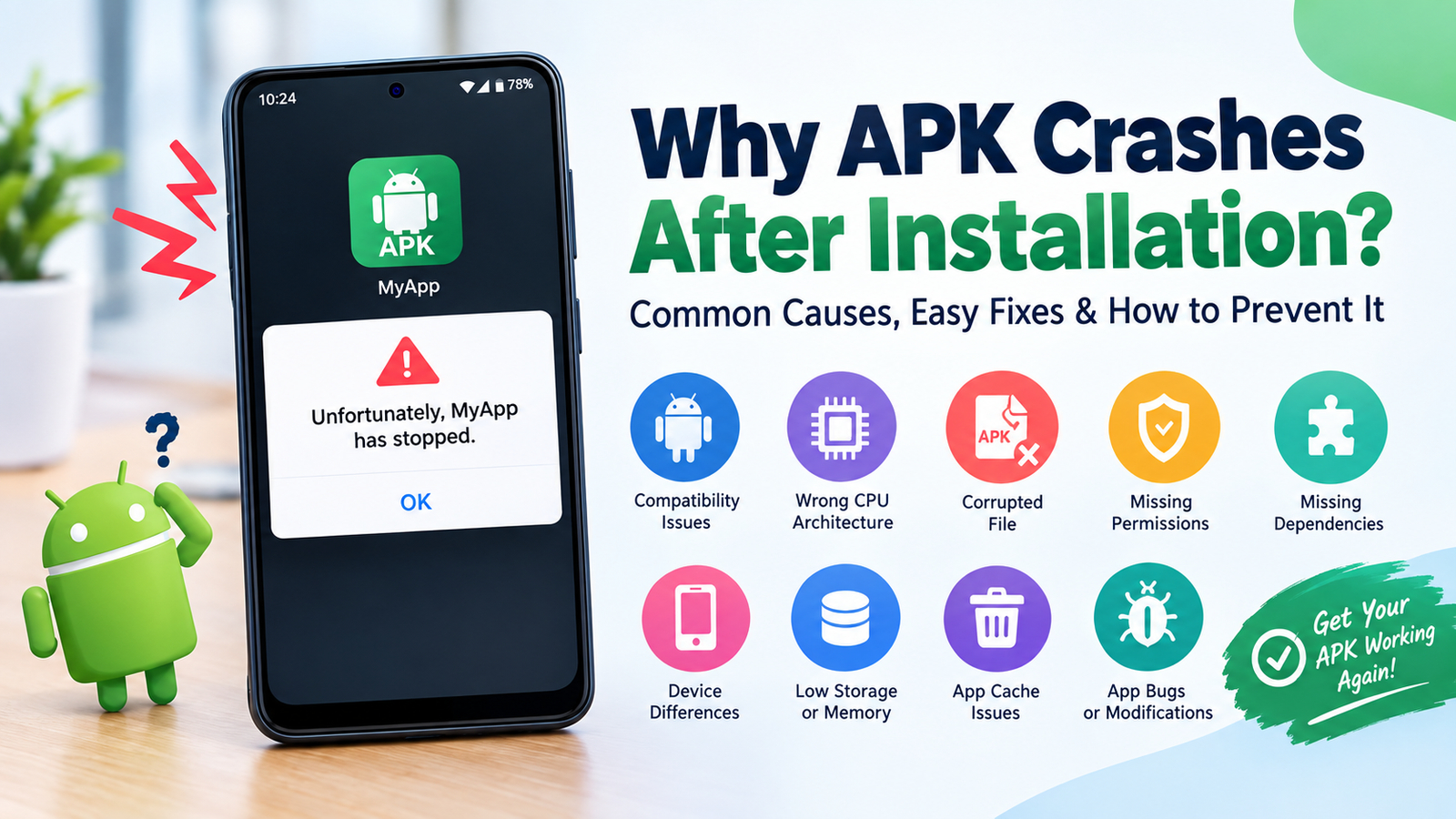
There is no single reason why an APK might fail to install. Android checks several conditions before completing an installation.
Here are some of the most common causes:
- Installation from unknown sources is blocked.
- The APK is incomplete or corrupted.
- The APK does not support your Android version.
- Your device does not have enough free storage.
- An older version of the same app is already installed.
- The APK is designed for a different device architecture.
- Android security features have blocked the installation.
- The APK package is not compatible with your device.
- The downloaded file is not actually a valid APK.
- A temporary system or package installer problem is preventing installation.
Understanding the specific cause makes troubleshooting much easier.
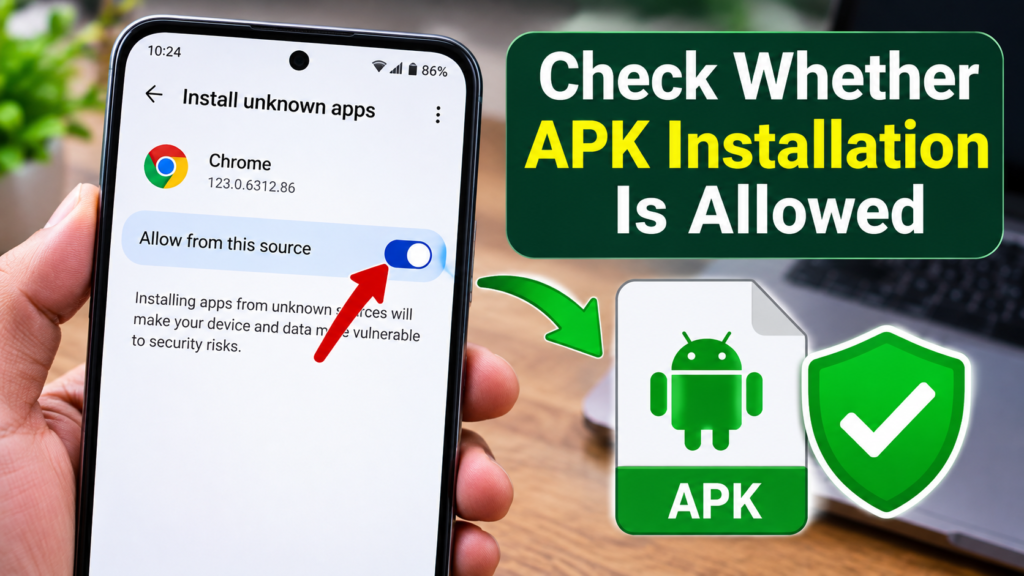
Check Whether APK Installation Is Allowed
One of the first things to check is whether your Android device allows applications to be installed from sources other than the Play Store.
Modern Android versions generally manage this permission on a per-app basis. For example, if you downloaded the APK using Chrome, Chrome may need permission to install applications from that source.
The exact menu names can vary between manufacturers and Android versions.
Look for an option similar to:
Settings → Apps → Special app access → Install unknown apps
Select the application you used to download or open the APK and check whether the relevant permission is enabled.
Only enable this permission for sources you trust. After installing the application, you can disable the permission again if you do not need it.
Make Sure the APK File Is Complete
A damaged or incomplete download is another common reason an APK will not install.
If your internet connection stopped during the download, the file may appear on your phone but still be unusable.
Try these steps:
- Delete the problematic APK.
- Check that your internet connection is stable.
- Download the file again from a reputable source.
- Make sure the download finishes completely.
- Try opening the new APK after the download has completed.
Avoid downloading APK files from random websites or suspicious pop-ups. An APK can contain unwanted or harmful software, so the source matters.
Check Your Android Version
Apps are developed for specific Android versions and device environments. An APK created for a newer Android release may not work properly on an older phone.
Before installing an APK, check your Android version under your phone’s settings.
You can usually find it under:
Settings → About phone → Android version
Compare your Android version with the requirements provided by the application’s developer.
If the application requires a newer Android release than your device supports, changing installation settings will not solve the compatibility problem. You may need to update Android or find a version that officially supports your device.
Check Available Storage
Insufficient storage can also prevent an APK from being installed.
An application may need more space during installation than the size shown for the downloaded APK. Android may require additional room to unpack files and complete the installation process.
Check your available storage under your device’s storage settings.
If your phone is nearly full, consider removing:
- Unused applications
- Large videos
- Duplicate photos
- Old downloads
- Unnecessary cached files
- Files you have already backed up
After freeing some space, restart the installation process.
An Existing App May Be Causing a Conflict
Sometimes an APK cannot be installed because another version of the same application is already installed.
This can happen when the existing app was installed from a different source or has a different signing key.
For example, you may already have an application installed through the Play Store while trying to manually install another package with the same app identity.
If you do not need the existing application, you can consider uninstalling it before trying again.
However, back up important app data first. Removing an application may also remove locally stored information.
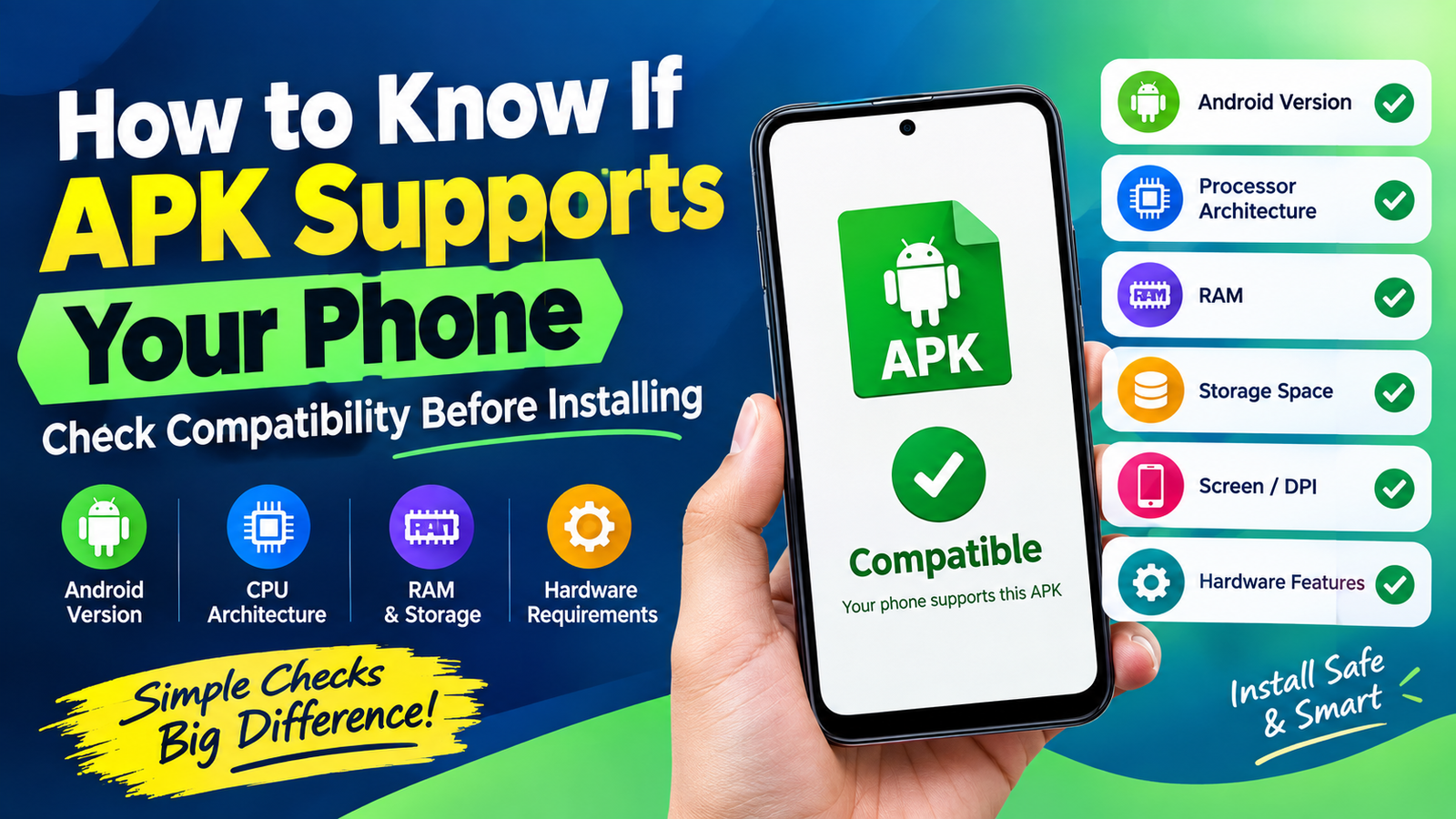
Check the APK’s Compatibility
Not every APK works on every Android phone.
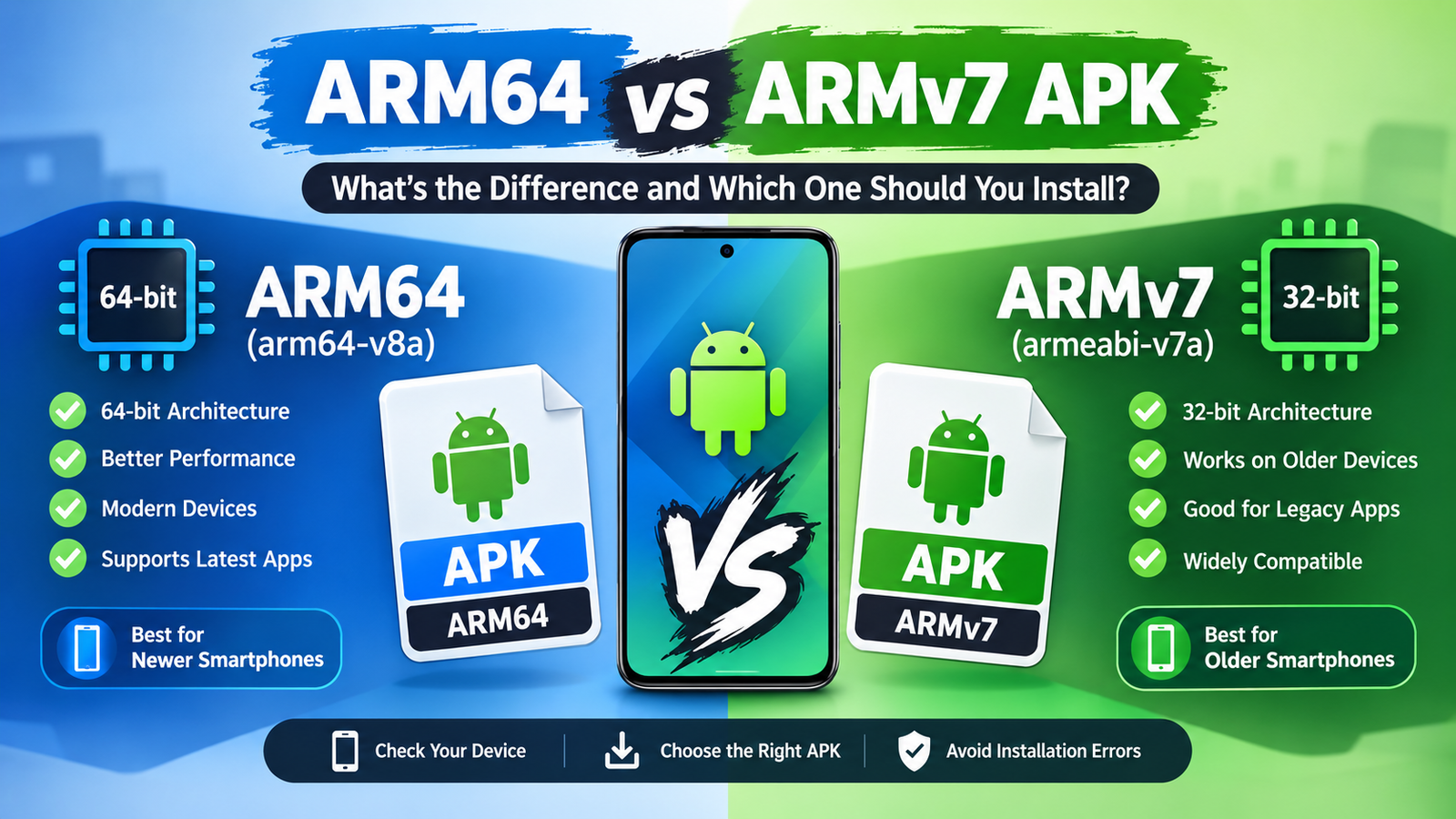
Some applications are built for particular hardware architectures, screen configurations, or Android environments. An APK intended for one architecture may not work correctly on another device.
This is especially important with APK packages that have been modified, repackaged, or split into multiple components.
If an APK has specific device requirements, check the developer’s documentation before attempting installation.
A version specifically intended for your device is generally preferable to forcing an incompatible package to install.
Your APK May Be a Split Package
Another possible source of confusion is that not every Android application is distributed as one simple APK file.
Some applications use multiple APK components. These may be delivered together through modern app distribution systems.
If you download only one component when several are required, normal Android installation may fail.
You may encounter files or packages associated with formats such as:
- APK
- Split APK
- App Bundle
- Device-specific packages
If the application requires multiple components, use the installation method recommended by the application’s developer or the legitimate distribution platform.
Android Security May Be Blocking the Installation
Android includes security mechanisms designed to protect users from potentially harmful applications.
If your device displays a warning about an APK, do not automatically ignore it.
Security warnings can indicate that the application has been identified as potentially unsafe, suspicious, or unavailable through trusted distribution channels.
Before continuing, consider:
- Where did the APK come from?
- Do you trust the developer?
- Does the file match the official application’s name?
- Was the APK unexpectedly modified?
- Is the download page filled with misleading buttons or pop-ups?
If you cannot verify the source, the safest choice is not to install the file.
Common APK Installation Errors and Their Possible Causes
Different Android devices can display different error messages. However, many installation errors point toward a small number of underlying problems.
| Installation Problem | Possible Cause | What to Check |
|---|---|---|
| App not installed | Compatibility or package conflict | Android version and existing app |
| Parse error | Damaged or incompatible APK | Download the correct file again |
| Installation blocked | Security or permission settings | Installation permissions and source |
| Insufficient storage | Not enough free space | Device storage |
| Package conflict | Existing app version | Current installed application |
| APK won’t open | Invalid or incomplete file | File extension and download |
| Installation starts but fails | System or compatibility issue | Restart and check requirements |
The exact solution depends on the error displayed by your device.
Restart Your Android Phone
A simple restart can sometimes resolve temporary problems with Android’s package installer.
If the APK appears to be valid but installation repeatedly fails, restart your device and try again.
Restarting can clear temporary system processes and refresh background services that may have become stuck.
It is a basic step, but it is worth trying before making more significant changes to your phone.
Clear Temporary Problems With the Package Installer
If several legitimate APK files fail to install, the problem may not be with one particular file.
Your device’s package installation process could be experiencing a temporary issue.
Depending on your Android version and phone manufacturer, you may be able to find package-related system components under:
Settings → Apps → Show system apps
Be careful when changing settings for system applications. Do not disable or remove system components unless you understand what they do.
If the problem affects multiple apps, checking for available Android system updates can also be useful.
Update Android and Your Device Software
Older system software can sometimes create compatibility problems with newer applications.
Check your phone’s software update section to see whether an official update is available.
Keeping Android updated can provide:
- Bug fixes
- Security improvements
- Better application compatibility
- Performance improvements
- Updated system components
If your phone is too old to receive newer Android versions, you may need to use an application version that officially supports your device.
Make Sure the File Really Is an APK
Not every file downloaded from an APK-related website is necessarily an actual APK.
Some websites use misleading download buttons that can lead to advertisements, archives, or unrelated files.
Before opening a downloaded file, check its filename and extension.
A legitimate APK file normally ends with:
.apk
If the file has a different extension, do not rename it blindly and assume it will become a working APK. The underlying file still needs to be a valid Android application package.
Avoid Random Modified APK Files
Modified APKs can introduce additional compatibility and security problems.
A modified application may have changed code, altered permissions, removed components, or been repackaged in a way that causes Android to reject it.
More importantly, you cannot always know what changes have been made to an unofficial package.
For safer installation, prefer:
- Official developer websites
- Google Play Store
- Well-known legitimate app distribution platforms
- Verified APK files supplied directly by the developer
If an application is unavailable through your normal app store, research the developer and verify the source before downloading anything.
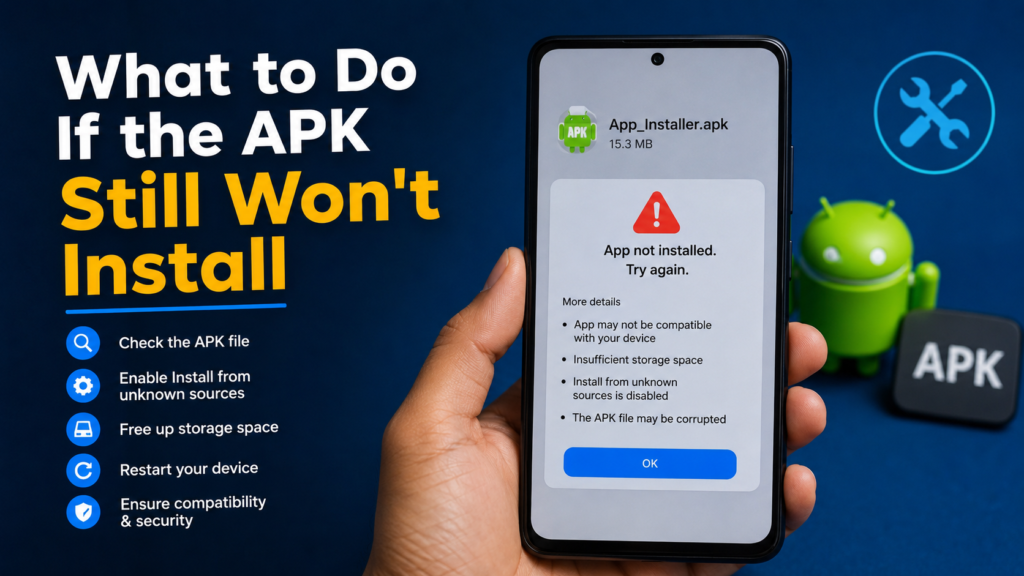
What to Do If the APK Still Won’t Install
If you have tried the basic solutions and the installation still fails, work through the following checklist.
Quick Troubleshooting Checklist
- Confirm the file ends in
.apk. - Download the file again.
- Check your Android version.
- Make sure enough storage is available.
- Check installation permissions.
- Restart your phone.
- Check whether another version of the app is installed.
- Verify that the APK supports your device.
- Look for official installation instructions.
- Avoid suspicious or heavily modified APK packages.
If none of these steps works, the APK itself may simply be incompatible with your phone.
Is Installing an APK Safe?
Installing an APK is not automatically dangerous, but the source of the file is extremely important.
An APK from a trustworthy developer can be legitimate. An APK from an unknown source could potentially contain malicious code, excessive permissions, unwanted advertising, or other security risks.
Before installation, consider checking the application’s reputation and developer information.
Be particularly cautious if a website asks you to disable multiple security features, install additional unknown applications, or provide sensitive information.
A legitimate application should not require you to ignore every security warning just to install it.
Frequently Asked Questions
Why is my APK not installing on Android?
The most common reasons include an incompatible Android version, insufficient storage, a corrupted APK, blocked installation permissions, an existing app conflict, or an APK that does not support your device architecture.
Why does Android say “App not installed”?
This message can have several causes. The APK may conflict with an existing application, be incompatible with your Android version, be damaged, or fail Android’s package verification process.
Can low storage prevent an APK from installing?
Yes. Android needs enough free space to install an application and process its files. If your phone is nearly full, remove unnecessary files and try the installation again.
Why does my APK show a parse error?
A parse error can occur when Android cannot properly read or process the APK. The file may be incomplete, corrupted, or incompatible with your Android version.
Should I disable Android security to install an APK?
You should not disable important security protections simply to install an unknown APK. If Android warns you about a file, verify its source and legitimacy before proceeding.
Can an old Android phone install new APKs?
It depends on the application’s minimum Android requirements. Some newer apps require Android versions or hardware features that older phones do not support.
Final Thoughts
If you are still asking Why Is My APK Not Installing on Android, start with the basics rather than changing advanced system settings. Check the APK source, confirm that the file downloaded correctly, verify your Android version, free up storage, and make sure your device allows installation from the source you are using.
Also Read: How to Fix APK Parse Error on Android: Easy Solutions That Work











1 comment