How to Fix APK Parse Error on Android: Easy Solutions That Work
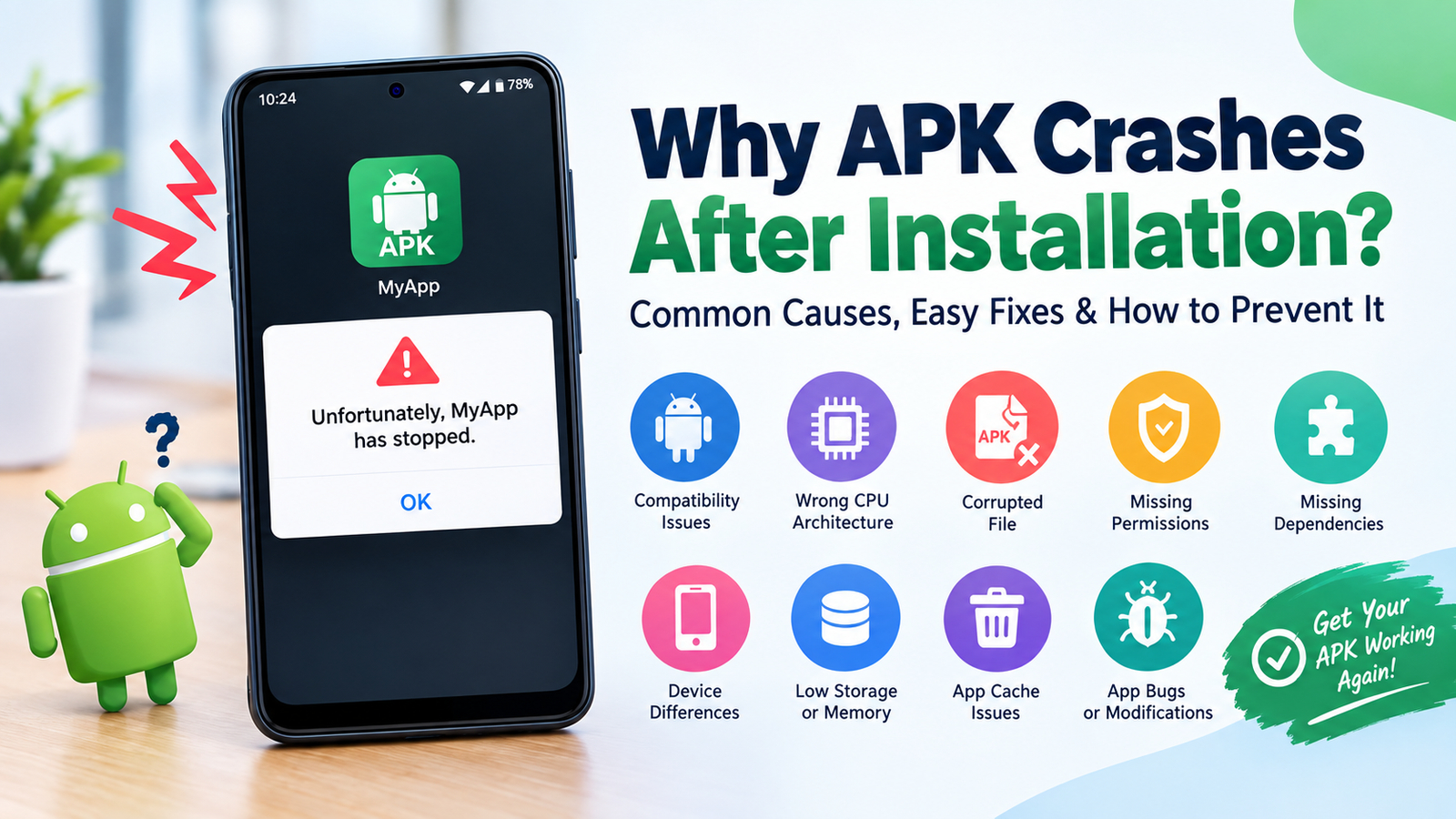
How to Fix APK Parse Error on Android is a common question among users who install apps outside the Google Play Store. Instead of installing the application, Android may display a message such as “There was a problem parsing the package.” This can happen for several reasons, including an incompatible Android version, a damaged APK file, incorrect security settings, or an incomplete download.
The good news is that a parse error does not necessarily mean your phone has a serious problem. In many cases, you can identify the cause and fix it with a few simple steps.
This guide explains the most common reasons behind APK installation errors and shows practical ways to troubleshoot them safely.
What Is an APK Parse Error?
An APK is an Android application package used to install an app on an Android device. When you download an APK manually, Android checks the package before allowing it to install.
A parse error occurs when Android cannot properly read, verify, or process that package. The system may stop the installation and show an error similar
The exact cause can vary from one device to another. A file that works correctly on one Android phone might fail on another because of differences in Android versions, processor architecture, permissions, or the APK package itself.
Common Reasons for an APK Parse Error
Before trying different solutions, it helps to understand what may be causing the problem.
Some of the most common reasons include:
- The APK download is incomplete or corrupted.
- The app does not support your Android version.
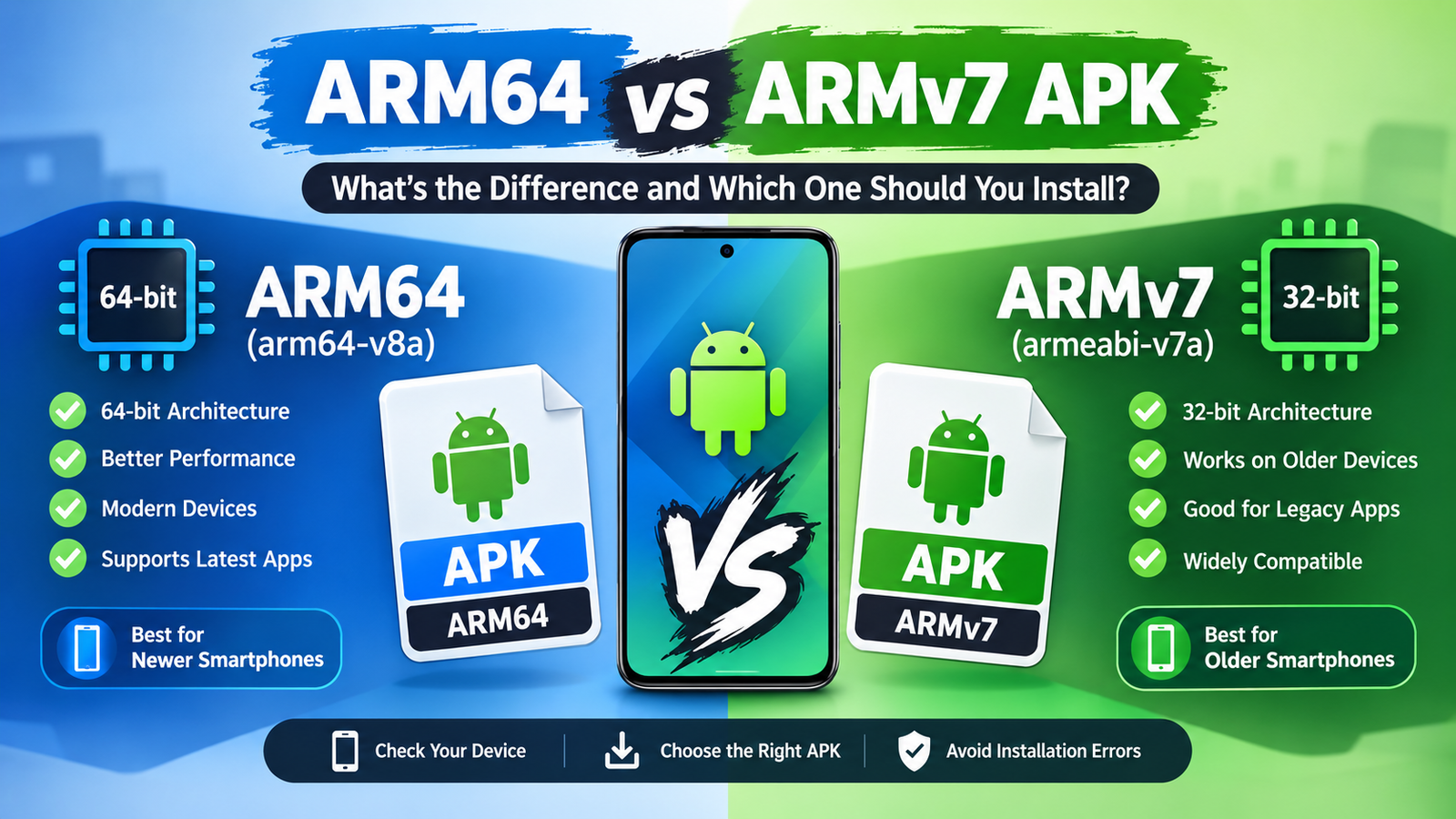
- The APK was designed for a different processor architecture.
- Installation from unknown sources is blocked.
- The APK requires a newer Android release.
- The file is not actually a standard APK.
- The application package has been modified incorrectly.
- Your phone has insufficient storage.
- A security or compatibility feature is preventing installation.
Identifying the likely cause can save you time because you may only need one or two troubleshooting steps.
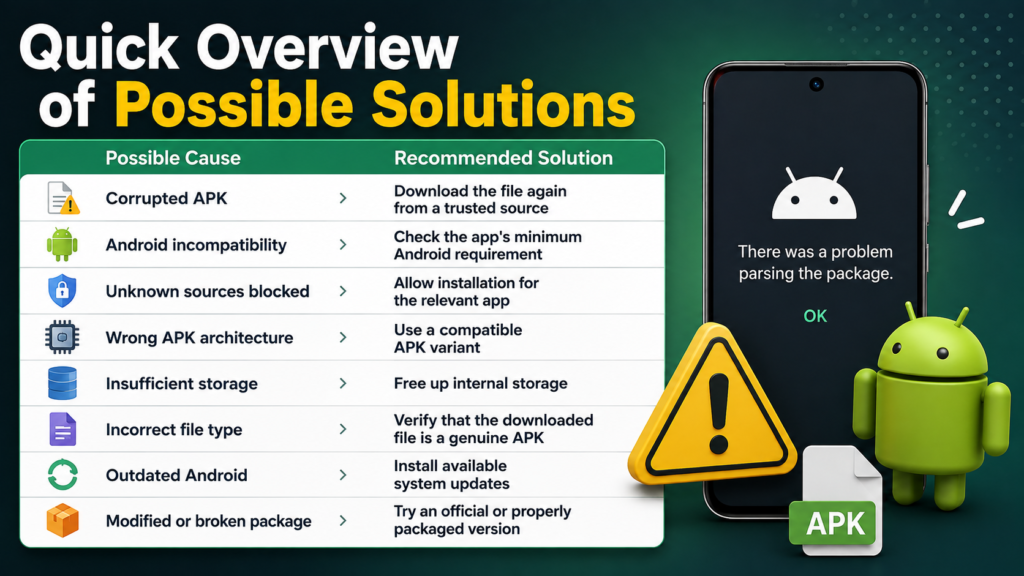
Quick Overview of Possible Solutions
The following table provides a simple starting point before you work through the detailed solutions.
| Possible Cause | Recommended Solution |
|---|---|
| Corrupted APK | Download the file again from a trusted source |
| Android incompatibility | Check the app’s minimum Android requirement |
| Unknown sources blocked | Allow installation for the relevant app |
| Wrong APK architecture | Use a compatible APK variant |
| Insufficient storage | Free up internal storage |
| Incorrect file type | Verify that the downloaded file is a genuine APK |
| Outdated Android | Install available system updates |
| Modified or broken package | Try an official or properly packaged version |
1. Download the APK Again
One of the easiest fixes is to download the APK again.
An interrupted download can create an incomplete file. Even if the file appears on your phone, some of its data may be missing or damaged.
Delete the existing APK and download a fresh copy. Make sure the download finishes completely before opening the file.
Avoid downloading APKs from random pop-ups, suspicious websites, or sources that frequently provide broken files. A trusted source reduces the chance of receiving a corrupted or tampered package.
If your internet connection is unstable, try downloading the file again over a reliable Wi-Fi connection.
2. Check Your Android Version
Compatibility is another major reason an APK may fail to install.
Every Android application has certain system requirements. Some apps require a relatively recent Android version, while older applications may not work properly with newer operating systems.
To check your Android version, open:
Settings → About phone → Android version
The exact menu can differ depending on your phone manufacturer.
Once you know your Android version, check the application’s requirements. If the APK requires a newer Android release than the one installed on your phone, the package may not install normally.
In that situation, look for a compatible version of the app rather than repeatedly trying the same APK.
3. Allow Installation From the App You Are Using
Modern Android versions generally control APK installation on a per-app basis.
For example, if you downloaded an APK through your browser, Android may require you to give that browser permission to install unknown applications.
Look for an option similar to:
Settings → Security or Privacy → Install unknown apps
Select the browser or file manager you used to open the APK and enable the relevant permission.
The menu name varies between Samsung, Xiaomi, Google Pixel, OnePlus, and other Android devices.
After changing the permission, return to the APK and try the installation again.
Remember the Security Risk
Installing apps from outside the Play Store can carry additional security risks. Only enable the permission when necessary, and preferably use APK files from sources you trust.
After installing the application, you can disable the permission again if you do not regularly install APK files.
4. Check Whether You Downloaded the Correct APK
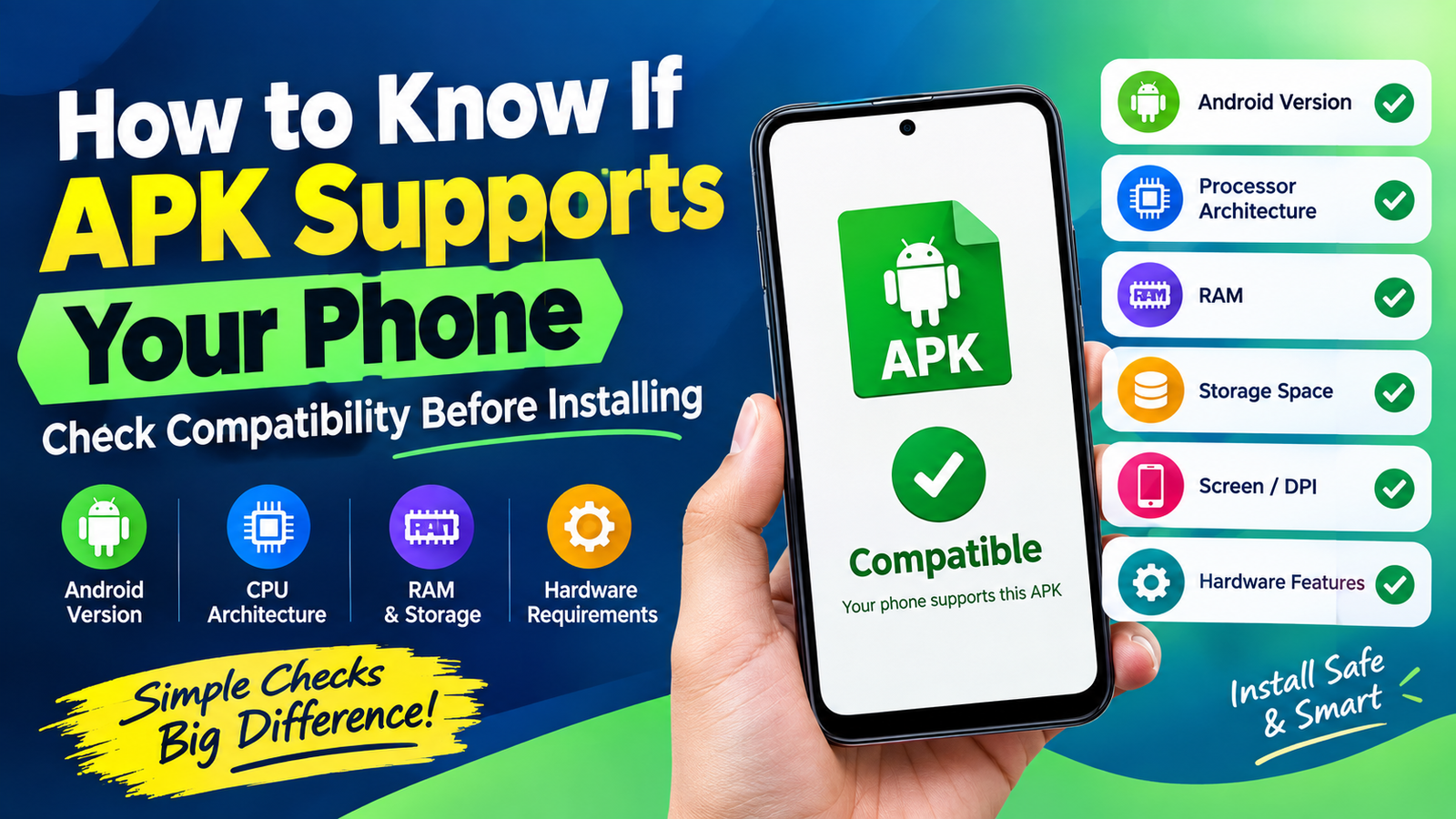
Not every APK is compatible with every Android device.
Some applications are distributed in different variants based on factors such as:
- Android version
- CPU architecture
- Screen configuration
- Device type
- Regional requirements
For example, an APK intended for a particular processor architecture may not work correctly on a phone using a different architecture.
If a website offers several versions, do not automatically choose the largest or newest file. Check the application’s compatibility information first.
Choosing the wrong variant can lead to installation or compatibility errors.
5. Make Sure the File Is Really an APK
Sometimes a downloaded file may have an extension or package format that Android cannot install directly.
A standard APK normally ends with:
.apk
However, some applications are distributed as split packages or other formats. These may require a compatible installer instead of being opened like a traditional APK.
If the file has an unfamiliar extension, do not simply rename it to .apk. Changing the filename does not convert the underlying package into a valid APK.
Instead, find out what type of package you actually downloaded and use the appropriate installation method.
6. Free Up Storage Space
Low storage is another issue worth checking.
Android needs enough free space not only for the application itself but sometimes also for temporary installation files.
Go to:
Settings → Storage
Check how much space remains on your device.
If storage is nearly full, remove unnecessary downloads, duplicate photos, unused applications, or other files. Then restart the installation.
Even when low storage is not the direct cause of a parse error, freeing space can eliminate related installation problems.
7. Update Android
If your phone is running an outdated Android release, some newer applications may not be compatible with it.
Check for available system updates under your phone’s software update settings.
Installing an official update can improve application compatibility and fix various system-level issues.
However, updating Android will not make every APK compatible. An app may still require hardware or software features that your device does not support.
8. Restart Your Android Phone
It sounds simple, but restarting your device can occasionally solve temporary installation problems.
A reboot clears certain temporary processes and gives Android a fresh start.
After restarting:
- Locate the APK again.
- Confirm that the file is complete.
- Open it using a file manager.
- Follow the installation instructions.
- Check whether the error appears again.
If the same message continues to appear, move on to the more specific compatibility checks.
9. Clear Problems With the Package Installer
Android’s package installation system can sometimes experience temporary issues.
Depending on your phone, you may be able to clear the cache of the relevant system component through the Apps section in Settings.
Because Android interfaces differ between manufacturers, the exact name may vary. Look for system applications or package-management components if they are visible on your device.
Be careful when changing system application settings. Avoid deleting important system data unless you understand what the option does.
A simple restart is usually the safer first step.
10. Check Whether the APK Was Modified
Modified APKs can behave differently from official application packages.
An APK may have been altered, repackaged, signed differently, or damaged during modification. Android can reject the package if its structure or signature does not meet the requirements for installation.
If you are repeatedly getting a parse error from one particular APK, try obtaining the standard version from the application’s legitimate developer or another reputable distribution channel.
If the official version installs normally, the original file was likely the problem.
11. Check Your Device’s Compatibility
Sometimes the problem is not the APK itself.
Your device may lack a required feature, use an unsupported architecture, or run a software configuration that the application does not support.
Check the app’s documented requirements before attempting additional troubleshooting.
Pay particular attention to:
- Minimum Android version
- Supported CPU architecture
- Required hardware features
- Required Google services
- Available storage
- Device-specific limitations
If your phone does not meet the requirements, forcing the installation is unlikely to provide a reliable solution.
12. Avoid Repeatedly Installing the Same Broken File
If an APK has failed several times, repeatedly tapping the installation button usually will not solve the underlying problem.
Instead, investigate the file.
Ask yourself:
- Did the download complete?
- Is the file from a reliable source?
- Does it support my Android version?
- Is it the correct architecture?
- Is it a standard APK or another package format?
- Does my device have enough storage?
These questions can quickly narrow down the cause.
How to Prevent APK Parse Errors in the Future
Prevention is often easier than troubleshooting.
Before downloading an APK, check the application’s compatibility information and make sure the file comes from a trustworthy source.
It is also useful to keep your Android software reasonably up to date and maintain sufficient free storage.
A few good habits include:
- Download files from reputable sources.
- Check the Android version requirement.
- Verify the APK file type.
- Avoid suspicious modified packages.
- Keep enough free storage available.
- Scan unfamiliar files with your device’s security tools.
- Do not disable Android security protections unnecessarily.
- Delete incomplete downloads before trying again.
These steps can significantly reduce the likelihood of encountering installation errors.
Is an APK Parse Error Dangerous?
A parse error itself is generally an installation or compatibility message. It does not automatically mean your phone has been infected.
However, the source of the APK matters.
An APK downloaded from an unknown or suspicious website can potentially contain unwanted or harmful software. This is why troubleshooting should not involve disabling every security feature on your phone just to make an installation work.
If Android warns you about a potentially harmful application, take the warning seriously and investigate the file before continuing.
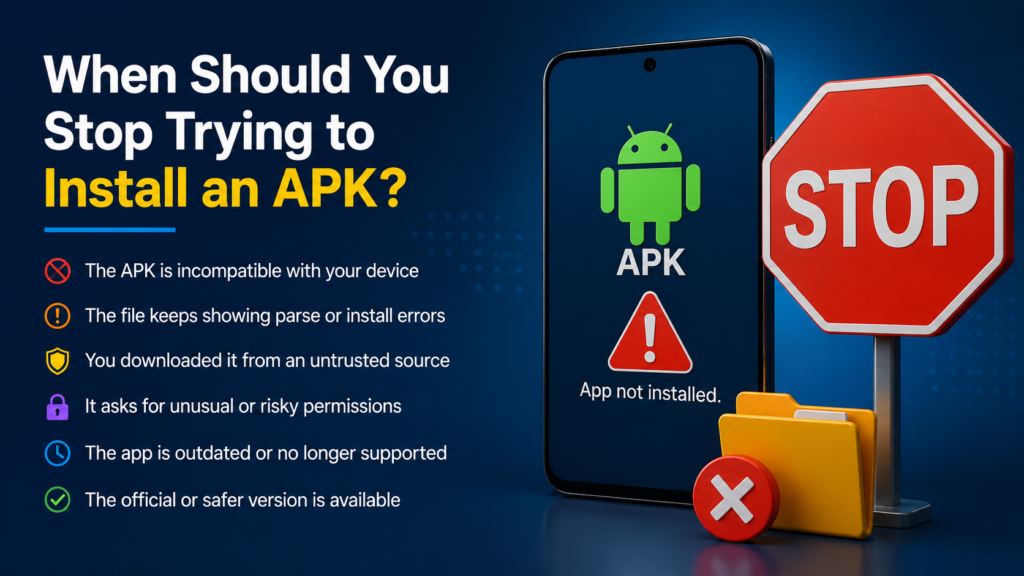
When Should You Stop Trying to Install an APK?
If you have checked the Android version, permissions, storage, file type, and compatibility and the same APK still fails, the package itself may be incompatible or damaged.
At that point, the best option is usually to find a legitimate compatible version rather than repeatedly changing security settings.
If the application is available through Google Play or the developer’s official distribution channel, that option is generally preferable because compatibility and updates are handled more reliably.
Frequently Asked Questions
What does “There was a problem parsing the package” mean?
It means Android could not properly process the application package. The cause may be a corrupted APK, incompatible Android version, unsupported architecture, incorrect package format, or another compatibility issue.
Why won’t my APK install even though it downloaded successfully?
A completed download does not guarantee that the APK is compatible with your device. The file could be corrupted, incorrectly packaged, designed for another Android version, or intended for different hardware.
Can an old Android phone install newer APK files?
Not always. Many applications require newer Android APIs or system features. If your phone does not meet the minimum requirements, you may need an older compatible version of the application.
Should I enable installation from unknown sources?
Only when necessary and only for files you trust. Android restricts this type of installation for security reasons. If you enable the permission, consider disabling it again after completing the installation.
Can low storage cause APK installation problems?
Yes. Insufficient free storage can prevent applications from being installed correctly. Checking your available storage and removing unnecessary files is a simple troubleshooting step.
What should I do if only one APK gives me a parse error?
If other APKs install normally, the problem is likely related to that particular package. Download it again, verify its compatibility, and consider obtaining a legitimate version from the application’s developer or another reputable source.
Final Thoughts
An APK parse error can look confusing, but it is often possible to identify the cause without complicated technical steps. Start with the basics: download the file again, check your Android version, confirm the APK is compatible with your device, and make sure Android allows the installation.
Also Read: APK Venom: A Complete Guide to Features, Installation, Safety, and What Users Should Know











1 comment