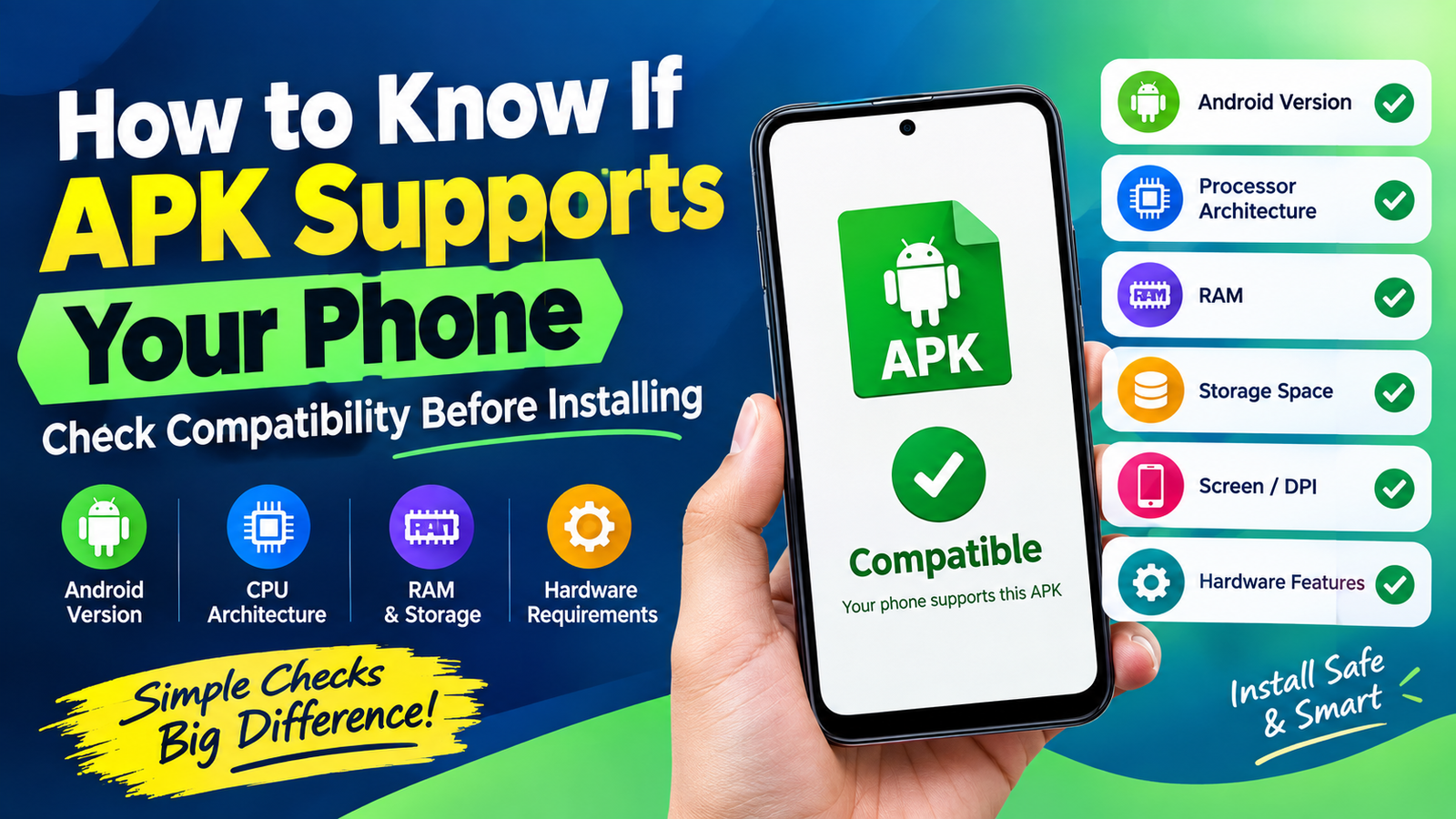
How to Know If an APK Supports Your Phone: Before Installing It
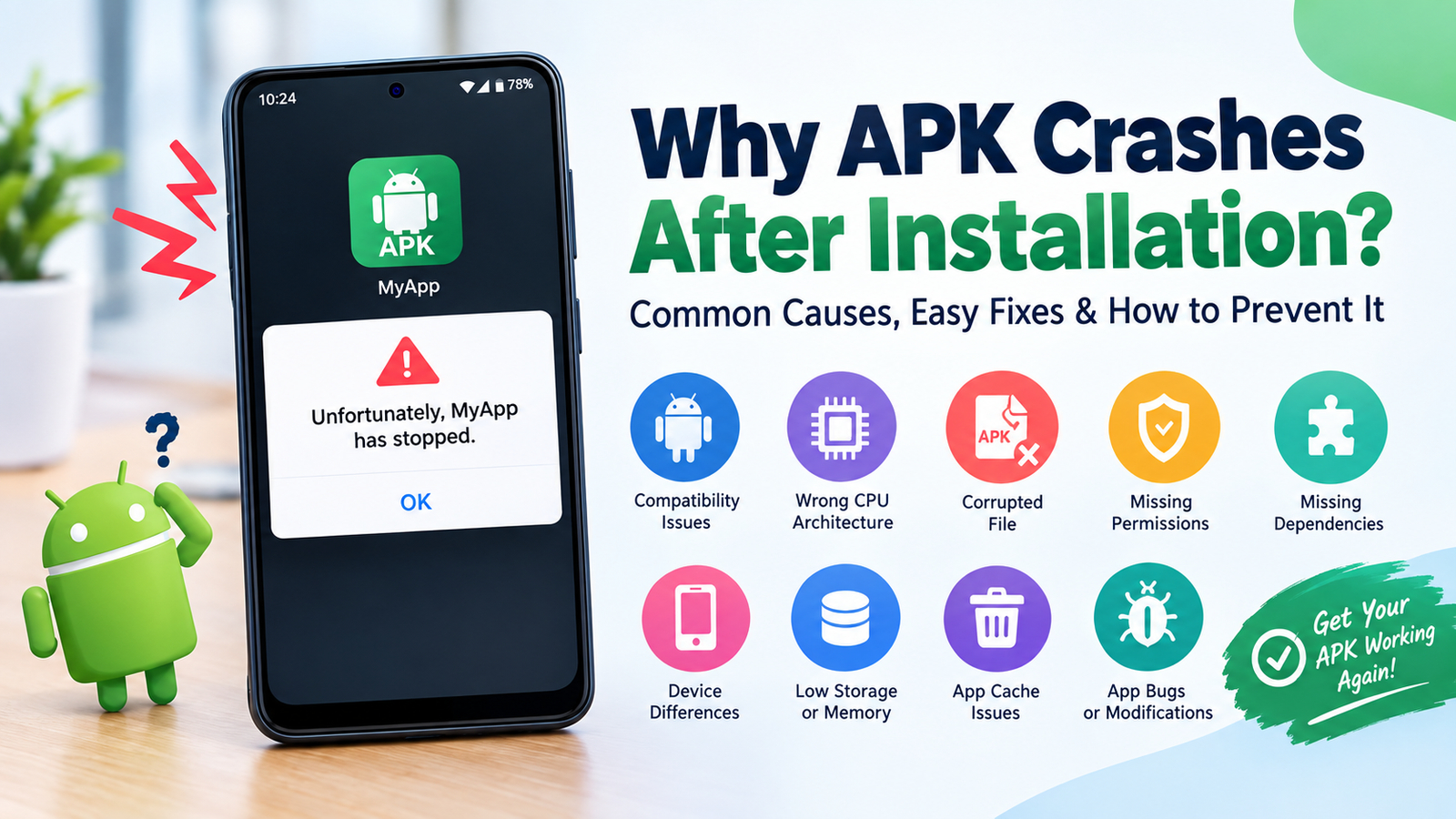
Installing an APK can be a convenient way to access an Android app that is not available through your usual app store. However, not every APK is compatible with every Android phone. An app may install successfully but crash immediately, refuse to install, or fail to work properly because your device does not meet its requirements.
If you are wondering how to know if APK supports your phone, there are several things you can check before installing it. Android version, processor architecture, screen requirements, hardware features, available storage, and the APK’s supported configuration can all affect compatibility.
The good news is that checking these details does not usually require advanced technical knowledge. With a few simple checks, you can reduce the chances of installing an APK that your phone cannot run.
What Does APK Compatibility Mean?
APK compatibility simply means whether an Android application can properly install and operate on your particular device.
An APK may be designed for a specific range of Android versions, processor architectures, or hardware configurations. If your phone does not meet those requirements, you may experience problems.
Compatibility can involve several factors, including:
- Android operating system version
- CPU architecture
- RAM and available storage
- Screen resolution and display requirements
- Required hardware features
- Google Play services or other dependencies
- App-specific system requirements
- APK variant or build
For example, an APK designed for a newer Android version may not work correctly on an older phone. Similarly, an APK built only for a particular processor architecture may not run on a device using a different architecture.
Check Your Android Version First
One of the easiest ways to check APK compatibility is to find out which Android version your phone is running.
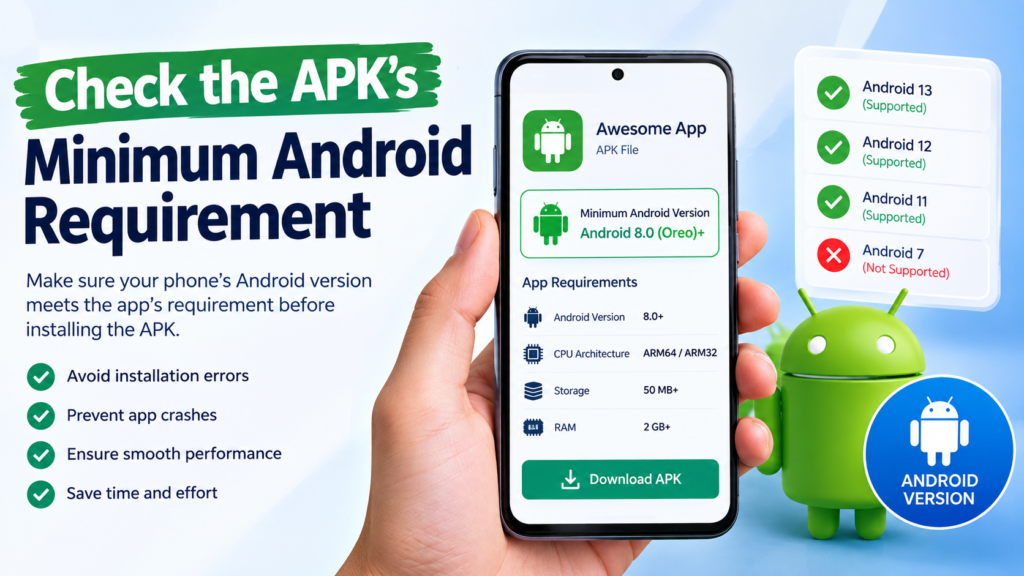
Most APK files specify a minimum Android version. If the APK requires Android 10 and your phone is running Android 8, the application may not install or function correctly.
To check your Android version:
- Open Settings on your phone.
- Look for About phone or About device.
- Find Android version.
- Note the version number.
- Compare it with the APK’s minimum Android requirement.
The exact location of this information can vary depending on the phone manufacturer and Android version.
It is important to distinguish between the Android version your phone currently has and the latest version available for your phone. An APK compatibility check should be based on the version actually installed on your device.
Check the APK’s Minimum Android Requirement
After checking your phone’s Android version, look at the APK’s requirements.
A trustworthy APK source should provide information about the Android version supported by the application. You might see descriptions such as:
- Android 8.0+
- Android 9 and newer
- Android 10+
- Android 12 or later
The plus sign generally means that the specified version or newer versions are supported.
For example, if an APK says Android 9+, a phone running Android 9, 10, 11, 12, or a newer supported version may meet the operating-system requirement.
However, meeting the Android version requirement does not guarantee complete compatibility. Other technical requirements still need to be considered.
Check Your Phone’s Processor Architecture
Processor architecture is another important factor when determining whether an APK supports your phone.
Android devices can use different CPU architectures. Common examples include:
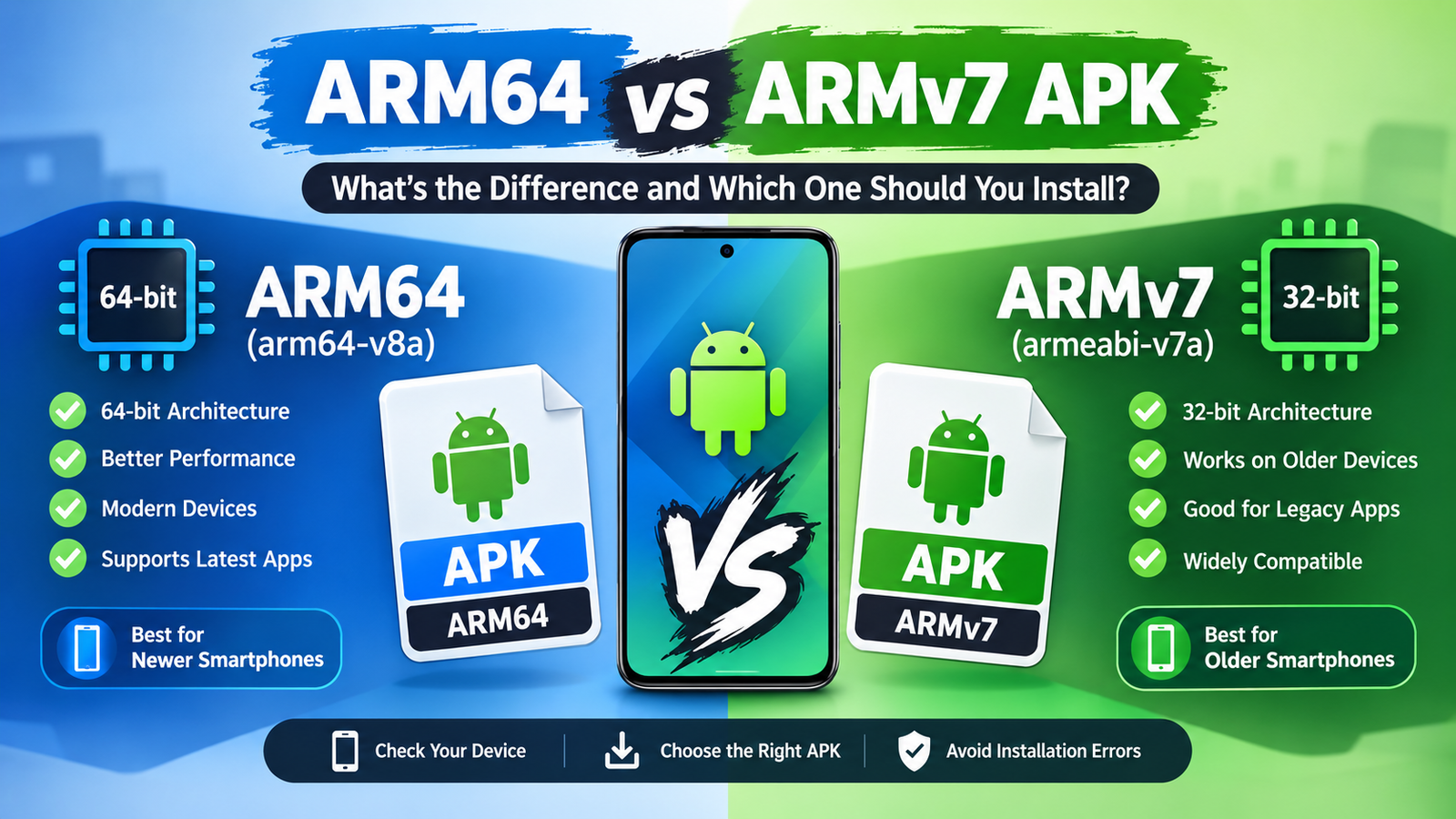
- ARM64
- ARM32
- x86
- x86_64
Many modern Android phones use ARM-based processors, particularly ARM64. Older devices may use 32-bit architectures, while some specialized devices may use x86-based hardware.
An APK may contain native libraries designed for only certain architectures. If the required architecture is missing, the application may fail to install or may crash when launched.
If you are downloading an APK that offers multiple architecture variants, choose the version that matches your phone’s processor.
You can find your CPU architecture using a reputable device-information application or by checking your phone’s technical specifications.
Check Whether Your Phone Has Enough RAM
RAM can also influence whether an APK runs properly.
An application may technically install on a phone but still perform poorly if the device does not have enough memory. Large games and resource-intensive applications generally require more RAM than simple utility apps.
For example, a lightweight calculator may work comfortably on a phone with limited RAM, while a modern 3D game could require considerably more.
Before installing a demanding APK, check:
- Total RAM on your phone
- Recommended RAM listed by the app developer
- How much RAM other apps are consuming
- Whether the application is designed for low-end devices
Keep in mind that available RAM changes while your phone is running. Having enough total RAM is useful, but performance also depends on the processor, operating system, storage speed, and application optimization.
Check Available Storage Space
Storage is another simple compatibility factor that is often overlooked.
An APK file itself may be relatively small, but the installed application can require significantly more space. Games and multimedia applications may also download additional files after installation.
Before installing an APK, check your available storage.
You can usually do this by opening:
Settings → Storage
If your phone is nearly full, the installation may fail even if the APK is otherwise compatible.
It is a good idea to keep some additional free space rather than using every available gigabyte. This gives Android room for temporary files, updates, and normal system operations.
Understand APK Variants
One reason APK compatibility can be confusing is that an application may have multiple APK variants.
Different variants can be created for different device configurations. For example, an application might have separate versions for different CPU architectures, Android versions, or screen configurations.
A download page may therefore show several files that appear to be the same application.
Before selecting one, check its technical information.
| Compatibility Factor | What to Check | Why It Matters |
|---|---|---|
| Android version | Minimum supported version | Older Android versions may not run newer apps |
| CPU architecture | ARM64, ARM32, x86, etc. | Native components must match the device |
| RAM | Recommended memory | Insufficient RAM can cause poor performance |
| Storage | Required free space | Installation may fail without enough space |
| Screen/DPI | Supported display configuration | Some apps may require specific configurations |
| Hardware | Camera, GPS, sensors, etc. | Missing hardware can limit functionality |
| App dependencies | Required services or libraries | Missing components may prevent the app from working |
Understanding these differences can help you avoid downloading an APK that is unsuitable for your phone.
Check Hardware Requirements
Some applications depend on specific hardware features.
For example, an application may require:
- GPS
- NFC
- Gyroscope
- Accelerometer
- Camera
- Bluetooth
- Biometric hardware
- Specific graphics capabilities
If your phone lacks a required feature, the APK may install but certain functions may not work.
This is particularly important for games, navigation applications, augmented-reality apps, fitness tools, and applications that use advanced sensors.
An APK being compatible with your Android version does not necessarily mean every feature will work on your device.
Look for the App’s Supported Devices
When possible, check the application’s official information before downloading an APK.
The developer may list supported Android versions, device requirements, processor architecture, or other technical specifications.
If an application is distributed through an official app store, its compatibility information can also provide useful clues.
Third-party APK websites sometimes provide technical details as well, but the quality and accuracy of this information can vary. Always consider the source before downloading and installing an APK.
Use Your Phone’s App Installation Message as a Clue
Android may display a message when an APK cannot be installed.
Possible messages can indicate problems such as:
- App not installed
- Package appears to be invalid
- Parse error
- Incompatible application
- Installation blocked
- The app was not installed
These messages can point toward different causes.
For example, an installation problem might result from an unsupported Android version, incorrect APK architecture, a corrupted download, insufficient storage, or a conflicting existing version of the application.
Therefore, an error message should be treated as a clue rather than proof of one specific problem.
Check Whether the APK Is 32-Bit or 64-Bit
The difference between 32-bit and 64-bit Android environments can matter for certain applications.
Modern smartphones commonly use 64-bit processors, but device software configurations can vary. Some applications also provide separate 32-bit and 64-bit components.
If an APK requires 64-bit support and your device cannot provide it, the application may not work.
When an APK download page lists architecture information, compare it with your phone’s CPU architecture before choosing a file.
Compatibility Does Not Mean Safety
It is important to separate compatibility from security.
An APK can be perfectly compatible with your phone and still be unsafe.
Before installing an APK from outside an official app store, consider:
- Where the file came from
- Whether the developer is known
- Whether the file has been modified
- What permissions the application requests
- Whether the download source has a trustworthy reputation
- Whether your security software identifies a problem
Avoid installing APK files from suspicious sources simply because they appear to support your device.
Compatibility tells you whether an application may work on your phone. It does not tell you whether the file is trustworthy.
What to Do If an APK Is Not Compatible
If you discover that an APK does not support your phone, do not immediately try random versions of the application.
First, identify the reason for the incompatibility.
You can check:
- Android version
- CPU architecture
- RAM requirements
- Available storage
- Hardware requirements
- APK variant
- Application dependencies
If your Android version is too old, check whether your phone has an official system update available.
If the problem is CPU architecture, look for an appropriate APK variant that supports your device.
If the application requires hardware that your phone does not have, changing the APK may not solve the problem.
In some cases, the most practical solution is to use an alternative application designed for your device.
A Simple APK Compatibility Checklist
Before installing an APK, go through this quick checklist:
- Check your Android version.
- Check the APK’s minimum Android requirement.
- Identify your phone’s CPU architecture.
- Check whether the APK supports that architecture.
- Make sure enough storage is available.
- Check RAM requirements for demanding apps.
- Look for required hardware features.
- Check whether additional dependencies are needed.
- Download from a trustworthy source.
- Review the requested permissions.
- Scan suspicious files before opening them.
- Keep a backup of important data when appropriate.
This process takes only a few minutes but can prevent many common installation and compatibility problems.
Common Mistakes to Avoid When Installing APKs
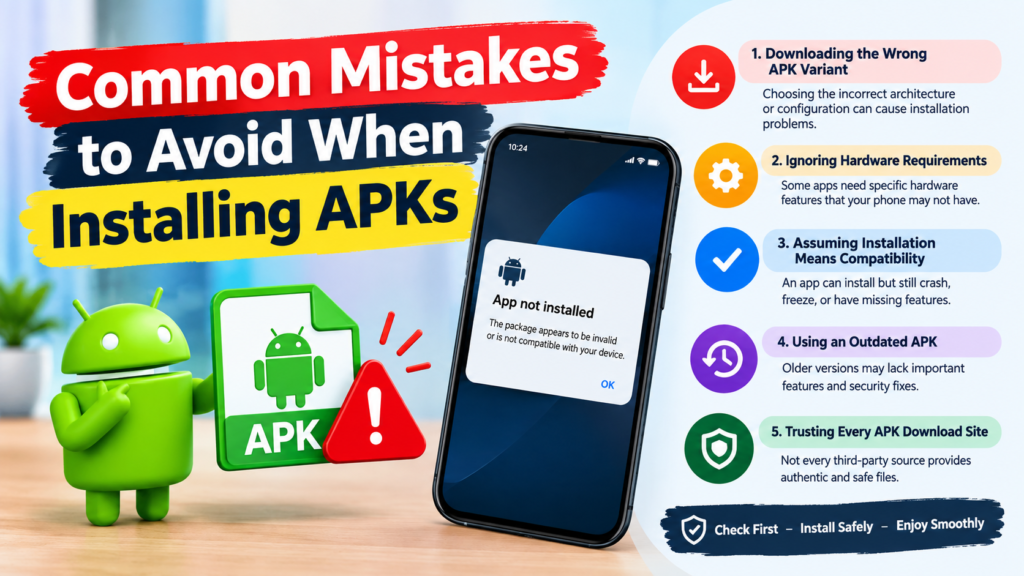
People often focus only on the Android version and forget the other compatibility factors.
Some common mistakes include:
Downloading the Wrong APK Variant
If several versions are available, downloading the wrong architecture or configuration can result in installation problems.
Ignoring Hardware Requirements
An application may require hardware that your phone simply does not have.
Assuming Installation Means Compatibility
An APK that installs successfully may still crash, freeze, or have missing features.
Using an Outdated APK
Older versions may have different requirements, but they can also lack important security fixes and functionality.
Trusting Every APK Download Site
Not every third-party source provides authentic or unmodified files. Source reliability matters.
Frequently Asked Questions
How do I know if an APK is compatible with my Android phone?
Check your phone’s Android version, CPU architecture, available storage, RAM, and hardware features. Then compare those specifications with the APK’s listed requirements.
Can an APK install but still be incompatible?
Yes. Installation does not guarantee that the application will run correctly. An app can install and then crash because of unsupported hardware, architecture, system libraries, or other requirements.
How can I check my phone’s CPU architecture?
You can check your device’s technical specifications or use a reputable device-information utility that displays CPU and Android system details.
Does Android version affect APK compatibility?
Yes. Applications can require a minimum Android version. If your phone uses an older version than the application’s minimum requirement, the APK may not install or operate correctly.
Why does an APK say “App not installed”?
There can be several reasons, including an incompatible APK variant, unsupported Android version, corrupted download, insufficient storage, conflicting app version, or other installation restrictions.
Is an APK that works on another phone guaranteed to work on mine?
No. Two Android phones can have different processors, Android versions, hardware features, and system configurations. An APK that works on one device may not work properly on another.
Final Thoughts
Knowing how to know if APK supports your phone can save you time and prevent unnecessary installation problems. Instead of downloading an APK and hoping it works, check your device specifications first.
Start with the Android version, then look at CPU architecture, RAM, storage, hardware requirements, and the specific APK variant. If all of these factors match, the chances of successful installation are generally better.
Also Read: Zepto Lite APK: Features, Benefits, Installation Guide, and Safety Tips











1 comment