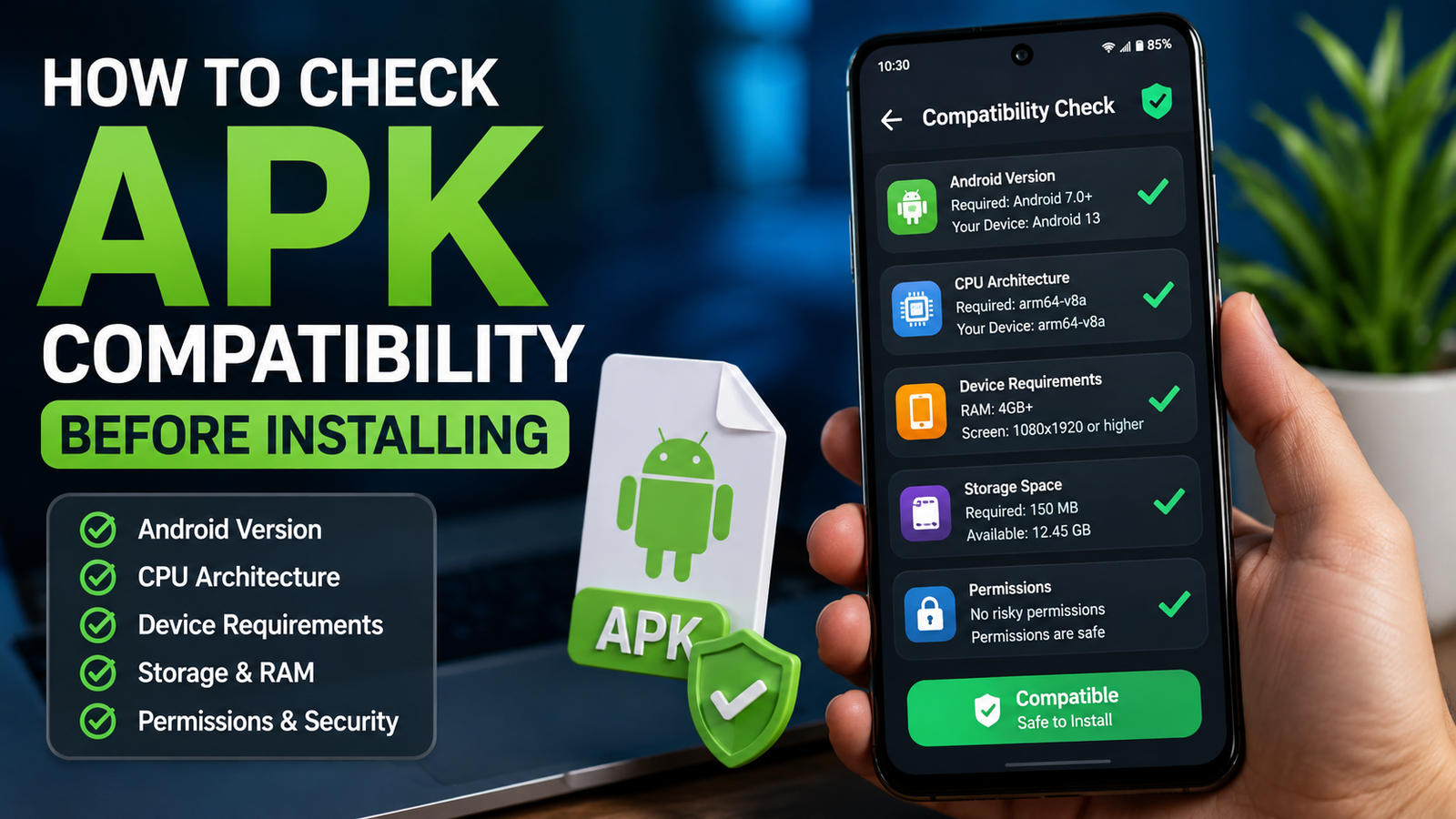
How to Check APK Compatibility Before Installing: A Complete Android Guide
How to Check APK Compatibility Before Installing is an important step for Android users who want to avoid installation failures, crashes, security warnings, or apps that simply do not work properly. An APK may look suitable for your phone, but differences in Android versions, processor architecture, screen requirements, permissions, and hardware can affect whether the app runs correctly.
Checking compatibility before installing an APK can save time and prevent unnecessary problems. It is especially useful when downloading an APK from a source other than Google Play, where compatibility information may not always be clearly displayed.
In this guide, we will explain the main compatibility factors to check, how to compare them with your Android device, and what to do when an APK appears incompatible.
Why APK Compatibility Matters
An APK, or Android Package Kit, contains the files needed to install an Android application. However, having an APK file does not automatically mean that the application will work on every Android device.
Android phones differ considerably in terms of operating system versions, chipsets, available storage, screen sizes, and hardware capabilities. Developers may also build applications for specific versions or processor architectures.
Installing an incompatible APK can result in problems such as:
- The APK refusing to install
- An “App not installed” message
- The application crashing immediately
- Certain features not working
- Poor performance or excessive battery usage
- Missing support for your device’s processor
- Compatibility warnings from Android
For this reason, compatibility should be checked before installation rather than after something goes wrong.
How to Check APK Compatibility Before Installing
There are several important specifications you should compare before installing an APK. You do not necessarily need advanced technical knowledge. Most of the required information can be found in your phone’s settings and the APK’s available details.
The most important checks include Android version, CPU architecture, minimum Android requirement, screen or hardware requirements, storage space, and application permissions.
Check Your Android Version
The first thing to check is the Android version currently installed on your phone.
An application may require a newer version of Android than the one running on your device. For example, an APK designed for a recent Android release may not function correctly on an older phone.
To check your Android version:
- Open Settings on your Android phone.
- Look for About Phone or About Device.
- Find Android Version.
- Note the version number shown there.
The exact location can differ between Samsung, Xiaomi, OnePlus, Google Pixel, Oppo, Vivo, and other manufacturers.
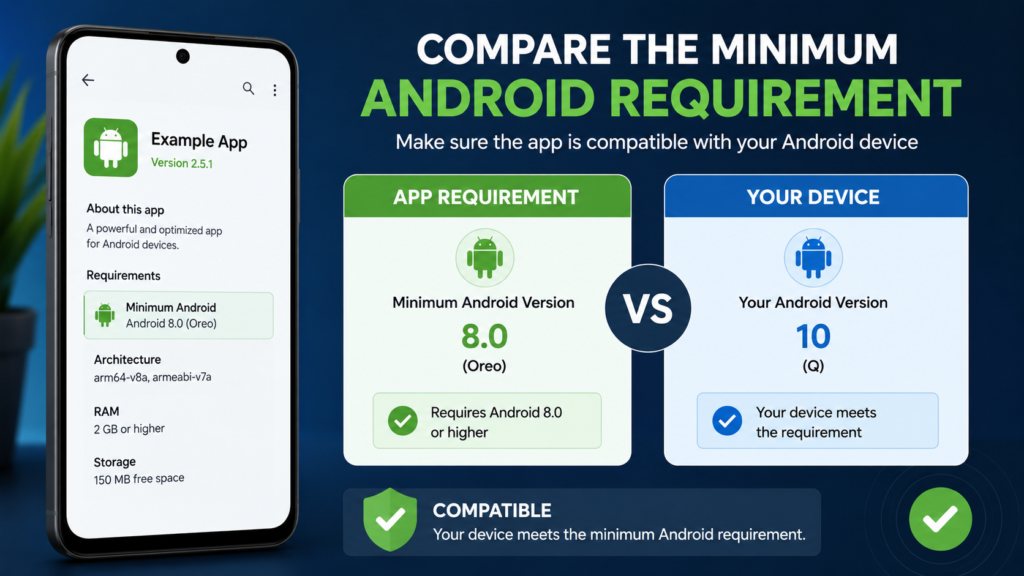
Next, check the APK’s minimum Android requirement. If the APK requires a newer Android version than your phone supports, installation may fail or the application may not work properly.
Compare the Minimum Android Requirement
Android applications are built using different software development targets. An APK can specify a minimum Android version required to run the application.
For example, imagine an APK requires Android 10 or newer while your device uses Android 9. In that situation, the application may not be compatible with your phone.
The important details to look for include:
- Minimum Android version
- Supported Android versions
- Target Android version
- Release or update date
- Device compatibility information
The minimum requirement is usually more important than the target version when determining basic compatibility.
Check Your Phone’s CPU Architecture
Processor architecture is another major compatibility factor that many users overlook.
Modern Android devices commonly use ARM-based processors, while APK packages may be designed for specific architectures. Common terms include ARM64, armeabi-v7a, and x86.
A simplified comparison looks like this:
| APK Architecture | Typical Compatibility | What It Means |
|---|---|---|
| ARM64 / arm64-v8a | Most modern Android phones | Designed for 64-bit ARM processors |
| armeabi-v7a | Some older devices | Designed for 32-bit ARM processors |
| x86 | Certain older or specialized devices | Designed for x86 processors |
| Universal APK | Wider device support | May contain multiple architecture versions |
If an APK is specifically built for an architecture that your phone does not support, it may fail to install or operate correctly.
You can usually identify your device’s CPU architecture through a trusted device-information utility or by checking your phone manufacturer’s specifications.
Understand APK Variants
Sometimes you may find several APK files for the same application. They might have different names or labels, which can make choosing the correct version confusing.
These variants may be separated according to:
- CPU architecture
- Android version
- Screen density
- Device type
- Application features
- Distribution format
For example, an APK website might provide separate downloads for ARM64 and armeabi-v7a devices.
Choosing the correct variant can make a significant difference. If a universal version is available from a trustworthy source, it may offer broader compatibility, but you should still verify the application’s requirements.
Check Available Storage
Compatibility is not only about software specifications. Your phone also needs enough free storage to install and operate the application.
An APK file might only be a few hundred megabytes, while the installed application could require significantly more space after extracting its files and downloading additional resources.
Before installing, check your available storage.
Go to:
Settings → Storage
The exact menu name may vary depending on your Android manufacturer.
If your storage is almost full, consider removing unnecessary downloads, duplicate files, or unused applications before attempting the installation.
Having sufficient free space can also help prevent crashes and update problems later.
Look at Hardware Requirements
Some Android applications depend on hardware features that may not exist on every phone.
This is particularly common with games, camera applications, augmented-reality tools, and advanced multimedia apps.
An application might require:
- A specific GPU
- Camera capabilities
- GPS
- Gyroscope
- Accelerometer
- NFC
- Bluetooth features
- A certain amount of RAM
- Specific graphics support
For example, an advanced game may install successfully but perform poorly if your phone has an entry-level processor or insufficient RAM.
Therefore, successful installation does not always mean complete compatibility.
Review App Permissions
Permissions can provide useful information about what an application expects from your device.
Before installing an APK, review the permissions requested by the application. Be cautious if an app requests access that does not seem relevant to its purpose.
For example, a simple flashlight application requesting extensive access to contacts, messages, or other sensitive information may deserve additional scrutiny.
Permissions do not directly determine whether an APK is technically compatible, but they are an important part of evaluating whether an APK is appropriate and trustworthy.
Check the APK’s Source and Version
The source of an APK matters just as much as its technical compatibility.
If possible, obtain APK files from the application’s official developer or another reputable distribution source. Avoid downloading random APK files from suspicious websites, pop-up advertisements, or unknown links.
You should also check the APK version.
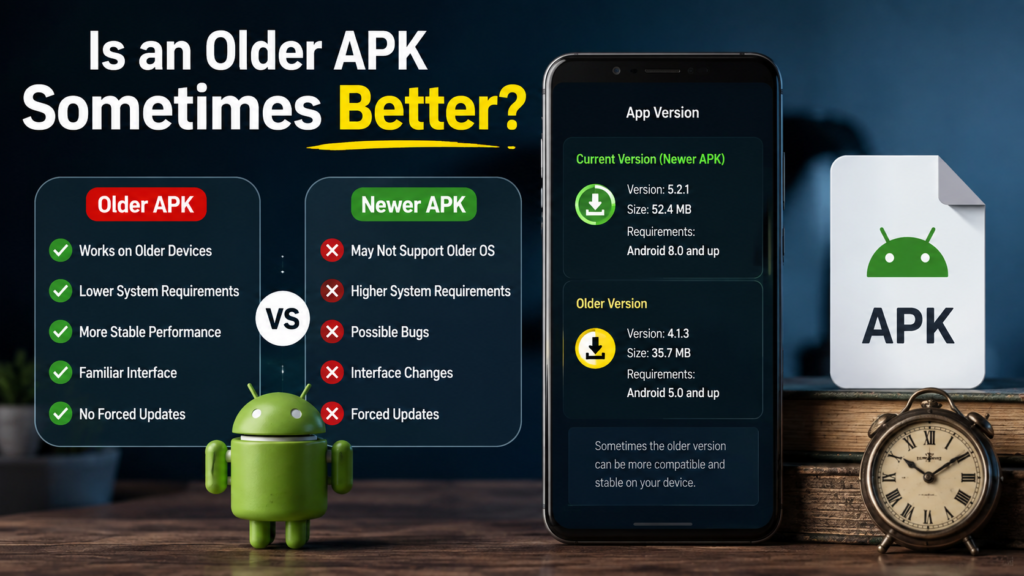
A newer APK may require a newer Android version, while an older release might support older devices. However, using an outdated version can expose you to bugs or missing security improvements.
Before installing, check:
- Application name
- Developer name
- APK version
- Release information
- Android requirement
- Architecture
- File size
- Source reputation
If the information is incomplete or suspicious, it is better to investigate further before installation.
Use a Compatibility Checklist
A simple checklist can make the process much easier.
Before installing an APK, confirm the following:
- Android version: Does your phone meet the minimum requirement?
- CPU architecture: Does your device support the APK’s architecture?
- RAM: Does your phone have enough memory for the application?
- Storage: Is sufficient free space available?
- Hardware: Does your phone have the required features?
- APK variant: Are you downloading the correct version?
- App version: Is the release appropriate for your Android version?
- Permissions: Do the requested permissions make sense?
- Source: Is the APK from a trustworthy provider?
If all major requirements match, the chances of a successful installation are generally much better.
What to Do If an APK Is Not Compatible
Sometimes you may discover that an APK does not support your device. Do not immediately try random modified versions or unknown files.
First, identify the reason for the incompatibility.
If your Android version is too old, check whether your phone has an official system update available. Updating Android may solve the problem.
If the issue is CPU architecture, look for an appropriate APK variant that supports your device.
If the application requires hardware your phone does not have, there may be no reliable software-based solution. In that situation, using an alternative application designed for your device is usually the better option.
Avoid forcing installation through questionable tools unless you understand exactly what they change. A forced installation can result in crashes, instability, or security problems.
Common APK Compatibility Mistakes
Many APK installation problems happen because users skip basic checks.
Some common mistakes include:
- Installing an APK without checking the Android requirement
- Choosing the wrong CPU architecture
- Assuming every APK works on every Android phone
- Ignoring available storage
- Downloading an outdated application
- Installing files from suspicious sources
- Assuming successful installation means every feature will work
- Ignoring hardware requirements
Taking a few minutes to check these factors can prevent much bigger problems later.
Is an Older APK Sometimes Better?
An older APK can sometimes be more suitable for an older Android phone because previous versions may have supported operating systems that newer releases no longer support.
However, this does not automatically make an older APK a better choice.
Older applications may have:
- Unfixed bugs
- Outdated libraries
- Missing features
- Compatibility problems with newer Android versions
- Security weaknesses
If you need an older version, use a reputable source and verify that the file corresponds to the application you actually want.
Frequently Asked Questions
Can every Android phone install an APK?
No. Android devices have different operating system versions, processor architectures, hardware capabilities, and software configurations. An APK may work on one phone but be incompatible with another.
How do I know if an APK supports my Android version?
Check your phone’s Android version in Settings and compare it with the APK’s minimum Android requirement. Your Android version should meet or exceed the application’s stated minimum requirement.
What happens if I install an incompatible APK?
Depending on the type of incompatibility, Android may prevent installation, display an error, or allow installation but cause the application to crash or malfunction.
Does CPU architecture affect APK installation?
Yes. Some APKs are designed for particular processor architectures. Installing an incompatible architecture can cause installation or runtime problems.
Can an APK be compatible but still run poorly?
Yes. Compatibility only means that the application can potentially operate on the device. Performance can still depend on RAM, processor power, GPU capabilities, storage speed, and other hardware factors.
Is it safe to install an APK from an unknown website?
An unknown source can present security risks. APK files should be obtained from trusted sources whenever possible, and users should carefully review the application’s identity, permissions, and reputation before installation.
Final Thoughts
Checking compatibility before installing an APK is a simple habit that can prevent many common Android problems. Instead of downloading a file and hoping it works, take a few minutes to compare your phone’s Android version, CPU architecture, storage, RAM, hardware capabilities, and the APK’s requirements.
Also Read: Why Is My APK Not Installing on Android? Common Causes and Easy Fixes














1 comment