
How APK Signatures Work: A Complete Guide to Android App Security
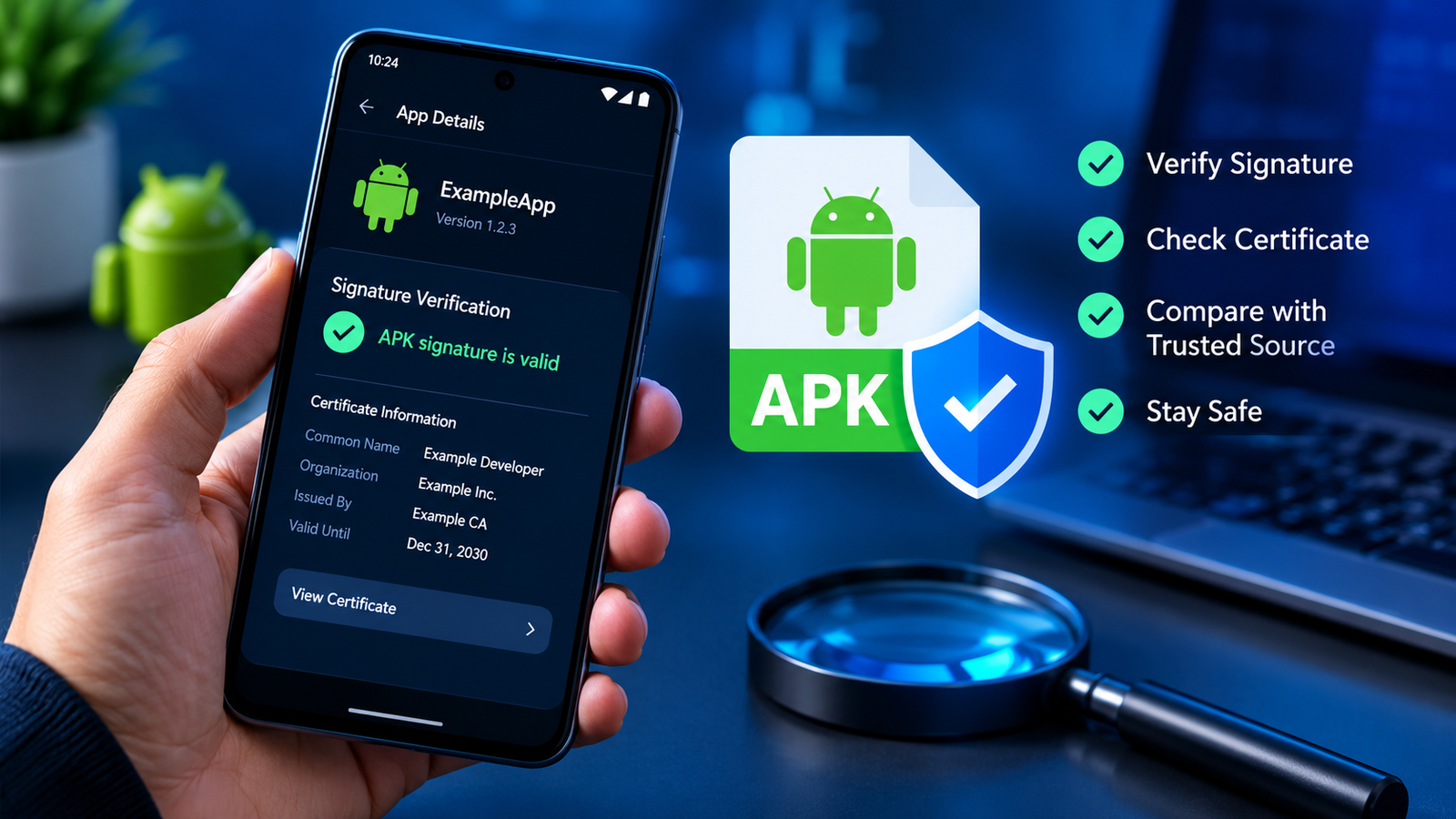
Installing an APK file on Android is relatively simple, but understanding how Android checks that file is just as important. One of the key security mechanisms behind Android app installation is the APK signature. It helps Android verify the integrity of an app and determine whether a future update comes from the same signing identity as the installed version.
If you download apps outside the Google Play Store, learning how APK signatures work can help you make more informed decisions about app installation, updates, and security. It can also explain why Android sometimes refuses to install an APK even when the file appears compatible with your phone.
In this guide, we will explain APK signatures in straightforward language, explore how digital signing works, compare the main Android signing schemes, and show you what to check before installing or updating an APK.
What Is an APK Signature?
An APK signature is a digital signature associated with an Android application package. It is created using cryptographic techniques and allows Android to verify important information about the package.
Developers sign their APK files before distributing them. The signing process uses a private cryptographic key, while the corresponding public key can be used to verify the signature.
An APK signature serves two important purposes:
- Integrity verification: It helps detect whether signed package contents have been changed in a way that invalidates the signature.
- Update verification: It allows Android to check whether an update is signed by an authorized signing identity for the installed app.
An APK signature is not the same as a security certificate issued by a trusted certificate authority for a website. Android app signing certificates are often self-signed, meaning the developer creates and manages the signing identity.
It is also important to understand that a valid signature does not automatically mean an app is safe. A malicious app can still be signed, so users should consider the source, requested permissions, developer reputation, and other security signals.
How APK Signatures Work
To understand how APK signatures work, it helps to follow the process from the moment a developer prepares an app to the point when Android checks it during installation.


6
1. The Developer Builds the APK
An Android application is developed, compiled, and packaged into an APK file. This package contains application code, resources, assets, and other information needed to install the app.
Before distributing the APK, the developer signs it using a supported Android signing tool and a private key.
2. The APK Is Digitally Signed
During signing, cryptographic algorithms generate a digital signature associated with the APK’s relevant contents. The signing scheme determines precisely which data is protected and how Android verifies it.
The developer must protect the private signing key carefully. Anyone who obtains the key may be able to sign packages that appear to come from the same signing identity.
3. Android Verifies the Signature
When you install an APK, Android’s package-management system performs signature and package validation checks appropriate to the package and device.
These checks can help determine whether the package has been modified, whether its signing information is valid, and whether it can be installed under Android’s app-signing rules.
If verification fails, installation may be rejected.
4. Android Checks the Signature During Updates
Suppose an app is already installed on your phone and a newer version becomes available. Android normally checks whether the update has an acceptable signing identity in relation to the installed version.
If the signing identities are incompatible, Android may display an error such as “App not installed” or report a conflict with an existing package.
This is why downloading a newer APK does not guarantee that Android will accept it as an update.
Why APK Signatures Are Important for Android Security
APK signatures are an essential part of Android’s application security model. They help protect the relationship between an app’s developer, its installed version, and future updates.
Here are the main reasons signatures matter.
Detecting Unauthorized Changes
If someone modifies protected APK contents after signing, the package may no longer pass signature verification. This can help detect tampering that occurs when an app is repackaged or altered.
However, the protection depends on the signing scheme and the parts of the package it covers. Some package information may be treated differently across signing schemes.
Protecting App Updates
Android uses signing identities to help ensure that an installed application cannot simply be replaced by an unrelated package claiming the same app identity.
For example, imagine you installed a photo editor from its developer’s official website. Later, you download another APK with the same package name from an unfamiliar source.
If that file is signed with an incompatible certificate, Android will generally reject it as a normal update. You may need to remove the existing app before installing the other package, but doing so can delete local app data. Uninstalling is not a recommended first step unless you have backed up anything important.
Supporting App Identity
A signing certificate gives Android a cryptographic identity to associate with an application. This is useful for update compatibility and certain trust relationships between apps.
It does not prove that the person or organization behind the certificate is trustworthy. Users should verify the developer through reliable sources rather than treating a valid signature as a guarantee of legitimacy.
Different APK Signing Schemes Explained
Android has introduced multiple APK signing schemes over time. Newer schemes provide improvements in how package integrity is protected.
The scheme used by an APK can affect which Android versions can verify it and what information is covered by the signature.
| Signing scheme | Main purpose | Important detail |
|---|---|---|
| JAR signing (v1) | Signs APK contents using a traditional signing method | Important for compatibility with older Android versions |
| APK Signature Scheme v2 | Adds whole-APK integrity protection | Introduced with Android 7.0 |
| APK Signature Scheme v3 | Adds enhanced signing features, including support for signing-key rotation | Introduced with Android 9 |
| APK Signature Scheme v4 | Supports incremental installation workflows | Uses a separate .idsig file and works alongside other signing schemes |
The exact verification process depends on the Android version, the APK’s signing configuration, and the installation method. An APK can also support more than one signing scheme to maintain compatibility with older devices.
APK Signature Scheme v1
The v1 scheme is based on JAR signing. It uses signature-related files stored within the APK to verify signed entries.
This scheme remains relevant when older Android versions need to install applications. However, it does not provide the same whole-APK integrity guarantees as the newer v2 and later schemes.
APK Signature Scheme v2
Introduced in Android 7.0, v2 improved APK integrity protection by signing the APK as a whole, with defined exclusions for signing-related data.
Changes to protected parts of the APK can invalidate its signature. This makes unnoticed modifications more difficult and improves the integrity checks performed during installation.
APK Signature Scheme v3
The v3 scheme builds on v2 and supports features such as signing-certificate rotation. Key rotation allows developers to move from an older signing key to a newer one while preserving an authorized signing lineage that compatible Android versions can recognize.
This process must be configured correctly. Simply signing an APK with a new key does not automatically make it a valid update for every existing installation.
APK Signature Scheme v4
The v4 scheme supports incremental APK installation, where parts of an app can be delivered and installed progressively rather than waiting for the entire package to be transferred.
It relies on a separate signature file, commonly ending in .idsig, and is designed to work alongside an APK signed with another supported scheme. It is not a standalone replacement for the usual APK signing schemes.
What Is an APK Signing Certificate?
An APK signing certificate contains a public key and identity-related information associated with the signing key. Android uses the signing information to verify the signature and establish continuity between app versions.
A certificate may contain details such as:
- The public key associated with the signer.
- A certificate subject or developer-provided name.
- A validity period.
- A cryptographic fingerprint that can help identify the certificate.
For Android app signing, the certificate’s name should not be treated as independently verified proof of the developer’s identity. A developer can create a self-signed certificate using a name of their choosing.
What Is a Certificate Fingerprint?
A certificate fingerprint is a hash calculated from the certificate’s encoded data. SHA-256 is commonly used to identify signing certificates.
When comparing two APKs, a matching SHA-256 certificate fingerprint can help establish that they use the same certificate. If the fingerprints differ, the packages may have different signing identities or may be part of a legitimate signing-key transition.
Always compare fingerprints against a reliable reference, such as one published by the official developer. A fingerprint found only on the same unfamiliar download page provides limited independent assurance.
How to Check an APK Signature
If you want to check an APK before installing it, you can use Android development tools to inspect its signing information.
One widely used option is Android SDK Build Tools, which includes the apksigner utility.
Verify an APK Using Apksigner
On a computer with Android SDK Build Tools installed, open a terminal or command prompt and run:
apksigner verify --verbose --print-certs app.apkReplace app.apk with the actual path or filename of your APK.
This command can report whether verification succeeds and display certificate information. The exact output depends on the tool version and the package.
For a more focused check, you can use:
apksigner verify app.apkA successful verification indicates that the APK passes the checks performed by that tool under its verification settings. It does not establish that the app is harmless, that the developer is legitimate, or that the package is compatible with every Android device.
Compare Two APK Signing Certificates
If you have two versions of the same app, verify each APK and compare their signing-certificate information.
Check the following:
- Whether both APKs pass signature verification.
- Whether their certificate fingerprints match.
- Whether a signing-key rotation explains any difference.
- Whether the package name and version information are consistent with the developer’s official release.
A different certificate is a reason to investigate, not automatic proof of malware. For example, an app may legitimately transition to a new signing key using supported mechanisms.
If an APK fails verification or its origin cannot be established, avoid installing it until you can resolve the issue.
Why an APK Signature May Fail Verification
Signature verification can fail for several reasons. Understanding the cause can help you avoid installing a damaged or untrustworthy file.
Common reasons include:
- Modified APK contents: Someone may have edited the package after it was signed.
- Incomplete downloads: A damaged or incomplete file may fail validation.
- Incorrect signing configuration: The developer may have produced an improperly signed package.
- Repackaged applications: A third party may have changed an app and signed the modified version with a different key.
- Unsupported signing scheme: A device may not support the signing scheme required by a particular APK.
- File mismatch: The APK may not be the genuine release you intended to download.
If verification fails, download a fresh copy from the official developer or another trusted distribution source. Do not try to bypass a signature error simply to force installation.
Also remember that signature verification and device compatibility are separate checks. An APK can have a valid signature but still fail to install because of Android version requirements, CPU architecture, split-package requirements, or other restrictions.
APK Signature vs. APK Hash: What’s the Difference?
APK signatures and APK hashes are related to file integrity, but they serve different purposes.
| Feature | APK signature | APK hash |
|---|---|---|
| What it is | A cryptographic signature verified using a public key | A fixed-length digest calculated from file data |
| Main use | Verifying signed package integrity and signing identity | Comparing files or checking data integrity |
| Requires a signing key | Yes, for creating the digital signature | No, for calculating a standard hash |
| Helps identify changes | Yes, through signature verification | Yes, when compared with a trusted expected hash |
| Proves an app is safe | No | No |
For example, if a developer publishes an APK’s SHA-256 hash, you can calculate the hash of your downloaded file and compare the two values. If they match, the files are extremely likely to have identical contents, assuming the hash is calculated correctly.
However, an attacker who controls both the APK and the published hash can replace both. A digital signature provides a different form of verification because the signature can be checked using the corresponding public key.
For stronger confidence, use official release information and verify the APK’s signature as well as its hash when reliable reference values are available.
Best Practices for Safe APK Installation
Understanding how APK signatures work is useful, but safe installation requires more than one technical check.
Follow these practical recommendations:
- Download APKs from official developer websites or reputable distribution platforms.
- Verify signatures with a trusted tool when possible.
- Compare certificate fingerprints against independently obtained official information.
- Avoid installing APKs that fail signature verification.
- Check app permissions before granting access to sensitive information.
- Keep Android and Google Play Protect updated where available.
- Back up important app data before replacing or uninstalling an existing application.
- Be cautious of websites offering modified APKs with promises of premium features or unlimited access.
If an app asks for permissions that do not make sense for its purpose, investigate before continuing. A valid digital signature does not prevent an app from requesting excessive permissions or engaging in harmful behavior.
Frequently Asked Questions
1. How do APK signatures work on Android?
APK signatures use cryptographic techniques to help Android verify a package’s integrity and signing identity. Developers sign their APKs with a private key, and Android verifies the signature using the associated public-key information. Android also uses signing identities when determining whether an app update is acceptable.
2. Can I install an APK without a signature?
Modern Android installation processes generally require APK packages to be properly signed. An unsigned APK will typically fail normal installation verification. Developers should sign their APKs using supported Android signing tools before distributing them.
3. Does a valid APK signature mean the app is safe?
No. A valid signature means the package passes the relevant signature checks, not that the application is trustworthy. A malicious developer can sign harmful software, and a signed app may still contain vulnerabilities. Always check the download source, permissions, developer information, and other security signals.
4. Why does Android reject an APK update with a different signature?
Android normally expects an update to have a signing identity compatible with the installed application. If the certificates differ and there is no recognized signing-key rotation or other supported signing relationship, Android may reject the update. Removing the existing app can sometimes allow a separate installation, but it may erase local data.
5. How can I check an APK signature for free?
You can use Google’s Android SDK Build Tools, which include the apksigner command-line utility. Run apksigner verify --verbose --print-certs app.apk to check signature verification and inspect certificate information. Compare the results with trusted information from the app’s developer.
6. What is the difference between APK Signature Scheme v2 and v3?
Both schemes improve on the older v1 signing method. Scheme v2 introduced whole-APK integrity protection, while scheme v3 added features including support for signing-certificate rotation. The appropriate scheme depends on the Android versions and installation methods the developer needs to support.
Final Thoughts
Understanding how APK signatures work makes it easier to recognize one of the most important security checks involved in Android app installation. Signatures help Android detect unauthorized changes, maintain application signing identity, and determine whether an update can be accepted.
If you regularly download APK files, take a moment to verify the package and its signing certificate whenever practical. Use trusted download sources, investigate unexpected certificate differences, and avoid packages that fail verification.
Also Read: How to Verify APK Digital Signature: A Complete Android Guide













1 comment