Why Does an APK Keep Crashing: Common Causes and Easy Fixes
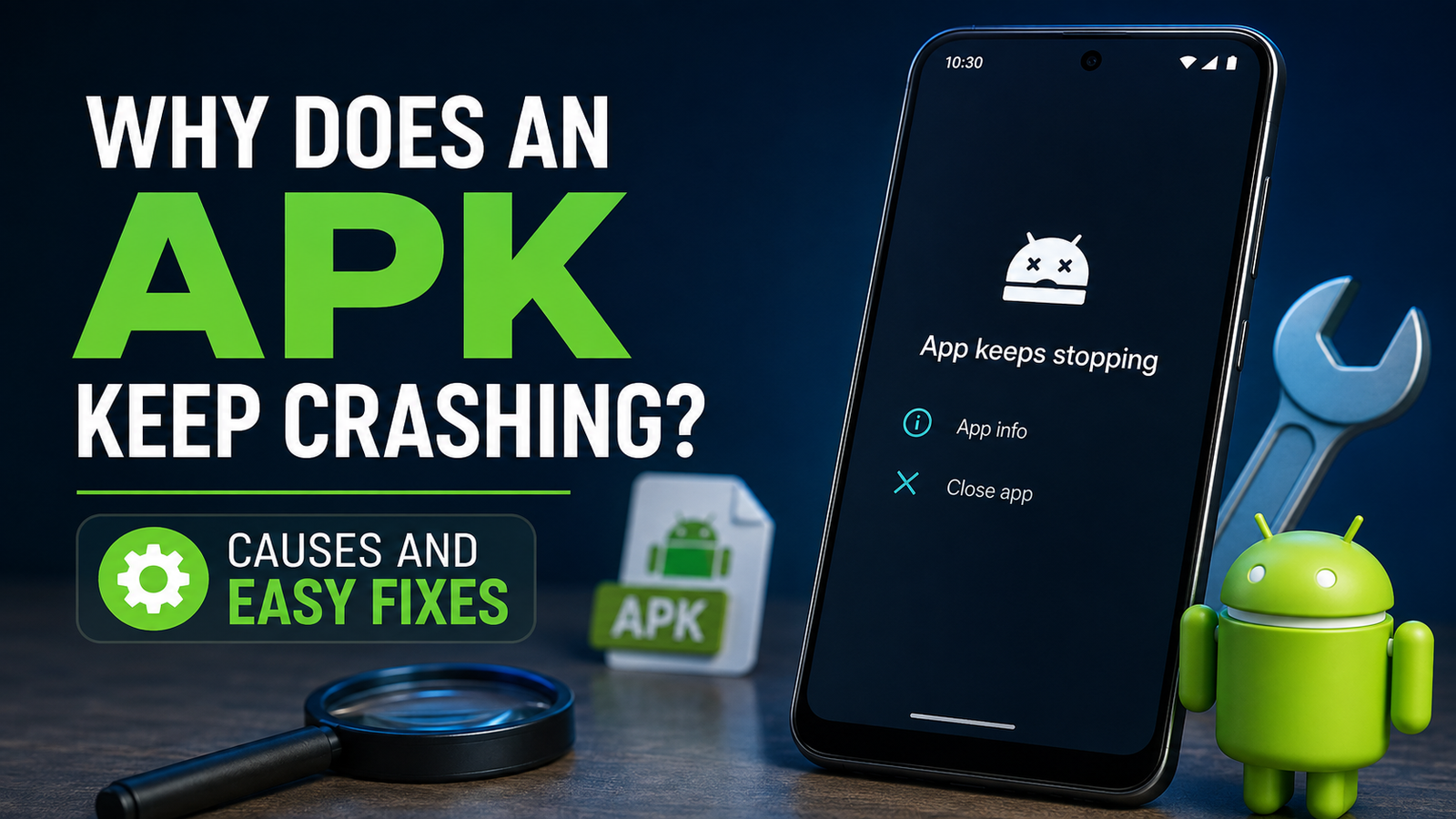
If you are wondering Why Does an APK Keep Crashing, the problem can usually be traced to app compatibility, corrupted files, insufficient storage, outdated software, or missing permissions. An APK may install successfully on an Android phone but still close unexpectedly when you try to open or use it.
APK files are commonly used to install Android applications outside the Google Play Store. While this can be useful when a particular app is unavailable in your region or an older version is needed, manually installed apps can sometimes experience problems that do not occur with apps installed through official stores.
The good news is that most APK crashing problems are relatively easy to troubleshoot. In this guide, we will look at the most common reasons an APK crashes and explain practical steps you can take to make the app work properly.
What Does It Mean When an APK Keeps Crashing?
An APK is the installation package used by Android applications. Once installed, the APK becomes an app on your device, so a crashing problem is generally an app or system issue rather than a problem with the APK file format itself.
A crash happens when Android stops an application because it encounters an error it cannot handle. You may notice that:
- The app closes immediately after opening.
- The app freezes and then disappears.
- The screen suddenly returns to the home screen.
- The application works briefly before crashing.
- Android displays an “App keeps stopping” message.
- Certain features cause the application to close.
The cause can be something as simple as an outdated Android version or as complicated as an incompatible app architecture.
Why Does an APK Keep Crashing on Android?
There is no single reason why an APK crashes. Different devices, Android versions, and APK builds can behave differently.
Here are some of the most common causes.
| Possible Cause | What It Means | Recommended Solution |
|---|---|---|
| Incompatible Android version | The app requires a different Android version | Check the app requirements |
| Corrupted APK | Installation package may be incomplete or damaged | Download a fresh copy |
| Low storage | Android does not have enough free space | Free up storage |
| Missing permissions | The app cannot access required features | Review app permissions |
| Outdated Android | System software may not support the app | Update Android if available |
| Incorrect APK variant | APK may not match your device architecture | Use the appropriate variant |
| Corrupted app data | Stored files may be causing errors | Clear cache or app data |
| Buggy app build | The APK itself may contain software bugs | Try another stable version |
Understanding the likely cause makes troubleshooting much easier.
Check Whether the APK Is Compatible With Your Android Version
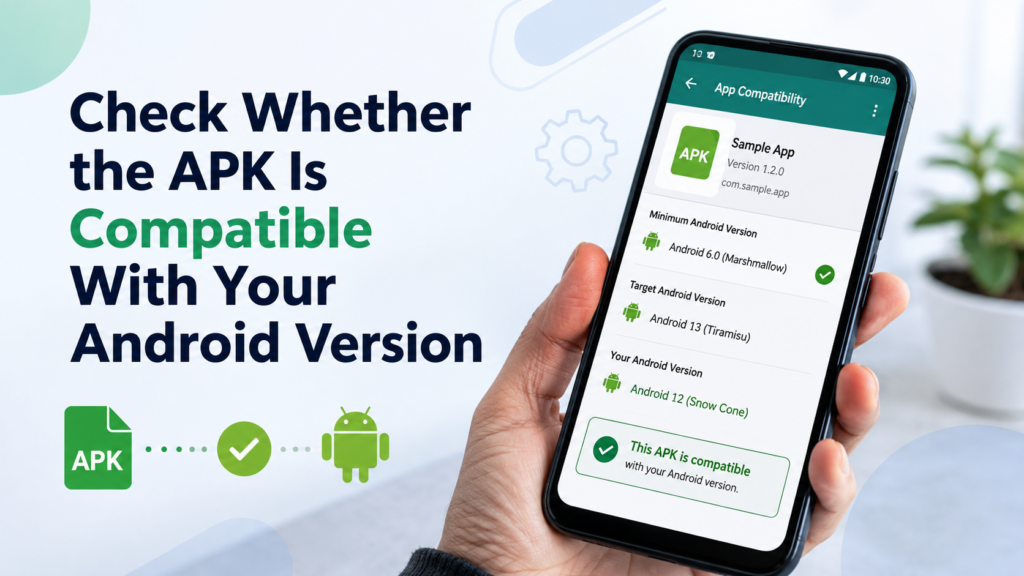
One of the first things you should check is Android compatibility.
Some applications require a minimum Android version. For example, an app designed for a newer release may not function correctly on an older device, even if Android allows the APK to install.
Compatibility can also work in the opposite direction. Very old applications may have problems on newer Android versions because system behavior and security restrictions have changed.
Before installing an APK, check:
- Minimum Android version required
- Supported device models
- CPU architecture
- Required permissions
- App version
- Whether the application is still maintained
If the APK requires a newer Android version than your phone supports, installing it may not solve the problem. You may need an older compatible release instead.
The APK File Could Be Corrupted
A damaged or incomplete APK can cause unexpected behavior.
This can happen when a download is interrupted, a file is modified incorrectly, or the APK comes from an unreliable source. The installation may sometimes complete even though important application files are missing or damaged.
If the app crashes immediately after installation, consider downloading a fresh copy from a reputable source.
Avoid installing several random APK versions in an attempt to find one that works. This can create additional compatibility and security problems.
Before installing another version, uninstall the problematic application and restart your device. Then install the verified APK again.
Your Phone May Not Have Enough Free Storage
Low storage is another commonly overlooked reason for app instability.
Android needs available storage not only for installing applications but also for temporary files, updates, cached data, and normal system operations.
If your phone is almost full, an application may behave unexpectedly.
Check your available storage and remove unnecessary files such as:
- Large videos
- Duplicate photos
- Old downloads
- Unused applications
- Offline media
- Large temporary files
Try to maintain a reasonable amount of free space rather than operating your phone with almost no storage available.
Clear the APK App’s Cache
Sometimes the application itself is installed correctly, but its cached data becomes corrupted.
Clearing the cache can fix temporary problems without deleting your personal app data.
The exact menu names can vary depending on your Android device, but the general process is:
- Open Settings.
- Go to Apps or App Management.
- Select the application that keeps crashing.
- Open Storage or Storage & cache.
- Tap Clear Cache.
- Launch the app again.
If clearing the cache does not help, you can consider clearing the app’s data. However, be careful because this may remove locally stored settings, login information, downloads, or other application data.
Check the App’s Permissions
Some applications require access to specific Android features to operate correctly.
For example, an application might need permission to access storage, the camera, microphone, location, contacts, or notifications.
If an important permission has been denied, the application may fail when it attempts to use the related feature.
Open your Android settings and review the permissions assigned to the app. Only enable permissions that are genuinely required by the application.
If an app requests unusually broad permissions that do not appear related to its purpose, think carefully before granting access.
Your Android System May Be Outdated
An outdated Android system can create compatibility problems with newer applications.
Developers regularly update their apps to work with newer Android releases, security changes, APIs, and device technologies. If your phone has not received important system updates for a long time, newer APKs may not behave correctly.
Check your phone’s system update section to see whether an official update is available.
However, updating Android is not always possible, especially on older devices. If your phone cannot support the required Android version, looking for a compatible app release may be the more practical option.
The APK May Use the Wrong CPU Architecture
This is particularly important when manually installing APK files.
Android devices can use different processor architectures, and some APK packages are built for specific architectures. If you install an unsuitable build, the application might fail to launch or become unstable.
You may encounter terms such as:
- ARM64
- ARM
- x86
- x86_64
Modern Android phones commonly use ARM-based processors, but compatibility depends on the particular device and application.
If several APK variants are available, choose the version that matches your device rather than installing one at random.
Some APKs Require Additional Files
Not every Android application is distributed as a simple standalone APK.
Some apps rely on additional resources, split packages, expansion files, or other components. Installing only one part of an application can result in crashes or missing features.
This is especially relevant when dealing with packages that were originally distributed through modern app stores using multiple components.
If an application normally requires additional files, installing an isolated APK may not be enough. Make sure you understand the package format before attempting installation.
Background Apps Can Affect Performance
Older or lower-end Android devices may struggle when too many applications are running simultaneously.
If your phone has limited RAM, a demanding application may become unstable when several resource-intensive apps are active in the background.
Try closing unnecessary applications and then launch the APK again.
You can also restart your phone. A simple restart clears temporary system processes and can resolve occasional memory-related issues.
This is particularly worth trying if the application previously worked normally but suddenly started crashing.
Uninstall Updates or Reinstall the Application
If the application recently changed and started crashing afterward, the latest version may contain a bug.
In that situation, reinstalling the application can help determine whether the installation itself was damaged.
A basic troubleshooting sequence is:
- Back up important app data if possible.
- Uninstall the application.
- Restart your Android device.
- Install a verified and compatible APK.
- Open the application and test it.
If an older version worked correctly, the newer build may simply be incompatible with your device or contain an unresolved bug.
However, using outdated applications indefinitely can introduce security risks, so an older version should only be considered when you understand the potential limitations.
Avoid Modified or Untrusted APK Files
Modified APKs can be particularly difficult to troubleshoot because the application code may have been changed from the original version.
An unofficial modification could introduce bugs, compatibility issues, aggressive advertisements, unwanted behavior, or security risks.
If an APK repeatedly crashes and it is a modified version, try the official or unmodified release instead.
Security should always be part of APK troubleshooting. A crashing application is inconvenient, but installing an unsafe application can create a much more serious problem.
What to Do If Nothing Fixes the Crash
If you have tried the common solutions and the application still crashes, the problem may be related to the app itself rather than your phone.
Try the following:
- Test another compatible version.
- Check whether other users report the same issue.
- Confirm your Android version.
- Check the app’s minimum requirements.
- Verify that your device has enough storage.
- Remove conflicting versions of the same app.
- Restart the phone after reinstalling.
- Look for an official update or bug fix.
If only one application crashes while other apps work normally, the application itself is a stronger suspect.
On the other hand, if many unrelated apps are crashing, you may be dealing with a broader Android system or storage problem.
How to Prevent APK Crashes in the Future
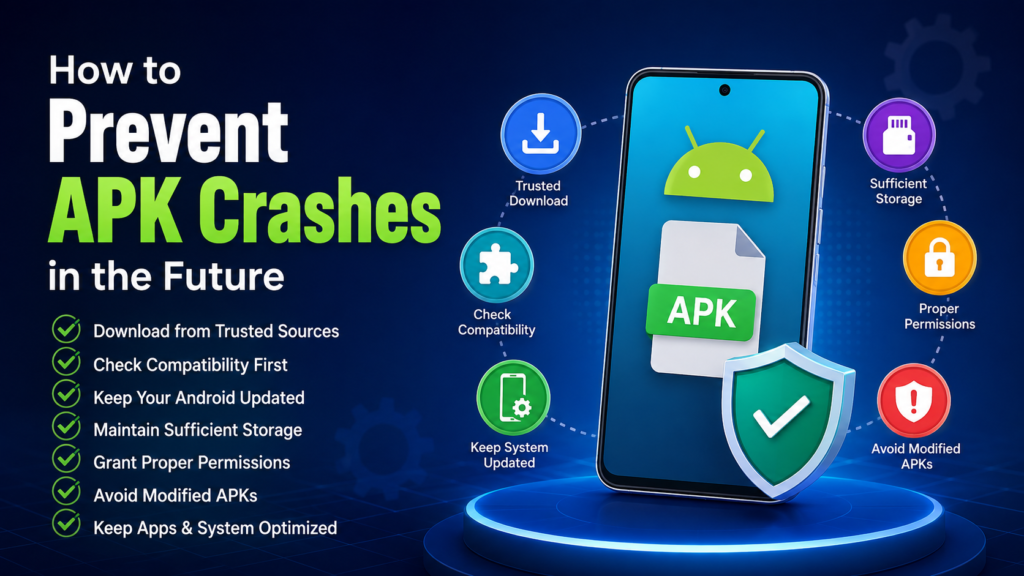
Prevention is easier than repeatedly troubleshooting the same issue.
When installing APK files, follow a few basic habits:
- Download files from trustworthy sources.
- Check Android compatibility before installation.
- Keep your operating system updated when possible.
- Maintain sufficient free storage.
- Avoid unnecessary modified APKs.
- Keep important app data backed up.
- Install the correct APK variant for your device.
- Remove broken installations before trying another version.
- Review permissions before granting access.
- Scan unfamiliar files with appropriate security tools.
These habits can reduce both compatibility problems and security risks.
Frequently Asked Questions
Why does an APK keep crashing immediately after installation?
An APK may crash immediately because it is incompatible with your Android version, CPU architecture, or device. A corrupted installation or missing supporting component can also cause the problem. Check the application’s requirements and try a verified compatible version.
Can low storage cause an APK to crash?
Yes. Extremely low storage can affect temporary files, caching, installation processes, and general Android performance. Freeing up storage may improve stability, especially if your device is nearly full.
Will clearing app cache stop an APK from crashing?
It can. Corrupted temporary data may cause an application to malfunction. Clearing the cache removes temporary files without normally deleting your main app data, making it a useful first troubleshooting step.
Why does an APK work on one phone but not another?
Android devices differ in operating system versions, hardware architectures, available memory, manufacturer software, and security restrictions. An APK that works correctly on one phone may therefore be incompatible with another.
Is a modified APK more likely to crash?
It can be. Modified applications may contain changes that introduce bugs or compatibility problems. Because the software has been altered, troubleshooting can also be more difficult than with the original application.
Should I install an older APK if the newest version keeps crashing?
An older compatible version may work if the latest release has a bug or no longer supports your device. However, older versions can miss security fixes and features, so using an official, supported release is generally preferable whenever possible.
Final Thoughts
So, Why Does an APK Keep Crashing? The answer can involve several factors, including Android compatibility, damaged installation files, insufficient storage, missing permissions, incompatible CPU architecture, outdated system software, or bugs within the application itself.
Also Read: How to Tell if an APK File Is Safe: Before Installing It on Android














1 comment