How to Fix APK Installation Failed Error on Android
Trying to install an APK file but seeing an installation failed message can be frustrating, especially when the file appears to download correctly. The good news is that How to Fix APK Installation Failed Error usually comes down to a few common issues, such as an incompatible Android version, corrupted APK, insufficient storage, blocked installation permissions, or a conflict with an existing app.
APK files give Android users another way to install applications outside the Google Play Store. However, because these files are installed manually, Android may reject them when certain requirements are not met. In this guide, you will learn the most effective ways to identify the problem and get your APK installed successfully.
Why Does an APK Installation Fail?
There isn’t one single reason why Android refuses to install an APK. Different error messages can point toward different problems.
Some APK files may be designed for newer Android versions, while others may require a specific processor architecture. In other cases, the APK itself may be damaged or incompatible with an app already installed on your phone.
Common causes include:
- The APK file is corrupted or incomplete.
- Your Android version is not supported.
- The APK requires a different CPU architecture.
- Installation from unknown sources is blocked.
- Your phone does not have enough free storage.
- An older version of the same app is already installed.
- The APK is incorrectly signed.
- The file is actually part of an app bundle rather than a standalone APK.
- Android security settings are preventing installation.
- The APK was modified and is incompatible with the existing application.
Understanding the cause first can save you from repeatedly downloading and installing the same file.

Check Your Android Version and APK Compatibility
One of the first things to check is whether the APK supports your Android version.
Developers specify minimum Android requirements when building applications. If an APK was created for a newer version of Android, an older phone may reject it during installation.
To check your Android version:
- Open Settings.
- Scroll down to About phone or About device.
- Look for Android version.
- Compare your version with the APK’s minimum Android requirement.
For example, an application requiring Android 12 may not install properly on a phone running an older Android release.
Compatibility can also depend on the phone’s processor architecture. Some APKs are built specifically for ARM64, armeabi-v7a, x86, or other architectures. Installing an incompatible version can result in an installation error.
Enable APK Installation Permissions
Android normally restricts applications downloaded outside official app stores. Depending on your Android version and device manufacturer, you may need to allow the application you’re using to install APK files.
For example, if you downloaded the APK through Chrome, the permission may be associated with Chrome.
Go to:
Settings → Apps → Special app access → Install unknown apps
Select the application you used to open the APK and enable the option that allows installation from that source.
The exact menu names can vary between Samsung, Xiaomi, OnePlus, Google Pixel, Oppo, Vivo, and other Android devices.
After enabling the permission, try opening the APK again.
Make Sure You Have Enough Storage
Low storage is another simple issue that can prevent an APK from installing.
Even if an APK file is relatively small, Android may need additional temporary space while installing and extracting the application.
Check your available storage under:
Settings → Storage
If your phone is nearly full, remove unnecessary files before trying again.
Consider deleting:
- Old downloads
- Duplicate videos
- Unused applications
- Large cached files
- Unnecessary documents
- Offline media you no longer need
After freeing some space, restart your device and attempt the installation again.
Download the APK Again
A damaged APK file may download successfully but still fail during installation.
This can happen because of an interrupted download, unstable internet connection, server problems, or an incomplete file.
If you suspect the file is corrupted, delete it and download a fresh copy from a trustworthy source.
Avoid repeatedly installing the same damaged file. Instead, make sure the new download has completed properly before opening it.
You should also be cautious with APK files from unknown websites. A file that promises a premium application or unusual modification may have been altered, bundled with unwanted software, or simply uploaded incorrectly.
Uninstall the Existing Version of the App
Sometimes Android cannot install an APK because another version of the same application is already installed.
This is particularly common when the APK has a different digital signature from the version currently on your phone.
For example, you may already have an application installed from the Google Play Store and then try to install a modified or differently signed APK of the same app.
If you do not need the existing installation, you can try uninstalling it first.
Before doing so, make sure your important data is backed up because uninstalling an application may remove locally stored information.
Then restart the installation process.
Check Whether the APK Is Actually an APK
Not every file with an app-related download is a traditional standalone APK.
You may encounter formats such as:
- APK
- XAPK
- APKS
- APKM
Some of these packages contain multiple APK files or additional resources. Simply tapping the file with the default Android installer may not work.
If you downloaded an XAPK or another split-package format, you may need a compatible installer that understands that package structure.
This is an important point because repeatedly trying to install a split package as though it were a standard APK can produce confusing errors.
Clear the Package Installer Cache
On some Android devices, temporary system data associated with the package installer can cause installation problems.
If your phone provides access to the relevant system application, you can try clearing its cache.
Open:
Settings → Apps → Show system apps
Look for an entry such as Package Installer, Package Manager, or a similarly named system component.
Open its storage settings and clear the cache if the option is available.
Avoid deleting system data unless you understand exactly what it will remove. Clearing the cache is generally the safer first step.
Restart Your Android Device
A simple restart can sometimes resolve temporary installation problems.
Android services occasionally become stuck, especially after installing or removing several applications in a short period.
Restart your phone and wait until the system has fully loaded. Then locate the APK file and try the installation again.
Although this is a basic troubleshooting step, it is worth trying before making more complicated changes.
Check for App Signature Conflicts
Android uses digital signatures to verify application updates and installations.
If you already have an application installed and the new APK was signed differently, Android may refuse to install it over the existing version.
This can happen when:
- The APK comes from a different developer build.
- You switched from an official version to a modified version.
- The existing app was installed through another distribution channel.
- The APK has been re-signed after modification.
If you are certain the new APK is legitimate and you do not need the existing installation, uninstalling the old version may resolve the conflict.
Always back up important app data before removing an application.
Use the Correct APK Variant
Some applications provide several APK versions for different devices.
For example, you might see versions based on:
| APK Variant | Typical Purpose |
|---|---|
| ARM64 | Modern 64-bit Android phones |
| armeabi-v7a | Older 32-bit ARM devices |
| x86 | Certain Android devices and emulators |
| Universal | Designed to support multiple architectures |
| Split APK | Applications distributed as multiple package files |
Choosing the wrong variant can lead to installation failures.
If you are unsure which version your phone requires, look for the application’s universal APK when available or check your device’s CPU architecture using a reputable device-information application.
Turn Off Conflicting Installation Restrictions
Some devices include additional security systems that may interfere with manually installed applications.
Google Play Protect, manufacturer security tools, enterprise management policies, and parental restrictions can sometimes prevent an APK from being installed.
If Android displays a security warning, read it carefully rather than automatically bypassing it.
If the APK comes from an unknown or suspicious source, the warning may be protecting your device from potentially harmful software.
For legitimate APK files, verify the source and file integrity before making any changes to security settings.
What to Do If the APK Still Won’t Install
If none of the solutions above works, take a systematic approach rather than trying random settings.
Follow these steps:
- Delete the current APK.
- Restart your phone.
- Check your Android version.
- Confirm that you have enough storage.
- Verify the APK architecture and minimum requirements.
- Enable installation permission for the correct source.
- Check whether another version of the app is installed.
- Download the APK again from a trustworthy source.
- Confirm whether the file is APK, XAPK, APKM, or APKS.
- Try a compatible version of the application.
If the APK is still rejected, the file itself may simply not be compatible with your device.
In that situation, finding an officially supported version is usually safer than repeatedly changing security settings.
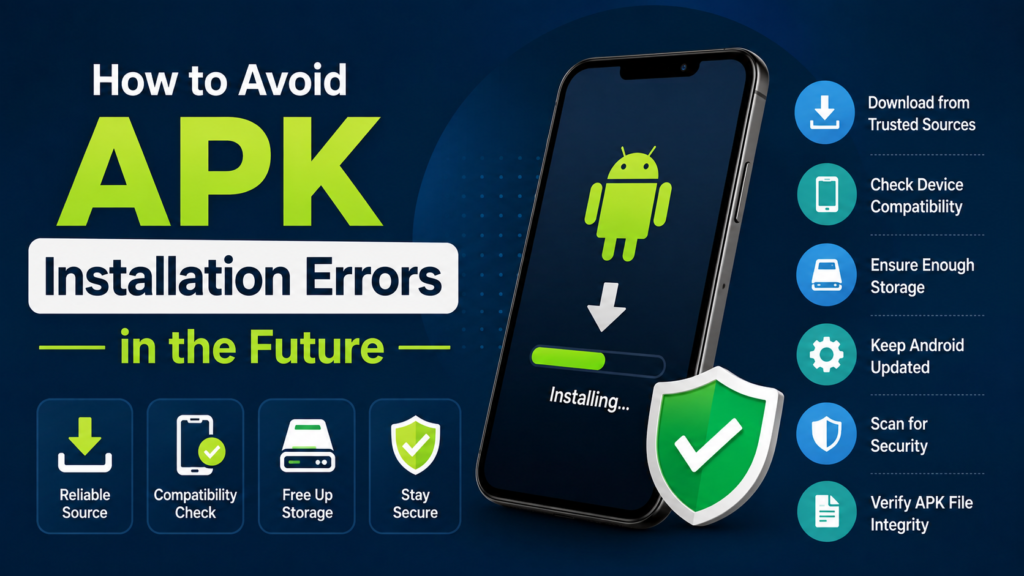
How to Avoid APK Installation Errors in the Future
Preventing installation problems is easier than troubleshooting them later.
Before downloading an APK, check its requirements and make sure it matches your device.
A few good habits can help:
- Download applications from reputable sources.
- Check the minimum Android version.
- Verify the required CPU architecture.
- Keep enough free storage available.
- Avoid downloading incomplete files.
- Keep Android updated when possible.
- Back up important app data before replacing an app.
- Be careful with modified or re-signed APKs.
- Scan suspicious files before opening them.
- Avoid disabling important security protections unnecessarily.
These steps reduce the chance of encountering installation problems and also help protect your phone from potentially harmful software.
Frequently Asked Questions
Why does Android say APK installation failed?
Android may reject an APK because it is incompatible, corrupted, incorrectly signed, blocked by security settings, or conflicting with an existing version of the application. Checking compatibility and downloading a fresh file are good first steps.
Why can’t I install an APK even though I have enough storage?
Storage is only one possible cause. The APK may require a newer Android version, use an incompatible architecture, have a different signature from the installed app, or be a split package that requires a compatible installer.
Can an old Android phone install newer APK files?
Not always. An APK can require Android features that are unavailable on older versions. If the application specifies a newer minimum Android version, you may need an older compatible release.
Why does an APK work on another phone but not mine?
Different phones can use different Android versions, processor architectures, security configurations, and hardware requirements. An APK that works on one device may therefore fail on another.
Should I uninstall the existing app before installing an APK?
If Android reports a signature or package conflict, uninstalling the existing application can sometimes help. However, back up important data first because removing an app may delete locally stored information.
Is it safe to install APK files?
APK installation itself is a normal Android feature, but the source of the file matters. Downloading APKs from unreliable websites can expose your device to malicious or modified software. Always verify the source before installing.
Final Thoughts
When an APK refuses to install, there is usually a specific reason behind the error. Compatibility problems, corrupted downloads, insufficient storage, installation permissions, package conflicts, and incorrect APK formats are among the most common causes.
Also Read: Why Does an APK Keep Crashing: Common Causes and Easy Fixes














1 comment