How to Update an APK Without Losing App Data: Complete Android Guide for Safe APK Updates
Updating an Android app should normally be a simple process, but things can become complicated when you install apps manually using APK files. If you have important settings, saved progress, downloaded content, messages, or personal preferences inside an app, the biggest concern is losing that information during an update.
The good news is that How to Update an APK Without Losing App Data is usually straightforward when the new APK is compatible with the existing installation. The key is to update the existing app rather than uninstalling it first. You also need to make sure the APK comes from a trustworthy source and is signed with the same certificate as the version already installed.
This guide explains how APK updates work, what can cause data loss, how to prepare your device, and what to do if an APK update fails.
What Happens When You Update an APK?
When Android updates an existing application, it generally replaces the installed app’s program files while keeping its user data in place.
Your app data may include:
- Account settings
- Saved game progress
- App preferences
- Downloaded files
- Login information
- Local databases
- Custom configurations
- Offline content
An update is different from uninstalling and reinstalling an application. When you uninstall an app, Android may remove its associated private data. Installing the updated APK afterward may therefore give you a completely fresh installation.
For this reason, do not uninstall the existing app simply because you have downloaded a newer APK. If the update is compatible, install the new version directly over the existing one.
Can You Update an APK Without Losing Data?
Yes, in many situations you can update an APK without losing your existing app data.
Android allows an APK to update an already-installed application when important compatibility requirements are satisfied. The package name must normally match, and the update must be signed appropriately.
For example, imagine you have version 4.2 installed and download version 4.3 of the same application. If version 4.3 is designed as an update and is properly signed, Android can replace the application files while preserving the existing data.
However, an APK update is not guaranteed to preserve everything in every situation. Problems can occur when you switch between different versions, signatures, package variants, or modified builds.
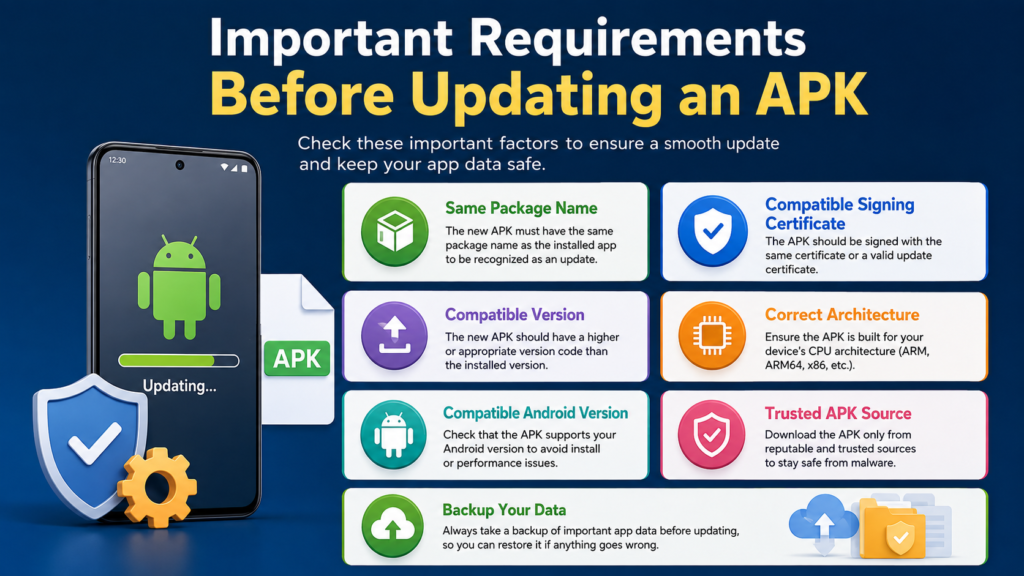
Important Requirements Before Updating an APK
Before installing a new APK, check a few important details. These checks can prevent many common update errors and unnecessary data loss.
| Requirement | Why It Matters |
|---|---|
| Same package name | Android identifies the app installation through its package identity |
| Compatible signing certificate | Android generally requires a valid update signature |
| Compatible version | The new APK should normally have an appropriate version code |
| Correct architecture | Some APKs are built for specific CPU architectures |
| Compatible Android version | New releases may require a newer Android version |
| Trusted APK source | Reduces the risk of modified or malicious files |
| Backup | Gives you a recovery option if something goes wrong |
Checking these factors before installation is especially important when dealing with APKs downloaded outside the Google Play Store.
Back Up Important App Data First
Even when an update is expected to preserve data, creating a backup is a smart precaution.
Some applications store important information locally. If the update causes a compatibility problem, crashes repeatedly, or requires a fresh setup, a backup can make recovery much easier.
Depending on the application, you may be able to back up information through:
- The app’s built-in backup feature
- Cloud synchronization
- Google account synchronization
- Export or backup files
- Device backup tools
- Manual copies of user-accessible files
The backup method depends heavily on the application. Some apps keep their important information in protected storage that cannot simply be copied using a normal file manager.
Check Whether the App Syncs Data
Before updating, open the app and look for synchronization or backup settings.
For example, a game may synchronize progress with an online account, while a note-taking application may store notes in the cloud. If your important information is already synchronized, restoring it after an update may be much easier.
Do not assume every app automatically backs up everything. Verify the feature before relying on it.
How to Update an APK Without Losing App Data
The safest general approach is to install the new APK over the existing application.
Step 1: Check Your Current App Version
Open the application and find its version information. You can often find it under settings, an About section, or the Android app information screen.
Knowing your current version helps you determine whether the downloaded APK is actually newer.
Step 2: Back Up Your Important Information
Save anything you cannot afford to lose.
If the app has an export or backup option, use it before continuing. For games, make sure your progress is connected to the appropriate account if the game supports cloud saves.
Step 3: Download the Correct APK
Get the APK from a reputable and trustworthy source.
Before installing it, check:
- App name
- Package identity
- Version number
- Android compatibility
- Architecture requirements
- File authenticity when verification information is available
Avoid random APK files that have been modified without clear information about their origin.
Step 4: Do Not Uninstall the Existing App
This is one of the most important steps.
If your goal is to preserve app data, do not uninstall the current version first. Uninstalling can remove the application’s private data and make it impossible to perform a normal in-place update.
Instead, leave the existing installation on your device.
Step 5: Install the New APK
Open the APK file using your Android device’s package installer. Android may ask you to allow installation from that source if you have not previously enabled it.
Review the installation screen carefully.
If Android recognizes the file as an update to the existing application, proceed with the installation.
Step 6: Wait for Installation to Finish
Do not restart the phone or interrupt the installation unnecessarily.
Once installation completes, open the application normally. The updated app should use the existing application data if the update was compatible.
Step 7: Verify Your Data
Check the information that matters most.
For example:
- Are you still signed in?
- Are your settings still present?
- Is your game progress intact?
- Are your saved files available?
- Are your preferences unchanged?
- Does the application open normally?
If everything looks correct, the update was successful.
What If Android Says “App Not Installed”?
An “App not installed” message does not necessarily mean your data has been lost.
Several issues can cause this error. The most common ones include incompatible APKs, conflicting signatures, insufficient storage, incorrect package versions, or architecture mismatches.
First, do not immediately uninstall your existing app.
Instead, investigate the cause.
Check the APK Version
The APK may not actually be a valid upgrade for your current installation. A lower version code cannot normally replace a newer installed version.
Check the App Signature
If the existing app was installed from one source and the new APK was signed by a different developer certificate, Android may reject it as an update.
This commonly happens when users switch between official and modified builds.
Check Device Compatibility
Some APK files are intended for particular Android versions or CPU architectures. Installing an incompatible build may fail even if the application name appears identical.
Free Up Storage
Insufficient storage can also prevent installation. Make sure your device has enough free space for the update and temporary installation files.
Why APK Updates Sometimes Cause Data Problems
Although in-place updates are designed to preserve app data, the updated application itself determines how that data is handled.
A developer may change the app’s internal database structure, storage system, or configuration format. A poorly designed update could therefore cause problems even when Android successfully installs the APK.
Other situations can include:
- The new version no longer supports an old data format.
- The app changed its storage structure.
- A modified APK behaves differently from the original.
- The application was previously installed with a different signature.
- The APK is actually a different package variant.
- The developer intentionally removed or changed certain features.
This is why a backup is valuable even when the update process appears routine.
Updating Mod APKs Requires Extra Care
Modified APKs can introduce additional complications.
If you currently have a modified version of an application installed, the official APK may not always install directly over it. The reverse can also be true.
The problem often comes down to differences in signing certificates or package configuration.
If you want to move from a modified APK to an official release, assume that the process may require additional preparation. Do not uninstall the existing application until you understand how its data is stored and whether the new version can access it.
For important information, make a backup before experimenting with different builds.
How to Avoid Losing Data During Future APK Updates
A little preparation can make future updates much safer.
Follow these habits:
- Keep important apps connected to supported cloud services.
- Use built-in backup features when available.
- Save important documents separately.
- Keep a copy of essential exported data.
- Avoid uninstalling an app before testing an update.
- Check the APK version before installation.
- Use trustworthy APK sources.
- Avoid mixing unofficial and official builds unnecessarily.
- Maintain enough free storage on your phone.
- Keep Android updated when possible.
The most important rule is simple: backup first, update second.
What You Should Never Do Before an APK Update
Some actions can unnecessarily increase the chance of losing information.
Avoid these mistakes:
Uninstalling the Current Version
Removing the existing app can remove its private data. If you are trying to perform an in-place update, there is usually no reason to uninstall it first.
Clearing App Data
Clearing an application’s data is different from clearing its cache. Clearing data can reset the application and remove locally stored information.
If your objective is to preserve settings and progress, do not clear app data unless you understand exactly what will be deleted.
Installing a Random APK Variant
An APK that looks similar may belong to a different package, architecture, or release variant.
Always verify what you are installing.
Ignoring Compatibility Warnings
Android’s warnings are worth taking seriously. If the installer reports that the package is incompatible or conflicts with an existing installation, stop and investigate rather than repeatedly trying random files.
APK Update vs. Uninstall and Reinstall
Understanding the difference between these two methods can save your data.
| Method | Existing App Data | Recommended for Data Preservation? |
| Install compatible APK over existing app | Usually preserved | Yes |
| Uninstall, then install APK | May be removed | No |
| Clear app data, then update | Existing local data may be erased | No |
| Update through official store | Usually preserved | Yes |
| Switch to incompatible APK build | May fail or require changes | Use caution |
The safest method is generally to update an existing installation with a compatible package.
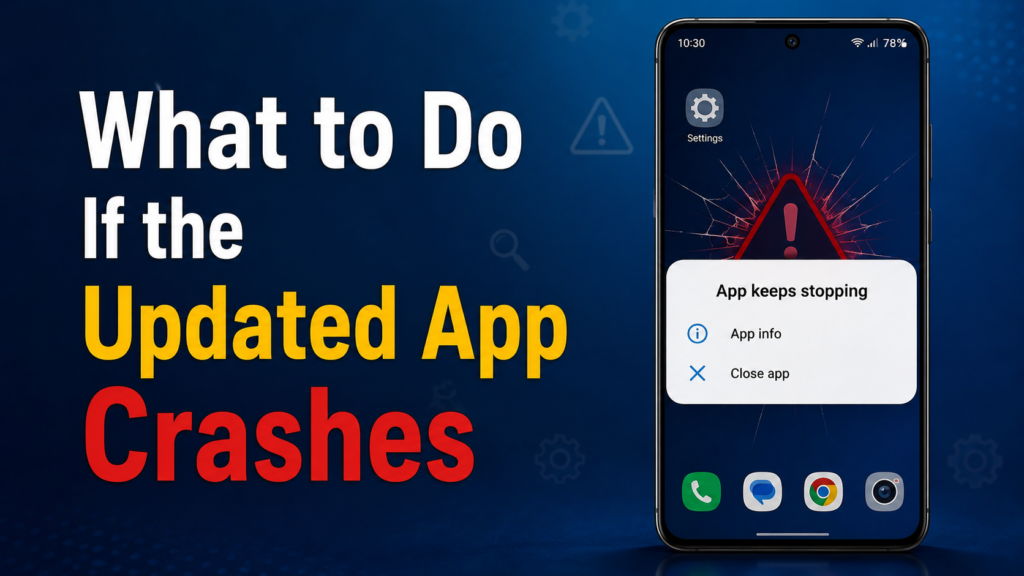
What to Do If the Updated App Crashes
Sometimes an APK installs successfully but the application crashes afterward.
First, restart the device and try opening the app again. If the problem continues, check whether the APK is compatible with your Android version.
You can also look for an official newer build or return to a known-compatible version if you have a legitimate backup and understand the recovery process.
Avoid immediately clearing app data. That action can make troubleshooting more difficult because it may remove the local information you were trying to protect.
If the app contains particularly important information, prioritize recovery and backup before experimenting with additional APK versions.
Frequently Asked Questions
Can I update an APK without uninstalling the old version?
Yes. Installing a compatible APK over the existing application is the normal approach for preserving app data. The package identity and signing information must be compatible for Android to accept it as an update.
Will my login information remain after an APK update?
It often will, but this depends on how the application stores authentication information. An update normally does not intentionally erase app data, but individual apps can behave differently.
Does updating an APK delete game progress?
A compatible in-place update generally preserves the application’s existing data, including locally stored progress. However, you should back up or synchronize important game progress before updating because compatibility problems can occur.
What happens if the new APK has a different signature?
Android may reject the file as an update because the new APK does not match the signing certificate of the installed application. In such cases, you may need a compatible build rather than simply installing the different APK over the existing one.
Should I clear app data before updating an APK?
No, not if your goal is to preserve your existing information. Clearing app data can reset the application and remove locally stored settings, accounts, databases, and other information.
Is updating an APK safer than uninstalling and reinstalling it?
For preserving existing app data, an in-place update is generally the better approach. Uninstalling first can remove the application’s private data, while a compatible update is designed to replace the application without removing that data.
Final Thoughts
Learning How to Update an APK Without Losing App Data comes down to one important principle: update the existing installation instead of removing it. When the APK has the correct package identity, compatible version information, and appropriate signing certificate, Android can normally replace the application files while keeping its existing data.
Also Raed: How to Fix APK Installation Failed Error on Android














1 comment