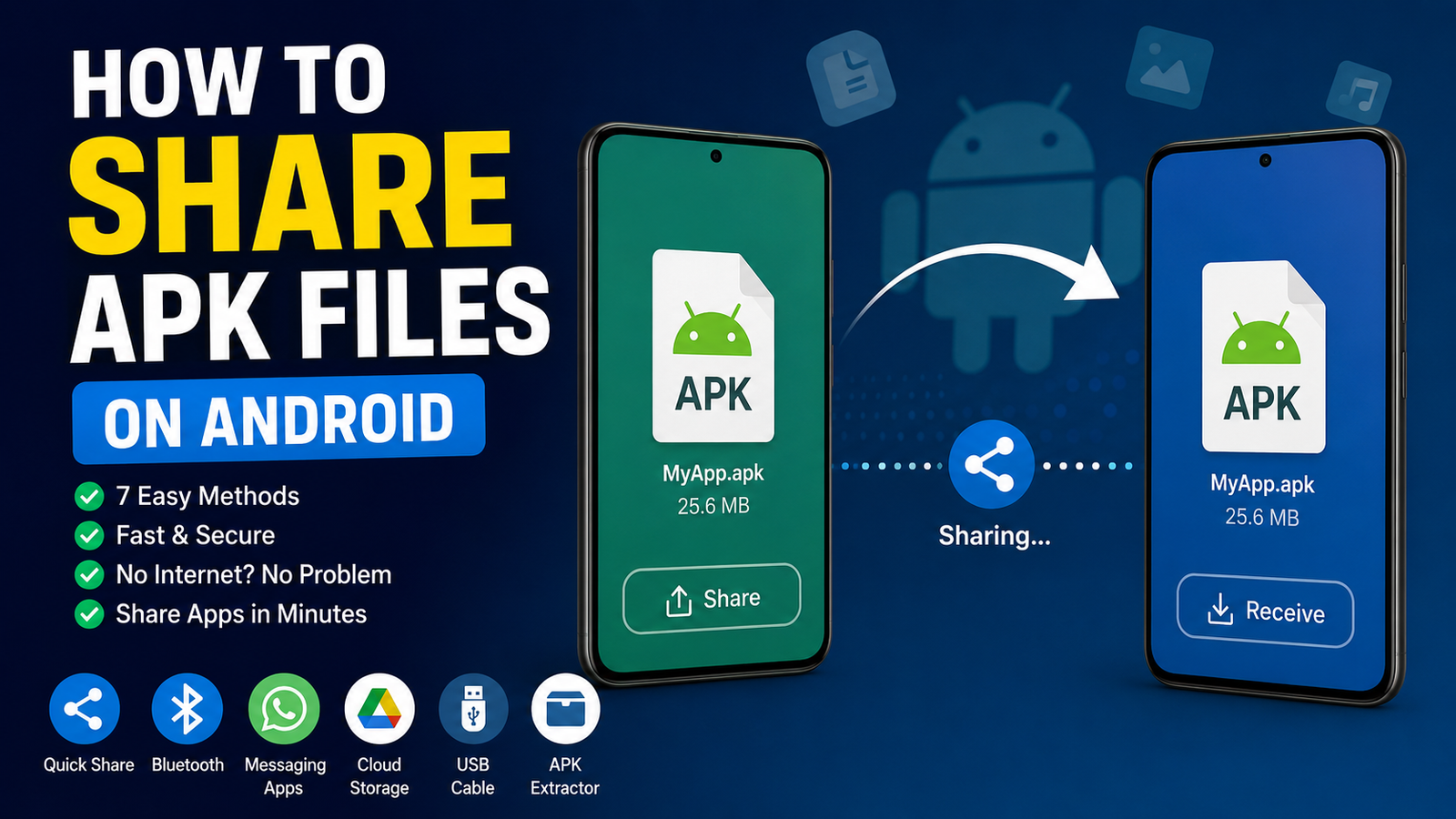
How to Share APK Files on Android: 7 Easy and Safe Methods
Sharing an APK file can be useful when you want to send an Android app to another device without downloading it again from the internet. Whether you have a saved APK on your phone, want to transfer an app to a second Android device, or need to send an installer to someone nearby, there are several ways to do it.
However, knowing how to share APK files is only part of the process. You also need to understand where APK files are stored, which sharing methods work best, and how to avoid sending modified or unsafe files.
In this guide, we’ll cover several practical ways to share APK files on Android, explain the advantages and limitations of each method, and provide some safety tips to keep in mind.
What Is an APK File?
APK stands for Android Package Kit. It is the file format Android uses to package and install applications.
When you download an app outside the Google Play Store, you may receive an APK file that can be installed manually. An APK generally contains the application’s code, resources, assets, and other components required for installation.
You might want to share an APK when:
- You need to install the same app on another Android phone.
- Internet access is limited on the second device.
- You already have a copy of the installer.
- You want to keep an offline backup of an app.
- You are transferring files between your own Android devices.
Keep in mind that not every Android app can be shared as a single APK. Some modern apps use split packages or additional data, which can require formats such as XAPK, APKM, or APKS.
Before Sharing an APK, Check the File
Before you send an APK to someone else, it is worth checking exactly what you are sharing.
An APK obtained from an official and trustworthy source is generally preferable to an unknown file downloaded from a random website. Modified APKs can potentially contain unwanted code, intrusive advertising, or other security risks.
You should also check:
- The APK’s file name and version.
- Where the file originally came from.
- Whether the APK matches the intended application.
- Whether the recipient’s Android version supports it.
- Whether the application requires additional files.
- Whether the file has been modified.
If you extracted the APK from an installed application, remember that some apps use multiple APK components. Sending only one component may not be enough to reproduce the complete installation.
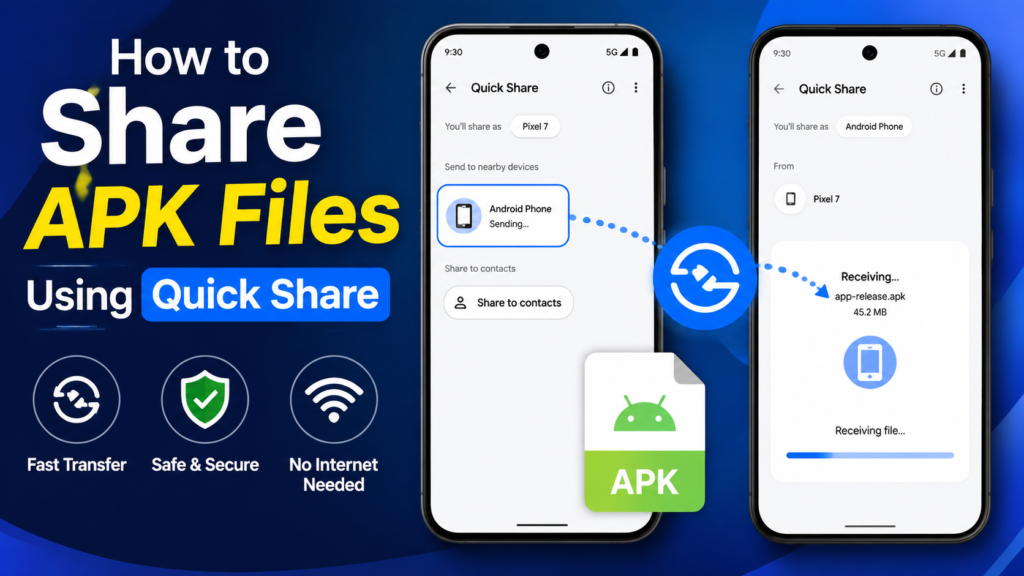
How to Share APK Files Using Quick Share
One of the easiest ways to transfer an APK between compatible Android devices is Quick Share.
Quick Share is designed for nearby file transfers and can be convenient when both devices are physically close.
Steps to Share an APK With Quick Share
- Open the Files app or another file manager.
- Locate the APK file.
- Press and hold the file.
- Tap Share.
- Select Quick Share from the available options.
- Choose the nearby Android device.
- Ask the recipient to accept the transfer.
- Wait until the file transfer finishes.
The exact menu names can vary depending on the Android version and phone manufacturer.
Quick Share is particularly useful because you don’t have to upload the APK to a website first. The file can be transferred directly between nearby compatible devices.
How to Share APK Files With Bluetooth
Bluetooth is another option for transferring an APK, although it may be slower than newer wireless sharing methods.
It can still be useful when you’re transferring a relatively small file and don’t have access to mobile data or Wi-Fi.
Basic Bluetooth Sharing Process
- Turn on Bluetooth on both Android devices.
- Pair the devices if they are not already connected.
- Open a file manager on the sending phone.
- Find the APK file.
- Select Share.
- Choose Bluetooth.
- Select the paired device.
- Accept the incoming file on the receiving phone.
Bluetooth transfer speeds can vary, so larger APK files may take some time.
For this reason, Bluetooth is usually more convenient for smaller files rather than large application packages.
How to Send an APK Through a Messaging App
If you need to send an APK to someone who isn’t nearby, a messaging app may be convenient.
The process depends on the messaging service and its file-size restrictions.
Generally, you can:
- Open the conversation with the recipient.
- Tap the attachment or file button.
- Select the APK from your device storage.
- Send the file.
- Wait for the recipient to download it.
Not every messaging platform allows APK files to be sent directly. Some services may block certain file types or impose size limits.
If the application refuses the APK, you may need to use another transfer method.
How to Share APK Files Using Cloud Storage
Cloud storage is useful when the recipient isn’t physically near you or when you want to share an APK with multiple devices.
The general process is simple:
- Upload the APK to a cloud-storage service.
- Wait for the upload to complete.
- Generate or copy the sharing link.
- Send the link to the recipient.
- The recipient downloads the APK onto their Android device.
Cloud storage can also be useful as a temporary backup.
However, avoid making sensitive or private APK files publicly accessible. If the service provides access controls, use them to restrict who can download the file.
How to Share an APK Using a USB Cable
A USB cable provides another reliable way to move APK files between devices.
This method can be especially useful when wireless transfer is inconvenient.
Transfer an APK From Android to a Computer
Connect your Android phone to the computer with a compatible USB cable. Depending on the device, you may need to select File Transfer from the USB notification.
Then:
- Open the phone’s storage on your computer.
- Locate the APK.
- Copy the file.
- Paste it into a folder on the computer.
- Safely disconnect the phone.
You can then transfer the APK from the computer to another Android phone.
USB transfers are generally straightforward, but the exact steps can differ between Windows, macOS, and different Android devices.
How to Share an APK With an APK Extractor
If the APK isn’t already saved in your Downloads folder, you may be able to extract an installed application’s APK using an APK extractor or backup utility.
These apps can identify applications installed on your device and create an APK copy that you can save or share.
A typical process looks like this:
- Open a reputable APK extraction or backup tool.
- Find the application you want to back up.
- Select the application.
- Choose the extraction or backup option.
- Wait for the APK to be created.
- Locate the resulting file.
- Share it using Quick Share, Bluetooth, cloud storage, or another method.
The important limitation is that an extracted APK isn’t always a complete backup of the application. Some apps rely on split APKs, downloaded content, databases, or account-specific data.
Which APK Sharing Method Is Best?
Different methods make sense in different situations.
| Sharing Method | Best For | Internet Required | Typical Advantage |
|---|---|---|---|
| Quick Share | Nearby Android phones | Usually no | Fast and convenient |
| Bluetooth | Small nearby files | No | Works without internet |
| Messaging app | Remote sharing | Usually yes | Easy for individual recipients |
| Cloud storage | Remote or multiple devices | Yes | Convenient link-based sharing |
| USB cable | Large files or offline transfer | No | Reliable physical connection |
| APK extractor | Creating an APK from an installed app | No | Useful when the original APK isn’t saved |
For most nearby Android-to-Android transfers, Quick Share is usually the simplest choice. For remote sharing, cloud storage can be more practical.
What Happens After the APK Is Shared?
Sending an APK does not automatically install the application on the recipient’s phone.
The recipient first needs to download or receive the file. Android may then ask for permission to install applications from that particular source, depending on the device and Android version.
After opening the APK, Android checks whether the package can be installed.
Potential problems include:
- The APK is incompatible with the device.
- The Android version is too old.
- The package conflicts with an existing installation.
- The APK is corrupted.
- The file is incomplete.
- The application requires split packages.
- Installation from the current source isn’t permitted.
If installation fails, sending the file again may not solve the problem. The underlying APK or compatibility issue needs to be identified.
Is It Safe to Share APK Files?
Sharing an APK is not automatically dangerous, but the source and contents of the file matter.
An APK can be modified before it reaches your device. If you obtained it from an unknown website or another person, you cannot automatically assume it is safe.
For better security:
- Download APKs from reputable sources.
- Avoid suspicious modified packages.
- Scan unfamiliar files with reliable security software.
- Check the application’s name and version before installing.
- Don’t grant unnecessary permissions to unfamiliar apps.
- Keep Android and Google Play services updated.
- Be cautious with APKs that promise paid features for free.
- Delete suspicious files instead of trying to force installation.
If you are sharing an APK with another person, tell them where the file came from. This gives them useful context before they install it.
Can You Share Paid or Installed Apps as APK Files?
Sometimes you can extract an APK from an installed application, but sharing the resulting file does not necessarily transfer ownership, subscriptions, purchases, or account information.
An APK is primarily an application package. It does not automatically contain your account credentials or all of the data associated with an application.
Some applications also use licensing systems or online authentication, meaning the recipient may still need their own legitimate account or purchase.
You should also respect the application’s licensing terms. Sharing an installer doesn’t give you permission to redistribute copyrighted software.
Common Problems When Sharing APK Files
APK transfers can occasionally create confusion, especially when the recipient expects the file to behave exactly like a Play Store installation.
The APK Cannot Be Installed
This may happen because the APK doesn’t support the recipient’s Android version or hardware architecture.
The App Requires More Than One APK
Some applications use split packages. In that situation, sharing a single APK may not be sufficient.
The File Is Too Large
Messaging platforms often impose file-size limits. Cloud storage or direct device-to-device transfer may be better for larger packages.
The APK Was Corrupted
An interrupted download or incomplete transfer can damage the file. Try transferring it again and compare the file size with the original.
The App Crashes After Installation
Installation success doesn’t guarantee that an application will work correctly. Missing resources, incompatible hardware, outdated dependencies, or application-specific restrictions can cause crashes.
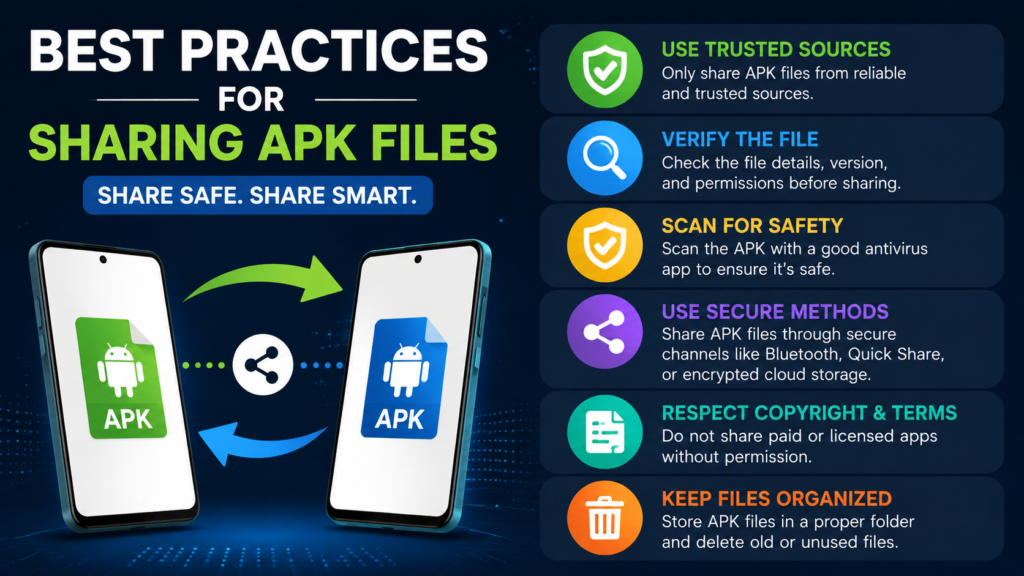
Best Practices for Sharing APK Files
If you regularly transfer Android applications, following a few simple habits can make the process easier and safer.
Keep original files organized. Store APKs in clearly labeled folders so you know which application and version each file represents.
Avoid random APK websites. A familiar-looking download page doesn’t guarantee that the file is trustworthy.
Don’t rename files unnecessarily. A descriptive file name can make identification easier, but changing the extension can cause problems.
Check versions carefully. Sending an outdated APK may result in compatibility issues or unnecessary updates after installation.
Use direct sharing when possible. For nearby devices, a direct transfer method can be simpler than uploading the file to an unknown website.
Don’t share private application data. An APK is different from your personal app data, account information, or login credentials.
Frequently Asked Questions
Can I share an APK from one Android phone to another?
Yes. You can transfer an APK between Android phones using Quick Share, Bluetooth, USB, cloud storage, or compatible messaging services. The recipient can then attempt to install the transferred file.
Can I send an APK through WhatsApp or another messaging app?
It depends on the messaging service and its current file restrictions. If APK files aren’t accepted directly, you can use cloud storage or another file-transfer method instead.
Do I need internet to share an APK?
Not necessarily. Nearby transfer methods such as Bluetooth, Quick Share, or a USB cable can work without an internet connection. Internet access is generally needed when using cloud storage or online messaging services.
Why won’t the APK I shared install?
The file could be incompatible, corrupted, incomplete, or designed for a different Android architecture. Some apps also require multiple APK components rather than one standalone package.
Is sharing APK files illegal?
Sharing a file isn’t automatically illegal, but distributing copyrighted software without permission can violate copyright or licensing rules. Always consider the developer’s distribution terms before sharing an application.
Can I share an APK from an app already installed on my phone?
In some cases, yes. An APK extraction or backup utility may be able to create a copy of the installed package. However, applications using split APKs or additional resources may require more than one file.
Final Thoughts
Learning how to share APK files gives you a convenient way to transfer Android applications between devices, especially when you already have the installer saved locally. Quick Share is a practical choice for nearby phones, while cloud storage and messaging services can work better when the recipient is somewhere else.
Also Read: Hypic APK: Powerful Photo Editing Features, Tips, and Safe Android Use














1 comment