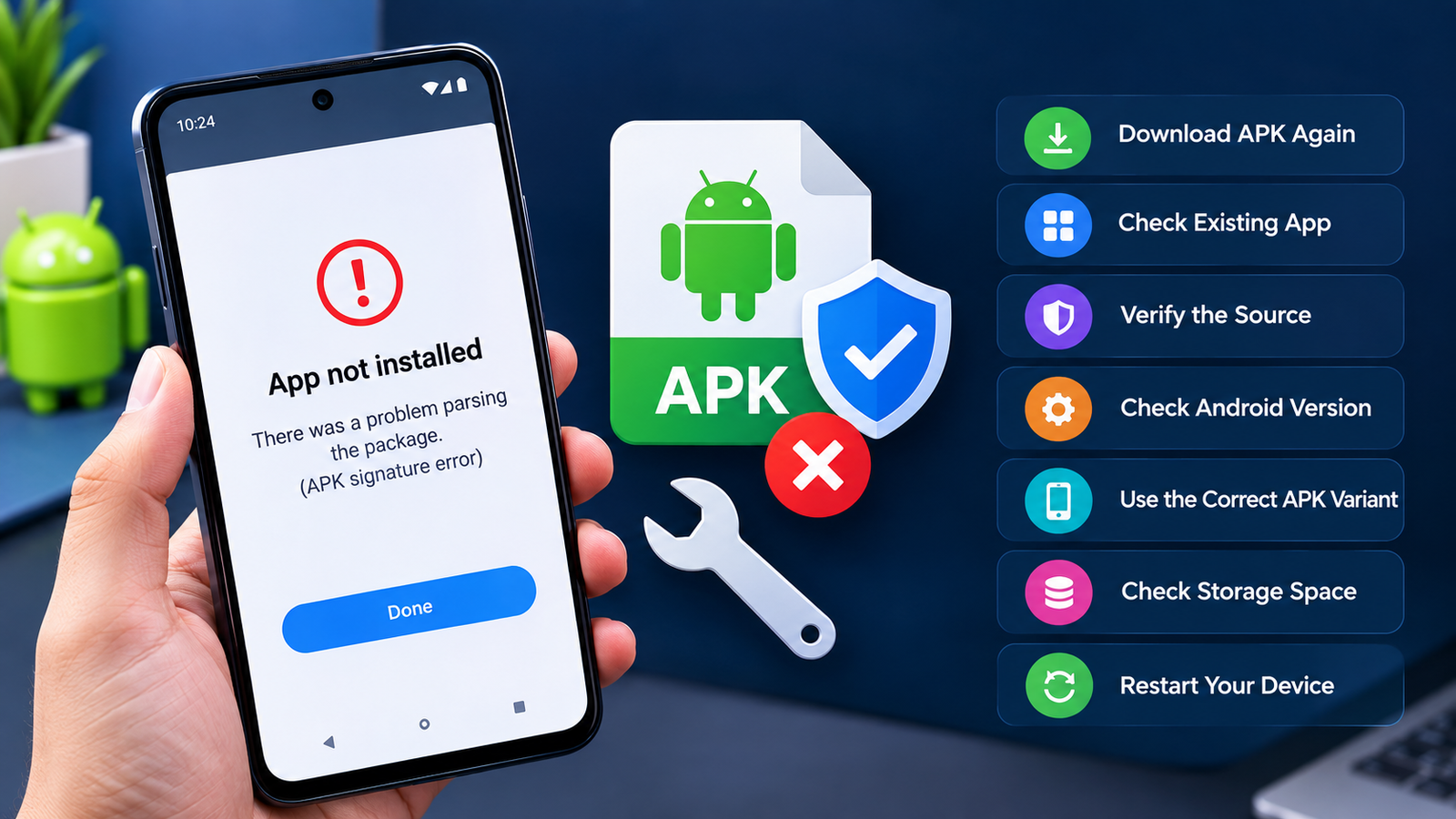
How to Fix APK Signature Error: 9 Easy Solutions That Work
Installing an APK on Android can be useful when an app is unavailable through Google Play or when you need to install a specific app version. However, the installation process can sometimes stop with a message such as “APK signature error,” “There was a problem parsing the package,” or “App not installed.”
These errors are often related to the APK’s digital signature, an existing version of the same app, a damaged download, or compatibility problems. Fortunately, many APK signature issues can be fixed without complicated tools.
In this guide, we’ll explain how to fix APK signature error messages on Android and what you can do when a normally downloaded APK refuses to install.
What Is an APK Signature Error?
An APK signature error occurs when Android cannot properly verify the digital signature attached to an APK file. Android uses app signing to verify that an application comes from a particular signing key and that its contents have not been altered unexpectedly.
Every Android application package normally contains signing information. When you install an APK, Android checks this information as part of the installation process.
A problem can occur when:
- The APK was modified after signing.
- The file was downloaded incorrectly or became corrupted.
- You are trying to install a different version signed with another key.
- An older version of the app is already installed.
- The APK is incompatible with your Android version.
- The APK came from an unreliable or modified source.
The exact message can vary depending on your Android version and device manufacturer.
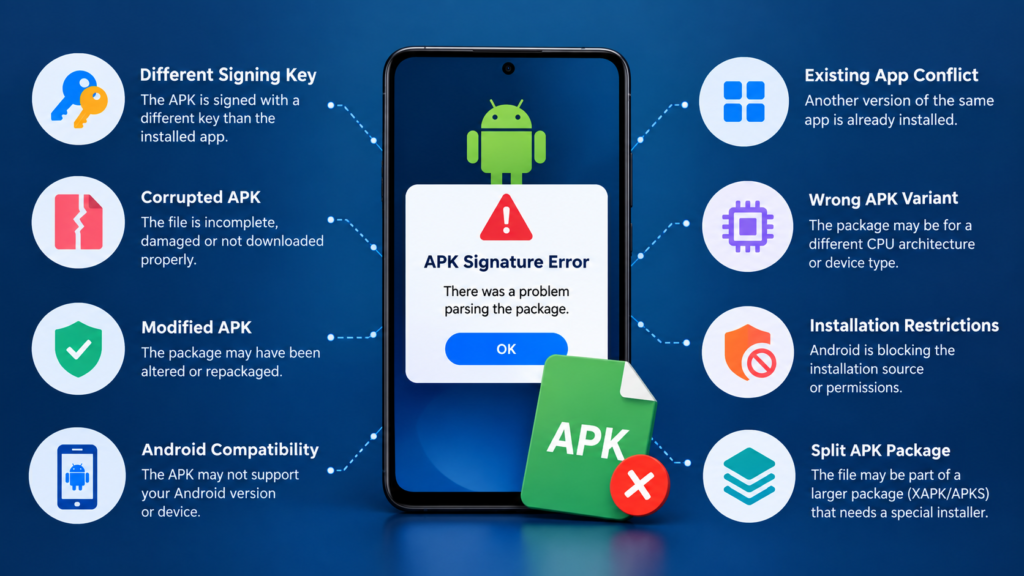
Common Causes of APK Signature Errors
Before trying different solutions, it helps to understand what may have caused the problem.
| Possible Cause | What It Means | Common Solution |
|---|---|---|
| Different signing key | The APK is signed differently from the installed app | Uninstall the old version or use the correct APK |
| Corrupted APK | The download is incomplete or damaged | Download the APK again |
| Modified APK | The package may have been altered | Get the original APK from a trusted source |
| Android compatibility | The package may not support your device | Check Android version and app requirements |
| Existing app conflict | Android detects another signed version | Remove the existing app if appropriate |
| Wrong APK variant | The package may target a different architecture | Find the correct APK variant |
| Installation restrictions | Android is blocking the installation source | Review the relevant installation permission |
| Split APK package | The downloaded file may be part of a larger package | Use the appropriate installer for the package format |
Identifying the likely cause can save time because you won’t need to try every possible solution.
1. Download the APK Again
One of the simplest ways to fix an APK signature error is to download the file again.
An interrupted download can leave you with an incomplete or damaged APK. Even if the file appears to have downloaded successfully, its contents may not be intact.
Delete the problematic APK and download a fresh copy.
For better results:
- Use a stable internet connection.
- Avoid interrupting the download.
- Make sure you have enough storage space.
- Download from a reputable source.
- Compare the APK version with the version you actually need.
If the new file installs correctly, the original APK was likely damaged or incomplete.
2. Check Whether Another Version of the App Is Installed
A common reason for signature-related installation failures is that another version of the same app is already installed.
Android may reject an APK when its signing key doesn’t match the key used by the installed application.
For example, imagine you have an app installed from an official source and then try to install a modified version signed with a different key. Android can treat them as incompatible packages.
Check your installed applications and look for the same app.
If you don’t need the existing installation, you can consider uninstalling it before installing the new APK. Keep in mind that uninstalling an app can remove locally stored app data, so back up anything important first.
3. Verify the APK Source
Where you obtained the APK matters.
An APK that has been modified, repackaged, or signed again can behave differently from the original application. If the signature doesn’t match what Android expects, installation may fail.
Whenever possible, obtain APK files from:
- The app developer’s official website
- A reputable app distribution platform
- A trusted source that provides information about the package
- A source that publishes file integrity information when available
Be particularly careful with APK files promising paid features for free, suspicious modifications, or unknown applications.
A signature error can sometimes be a warning sign that the file isn’t the package you expected.
4. Check Your Android Version
Compatibility problems can sometimes appear alongside APK installation errors.
An APK may require a newer Android version than the one installed on your phone. Older devices can also have difficulty with applications built for newer Android releases.
To check your Android version, open:
Settings → About phone → Android version
The exact menu name can differ between manufacturers.
Then compare your Android version with the application’s requirements.
If the APK requires a newer Android release, installing an older compatible version of the application may be necessary. Avoid downloading random older versions from unknown websites simply to make an installation work.
5. Make Sure You Have the Correct APK Variant
Not every APK is designed for every Android device.
Some applications are distributed in different variants based on CPU architecture, Android version, screen configuration, or other device characteristics.
Common Android CPU architectures include:
- ARM64
- ARM
- x86
- x86_64
If you install the wrong package, you may encounter installation or compatibility problems.
Check the APK’s description and your device specifications before choosing a particular variant. If the publisher provides a universal APK, that may be simpler for supported devices.
6. Check Whether the APK Is Actually a Split Package
Another important point is that not every Android application download is a traditional single APK.
Some applications are distributed as multiple APK components or other package formats. A file may look like an APK download but still require additional components to install correctly.
If you’re dealing with formats such as XAPK, APKS, or a collection of split APK files, using the normal Android package installer may not be sufficient.
Instead, determine what package format you downloaded and use an appropriate, trustworthy installation method.
Don’t rename a package simply to make it appear to be a standard APK. Changing the file extension does not convert the package into another format.
7. Check for a Modified or Re-Signed APK
If you previously installed an official version of an application, a modified APK may fail because it was signed with a different certificate.
This is especially relevant when switching between official and modified builds.
For example:
Official app → modified APK
may produce an installation conflict if the two packages use different signing keys.
If you want to replace the existing version, first consider whether you need to preserve its data. If the app contains important information, back it up before removing the installed version.
For security and reliability, using an original, properly signed APK is preferable whenever one is available.
8. Check Available Storage
Low storage isn’t always the direct cause of a signature error, but insufficient space can cause installation processes to fail unexpectedly.
Check your available storage under your device’s storage settings.
If your phone is nearly full, remove unnecessary files or move personal media to another storage location.
Try to keep some free space available before installing large applications.
After freeing storage, restart the phone and attempt the installation again with a fresh APK file.
9. Restart Your Android Device
A simple restart can occasionally resolve temporary installation problems.
Android’s package installer and related system components can encounter temporary issues. Restarting the device gives those services a fresh session.
After restarting:
- Delete the problematic APK.
- Download a fresh copy.
- Confirm that your device supports the application.
- Try the installation again.
If the same signature error appears, continue investigating the APK itself rather than repeatedly restarting the phone.
How to Identify the Real Cause
When trying to fix APK signature error messages, pay attention to the exact wording shown on your device.
For example:
“App not installed”
This is a broad message and can have several causes, including an existing package conflict, incompatible APK, or package problem.
“There was a problem parsing the package”
This can indicate a damaged file, compatibility problem, or incorrectly packaged APK.
“Package appears to be invalid”
This may point toward an issue with the APK package or its signing information.
Signature or certificate mismatch
This more specifically suggests that Android is detecting a difference between the signing certificate of the APK and the application already installed on the device.
The exact error message is useful because it helps narrow down the troubleshooting process.
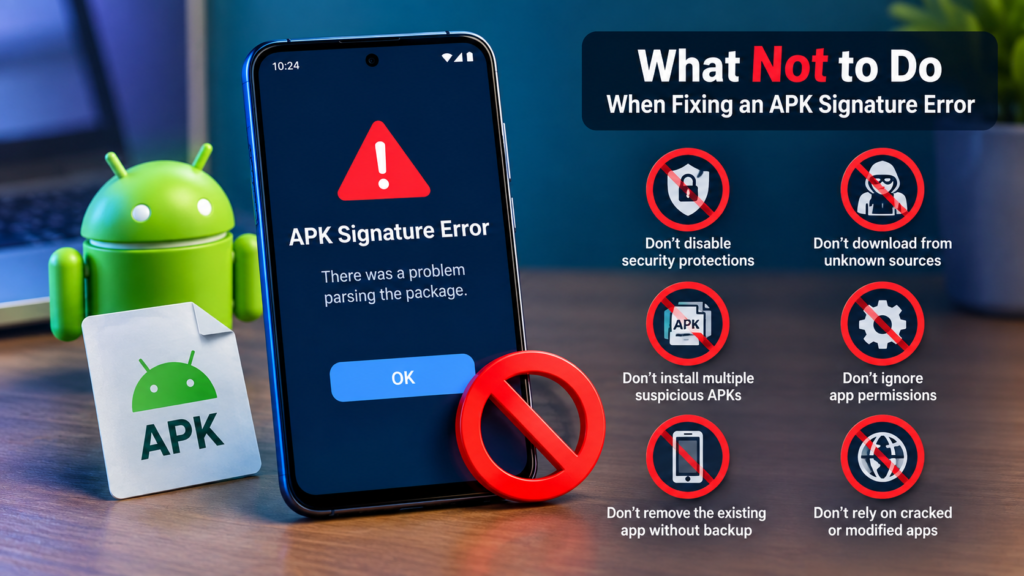
What Not to Do When Fixing an APK Signature Error
Not every workaround is worth trying.
Avoid downloading multiple suspicious APKs just because the first one failed. You could end up installing a malicious or tampered application.
You should also avoid:
- Installing APKs from unknown sources without checking them.
- Disabling important Android security protections unnecessarily.
- Using cracked applications from untrusted websites.
- Installing an APK simply because its filename looks legitimate.
- Removing an existing app without considering its stored data.
- Assuming every signature error is caused by Android permissions.
A safer approach is to identify the package conflict or APK problem first.
Quick Troubleshooting Checklist
If you want a quick way to work through the problem, use this checklist:
- Delete the problematic APK.
- Download the APK again.
- Verify the source.
- Check whether the same app is already installed.
- Check your Android version.
- Confirm the APK matches your device architecture.
- Determine whether it is a split APK package.
- Check available storage.
- Restart your device.
- Try the installation again.
If none of these steps works, the APK itself may be incompatible, incorrectly packaged, modified, or signed differently from the version currently installed.
Frequently Asked Questions
Why does Android show an APK signature error?
Android may show a signature-related error when the APK’s signing certificate doesn’t match an installed version or when the package has been modified or damaged. Compatibility and package conflicts can also cause installation failures that appear similar.
Can I fix an APK signature error without uninstalling the existing app?
Sometimes, yes. If the new APK is signed with the same key as the installed application, it may update normally. If the signing keys are different, Android generally won’t allow the new package to replace the existing one without removing the conflicting installation.
Does downloading the APK again fix signature errors?
It can if the original file was incomplete or corrupted. Downloading a fresh copy from a trustworthy source is one of the easiest troubleshooting steps.
Is an APK signature error dangerous?
Not necessarily. A signature error can simply mean that Android detected a package conflict or a difference between signing certificates. However, if an APK comes from an unknown source or appears to have been modified unexpectedly, it’s safer not to install it.
Why does a modified APK fail to install over the original app?
Modified APKs are often signed with a different certificate from the original application. Android uses signing information to establish application identity, so a different signing key can prevent the modified package from replacing the installed version.
What should I do if none of the solutions works?
Try obtaining the correct APK version from a reputable source and confirm that it supports your Android version and device architecture. If the official version is available through Google Play or the developer, that can also help determine whether the downloaded APK itself is the problem.
Final Thoughts
Knowing how to fix APK signature error can make Android installation problems much easier to troubleshoot. In many cases, the issue comes down to a conflicting installed version, a damaged APK, incompatible package, different signing certificate, or an incorrect APK variant.
Start with the simplest steps: download the file again, verify its source, check the existing app installation, and confirm compatibility with your device.
Also Read: How to Fix APK Certificate Error on Android: 9 Easy Solutions














1 comment