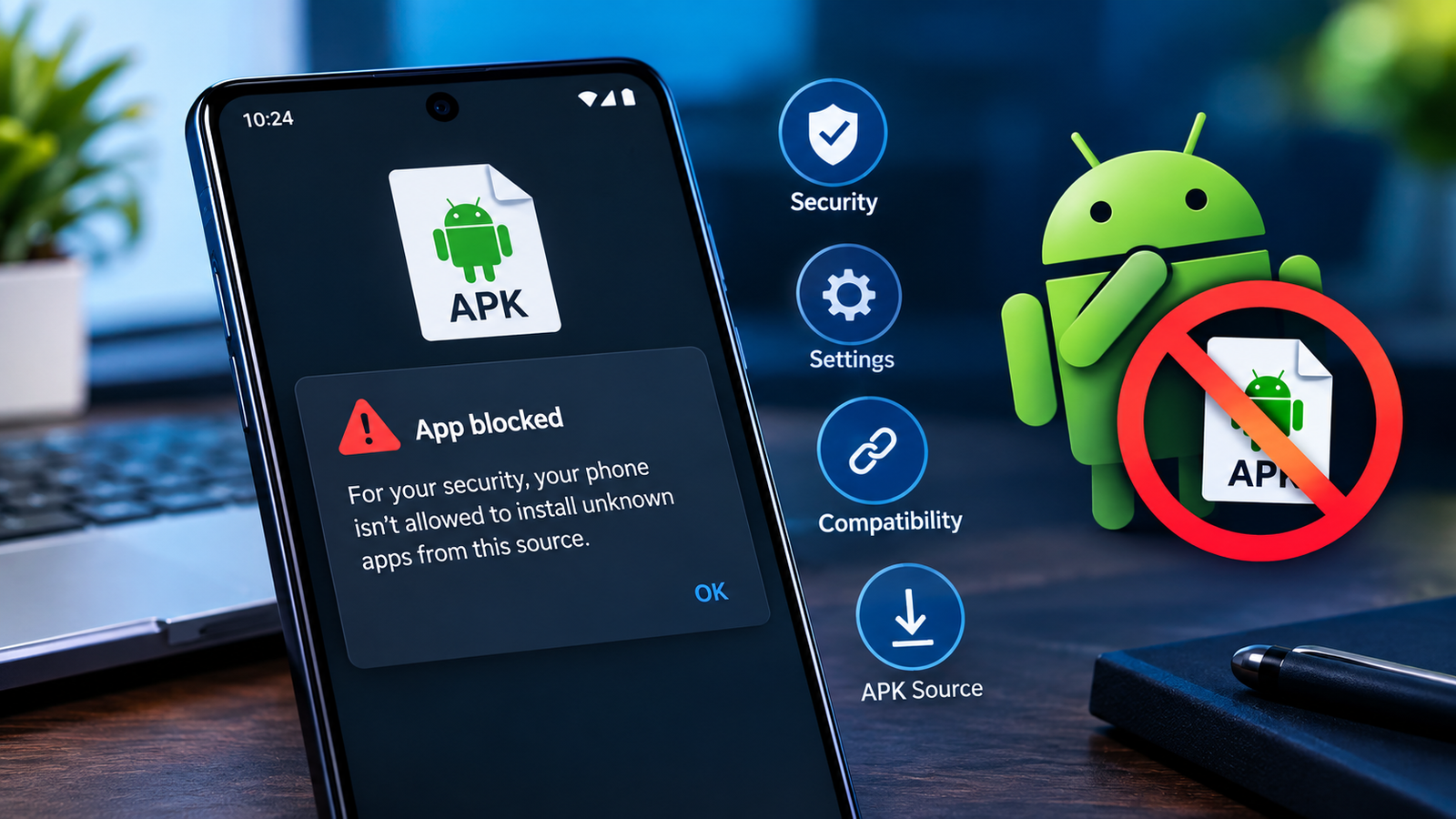
Why Android Keeps Blocking APK Files: Causes and Fixes
If you have tried to install an APK on your Android phone and repeatedly received a warning or installation block, you may be wondering why Android keeps blocking APK files. This can happen even when the APK appears to download correctly and your phone has enough storage.
Android includes several security features designed to prevent potentially harmful applications from being installed outside trusted app stores. Depending on your Android version, device manufacturer, security settings, and the source of the APK, the system may stop the installation or display a warning.
The good news is that an APK being blocked does not always mean the file is damaged. In many cases, the problem is related to installation permissions, Play Protect, an incompatible APK, browser restrictions, or device security settings.
This guide explains the common reasons Android blocks APK files and the practical steps you can take to identify and resolve the problem safely.
What Does It Mean When Android Blocks an APK?
An APK, or Android Package Kit, is the file format used to install applications on Android devices. Apps downloaded through sources other than the Google Play Store may be distributed as APK files.
When Android blocks an APK, the operating system is usually preventing the installation from continuing because a security or compatibility condition has not been satisfied.
You might see messages such as:
- “For your security, your phone currently isn’t allowed to install unknown apps from this source.”
- “App blocked to protect your device.”
- “Installation blocked.”
- “This app can’t be installed.”
- “Play Protect blocked this app.”
The exact message varies between Android versions and manufacturers.
Importantly, these messages do not all mean the same thing. Some indicate a permission problem, while others may indicate that Android has detected a potentially unsafe application.
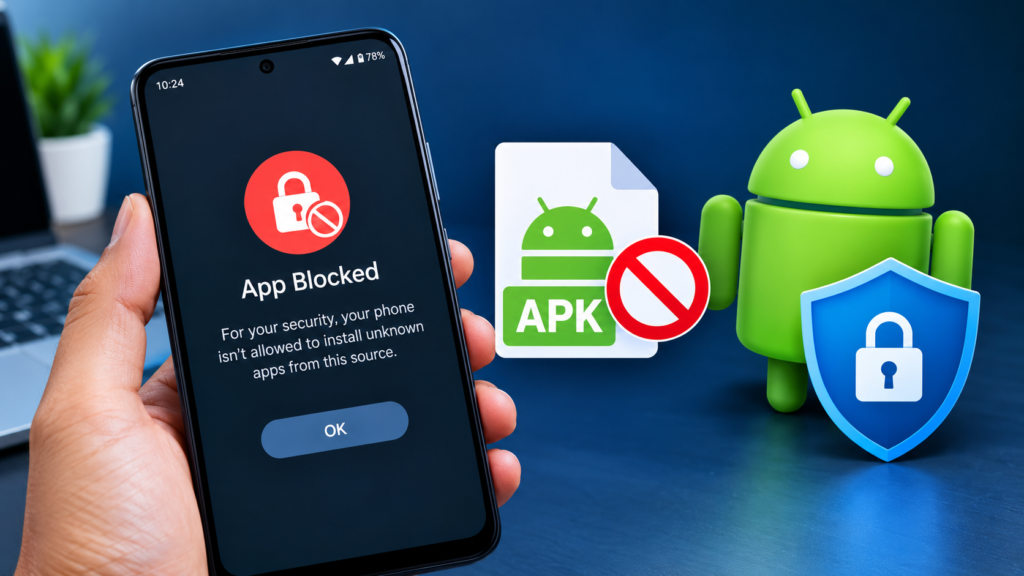
Why Android Keeps Blocking APK Files
There are several possible explanations for repeated APK installation blocks. Identifying the exact cause is important because changing the wrong setting may not solve the problem.
Unknown App Installation Is Disabled
One of the most common reasons Android blocks an APK is that the application responsible for opening the file does not have permission to install unknown apps.
For example, if you download an APK through Chrome, Android may require Chrome to have permission to install applications from that source.
On many Android devices, this setting can be found under:
Settings → Apps → Special app access → Install unknown apps
The exact menu names can differ by device.
If the permission is disabled, Android can prevent the APK from being installed even though the file itself downloaded successfully.
Google Play Protect Is Blocking the APK
Google Play Protect checks applications for potentially harmful behavior. It can warn you about or block apps that it considers suspicious.
This is particularly relevant when an APK comes from an unfamiliar website or has characteristics associated with potentially unwanted or malicious software.
If you see a Play Protect warning, do not immediately assume the warning is incorrect. First, verify where the APK came from and whether the developer is trustworthy.
Avoid installing an APK simply because it is difficult to find elsewhere.
The APK Is Not Compatible With Your Device
Compatibility is another common reason an APK may fail to install.
An APK can require a specific Android version, processor architecture, screen configuration, or other system capability.
For example, an APK designed for a newer Android release may not work correctly on an older phone.
Similarly, an APK built for one CPU architecture may not be suitable for another configuration.
Before installing an APK, check:
- Required Android version
- CPU architecture
- App version
- Device compatibility
- Available storage
- Whether the application supports your device
The APK File Is Corrupted
A partially downloaded or damaged APK can also cause installation problems.
This can happen because of:
- An interrupted download
- An unstable internet connection
- A failed file transfer
- An incomplete download
- Storage problems
- A damaged copy of the APK
If the APK is corrupted, changing Android’s installation settings will not necessarily fix the problem.
Downloading a fresh copy from a trustworthy source may resolve the issue.
Android Is Blocking the File Because of Its Source
Android and device manufacturers increasingly use security protections to reduce the risks associated with installing applications from unknown sources.
An APK obtained from an unfamiliar website may receive more scrutiny than an application installed through an official app store.
This is especially important when the file requests unusual permissions or appears to have been modified.
Always consider the source before attempting another installation.
Common Reasons and Possible Solutions
The following table summarizes the most common causes.
| Problem | What It Means | What to Check |
|---|---|---|
| Unknown app permission disabled | Your browser or file manager cannot install the APK | Check “Install unknown apps” |
| Play Protect warning | Android detected a possible security risk | Verify the APK source and developer |
| Incompatible Android version | The APK requires a different Android version | Check compatibility requirements |
| Corrupted APK | The downloaded file may be incomplete or damaged | Download a fresh copy |
| Wrong APK architecture | The package may not support your device’s CPU | Check the APK variant |
| Existing app conflict | A different signature/version may already be installed | Remove the conflicting app if appropriate |
| Insufficient storage | Android cannot complete installation | Free up storage |
| Device security restriction | Manufacturer or administrator settings may restrict installation | Check security and device-management settings |
How to Fix Android Blocking an APK
Once you know the likely cause, you can work through the following troubleshooting steps.
1. Check Install Unknown Apps Permission
If the warning says your phone is not allowed to install unknown apps, check the permission for the application you are using to open the APK.
Go to your Android settings and look for Install unknown apps.
Select the relevant app, such as your browser or file manager, and check whether installation permission is available.
Only enable this permission for sources you trust. After installing the APK, you can disable the permission again if you do not need it.
2. Check the APK Source
Before trying repeatedly, verify where the APK came from.
A trustworthy download should provide information about the application, developer, version, and file.
Be cautious with files that:
- Have been modified without explanation
- Come from unknown websites
- Request excessive permissions
- Have misleading names
- Are distributed through suspicious pop-ups
- Claim to unlock paid features illegally
A security warning can sometimes prevent a larger problem.
3. Check Your Android Version
Open your phone’s settings and check the Android version.
Then compare it with the APK’s requirements.
If the application requires a newer version of Android than your phone supports, the installation may fail regardless of how many times you try.
In this situation, look for a compatible version rather than forcing an incompatible package onto the device.
4. Download the APK Again
If the file may have been corrupted, delete it and download a fresh copy.
Use a stable internet connection and avoid interrupting the download.
If the website provides file information such as a checksum or file hash, you can use that information to verify that your downloaded file matches the original.
5. Make Sure You Have Enough Storage
Android needs enough free space to download and install applications.
A phone with very little storage can behave unpredictably during installation.
Check your available storage and remove unnecessary files if needed.
You can consider clearing old downloads, unused applications, or large media files.
6. Check Whether Another Version Is Already Installed
An APK may conflict with an application already installed on your phone.
This can happen when the existing application was signed differently from the APK you are trying to install.
It may also happen when you are attempting to install an older version over a newer version.
Before removing an existing application, make sure you understand whether doing so could remove local app data.
Why Play Protect Warnings Should Not Be Ignored
When Android displays a security warning, it is tempting to search for a way around it immediately.
That is not always a good approach.
Play Protect and other Android security features exist because APK files can potentially contain malicious code.
A warning does not automatically prove that an APK is malicious, but it is a reason to investigate.
Before proceeding, consider:
- Who developed the application?
- Where did the APK come from?
- Is the website reputable?
- Does the APK match the official app version?
- Are the requested permissions reasonable?
- Is the application available from an official source?
If you cannot verify the APK’s origin, using another installation source may be safer than bypassing the warning.
APK Files vs Google Play Store Apps
Installing an APK manually gives you more control over application versions, but it also places more responsibility on you.
Google Play Store installations generally provide additional checks and automated update mechanisms.
Manual APK installation can be useful in legitimate situations, such as testing applications, installing region-specific versions, or accessing an application that is not available through your normal app store.
However, the source matters.
| Feature | APK Installation | Play Store Installation |
|---|---|---|
| Installation method | Manual | Automated |
| Source verification | Depends on source | Store-based |
| Updates | Often manual | Usually automatic |
| Security checks | Varies | Integrated protections |
| Version control | More manual control | Store manages versions |
What Not to Do When Android Blocks an APK
Repeated installation failures can be frustrating, but some shortcuts can create additional problems.
Avoid:
- Installing APKs from random websites just to find a working copy
- Disabling security protections without understanding why
- Installing modified packages from unknown developers
- Ignoring repeated malware warnings
- Installing an APK that requires suspicious permissions
- Downloading multiple versions without checking compatibility
- Removing important system security settings unnecessarily
The goal should not simply be to force the installation. The goal is to determine why Android keeps blocking APK files and address the actual cause.
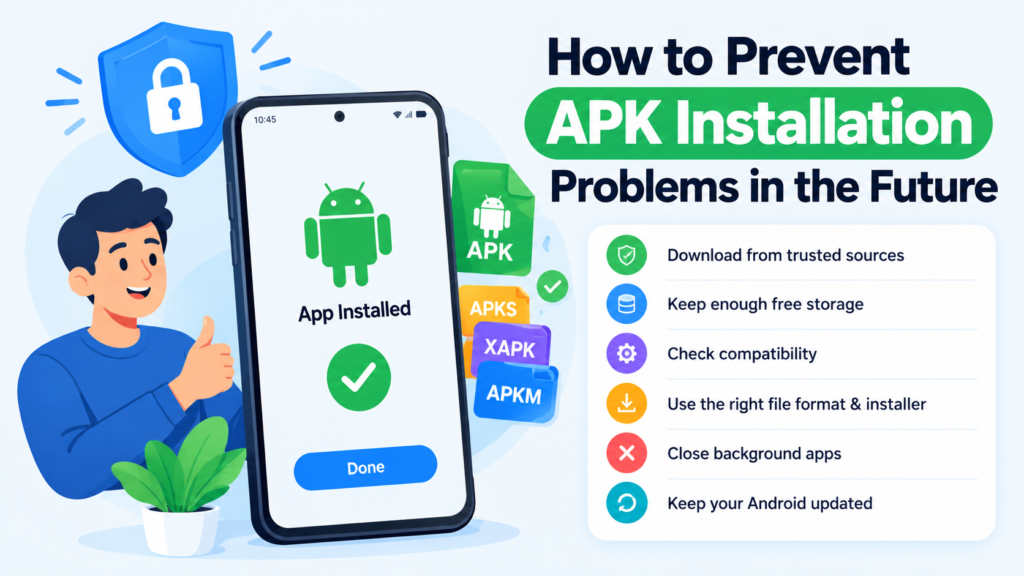
How to Prevent APK Installation Problems in the Future
A few simple habits can reduce APK-related problems.
Use Reliable Sources
Download APK files from reputable sources whenever possible.
Check the developer information and make sure the application name and version match what you expect.
Keep Android Updated
System updates can improve compatibility, security, and installation behavior.
If your device supports an available Android update, keeping it current can help prevent problems caused by outdated system components.
Check Compatibility Before Downloading
Do not download an APK without checking whether it supports your Android version and device architecture.
This can save time and reduce failed installation attempts.
Keep Some Free Storage
Maintaining reasonable free storage gives Android enough room to download, process, and install applications.
Review Security Warnings Carefully
Do not treat every warning as an obstacle that needs to be bypassed.
Read the warning and determine what triggered it before continuing.
Frequently Asked Questions
Why does Android keep blocking APK files?
Android may repeatedly block APK files because installation from the selected source is disabled, Play Protect has detected a potential risk, the APK is incompatible, or the file is damaged. The exact warning message can help identify the cause.
How do I allow APK installation on Android?
On supported devices, you can review the Install unknown apps permission under Android’s app settings. You may need to allow the specific browser or file manager being used to open the APK. Only enable this for a source you trust.
Why is Play Protect blocking my APK?
Play Protect may block or warn about an APK when it detects characteristics associated with potentially harmful applications. Check the APK’s source and developer before deciding whether to proceed.
Can a corrupted APK cause Android to block installation?
Yes. A damaged or incomplete APK can fail during installation. If you suspect corruption, remove the existing file and download a fresh copy from a trustworthy source.
Why won’t an APK install even after enabling unknown apps?
The APK could still be incompatible with your Android version or device architecture. Other possibilities include a conflicting installed application, insufficient storage, a corrupted file, or a security restriction.
Is it safe to install APK files manually?
Manual APK installation can be safe when the file comes from a trustworthy source and is compatible with your device. However, APK files from unknown or modified sources can introduce security risks, so verify the source before installing.
Final Thoughts
Understanding why Android keeps blocking APK files makes troubleshooting much easier. The problem is often caused by a disabled installation permission, Play Protect warning, incompatible APK, corrupted download, insufficient storage, or a conflict with an existing application.
Instead of repeatedly trying to bypass the warning, identify the message Android is showing and work backward from the likely cause.
Also Read: Why APK Installation Is Blocked: 9 Common Reasons and How to Fix It














1 comment