
How to Identify a Tampered APK: 7 Warning Signs and Safety Checks
Android users sometimes download APK files to install apps that are unavailable in their region or not listed on the Google Play Store. Although APK files provide a convenient way to install Android applications, they can also expose users to security risks when downloaded from unreliable sources.
A modified or tampered APK may contain malicious code, unauthorized changes, intrusive advertisements, or hidden functions that were not included in the original application. In some cases, the app may look completely normal while performing suspicious activities in the background.
Learning how to identify a tampered APK can help you avoid potentially harmful applications and protect your personal information. Fortunately, you can perform several practical checks before installing an APK, including verifying its digital signature, checking its file hash, reviewing app permissions, and scanning the file with reputable security tools.
This guide explains the most important warning signs, reliable verification methods, and safety practices every Android user should understand before installing an APK.
What Is a Tampered APK?
An APK, short for Android Package Kit, is the installation package used to distribute Android applications. It contains the app’s code, resources, manifest, and other files required for installation.
A tampered APK is an application package that has been altered from its original or trusted version without appropriate authorization. These changes may be harmless, but they can also introduce serious security problems.
For example, someone might modify a legitimate application to add aggressive advertisements, collect sensitive information, or install additional components without the user’s knowledge.
Common types of APK tampering include:
- Adding malicious code to an otherwise legitimate application.
- Replacing original application files with modified versions.
- Changing the app’s requested permissions.
- Inserting unwanted advertising or tracking components.
- Altering the app’s behavior while keeping its original appearance.
- Repackaging an application and distributing it under a misleading name.
It is important to understand that not every modified APK is automatically malware, and not every APK downloaded outside Google Play is malicious. However, unofficial modifications can make it much harder to establish whether an application is trustworthy.
Why Is It Important to Identify a Tampered APK?
Installing an altered APK can create risks that go beyond ordinary app crashes or installation errors. Depending on the modifications, a suspicious application may affect your privacy, device security, and stored information.
Here are some potential consequences:
- Data theft: Malicious code may attempt to collect login credentials, personal details, or other sensitive information.
- Unauthorized permissions: A modified app may request access to contacts, SMS messages, the microphone, or other resources it does not reasonably need.
- Financial fraud: Certain malicious apps imitate payment services or attempt to steal financial information.
- Unwanted advertisements: Some modified applications contain intrusive advertising components or redirect users to questionable websites.
- Device instability: Poorly modified packages may crash, drain the battery, or consume excessive mobile data.
- Security weaknesses: An altered application may disable protections or introduce vulnerabilities that were not present in the original version.
Recognizing suspicious signs before installation is much safer than trying to remove a potentially harmful app after it has gained access to your device.
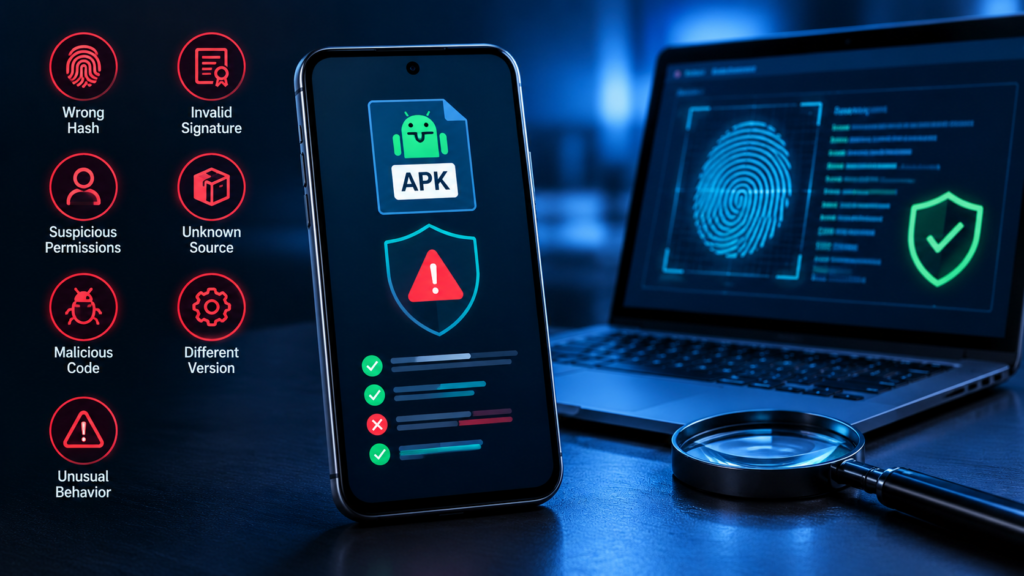
7 Warning Signs of a Tampered APK
An APK does not need to display every warning sign to be suspicious. Even one major inconsistency, such as an unexpected signing certificate, deserves attention.
1. The APK Comes From an Untrusted Website
The source of an APK is one of the first things you should evaluate.
Official developer websites and trusted app distribution platforms generally provide better opportunities to verify an application’s origin. Random download pages, unfamiliar file-sharing services, and links shared through unsolicited messages offer fewer guarantees.
Be especially cautious when a website:
- Uses a misleading developer name.
- Promises premium features for free without explaining how the app was modified.
- Redirects through multiple suspicious download pages.
- Requires you to install additional unknown applications.
- Provides no reliable information about the app’s publisher or version.
A professional-looking website does not prove that a file is safe. Likewise, a file hosted on a familiar platform is not automatically trustworthy.
Whenever possible, download the application from its official source and compare any alternative APK against information published by the original developer.
2. The Digital Signature Does Not Match
A digital signature is one of the most useful ways to investigate whether an APK has been altered.
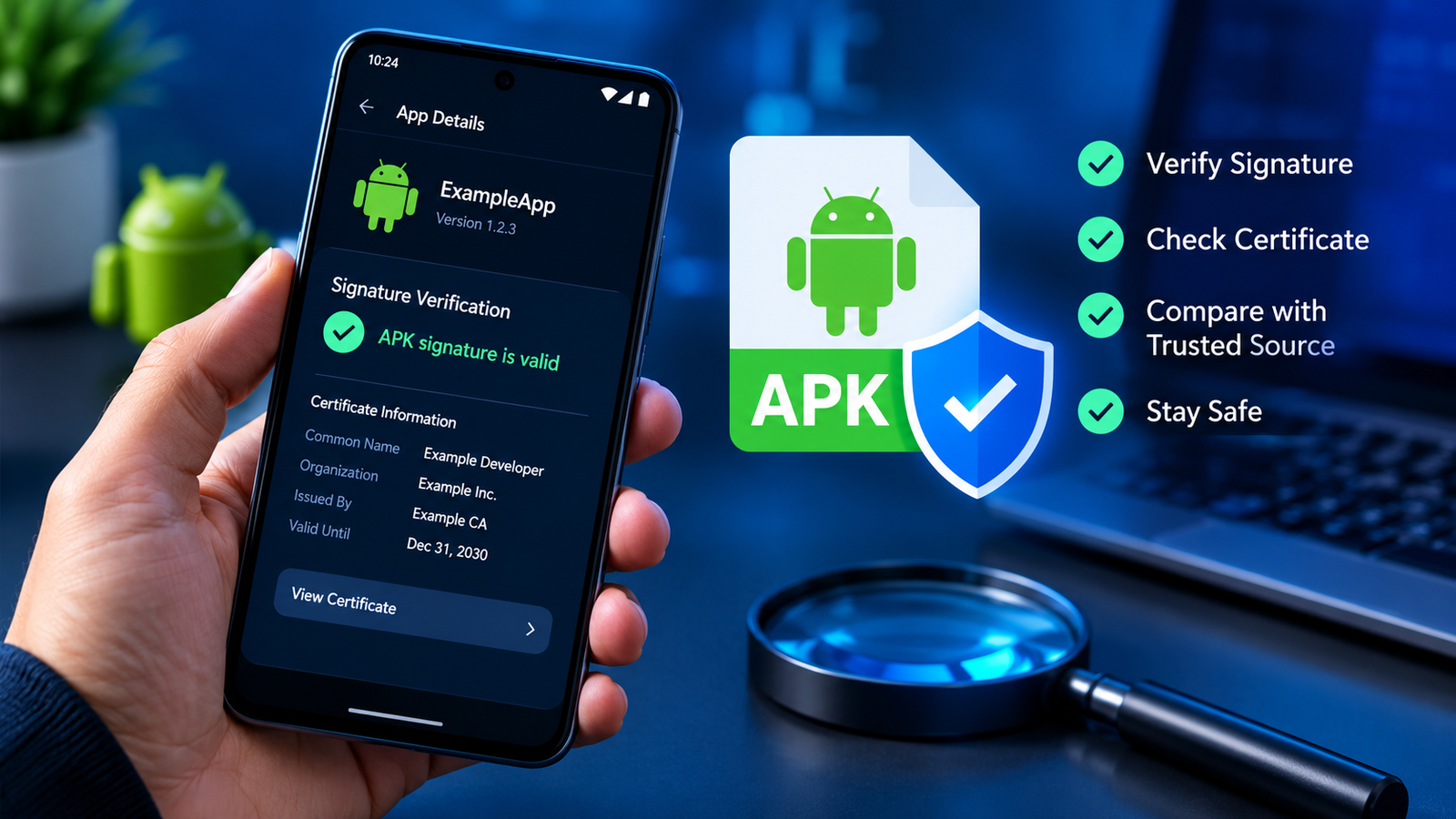
Android applications are signed by their developers or authorized signing systems. A signature helps establish the identity associated with a package and supports verification that the signed contents have not changed since signing.
If someone modifies an APK and attempts to distribute it as the same application, the original signature will generally no longer validate. Repackaging the application typically requires signing it again, potentially with a different certificate.
You can inspect an APK signature using Android SDK tools or other reputable APK analysis utilities.
For example, the Android SDK includes the apksigner utility. On a computer with the Android build tools installed, run:
apksigner verify --verbose --print-certs app.apkReplace app.apk with the actual path to your APK file.
The output can help you determine whether the APK’s signature verifies and display information about its signing certificate.
What should you check?
- Whether signature verification succeeds.
- Whether the signing certificate matches a trusted reference for the same application.
- Whether the certificate has unexpectedly changed between versions.
- Whether the download source provides a credible explanation for any signing difference.
A valid signature alone does not guarantee safety. A malicious developer can sign a harmful application, and some legitimate applications may change signing certificates during an authorized transition. Compare certificates against reliable references rather than assuming every difference proves tampering.
3. The File Hash Does Not Match a Trusted Version
A file hash is a unique-looking digital fingerprint calculated from a file’s contents. Even a small change to an APK usually produces a different cryptographic hash.
SHA-256 is a widely used hashing algorithm suitable for comparing APK files.
On Windows, you can calculate a file’s SHA-256 hash using PowerShell:
Get-FileHash .\app.apk -Algorithm SHA256On Linux or macOS, you can use:
sha256sum app.apkCompare the resulting value with a hash published by the official developer or another trusted source for the exact same APK file.
| Result | What it means |
|---|---|
| Hashes match exactly | The files are identical with extremely high confidence. |
| Hashes differ | The files are different; further investigation is needed. |
| No trusted reference hash exists | You cannot establish file integrity through a direct hash comparison. |
| Hash is published only by the suspicious download site | The reference may not provide independent assurance. |
A different hash does not automatically mean an APK is malicious. The files might come from different versions, device architectures, or distribution builds.
For example, an ARM64 APK and an ARMv7 APK can have different hashes while both are legitimate.
Hash verification is most useful when you have an authoritative reference for the exact file you downloaded.
4. The APK Requests Unusual Permissions
App permissions describe the access an application requests to certain Android features and data.
Some permissions are necessary for an app’s main purpose. A navigation app may need location access, while a camera application may require camera permission. Problems arise when the requested access appears unrelated to the app’s function.
Be cautious if a simple utility or wallpaper application unexpectedly requests access to:
- SMS messages or call logs.
- Contacts and extensive personal data.
- The microphone or camera without a clear reason.
- Accessibility services.
- Notification access.
- The ability to install other applications.
- Broad access to files or sensitive device settings.
Some permissions require special user approval, while others are granted differently depending on the Android version and app configuration.
To review an installed app’s permissions, open Settings → Apps → select the app → Permissions. The exact menu names may differ by device manufacturer and Android version.
You can also inspect an APK’s manifest using a reputable analysis tool before installing it.
Remember that permission requests alone do not prove an APK has been tampered with. Legitimate applications sometimes need broad access, and malicious code may avoid requesting obviously suspicious permissions. Consider permissions alongside signatures, source reputation, and scanning results.
5. The File Name, Version, or Size Looks Suspicious
APK filenames can provide useful clues, although they are easy to change.
For example, a download may claim to be the newest official version while its internal package information identifies an older release. Another file may use the name of a popular app but contain a different package identifier.
Before installing an APK, examine the following details:
- Application name: Does it match the expected app?
- Package name: Is the application identifier consistent with the official version?
- Version number: Does it correspond to a legitimate release?
- File size: Is the size reasonably consistent with the expected package?
- Architecture: Is the APK intended for your device, if the developer provides architecture-specific versions?
- Release information: Does the publisher identify the version and its changes?
A strangely small APK may be incomplete, while an unexpectedly large file may contain extra resources or components. However, app sizes naturally vary between releases, so size alone cannot establish whether a file is safe.
Do not rely solely on a filename such as Official_App_Latest.apk. Filenames are not proof of authenticity.
6. A Security Scanner Detects Suspicious Code
Security scanning can provide another layer of protection when evaluating a downloaded APK.
Google Play Protect checks applications for potentially harmful behavior and can warn about or block certain threats. Keep it enabled and pay attention to its warnings.
You may also use a reputable antivirus product or a multi-engine scanning service to examine a suspicious file.
Before uploading an APK to an online scanning service, consider your privacy. Uploaded files may be retained or shared with security researchers or service partners under that provider’s policies. Avoid uploading confidential, proprietary, or sensitive applications without authorization.
When reviewing scan results, look for:
- Malware detections from multiple reputable engines.
- Identified spyware, credential theft, or other suspicious behavior.
- Reports of known malicious components.
- Warnings about repackaging or potentially unwanted software.
A single detection can occasionally be a false positive, especially for unusual or heavily modified applications. On the other hand, a clean scan does not guarantee that the APK is safe. New threats and carefully concealed malicious behavior may escape detection.
If several independent security engines flag a file, do not install it until the issue has been investigated.
7. The App Behaves Differently From the Original
Some signs of tampering become apparent only after an application has been installed. However, you should not install a suspicious APK just to see what happens.
If an app is already installed, unexpected behavior may justify further investigation.
Warning signs include:
- Advertisements appearing outside the app.
- Repeated redirects to unknown websites.
- Unexplained battery drain or mobile data usage.
- Requests for sensitive access that were not expected.
- Unfamiliar notifications or background activity.
- Crashes or features behaving differently from the official version.
- Unexpected requests to disable security settings.
These symptoms are not conclusive proof of tampering. Device problems, ordinary software bugs, and other installed applications can cause similar behavior.
If the behavior is suspicious, stop using the app, revoke unnecessary permissions, and uninstall it if possible. Run a security scan and change passwords from a trusted device if you believe sensitive credentials may have been exposed.
How to Check an APK Before Installing It
The safest approach is to combine several checks instead of relying on one warning sign.
Follow this practical checklist whenever you download an APK from an alternative source.
- Verify the source. Prefer the official developer website or a trusted distribution channel.
- Confirm the application identity. Check the package name, developer, version, and release information.
- Inspect the digital signature. Use
apksigneror another reputable tool and compare the signing certificate with a trustworthy reference. - Compare the SHA-256 hash. Use an official hash for the exact same APK when one is available.
- Review permissions. Investigate requests that do not make sense for the application’s purpose.
- Scan the file. Use Play Protect and reputable security tools where appropriate.
- Keep Android updated. Install security updates and avoid disabling built-in protections to force an installation.
If a file fails signature verification, comes from an unknown source, or triggers credible malware warnings, the safest choice is not to install it.
Useful Tools for APK Verification
| Tool | Primary purpose | Important limitation |
|---|---|---|
Android SDK apksigner | Verify APK signatures and inspect certificates | A valid signature does not establish that an app is harmless. |
| SHA-256 utilities | Compare file integrity against a trusted hash | You need a reliable reference for the exact file. |
| Google Play Protect | Detect and warn about certain potentially harmful apps | It cannot detect every threat. |
| Reputable antivirus software | Scan APK files for known threats and suspicious patterns | Results depend on detection capabilities and current threat information. |
| APK analysis utilities | Inspect package details, manifests, permissions, and signing information | Incorrect interpretation can lead to false conclusions. |
Use tools from reputable sources and avoid downloading verification utilities from the same suspicious website that supplied the APK.
What Should You Do If You Find a Tampered APK?
If you suspect an APK has been modified without authorization, do not open or install it.
Instead, take these steps:
- Delete the suspicious download if you no longer need it.
- Obtain the app from its official developer or another trusted source.
- Keep Google Play Protect enabled.
- Run a security scan if you already installed the application.
- Uninstall the app if it appears malicious.
- Review permissions and remove unnecessary access.
- Check your account activity for unusual sign-ins or transactions.
- Change potentially exposed passwords using a trusted device.
- Enable two-factor authentication for important accounts.
If you cannot uninstall a suspicious app normally, check whether it has been granted device administrator access or accessibility privileges. Revoke inappropriate privileges where possible, then try uninstalling it again. Follow your device manufacturer’s security guidance if the app resists removal.
If the device continues to behave suspiciously, back up essential personal files carefully and consider seeking professional support. A factory reset may be necessary in severe cases, but it should not be the first response to every suspicious file.
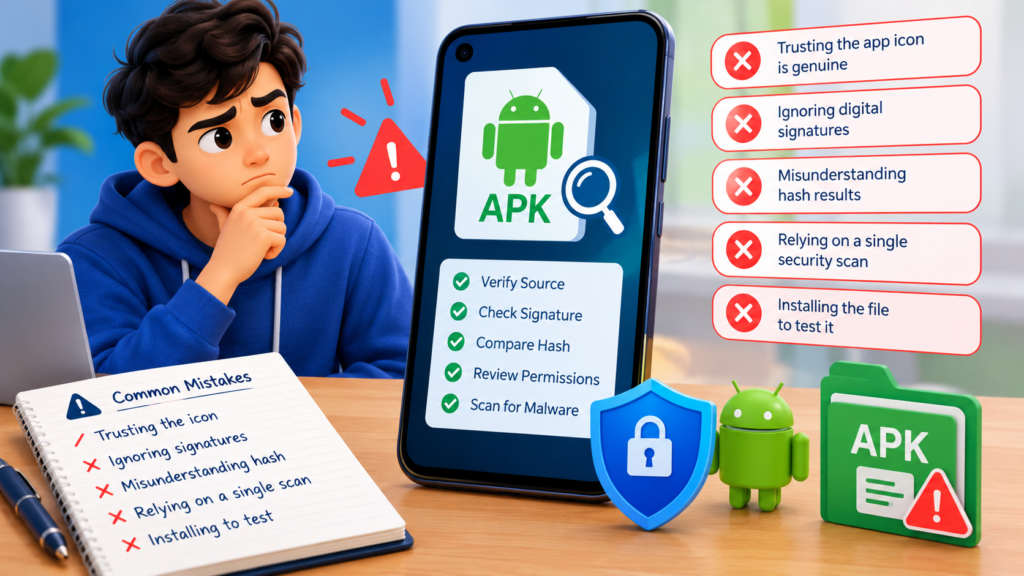
Common Mistakes to Avoid When Checking APK Files
Even careful users can make mistakes when verifying APKs. Avoid these common assumptions:
- Assuming a familiar icon means the app is genuine: Icons and names can be copied easily.
- Trusting a valid signature without checking the publisher: A valid signature does not prove that the signer is trustworthy.
- Treating every hash mismatch as malware: Different legitimate builds have different hashes.
- Believing a clean scan guarantees safety: No scanner catches every threat.
- Installing the file to test it: This can expose your device before you understand the risk.
- Disabling Play Protect to complete installation: Security warnings deserve investigation rather than automatic dismissal.
- Trusting modified apps that promise premium features: Such packages may contain unauthorized changes or hidden risks.
A careful verification process reduces risk, but no single test can guarantee that an APK is completely safe.
Frequently Asked Questions
1. How can I identify a tampered APK quickly?
Start by checking the download source, package name, version, digital signature, and security scan results. If an official SHA-256 hash is available for the exact file, compare it with your copy. Multiple independent checks provide stronger evidence than any single test.
2. Can a tampered APK have a valid digital signature?
Yes. A modified APK can be signed again with a different certificate, and a malicious application can have a perfectly valid signature. The important question is whether the signature matches the expected publisher and trusted release history.
3. Does a different APK hash mean the file contains malware?
No. A different hash means the files are not identical. Different versions, regional builds, architecture variants, or legitimate updates can produce different hashes. Compare the file against an authoritative reference before drawing conclusions.
4. Can Google Play Protect detect every tampered APK?
No. Play Protect can identify many potentially harmful applications, but it cannot guarantee that every modified or malicious APK will be detected. Continue to verify the source, inspect signatures, and use other appropriate security checks.
5. Is it safe to download APK files from third-party websites?
Some third-party websites distribute legitimate applications, but their safety and verification practices vary. Prefer official sources whenever possible. If you must use an alternative source, check the publisher, signature, file integrity, permissions, and security scan results before installing the APK.
6. What should I do if I have already installed a suspicious APK?
Stop using the application, review its permissions, and uninstall it if you suspect malicious activity. Run a security scan and check important accounts for unusual activity. If you entered passwords into the app, change them from a trusted device and enable two-factor authentication where available.
Final Thoughts
Knowing how to identify a tampered APK is an important part of staying safe when installing Android applications outside trusted distribution channels. Modified files can look legitimate, use familiar icons, and even function normally while containing unauthorized code.
The most reliable approach combines source verification, digital signature checks, SHA-256 hash comparisons, permission reviews, and security scanning. Each method provides different information, so using them together gives you a clearer picture of a file’s trustworthiness.
Also Read: AJIO App: Features, Shopping Guide, Benefits, and How to Use It













Post Comment