How to Check APK for Suspicious Permissions: A Complete Safety Guide
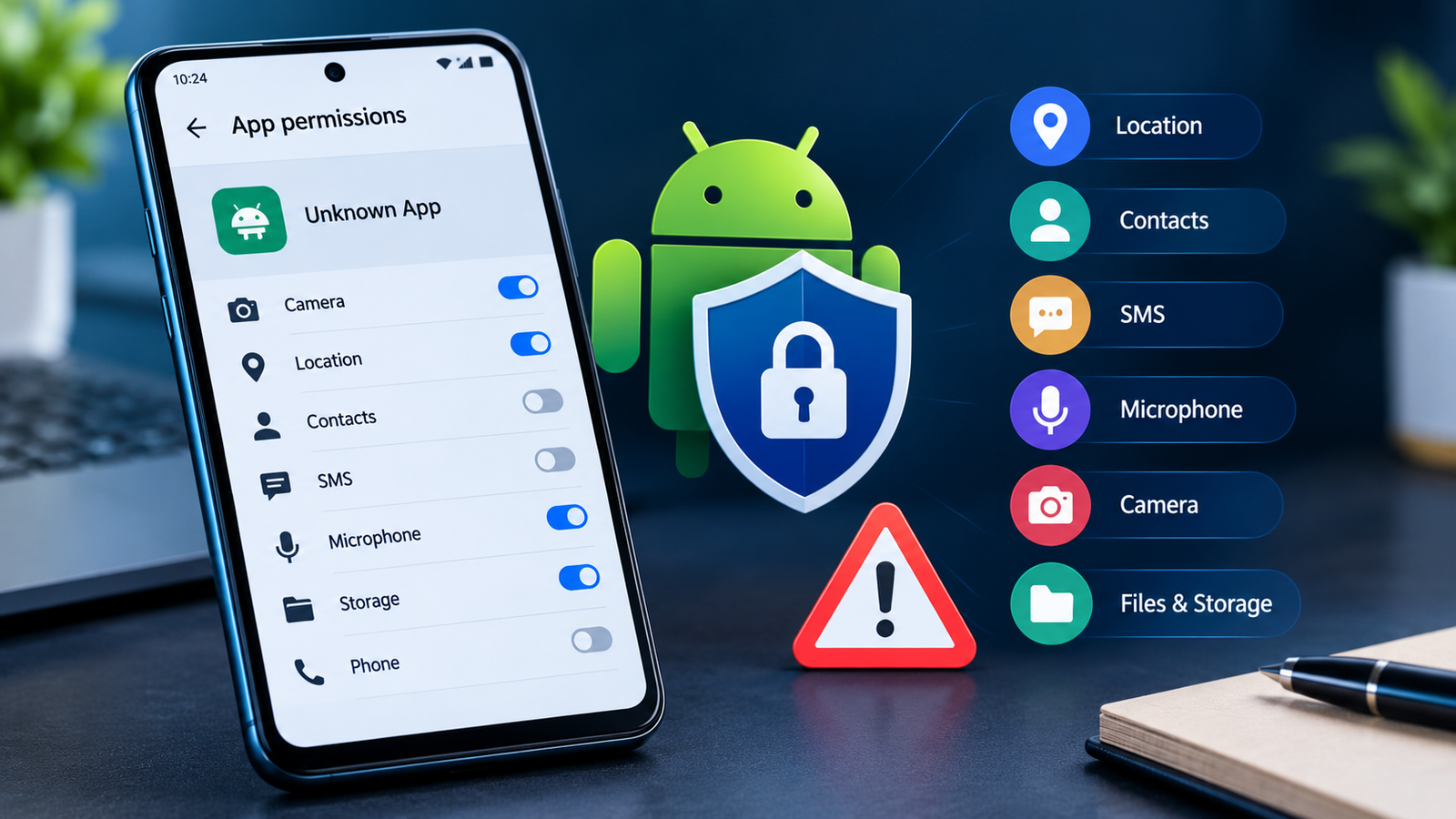
Installing an APK file can be useful when an app is unavailable on Google Play or you need a specific version. However, downloading an app from an unfamiliar website comes with risks. Some APK files may request access to your contacts, messages, microphone, camera, location, or other sensitive information without a clear reason.
Learning how to check APK for suspicious permissions helps you understand what an app can access before installing it. Although permissions are a normal part of Android, unnecessary or excessive access can be a warning sign, especially when the app comes from an untrusted source.
In this guide, you will learn how to inspect APK permissions, identify potentially dangerous requests, recognize unusual permission combinations, and make safer decisions before installing an Android application.
What Are APK Permissions?
APK permissions are access requests that allow an Android application to use certain device features or information. For example, a camera app may need camera access, while a navigation app may require your location to provide directions.
Android uses a permission system to help users control access to sensitive resources. Depending on the permission, Android may ask for your approval before allowing an app to use it.
However, not every permission request is automatically safe. A malicious or poorly designed app might request access that has little connection to its advertised purpose.
For example, a basic calculator generally does not need access to your SMS messages, microphone, or contacts. If a calculator APK requests these permissions, investigate further before installing it.
It is important to remember that a permission request does not prove an app is malicious. The key is to understand why the permission is requested and whether that explanation makes sense.
How to Check APK for Suspicious Permissions Before Installing
You can inspect an APK before installing it by using Android settings, reputable APK analysis tools, or a computer. The best approach depends on whether the application is already installed and how much technical detail you want to examine.
1. Check Permissions Using Android Settings
If the app is already installed, Android settings provide a straightforward way to review its access.
Follow these steps:
- Open Settings on your Android phone.
- Select Apps, Applications, or App management, depending on your device.
- Find and open the application you want to inspect.
- Tap Permissions.
- Review the permissions that are allowed, denied, or available for the app.
- Revoke permissions that are unnecessary for its intended function.
The exact menu names can vary between Samsung, Xiaomi, Realme, Google Pixel, and other Android devices.
Keep in mind that Android settings generally show permissions for an installed app. If you want to examine an APK before installation, use a suitable APK analysis tool instead.
2. Use a Reputable APK Analysis Tool
Some security services and APK analysis tools can inspect an APK package and display its declared permissions. More advanced tools can also examine its manifest, components, certificate information, and potentially suspicious code.
Look for a tool that clearly explains its findings instead of simply displaying an unexplained risk score.
When reviewing a report, check:
- The complete list of requested permissions.
- Whether sensitive permissions match the app’s purpose.
- Whether the package contains unexpected services or background components.
- Whether the APK’s signing information is consistent with the developer’s official release.
- Whether a reputable security scanner identifies malware or other concerns.
Avoid uploading private, confidential, or proprietary APK files to public scanning services without understanding their privacy and sharing policies. A scanning service may retain or share submitted files under its own terms.
3. Inspect the APK Manifest
Android applications include a file called AndroidManifest.xml. It contains important information about the app, including its package name, components, and declared permissions.
If you are comfortable using desktop tools, Android SDK tools such as apkanalyzer or aapt can help you inspect an APK without installing it.
For example, a command-line inspection may look like this:
apkanalyzer manifest permissions app.apkReplace app.apk with the actual path to your APK file.
The command displays the permissions declared in the manifest. You can then compare those permissions with the app’s stated purpose.
For instance, if a simple offline wallpaper app declares permissions related to SMS access or call management, that deserves closer investigation.
However, the manifest is only one part of the picture. It does not establish whether the app is malicious, and some permissions may be inherited from libraries or used for legitimate functionality. Modern Android versions also distinguish between declared permissions, granted permissions, and actual access at runtime.
Which APK Permissions Should You Treat With Caution?
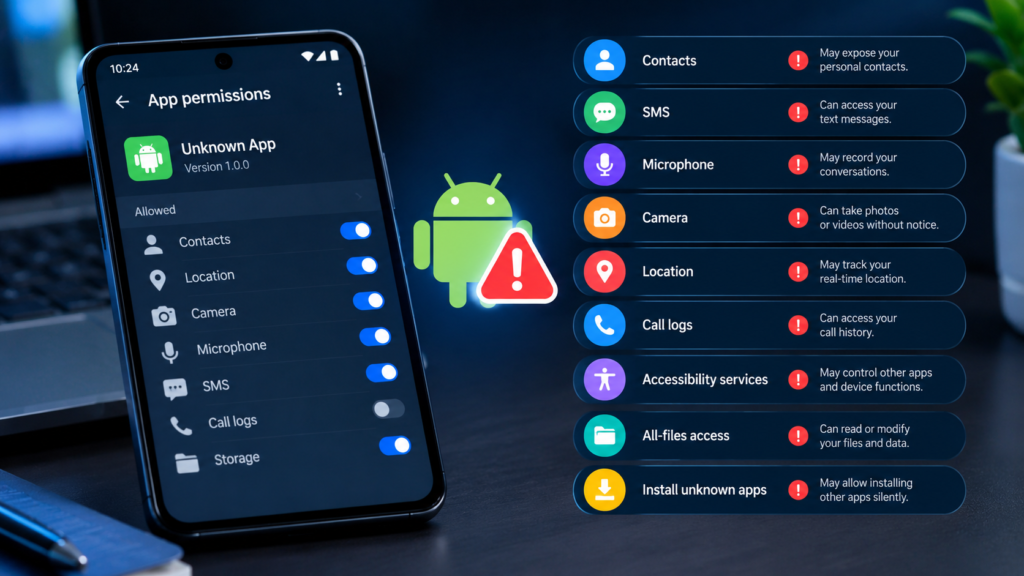
Some Android permissions deserve more attention because they can expose sensitive personal information or enable powerful actions.
The table below explains common permission categories and when they may be reasonable or suspicious.
| Permission or access type | Legitimate use | Potential warning sign |
|---|---|---|
| Contacts | Contact management or communication apps | A simple game requests the entire contact list without explanation |
| SMS | Messaging applications or specific SMS features | A wallpaper app requests access to text messages |
| Microphone | Voice recording, calls, or speech recognition | A basic calculator requests microphone access |
| Camera | Photography, video calls, or QR scanning | An unrelated utility requests camera access |
| Location | Navigation, maps, or nearby services | A flashlight app requests continuous background location |
| Call logs | Certain phone or call-management features | An unrelated app requests access to call history |
| Accessibility services | Assistive technology and specialized automation | An ordinary app demands extensive accessibility control without a convincing explanation |
| Notification access | Notification management or companion features | An unrelated app asks to read all notifications |
| All-files access | File managers and legitimate file-management tools | A simple game requests broad access to device files |
| Install unknown apps | Apps that legitimately install other packages | An unrelated app asks for permission to install additional APKs |
These are warning signs to investigate, not automatic proof of malicious activity. Android version, app design, and the feature being used can all affect which permissions are necessary.
How to Recognize Suspicious Permission Combinations
A single permission may have a reasonable explanation, but several sensitive permissions requested together can deserve additional scrutiny.
For example, an application that requests contacts, SMS access, microphone access, and background location may have a much broader reach than its advertised purpose suggests.
Pay particular attention to these patterns:
- Sensitive access without a clear purpose: The app requests private information unrelated to its advertised features.
- Broad access for a simple function: A basic tool requests extensive device privileges.
- Unexpected background access: The app wants to collect location or other information even when the feature does not require it.
- Accessibility access without a convincing reason: The app requests a powerful service that could allow it to observe or interact with other apps.
- Permission requests after installation: The app repeatedly asks for additional access that seems unrelated to the feature you are trying to use.
Consider the context before deciding. A messaging app may reasonably need contacts and microphone access, while a video-conferencing app may need a camera and microphone. The same permissions can be inappropriate for an unrelated application.
How to Check APK Permissions Before Downloading
Checking permissions is easier when you investigate the app before downloading or installing it. A few simple checks can help you avoid questionable APK files.
Check the Developer and Official Source
First, identify the app developer and look for an official website or trusted distribution source. Compare the package name and version with information published by the developer.
Be cautious if the download page provides little information about the app, uses a misleading developer name, or advertises features that seem too good to be true.
Compare Permissions With the App’s Features
Think about what the app actually needs to do.
For example, a photo editor may reasonably need access to selected images, and a voice recorder needs microphone access. Neither necessarily needs SMS access or call logs.
Ask yourself three questions:
- Does the permission support a feature I intend to use?
- Does the developer explain why the permission is required?
- Is the app asking for broader access than that feature needs?
If you cannot find a reasonable explanation for a sensitive permission, avoid installing the APK until you can verify it.
Check the App’s Privacy Policy
A privacy policy can explain what information an app collects, why it collects it, and whether it shares data with other parties.
Look for clear information about location tracking, contact collection, advertising, analytics, and data retention. If the policy is missing, vague, or inconsistent with the app’s behavior, treat that as an additional warning sign.
A privacy policy is not proof that an app is safe, but it can help you evaluate whether its data practices are transparent.
What to Do If an APK Requests Suspicious Permissions
If an APK appears to request excessive permissions, do not approve them simply to make the app work. Take a moment to investigate.
Here are the safest steps to follow:
- Do not install it yet: Pause until you understand the permission requests.
- Verify the source: Look for an official download or a trusted distribution channel.
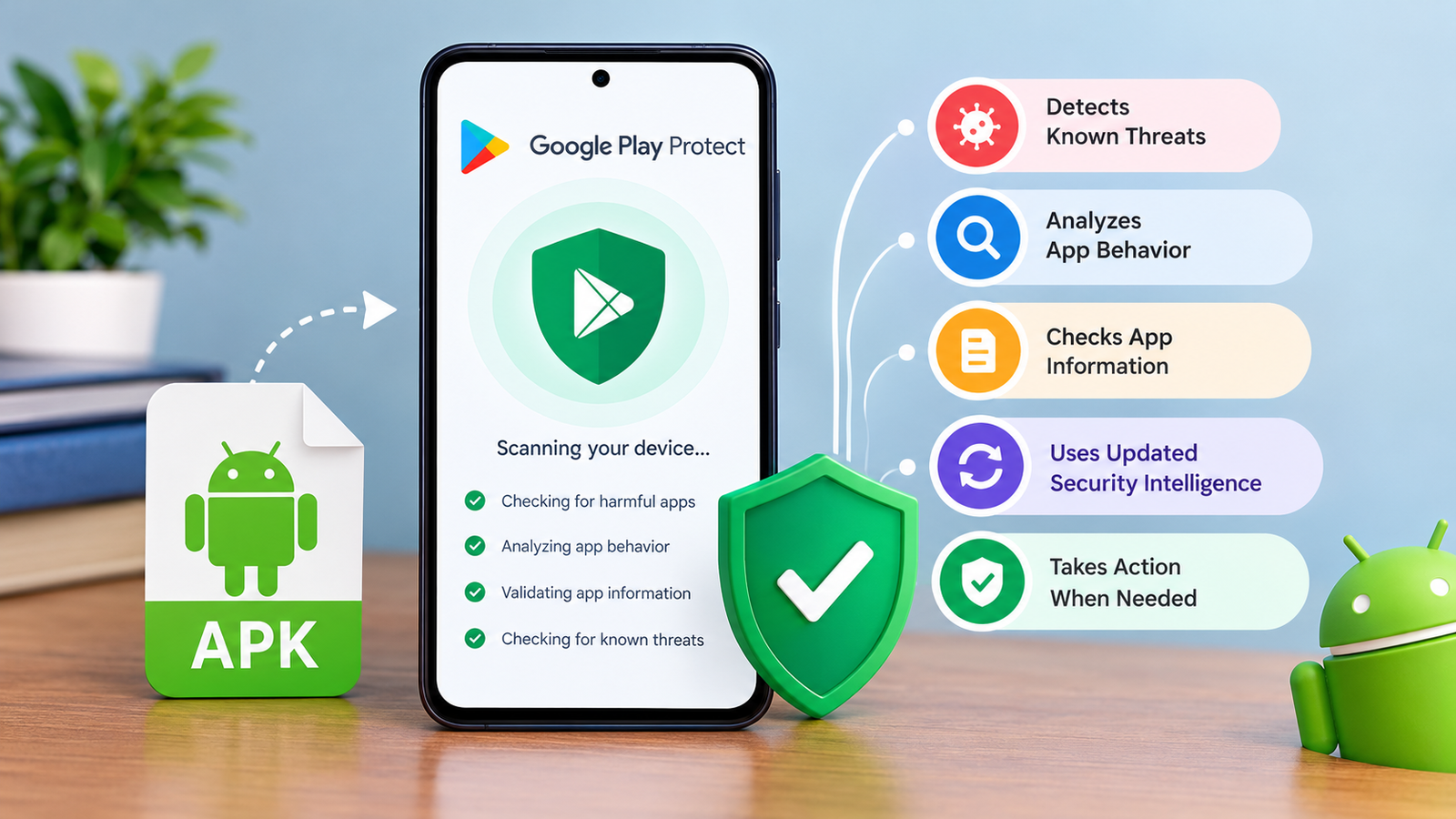
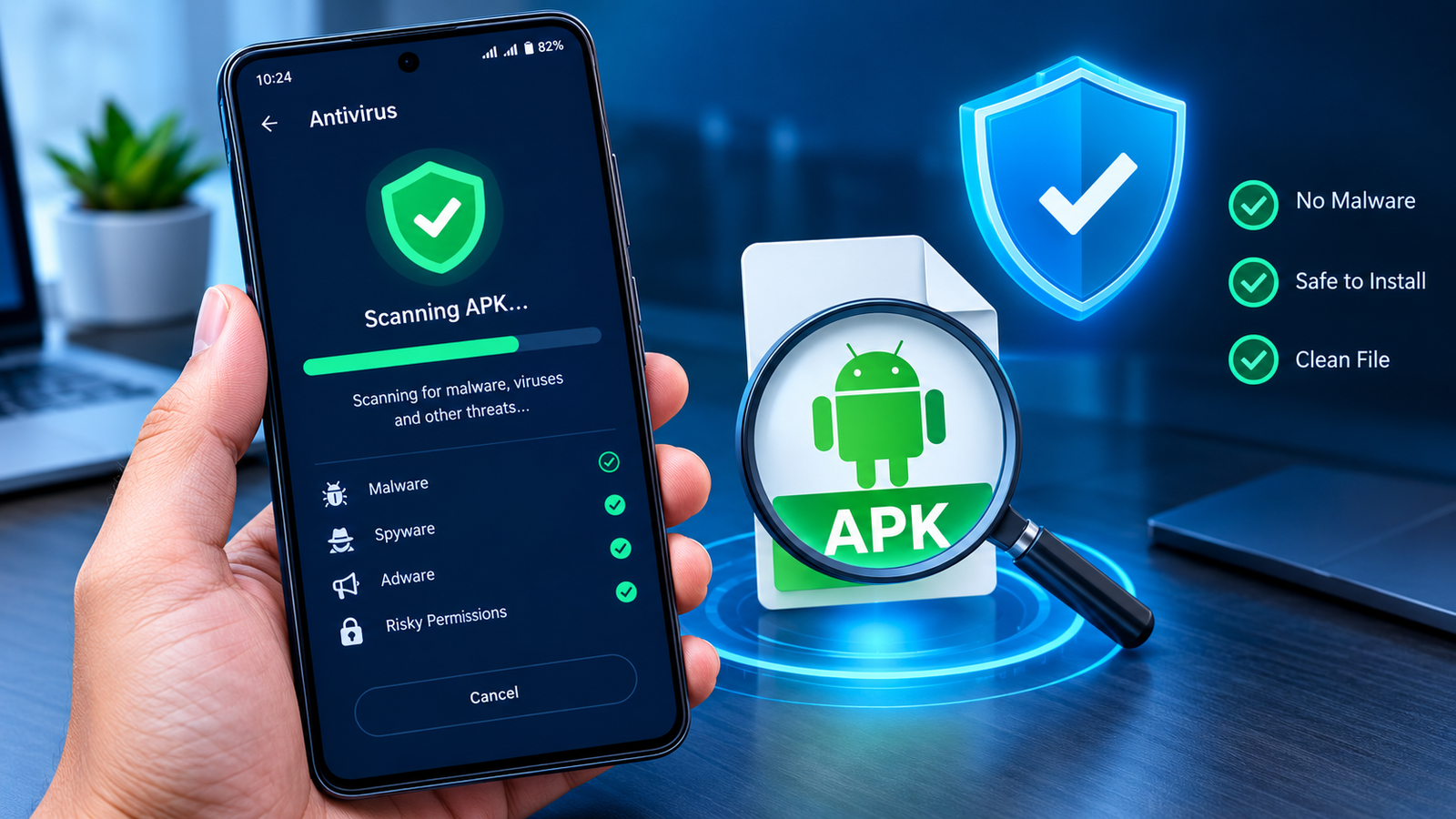
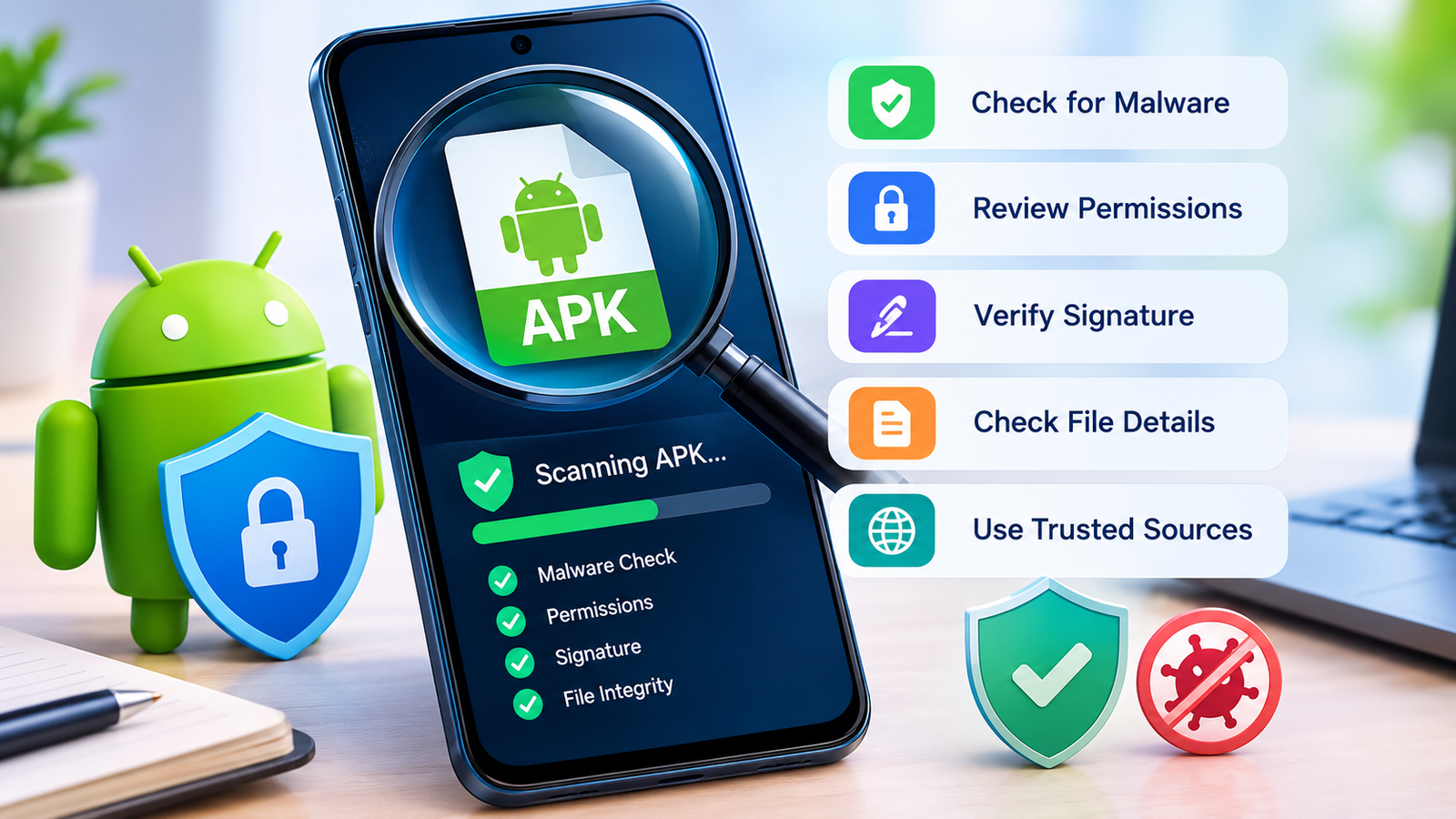
- Scan the APK: Use a reputable mobile security tool or APK analysis service.
- Review the signing certificate: Compare it with a known official release when reliable reference information is available.
- Reject unnecessary access: If the app is installed, deny optional permissions that are not required for the features you use.
- Uninstall questionable apps: If you cannot establish a reasonable basis for trusting an app, remove it.
If you already installed the app and granted sensitive access, revoke those permissions through Android settings. If you suspect that the app is actively abusing accessibility access or device administration privileges, review those special-access settings as well.
For a potentially malicious app, uninstalling it and running a reputable security scan are sensible next steps. If you entered passwords or financial details into an app you strongly suspect is malicious, change those credentials from a trusted device.

Can an APK Be Dangerous Even With Normal Permissions?
Yes. Permission checks are useful, but they cannot identify every security threat.
An APK might contain malicious code, misuse network connections, exploit a vulnerability, or behave differently after an update. Some harmful behavior may also rely on permissions that appear reasonable for the app’s advertised purpose.
Likewise, an app may request relatively few Android permissions while still posing privacy or security risks.
For a more complete assessment, combine permission inspection with other checks:
| Security check | What it helps you assess |
|---|---|
| Permission review | Whether requested access matches the app’s purpose |
| Malware scanning | Whether security tools detect known malicious indicators |
| Digital signature verification | Whether the package is signed and, when compared with a trusted reference, whether it matches the expected signer |
| File hash comparison | Whether the APK matches a trusted copy with a known hash |
| Developer verification | Whether the app comes from a credible source |
| Privacy policy review | Whether the developer explains its data practices |
No single check guarantees safety. A clean scan does not prove that an APK is harmless, and a valid digital signature does not guarantee that the software is trustworthy.
For the strongest practical assessment, use multiple checks rather than relying on a permission list alone.
Common Mistakes to Avoid When Checking APK Permissions
Even careful Android users can misunderstand permission information. Avoid these common mistakes:
- Assuming every sensitive permission means malware: Some legitimate apps need sensitive access to provide their core features.
- Trusting an APK because it installs successfully: Successful installation does not establish that the app is safe.
- Ignoring the developer: A familiar app name does not guarantee that a particular APK is genuine.
- Relying only on antivirus results: Security scanners can miss new, modified, or targeted threats.
- Granting every permission immediately: Review requests individually and deny optional access when appropriate.
- Confusing requested and granted permissions: An app can declare a permission without currently having approval to use it.
- Assuming a privacy policy guarantees safety: Policies may be incomplete, misleading, or inconsistent with actual behavior.
Developing a habit of reviewing permissions before installation can reduce unnecessary exposure of personal information and help you make better decisions about APK downloads.
Frequently Asked Questions
1. How can I check APK permissions without installing the app?
You can use a reputable APK analysis tool or Android SDK utilities to inspect the APK’s manifest. A command such as apkanalyzer manifest permissions app.apk can display declared permissions. This lets you review requested access before installing the application.
2. Which APK permissions are the most suspicious?
Permissions involving SMS, contacts, call logs, microphone, location, accessibility services, and broad file access deserve careful review. However, whether a permission is suspicious depends on the app’s purpose and the explanation provided by its developer.
3. Can I trust an APK if it only requests a few permissions?
Not necessarily. A small permission list can reduce certain privacy risks, but it does not rule out malicious code, deceptive behavior, or other security problems. Check the developer, file integrity, digital signature, and security scan results as well.
4. Is it safe to deny suspicious APK permissions?
Usually, denying an unnecessary permission is a sensible choice. However, some app features may stop working if they genuinely depend on that access. If an app refuses to function without an unrelated sensitive permission, consider finding a safer alternative rather than granting access without understanding the risk.
5. How can I remove permissions from an installed APK?
Open Android Settings, navigate to Apps, select the application, and open Permissions. Choose the permission you want to review and deny access where appropriate. Menu names vary by device, and certain special access types, such as accessibility services, must be managed in separate settings.
6. Does checking APK permissions guarantee that an app is safe?
No. Permission analysis is one part of a broader security review. Combine it with trusted-source verification, malware scanning, certificate checks, and hash comparison when a trustworthy reference is available.
Final Thoughts
Learning how to check APK for suspicious permissions is an important step toward safer Android use. Before installing an unfamiliar application, review its requested access, compare those requests with its actual features, and investigate permissions that seem unnecessary.
Remember that a permission request alone does not prove malicious intent, just as a short permission list does not prove an app is harmless. The most reliable approach is to evaluate the APK’s permissions alongside its source, developer, signing information, and security scan results.
Also Read: Fake PhonePe APK: How to Identify Fake Apps and Stay Safe










1 comment