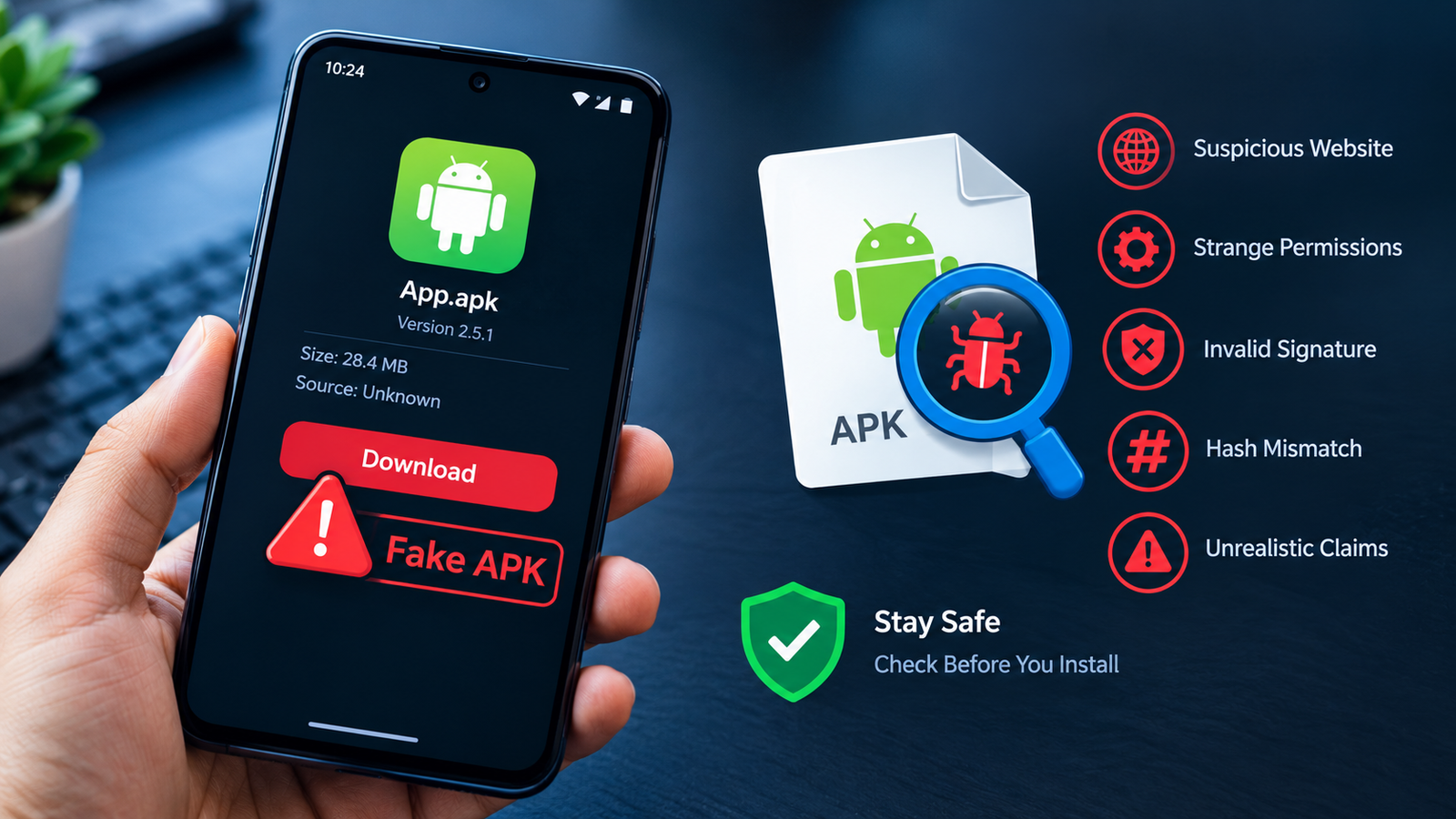
How to Detect Fake APK Downloads: 9 Warning Signs to Watch For
Downloading APK files can be useful when an Android app is unavailable in your region, an older version is needed, or you want to install an app manually. However, not every APK download is trustworthy. Some files are modified to display unwanted advertisements, collect personal information, or install malicious software on your phone.
Learning how to detect fake APK downloads is an important part of staying safe while using Android. A file may have the correct app name, icon, and version number but still contain harmful changes. Even a professional-looking download website cannot guarantee that every file it hosts is safe.
In this guide, you will learn how to recognize suspicious APK files, check their source, verify digital signatures and file hashes, review app permissions, and take practical steps before installing anything on your device.
What Is a Fake APK Download?
An APK, short for Android Package Kit, is the file format used to distribute and install Android applications. Developers use APK files to package an app’s code, resources, and other components needed for installation.
A fake APK is a file that misrepresents the app it claims to provide or has been altered in a way that makes it unsafe or untrustworthy. It may imitate a popular application, use a misleading download button, or claim to be an official version when it comes from an unknown source.
Fake APK downloads can include:
- Impersonated apps: Files pretending to be legitimate banking, shopping, social media, or entertainment apps.
- Modified APKs: Genuine apps altered to include unwanted features, tracking, or malicious code.
- Bundled malware: Applications that install or activate harmful components.
- Adware: Apps designed to display excessive advertisements or redirect users to suspicious websites.
- Data-stealing apps: Applications that attempt to access messages, contacts, credentials, or other sensitive information.
Not every unofficial APK is malicious, and a file downloaded outside an app store is not automatically fake. The key is to verify its origin and integrity rather than trusting its name alone.
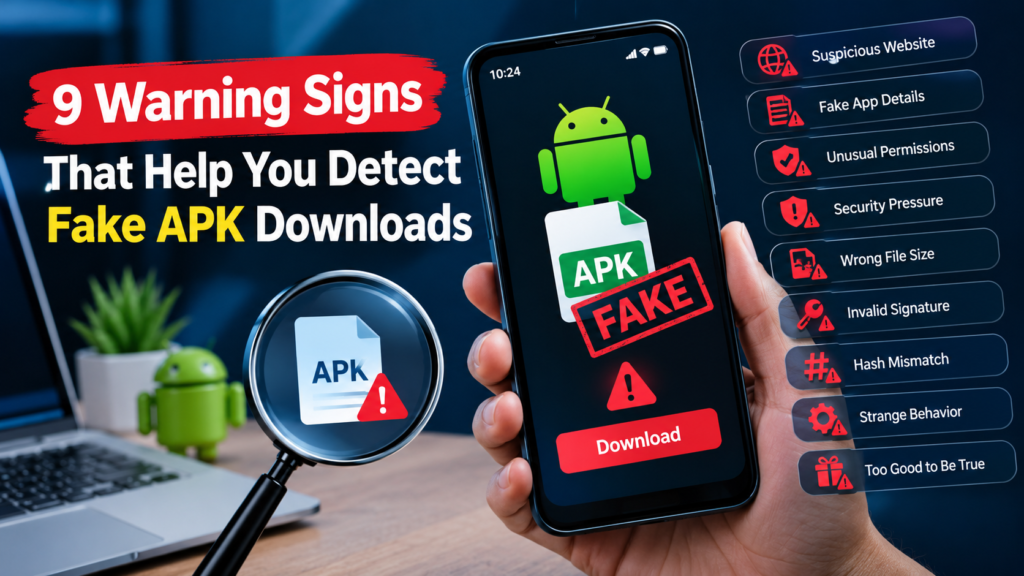
9 Warning Signs That Help You Detect Fake APK Downloads
1. The Download Website Looks Suspicious
The website hosting an APK is one of the first things to examine. Fake download pages often imitate trusted brands or use confusing website names to make users believe they are downloading an official application.
Look for warning signs such as:
- Misspelled website addresses or strange domain names.
- Unrelated redirects when clicking the download link.
- Multiple fake download buttons designed to trigger advertisements.
- Requests to install additional software before downloading the APK.
- Claims that you must disable Android security features to continue.
A website using HTTPS is not automatically trustworthy. HTTPS protects the connection between your browser and the website, but it does not prove that the downloaded file is legitimate.
Whenever possible, use the app developer’s official website or a reputable distribution platform that provides clear information about its files.
2. The APK Name or Version Information Does Not Match
A fake APK may use the name of a popular app to attract downloads. However, the filename alone is easy to change, so it should never be your only security check.
For example, a file called OfficialBankApp.apk could contain a completely different application. Similarly, a download page might advertise the latest release while providing an outdated or unrelated file.
Before downloading, compare the following details:
- App name and developer name.
- Advertised version number.
- Package name, where available.
- Release date and changelog.
- Minimum Android version required.
Be cautious if these details contradict information published by the official developer. A mismatch does not always prove malicious activity, but it is a good reason to stop and investigate.
3. The File Requests Unusual Permissions
Android permissions determine which device features and information an application can access. Some permissions are necessary for an app to work, while others may be unrelated to its advertised purpose.
For instance, a basic wallpaper application generally should not need access to SMS messages, call logs, or accessibility services to display wallpapers.
Review permission requests carefully, particularly when an app asks for access to:
- SMS messages or call logs.
- Contacts and personal files.
- Microphone or camera without a clear reason.
- Accessibility services.
- Notification access or permission to install other apps.
Some legitimate apps need sensitive permissions for specific features. Therefore, judge permissions in context rather than assuming that any sensitive permission automatically means an app is fake.
If the requested access seems unnecessary, do not proceed until you can verify why the app needs it.
4. The APK Comes With Pressure to Disable Security
Be especially careful when a download page or installation guide tells you to disable Google Play Protect, ignore repeated security warnings, or grant unrestricted access to your device.
Android allows users to install applications from sources other than Google Play, but this does not mean every external file is safe.
A suspicious installer may pressure you to bypass warnings by claiming that the alert is a harmless mistake. Although security tools can sometimes produce false positives, you should independently investigate a warning before taking any action.
Do not disable security protections simply to install an APK from an unknown source. If you cannot establish that the file is legitimate, choose another source or avoid the download entirely.
5. The File Size Is Unusually Small or Large
File size can provide a useful clue when checking an APK download.
Suppose a developer lists an application package of a certain size, but a third-party website offers a file that is dramatically smaller or larger. The difference may deserve investigation.
Possible explanations include:
- A corrupted or incomplete download.
- A different app version.
- A package containing additional resources.
- A split APK or bundle component.
- An altered or repackaged application.
However, file size alone cannot prove that an APK is fake. Updates, compression, device architecture, and packaging methods can all affect the size.
Compare files from equivalent versions and distribution formats whenever possible. If the difference remains unexplained, do not install the file until you have more reliable information.
6. The APK Has No Verifiable Developer Signature
Android APK files are digitally signed. Signatures help Android identify an application’s signing identity and determine whether updates are signed consistently with an existing installation.
When checking an APK, compare its signing certificate with information from a trusted official release, if available.
Be cautious if:
- The certificate differs unexpectedly from the official app’s certificate.
- The download source provides no trustworthy information about the developer.
- A supposedly identical release has a different signing identity without an explanation.
- An update cannot be installed over the existing app because of a signature mismatch.
A different signature does not automatically mean malware. Developers may change signing arrangements, and some legitimate applications are distributed under different signing identities. However, an unexplained difference is a reason to investigate further.
7. The APK Hash Does Not Match the Trusted Version
A cryptographic hash is a value calculated from a file’s contents. Even a small change to a file normally produces a different hash.
You can use SHA-256 to compare a downloaded APK against a trusted reference hash published by the developer or another reliable source.
If the hashes match exactly, the files have matching contents with extremely high confidence. If they differ, the files are not identical.
Keep these points in mind:
- Compare the same version and exact APK variant.
- Use a trusted reference hash rather than one posted by an unknown download page.
- Remember that a matching hash proves file identity relative to the reference, not that the reference itself is safe.
- Do not assume two different hashes automatically indicate malware; legitimate versions can differ.
A hash check is most useful when you already have a trustworthy reference value for the exact file you downloaded.
8. The App Behaves Differently From What You Expected
Sometimes a suspicious APK reveals its problems only after installation. Unexpected behavior should be treated seriously, especially if it starts immediately after installing an application.
Warning signs include:
- Persistent pop-up advertisements outside the app.
- Unexpected redirects or browser tabs.
- Battery drain or mobile data usage that suddenly increases.
- Requests for additional permissions without a clear reason.
- Unknown applications appearing on the device.
- Security alerts or unusual background activity.
These symptoms are not definitive proof of a fake APK. Other apps, software bugs, or system problems can cause similar behavior.
Nevertheless, if the problems begin after installing an unfamiliar file, stop using the app and investigate it. Revoke unnecessary permissions, uninstall it if possible, and run a security scan with a reputable tool.
9. The Download Page Makes Unrealistic Claims
Fake APK websites frequently use promises designed to encourage quick downloads.
Be cautious of claims such as:
- A paid application is available completely free from an unexplained source.
- A modified version provides unlimited premium features without any details about its origin.
- The file guarantees complete privacy or zero malware without supporting evidence.
- You must install the file immediately to avoid losing access.
- The download requires unrelated applications or suspicious configuration profiles.
An attractive offer is not evidence of fraud by itself. However, exaggerated promises, unclear ownership, and pressure to act quickly are common reasons to question a download.
Take time to verify the publisher and source before installing the file.
How to Check an APK Before Installing It
You do not need to be an Android security expert to perform several useful checks. The following steps can help you make a more informed decision before opening an unfamiliar APK.
Step 1: Find a Trustworthy Source
Start with the developer’s official website or the app’s official store listing. If you use a third-party APK repository, check whether it identifies the developer, publishes version details, and explains how it obtains its files.
Avoid websites that conceal their ownership or repeatedly redirect you to unrelated downloads.
Step 2: Check the File With a Reputable Scanner
A service such as VirusTotal can compare a file against multiple security engines. If file upload is available and appropriate for your situation, scan the APK before installing it.
Keep in mind that a clean result is not a guarantee of safety. New or modified malware may not be detected, and different security engines can produce different results.
Also consider privacy before uploading a file. Do not submit confidential applications or files that may contain private information unless you understand the service’s data-handling policies.
Step 3: Verify the Hash and Signature
If the developer provides an official SHA-256 hash, calculate the downloaded file’s hash and compare the values. You can also inspect the APK signing certificate using an established Android development tool, such as Android SDK Build Tools.
For example, developers can inspect an APK’s signing information with the apksigner utility included in Android SDK Build Tools:
apksigner verify --print-certs app.apkThis command verifies the APK signature and prints certificate information. It does not independently prove that the app is safe. Compare the certificate information with a trusted reference when one is available.
Step 4: Review Permissions and App Details
Before installation, review the app’s stated purpose, requested access, developer information, and compatibility requirements.
After installation, Android settings can help you inspect permissions and revoke access that is not needed. Be especially cautious with accessibility access, notification access, and permission to install unknown applications.
Step 5: Keep Android Security Features Enabled
Keep Android updated and leave Google Play Protect enabled. Install security updates when available, and avoid following instructions that ask you to bypass warnings without a reliable explanation.
If you remain uncertain about an APK, the safest option is to use a verified official release instead.
Quick Comparison: Safe APK Checks vs. Warning Signs
| Check | More reassuring sign | Warning sign |
|---|---|---|
| Download source | Official developer or reputable repository | Unknown site with misleading redirects |
| App details | Version and developer information are consistent | Conflicting or missing details |
| Permissions | Access fits the app’s purpose | Unexplained sensitive access |
| Digital signature | Matches a trusted reference | Unexpected signing identity |
| SHA-256 hash | Matches the trusted hash for the same file | Hash differs from the trusted reference |
| Security scan | No detections from the available engines | Multiple credible malware detections |
| Installation behavior | No unexplained activity | Unexpected ads, alerts, or access requests |
No single check guarantees that an APK is safe. The strongest approach combines a trustworthy source, file verification, permission review, and normal Android security protections.
What Should You Do If You Download a Fake APK?
If you suspect that an APK is fake, avoid opening it or completing the installation.
If you have already installed it, take these precautions:
- Stop using the app. Do not enter passwords, payment information, or other sensitive details.
- Disconnect if necessary. If the device is showing signs of active compromise, temporarily turn off Wi-Fi and mobile data while you assess the situation.
- Revoke suspicious permissions. Review the app’s permissions and check whether it has accessibility access, device administrator privileges, or permission to install other apps.
- Uninstall the suspicious app. If normal removal is blocked, review its special access and administrator settings. Avoid making unfamiliar system changes.
- Run a security scan. Use Google Play Protect or another reputable mobile security tool.
- Secure important accounts. If you entered credentials after installing the app, change those passwords from a trusted device. Prioritize email, banking, and other sensitive accounts, and enable multifactor authentication where available.
- Contact your bank if necessary. If you entered payment information or notice unauthorized transactions, contact the financial institution promptly.
If the app cannot be removed, suspicious activity continues, or you believe the device has been seriously compromised, consider getting help from a qualified technician. A factory reset may be necessary in some cases, but back up essential personal files carefully before proceeding.
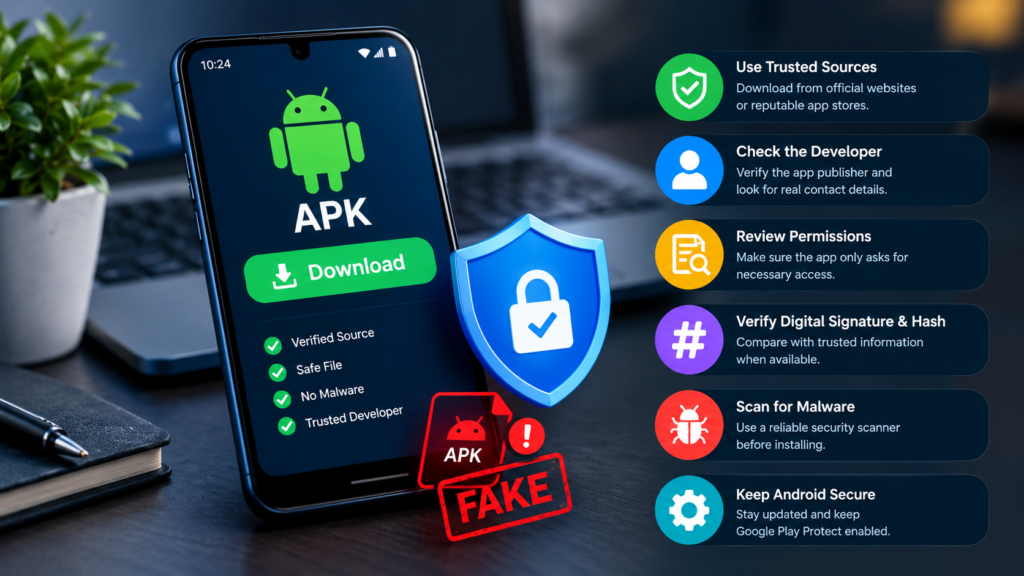
Best Practices for Avoiding Fake APK Downloads
Preventing a problem is usually easier than dealing with one afterward. Make these habits part of your normal Android routine:
- Prefer official app stores and developer websites.
- Check the developer’s identity before downloading.
- Read recent user reports, while remembering that reviews can be manipulated.
- Avoid modified APKs from unknown publishers.
- Check signatures and hashes when trustworthy reference values are available.
- Review permissions before granting access.
- Keep Android, Google Play Protect, and your applications updated.
- Never share banking details or passwords with an unfamiliar app.
- Do not ignore security alerts simply because a download page says the file is safe.
- Remove applications you no longer use, particularly those from uncertain sources.
These precautions reduce risk without requiring you to avoid every APK download outside an official store.
Frequently Asked Questions
1. How can I detect fake APK downloads quickly?
Start by checking the source, developer name, app version, and requested permissions. Scan the file with a reputable security service when appropriate. If a trusted reference hash or signing certificate is available, compare it with the downloaded file. Avoid installing the APK if important details remain unexplained.
2. Can a fake APK look exactly like the original app?
Yes. A fake or modified APK can use the same app name, icon, and similar interface as a legitimate application. Visual appearance is not enough to establish authenticity. Verify the source and signing identity, and compare the file hash with a trusted reference when available.
3. Is an APK safe if a virus scanner finds no threats?
Not necessarily. A clean scan is a helpful signal, but it cannot guarantee that the file contains no harmful code. New malware, sophisticated modifications, and undetected threats may escape some scanners. Combine scanning with source verification, signature checks, and a review of permissions.
4. Does a matching APK hash prove that a file is safe?
A matching cryptographic hash provides strong evidence that the downloaded file is identical to the file represented by the trusted reference hash. However, if the reference file is already malicious or the hash came from an unreliable source, the match does not establish safety. The reference itself must be trustworthy.
5. What should I do if I accidentally install a fake APK?
Stop using the app, revoke unnecessary permissions, uninstall it if possible, and run a reputable security scan. If you entered sensitive credentials, change them from a trusted device and enable multifactor authentication. Contact your bank if payment information may have been exposed or unauthorized transactions occur.
6. Are APK files downloaded from third-party websites always dangerous?
No. Some third-party repositories distribute legitimate APK files. However, the risk depends on the source, file integrity, signing identity, and the repository’s security practices. Use a reputable source, verify the file when possible, and avoid downloads that require you to ignore unexplained security warnings.
Final Thoughts
Knowing how to detect fake APK downloads helps you make safer decisions before installing applications on your Android device. A convincing filename, familiar icon, or clean antivirus result is not enough on its own to prove that a file is legitimate.
Start with a trustworthy source, check the app’s details and permissions, and verify its digital signature or SHA-256 hash when reliable reference information is available. Keep Android security protections enabled, and take unexpected app behavior seriously.
Also Read: Vedantu App: 9 Best Features, Benefits, Courses, and Learning Tips













Post Comment