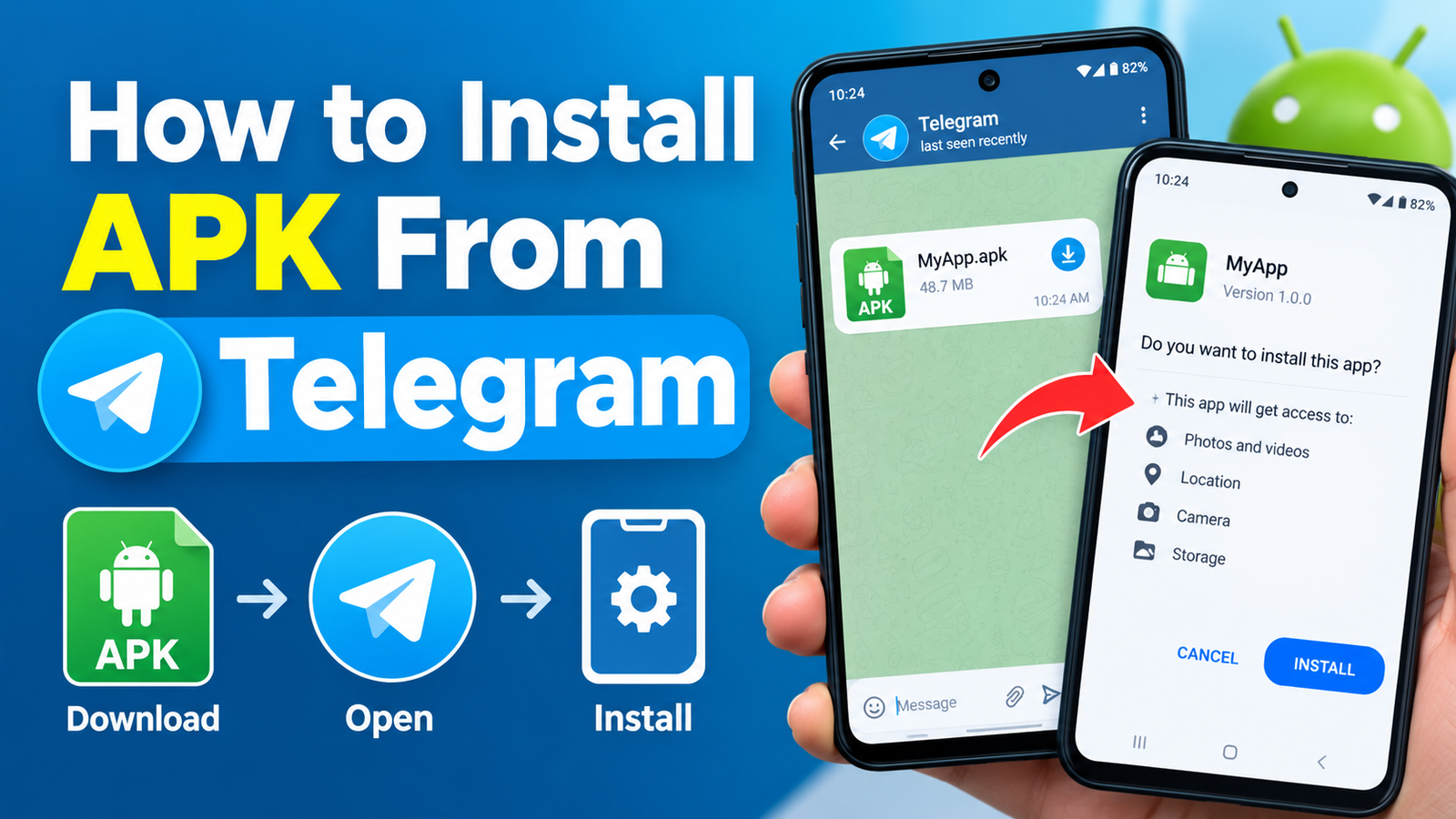
How to Install APK From Telegram: A Safe Step-by-Step Guide
Telegram is widely used for sharing photos, videos, documents, and other files. Because Android applications can also be distributed as APK files, you may eventually receive an APK through a Telegram chat and wonder how to install it on your phone.
Installing an APK from Telegram is usually straightforward, but there are a few important security and compatibility steps you should understand first. An APK is an Android application package, and installing one from outside Google Play means you should pay extra attention to where the file came from.
In this guide, you’ll learn how to install APK from Telegram step by step, how to allow Telegram or your browser to install APK files, what to do when Android blocks the installation, and how to check an APK before opening it.
What Is an APK File?
APK stands for Android Package Kit. It is the file format Android uses to distribute and install applications.
When you download an app from Google Play, the installation process normally happens automatically. When you receive an APK through Telegram, however, you are handling the installation file yourself.
An APK can contain the application code, resources, images, configuration files, and other components needed by an Android app.
You might encounter APK files when:
- A developer shares an application directly.
- An app isn’t available in your region.
- Someone sends you an application installer.
- You’re testing an app outside Google Play.
- You need to install an older version of an application.
- An organization distributes an internal Android app.
The important thing to remember is that Telegram is only the delivery method. The fact that an APK was sent through Telegram doesn’t automatically make it safe.
Can You Install an APK Directly From Telegram?
Yes. On compatible Android devices, you can download an APK from Telegram and then install it using Android’s package installer.
However, modern Android versions restrict installations from unknown sources by default. Instead of giving every app permission to install applications, Android allows you to control which specific apps can do so.
For example, if you download an APK through Telegram, your phone may ask you to allow Telegram to install unknown apps.
The exact wording and menu location can vary depending on your Android version and phone manufacturer.
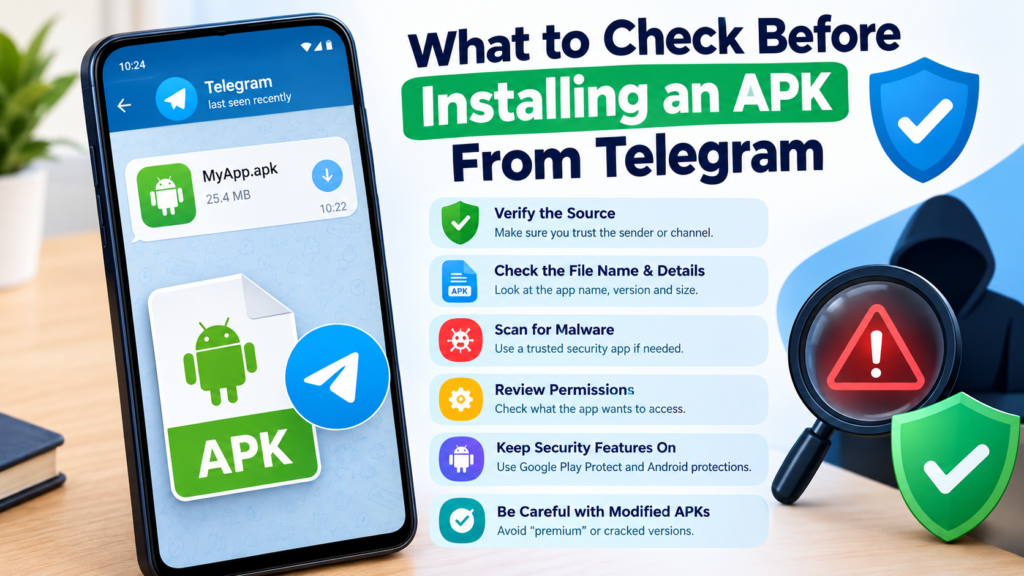
What to Check Before Installing an APK From Telegram
Before you tap the installation button, take a moment to consider where the file came from.
Telegram allows people to share files quickly, but that doesn’t mean every shared APK is trustworthy. A malicious application can potentially access sensitive information, display unwanted advertisements, or perform other harmful activities if you grant it excessive permissions.
Before installing, consider these checks:
- Make sure you know who sent the APK.
- Avoid APKs from unknown or suspicious Telegram channels.
- Check the application’s name and version.
- Be cautious with modified or “premium unlocked” APKs.
- Scan the file with a reputable security service when appropriate.
- Review the permissions requested by the app.
- Keep Android and Google Play Protect updated.
- Don’t disable important security protections just to force an installation.
If something about the file seems suspicious, it’s better not to install it.
How to Install APK From Telegram Step by Step
The following process works on many modern Android phones, although the exact screens may differ slightly between Samsung, Xiaomi, Google Pixel, OnePlus, Oppo, Vivo, and other devices.
Step 1: Open Telegram
Launch Telegram on your Android phone and open the chat, group, or channel containing the APK file.
Check the file carefully before downloading it. Pay attention to its filename, size, and the person or channel that shared it.
If you weren’t expecting the file, don’t assume it is safe simply because it appears in a familiar conversation.
Step 2: Download the APK
Tap the APK file to begin downloading it.
Wait until the download is complete. Depending on your Telegram settings and Android version, the file may be stored in Telegram’s application folder or another accessible location.
If Telegram provides an option to open the downloaded file, you can use it. Otherwise, you can locate it later through your file manager.
Step 3: Tap the Downloaded APK
Once the APK has finished downloading, tap it.
Android may immediately display an installation warning. On some phones, you may see a message explaining that Telegram isn’t currently allowed to install unknown apps.
This is a security feature rather than a problem with the APK itself.
Step 4: Allow Telegram to Install Unknown Apps
If Android displays a warning such as “For your security, your phone currently isn’t allowed to install unknown apps from this source,” you’ll need to change the permission for Telegram.
Tap the available Settings option.
Look for an option similar to:
Allow from this source
Turn it on for Telegram.
The exact menu can differ between Android versions and manufacturers. You can also usually find the setting through your phone’s Settings app by searching for Install unknown apps.
Step 5: Return to the APK
After granting Telegram permission, go back to the downloaded APK and tap it again.
The Android package installer should now open.
You may see information about the application and an Install button.
Step 6: Review the Installation
Before continuing, make sure the application name is what you expected.
If Android displays a warning or the application requests unusual permissions, stop and investigate before proceeding.
If you’re confident that the APK is legitimate, tap Install.
Step 7: Wait for Installation to Finish
Android will verify and install the application.
The process can take anywhere from a few seconds to several minutes depending on the application’s size and your device.
Once installation is complete, you should see options such as Open or Done.
Tap Open if you want to launch the application immediately.
Quick Overview of the APK Installation Process
| Step | What to Do | Important Note |
|---|---|---|
| 1 | Open Telegram | Find the correct APK |
| 2 | Download the file | Wait for the download to finish |
| 3 | Tap the APK | Android may show a security warning |
| 4 | Enable installation permission | Allow Telegram from the appropriate settings |
| 5 | Open the APK again | Android Package Installer should appear |
| 6 | Review and install | Check the app before proceeding |
| 7 | Launch the app | Test that it works normally |
How to Find an APK Downloaded From Telegram
Sometimes the APK downloads successfully but you can’t find it afterward.
Open your Android file manager and check folders associated with Telegram or your downloads.
Depending on the Telegram and Android versions you’re using, the exact storage location may differ. The easiest solution is often to use the file manager’s search function and search for the application’s filename or the .apk extension.
You can also check Telegram’s storage or download settings if the file isn’t where you expected.
Avoid repeatedly downloading the same APK simply because you can’t locate the first copy. You may end up with multiple files taking up unnecessary storage space.
What If Android Says “App Not Installed”?
The APK may download successfully but still fail during installation.
The “App not installed” message can have several causes.
Insufficient Storage
Your phone may not have enough free space to install the application.
Try deleting unnecessary downloads, videos, or unused applications and then attempt the installation again.
Incompatible Android Version
Some applications require a newer version of Android. If your operating system is too old, the APK may refuse to install.
Check the application’s requirements before trying again.
Conflicting Existing App
If the same application is already installed, Android may reject the APK when its signing information doesn’t match the installed version.
This can happen when trying to replace an official application with an APK from a different source.
Corrupted APK
An interrupted or incomplete download can produce an invalid APK.
Delete the damaged file and obtain a fresh copy from a trustworthy source.
Wrong Package Format
Not every Android application download is a standard APK.
You may encounter formats such as XAPK, APKM, or APKS. These can contain multiple APK components and may require a compatible installer rather than being opened like a normal APK.
How to Stay Safe When Installing APKs From Telegram
Security should be a priority whenever you install applications outside an official app store.
Telegram can make file sharing convenient, but you should still treat an APK like any other executable software.
Verify the Source
The safest approach is to obtain an APK directly from the application’s developer or another reputable distribution source whenever possible.
Be especially careful with files promoted through random channels offering paid applications for free.
Check the File Name
A suspicious filename doesn’t necessarily prove that an APK is malicious, but unusual names, excessive claims, or misleading versions should make you cautious.
For example, an APK claiming to be an official update should be treated carefully if it comes from an unrelated Telegram account.
Review Permissions
After installation, check what permissions the application requests.
Ask yourself whether those permissions make sense.
A simple utility may reasonably request access to certain device features, while an unrelated application asking for extensive access should raise questions.
Keep Play Protect Enabled
Google Play Protect can provide an additional layer of protection against potentially harmful applications.
Although no security system is perfect, keeping Android’s built-in security features active is generally a better approach than disabling them to install questionable software.
Remove Unknown-Source Permission Afterwards
If you temporarily enabled Allow from this source for Telegram, consider turning it off after installing the APK if you don’t regularly install applications this way.
This reduces the chance of accidentally installing another application from an untrusted file.
Should You Install Modified APKs From Telegram?
Modified APKs deserve additional caution.
A modified application may have been changed by someone other than the original developer. Depending on what was modified, you may not know exactly what code or behavior has been added.
Claims such as:
- “Premium unlocked”
- “Unlimited money”
- “No ads”
- “Everything unlocked”
- “Pro version free”
can be tempting, particularly when shared in Telegram groups and channels.
But the potential risks can outweigh the benefits. A modified APK could contain unwanted software or request permissions that aren’t appropriate for its advertised purpose.
If you need an application, an official version from a trustworthy source is usually the safer choice.
What to Do After Installing the APK
Once the installation is complete, don’t immediately assume everything is fine.
Open the application and check that it behaves as expected.
Look for unusual signs such as:
- Excessive advertisements appearing outside the app.
- Unexpected battery consumption.
- Unusual permission requests.
- Unknown applications appearing on your phone.
- Browser pages opening without your action.
- Unexpected notifications.
- Performance problems shortly after installation.
If you notice suspicious behavior, uninstall the application and investigate the APK source.
You can also review Android’s application permissions and security settings.
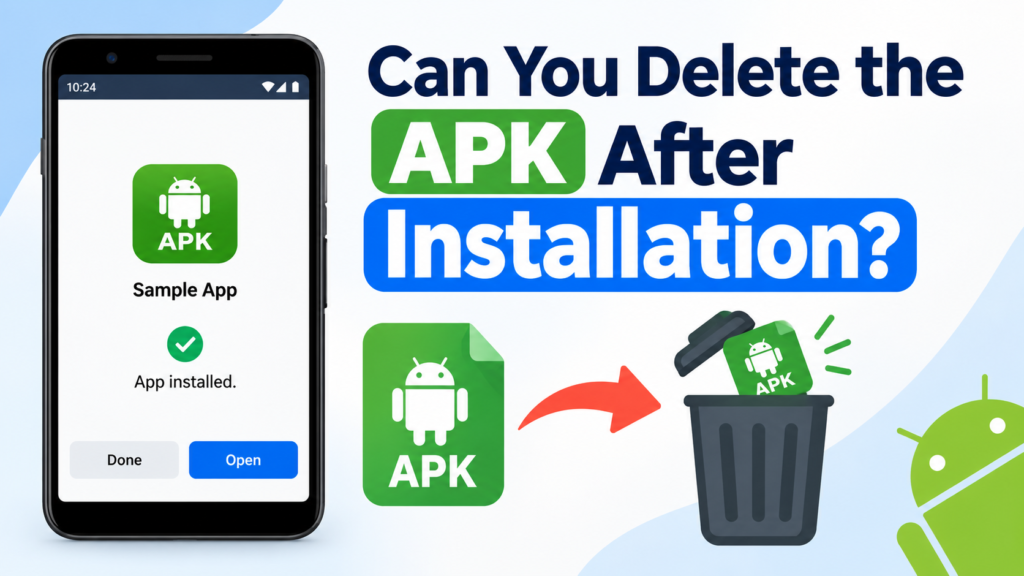
Can You Delete the APK After Installation?
Yes. After Android successfully installs the application, the original APK file is generally no longer required to run the installed app.
Deleting the downloaded APK can free up storage space.
However, you might want to keep it temporarily if you expect to reinstall the same version later and trust the source.
If you delete it, remember that you may need to download another copy if you later want to reinstall that specific version.
Common Mistakes to Avoid
Installing an APK from Telegram isn’t difficult, but several mistakes can create unnecessary problems.
Avoid these common errors:
- Installing files from unknown senders without checking them.
- Assuming every Telegram APK is safe.
- Disabling Android security features permanently.
- Installing an APK without enough storage.
- Ignoring Android compatibility requirements.
- Installing several versions of the same app from different sources.
- Giving an unfamiliar app excessive permissions.
- Using modified APKs without understanding the risks.
- Installing XAPK, APKM, or APKS files as if they were ordinary APKs.
Taking a few extra minutes to verify a file can save you much more time later.
Frequently Asked Questions
Can I install an APK directly from Telegram?
Yes. You can download an APK through Telegram and open it with Android’s package installer. If Android blocks the installation, you may need to allow Telegram to install unknown apps.
Why won’t Telegram install my APK?
The problem may be caused by installation permissions, insufficient storage, an incompatible Android version, a corrupted APK, or a conflict with an existing application.
Is it safe to download APK files from Telegram?
It depends on the source. Telegram itself doesn’t guarantee that an APK is safe. Only install applications from sources you trust and check suspicious files before installing them.
Do I need to keep Telegram after installing the APK?
No. Telegram isn’t required for the installed application to work. Once the APK has been installed, you can use the application independently.
Can I delete the APK after installing it?
Yes. The downloaded APK is normally just the installer package. Once the application has been installed successfully, you can delete the APK to recover storage space.
What should I do if the APK is XAPK or APKM?
XAPK and APKM files aren’t always installable through Android’s standard package installer. They may contain multiple components and require an appropriate compatible installation method.
Final Thoughts
Learning how to install APK from Telegram is useful when you receive an Android application outside Google Play. The basic process is simple: download the APK, open it, give Telegram permission to install unknown apps if Android asks, review the application, and complete the installation.
The more important part is deciding whether the APK deserves to be installed in the first place. Telegram makes it easy to share files, but convenience shouldn’t replace basic security checks.
Also Read: Kwaicut APK: Download, Features, Installation Guide, and Safety Tips






Post Comment