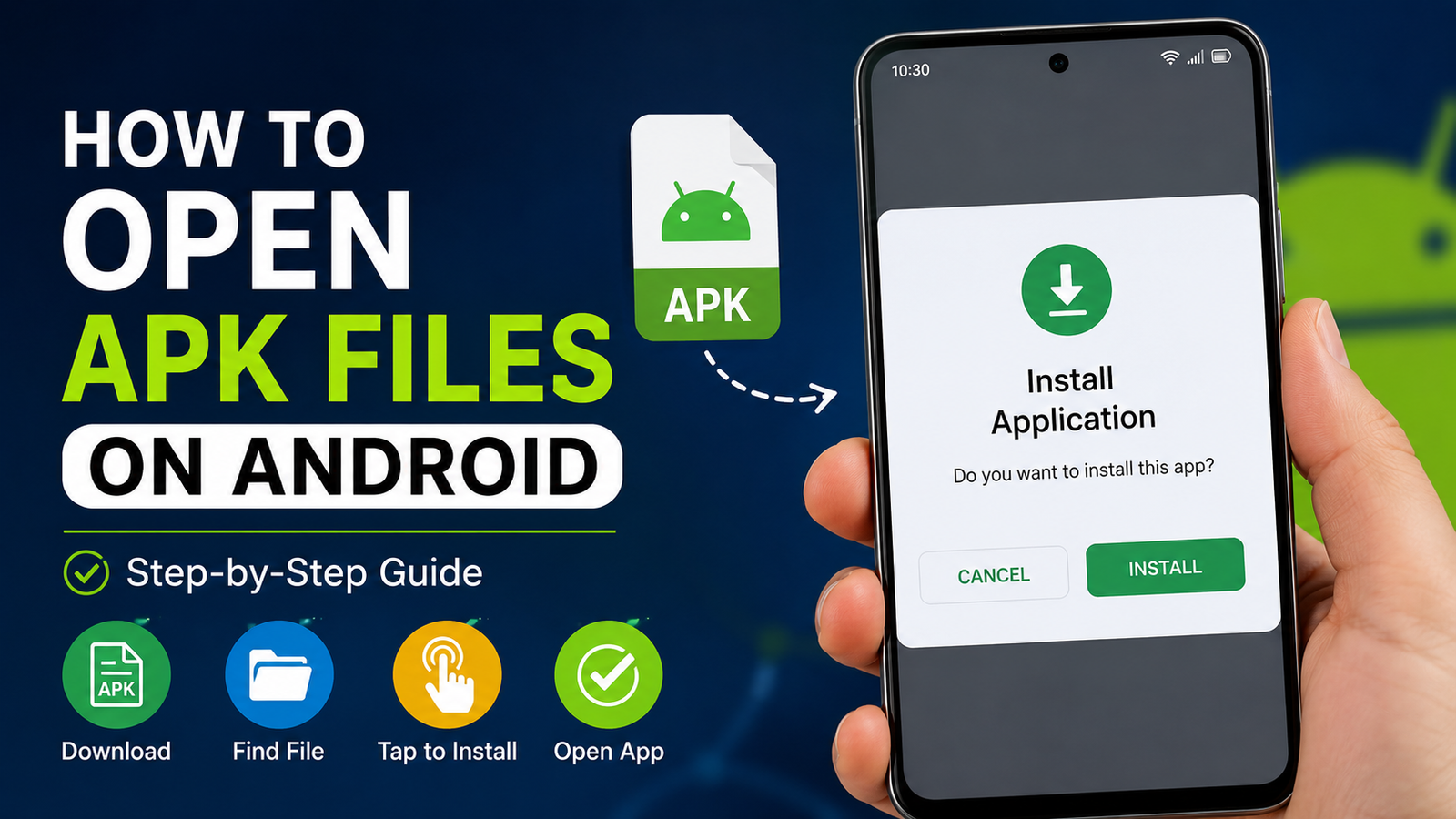
How to Open APK Files on Android: A Complete Step-by-Step Guide
If you have downloaded an APK file and are wondering How to Open APK Files on Android, the process is usually straightforward. APK files are Android application packages that allow users to install apps outside the Google Play Store. However, Android may block the installation until you enable the appropriate permission or resolve a compatibility issue.
Whether you downloaded an APK from a website, received one from another device, or backed up an application, understanding how APK files work can help you install them safely and correctly. This guide explains the entire process, from locating an APK file to installing it and troubleshooting common errors.
What Is an APK File?
APK stands for Android Package Kit. It is the standard file format used to distribute and install applications on Android devices.
When you download an app from the Google Play Store, the installation process happens automatically in the background. When you download an APK manually, you are handling the application package yourself.
An APK can contain important components such as:
- Application code
- Images and other media
- App resources
- Configuration information
- A digital signature
- Installation instructions
APK files commonly use the .apk extension. For example, a downloaded file might look like example-app.apk.
It is important to remember that an APK is designed for Android. You generally cannot install a standard APK directly on Windows, iOS, or other operating systems.
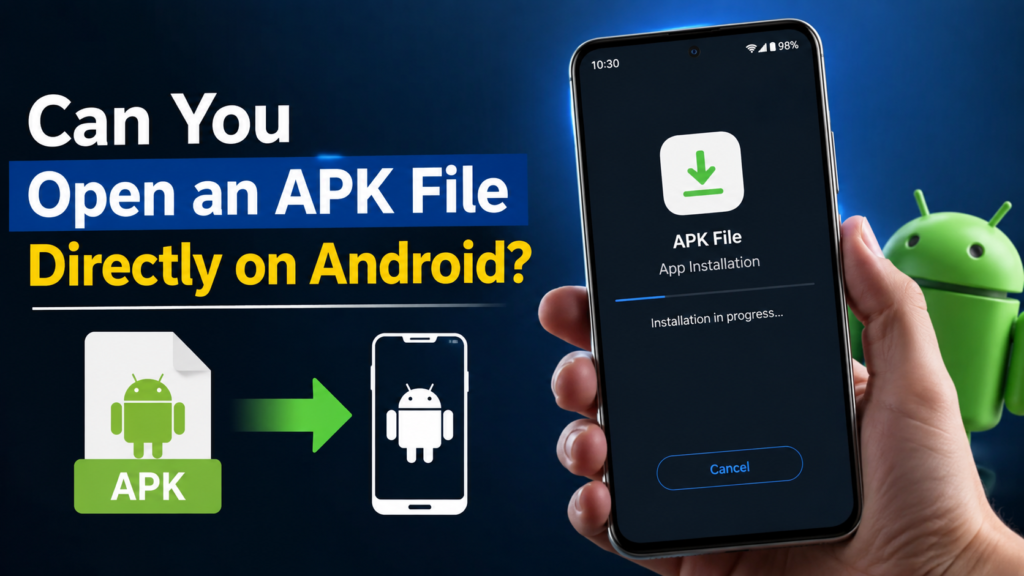
Can You Open an APK File Directly on Android?
Yes, but there is an important distinction between opening an APK and installing it.
Most Android users do not need to open the internal contents of an APK. Instead, they tap the file to launch the Android package installer and begin installation.
If your goal is to install an application, you can usually:
- Download the APK.
- Find it using a file manager.
- Tap the APK file.
- Allow installation from the relevant source if requested.
- Review the permissions or installation prompt.
- Tap Install.
- Wait for the installation to finish.
The exact wording and location of security settings can vary depending on your Android version and device manufacturer.
How to Open APK Files on Android Step by Step
The easiest approach is to use a file manager already installed on your phone.
Step 1: Download the APK File
First, download the APK from a source you trust.
After the download finishes, Android will normally save the file in the Downloads folder unless you selected a different location.
Before continuing, check the file name and extension. A normal APK should end with .apk.
Avoid installing files with suspicious names or files that come from unknown sources.
Step 2: Open Your File Manager
Open your phone’s built-in file manager.
Depending on your device, it may be called:
- Files
- My Files
- File Manager
- Files by Google
- Downloads
Look for the Downloads folder or the location where you saved the APK.
Step 3: Locate the APK
Scroll through the downloaded files until you find the APK.
For example:
sample-app.apk
Tap the file once.
Android should recognize it as an application package and display an installation prompt.
Step 4: Allow Installation From the Source
Modern Android versions restrict APK installations from unknown sources as a security measure.
If Android displays a message saying that your current source is not allowed to install unknown apps, you may need to enable permission for the application you are using to open the APK.
For example, if you downloaded the file through a browser, Android may ask you to allow that browser to install unknown apps.
Go to the requested settings and enable the permission only for a source you trust.
You can normally disable the permission again after installation.
Step 5: Start the Installation
Return to the APK file and tap it again.
You should see an installation screen. Review the information shown and select Install if you are confident that the file is safe.
Android will then verify and install the application.
Step 6: Open the Installed App
Once installation is complete, you may see an Open button.
Tap it to launch the application.
Alternatively, return to your home screen or app drawer and look for the newly installed app.
Quick Overview of the APK Installation Process
The following table summarizes the basic process:
| Step | What to Do | What to Check |
|---|---|---|
| 1 | Download the APK | Use a trustworthy source |
| 2 | Open a file manager | Check the Downloads folder |
| 3 | Select the APK | Confirm the .apk extension |
| 4 | Allow the required permission | Verify the source is trusted |
| 5 | Tap Install | Review the installation prompt |
| 6 | Launch the app | Check that it works correctly |
Why Android Blocks APK Installation
Android restricts installations from unknown sources because manually installed applications can present security risks.
An APK downloaded from an unreliable website could potentially contain malicious code, unwanted software, or modified components.
This is why you should not automatically enable APK installation permissions for every application.
Instead, consider the following precautions:
- Download APK files from reputable sources.
- Avoid suspicious websites and misleading download buttons.
- Check the application name before installing.
- Keep Android’s security features enabled.
- Do not grant unnecessary permissions.
- Delete APK files you no longer need.
- Scan suspicious files with appropriate security software.
Allowing installation from an unknown source does not automatically mean an APK is dangerous. It simply gives Android permission to install applications from outside the normal app distribution system.
How to Open APK Files on Android Without Installing Them
Sometimes you may want to inspect an APK instead of installing it.
An APK is essentially a packaged archive containing various application files. Advanced users can use specialized Android or computer tools to examine its contents.
However, simply opening the file does not mean you can use the application without installing it.
If your purpose is to check what is inside an APK, specialized APK analysis or archive tools may be required.
For ordinary users, this is usually unnecessary. If you only want to run the app, installing the APK through Android’s package installer is the simpler option.
What If the APK File Does Not Open?
There are several reasons an APK might fail to open or install.
The problem may be caused by the Android version, device architecture, damaged download, insufficient storage, or an incompatible application.
Try these basic solutions.
Check the File Extension
Make sure the file actually ends in .apk.
If it has another extension, it may not be a standard APK package.
Some applications are distributed using formats such as XAPK or other package structures. These may require different installation methods.
Download the File Again
A partially downloaded or corrupted APK may fail during installation.
Delete the problematic file and download it again from a reliable source.
Check Available Storage
Your phone needs enough free storage to install an application.
If your device is almost full, remove unnecessary files or applications and try again.
Check Android Compatibility
Older applications may not work correctly on newer Android versions, while newer applications may require Android features unavailable on older devices.
Check the app’s minimum Android requirement before installing it.
Check CPU Architecture
Some applications are built for specific processor architectures.
Common Android architectures include ARM-based variants and x86-based variants.
If you install an incompatible package, the application may fail to install or run correctly.
APK vs Google Play Installation
Installing an app through an APK is different from installing it through the Google Play Store.
With Google Play, the store handles many parts of the process automatically, including compatibility checks and updates.
With an APK, you are responsible for finding the package and starting the installation yourself.
Here is a simple comparison:
| Feature | APK Installation | Google Play Installation |
| Installation source | External file | Google Play Store |
| Manual download | Usually required | Usually not required |
| Unknown-source permission | May be required | Normally not required |
| Automatic updates | Depends on source | Generally supported |
| User responsibility | Higher | Lower |
| Compatibility handling | More manual | More automated |
APK installation can be useful in legitimate situations, but users should understand the additional risks involved.
Is It Safe to Open APK Files on Android?
Opening an APK is not automatically dangerous, but where the APK came from matters greatly.
A legitimate APK obtained from a trusted developer or reputable distribution source is generally less concerning than a modified file from an unknown website.
Before installing an APK, consider asking:
- Do I recognize the application?
- Do I trust the source?
- Does the file have a reasonable name?
- Is the app compatible with my Android version?
- Are the requested permissions appropriate?
- Does the developer appear legitimate?
Be particularly cautious with modified applications that promise paid features for free, unlimited resources, or unusual system-level capabilities.
If something seems suspicious, do not install it.
How to Remove an APK After Installation
Once an APK has successfully installed an application, you usually do not need to keep the APK file.
The installed application and the original APK are separate.
You can delete the downloaded APK to free up storage.
To remove it, open your file manager, find the APK in the Downloads folder, select it, and choose Delete.
Deleting the APK does not normally uninstall the application that was already installed.
Common APK Installation Errors
Users may encounter several messages when attempting to install APK files.
Common examples include:
- App not installed
- Parse error
- Installation blocked
- Package appears to be invalid
- Insufficient storage
- App isn’t compatible with your device
Each error can have a different cause.
For example, a parse-related error can occur when an APK is incompatible with the device’s Android version or when the package is damaged.
An “App not installed” message can have several possible causes, including an existing conflicting version, insufficient storage, incompatible architecture, or a corrupted package.
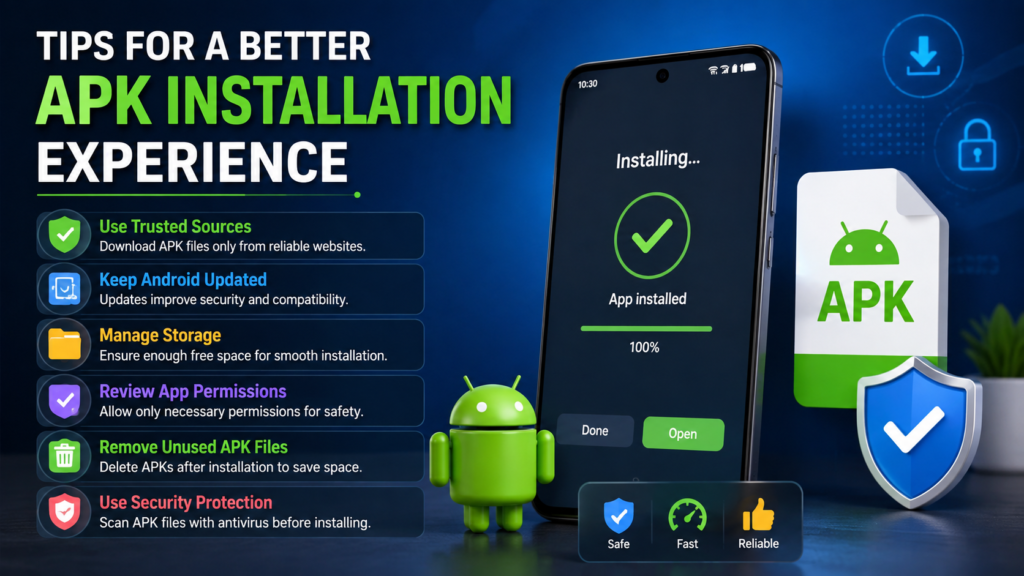
Tips for a Better APK Installation Experience
Following a few simple practices can make manual APK installation easier.
Keep Android updated: Newer Android versions include security improvements and better compatibility.
Use a reliable file manager: A trustworthy file manager makes it easier to locate and manage downloaded packages.
Verify the source: The website or developer providing the APK matters more than the file extension itself.
Avoid unnecessary permissions: Be cautious if an application requests access that does not make sense for its purpose.
Keep backups: If you are manually installing applications for testing or compatibility reasons, maintain backups of important information.
Remove unused APK files: Once installation is complete, unnecessary package files can be deleted.
Frequently Asked Questions
Can I open an APK file directly on my Android phone?
Yes. You can normally locate the APK using a file manager and tap it. Android will then launch the package installer if the file is compatible.
Why won’t my APK file install?
An APK may fail to install because of compatibility problems, insufficient storage, a corrupted download, an existing conflicting app, or restrictions on installations from unknown sources.
Do I need an app to open APK files?
For normal installation, you generally do not need a special APK-opening application. Android’s built-in package installer handles standard APK installation.
Is it safe to install APK files?
It can be safe when the APK comes from a trustworthy source and the application is legitimate. However, manually installing apps carries more risk than using an official app store, so verify the source before installation.
Can I delete the APK after installing the app?
Yes. Once the application has been successfully installed, you can normally delete the original APK file. Removing the APK does not normally remove the installed application.
What is the difference between APK and XAPK?
An APK is a standard Android application package. XAPK files can contain an APK along with additional data or files, so they may require a compatible installation method rather than being opened like a standard APK.
Final Thoughts
Learning How to Open APK Files on Android is useful when you need to install an application that is not available through your usual app store. The basic process involves downloading a compatible APK, locating it with a file manager, allowing the necessary installation permission, and following Android’s installation prompts.
Also Read: How to Install Split APK Files on Android: A Complete Step-by-Step Guide














1 comment