How to Install Split APK Files on Android: A Complete Step-by-Step Guide
Learning How to Install Split APK Files can be confusing if you are used to downloading a single APK and tapping the install button. Modern Android apps are often distributed as multiple APK files because developers can optimize apps for different devices, screen sizes, Android versions, and hardware configurations.
Instead of receiving one large APK, you may encounter files such as APKM, XAPK, APKS, or a collection of split APK files. These packages contain different parts of the same application and generally need to be installed together.
The good news is that the process is not as difficult as it first appears. With the right installer and the correct files, you can install a split APK package safely and get the application running normally.
This guide explains what split APKs are, why they are used, what you need before installation, and several practical ways to install them on an Android device.
What Are Split APK Files?
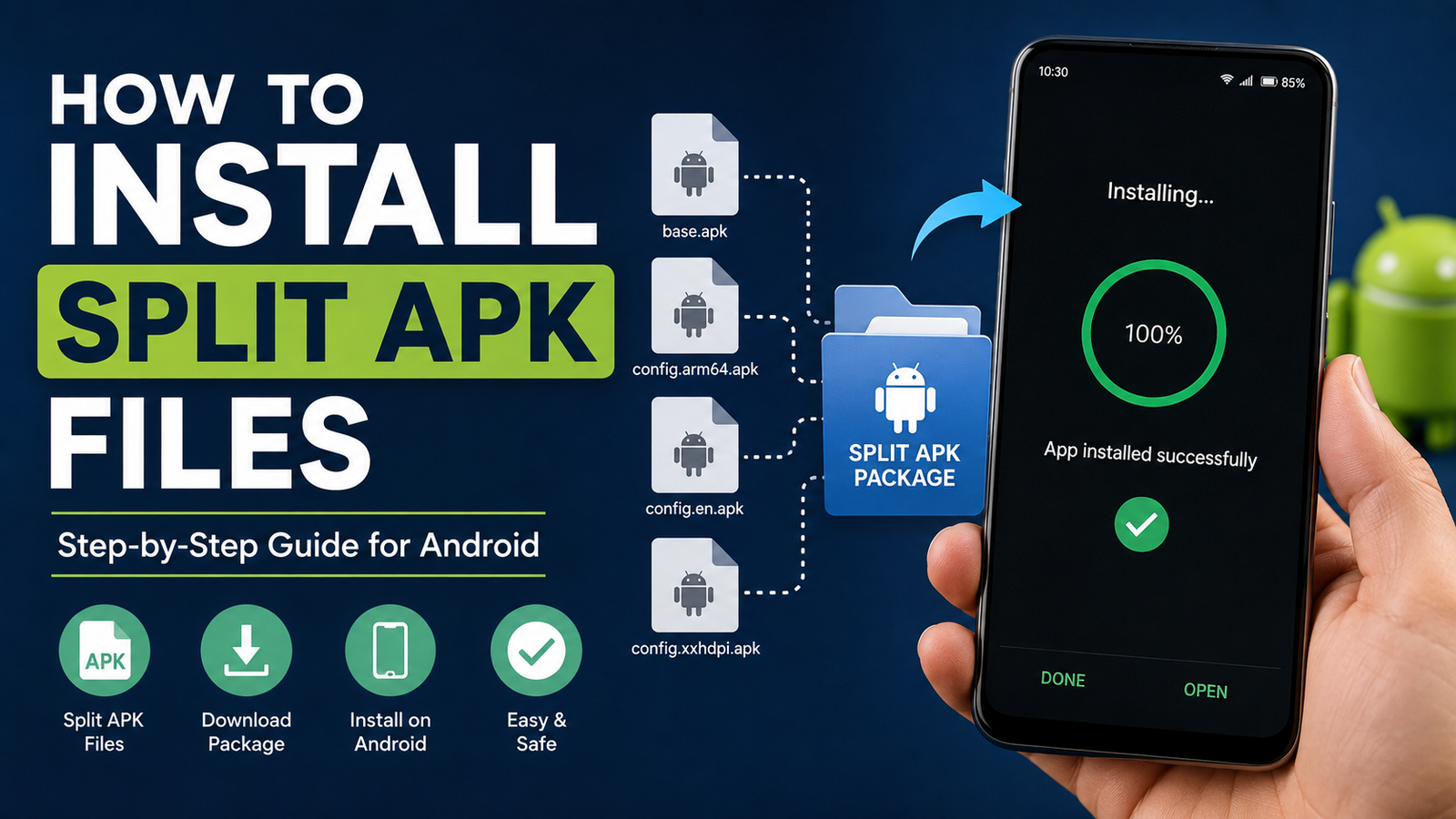
A split APK is a collection of Android application packages that work together as one app. Rather than putting every component into one APK file, an application can be divided into several smaller packages.
One package may contain the main application, while other packages provide resources, languages, architecture-specific components, or other required data.
This approach is commonly associated with Android App Bundles and helps developers deliver only the components a particular device needs.
For example, a package might contain:
- A base APK
- A configuration APK for a specific CPU architecture
- A language APK
- A screen-density APK
- Additional application components
Although these files appear separately, they are usually parts of the same application.
Why Do Developers Use Split APKs?
Split APKs can make application distribution more efficient.
A traditional APK may contain resources that a particular phone never uses. A split package allows Android to receive only the components relevant to that device.
Some important advantages include:
- Smaller downloads for users
- Better compatibility across different devices
- Reduced storage requirements
- Device-specific resources
- Support for different processor architectures
- More efficient application updates
This is one reason you may encounter multiple APK files instead of a single installation file when downloading certain Android applications.
Split APK vs Regular APK
Before learning how to install a split package, it helps to understand the difference between a regular APK and a split APK package.
| Feature | Regular APK | Split APK Package |
|---|---|---|
| Number of files | Usually one | Usually multiple |
| Installation | Directly through Android | Often requires a compatible installer |
| Components | Combined together | Divided into separate APKs |
| Device optimization | More limited | More flexible |
| File formats | APK | APK, APKS, APKM, XAPK, or multiple APKs |
| Installation difficulty | Easy | Requires additional steps |
A regular APK can normally be opened directly. A split package may produce an error if you try to install only one of its components.

What You Need Before Installing Split APKs
Before starting the installation, make sure you have the complete package.
Installing only one file from a split package may result in an installation failure because the application depends on the other components.
You should also check the following:
- Your Android version
- Available storage space
- The package format
- Whether the files belong to the same application version
- Whether the package matches your device architecture
- Whether the files came from a trustworthy source
It is also a good idea to keep a backup of important data before installing unfamiliar applications.
How to Install Split APK Files Using an Installer
The easiest method for most Android users is to use an application that supports split APK installation.
Depending on the package format, compatible installer applications can recognize and combine the required APK components during installation.
Step 1: Download the Complete Package
First, download all the files associated with the application.
If you receive multiple APK files, do not rename or remove individual files unless you know exactly what they contain.
For packages such as APKS, APKM, or XAPK, keep the original package intact whenever possible.
Step 2: Check the File Location
Open your Android file manager and navigate to the folder containing the downloaded package.
If the package is compressed, you may need to extract it first. However, some installer applications can work directly with supported package formats.
Step 3: Install a Compatible Split APK Installer
Use a reputable installer that supports the package format you have.
The exact interface varies between applications, but most follow a similar process:
- Open the installer.
- Give it the required file-access permission.
- Locate the downloaded package.
- Select the package.
- Review the APK components.
- Start the installation.
Only grant permissions that are genuinely required for the installation process.
Step 4: Allow Installation From the Required Source
Android may prevent an application from installing packages obtained outside the Play Store.
If you see a message indicating that installation from an unknown source is blocked, Android may provide an option to allow the specific file manager or installer to install applications.
On newer Android versions, this permission is generally controlled separately for individual applications.
After completing the installation, it is sensible to disable the permission again if you do not regularly need it.
Step 5: Complete the Installation
Once the installer has selected the necessary APK components, begin the installation.
The process can take a few moments depending on the size of the application and your phone’s performance.
After a successful installation, you should see an option to open the application.
How to Install Multiple APK Files Manually
Advanced Android users may sometimes want to install multiple APK components without relying on a dedicated installer.
This can be done through Android debugging tools, but it is more technical than the normal installation method.
The important point is that the base APK and its required split APKs need to be installed as a compatible set.
Installing the base file alone may not work.
For most users, a reliable split-package installer is easier and less likely to cause confusion.
What Are APKM, APKS, and XAPK Files?
You may encounter several package extensions while downloading Android applications.
Although they are related to APK distribution, they are not necessarily identical.
APKS
APKS is commonly used to represent a collection of APK files packaged together. An installer can extract the required components and install them as a group.
APKM
APKM is another package format used to bundle multiple APK components into a single downloadable file.
It generally requires an installer that understands the format.
XAPK
XAPK can contain APK files along with additional resources, such as expansion or data files.
Because of these differences, you should use an installer that specifically supports the package format you downloaded.
Common Errors When Installing Split APKs
Even when you follow the correct procedure, Android may display an error.
Understanding the most common causes can save considerable time.
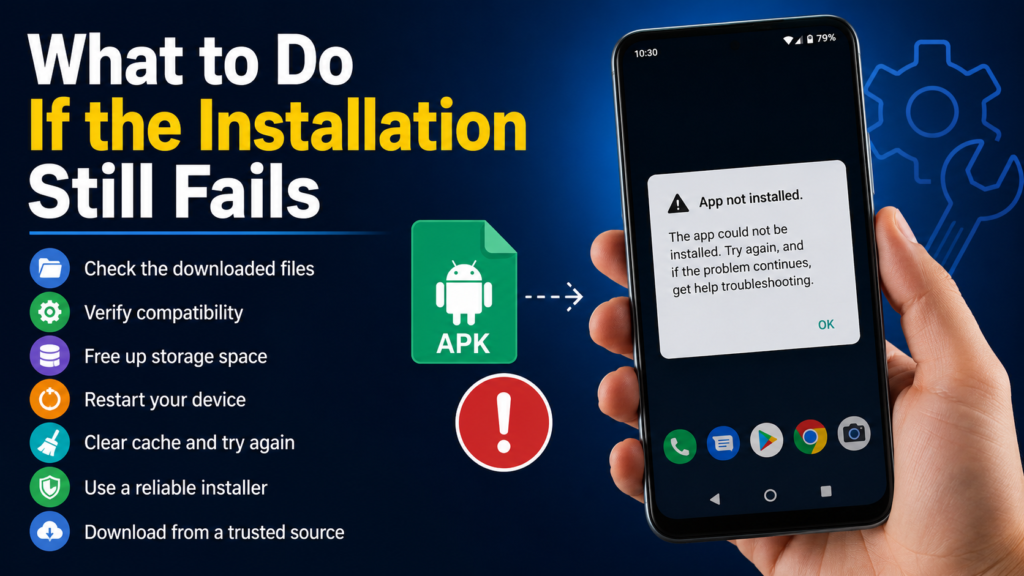
App Not Installed
The “App not installed” message can occur for several reasons.
Possible causes include:
- Missing split APK components
- Incompatible Android version
- Incorrect CPU architecture
- Conflicting application already installed
- Corrupted download
- Insufficient storage
- Invalid package signature
Start by checking whether all required files belong to the same package and version.
Installation Failed
An installation can fail if one or more APK components are missing or damaged.
Downloading the complete package again may solve the problem.
You should also verify that the package is intended for your Android version and device architecture.
Package Appears to Be Invalid
A damaged download can prevent Android from reading the package correctly.
If the file was interrupted during downloading, delete it and download a fresh copy from a trustworthy source.
Avoid randomly downloading individual APK components from different websites because they may not belong to the same release.
Existing App Conflict
If you already have the same application installed, the new package may have a different signature or incompatible version.
In some cases, you may need to remove the existing version before installing another build.
However, uninstalling an application can remove its local data, so make sure important information is backed up first.
How to Check Android Compatibility
Compatibility is particularly important with split APK packages.
A package may have different components for different processor architectures or Android versions.
Common Android architectures include:
- ARM64
- ARM
- x86
- x86_64
Modern smartphones commonly use ARM-based processors, but the correct package still depends on the application and device.
You should also check the minimum Android version required by the application before attempting installation.
Are Split APK Files Safe?
The split APK format itself is not inherently unsafe. The main concern is where the files come from.
An APK package obtained from an unknown or suspicious website can potentially contain modified or malicious software.
Before installing an unfamiliar package, consider these precautions:
- Download from a reputable source.
- Check the application’s name and version.
- Avoid suspicious modified packages.
- Scan unfamiliar files with a trusted security solution.
- Check requested permissions after installation.
- Keep Android and Google Play Protect updated.
- Do not disable security features unnecessarily.
If an application asks for permissions that do not make sense for its purpose, treat that as a warning sign.
Tips for a Successful Split APK Installation
A few simple habits can prevent many installation problems.
Keep all components together. If you download several APK files, keep them in the same folder.
Use matching versions. Do not combine APK components from different releases.
Check your Android version. An application designed for a newer Android release may not work correctly on an older phone.
Check storage space. Installation may require more temporary storage than the final application size.
Use trustworthy files. A corrupted or modified package can cause installation and security problems.
Avoid unnecessary permissions. Only allow an installer the access it needs.
What to Do If the Installation Still Fails
If the application refuses to install after checking the basics, work through the problem systematically.
First, restart your phone and try again. Temporary Android processes can occasionally interfere with installation.
Next, check the package again. Make sure the download is complete and that no required files are missing.
You can also check whether an older version of the application is already installed.
If the package is incompatible with your device, searching for a version specifically built for your Android version and processor architecture may be necessary.
Do not repeatedly install random APK variants. Doing so can create additional conflicts and make troubleshooting more difficult.
Frequently Asked Questions
Can I install split APK files directly?
Usually, not in the same way as a standard APK. Split packages contain multiple components that need to be installed together. A compatible split APK installer is generally the easiest option.
What happens if I install only the base APK?
The application may fail to install or may not function correctly because the base APK may depend on additional split components.
Are APKS and APKM the same thing?
They are different package formats, although both can contain multiple APK components. The installer you use should support the specific format you downloaded.
Why does Android say “App not installed”?
This error can have several causes, including incompatible Android versions, missing split files, conflicting applications, corrupted downloads, insufficient storage, or incompatible device architecture.
Do split APK files work on every Android phone?
Not necessarily. Compatibility depends on factors such as Android version, CPU architecture, screen configuration, application requirements, and the package itself.
Is it safe to install split APK files?
The format itself is not automatically dangerous. However, APK files from untrusted sources can pose security risks. Always obtain applications from reputable sources and review permissions carefully.
Final Thoughts
Understanding How to Install Split APK Files makes it much easier to deal with modern Android application packages. Unlike traditional APKs, split packages contain several components that are designed to work together, so installing only one file may not be enough.
For most users, the simplest approach is to keep the complete package intact and use a reputable installer that supports APKS, APKM, XAPK, or the specific format being used.
Also Read: How to Install XAPK Files on Android: A Complete Step-by-Step Guide














1 comment