How APK Files Work on Android: A Complete Guide for Beginners
If you have ever downloaded an Android app outside the Google Play Store, you have probably come across an APK file. You may know that an APK is used to install an app, but what actually happens behind the scenes? How does Android read the file, install its contents, and turn it into a working application?
Understanding how APK files work on Android can make installing apps manually much easier and safer. It also helps explain why Android sometimes displays warnings, why certain APKs fail to install, and why some apps require additional files.
An APK is essentially the package Android uses to distribute and install applications. It contains the components an app needs to run, including its code, resources, assets, and important configuration information.
In this guide, we will explain what an APK is, what it contains, how Android installs it, where APK files come from, and what you should check before installing one.
What Is an APK File?
APK stands for Android Package Kit. It is the standard package format used by Android to distribute and install applications.
When you install an app from the Google Play Store, you normally do not see the APK itself. The installation process happens automatically in the background. However, when you download an Android application from another source, you may receive an APK file that can be installed manually.
An APK is similar to an installer package on other operating systems. It bundles multiple components into a single file so Android can identify, install, and manage the application.
An APK file may contain:
- Application code
- Images and other resources
- App configuration information
- A digital signature
- A manifest file
- Compiled resources
- Native libraries, when required
- Other files needed by the application
The APK format makes it possible to package all these components together for distribution.
How APK Files Work on Android
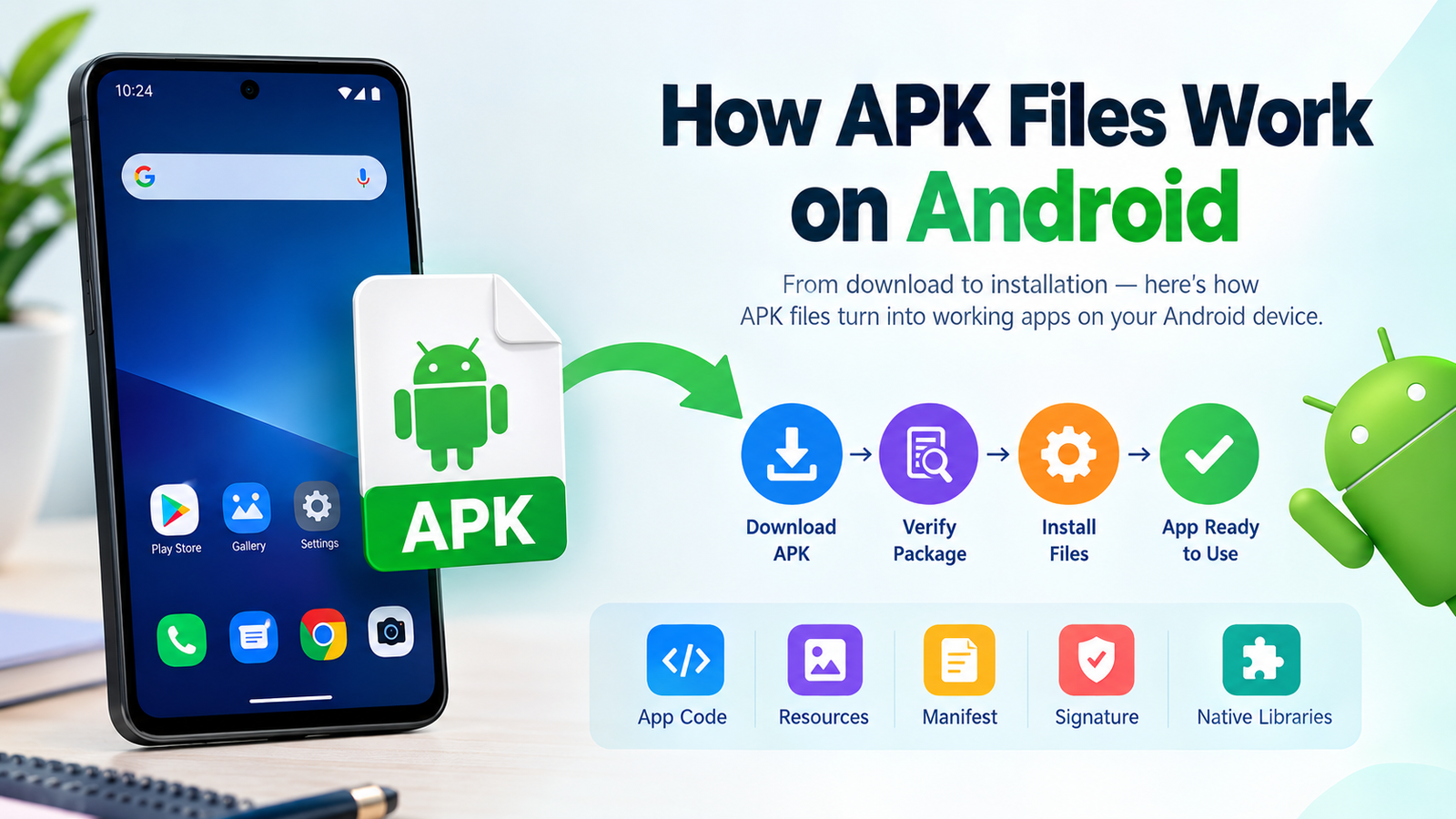
The easiest way to understand how APK files work on Android is to look at the process from download to installation.
When you download an APK, Android initially treats it as an application package rather than an installed app. The operating system examines the package to determine what it contains and whether it can be installed.
Once you start the installation process, Android performs several checks.
First, it reads information from the APK’s manifest. This tells Android important details about the application, such as its package name, version, components, and required permissions.
Android then verifies the package and its signature. If everything is acceptable, the system extracts and organizes the necessary files in the appropriate application storage locations.
After installation, Android registers the application with the system. The app can then appear in the launcher and be opened like other installed applications.
The basic process looks like this:
Download APK → Verify package → Read manifest → Check signature and compatibility → Install files → Register application → Launch app
The exact process can vary depending on the Android version, device manufacturer, and type of APK.
What Is Inside an APK File?
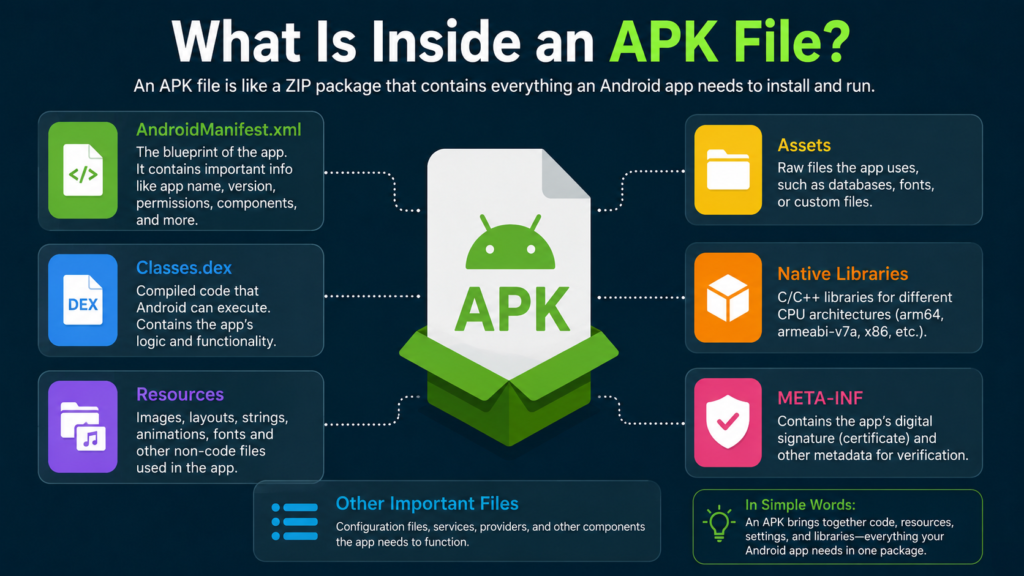
An APK is not simply one piece of application code. It is a container holding several different components.
You can technically open an APK using an archive utility because its underlying structure is based on the ZIP format. However, changing its contents can invalidate its signature and prevent normal installation.
Here are some of the most important components.
AndroidManifest.xml
The AndroidManifest.xml file is one of the most important parts of an APK.
It provides Android with information about the application, including:
- Application identity
- App components
- Required permissions
- Supported features
- Activities
- Services
- Receivers
- Providers
- Minimum and target Android versions
Android uses this information during installation and while managing the application.
Application Code
The APK also contains the application’s compiled code.
Modern Android applications can use different programming languages and technologies, but the code ultimately needs to be packaged in a form that Android can execute through its application runtime.
You may see files such as classes.dex inside an APK. DEX stands for Dalvik Executable, and these files contain compiled application code designed for Android’s runtime environment.
Large applications can contain multiple DEX files.
Resources and Assets
Applications need more than code to function.
APK packages can include:
- Images
- Icons
- Fonts
- Layout information
- Strings
- Animations
- Audio
- Other application resources
These files allow developers to build the visual interface and functionality of the application.
Native Libraries
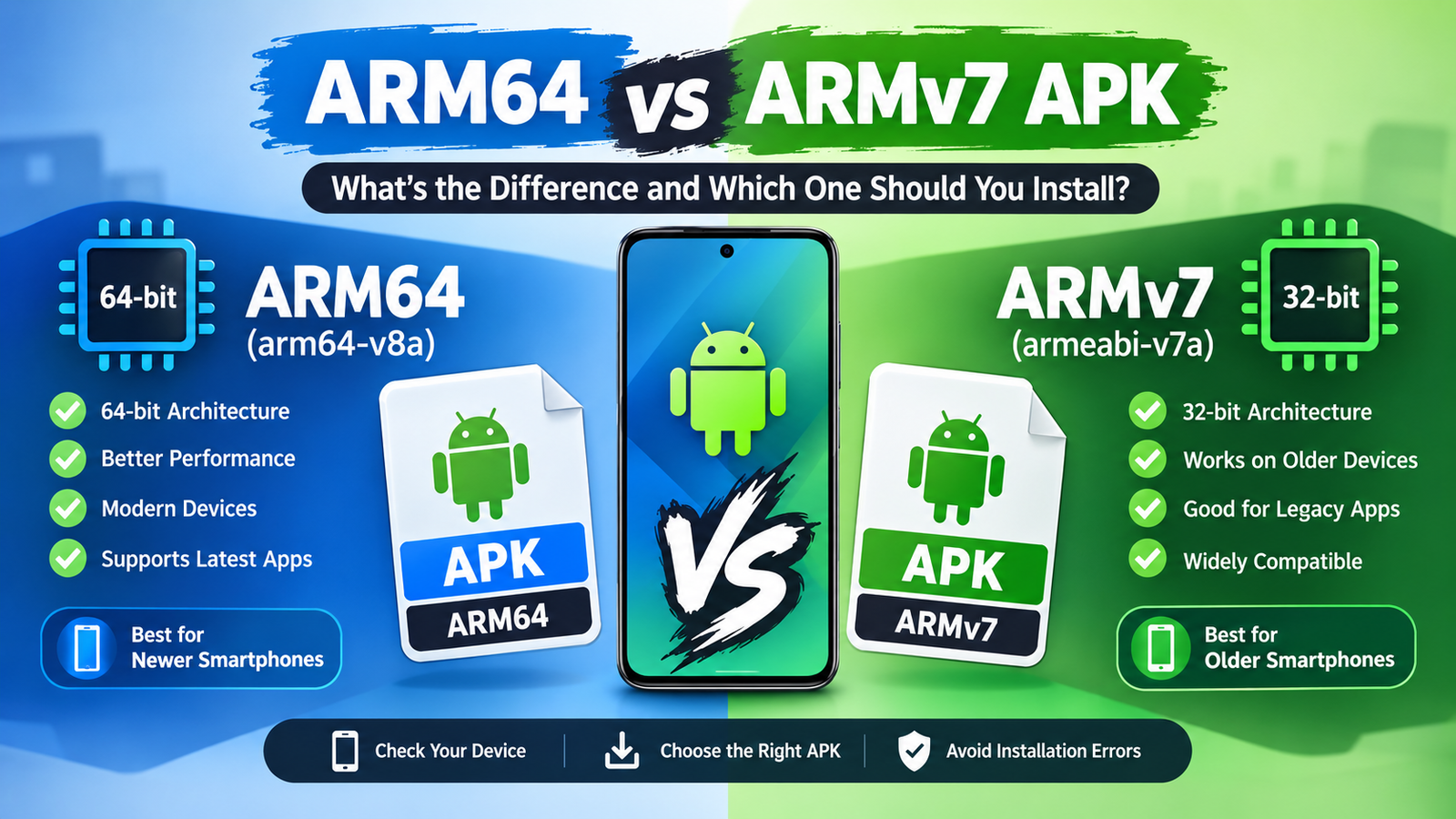
Some Android applications include native code compiled for specific processor architectures.
These files are commonly stored in directories associated with architectures such as ARM or x86.
This is one reason why compatibility can sometimes become complicated when downloading APK files manually. An APK designed for one architecture may not work correctly on another device.
App Signature
An APK also contains information used to verify its digital signature.
Android uses application signing as an important part of its security model. Signatures help the system determine whether updates belong to the same application publisher and whether a package has been altered.
This is particularly important when installing APKs from sources outside official app stores.
APK Installation Explained
Installing an APK manually is relatively straightforward, but Android includes security protections to prevent unauthorized applications from being installed without the user’s knowledge.
When you tap an APK file, Android may display a warning or prevent installation depending on your settings.
On many modern Android devices, you must allow the particular app you are using—such as a browser or file manager—to install applications from that source.
Once permission is granted, Android can proceed with the package installation.
During installation, the operating system checks several aspects of the package. These can include the package structure, signature, version information, compatibility, and other security requirements.
If the APK passes the relevant checks, Android installs it.
APK Files and Google Play Store Apps
A common question is whether apps downloaded from Google Play are also APKs.
The answer is yes, although the delivery process can be more complicated than simply downloading one APK file.
Google Play can determine which application components are appropriate for a particular device. Depending on the app and distribution method, a device may receive optimized components rather than one universal APK containing everything.
This helps reduce download sizes and allows applications to support different hardware and Android configurations.
For users, the important difference is that Google Play handles much of this process automatically. When you manually download an APK, you are responsible for selecting a compatible package.
APK vs Other Android Package Formats
Not every Android application download is delivered as a traditional single APK.
You may encounter formats such as XAPK, APKM, or APKS. These can package multiple components or split APKs together.
Here is a simple comparison:
| Format | What It Generally Contains | Typical Use |
|---|---|---|
| APK | A standard Android application package | Direct installation of an app |
| XAPK | APK plus additional app data or components | Apps requiring extra files |
| APKS | A collection of split APKs | Device-specific app installation |
| APKM | A package containing multiple APK components | Split APK distribution |
The important point is that these formats are not necessarily interchangeable. Android’s standard package installer is designed primarily around APK packages, while other formats may require a compatible installer.
Why Android Sometimes Blocks an APK
You may download an APK only to receive an error such as “App not installed” or a security warning.
There are several possible reasons.
The APK Is Not Compatible
The package may require an Android version newer than the one installed on your device.
Hardware architecture can also cause compatibility problems.
The APK Is Damaged
A partially downloaded or corrupted APK may fail installation.
Downloading the file again from a reliable source can sometimes resolve this issue.
A Different Version Is Already Installed
Android can reject an APK if its signing information does not match the version already installed on the device.
For example, if an existing application was signed by one developer and you try to install a modified package signed differently over it, Android may refuse the update.
Installation Permissions Are Restricted
Android may block installation because the browser, file manager, or other application does not have permission to install packages from that source.
Security Protection Intervenes
Android includes security mechanisms that can warn about or block potentially harmful applications. Depending on the device and Android version, additional security software may also inspect applications before installation.
Are APK Files Safe?
An APK is simply a file format. The format itself is not dangerous.
The bigger issue is where the APK came from and whether it has been modified.
An APK downloaded from an unknown website can potentially contain unwanted or malicious software. This is why manually installing applications requires more caution than installing apps through an official store.
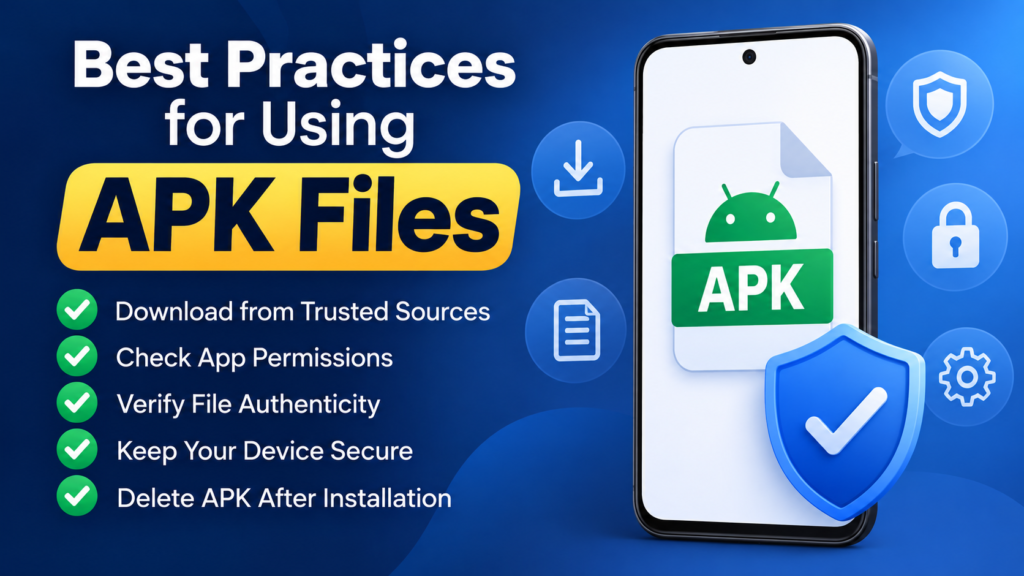
Before opening an APK, consider the following:
- Download from a trustworthy source.
- Check that the application name and developer are correct.
- Avoid suspicious modified APKs when possible.
- Keep Android’s security protections enabled.
- Review requested permissions.
- Be cautious of APKs promising hacked or unlimited features.
- Scan questionable files with reputable security tools.
- Keep your Android device updated.
No single check guarantees that an APK is safe, so using several precautions together is a better approach.
Why Developers Use APK Files
APK files are essential to the Android application ecosystem because they provide a standardized way to package applications.
Developers can build an application, compile its code and resources, sign the resulting package, and distribute it to users.
APK files are also useful for testing. Developers and testers can install development builds directly on compatible Android devices without publishing an application publicly.
Organizations sometimes distribute internal applications through APK files as well.
For advanced Android users, APKs can also be useful when testing older application versions, installing software unavailable in a particular region, or troubleshooting an application.
However, users should always consider compatibility, security, and licensing before installing software manually.
What Happens After an APK Is Installed?
Once installation is complete, the APK file itself is no longer required for the application to run.
Android has already installed the necessary application components into its managed storage areas.
This means you can generally delete the downloaded APK afterward if you no longer need it.
Deleting the original APK does not normally uninstall the application.
The installed application has its own files and data managed by Android.
Keeping the APK can still be useful if you expect to reinstall the same version later, but it will consume storage space.
Can You Delete an APK After Installation?
Yes. If an APK has already been successfully installed, you can normally delete the downloaded APK from your Downloads folder.
Doing so does not remove the installed application.
The APK is essentially the installation package. Once Android has completed the installation, the system maintains the installed app separately.
However, if you have not installed the application yet, deleting the APK obviously means you will need to download it again before installation.
Common APK Problems and What They Mean
APK installation errors can look confusing, but many have relatively simple causes.
| Error or Problem | Possible Cause | What to Check |
|---|---|---|
| App not installed | Compatibility or package conflict | Android version, existing app, signature |
| Parse error | Damaged or incompatible package | Re-download the APK |
| Installation blocked | Security or source permission | Installation settings and security warnings |
| APK won’t open | File association or damaged file | Use a compatible file manager |
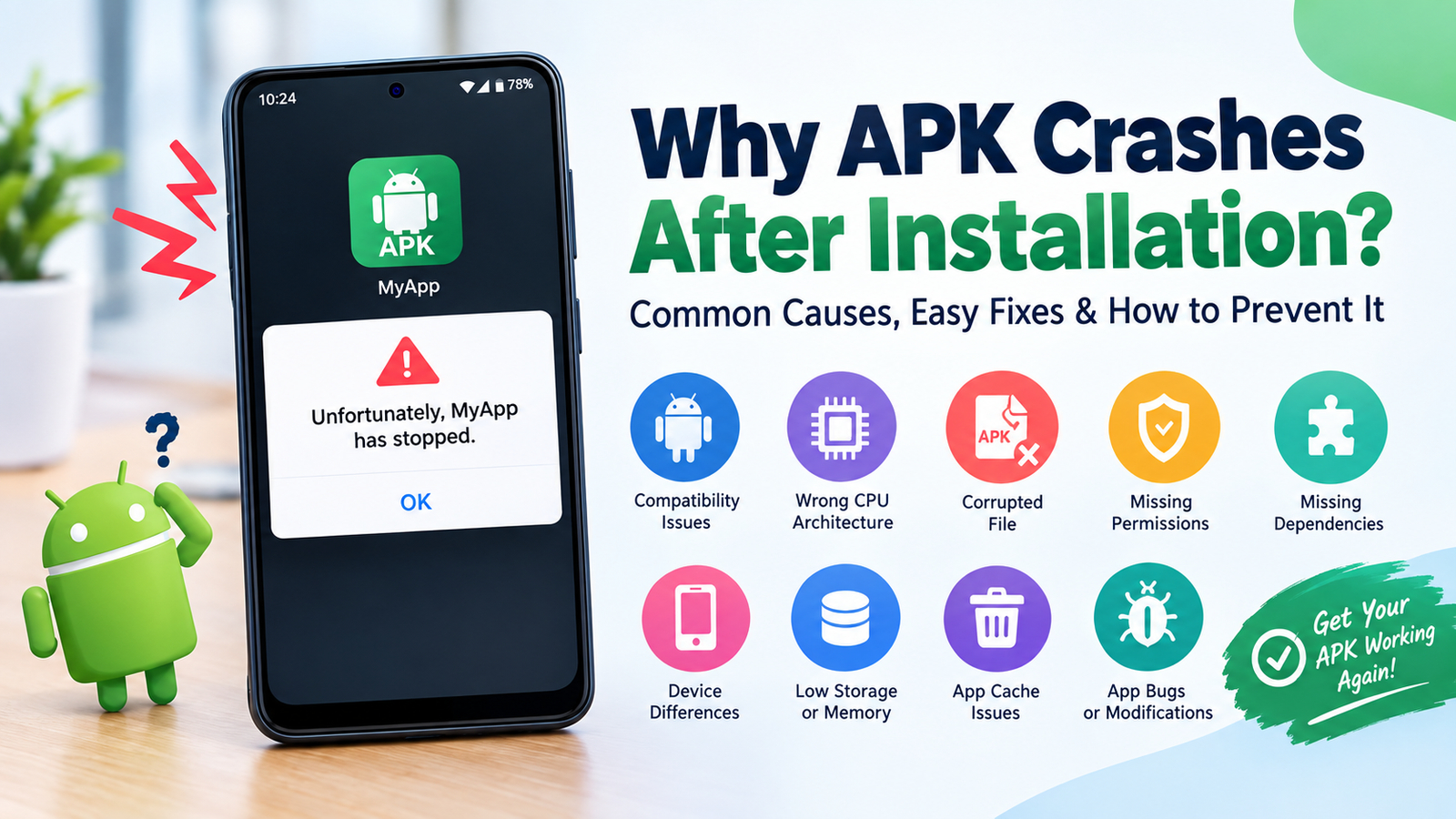
| App crashes after installation | Compatibility or missing components | App requirements and package type |
| Update fails | Signature or version conflict | Existing app and APK source |
If an APK repeatedly fails, avoid downloading random versions from multiple unknown websites. Finding the actual cause is usually safer than repeatedly installing different packages.
Best Practices for Using APK Files
If you regularly install Android applications manually, a few habits can make the process safer.
Verify the source.
The website or developer distributing the APK matters. Avoid suspicious download pages that use misleading buttons or excessive pop-ups.
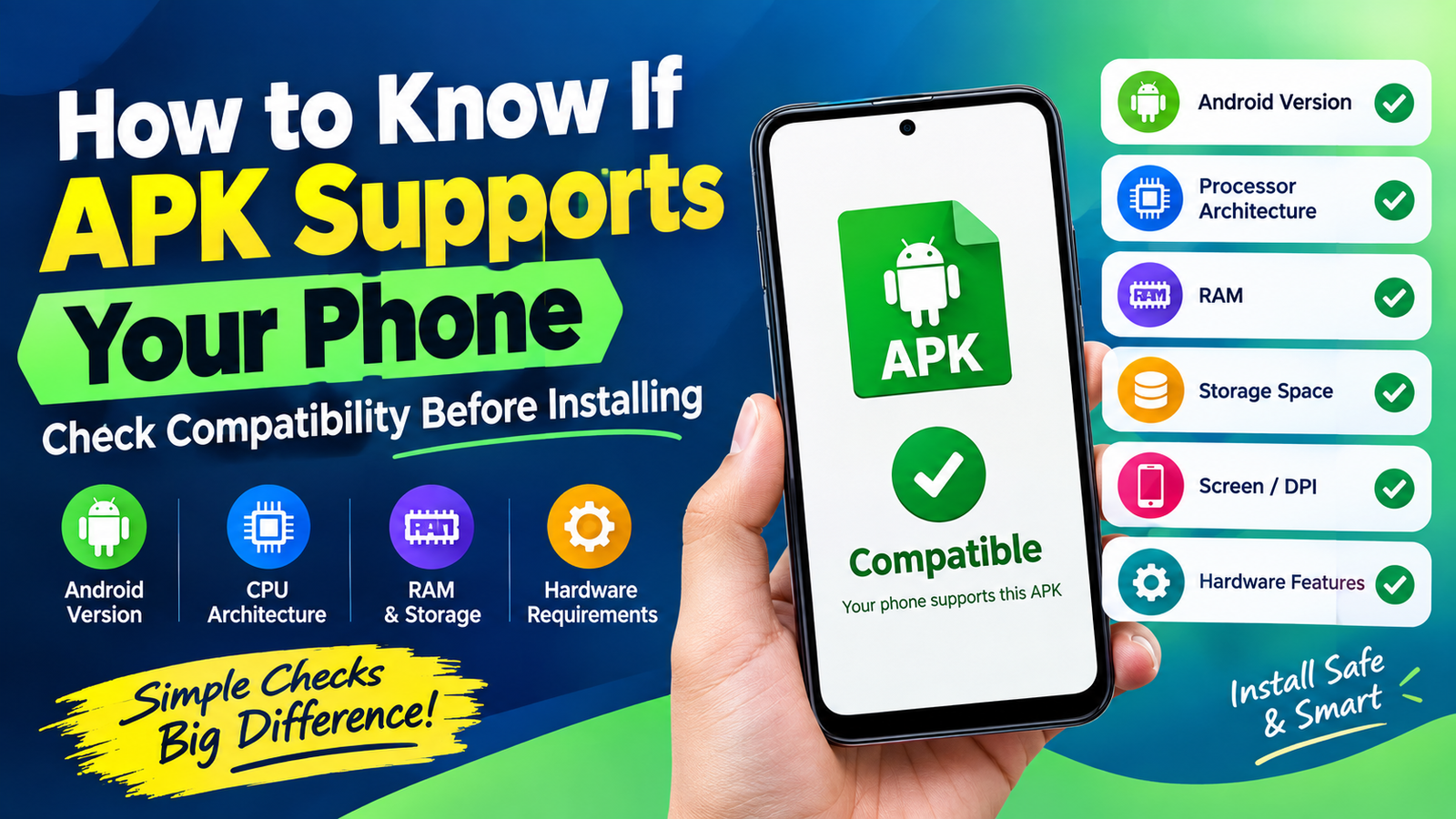
Check compatibility.
Look at the required Android version and supported device architecture when that information is available.
Keep backups.
If an APK is important for testing or future use, store a trusted copy somewhere secure.
Pay attention to permissions.
An application requesting access that seems unrelated to its purpose deserves additional scrutiny.
Don’t disable security features unnecessarily.
Android’s security warnings exist for a reason. If the system identifies a significant risk, investigate before proceeding.
Use the original developer when possible.
Official developer channels are generally preferable to random third-party download sources.
Frequently Asked Questions
What does APK stand for?
APK stands for Android Package Kit. It is the package format used to distribute and install Android applications.
How do APK files work on Android?
An APK packages application code, resources, configuration information, and other components into a format Android can recognize. During installation, Android verifies and processes the package before registering the application on the device.
Can I install an APK without Google Play?
Yes. Android supports manual APK installation, although you may need to give the application you are using permission to install apps from that source. Security warnings may also appear.
Are APK files automatically safe?
No. APK is only a file format. An APK can be safe or harmful depending on its contents and source. Always use trusted sources and take appropriate security precautions.
Can I delete an APK after installing the app?
Yes. After the application has been successfully installed, you can normally delete the original APK from your storage. The installed app will continue to work independently.
Why does an APK say “App not installed”?
There can be several causes, including incompatible Android versions, package conflicts, incorrect signatures, corrupted downloads, insufficient storage, or missing components. Checking the specific error and APK requirements can help identify the problem.
Final Thoughts
Understanding how APK files work on Android makes the process of manually installing applications much less mysterious. An APK is essentially a complete application package containing the code, resources, configuration information, and other components Android needs to install an app.
Also Read: How to Backup an Installed APK on Android: Easy and Safe Methods











1 comment