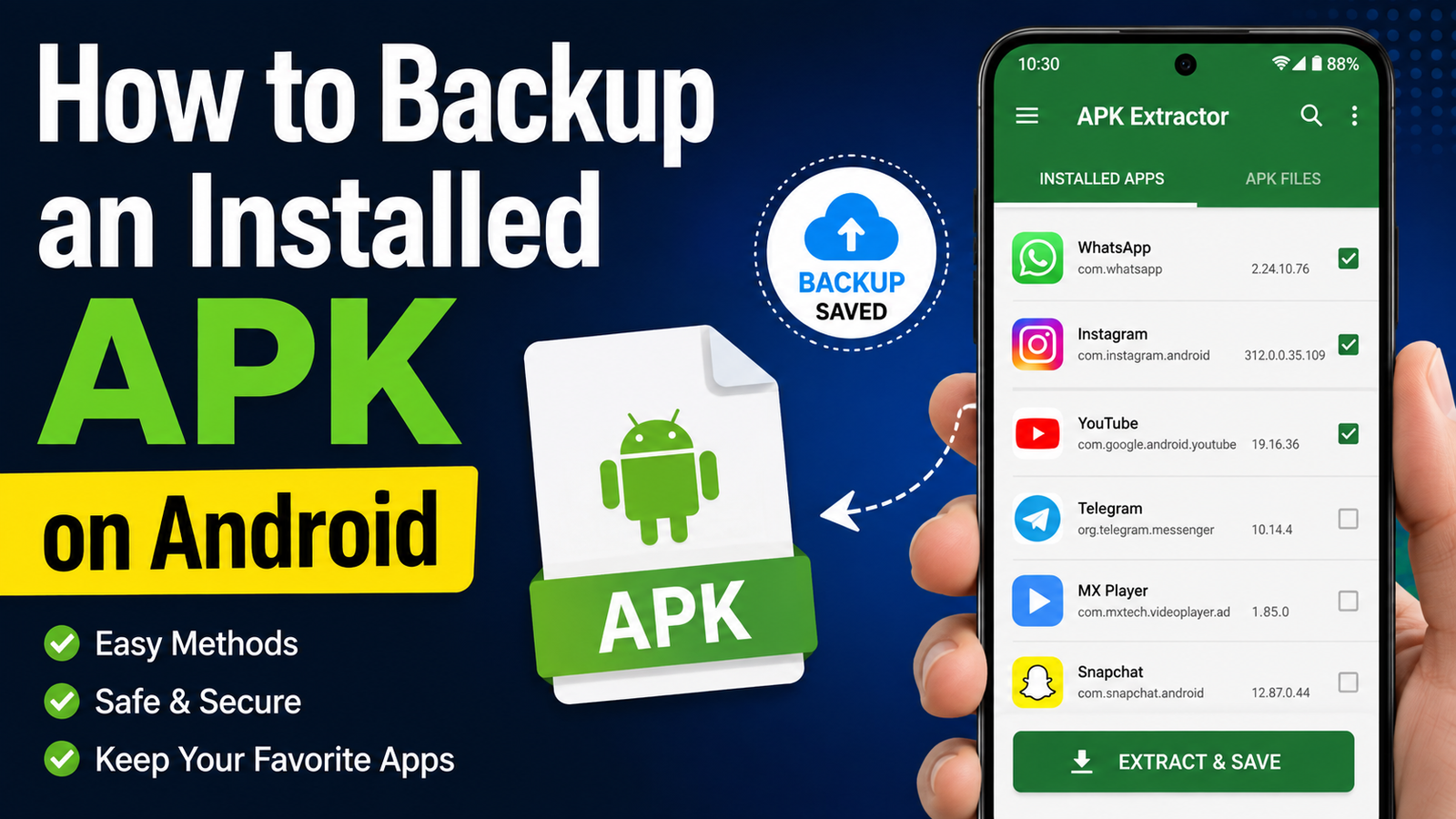
How to Backup an Installed APK on Android: Easy and Safe Methods
Have you ever installed an Android app that you might need again later, only to realize you no longer have the original APK file? Maybe you downloaded an app from a website, received it from a friend, or installed an older version that is no longer available on Google Play. In situations like these, knowing how to backup an installed APK on Android can save you time and frustration.
An APK, or Android Package Kit, is the installation package used by Android applications. Once an app is installed, the original APK you downloaded may remain in your Downloads folder, but in many cases it is deleted, moved, or simply forgotten. The good news is that you can often create a backup copy of an installed app’s APK.
Backing up an APK is useful for keeping an installation file available for future use. However, there is an important distinction between backing up the APK and backing up the app’s complete data. An APK generally contains the application itself, while personal settings, accounts, saved progress, and other data may be stored separately.
This guide explains several practical ways to backup an installed APK on Android, what limitations you should know about, and how to keep your backup organized and secure.
What Is an APK Backup?
An APK backup is a copy of an application’s installation package saved somewhere outside the normal installed-app location.
Think of it as keeping a spare installer for an app. If you uninstall the application later, the backed-up APK may allow you to reinstall it without downloading the installer again.
An APK backup can be useful when:
- An app is removed from Google Play.
- You want to keep an older version of an application.
- You are moving an app to another compatible Android device.
- You have limited or unreliable internet access.
- You downloaded an app from a source that you may not remember later.
- You want to keep a personal archive of apps you regularly use.
However, an APK backup does not necessarily contain everything associated with the application. App data, media, login information, and other files may be stored separately.
Can You Backup an Installed APK on Android?
Yes, in many cases you can extract the APK from an installed application and save it as a separate file.
The exact process depends on your Android version, device manufacturer, and whether the application uses a traditional single APK or a newer split-package format.
Some apps are installed using multiple APK components rather than one standalone APK. In such cases, extracting only one file may not be enough to recreate the complete installation.
This is one reason why APK backup tools can be useful: they can sometimes identify the relevant package files automatically.
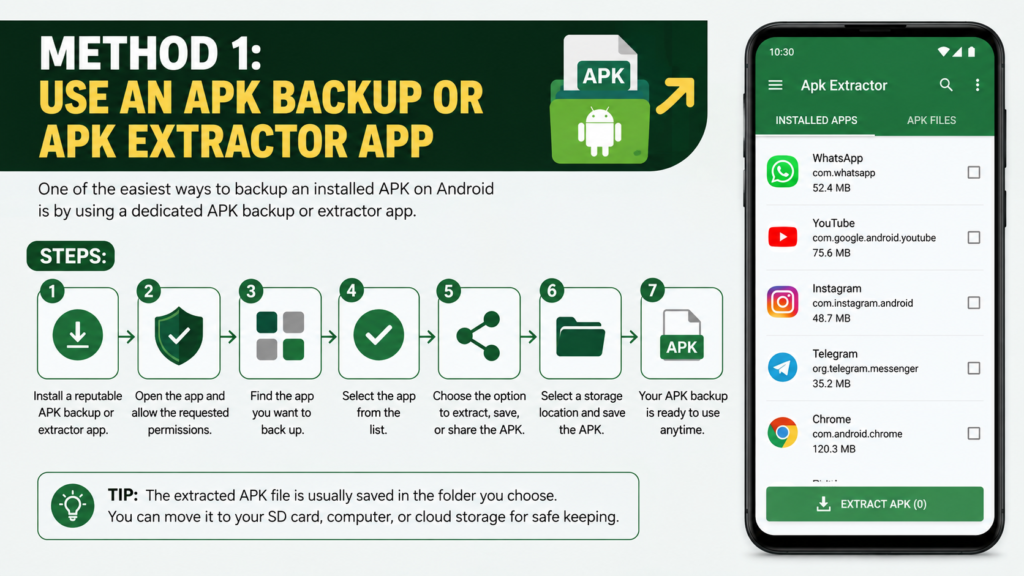
Method 1: Use an APK Backup or APK Extractor App
One of the simplest approaches is to use an app designed to extract APK files from applications already installed on your phone.
These tools typically scan your installed applications and provide an option to save or share the installation package.
How to backup an installed APK
The general process looks like this:
- Install a reputable APK backup or extractor tool.
- Open the tool and allow the requested permissions.
- Find the application you want to back up.
- Select the app.
- Choose the option to extract, save, or share the APK.
- Select a storage location.
- Rename the backup if necessary so you can identify it later.
The extracted file is usually saved in a folder selected by the application. You can then move it to another folder, an SD card, a computer, or cloud storage.
Before installing any third-party extractor, check its reputation and permissions. Avoid tools that request access unrelated to their purpose.
Method 2: Use a File Manager
Some Android file managers can help you locate APK files that were previously downloaded. This method is particularly useful if you still have the original APK rather than needing to extract it from the installed application.
Open your file manager and check common locations such as:
- Downloads
- Documents
- APK
- Bluetooth
- Shared
- Files received from messaging applications
If you find the original APK, simply copy it to a dedicated backup folder.
For example, you could create:
Internal Storage → APK Backups
Then create folders for different applications or versions.
This method does not technically extract an APK from an installed app. Instead, it preserves the installer you already have.
Method 3: Back Up APK Files to a Computer
A computer provides another convenient place to store APK backups.
After extracting or locating the APK, connect your Android phone to your computer using a USB cable. Depending on your device, you may need to select File Transfer from the USB connection options.
Then:
- Locate the APK backup on your phone.
- Copy the file to your computer.
- Create a dedicated folder for Android APK backups.
- Rename the file with the app name and version.
- Keep a second copy if the application is important.
A useful naming system might look like:
AppName_v2.4.1.apk
This makes it much easier to determine which version you have when several backups exist.
Method 4: Store Your APK Backup in Cloud Storage
Cloud storage can be useful if you want your APK backups available even after losing or replacing your phone.
After extracting the APK, upload it to a cloud storage service you trust.
You can organize your backups into folders such as:
- Android Apps
- Older Versions
- Essential Apps
- Games
- Utilities
- Archived APKs
Cloud storage also provides an additional copy if your phone is damaged, lost, or reset.
Keep in mind that an APK is still an executable application package. Don’t upload or share files from questionable sources simply because you want to archive them.
APK Backup vs Full App Backup
One of the most important things to understand is that an APK backup is not the same as a complete application backup.
The APK primarily contains the application package. Your app’s personal information may be stored separately.
| Backup Type | What It Usually Preserves | Useful For |
|---|---|---|
| APK backup | App installation package | Reinstalling the app |
| App data backup | Settings and stored app data | Restoring app state |
| Cloud app backup | Varies by app and Android version | Device migration |
| Complete device backup | Apps, settings, and selected data | Moving to a new phone |
For example, backing up a game APK does not necessarily preserve your saved game progress. Likewise, an APK backup of a messaging app does not automatically contain your conversations.
If you need to preserve personal data, you should use the app’s own backup feature or Android’s supported backup mechanisms where available.
What About Split APKs and APKS Files?
Modern Android applications are not always distributed as one simple APK.
Some applications use split APKs. These packages can separate an app into multiple components optimized for a particular device configuration.
You may encounter formats such as:
- APK
- APKS
- APKM
- XAPK
A traditional APK can often be installed directly when compatible. Package formats containing multiple components may require a compatible installer or package-management tool.
This means an APK extractor may not always produce a single standalone file that works independently.
If your backup appears to contain several package components, don’t assume that deleting the additional files is safe. They may be necessary for a successful reinstallation.
How to Check Your APK Backup
After creating a backup, don’t immediately assume that it will work forever.
Check the following information:
- App name
- Package name
- Version number
- File size
- Backup date
- Storage location
- Whether the app uses split packages
You can also keep a text note alongside the APK containing the version and the device on which it was extracted.
For important apps, maintaining multiple copies is a good idea. One copy could remain on your computer while another is stored in cloud storage.
How to Keep APK Backups Organized
If you regularly save APK files, organization becomes important surprisingly quickly.
Instead of putting dozens of files into one folder, create a simple structure.
For example:
APK Backups
- Social Apps
- Games
- Tools
- Productivity
- Older Versions
Within each category, use clear filenames.
You can include the application version in the filename so that you know exactly what each file contains.
Keeping old versions can also be useful when an update introduces compatibility problems or removes a feature you rely on. However, older software can contain security vulnerabilities, so avoid using outdated versions when a newer secure release is required.
Is It Safe to Backup Installed APKs?
Creating a backup of an APK is generally straightforward, but the safety of the file depends on where the application came from and whether it has been modified.
If you extracted an APK from an app already installed on your device, you have a better understanding of its origin than you would with an unknown APK downloaded from a random website.
Still, treat APK files carefully.
Follow these precautions:
- Only back up apps from sources you trust.
- Avoid modified applications from unknown sources.
- Scan suspicious files before transferring them to another device.
- Keep your Android security features enabled.
- Don’t install an old APK simply because you have it archived.
- Be cautious when an APK requests unusual permissions.
An APK backup should be treated like any other software installer, not like an ordinary photo or document.
What Happens If You Delete the Original App?
If you extract and save the APK somewhere safe, uninstalling the original application usually does not delete the separate backup copy.
For example, if your APK is stored in an APK Backups folder, uninstalling the corresponding application should not normally remove that independently stored file.
However, the APK does not automatically preserve everything the app had accumulated.
After reinstalling the APK, you may still need to:
- Sign in again.
- Restore app data.
- Download additional content.
- Reconfigure settings.
- Update the application.
- Restore game progress from a supported backup.
This is why keeping the APK and app-data backup separate can be useful.
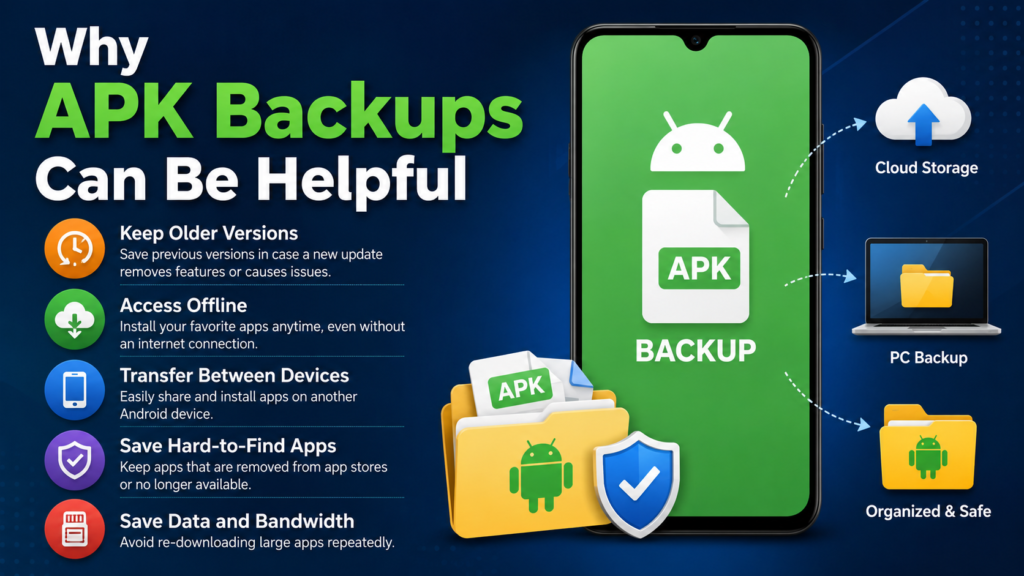
Why APK Backups Can Be Helpful
There are several practical reasons to maintain APK backups.
Keeping an older version
Sometimes an update changes the interface, removes a feature, or creates compatibility problems. Having a previous installer can give you an alternative, although downgrading may not always be possible without removing the newer version first.
Saving hard-to-find applications
An application may become unavailable in your region or disappear from an app store. A legitimate backup can make it easier to reinstall the same version later.
Moving between devices
If you are setting up another Android phone, an APK backup can save time when reinstalling certain applications, provided the app is compatible with the new device.
Offline installation
A saved APK can be useful when you don’t have reliable internet access. You can transfer the installer locally instead of downloading it again.
Limitations You Should Know
APK backups are useful, but they aren’t perfect.
Android applications can depend on:
- Specific Android versions
- Device architecture
- Google Play services
- Hardware features
- Additional package files
- Server-side services
- Account authentication
- App-specific data
Therefore, an APK that worked perfectly on one phone may not work correctly on another.
An older APK can also become incompatible with newer Android releases. In some situations, Android may restrict installation of outdated applications for security reasons.
For these reasons, an APK backup should be viewed as a convenient installer archive rather than a guaranteed full restoration solution.
Frequently Asked Questions
Can I backup an installed app without root?
Yes. Many APK extraction tools can save the installation package without requiring root access. However, the exact capabilities depend on the application and Android version.
Does an APK backup include my app data?
Usually, no. An extracted APK generally represents the application package itself. Personal data, settings, accounts, and saved content may be stored separately.
Can I transfer a backed-up APK to another phone?
Yes, provided the APK is compatible with the other device. You can transfer it using USB, Bluetooth, local sharing, an SD card, or another suitable method.
Why does my backup contain multiple APK files?
The application may use split APKs. Several package components can work together to form the complete application installation.
Can I reinstall an app from an old APK backup?
Often, yes, but compatibility is not guaranteed. The old version may depend on an older Android release, specific device features, or online services that have changed.
Should I keep APK backups permanently?
You can keep them as long-term archives, but review old files occasionally. Delete backups you no longer need, and be especially cautious about installing outdated software with known security issues.
Final Thoughts
Learning how to backup an installed APK on Android is a useful skill for anyone who wants more control over their applications. Instead of relying entirely on an app store or a previously downloaded file, you can keep your own copies of important installation packages.
Also Read: How to Remove an APK App Completely: A Complete Android Guide














1 comment