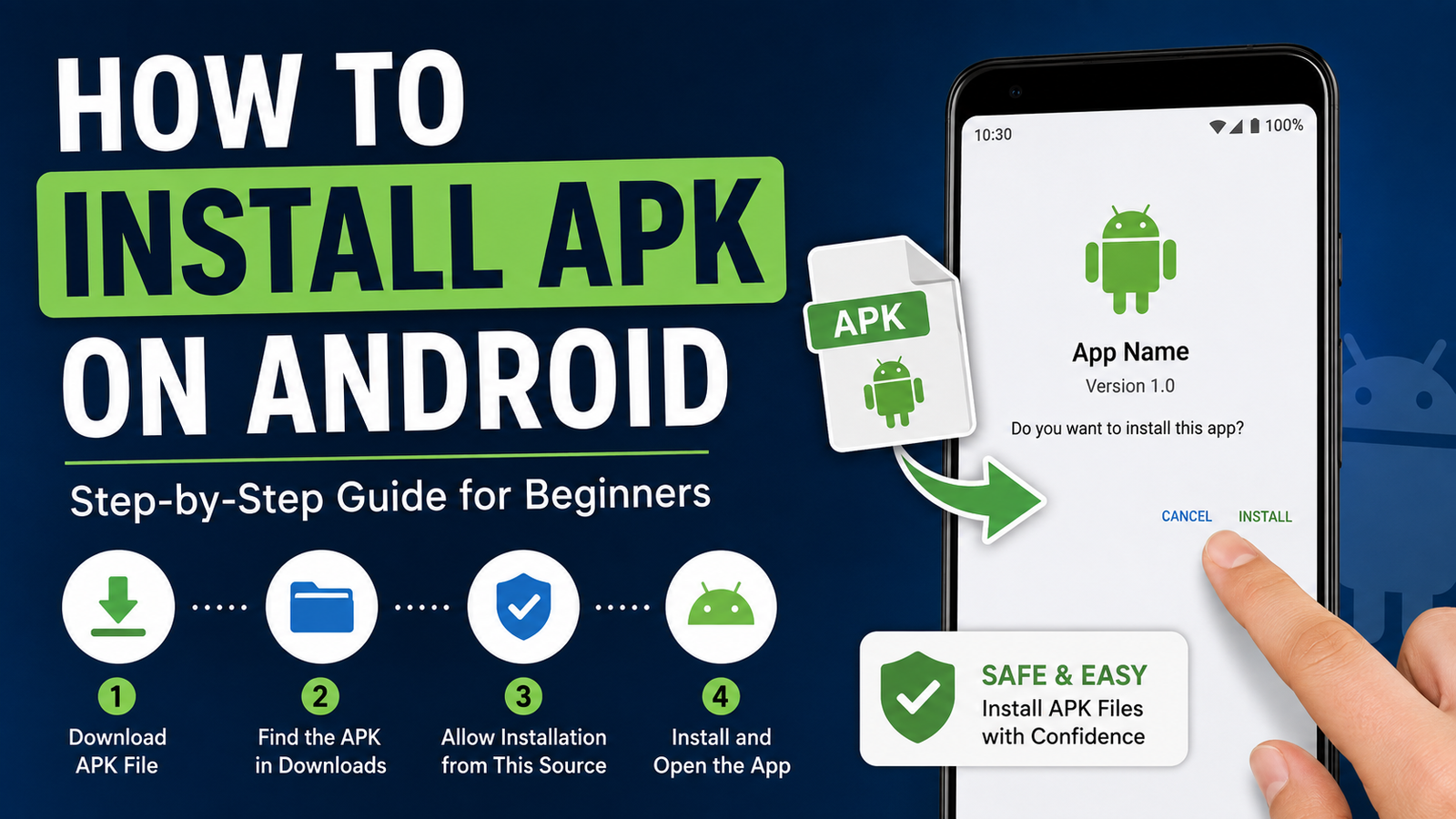
How to Install APK on Android: A Safe and Easy Step-by-Step Guide
Installing an APK on Android can be useful when an app is unavailable on Google Play, you need an older version of an application, or you have received an APK file from a trusted developer. However, the process is slightly different from installing an app directly through the Play Store.
If you are searching for how to install APK on Android, the good news is that the process is relatively simple. You mainly need a compatible APK file, a way to open it, and permission to install apps from the source where the file came from.
In this guide, we’ll explain everything step by step. You’ll learn how to prepare your Android phone, enable the necessary permission, install an APK file, troubleshoot common installation problems, and stay safer when installing apps outside Google Play.
What Is an APK File?
APK stands for Android Package Kit. It is the file format Android uses to distribute and install applications.
An APK contains the components required to install an Android app on a device. When you download an APK manually, you are essentially obtaining an app installation package instead of downloading the app through Google Play.
APK files can be useful in several situations, including:
- Installing an app that is unavailable in your region
- Installing an older version of an application
- Testing an app before its official release
- Installing apps from independent developers
- Restoring an app when the Play Store version is unavailable
- Installing software on devices without Google Play
Despite their usefulness, APK files should be treated carefully. Installing an APK from an unknown or suspicious website can expose your device to unwanted software.
Before You Install an APK on Android
Before learning how to install APK on Android, there are a few things you should check.
First, make sure the APK comes from a source you trust. Avoid downloading random files from websites that use aggressive pop-ups, misleading download buttons, or modified APKs with unclear origins.
You should also check whether the APK is compatible with your Android version and device architecture.
For example, some applications may require a newer Android version than the one installed on your phone. Others may be designed for specific processor architectures.
It is also a good idea to keep some free storage available. Although an APK may appear small, the installed application can require considerably more space.
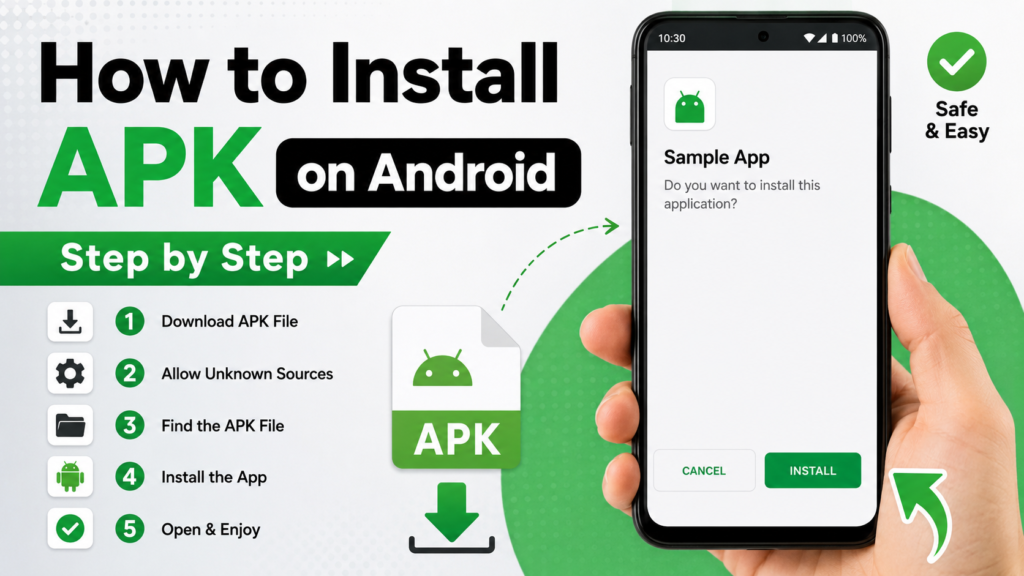
How to Install APK on Android Step by Step
The exact appearance of Android settings can vary between Samsung, Google Pixel, Xiaomi, OnePlus, Motorola, and other manufacturers. However, the general process is similar.
Step 1: Download the APK File
Start by downloading the APK file from a source you trust.
If you are downloading it through your phone’s browser, the file will normally be saved in the Downloads folder.
Before opening the file, check its name and extension. A normal APK file usually ends with:
.apk
Be cautious if a website claims to provide an APK but gives you an unrelated file type instead.
Step 2: Find the Downloaded APK
Open your Android device’s Files, File Manager, or My Files application.
Navigate to:
Downloads → APK file
Tap the APK file to begin the installation process.
If you cannot find the file, use the search feature inside your file manager and search for .apk.
Step 3: Allow Installation From the Source
Modern Android versions generally restrict installations from sources other than Google Play by default.
When you try to open an APK, Android may display a message saying that your phone is not allowed to install unknown apps from that particular source.
For example, if you downloaded the APK through Chrome, Android may ask you to allow Chrome to install apps from that source.
Open the relevant settings and enable the permission.
Depending on your Android version and device manufacturer, you may see wording such as:
Allow from this source
The important thing to understand is that this permission is usually associated with the specific app you are using to open the APK.
Step 4: Return to the APK
After allowing the required permission, go back to your Downloads folder.
Tap the APK file again.
Android should now display the installation screen.
Review the application information and confirm that you want to install it.
Step 5: Wait for the Installation to Finish
The installation normally takes only a few moments.
Once Android finishes installing the application, you may see options such as:
- Open
- Done
Select Open if you want to launch the application immediately.
If you select Done, you can find the newly installed app in your app drawer like any other application.
Quick Overview of the APK Installation Process
| Step | What to Do |
|---|---|
| 1 | Download a trusted APK |
| 2 | Open your file manager |
| 3 | Find the APK in Downloads |
| 4 | Allow installation from the relevant source |
| 5 | Tap the APK again |
| 6 | Select Install |
| 7 | Wait for installation |
| 8 | Open the app |
The entire process is usually straightforward once the correct permission has been enabled.
How to Install APK on Samsung Android Phones
Samsung devices use a slightly different interface, but the basic method remains similar.
After downloading the APK, open My Files and locate the file in your Downloads folder.
Tap the APK. If Samsung prevents the installation, Android may provide a shortcut to the relevant permission.
You can also check the settings for the application that is opening the APK and look for the option allowing installation from that source.
Once permission is enabled, return to the APK and tap it again.
Follow the on-screen instructions to complete the installation.
How to Install APK on Google Pixel and Stock Android
Google Pixel phones generally provide a clean Android interface.
Download the APK and open the Files app. Find the APK under Downloads and tap it.
If installation from the current source is blocked, Android will ask you to change the appropriate permission.
Allow the source, return to the APK, and continue with the installation.
The names of individual settings can change slightly between Android releases, so don’t worry if your screen looks different from an online tutorial.
Why Android Blocks APK Installation
Android restricts installations from unknown sources for an important reason: security.
Google Play provides a controlled distribution system where applications can be reviewed and scanned. When you manually How to Install APK on Android has less information about where that file came from.
Blocking installation by default helps prevent users from accidentally installing malicious software.
An APK itself is not automatically dangerous. The main concern is where the APK came from and whether the file has been modified.
That is why you should never disable Android’s security features without understanding what you are doing.
Is It Safe to Install APK Files?
Installing an APK can be safe, but the source matters enormously.
A legitimate APK obtained directly from a developer or another reputable source is very different from a modified APK downloaded from an unknown website.
Before installing an APK, consider the following:
- Download from a reputable source.
- Avoid suspicious pop-ups and fake download buttons.
- Check the application’s developer information.
- Make sure the APK is intended for your Android version.
- Keep Google Play Protect enabled when possible.
- Avoid modified applications from sources you do not trust.
- Be suspicious of APKs requesting excessive permissions.
- Don’t install an APK simply because a website promises premium features for free.
If Android displays a security warning, don’t automatically ignore it. Take a moment to understand why the warning appeared.
What to Do If Android Says “App Not Installed”
One of the most common problems users encounter is the App not installed message.
There are several possible causes.
The APK Is Incompatible
The application may require a different Android version or processor architecture.
Check the APK’s compatibility requirements before trying again.
There Isn’t Enough Storage
Insufficient storage can prevent an application from installing.
Delete unnecessary files or applications and make sure you have enough free space.
Another Version of the App Is Already Installed
Android may refuse to How to Install APK on Android if its package conflicts with an existing installation.
This can happen when the APK uses a different signing key from the version already installed on your phone.
If appropriate, uninstalling the existing version may resolve the issue. However, remember that removing an application can also remove its locally stored data.
The APK File Is Damaged
If the download was interrupted or the file was corrupted, Android may not be able to install it.
Download the file again from a trustworthy source.
APK vs Google Play Installation
There is an important difference between installing an app manually and installing it through Google Play.
| Feature | APK Installation | Google Play |
|---|---|---|
| Installation method | Manual | Automatic |
| Requires APK file | Yes | No |
| Source verification | Depends on source | Google Play ecosystem |
| Updates | Often manual | Usually automatic |
| Regional availability | May bypass availability limitations | Depends on region |
| User involvement | Higher | Lower |
| Security considerations | Requires extra caution | More controlled |
Google Play is generally the easiest option for everyday app installations. APK installation is more useful when you have a specific reason to install an app manually.
Can You Delete the APK After Installation?
Yes. In most cases, you can delete the APK file after the application has been successfully installed.
The APK acts as the installation package. Once Android has installed the application, the original APK is normally no longer required for the app to run.
Deleting it can also free a small amount of storage.
However, you may want to keep the file if you expect to reinstall the same version later and cannot easily download it again.
Can You Reinstall an App Using the Same APK?
In many cases, yes.
If you still have the original APK and it is compatible with your device, you may be able to use it to reinstall the application.
However, Android can reject an APK if there is a signing conflict, incompatible version, or other package issue.
If you uninstall the current version before reinstalling, remember that the application’s local data may be removed.
APK Installation on Newer Android Versions
Android has continued to improve its security controls over time.
On newer Android releases, the permission for installing unknown applications is typically handled on a per-source basis.
That means you may allow one application, such as your browser or file manager, to install APKs without giving every application on your phone unrestricted installation access.
This approach gives users more control over where applications can be installed from.
If you cannot find an old tutorial’s exact setting, search your phone’s Settings app for terms such as Install unknown apps or unknown apps.
Common Mistakes to Avoid When Installing APKs
Many APK installation problems happen because of simple mistakes.
Avoid these common issues:
- Downloading the wrong file
- Using a fake download button
- Installing an incompatible APK
- Ignoring Android security warnings
- Downloading modified apps from unknown sources
- Forgetting that some apps require additional files
- Installing an APK without checking available storage
- Removing an existing app without backing up important data
Taking a few extra minutes to verify the file can save you from installation problems later.
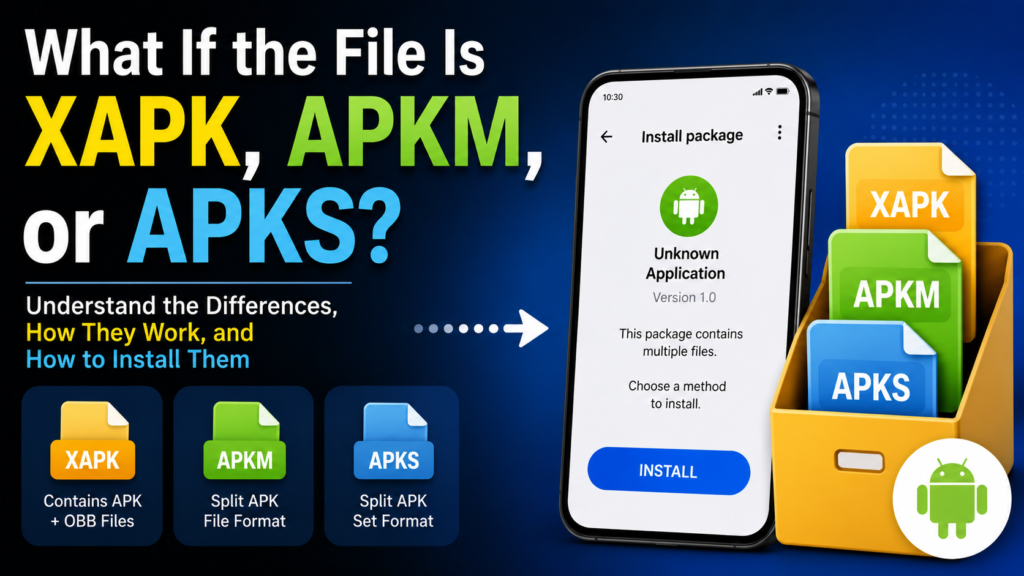
What If the File Is XAPK, APKM, or APKS?
Not every Android application package uses the standard .apk extension.
You may encounter formats such as XAPK, APKM, or APKS.
These packages can contain multiple APK components or additional application data. Because of that, they may not install simply by tapping the file like a standard APK.
If you have one of these formats, you’ll generally need a compatible installer or the appropriate installation method for that package type.
This is one reason it is important to identify the file format before troubleshooting an installation problem.
Frequently Asked Questions
Do I need to enable unknown apps to install an APK?
Usually, yes. Android may require you to allow the specific application opening the APK to install apps from that source. You generally do not need to enable this permission for every application.
Can I install an APK without Google Play?
Yes. APK files can be installed manually without using Google Play, provided the Android device allows installation from the source and the APK is compatible.
Why won’t my APK install?
Common causes include an incompatible Android version, insufficient storage, a corrupted APK, an existing conflicting app, or an incompatible package.
Is installing an APK illegal?
The APK file format itself is not illegal. However, the legality of downloading or distributing a particular application depends on copyright, licensing, and other applicable laws. Use legitimate sources and respect the developer’s distribution rights.
Should I delete an APK after installing it?
You can usually delete the APK after successful installation because Android does not normally need the original installation file to run the app. Keeping it can be useful if you want to reinstall the same version later.
Can APK files contain viruses?
An APK can contain malicious code if it has been created or modified by an untrusted party. This is why downloading APKs from reputable sources and paying attention to Android’s security warnings is important.
Final Thoughts
Learning how to install APK on Android is relatively easy once you understand how Android handles installations from outside Google Play.
The basic process is simple: download a compatible APK from a trustworthy source, locate the file, allow installation from the relevant source when Android asks, and follow the installation prompts.
Also Read: How APK Files Work on Android: A Complete Guide for Beginners














1 comment